A long document comes back from review with dozens of comments. You remember one — a remark about file naming — but not where it sits, and reading the list entry by entry is the slow route. The panel has a search field, and it is worth knowing what that field reads.
PDF comments are annotations: objects attached to a page and stored beside it, not inside the page text. So they can be listed, counted, and searched as their own layer, and a search across the page will never turn one up. This guide covers that layer in one file — not filtering to one reviewer, not reading every comment in order, and not extracting comments into another document.
Why Ctrl+F Does Not Find Your Comments
Type a word you can see in a comment into Ctrl+F and the viewer often reports nothing while the comment stays on screen. Nothing is broken: the search bar reads page content, the words live in the annotation.
- Page search reads the document body. It finds a sentence on the page and skips the note pinned beside it.
- Comment search reads annotation text. It finds what someone typed, even when those words appear nowhere on the page.
Searching is read-only either way: it changes what you see, not what the file holds.
How to Search Comments in a PDF
The steps use the desktop app we build, PDF Agile. Any editor with a comment list has the same three parts — a panel, a count, a search field — so the sequence carries over.
Step 1: Open the File and Switch to the Comment Tab
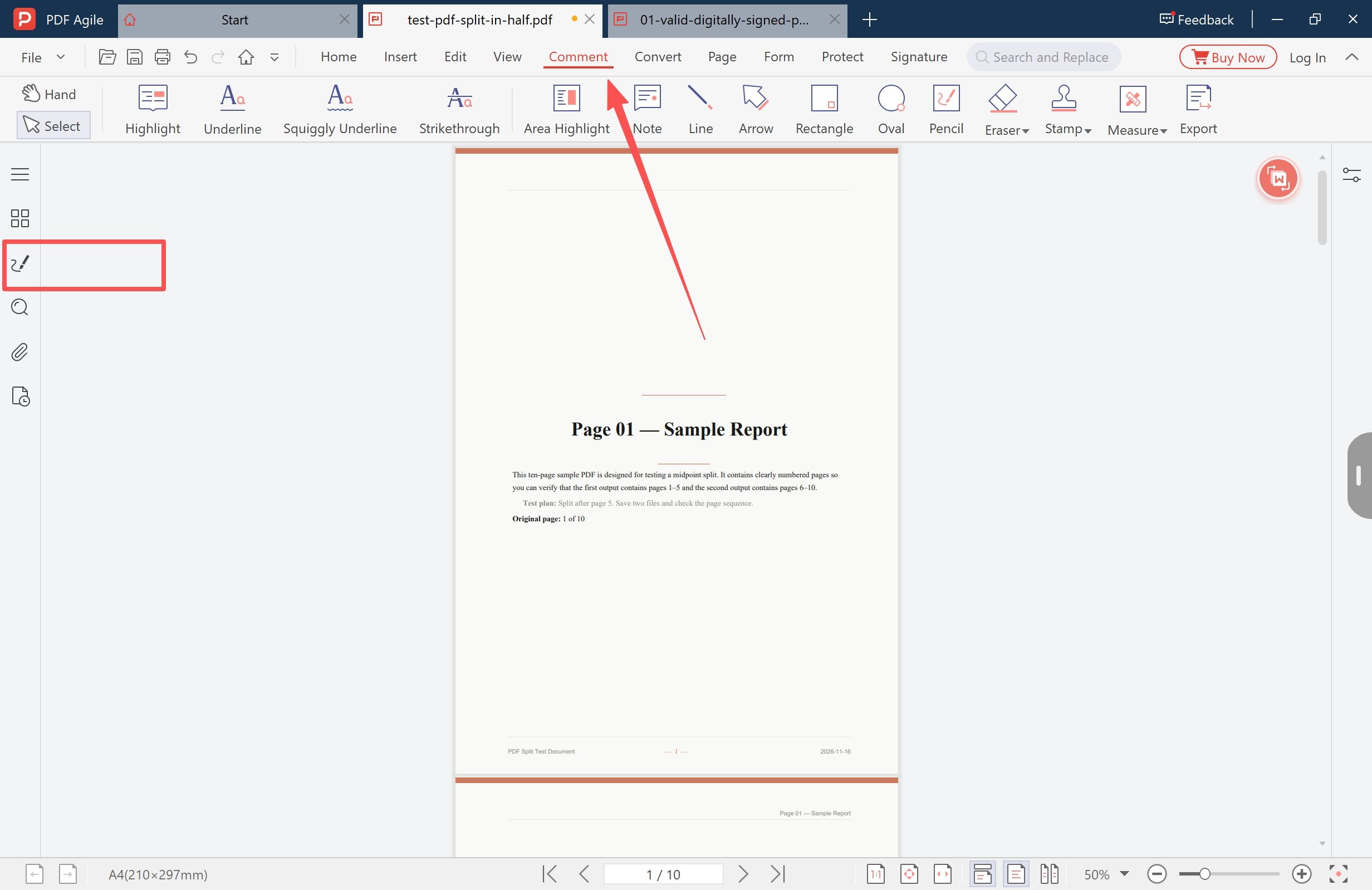
Open the PDF, then click Comment in the tab bar (File, Home, Insert, Edit, View, Comment, Convert, Page, Form, Protect, Signature). The tab holds the annotation tools and shows whether the marks are live annotations or part of the page.
Step 2: Open the Panel and Read Both Numbers
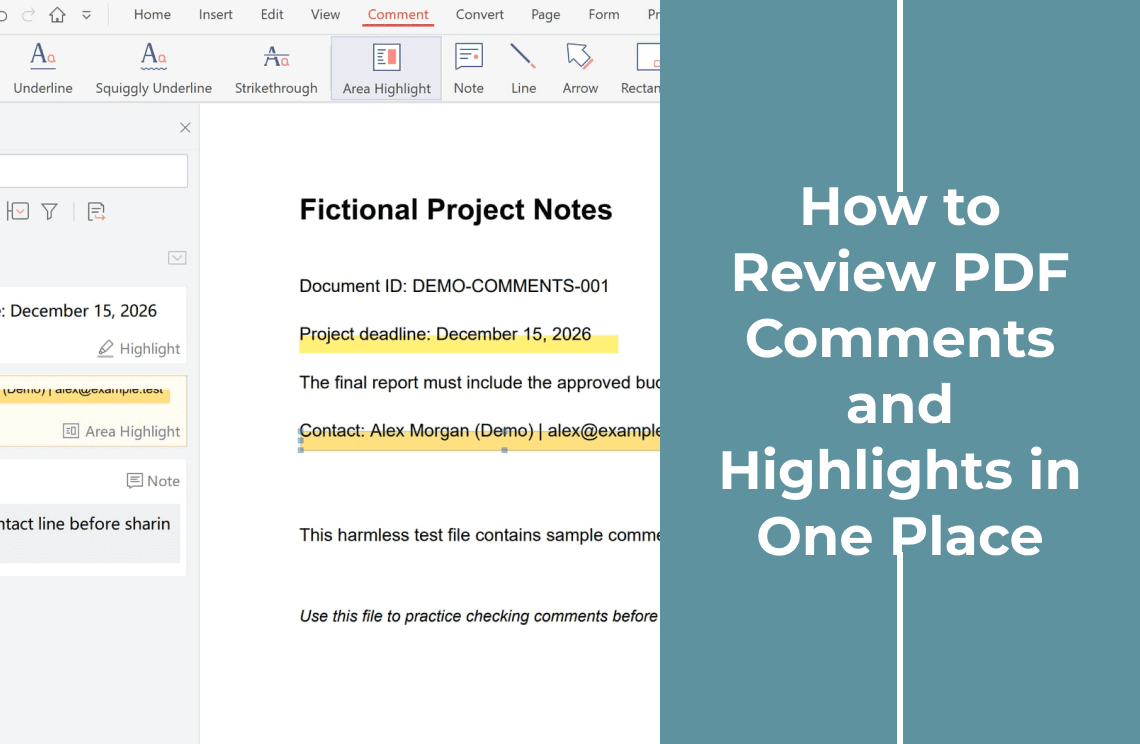
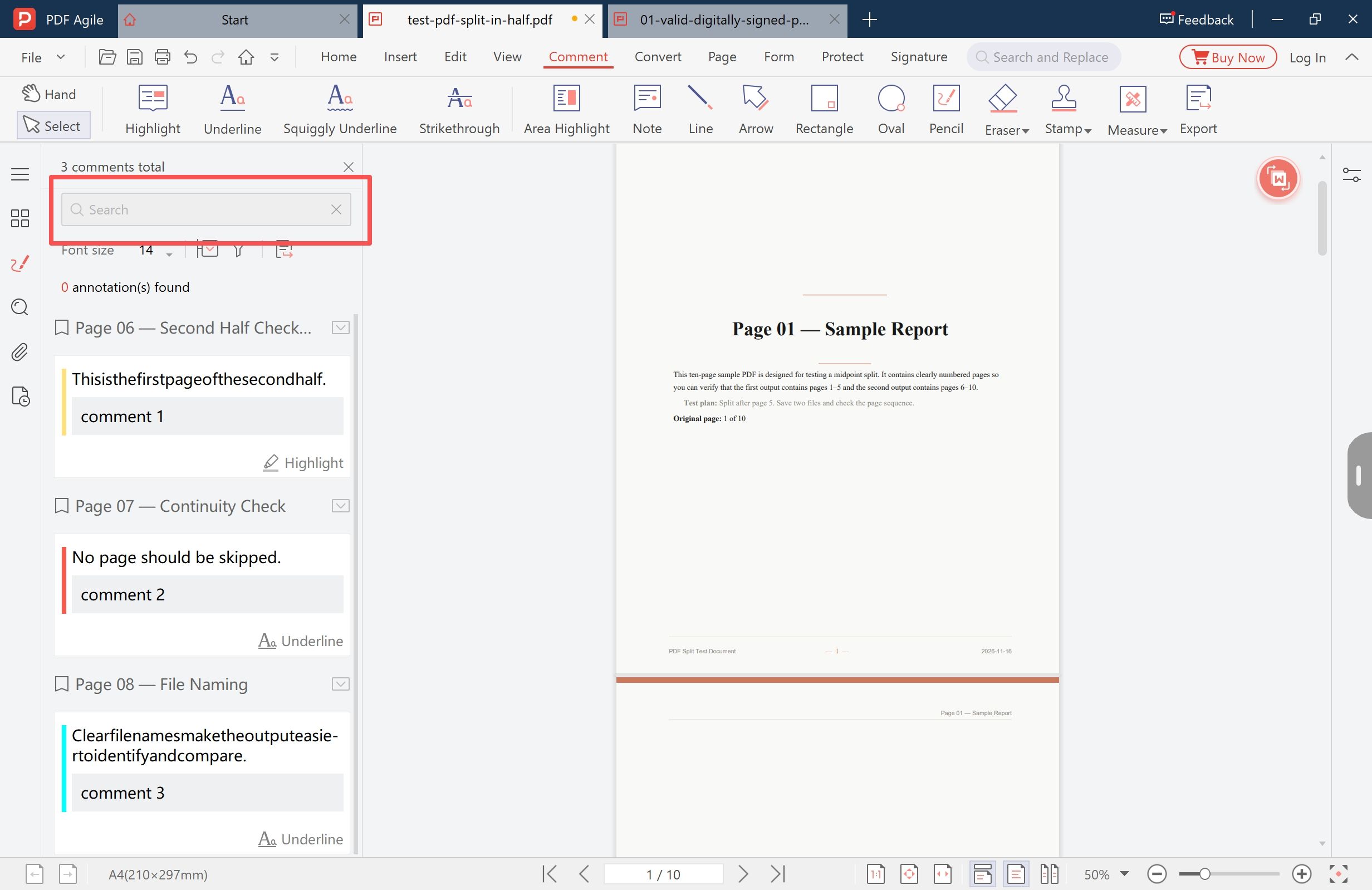
Click the comment icon in the left sidebar — the speech bubble with a pencil. The header carries the total (3 comments total here), then the search field, a reply formatting row, a results line, and the list grouped by page.
The two numbers answer different questions. The header counts annotations; the results line counts what the search found, so with the field empty it reads 0 annotation(s) found while all three comments stay listed.
Step 3: Search for Words Someone Typed
Type the wording you remember from the comment. The field reads comment text, so try words the reviewer wrote — "continuity", "sign-off", a name they addressed — not a phrase you remember as highlighted.
- Marks with no comment body (a bare highlight, an arrow, a stamp) store no text, so no search matches them; the list still shows them by page and type.
- Each hit keeps its page group above it, so the result names the page before you open anything.
- A highlighted phrase with no note typed is page text, so page search finds it; how to search for a word or phrase in a PDF covers that.
Step 4: Open the Entry and Read It in Place
Entries show the marked words, the comment body beneath, and the annotation type at the bottom of the card — Highlight, Underline, Note. Select one and the view moves to that annotation with the mark selected, so you check a remark against the paragraph it was written about.
When the comment asks for a change in the document, how to edit a PDF maps that surface; the PDF annotator page describes the tools that create the marks.
When the Search Returns Nothing
Four causes cover most empty results, and only one means the comment is gone.
- Flattened annotations. Printing a PDF with comments into a new file, or converting it, can burn the marks into the page: colour with no annotation behind it. Go back to the copy with live comments.
- Ink instead of annotations. In a scan the marks are pixels; there is no comment object and no comment text.
- A comment with no text. An area highlight or a shape marks a region; a reviewer who typed nothing leaves nothing to match.
- The wrong copy. Comments travel inside the file, so a clean version carries none.
Search, Filter, Review, or Extract: Which One You Need
- One remark by its wording: search the comment list.
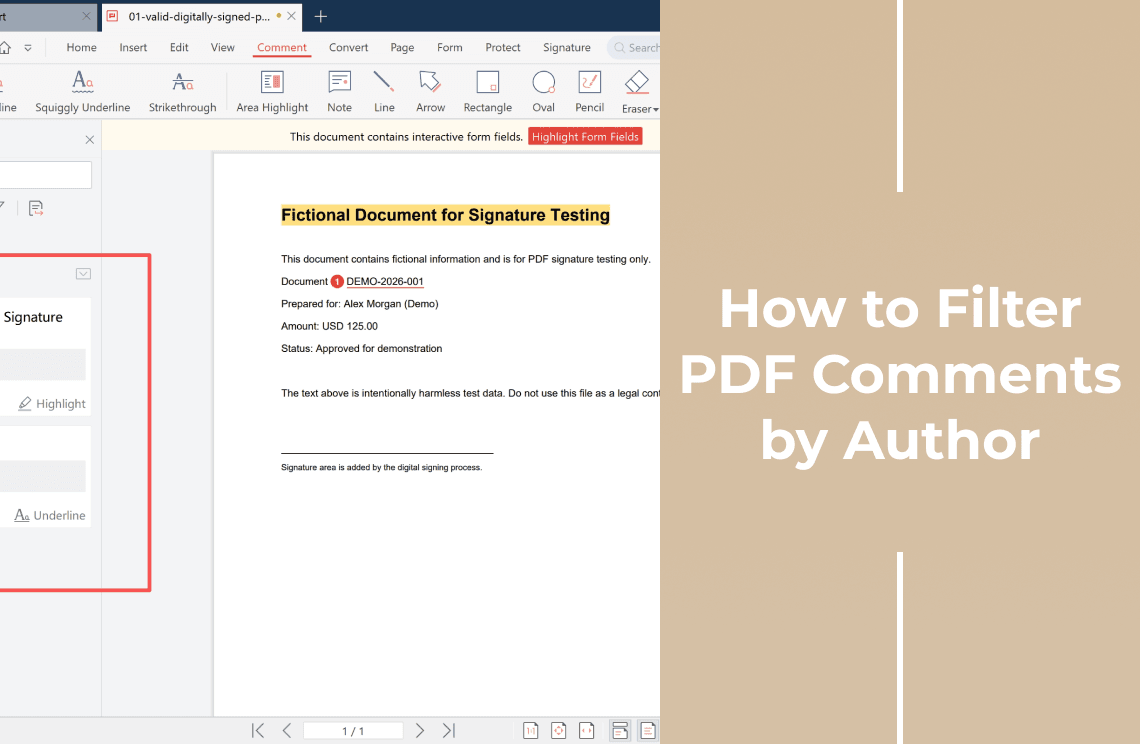
- One reviewer out of five: filter PDF comments by author.
- Everything in order: review every comment in one list.
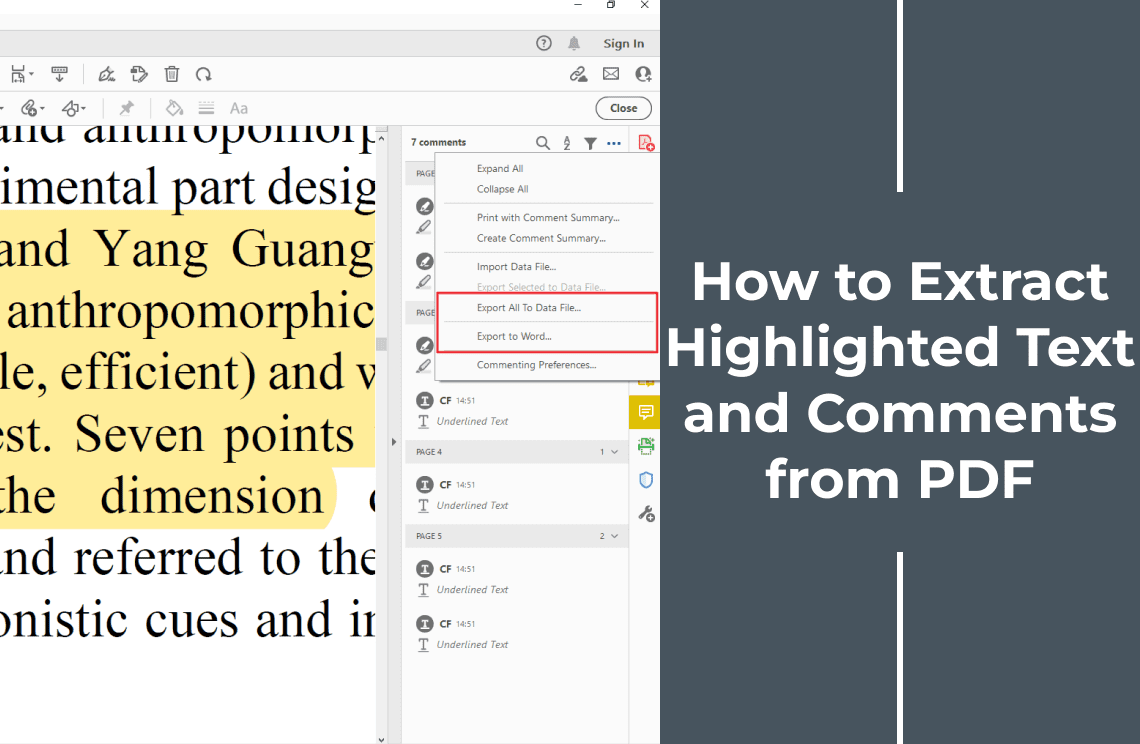
- Comments as text outside the file: extract highlighted text and comments.
Where the Panel Sits, Compared With Adobe Acrobat
Both applications search comments; they put the controls in different corners, which matters when you follow instructions written for the other one.
- Position. Acrobat lists comments in the right pane; this app opens the panel in the left sidebar.
- Search. Acrobat puts a magnifying-glass search inside the pane; here the field sits under the header count.
- Narrowing. Adobe's help documents filtering by type, reviewer, status, and checked state; this app's annotation documentation describes filtering by type or author.
We build PDF Agile, so weigh that where this comparison touches our own product. Adobe Acrobat is a trademark of Adobe; the Acrobat details come from Adobe's help page on viewing comments.
One Check Worth Running Before You Share
Search is the cheapest privacy pass on a marked-up file: type a client's name or a project code and you learn in seconds whether a remark about them is inside. Search only shows; removing is separate, covered in how to remove comments from PDFs.
FAQ
Does searching comments change the PDF?
No. A search is a view state: it changes which entries the panel lists, and the file you send afterwards holds the same annotations.
Why does Ctrl+F find nothing when a comment is on screen?
Ctrl+F reads page content; comment text sits in the annotation layer. Use the panel's field for anything a reviewer typed.
Can I search comments in a scanned PDF?
Only real annotations. A pen mark scanned with the page is an image with no text; annotations added later in a PDF editor are searchable.
Can I search comments across several PDFs at once?
Not from the panel, which works one file at a time. For one search across a set, export the comments and search that file.
Why does the results line read 0 when I can see comments?
It counts search matches, not the document. The total sits in the header; the list keeps showing every comment until you type.
Searching a comment list takes seconds when the panel sits beside the page, and turns into a scroll when a viewer hides it. If marked-up PDFs are part of your week, the desktop app is on the download page; more walkthroughs sit in How-to & Tips. *Steps and screenshots reflect the desktop app as of November 2026; menus and panel labels may change in later versions.*