


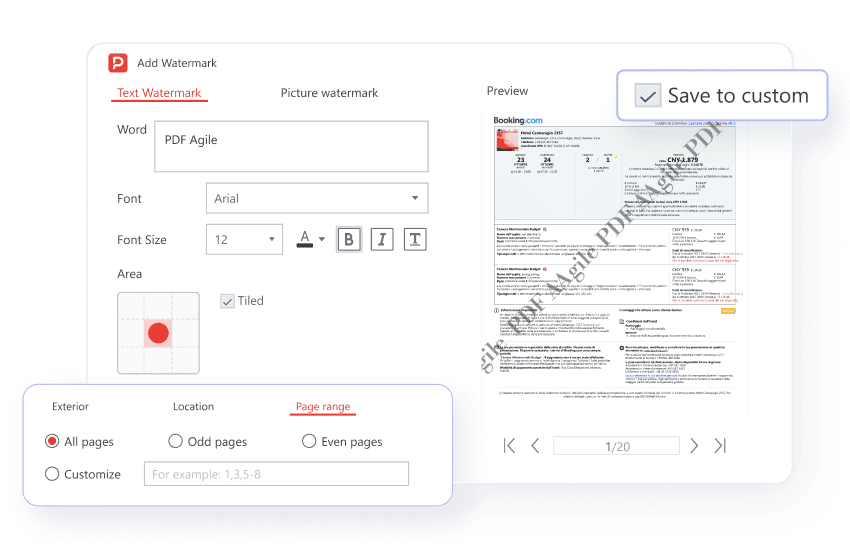
Add text-based watermarks with full control over font, size, color, opacity, and rotation. You can also save your frequently used watermark configurations to quickly apply the same watermark to multiple documents in the future.

Add, Remove, & Upgrade Watermarks Effortlessly
Take complete control of your PDF watermarks with PDF Agile. Effortlessly add branding, protect your content, or remove unwanted watermarks with intuitive tools designed for speed and efficiency.
Available on:



Add watermarks: flexible range options
Apply text or image watermarks to all pages, specific ranges, or even just odd or even pages for targeted application. Position watermarks using predefined options (top-left, bottom-center, etc.) or fine-tune their placement with custom horizontal and vertical offsets.
Remove watermarks: one-click cleanup
Auto-recognize and remove distracting watermarks, logos or other branding assets in batch from multiple PDF pages with a single click. The preview window enables efficient adjustments, preventing unnecessary back-and-forth attempts.

Upgrade watermarks: adapt to future changes
Easily modify and update existing watermarks in your PDFs without the need for complete removal and re-application. For instance, you can replace existing image watermarks with new logos or graphics to keep your branding current.

Customize watermarks like modifying texts

Image-based watermark
Easily upload your logo or any image to use as a watermark. Adjust its size, opacity, and position just like precise X/Y coordinates.

Manage irregular watermarks
Automatically detect recurring watermarks across pages, even irregular ones, for easy management and removal.

Remove Watermark Background
Remove watermark backgrounds using image tools or erase and cleanup features for a clean document.

Secure watermarks with digital signing
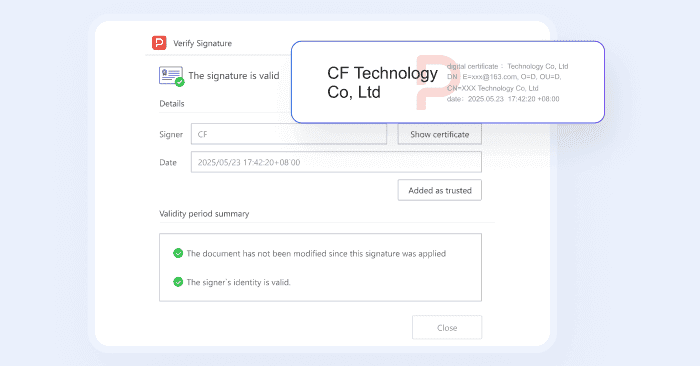
Create your own watermarks by applying digital signatures with certificates. This prevents unauthorized removal or alteration, protecting your document's integrity.
Why managing watermarks in PDF is absolutely necessary ?

Fortifying intellectual property and content security
Deterring unauthorized use, reproduction, and distribution: Watermarks visually deter unauthorized use and make intellectual property theft evident.
Establishing and proving ownership and copyright: Watermarks provide undeniable proof of ownership, strengthening copyright claims in legal disputes.
Combating fraud, tampering, and counterfeiting: Watermarks ensure document integrity by detecting tampering, preventing forgery, and deterring insider threats through traceability.

Ensuring regulatory compliance and legal accountability
Meeting global data protection standards: Watermarking aids compliance with global data protection standards (e.g., GDPR, HIPAA) by enhancing traceability and accountability.
Providing legal evidence in disputes: Watermarks act as tangible legal evidence of ownership, simplifying liability in document misuse or leak disputes.
How to add watermarks to PDF using PDF Agile ?
01
Open the PDF to which you want to add a watermark.
02
Navigate to Insert or Edit tab in the main interface, and click Watermark.
03
In the Add Watermark dialog, you can choose to add a text watermark or an image watermark, then customize it to fit your needs.
04
Click OK to apply the watermark.
Join millions who trust PDF Agile—try now to edit, convert, and manage PDFs with efficiency and ease.
Trusted by







FAQs about PDF Watermark Removal
How to quickly remove existing watermarks?
Can PDF Agile remove both text-based and image-based watermarks?
How do I add a non-removable watermark?
What if the watermark is very complex or integrated into the document design?
Is removing watermarks illegal?

Accelerate your PDF workflow like never before
A complete PDF solution for all PDF needs