You can edit a PDF, but only where the file really holds text. Whether a change takes two clicks or fails depends on three things: whether the text is selectable, whether you are rewriting text or adding something new, and whether the document is protected or signed. Guides for how to edit a PDF in Adobe Acrobat skip that first check.
Check the PDF Type First
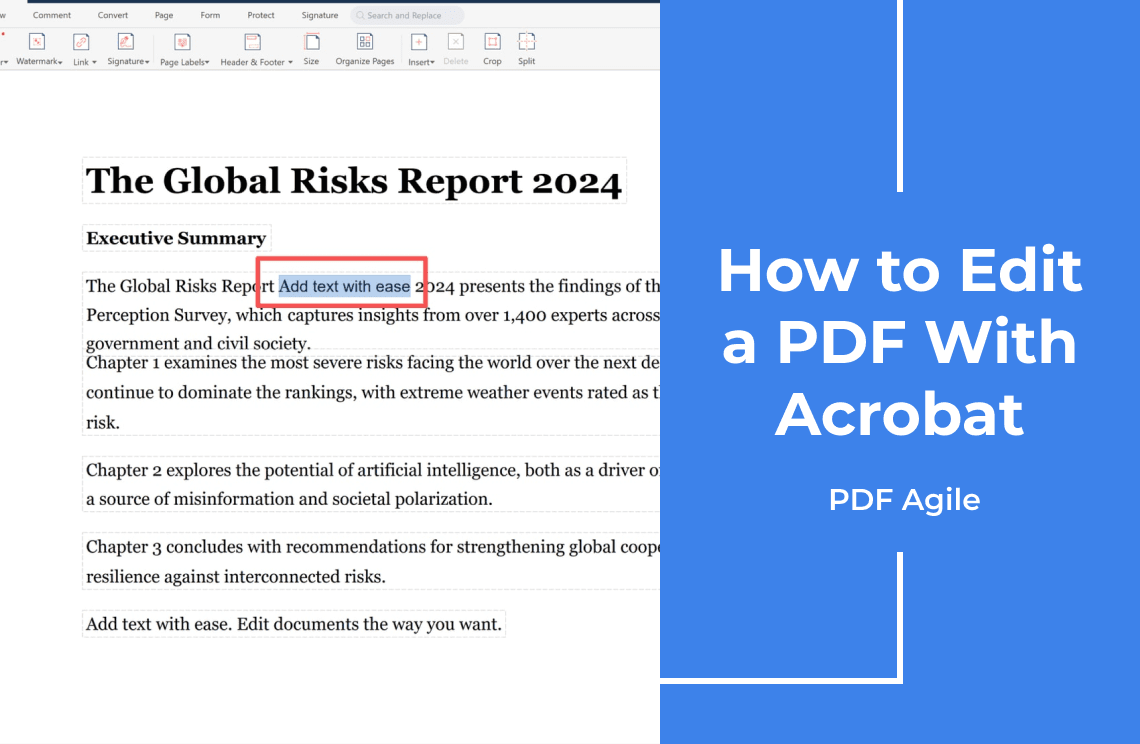
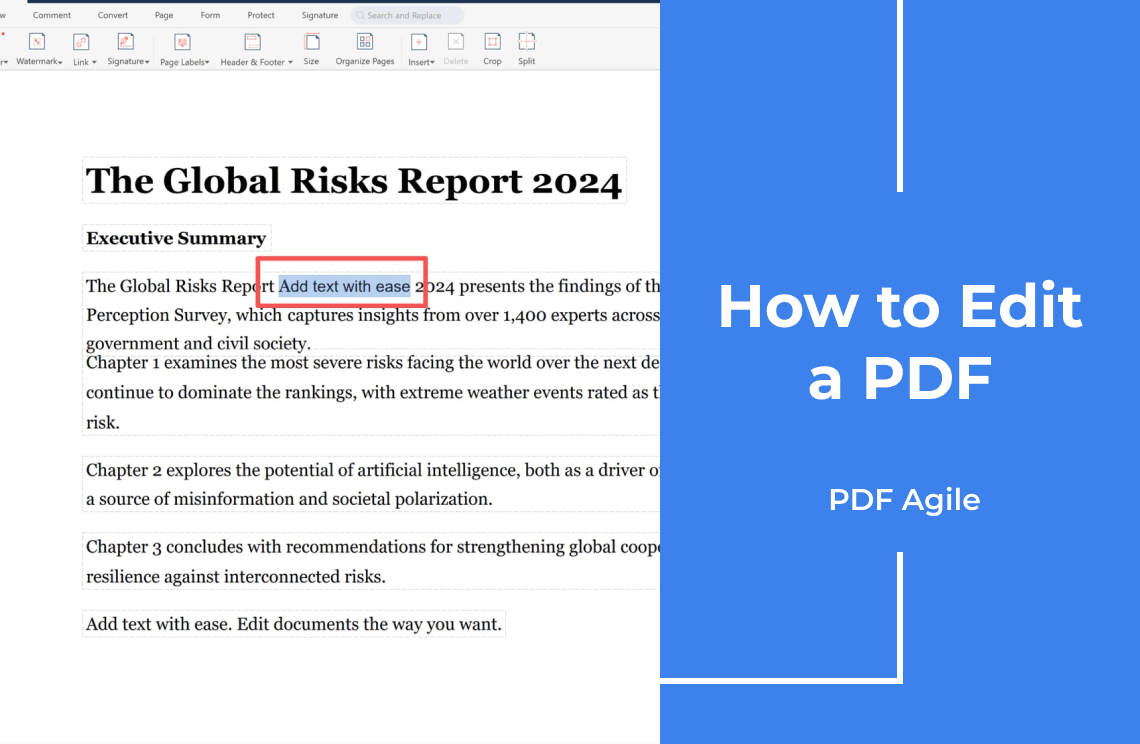
Select a sentence first.
- Selectable text: a normal PDF from Word, Excel, or a design tool. Text and images can usually be changed.
- A scan or photo: the cursor drags a rectangle instead of a sentence, because the page is an image. Nothing is editable until OCR runs.
- Password protected: the file opens, but the editing tools stay greyed out.
- Digitally signed: an edit breaks the signature. Work on an unsigned copy.
Rewriting Text and Adding Text Are Different Jobs
Editing rewrites characters already on the page. Adding places a new object on top of it.
- Fix a typo: use the edit tool and click the paragraph itself.
- Add a date or a note: use a text box tool and click empty space.
- Swap a picture: select the image, then use the image options.
How to Edit a PDF in Acrobat
The steps below use Acrobat tool names. Text and image editing needs Standard or Pro; the free Reader only views, comments, and signs.
Step 1: Open the File and Pick the Tool
Choose Edit PDF from All tools. Acrobat outlines the text blocks and images it can change; anything unoutlined belongs to an image.
Step 2: Edit Existing Text
Click inside a text block and type. The paragraph reflows, so a shorter word pulls the line up and a longer one pushes it down. The format panel changes font, size, color, and alignment.
Step 3: Add Text or Replace an Image
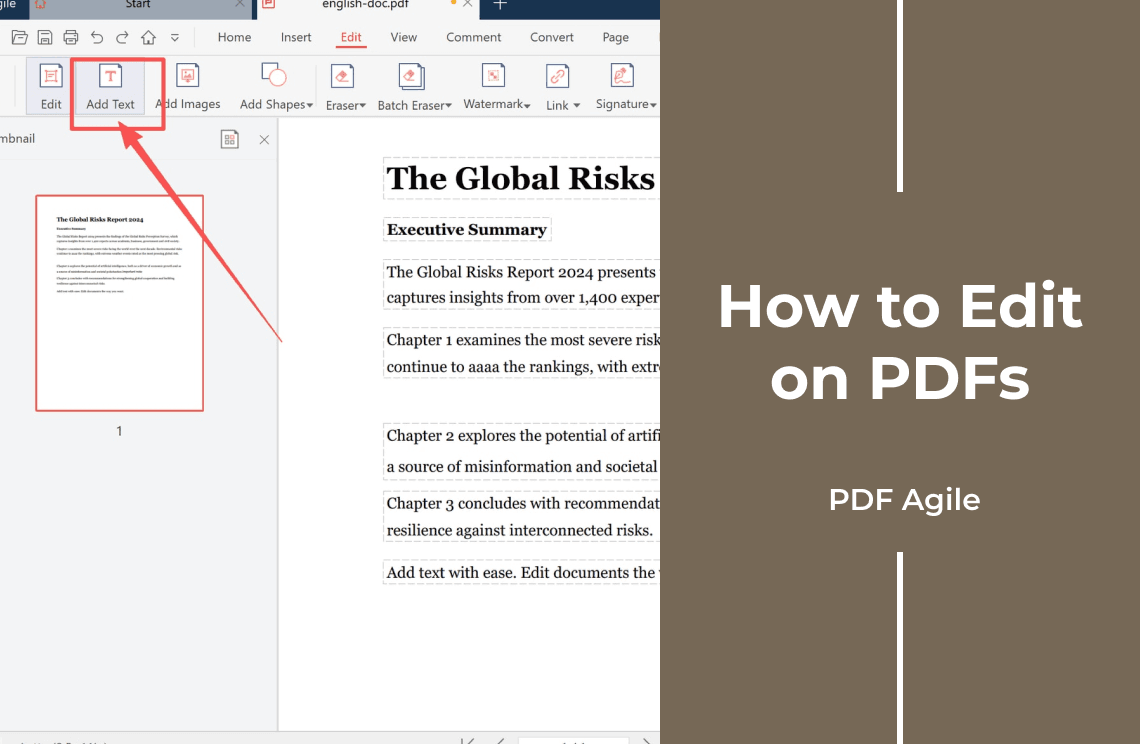
Choose Add Text, click an empty area, and type. To swap a picture, select it and use the options to replace, move, resize, or crop.
Step 4: Save a Copy, Not the Original
Use File > Save As with a new name. Keep the original until both versions are compared, because an overwritten PDF is hard to roll back.
Page Order Lives Somewhere Else
Moving a page is a structure change, not a text edit: use Organize Pages to insert, delete, rotate, reorder, extract, split, or merge files.
Scans Need OCR Before Any Edit
A scan is a photograph of a page, so nothing is clickable until a text layer exists. Run Scan & OCR, then edit as usual. Expect cleanup: OCR reads clean print well and small type, tables, columns, and handwriting less reliably. Compare numbers and line breaks against the original scan before the file goes out.
What Free Actually Covers
Free is four different things, and only the last of them costs money.
- Viewing, printing, and measuring.
- Comments: highlights, notes, strikethrough, freehand marks.
- Filling and signing, on documents built as forms.
- Rewriting text already on the page, OCR, and page restructuring: editor work.
Light web tools often add a text box or a signature for free, but they usually upload the file to a server first, which matters for contracts, IDs, and tax forms. When the files are sensitive, keep them on your own machine: PDF Agile is a Windows PDF editor that handles text editing, OCR, page work, and conversion locally.
When a PDF Will Not Edit
- Nothing highlights: the page is an image. Run OCR.
- Tools are greyed out: password or permission protection.
- Text moves and the layout breaks: the original font is missing or the text box is too small. Check File > Properties > Fonts, then pick a similar font.
- A table falls apart: OCR read columns as paragraphs. Retype it or rebuild the page.
Check the File Before You Send It
- Does search still find a word from an edited paragraph?
- Do links still open, and are images sharp at 100%?
- Is the page order right, with headers and footers intact?
FAQ
Can I edit a PDF without paying for Acrobat?
Partly. Commenting, filling, and signing work in free tools. Rewriting text, OCR, and page restructuring need an editor, which need not be a subscription.
Why does the text jump when I type?
The paragraph reflows around your edit. Shorten the sentence or reduce the font size first.
Can I edit a scanned PDF?
Only after OCR. Without a text layer nothing is clickable, and the result needs proofreading.
Do my edits change the original?
Not if you use Save As. Overwriting removes your only clean copy.
Editing a handful of pages? Keep the original, work on a copy, and confirm the text is still selectable. A desktop editor such as PDF Agile finishes that round trip offline.