


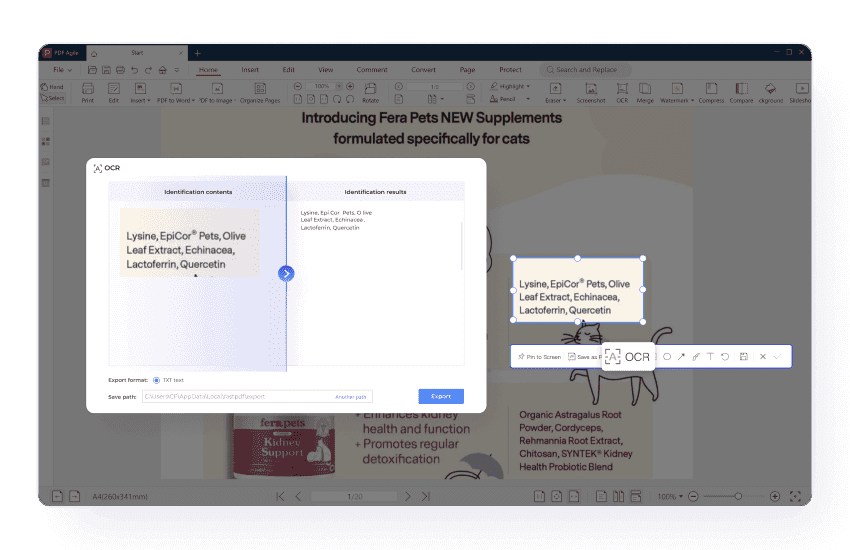
PDF Agile’s OCR functionality can recognize text within your screenshots, allowing you to edit and extract text directly from the image.

Take a Screenshot in PDF – Simple,Quick & Efficient
Capture your screen and convert it into a PDF with just a few clicks. Perfect for documentation, reports, and sharing images.
Available on:


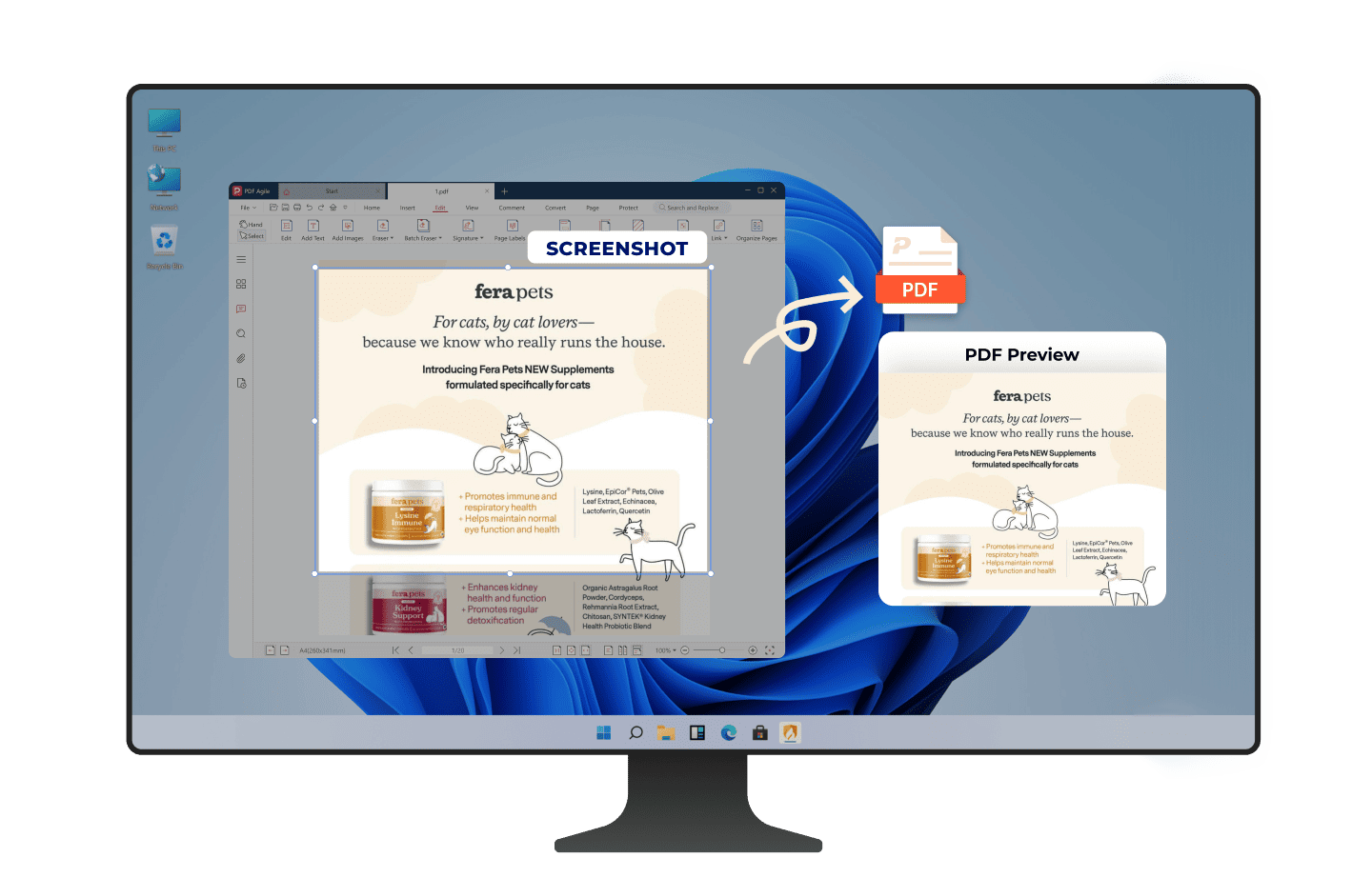
Effortless Screenshot Capture in PDF
PDF Agile makes screenshot capture fast and convenient, allowing you to grab the content you need from your screen instantly.
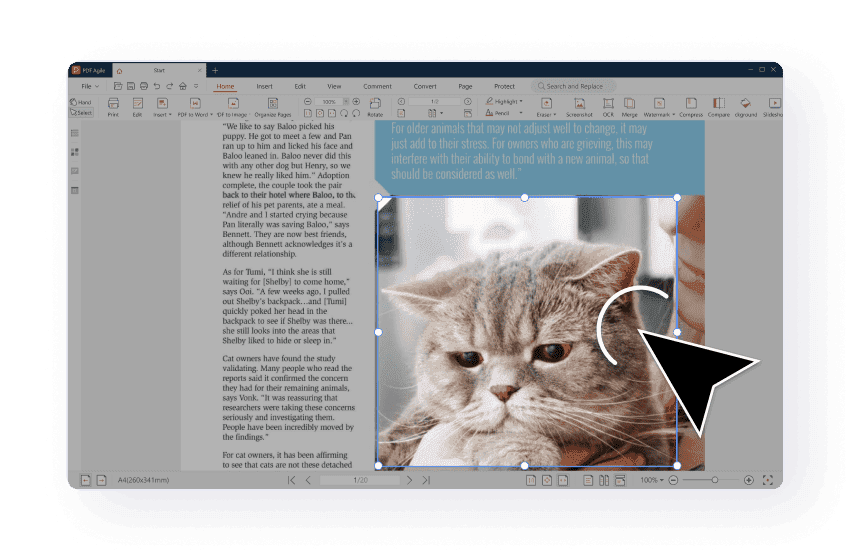
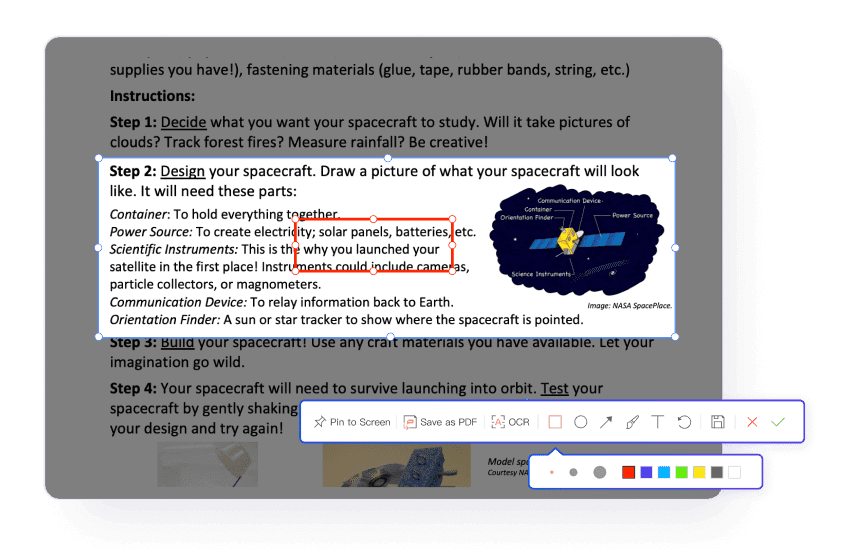
Annotate Your Screenshots Before Saving
Use annotation tools to add notes, arrows, or shapes to your screenshots. Customize the look of your screenshots before saving them as PDFs for improved clarity and communication.
Extract Text from Screenshots with OCR
Capture Full-Screen or Specific Areas
PDF Agile captures fullscreen screenshots or specific screen areas. This flexibility ensures you only capture what's needed, whether a complete view or focused region.
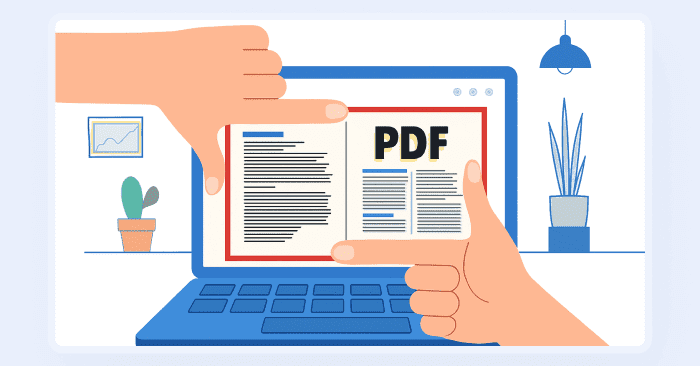
Pin to Screen for Continuous View
Pin screenshots to your screen to view at any time and compare them without reopening.
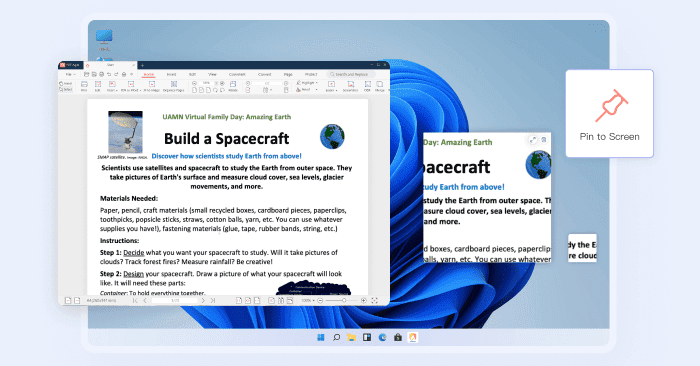
Convert Screenshot to PDF
Convert screenshots to high-quality PDFs while preserving full resolution and image clarity—so your visuals look sharp and professional on screen and in print.
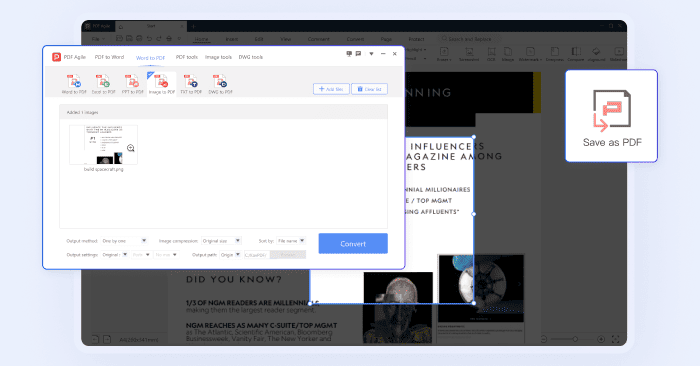
Combine Multiple Screenshots into One PDF
Combine several screenshots into a single PDF document to organize your work, improve productivity, and make sharing easier.
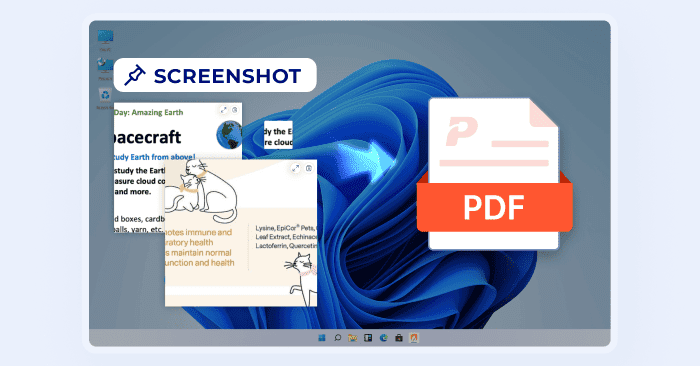
How to Take a Screenshot in PDF in 3 Easy Steps?
01
Launch PDF Agile and open a new document (File > New).
02
Enter the "Home" Tab and click the "Screenshot" button in the toolbar. Mark the area you want to capture.
03
Click the "Finish" button and the screenshot will be copied to your clipboard, ready to be pasted into any document or application.
Join millions who trust PDF Agile—try now to edit, convert, and manage PDFs with efficiency and ease.
Trusted by







FAQs About Taking Screenshots in PDF:
How do I capture a screenshot and save it as a PDF?
Will the screenshots maintain high quality after saving as PDF?
Can I add annotations to my screenshots before saving as PDF?
What is OCR, and how does it work with my screenshots?
Can I merge multiple screenshots into one PDF?

Accelerate your PDF workflow like never before
A complete PDF solution for all PDF needs