A PDF does not group its comments by person. Each annotation stores its own author value, and the comment panel builds its list from those values, so a file that passed through five reviewers arrives with five names scattered across the pages. To find every comment from one reviewer, filter that list by author instead of scrolling, then check the filtered count against the total.
This guide covers that job only: isolating one person's comments in a file whose annotations are still live. It does not cover reading everyone's comments in order, exporting them as text, or removing someone else's marks.
What Filtering by Author Actually Does
A filter is a view state, not an edit. It changes which entries the panel lists, and the file the next person opens contains exactly what it did before.
- Filtering is not hiding. Everyone who opens the PDF still sees every annotation, including the ones your filter pushed out of view.
- Filtering is not removing. A comment that must not travel with the file has to be deleted in the document; narrowing the list leaves it exactly where it was. How to remove comments from PDFs is that operation.
The author value belongs to the annotation, not to the page: a highlight carries whatever name the app had saved for its user. An annotation with no name cannot be returned by an author filter at all.
Why Searching a Name Is Not the Same as Filtering a Person
The panel's search field reads comment text, and a reviewer's name usually does not appear in the text of their own comments.
A search for "Dana" finds the comment that says "Dana, please confirm page 4" and misses the eleven comments Dana wrote. Search is for the words; the author filter is for the person. When you have both, filter first, then search inside the smaller list.
How to Filter Comments by Author
Step 1: Open the PDF and Switch to the Comment Tab
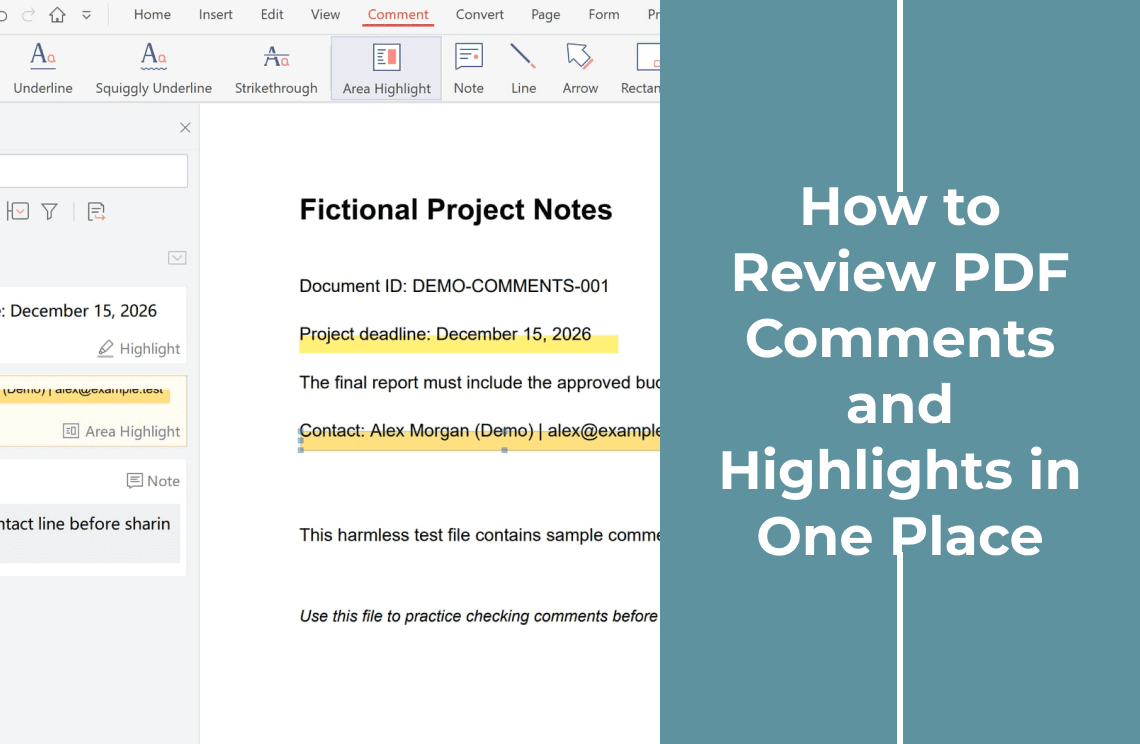
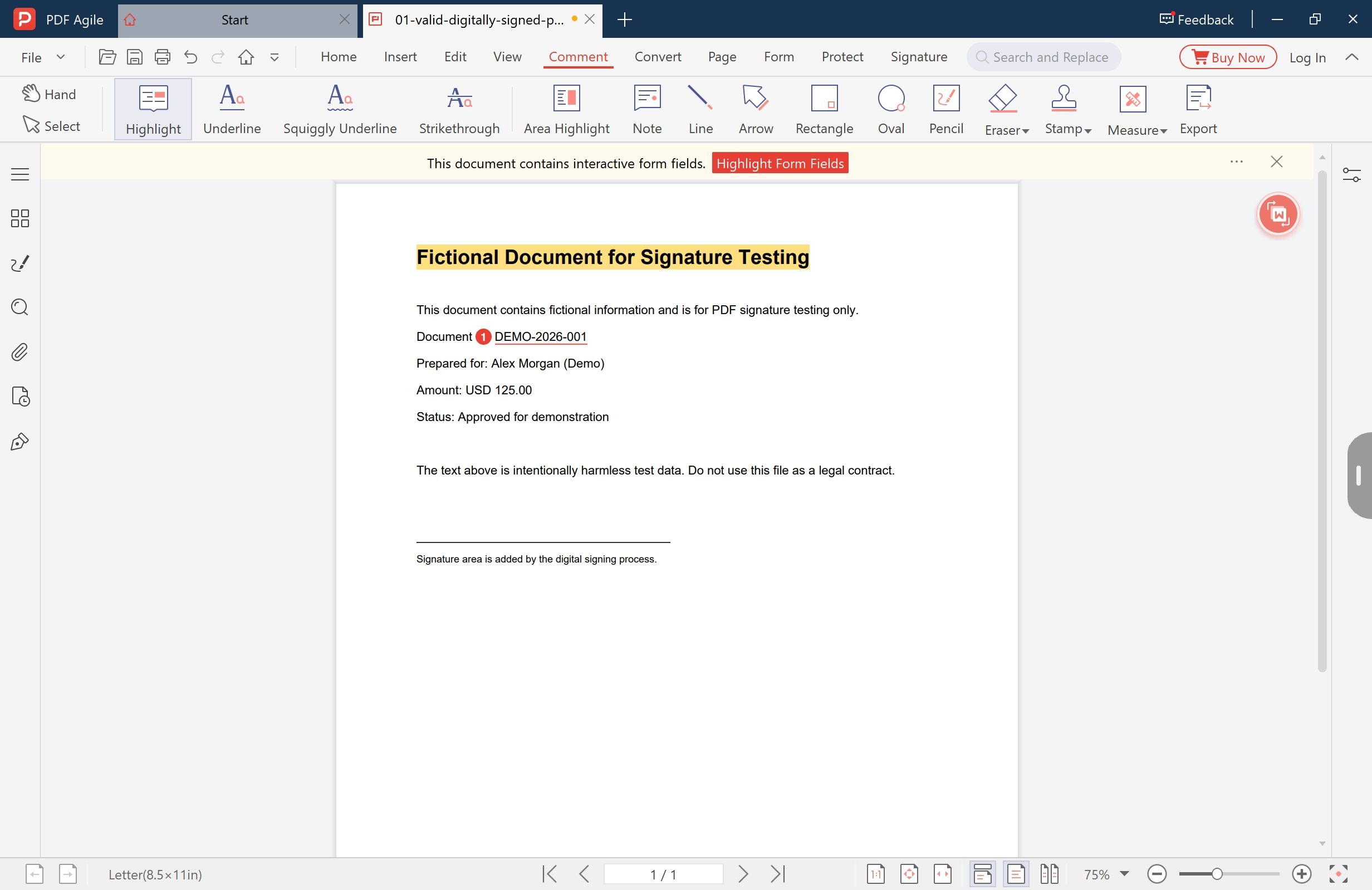
Open the document, then click the Comment tab. The ribbon holds the annotation tools, which this task does not need; the tab matters because the comment panel belongs to it, and because a look at the page tells you whether the marks are still live annotations.
Step 2: Open the Comment Panel and Note the Total
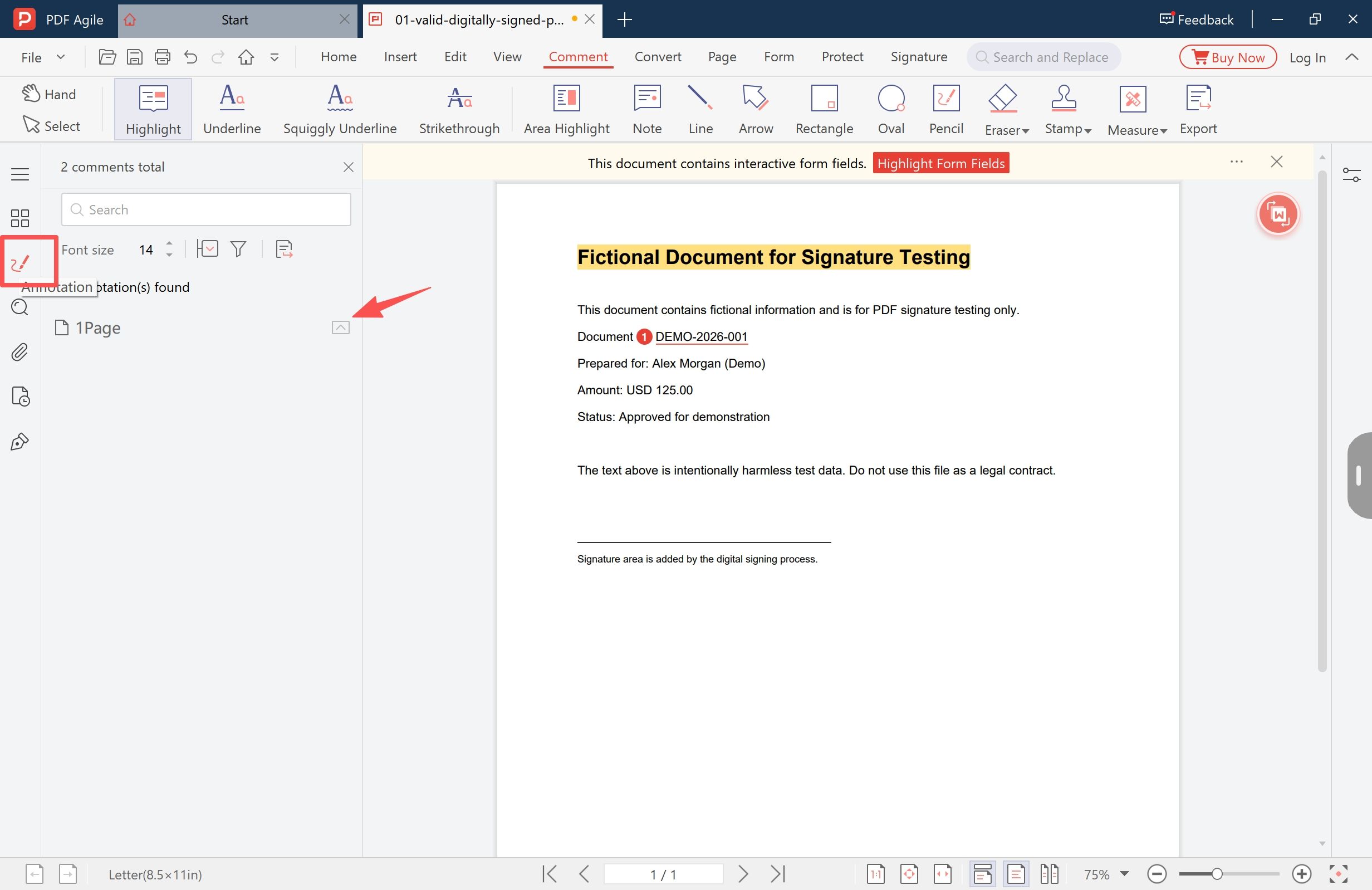
Open the left sidebar to show the comment panel. The header carries the number this task is built on: 2 comments total in the file shown here, and the count before filtering in yours. Under it sit the search field, a formatting row for replies, the filter control, and the export control.
Note the total before you touch the filter. A filtered number you cannot explain against it is the signal that something is off.
Step 3: Restrict the List to One Author
Use the filter control in the panel header and choose the author. The annotation help describes this dropdown as filtering comments by type or by author; author is the one this task needs.
Read the count again once the filter takes. A smaller number means the list is now that one person's comments. A number that did not move means nothing in this file carries that name, so check the failures below before concluding that the reviewer left nothing behind.
Step 4: Walk the Filtered List and Jump to Each Entry
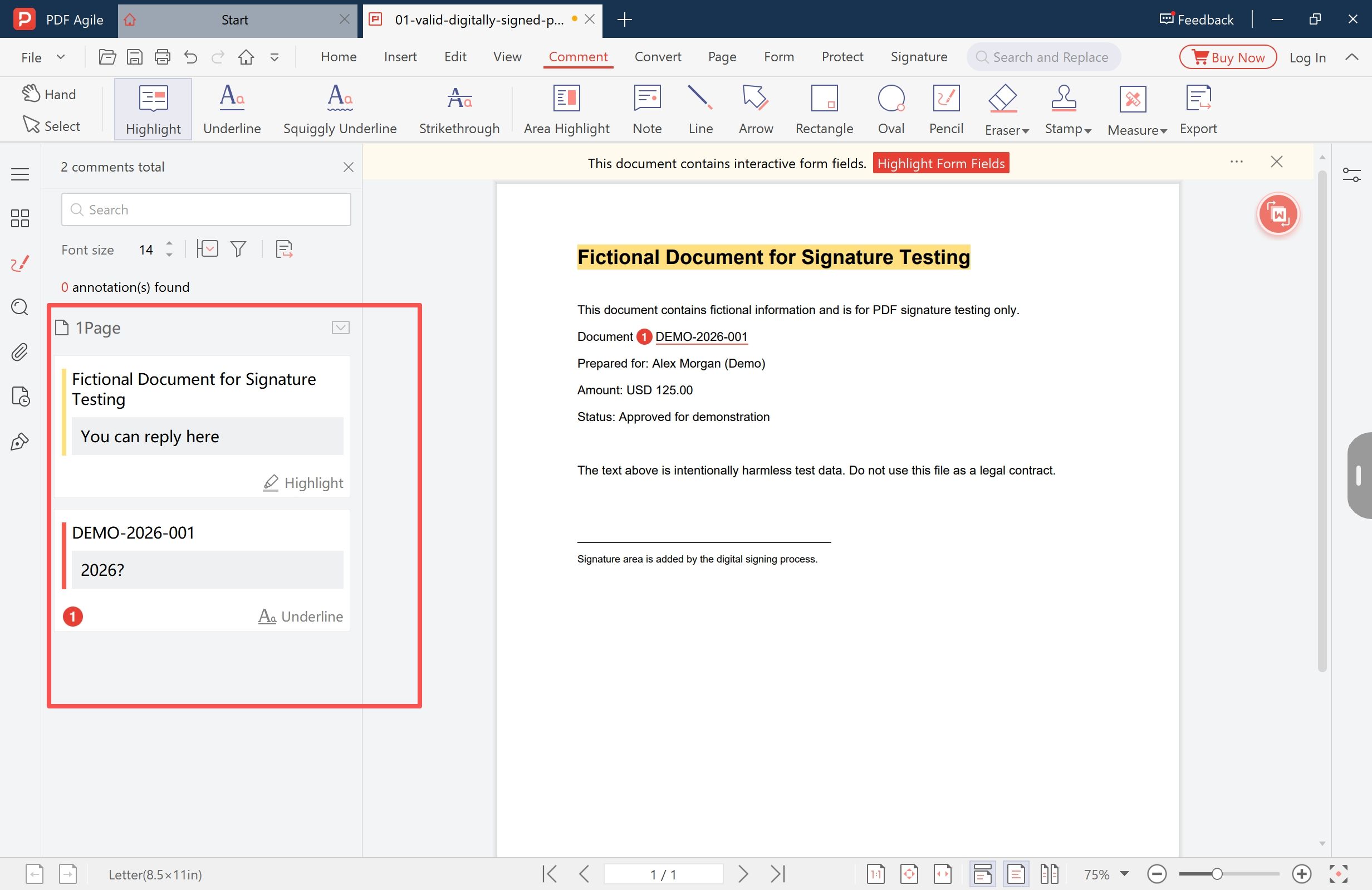
Entries stay grouped by page, so one reviewer's comments on page 2 and page 9 sit in two groups: the filter narrows the list, not the document. Click any entry and the view jumps to that annotation with the mark selected.
Three Checks Before You Trust the Filtered List
- The arithmetic works. Total minus filtered should account for everyone else. Numbers that do not reconcile usually mean one person appears under two names.
- The page groups are all there. A review concentrates on a few pages, so a page you know was marked should still have its group.
- One type at a time. Filtering again by type shows whether a reviewer's notes and highlights both carry the same name; a missing type usually means those marks came from a different tool.
When the Author Filter Returns Nothing
Three causes cover most cases.
- Flattened annotations. Printing a marked-up PDF to a new PDF, or running it through a converter, can burn the marks into the page. What is left is colour with no annotation behind it, and nothing to filter. Go back to the file that still holds live annotations.
- No author stored. Files assembled by converters and scripts often carry annotations without a name, and no filter can match a blank. Filter by type instead and read the entries yourself.
- One person, two names. The stored name is whatever the writer's app had saved, so the same reviewer can be "D. Reyes" on a work laptop and "Dana Reyes" on a personal one. Filter the second spelling before deciding the first is complete.
Where the Comment List Lives, Compared With Adobe Acrobat
Both applications do this task with a comment list, in different corners.
- Position. Acrobat opens its Comments list in the right pane; this app opens the comment panel in the left sidebar.
- Filtering. Adobe's help documents filtering by type and by status, with a Clear all option and Ctrl+8 (Command+8 on macOS) to reset. The annotation help for this app documents filtering by type or by author.
- Sorting. Adobe's help lists sort orders by page, author, date, type, unread status, and colour; this app's panel groups by page and relies on the filter.
Sorting by author leaves every other reviewer on screen and reorders the same set, while filtering takes them off screen. We build PDF Agile, so weigh that where this comparison touches our own product. Adobe Acrobat is a trademark of Adobe, and the Acrobat behaviour here comes from Adobe's help page on viewing comments.
Taking One Reviewer's Comments Out of the File
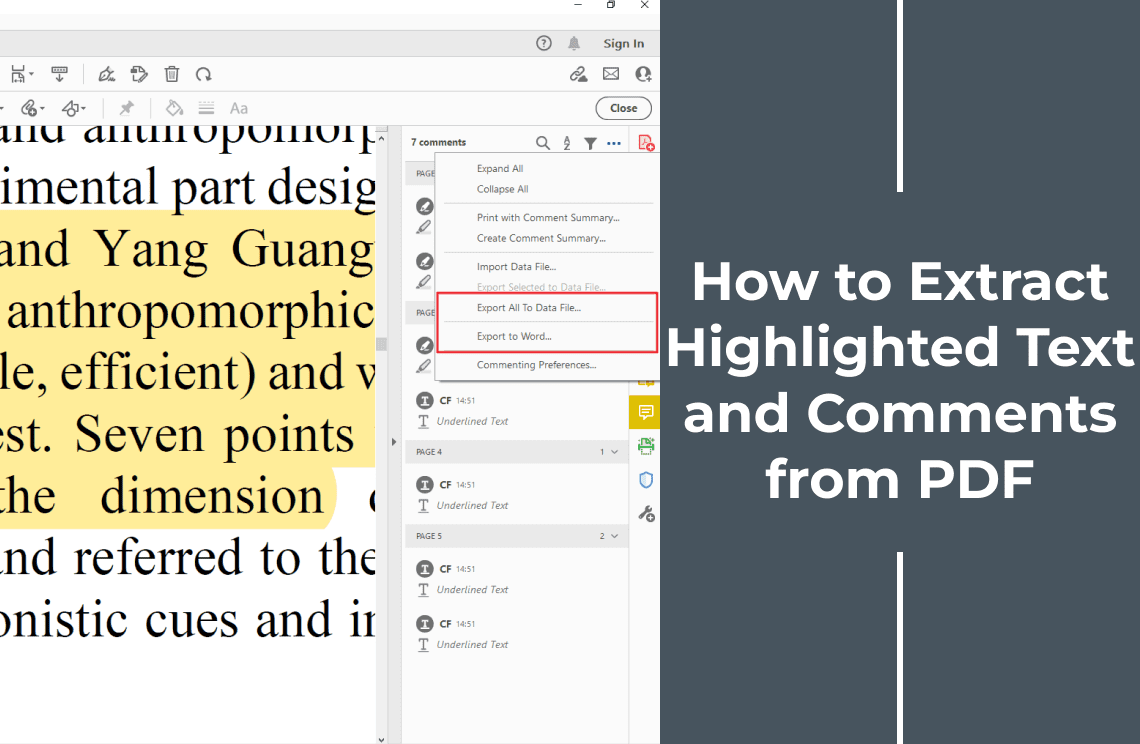
If the point of filtering was to send the reviewer their own list, the last step is an export, with the filter still on. The annotation help documents export from the panel's options menu, and notes that you can select specific annotations to export only those.
Two things stay true: an export is a copy of the text, so the PDF still carries every annotation the filter hid, and it is not a cleanup, because comments that must not reach someone have to be removed in the document. For every reviewer's comments in one searchable file, how to extract highlighted text and comments from PDF is the broader version of this job, and how to review PDF comments and highlights in one place covers the mark-by-mark pass.
FAQ
Does filtering comments by author change the PDF?
No. The filter changes the list in the panel. Annotations, pages, and file size stay as they were, and anyone else opening the document sees the full set.
Can I filter comments by author in any PDF reader?
Only where the reader exposes that control, and only while the annotations are live objects. Flattened marks leave nothing to filter, whatever the reader.
How do I find one person's comments in a file with hundreds?
Filter by author, compare the filtered count with the total, then walk the page groups. The count is what stops the job at "looks finished" instead of "is finished".
Will the recipient know I filtered the list?
No. The filter is local to your view. What you send still contains every annotation unless you removed them.
The task is three moves: read the total, filter by author, walk the list and confirm the number. Everything else here exists to prevent the one failure that matters, which is handing over a list that looks complete and is not. PDF Agile keeps the panel, the count, and the export in one window on Windows and macOS; the download page has the desktop build, the PDF annotator page covers the comment tools, and more walkthroughs sit in How-to & Tips.
Steps and screenshots reflect the desktop app as of November 2026; menus and panel labels may change in later versions.