


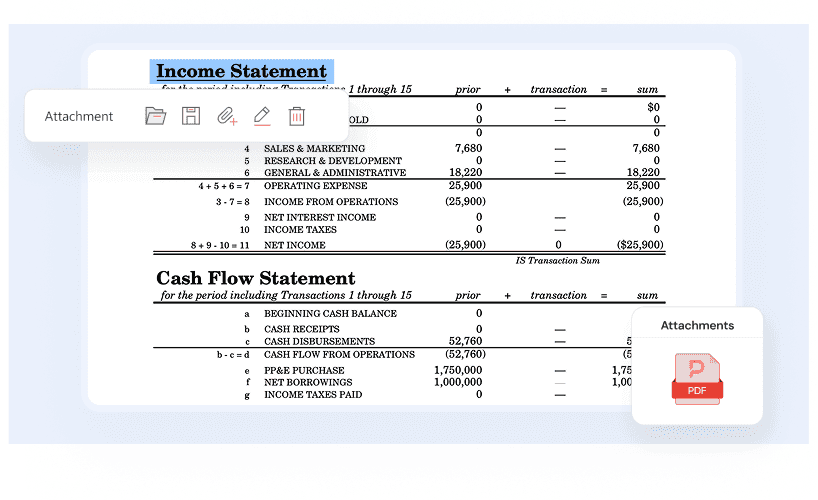
Enhance collaboration by embedding related files directly within your PDF documents, ensuring all necessary information is readily accessible to your recipients in one convenient package.

Diverse Annotation Tools for Effective PDF Markup
Utilize PDF Agile's sticky notes, typewriter, markup, drawing, stamp, and measure tools to enhance collaboration and streamline your document workflows.
Available on:


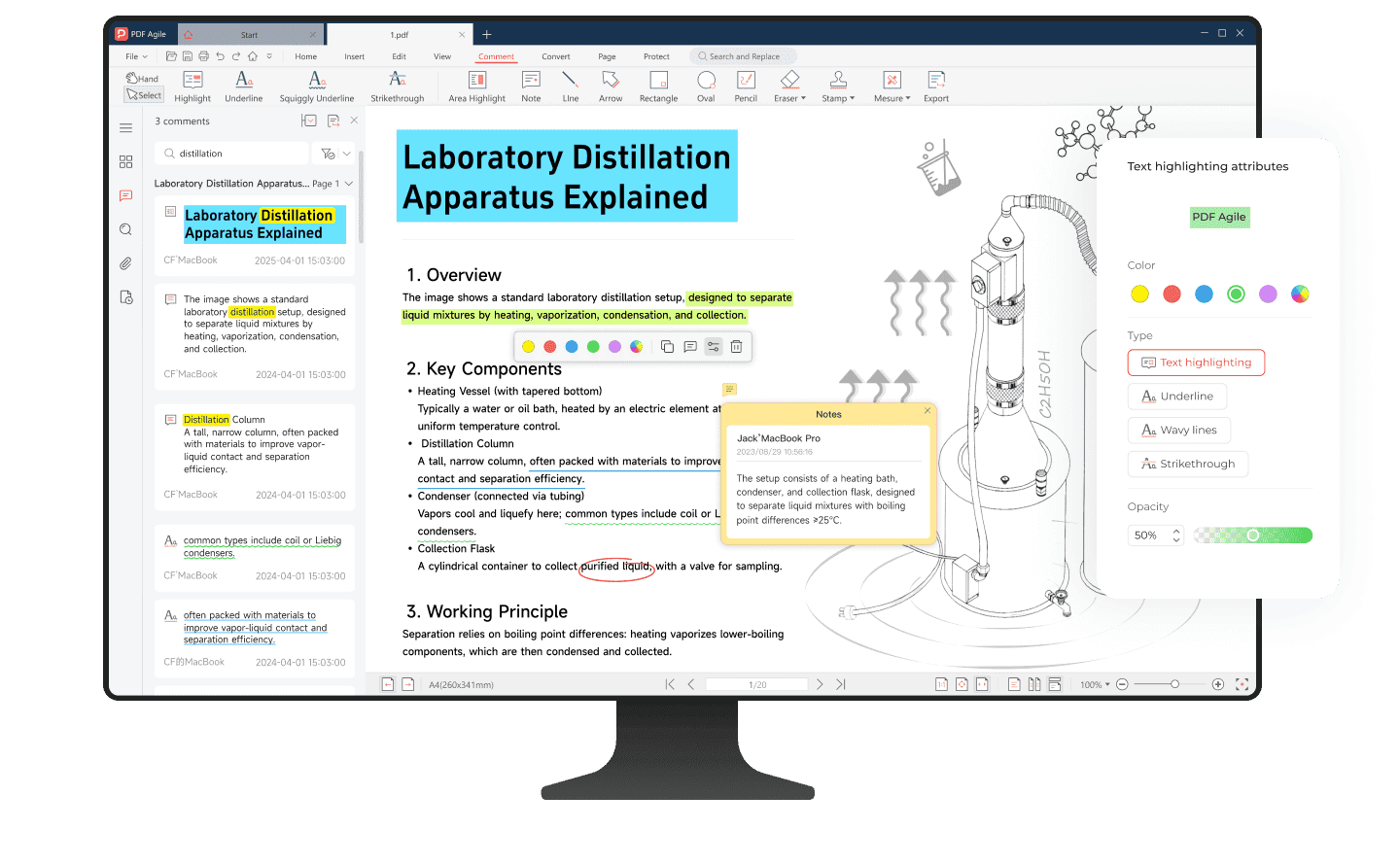
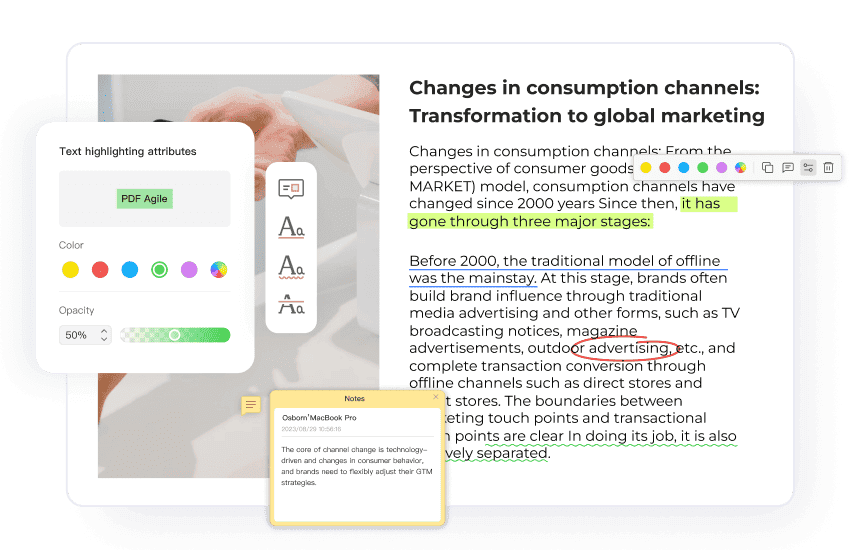
Interact with PDFs: markup and add notes
Customize your text markup with highlights, underlines, and strikethrough. You can also easily add your thoughts and feedback to the PDF using convenient sticky notes for improved review and collaboration.
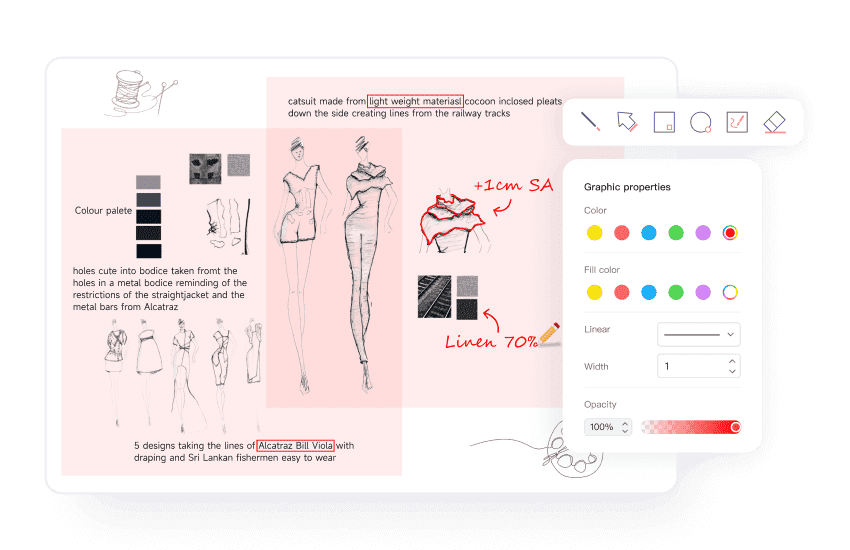
Decorate PDFs with shapes and graffiti
Visually emphasize and creatively express ideas using versatile shapes (lines, arrows, ovals, flow-charts, and more in the Insert tab) as well as intuitive pencil and eraser tools for personalized markups and sketches.
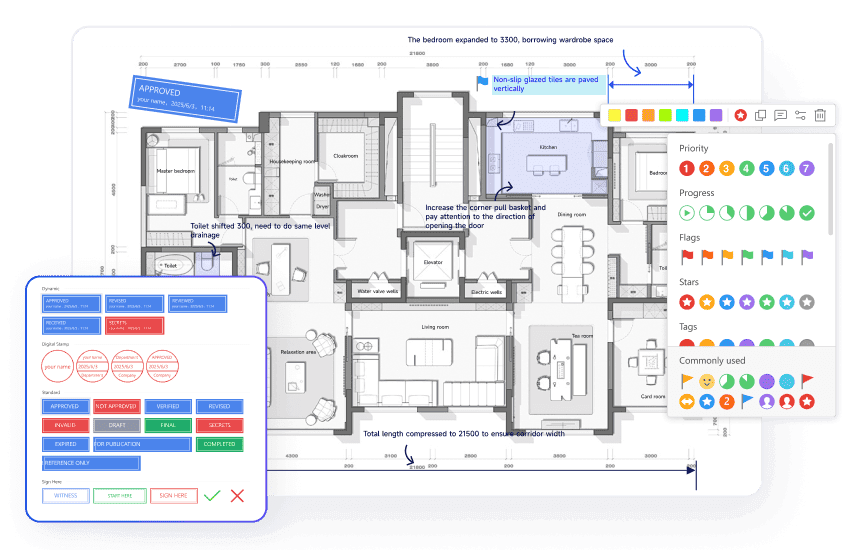
Smooth your workflow with stamps and stickers
Optimize your workflow by using visual stamps to indicate document status (e.g., "Confidential," "Draft," "Approved", etc.) and engaging stickers to show priority, progress, ratings, and even emotional feedback.
All-in-one sharing with attachments
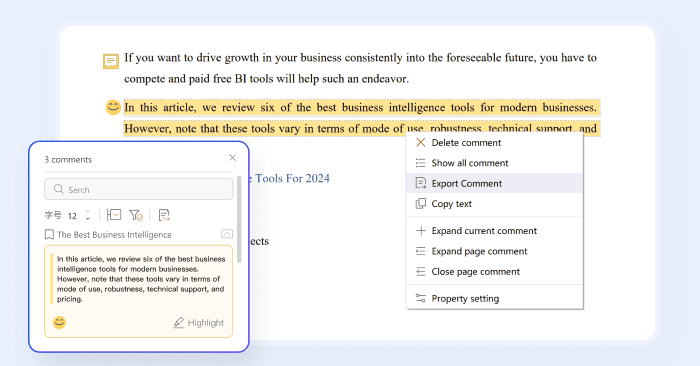
Manage and export annotations
Take full control of your feedback by customizing annotation appearance, easily reviewing all markups in the sidebar, and freely selecting specific annotations to export for efficient communication.
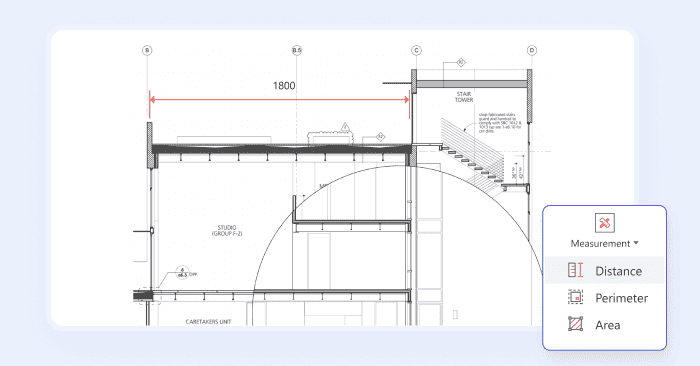
Precise PDF measuring tools
Gain precise data from architectural and CAD drawings by accurately measuring linear dimensions, areas, and perimeters, overcoming missing measurements for improved analysis.
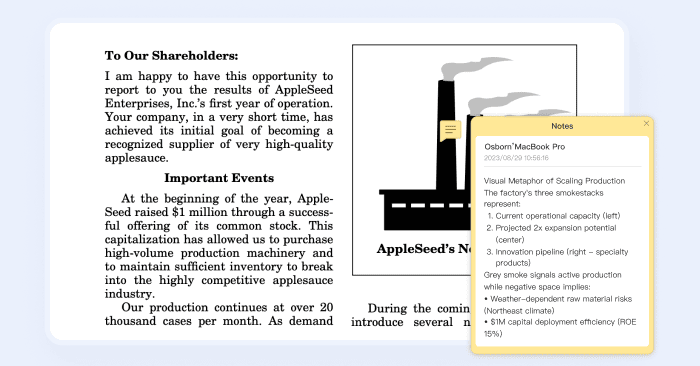
Capture your instant thoughts
Effortlessly jot down your ideas, questions, and feedback exactly where they are relevant within the PDF using convenient sticky notes, enhancing personal productivity and fostering clear team communication.
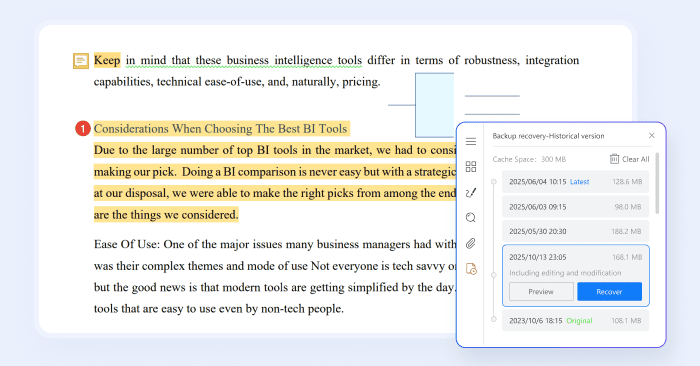
Reliable backup recovery
Work with peace of mind knowing that PDF Agile automatically tracks document revisions and allows you to easily restore previous versions, protecting your work from accidental loss or errors.
Why annotation is indispensable for modern business workflows?

Legal Clients
Annotation tools enable them to redact sensitive information, add highlights and other markups directly onto contracts, clarifying clauses or suggesting amendments during review and negotiation. The ability to track changes and maintain an audit trail of annotations is also vital for legal compliance and collaboration.

Financial Services
Financial professionals work with data-heavy PDFs requiring careful scrutiny. Annotation tools enable them to accelerate loan processing by verifying data and flagging inconsistencies, ensure regulatory compliance through audit report markups and comprehensive audit trails, and enhance risk management and fraud detection.

Education
Educators need tools to provide specific and timely feedback on student work directly, such as grammar, content, and argumentation. Students benefit from the ability to highlight key information, add personal notes, and organize their learning materials. Researchers require collaborative annotation for shared documents and literature reviews.

Healthcare Professionals
Healthcare requires secure and context-specific communication. Annotation tools can allow doctors to highlight key findings and recommendations in reports and images (X-rays and CT scans), add confidential notes for colleagues, and collaborate on treatment plans within shared documents.

Engineering & Construction
PDF annotation is essential for reviewing blueprints, technical drawings, and project specifications. Engineers and construction professionals can mark up CAD/BIM models, add measurements, and approve construction submittals to minimize errors and accelerate project approvals.

Publishing & Media
PDF annotation facilitates the editorial process, allowing editors, authors, and designers to collaborate on drafts, provide feedback on layout, and mark revisions directly on the document.

Marketing & Creative
Marketing and creative teams use annotation for proofing ad campaigns and print collateral, reviewing website mockups and UI designs, and providing detailed graphics feedback to accelerate iterations and ensure brand consistency.
Legal Clients
Annotation tools enable them to redact sensitive information, add highlights and other markups directly onto contracts, clarifying clauses or suggesting amendments during review and negotiation. The ability to track changes and maintain an audit trail of annotations is also vital for legal compliance and collaboration.
Financial Services
Financial professionals work with data-heavy PDFs requiring careful scrutiny. Annotation tools enable them to accelerate loan processing by verifying data and flagging inconsistencies, ensure regulatory compliance through audit report markups and comprehensive audit trails, and enhance risk management and fraud detection.
Education
Educators need tools to provide specific and timely feedback on student work directly, such as grammar, content, and argumentation. Students benefit from the ability to highlight key information, add personal notes, and organize their learning materials. Researchers require collaborative annotation for shared documents and literature reviews.
Healthcare Professionals
Healthcare requires secure and context-specific communication. Annotation tools can allow doctors to highlight key findings and recommendations in reports and images (X-rays and CT scans), add confidential notes for colleagues, and collaborate on treatment plans within shared documents.
Engineering & Construction
PDF annotation is essential for reviewing blueprints, technical drawings, and project specifications. Engineers and construction professionals can mark up CAD/BIM models, add measurements, and approve construction submittals to minimize errors and accelerate project approvals.
Publishing & Media
PDF annotation facilitates the editorial process, allowing editors, authors, and designers to collaborate on drafts, provide feedback on layout, and mark revisions directly on the document.
Marketing & Creative
Marketing and creative teams use annotation for proofing ad campaigns and print collateral, reviewing website mockups and UI designs, and providing detailed graphics feedback to accelerate iterations and ensure brand consistency.
Legal Clients
Annotation tools enable them to redact sensitive information, add highlights and other markups directly onto contracts, clarifying clauses or suggesting amendments during review and negotiation. The ability to track changes and maintain an audit trail of annotations is also vital for legal compliance and collaboration.
Financial Services
Financial professionals work with data-heavy PDFs requiring careful scrutiny. Annotation tools enable them to accelerate loan processing by verifying data and flagging inconsistencies, ensure regulatory compliance through audit report markups and comprehensive audit trails, and enhance risk management and fraud detection.
Education
Educators need tools to provide specific and timely feedback on student work directly, such as grammar, content, and argumentation. Students benefit from the ability to highlight key information, add personal notes, and organize their learning materials. Researchers require collaborative annotation for shared documents and literature reviews.
Healthcare Professionals
Healthcare requires secure and context-specific communication. Annotation tools can allow doctors to highlight key findings and recommendations in reports and images (X-rays and CT scans), add confidential notes for colleagues, and collaborate on treatment plans within shared documents.
Engineering & Construction
PDF annotation is essential for reviewing blueprints, technical drawings, and project specifications. Engineers and construction professionals can mark up CAD/BIM models, add measurements, and approve construction submittals to minimize errors and accelerate project approvals.
Publishing & Media
PDF annotation facilitates the editorial process, allowing editors, authors, and designers to collaborate on drafts, provide feedback on layout, and mark revisions directly on the document.
Marketing & Creative
Marketing and creative teams use annotation for proofing ad campaigns and print collateral, reviewing website mockups and UI designs, and providing detailed graphics feedback to accelerate iterations and ensure brand consistency.
How to annotate PDFs in 3 easy steps?
01
Open Your Document: Launch PDF Agile and open your PDF file.
02
Choose Your Tool: Navigate to Comment tab for text markups (Highlight, Underline, Strikethrough, Squiggly) or notes. And type your comment in the box pop up. For shapes like squares or arrows, click the Insert tab in the toolbar.
03
Apply & Save: Drag your cursor to mark text or place shapes/notes. Customize colors or opacity as needed, then save your annotated document.
Join millions who trust PDF Agile—try now to edit, convert, and manage PDFs with efficiency and ease.
Trusted by







FAQs about PDF annotation
How to handwrite in a PDF?
Why can't I markup a PDF?
How do I add text to a PDF?
How do I extract comments in PDF?
Why are comments not showing on PDF?

Accelerate your PDF workflow like never before
A complete PDF solution for all PDF needs