A comment written on a contract is not part of the contract. It is a separate object pinned to a spot on a page, which is why the file you send decides whether anyone can read it.
Three jobs get called "sending the comments", and they do not produce the same thing: the words exported to their own file, the PDF handed over with its marks live, or the pages flattened so the marks survive anywhere. Pick wrong and the recipient cannot open what arrives, or a hundred pages travel with three lines of notes.
Three Things "Send the Comments" Can Mean
- The comments as their own file. The document stays behind. The recipient gets the words, and none of the pages.
- The PDF with its annotations intact. Each mark sits where you put it, for any reader that draws annotations — and the whole document travels too.
- The pages with the marks burned in. A printed or flattened PDF opens in anything and cannot be filtered, replied to or unmarked, because the marks are now page content.
What an Export Copies, and What It Leaves
An export reads the annotations and writes them out. It does not touch the file it read them from, so every highlight and note stays where it was. An export is a copy, never a cleanup: if a note must not travel with the document, exporting it does not remove it.
It also leaves context behind. On the page a comment sits beside the sentence it is about; in an exported list that sentence is missing, so "change this to 30 days" is clear on page 4 and a puzzle in a plain list.
Export the Comments From the Comment Panel
The screens below come from PDF Agile, the desktop app. Open the file you reviewed first: the panel reads live annotations, so a document flattened earlier shows an empty list rather than an error.
Step 1: Open the PDF and Switch to the Comment Tab
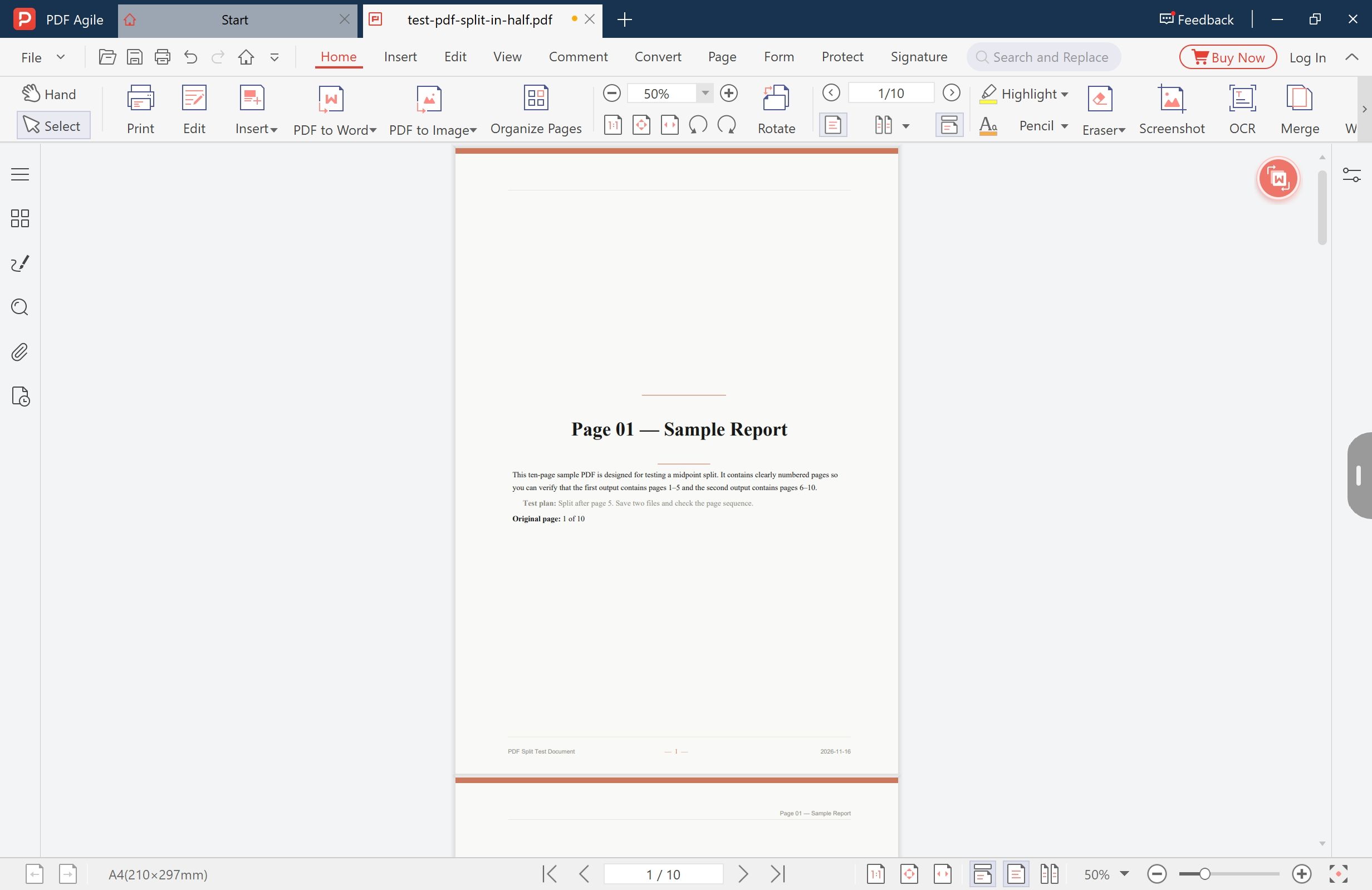
Open the document and click the Comment tab above the ribbon. The tab holds the markup tools and owns the comment panel, which is the list this job runs on. First look at the page: a highlight you can still select is a live annotation, and one you cannot is already part of the image.
Step 2: Open the Comment Panel and Read the Total
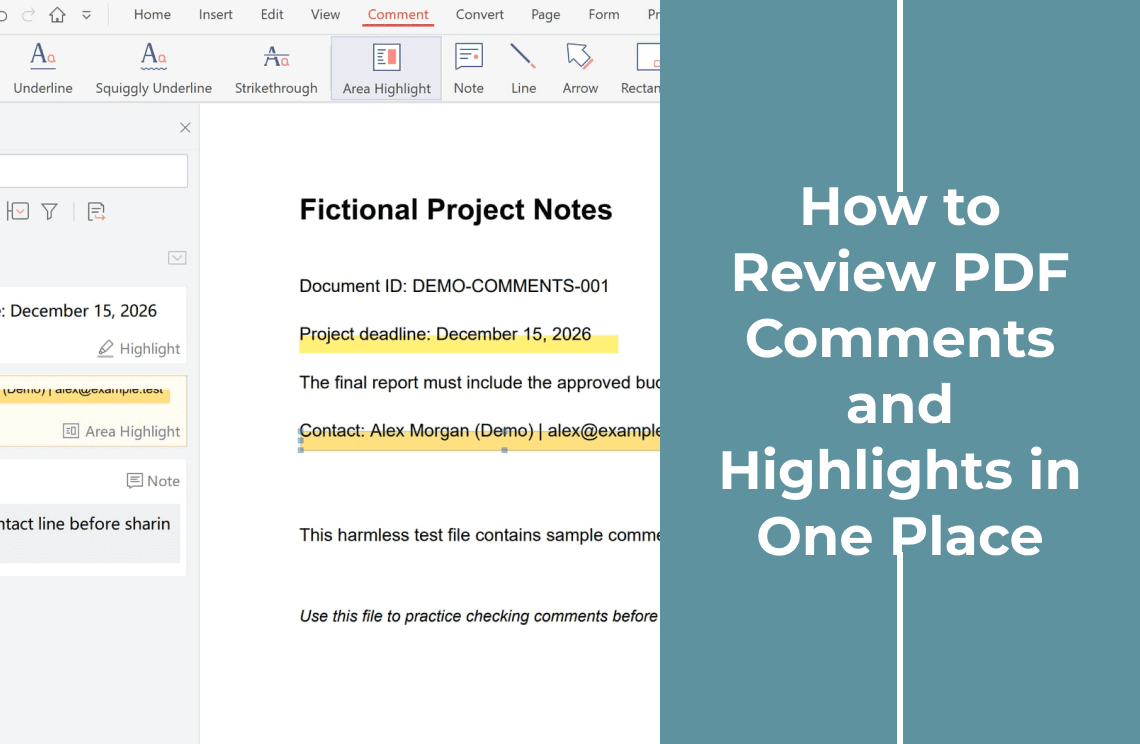
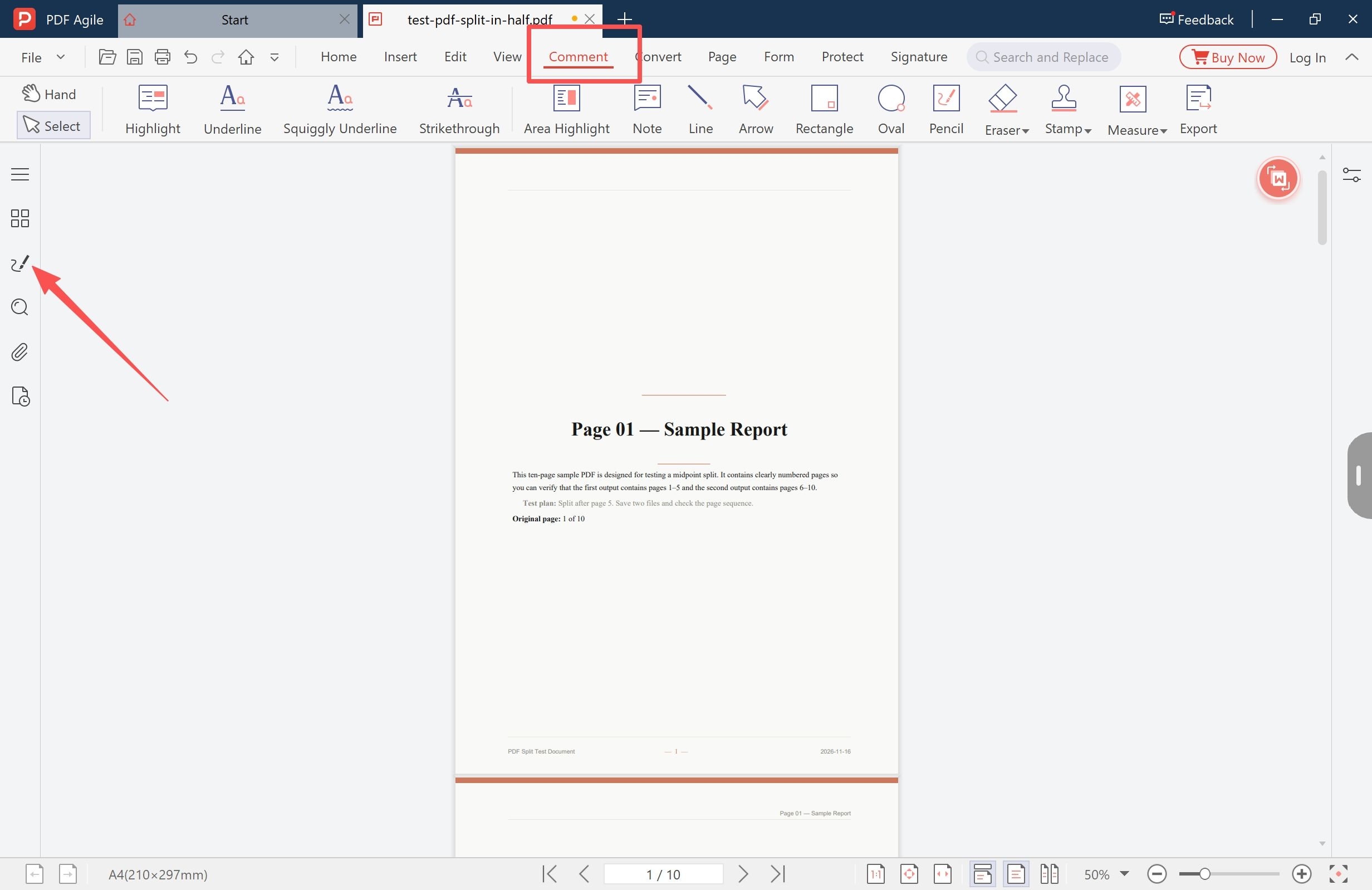
Open the comment panel from the left sidebar. Its header carries the number everything else is checked against: 3 comments total here, and the count in yours. Under it sit the search field, a formatting row, the filter control and the export control.
Write the total down before you touch anything. A list exported without a count cannot be checked, and a short file is the failure this job hides best.
Step 3: Choose the Annotations, Then Export Them
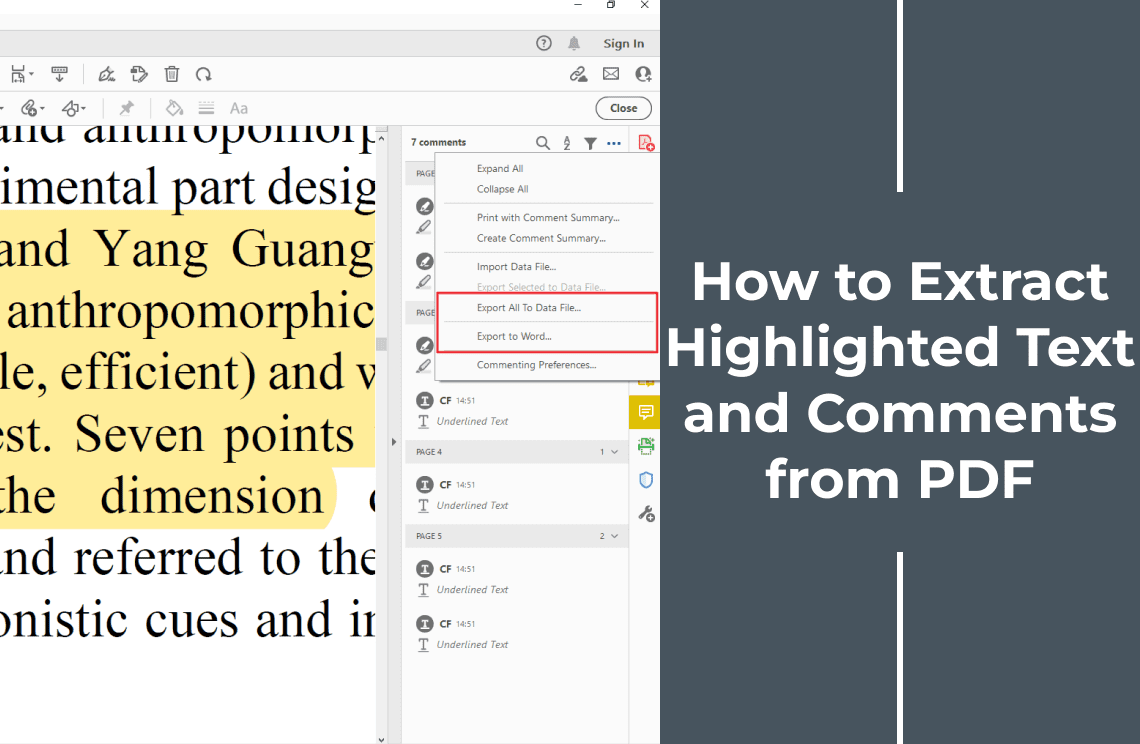
Entries are grouped by page and each can be ticked on its own. Nothing ticked exports the whole list; tick a few and you take only those, which is how one colleague gets their four notes and none of the other twenty. The vendor's annotation help puts Export in the panel's options menu and notes that specific annotations can be selected.
Open the file once before you send it: the save dialog is where the format is decided.
When a File Is the Wrong Answer
An export is a document someone has to open, and that fails when the recipient is on a phone, in a chat window, or without PDF software.
Copy the words instead. Select the comments and copy them — the annotation help lists Ctrl+C, or Command-C on macOS — then paste them into the email or ticket where the conversation already is. The trade is structure: a paste loses the per-page grouping, so it suits short comments and one or two readers, while an export wins when the list has to survive a hand-off.
If the recipient needs to see where each mark sits, send the PDF and accept that the document goes with it. When the pages are confidential and only the notes are shareable, reconsider the job: hiding text in a PDF separates covering words from removing them, and neither is what an export does.
Live Annotations or a Flattened Page
Printing a marked-up PDF to a new PDF, or running it through a converter, can burn the marks into the page. What is left is colour with no annotation behind it: nothing to list, filter or export. It looks identical on screen, which is why the failure is found late.
Flatten when the marks only have to be seen; keep the annotated copy when anyone may still need to read the list, reply, or remove a mark. Flatten a second copy, not the original.
What Stops an Export From Working
- The marks are no longer annotations. A conversion earlier in the chain turned them into page content. Go back to the file with live annotations.
- The file is protected. Commenting permissions can leave the panel readable and the export unavailable. Ask for a copy that allows comments.
- The panel is empty but the page looks marked. Clear any author filter, then consider that the marks came from a tool that stores them differently.
Four Checks Before You Send
- The count. Entries should match the total, or the subset you ticked.
- The read. Open the exported file in the application your recipient uses, not yours.
- The content. Read every note as the recipient will: names and internal remarks travel, and they also stay in the PDF.
- The original. Confirm the source was not edited along the way. Only one of these two operations is reversible.
FAQ
Does exporting comments remove them from the PDF?
No. An export writes a copy elsewhere; the PDF keeps every mark, and the next person sees the full set.
Can I send only one reviewer's comments?
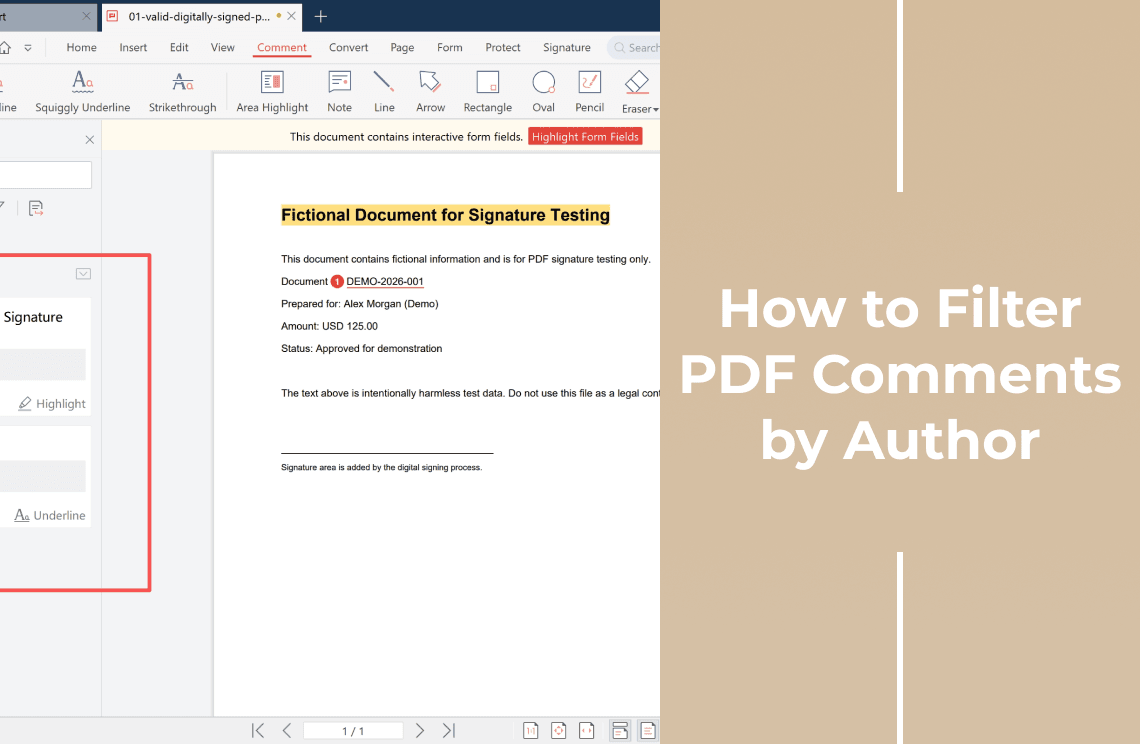
Yes, if the panel narrows the list first. Filtering PDF comments by author covers that path, including the count check that catches one person stored under two names.
Will the recipient see the comments if they open the PDF in a browser?
Sometimes, which is the problem. Browser and mobile readers differ in whether they draw annotations, so a file that looks reviewed on your machine can look clean on theirs.
What if the document has hundreds of comments?
Read the list before exporting. Reviewing PDF comments and highlights in one place walks it entry by entry, and extracting highlighted text and comments covers the wider version across tools.
Can I put the exported comments back into the PDF?
Do not assume so. Exporting writes the words out; it does not establish that the file can be read back in and re-attached to the right pages.
The Short Version
The question is not how to get the comments out, but what the person on the other side can open. Text in the message answers a question; a file answers a process; the marked PDF answers a request to see the pages, and takes the document with it.
We build PDF Agile, the desktop app the screens show, which keeps the panel, the count and the export in one window on Windows and macOS. The PDF annotator page covers the comment tools, how to annotate a PDF starts from the tools, printing a PDF with its comments covers the flattened route, and the rest sits in How-to & Tips.
Steps and interface names describe the desktop app as it stood in November 2026; menus can move in later versions. The export route and the copy shortcut come from the vendor's annotation help. Adobe Acrobat is a trademark of Adobe Inc., and macOS is a trademark of Apple Inc.