A marked-up PDF carries two layers: the page as it was written, and the comments sitting on top of it. Reading the page tells you nothing about the second layer, because highlights, area highlights, and notes are not part of the text flow. The only reliable way to see all of them is a list that collects them in one column.
This guide covers reviewing that layer: open the document, open the comment panel, walk the list item by item, jump to each annotation on the page, and add a follow-up note where the review is incomplete. Nothing here extracts comments into a separate file, and nothing deletes them. If the comments need to leave the PDF as text, that is a different job.
Reviewing Is a Different Job From Commenting
Adding a comment is a single action at a single point: select the text, pick a tool, type. Reviewing is the pass you make afterwards, when the marks already exist and someone has to decide what happens to each one. The two jobs fail in different ways.
- Commenting fails visually. You notice immediately when a highlight did not land.
- Reviewing fails silently. A note three pages down stays unread, an area highlight hides under a stamp, and a comment meant for a colleague ships with the file.
The document looks finished either way, so the only evidence that the pass is complete is the count in the comment panel.
What Counts as a Comment in a PDF
A PDF stores each annotation as a separate object tied to a page, not as part of the page's text. That single fact explains most of what follows: annotations can be listed, counted, filtered, and jumped to, and they can also be invisible in one viewer and obvious in another.
The types split into two families, and the split matters when you review.
- Text-anchored markup — Highlight, Underline, Strikethrough, and Squiggly Underline. These attach to specific characters, so they move with the text if the page is reflowed.
- Position-anchored annotations — Area Highlight, Note, plus shapes, lines, stamps, and pencil marks. These attach to a spot on the page. A rectangle drawn over a paragraph has no idea what the paragraph says.
A Note holds text of its own, so it can carry a name, an email address, a link, or a remark you would not want a client to read. Position-anchored annotations are also why text search cannot audit a document: searching the page for "TODO" will not find the note that says it, because the words live in the annotation.
Open the Document and See What Is Already Marked
Step 1: Open the PDF and Look for Existing Marks
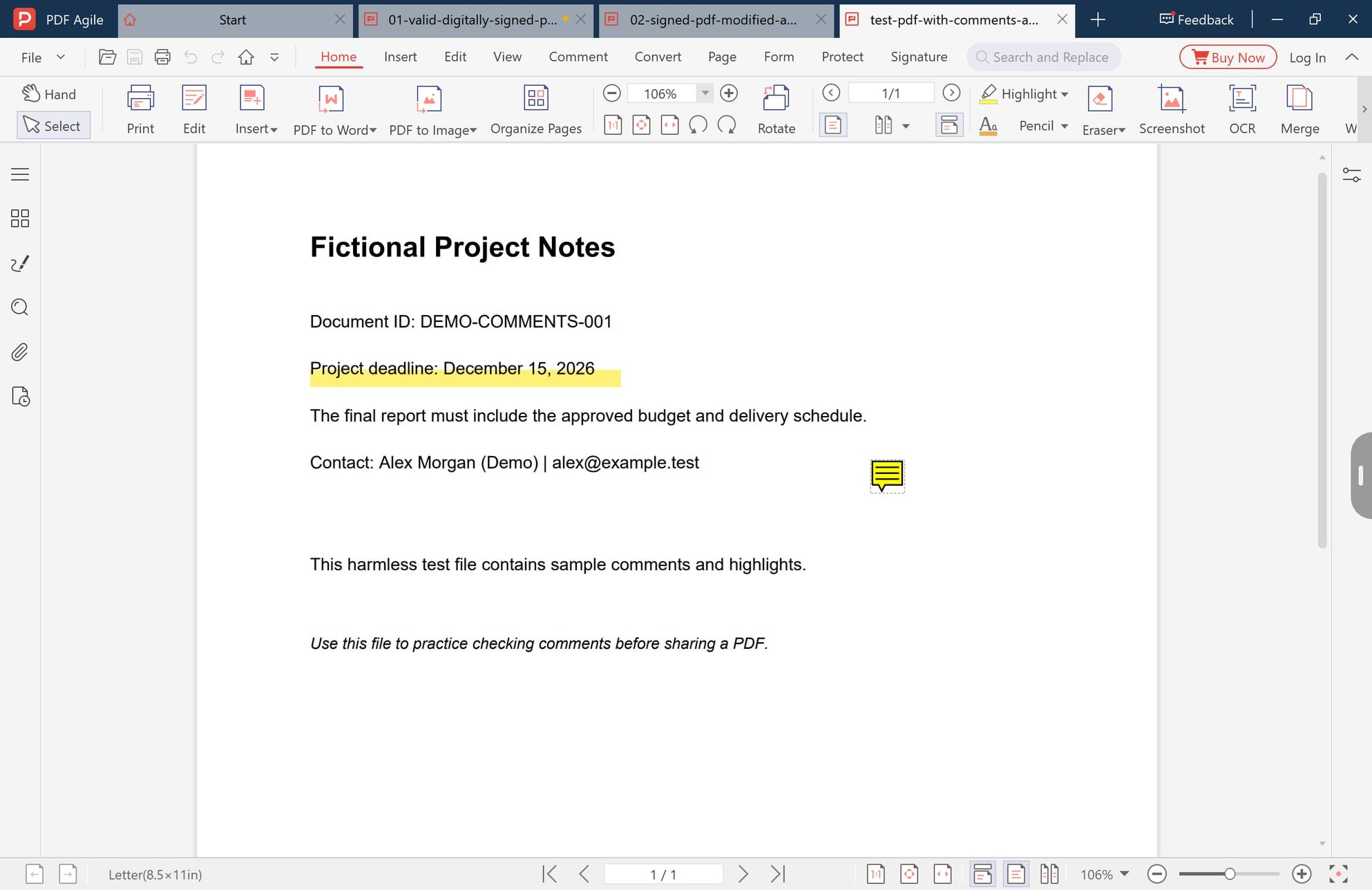
Open the document in PDF Agile and look at the page before touching any tool. Two things to check: whether text is already highlighted, and whether a note marker is already sitting in the margin. In a document that has been through one review round, both are usually there.
The marker is the one people miss. It is small, it sits away from the text it refers to, and its contents only appear once you open it.
Open the Comment Tab to See the Full Tool Set
Step 2: Open the Comment Tab and Read the Available Tools
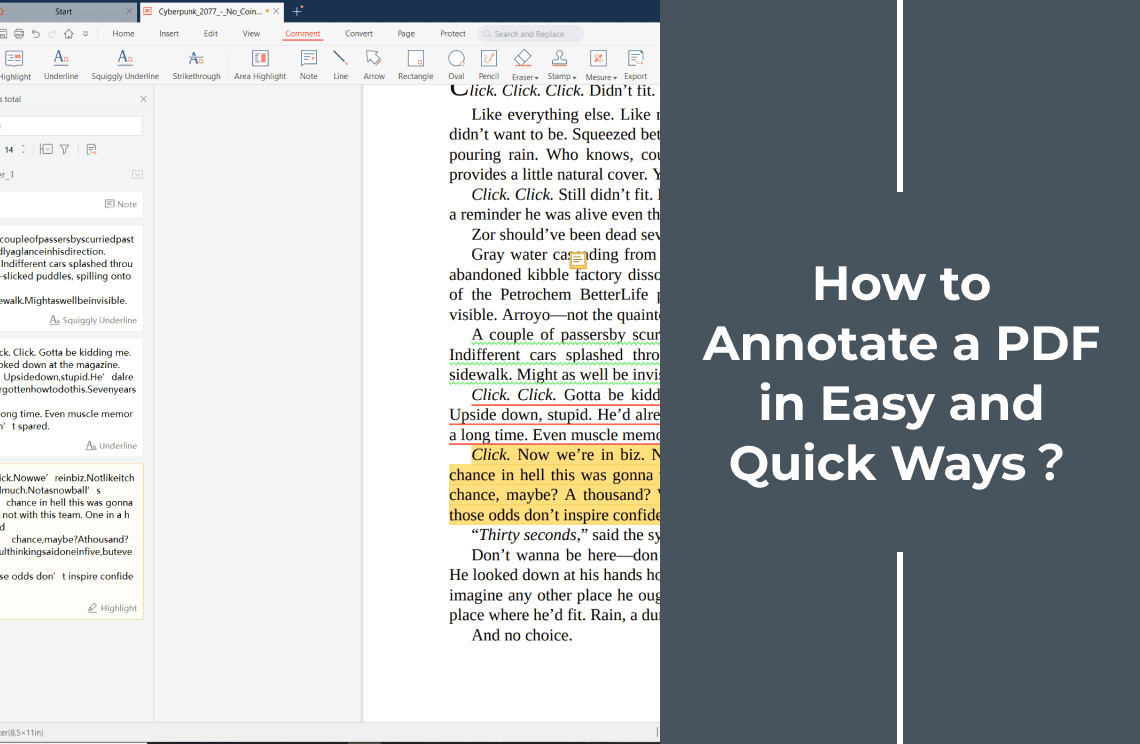
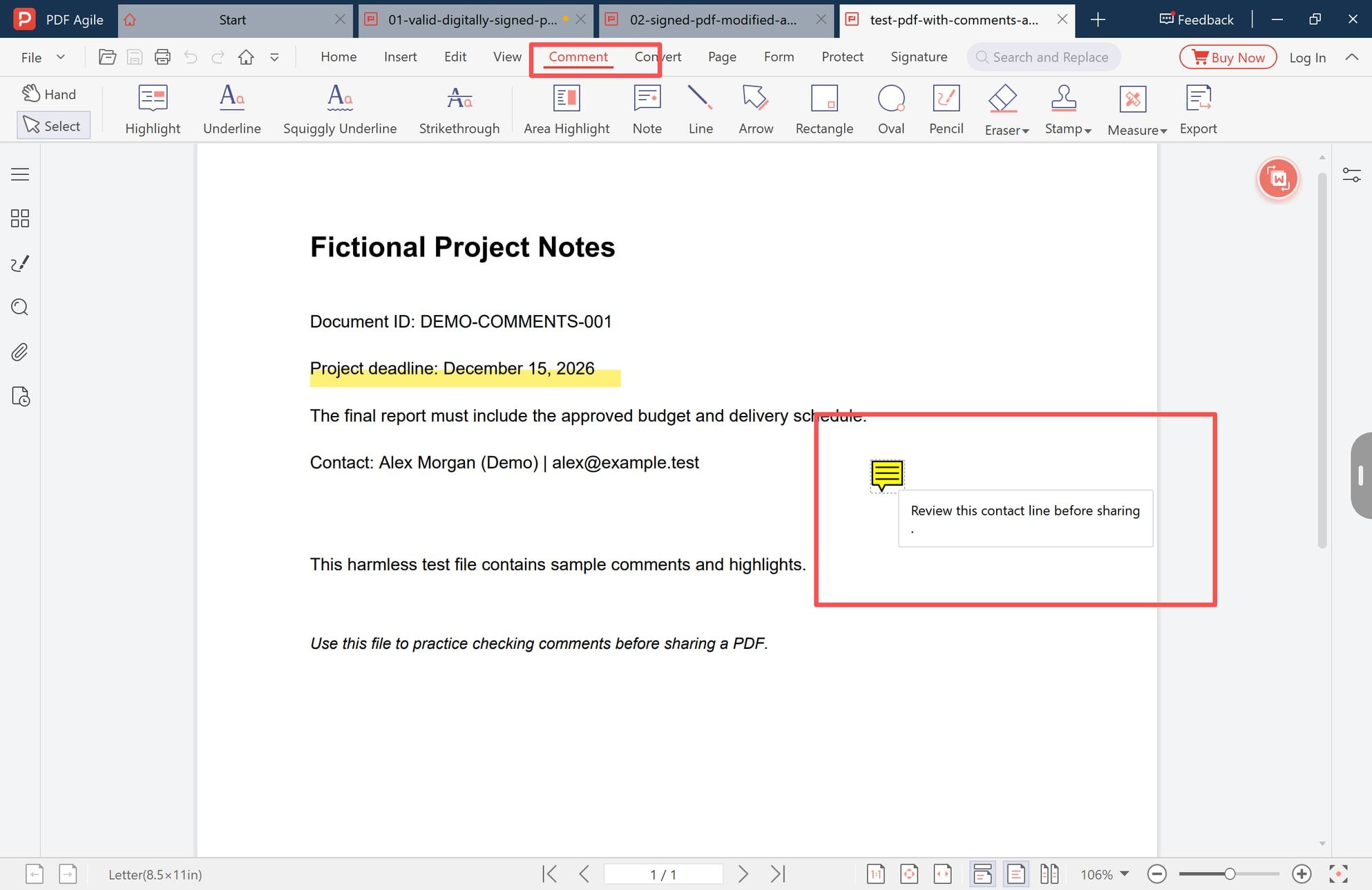
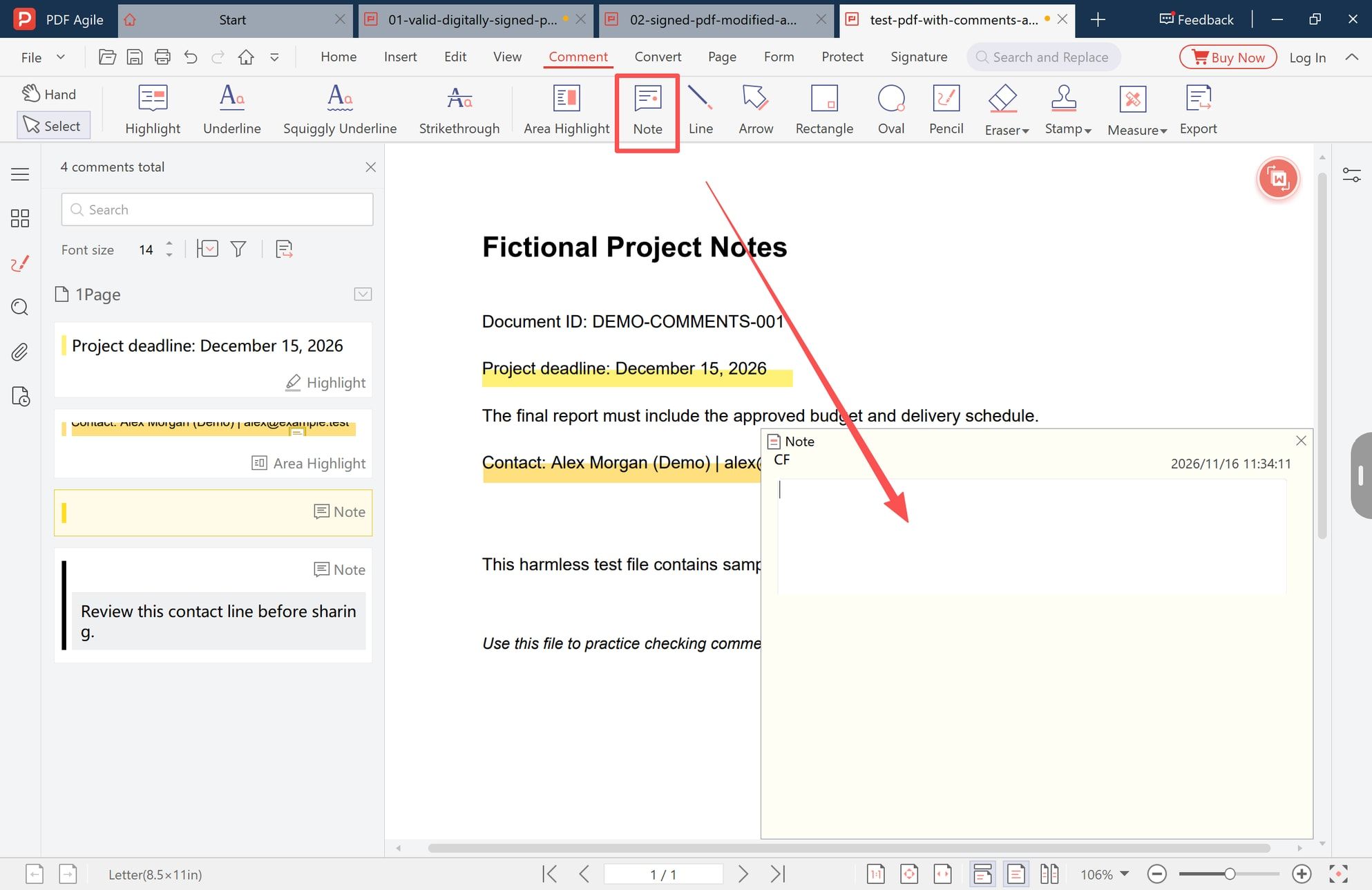
Switch to the Comment tab. The ribbon lays out the annotation tools in one row: Highlight, Underline, Squiggly Underline, Strikethrough, Area Highlight, Note, then Line, Arrow, Rectangle, Oval, Pencil, Eraser, Stamp, Measure, and Export.
Reviewing is mostly reading, so the only tools that matter here are the two that add something: Note for a follow-up comment, and one markup tool if a mark is genuinely missing. The rest of the row is for authoring.
Read the Whole Document From the Sidebar List
Step 3: Work Through the Comment List
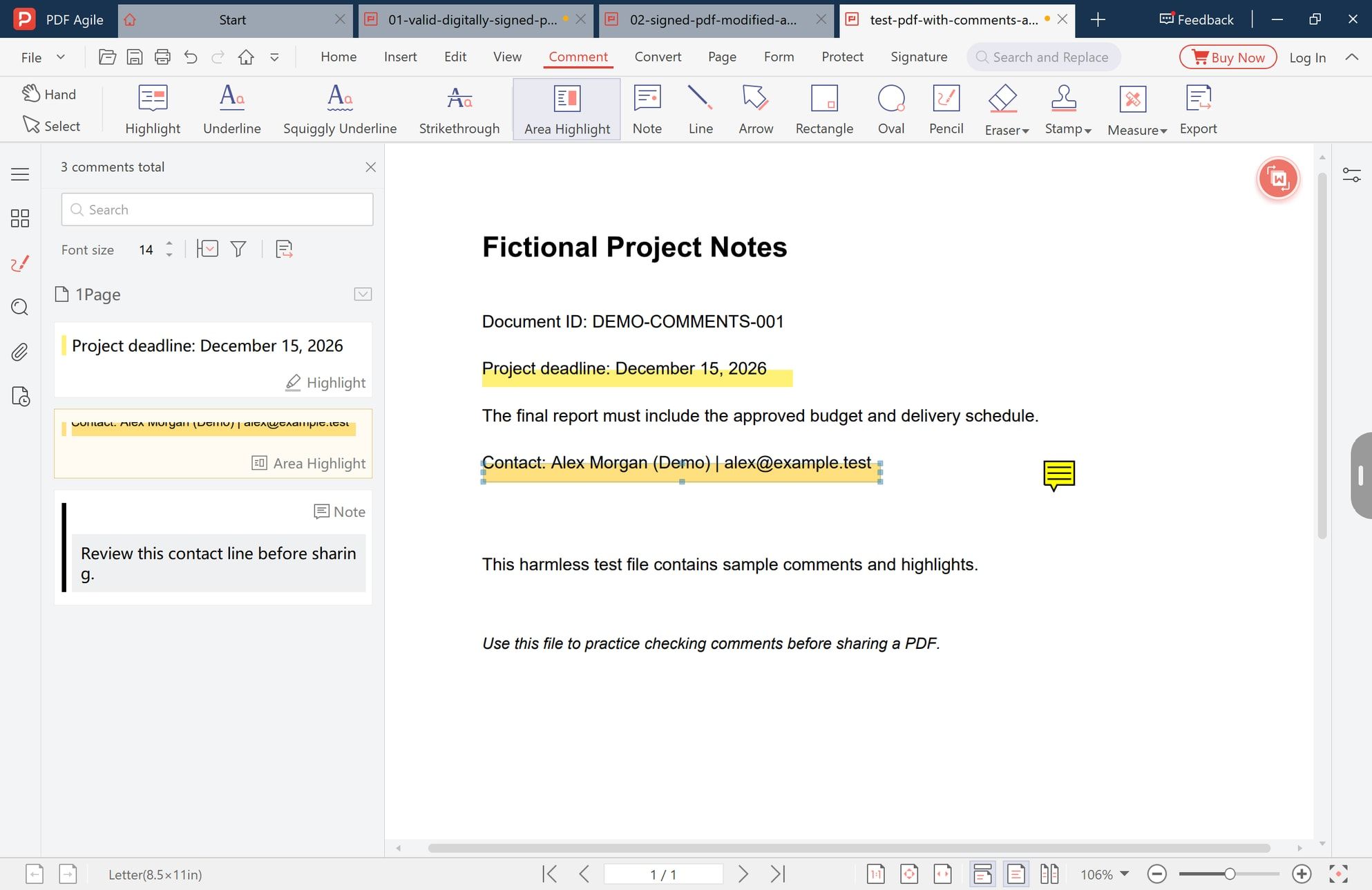
Open the left sidebar with the speech bubble icon. The panel that appears is the review surface for the rest of the task, and its header answers the first question directly: 3 comments total in this document.
The list itself is grouped by page, with each entry carrying its type underneath — Highlight, Area Highlight, Note. That tag is what makes a systematic pass possible: you can sweep one type at a time instead of hunting the page for yellow.
Click an entry and the document jumps to that annotation, with the mark selected, so you see the sentence the other person was looking at when they wrote it. Without the list you are paging through a document hoping to notice a small note icon.
Two habits make the sweep reliable:
- Read every Note in full, not from the list. The panel shows a preview, and a long note wraps and cuts off mid-word. The full text is in the annotation, not in the row.
- Re-count after every change. The header number is the only cheap audit signal you have. It should match what you saw before, plus whatever you added.
Add a Follow-Up Note Where the Review Is Incomplete
Step 4: Add a Note of Your Own
Some annotations answer themselves, and some raise a question you need recorded in the file rather than in a chat window.
Select Note on the Comment tab, then click the spot on the page where the comment belongs. A text box opens on the page with your initials and a timestamp, and the sidebar picks up the new entry immediately: the header now reads 4 comments total, with the fresh Note sitting in the page's list.
Type the review remark, then close the box with the X. The annotation stays on the page and in the list, so the next person to open the file sees both the original mark and your response. Keeping the note short and specific is the practical rule: "Confirm the deadline with the client before sending" survives a week of edits, "check this" does not.
Checks to Run Before You Share the File
The review is finished when every entry in the list has a decision, not when the pages look clean. Run these before the file leaves your machine:
- The count matches your expectation. Note the number when you start and confirm it at the end. A number that changed on its own means the file was re-saved or someone else's copy came back into the loop.
- Every highlight has a verdict. Keep it, answer it, or remove it. A highlight with no decision is the most common thing to ship by accident.
- Every Note has been read in full. Open each one; do not trust the truncated row.
- Nothing private is inside a Note. Names, email addresses, internal links, and remarks about people all travel with the file.
- You have decided whether the annotations should ship at all. A client copy with your working notes on it reads very differently from a clean copy.
One option worth naming because it is irreversible: printing a marked-up PDF to a new PDF flattens the annotations into the page. They then display everywhere, including in viewers that hide comment panels, but you can no longer edit or remove them individually.
Save a Reviewed Copy, Not Over the Original
Save the reviewed version under a new name, for example `project-notes-reviewed.pdf`, and leave the original untouched. The two files then hold the same pages in different annotation states, which is what you need when someone asks what the comments looked like before the review.
A copy is not a cleanup: saving under a new name keeps every annotation, including the internal note you meant to delete. A comment-free version is a separate step from copying the file.
When Reviewing Is the Wrong Job
Reviewing sits between three neighbouring tasks, and reaching for the wrong one wastes the pass:
- Adding comments is authoring: a new highlight or note on a document that had none. How to add comments on a PDF covers the tools for that.
- Annotating in general — markup, shapes, stamps, drawings — is the broader skill set described in how to annotate a PDF, including the annotation layer itself.
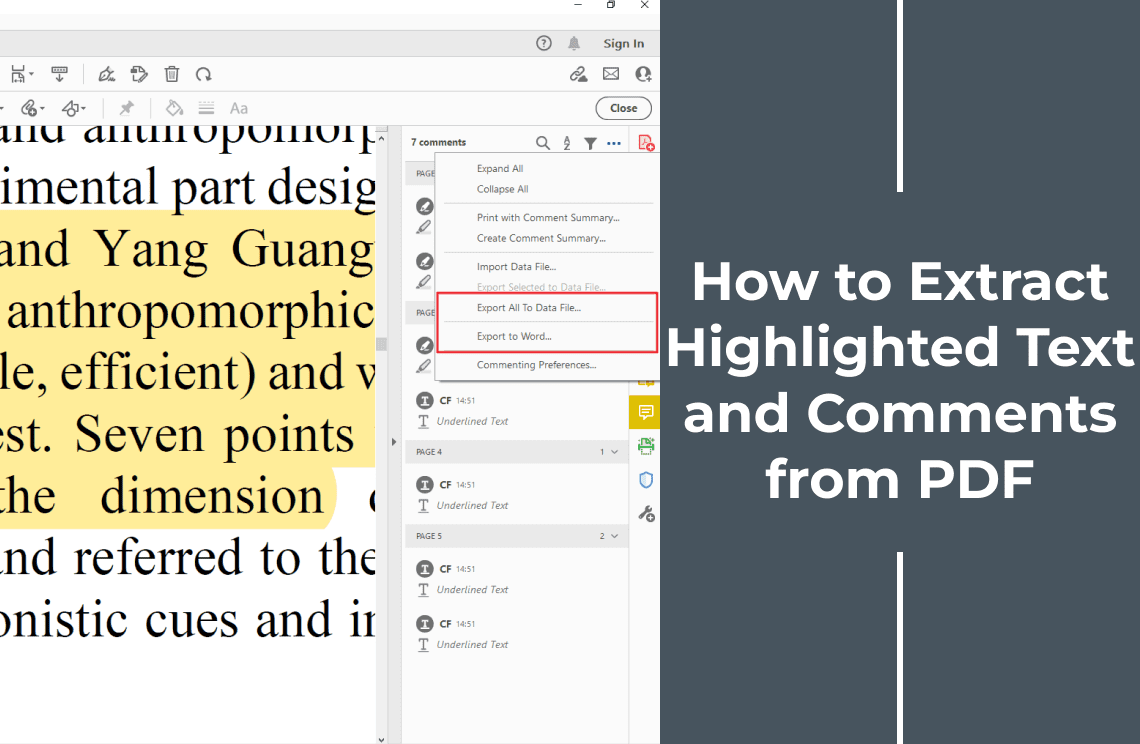
- Extracting comments moves the text out of the PDF into a separate file you can search, quote, or paste into a report. How to extract highlighted text and comments from PDF is that workflow.
This guide stays inside the document: reading, checking, and responding to annotations in place. If the annotations need to exist as data outside the PDF, use the extraction workflow — the two complement each other but produce different outputs. For everything else the document needs before it goes out, how to edit a PDF maps the rest of the editing surface, and the toolset itself is described on the PDF annotator page.
FAQ
Where can I see all the comments in a PDF at once?
Open the comment panel in the left sidebar. It lists every annotation in the document, grouped by page and tagged by type, with a total in the header.
Does clicking a comment in the list move the page?
Yes. Selecting an entry takes you to the annotation's location and selects the mark on the page. The reverse also works: clicking a mark on the page points to its entry in the list.
Are the comments still in the file after I save a copy?
Yes. Saving under a new name copies the annotations along with the pages. To remove them you have to delete them, which is a different operation from saving.
Why can't my colleague see the highlights I can see?
Annotation rendering varies between PDF viewers, and some hide comment panels by default. Ask them to open the comment panel first. If the file was printed or exported to a flattened PDF, the marks became part of the page and behave differently again.
Can I add my own note without changing the original reviewer's comments?
Yes. A new note is an additional annotation; it does not modify theirs. Editing or deleting someone else's annotation does change the document, so keep your own responses in your own notes if the file is going back to them.
Reviewing is a short loop — read the count, walk the list, jump to each mark, write down what the mark needs — and it is the difference between a document that looks finished and one that is. PDF Agile keeps the tool row and the comment list on the same screen, so going from "what did they mark" to "what does it say" is one click. If that loop is part of your week, the desktop app is on the download page, and more walkthroughs like this one sit in How-to & Tips.
*Steps and screenshots reflect the desktop app as of November 2026; menus and panel labels may change in later versions.*