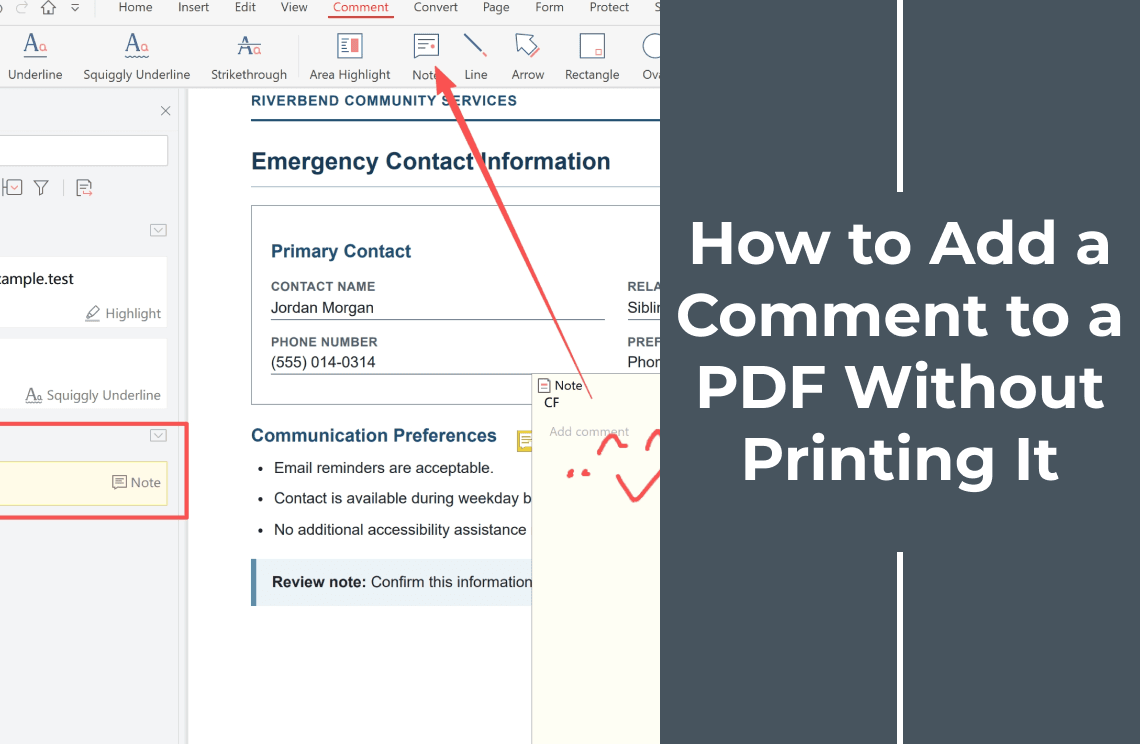
Printing a PDF to write on it is a habit, not a requirement. The loop is usually print, mark the page with a pen, scan it back, and email both copies. It costs more than it looks: the scan is heavier than the original, the handwriting is not searchable, and a second round lands on top of the first with no record of who said what.
A comment can go inside the file instead. In a PDF a comment is an annotation — a separate layer drawn over the page and stored in the same file. Nothing is printed, nothing is scanned, and the page underneath is left as it was.
This page covers that switch: which kind of comment to use, five steps to put one in, and what the recipient will actually see. For which app on which platform, see the platform-by-platform roundup; if you have been sent an already-marked file, reading those comments in one list is a different job.
Marking Text and Pinning a Note Are Two Different Comments
Most confusion about PDF comments comes from treating them as one thing. There are two.
- Text markup with a comment attached. You select the words — Highlight, Underline, Squiggly Underline, Strikethrough — and the mark is tied to that text. A comment box opens for it, and the list entry is headed by the words you marked. Scroll, zoom, reopen: the mark stays on those words.
- A note pinned to a spot. The Note tool drops an icon at a page position with a box beside it. It is tied to a place, not to words — the tool for when there is nothing to select.
A third thing is neither. A text box typed onto the page is page content: it prints with the page, never appears in the comment list, and cannot be filtered out. Fine for filling in a form, wrong for review remarks.
So the choice follows from what the reader has to do:
- One sentence is wrong — mark the text, then comment. The mark points at the sentence, so nobody guesses which one you mean.
- A whole block is the problem — a table, a diagram, a clause spanning several lines — use Area Highlight or draw a Rectangle around it.
- Something is missing — pin a Note in the margin with enough words to say what it refers to.
- The page must look untouched on paper — a Note, or an Underline rather than a Highlight. A highlight carries a block of colour into the print.
How to Comment on a PDF Without Printing It
The steps use the desktop app we build, which keeps the comment list, the mark and the page in one window. Any editor with annotation support has the same three parts — a markup tool, a comment box, a list — so the shape carries over.
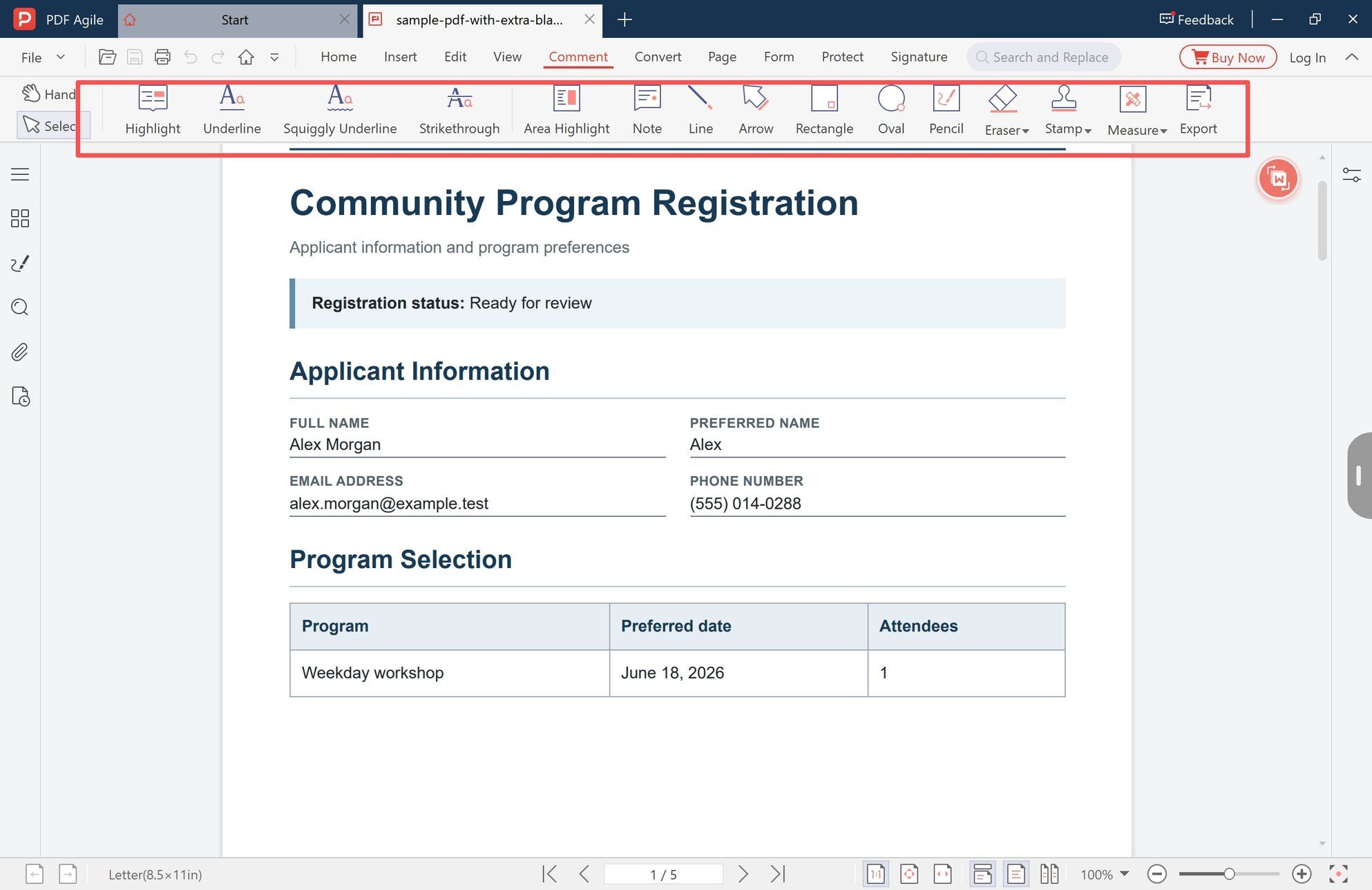
Step 1: Open the Comment tab
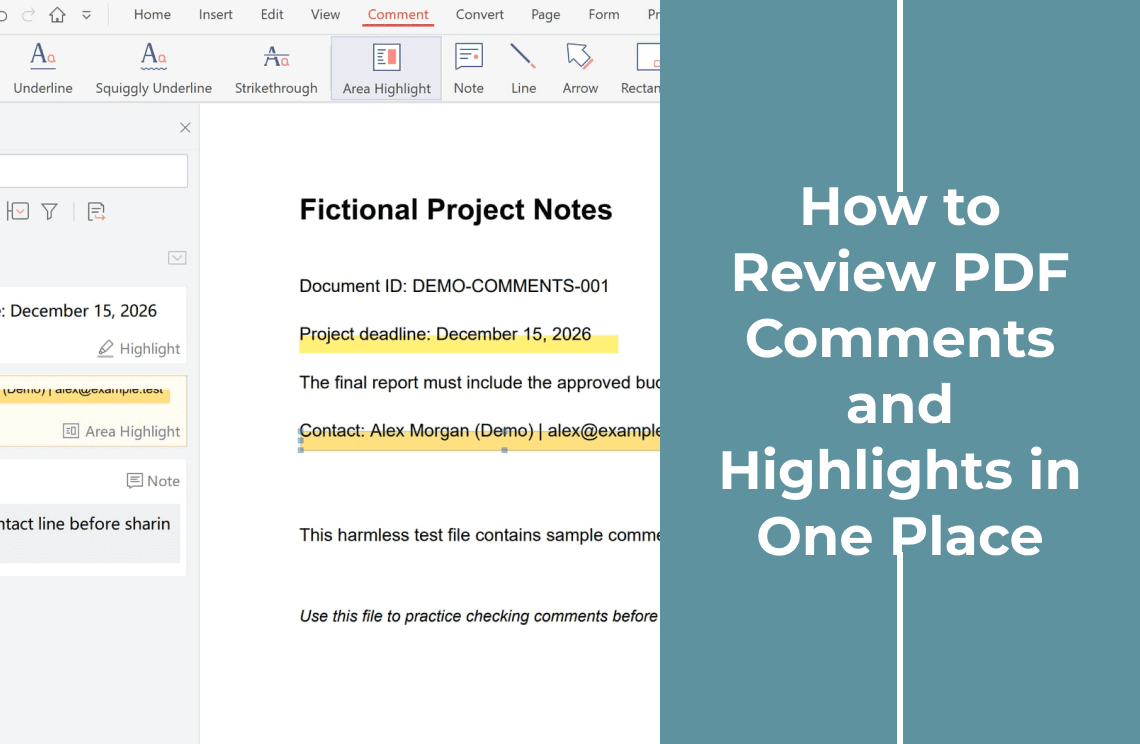
Open the file, then click Comment in the tab bar, which runs File, Home, Insert, Edit, View, Comment, Convert, Page, Form, Protect, Signature.
The ribbon groups the tools: Highlight, Underline, Squiggly Underline, Strikethrough and Area Highlight for text and regions, then Note and the drawing set — Line, Arrow, Rectangle, Oval, Pencil, Eraser, Stamp, Measure. The comment list opens on the left and reports how many comments the file already carries, so a document that has been round once shows what you are adding to.
Step 2: Mark the text, then type the comment
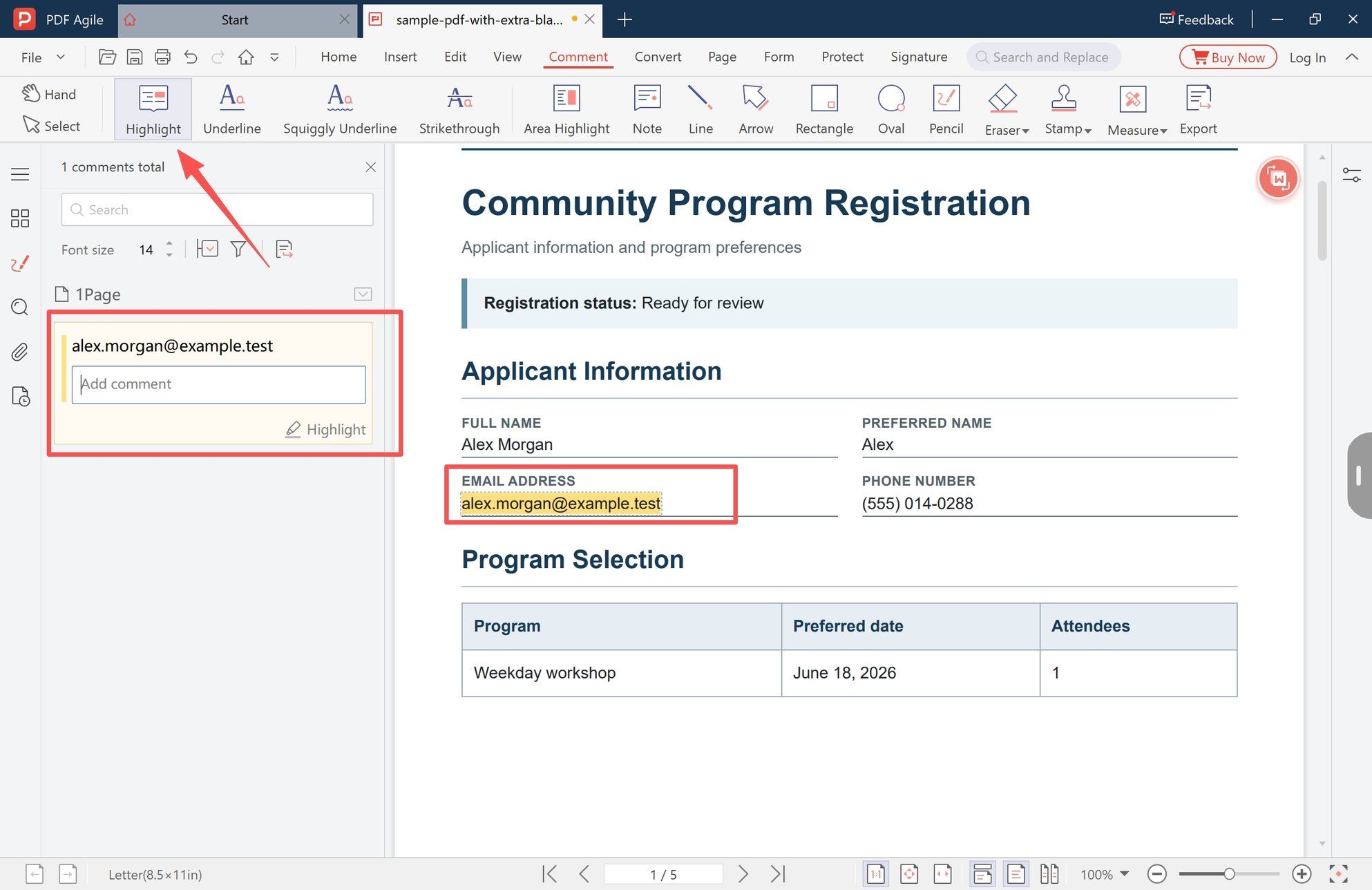
Choose Highlight and drag across the words you are commenting on. The text takes the colour and a new entry appears in the left panel, headed by the words you selected, with an Add comment box beneath it.
Type the remark there. The heading already says which words you mean, so the box is for the actual point — "this address is the one on the old form" says something, "see above" does not.
Step 3: Make the second mark its own entry
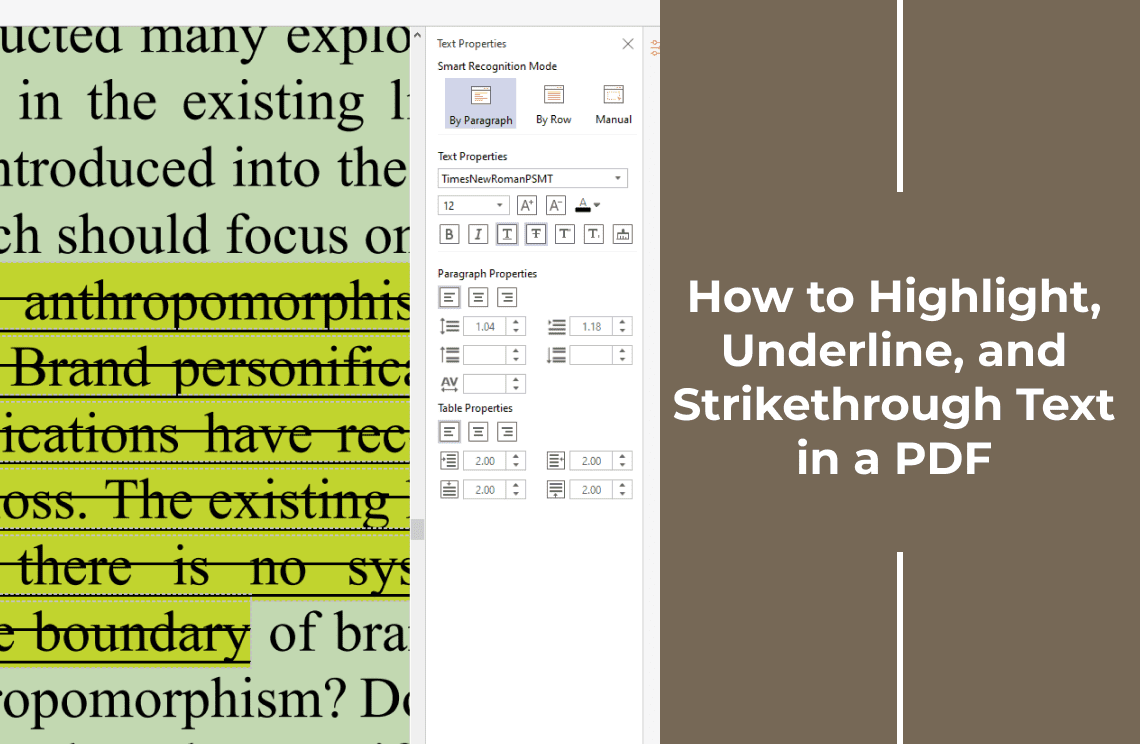
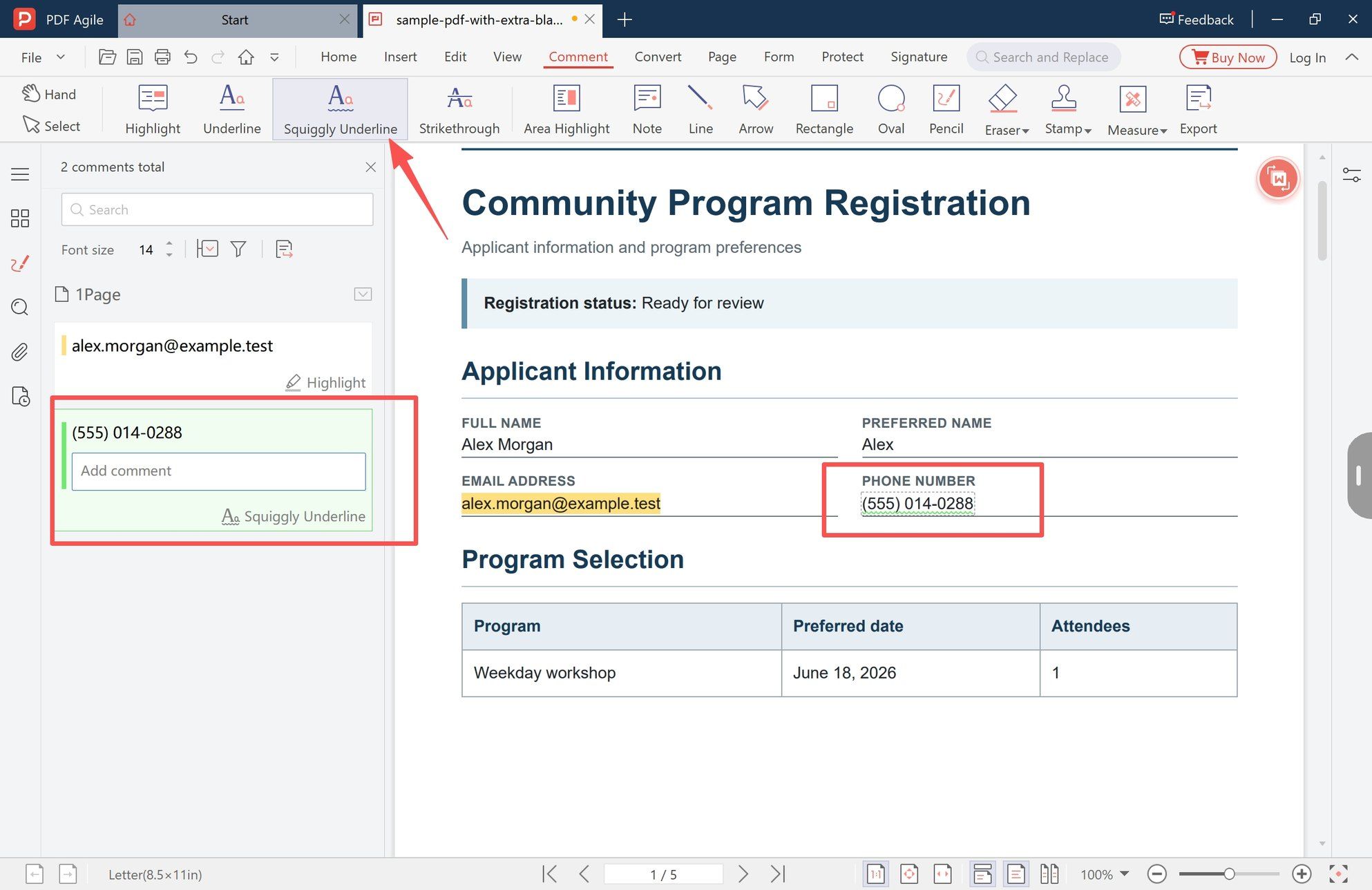
Repeat with the next issue, using a different markup where the meaning differs — underline for emphasis, squiggly underline for something that looks wrong, strikethrough for a line that should go. Each becomes a separate entry, labelled with the tool that made it, and the count at the top rises.
That label does real work. After twenty marks the list is the only overview anyone has, and two entries that are both plain highlights tell the reader nothing about which is a typo and which is a wrong figure.
Step 4: Pin a note where there is no text to select
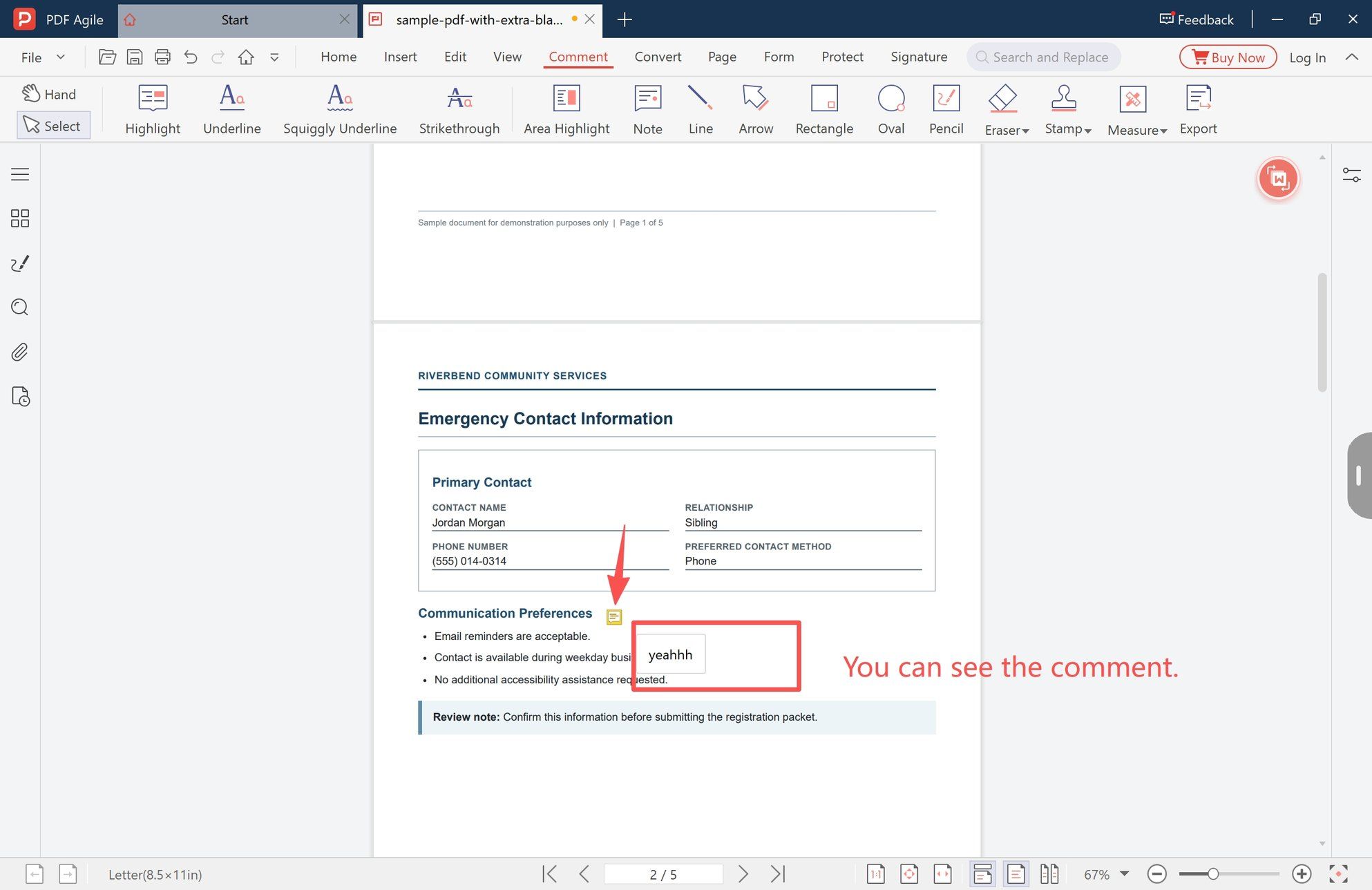
Switch to Note and click the spot. An icon sits on the page and a box opens beside it for the text.
This is the tool for places markup cannot reach: a scanned page with no text layer, a photo or diagram, an empty margin where a signature belongs. Keep the icon next to whatever it refers to — a note dropped in a corner is unreadable a week later, when nobody remembers which table it meant.
Step 5: Save as a copy, not over the original
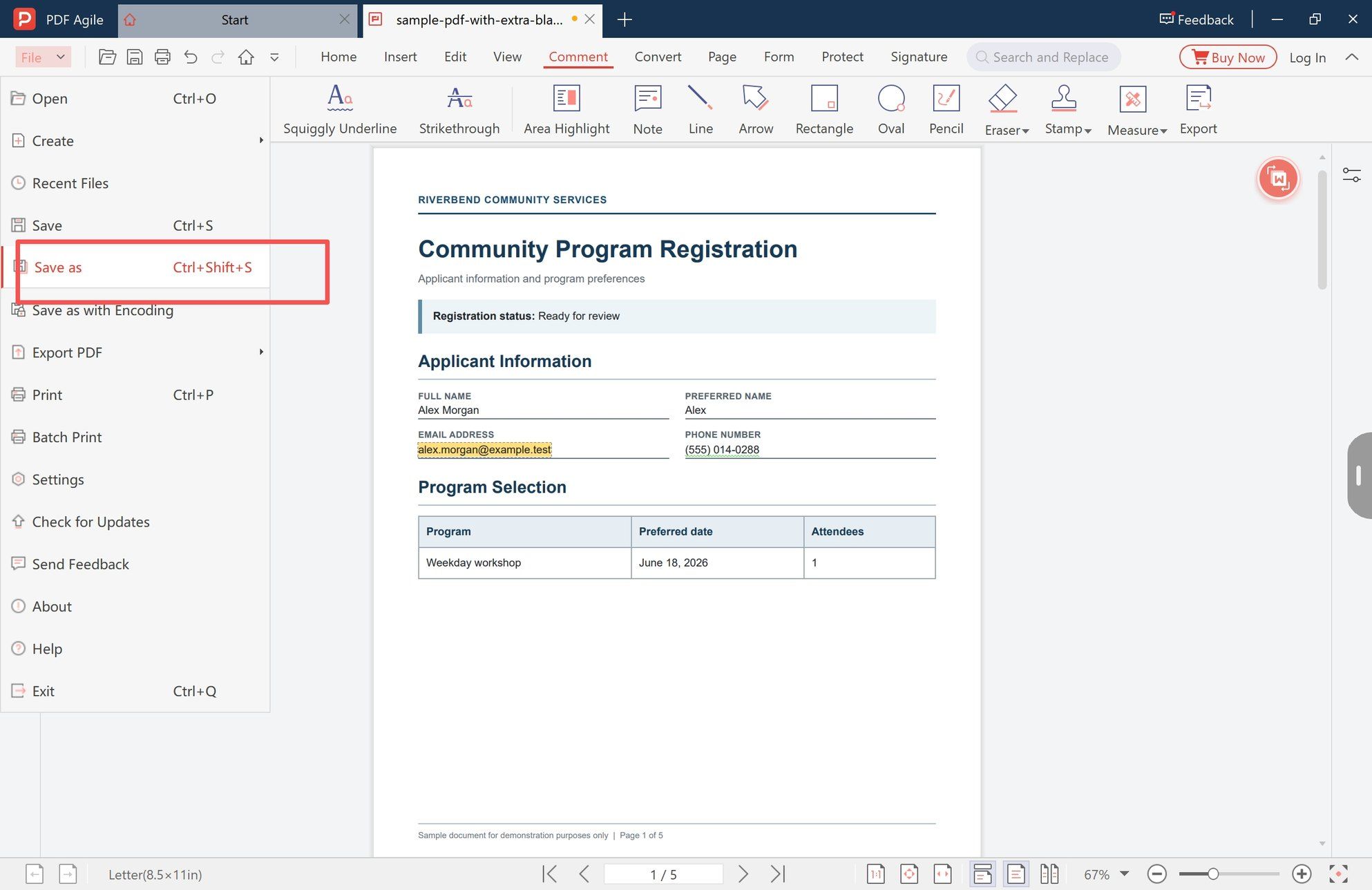
Use File → Save as and name the file so it says which round it is.
The sender's copy is the reference the conversation is against; your marked copy is the response, and overwriting the first with the second leaves nobody able to check what changed. It matters more when the file carries a signature.
What the Person Receiving the File Will See
The comment is stored as an annotation, not painted into the page. Two consequences follow, and both surprise people.
- The viewer decides. A reader that renders annotations shows the marks on the page and lists them. A viewer that only paints page content — some browser previews, some phone viewers, some email attachment previews — shows a clean page with no marks. Same file, same bytes, two different experiences.
- The list can be closed. With the comment panel collapsed the marks stay visible, but the text of your comments does not. If the wording is the point, keep it short enough to be worth reopening the list for.
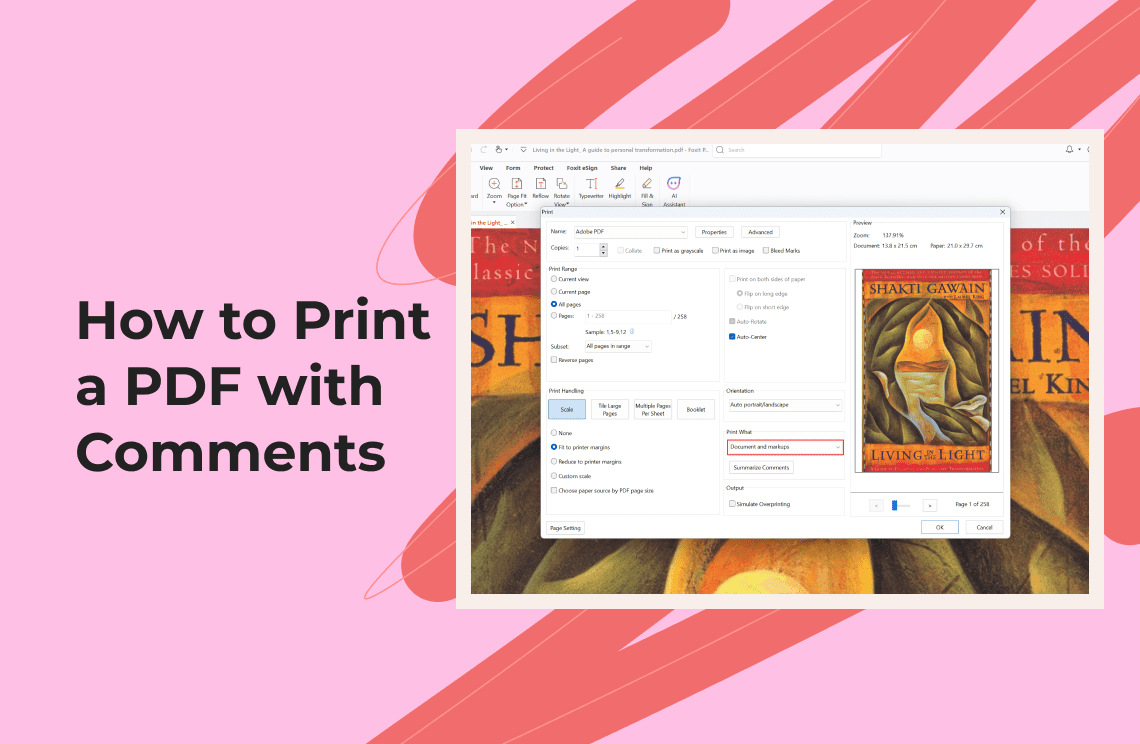
Two checks settle most of it. Send yourself the saved file and open it in a second viewer before sending it to anyone who matters, and count the entries in the panel against the number of issues you meant to raise — a missed one stays invisible until the other person answers a question you never asked. If the paper copy must carry the comments, that is a print setting rather than a save setting; printing a PDF with comments is its own procedure.
One thing not to do: print the commented file to PDF to make it flat. Printing bakes the marks into the page, and once baked they can no longer be edited, listed or filtered. Sensible for an archive copy, bad for anything coming back for a second round.
When a Comment Is the Wrong Tool
- You need the text changed. A comment records the problem and leaves it in place. Fixing the sentence is editing, and the editing guide covers text, images and pages.
- You need the information gone. Marking a figure as wrong does not remove it. Hiding or deleting content is whiteout or redaction, and those are not the same operation — a white box covers text that is still in the file and still copyable.
- The file is a signed contract. Saving a signed PDF after adding annotations invalidates the signature, by design. Ask first, or return the comments as a separate file.
- A portal will not read the comments. Upload forms that check page counts and field values ignore annotations. Fill the field; do not annotate the box.
- The file is locked. When a PDF carries permissions that disallow commenting, the mark will not stay in the file until that restriction is lifted, and lifting it needs the password or the owner's agreement.
- The page is a scan. No text layer means Highlight has nothing to attach to. Use Area Highlight across the region, or a Note beside it.
How This Compares With Acrobat
Adding a comment is not a differentiator, and presenting it as one would be dishonest. Acrobat's comment tools do the same job, and so does any reader that renders annotations; annotation support has been part of the PDF standard since its early versions.
What differs is where the work sits. In PDF Agile the markup tools, the note tool and the comment list share one ribbon under a single Comment tab, next to Home, Insert, Convert and Page, so marking a page, writing the remark and moving a page happen without switching modes. We build PDF Agile, so read that as a description of the workflow rather than a verdict on the competition.
For a one-off on someone else's machine, a browser annotator is the practical answer, with the usual caveat: the file is uploaded to a third party in order to be marked up. For a contract or anything under an NDA, an editor working from your own disk is the safer default.
FAQ
Can I add a comment to a PDF without printing it at all?
Yes. A comment is written into the PDF as an annotation, so nothing passes through a printer or a scanner. The paper round-trip is optional, not a stage in the process.
Will the other person see the comments I added?
Usually, if their viewer renders annotations — but not always. A viewer that only paints the page shows a clean document with no marks and no comment list. Send yourself the saved file and open it in a second viewer first.
Does adding a comment change the text or the page?
No. The annotation is a separate layer over the page: the text underneath is unchanged, still selectable and still searchable, and the file prints as the original when annotations are excluded. It is also why annotations can be removed as a group.
Can I comment on a scanned PDF, and what about signatures?
A scan is an image, so there is no text layer to select; use Area Highlight over the region or a Note beside it. And saving a signed PDF after adding annotations invalidates the signature, because it validates against the exact bytes that were signed.
The Short Version
The paper loop survives because it is familiar, not because it is good. Every pen mark has an on-screen equivalent, and the steps paper adds — the scan, the second file, the handwriting nobody can read — disappear.
What should not be skipped is the last part: confirming what the recipient will see. A comment the other person cannot find is the same as no comment at all.
More on this cluster sits under the how-to archive: the detail on highlight, underline and strikethrough, reviewing a commented file when the round comes back to you, and the annotator feature page for the tool set itself.
Steps and interface describe the desktop app as it stood in November 2026, and menus can move in later versions. Adobe Acrobat is a trademark of Adobe Inc. Statements about annotation layers, flattening and digital signatures follow the PDF specification. The product descriptions above refer to the app we build.