There are two ways to hide text in a PDF, and they do different things. A whiteout covers the words so nobody can see them on screen or on paper. Redaction takes the words out of the file, so they cannot be found, copied, or recovered later.
Use a whiteout when the page only has to look right: a draft, a print proof, a label you are replacing. Use redaction when the text itself is the problem: an ID number, an account number, a contract price, a patient name. This guide shows both in a desktop PDF editor, then gives you a two-minute test that proves which result you produced. Password protection and deleting whole pages are out of scope, and linked at the end.
What a whiteout changes, and what it does not
A whiteout is a cover. Something is painted on top of the line, so the page looks clean, but the text underneath stays exactly where it was.
- Undo still works and the cover can be moved or deleted later.
- The text itself is untouched, so it can still be selected, searched, and copied.
- Fine for drafts, print proofs, and layout reviews; wrong for an ID number, bank details, a contract price, or a client name.
In the editor below, the whiteout tool is called Eraser: it paints with the color you pick, so choosing white gives the classic whiteout look.
What redaction changes
Redaction works on a marked area and takes that content out of the document. The publisher of the app used here describes its redaction feature as permanently deleting specific text and illustrations, so treat the result as final rather than as a layer you can peel off.
- It is not cosmetic, and it cannot be undone once applied.
- It can be applied to a single line without touching the rest of the page.
- Keep the original untouched until the redacted copy has passed the test below.
Whiteout in practice: cover the line in three steps
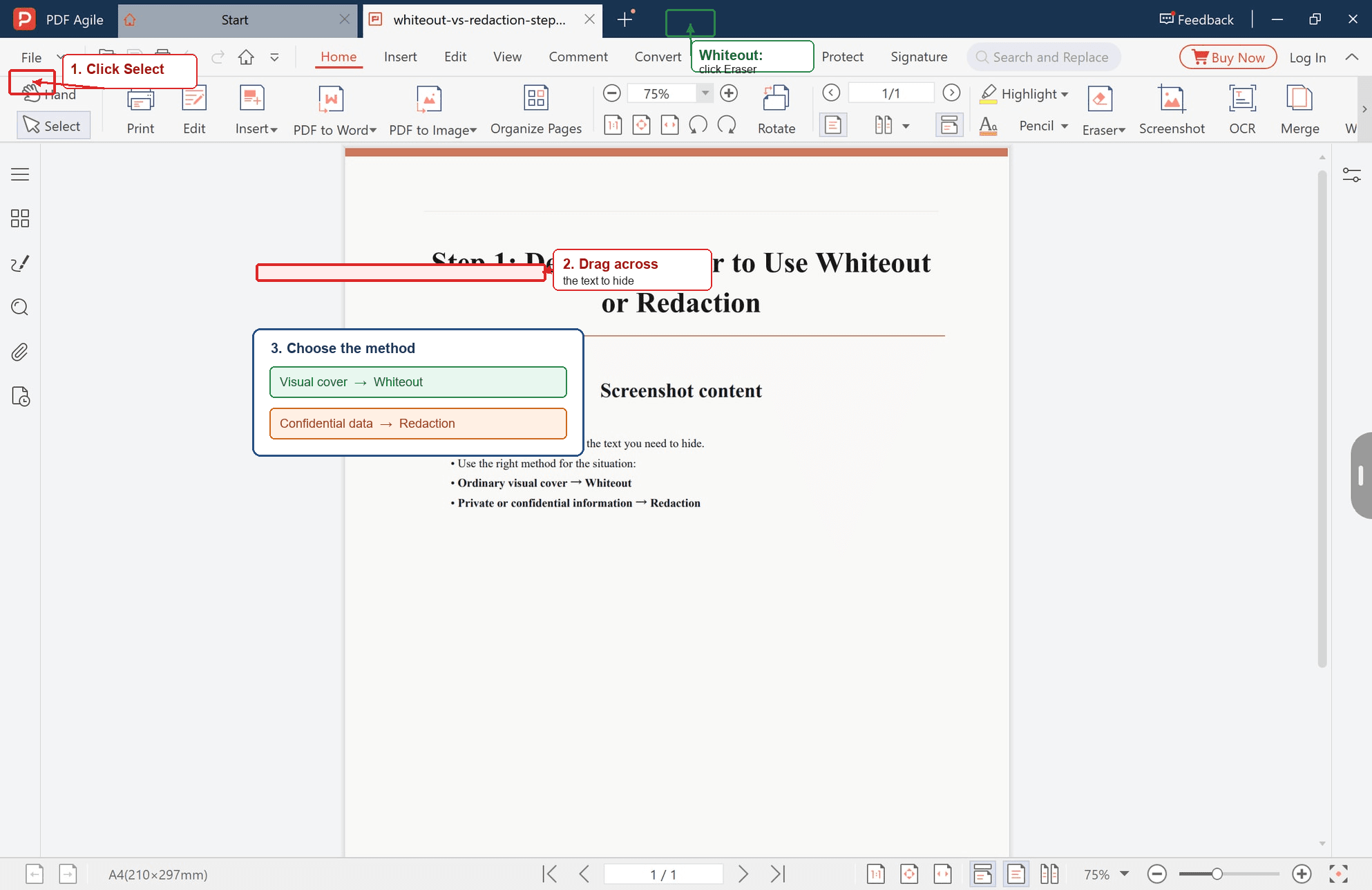
Step 1: Open the PDF and select the text you want to hide
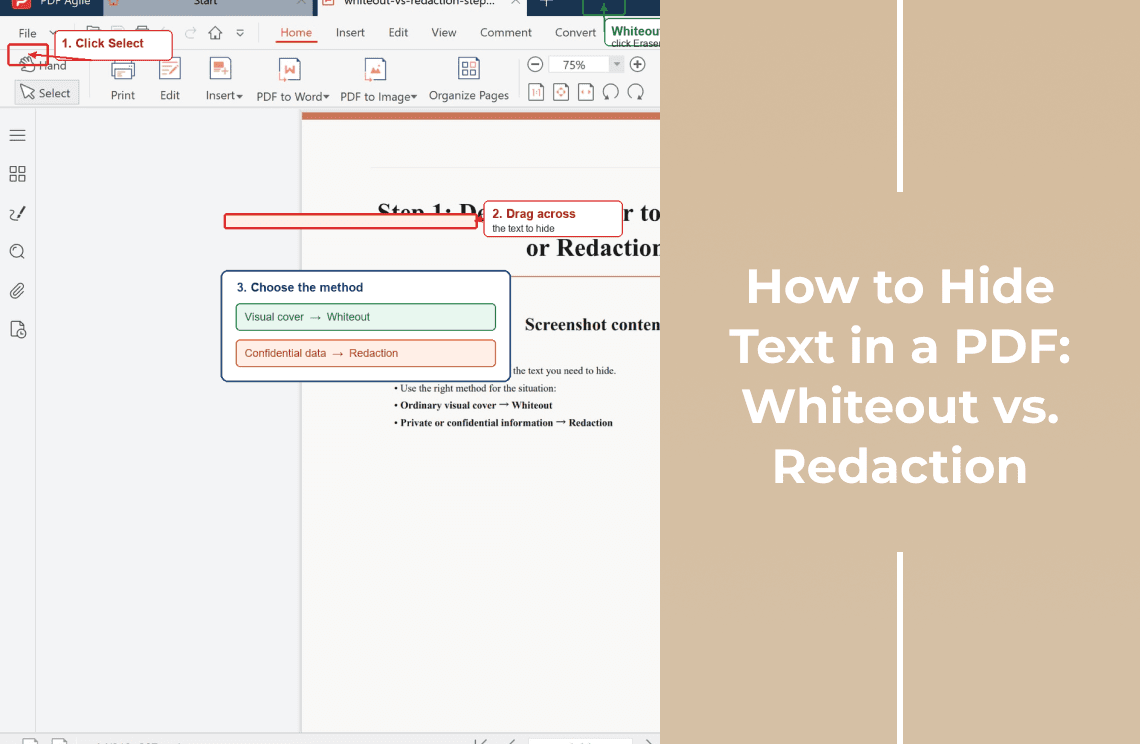
Open the file, click Home, click Select on the left, and drag across the line you want to cover. Selecting first shows you exactly what the cover has to hide.
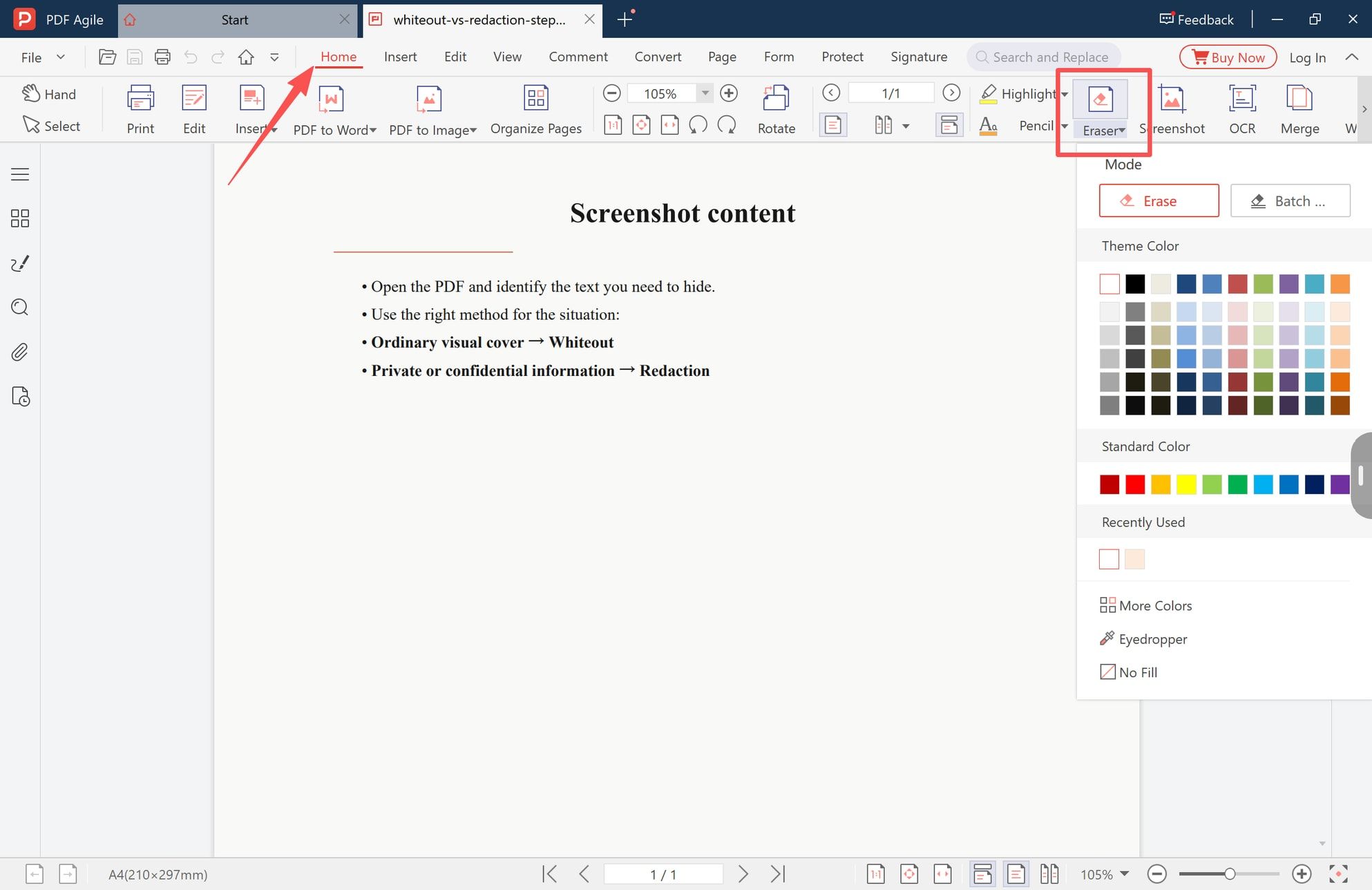
Step 2: Turn on Eraser and set the color to white
With Home still active, click Eraser and keep the mode on Erase. In the color panel on the right, choose white so the patch matches the page instead of reading as a grey block.
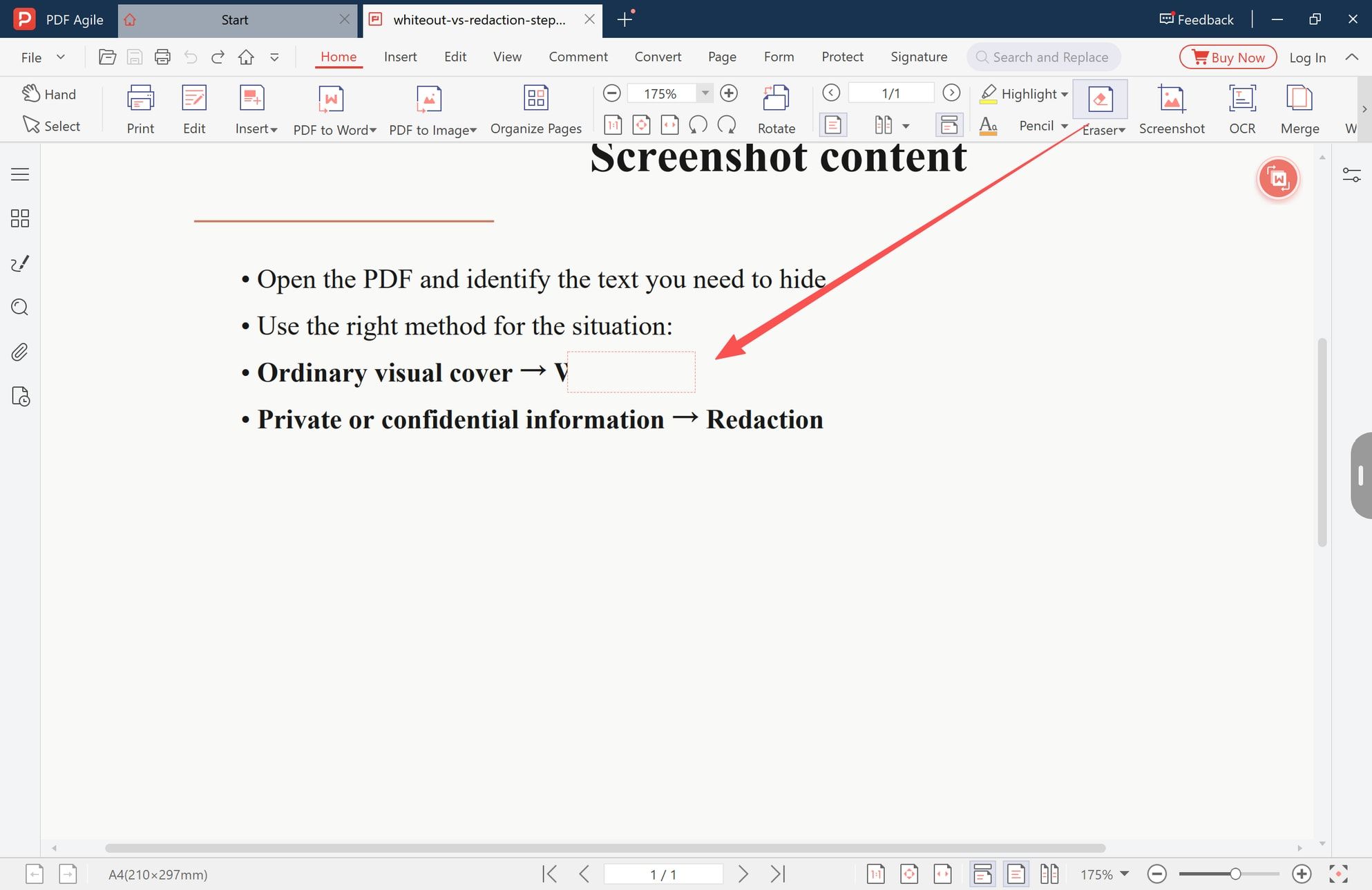
Step 3: Drag over the words
Drag across the text and a white block settles over the line. That is the whole whiteout, and the words are still in the file: fine for a proof, a problem for anything confidential.
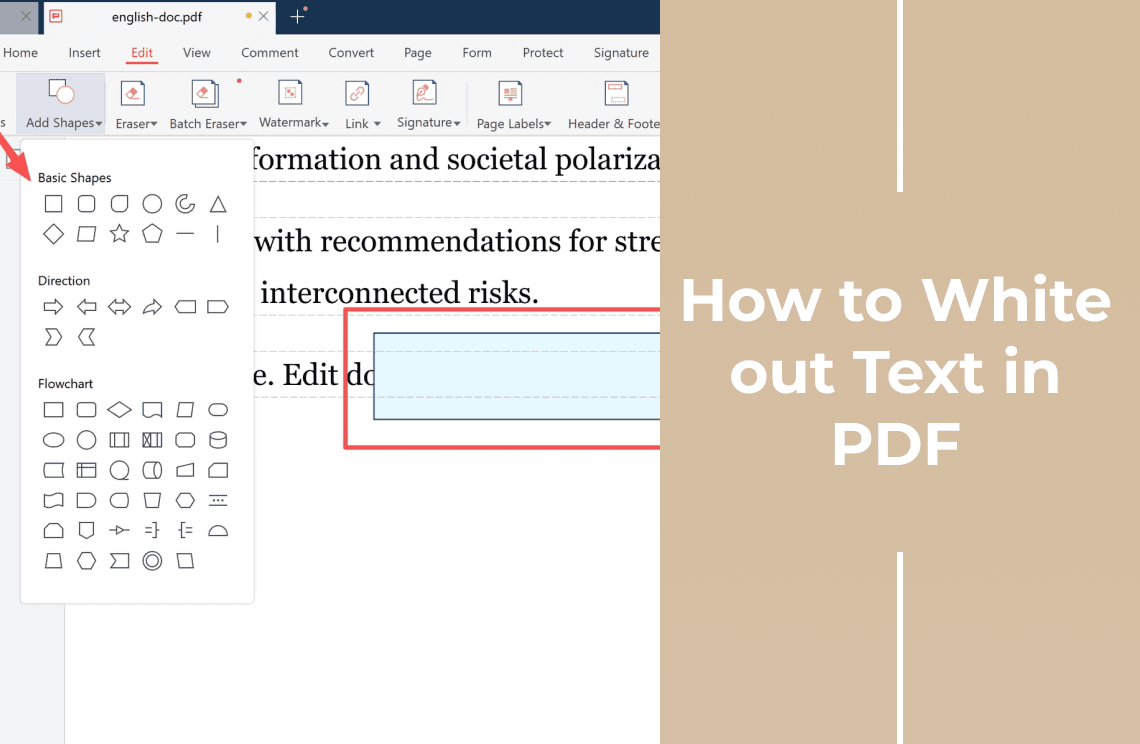
If you would rather cover a chart, a signature area, or a logo with a drawn shape instead of the Eraser, the white out walkthrough for text and shapes covers that variant.
Redaction in practice: remove the text in three steps
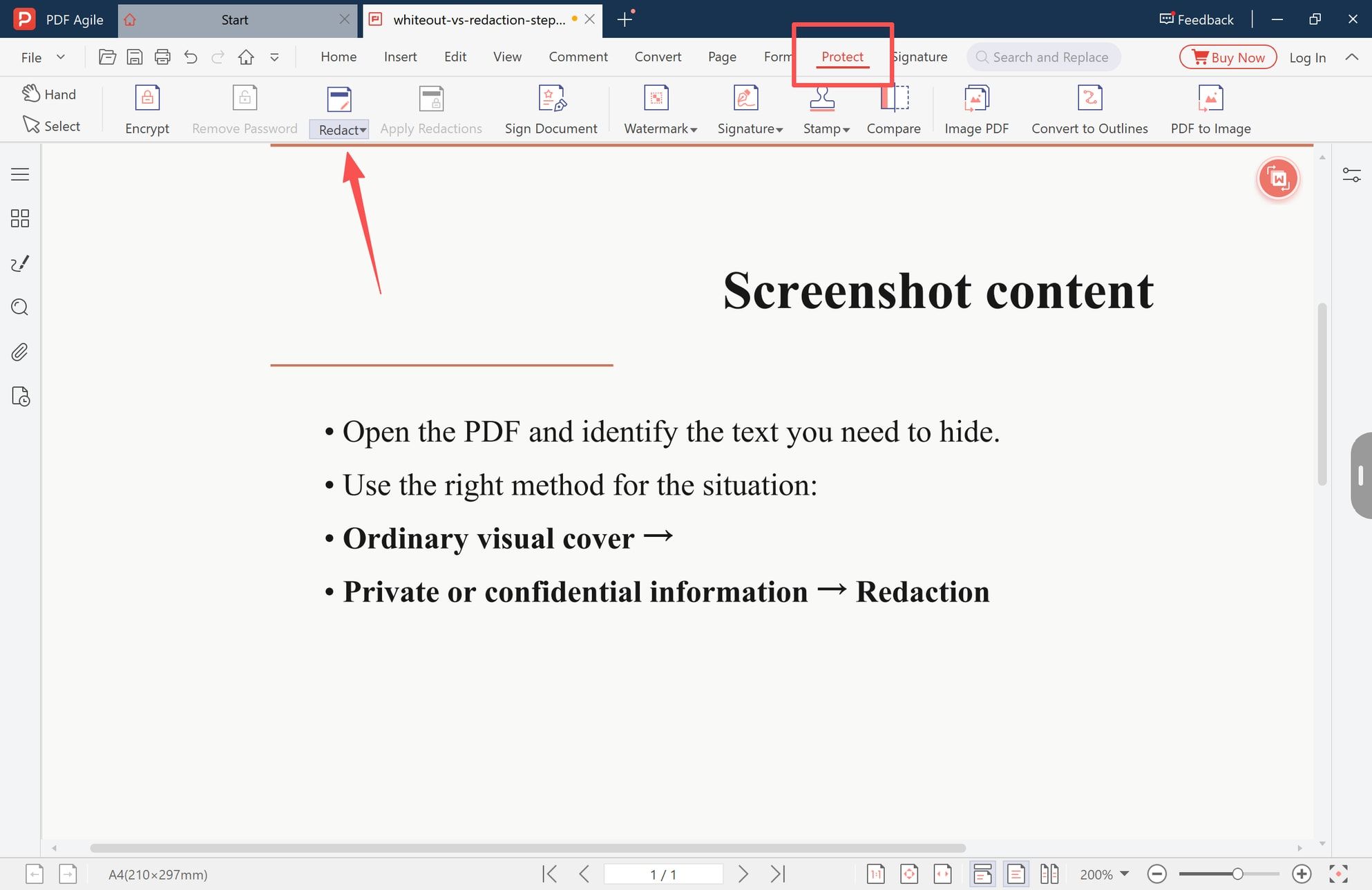
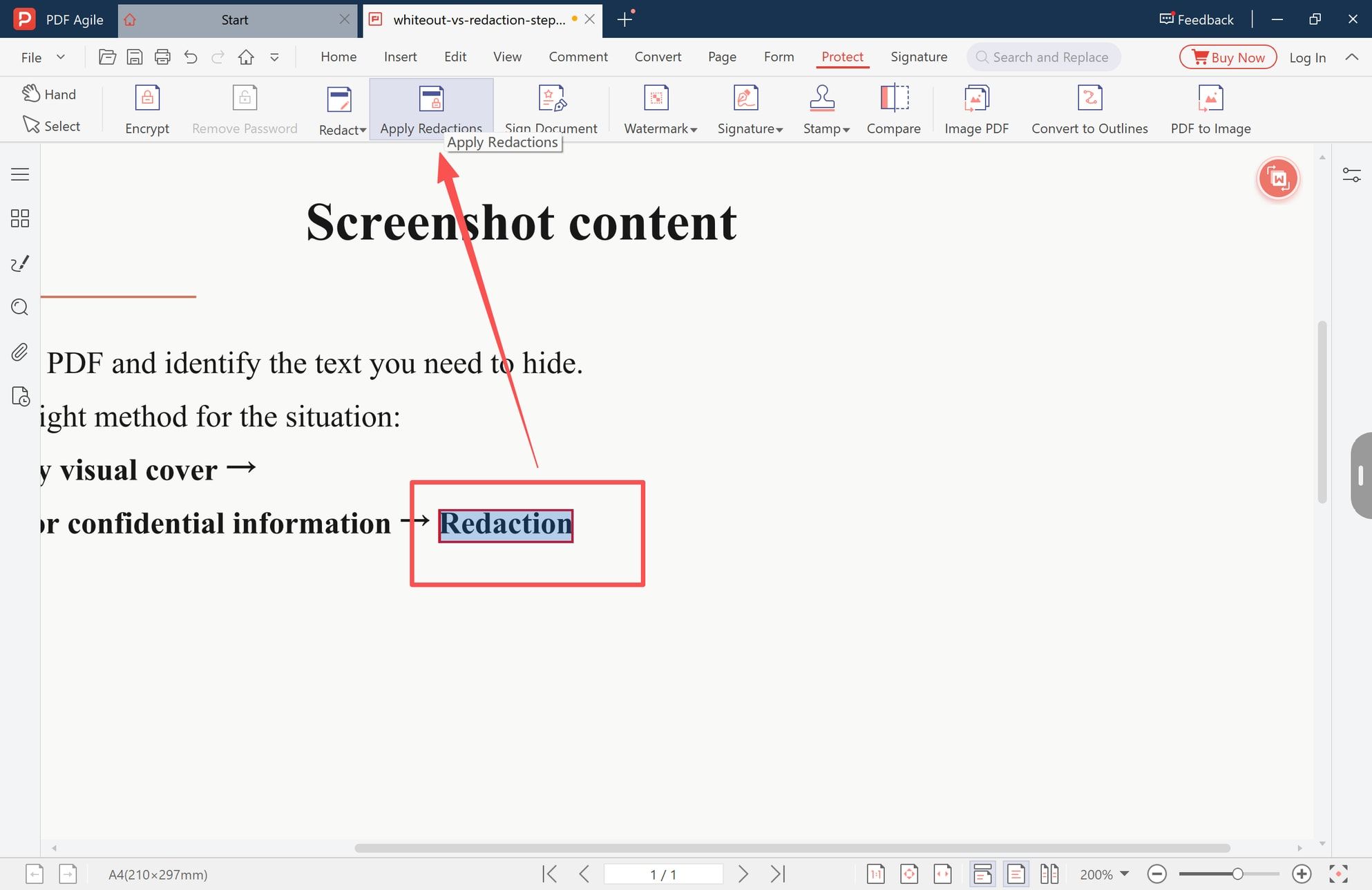
Step 4: Open the Protect tab and choose Redact
Click Protect on the toolbar, then click Redact. Apply Redactions only becomes available once an area has been marked, so the next step is the marking.
Step 5: Mark the text and apply the redaction
Select or drag over the sensitive text, then click Apply Redactions to remove the marked content from the document.
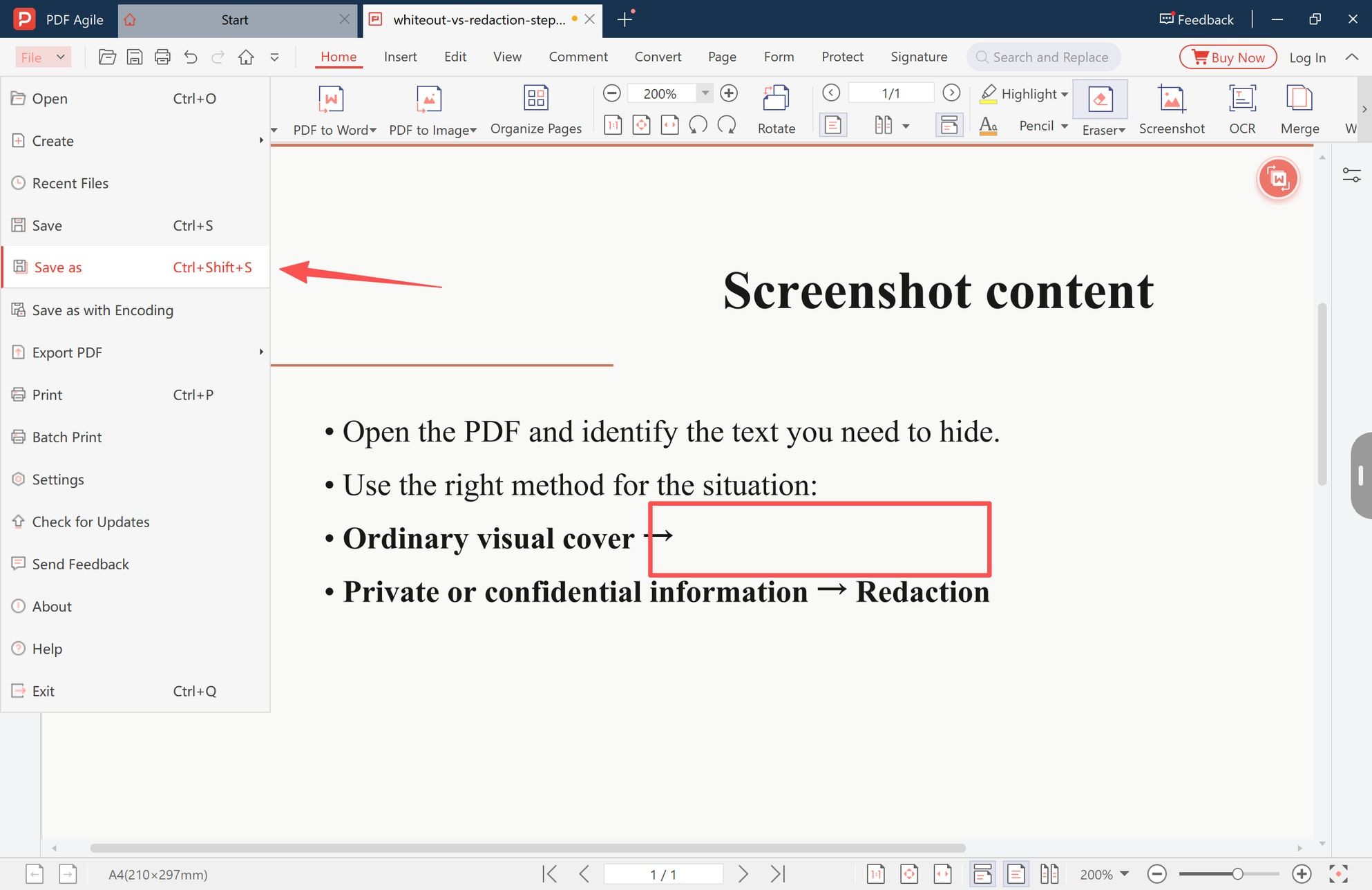
Step 6: Save as a new copy and check it
Open File, click Save as, and save the result as a separate file. Keep the original until the redacted copy has passed the test below.
The two-minute test: is the text really gone?
Do this on the file you are about to send, not on the one you were editing.
- Press Ctrl+F and search for a word you hid. If it still shows up, the text is still in the file.
1. Press Ctrl+F and search for a word you hid. If it still shows up, the text is still in the file.
- Drag the Select tool across the area, copy it, and paste into Notepad or any plain-text field.
2. Drag the Select tool across the area, copy it, and paste into Notepad or any plain-text field.
- Look again at 200% zoom, and open the copy in a second reader: some viewers render covers differently.
3. Look again at 200% zoom, and open the copy in a second reader: some viewers render covers differently.
If the word appears in either the search or the copy test, you covered the text, you did not remove it. Go back and redact it with the Protect tab.
Five ways hidden text still leaks
- Covering with a white shape and calling it redaction. If the words can still be selected, they were never removed.
- Assuming the Eraser deleted anything. It paints over content; the content stays.
- Checking only the visual result. A page can look spotless and still answer a search.
- Redacting one page but leaving the same number in a summary, an appendix, or a filename, or sending the original by mistake. Rename the redacted file and keep the original in a separate folder.
Scanned PDFs need one extra check
A scan is a picture of a page, so the rules shift:
- If the scan was run through OCR, the page carries a text layer. A white block hides the picture of the words, but that layer still answers a search, so the text has to be redacted rather than covered.
- If there is no text layer, a search finds nothing, yet anybody who opens the file still reads the words off the page. There the cover is doing all the work, and it has to be complete.
If the tools do not respond at all, the page is probably locked or image-only; the guide to editing a PDF explains how to tell those cases apart.
Which one should you use?
- The page only has to look right and the content is shareable — whiteout.
- The content must not be recoverable by anyone — redact.
- Nobody should open or edit the file at all — use Encrypt on the same Protect tab, or the Protect PDF tools.
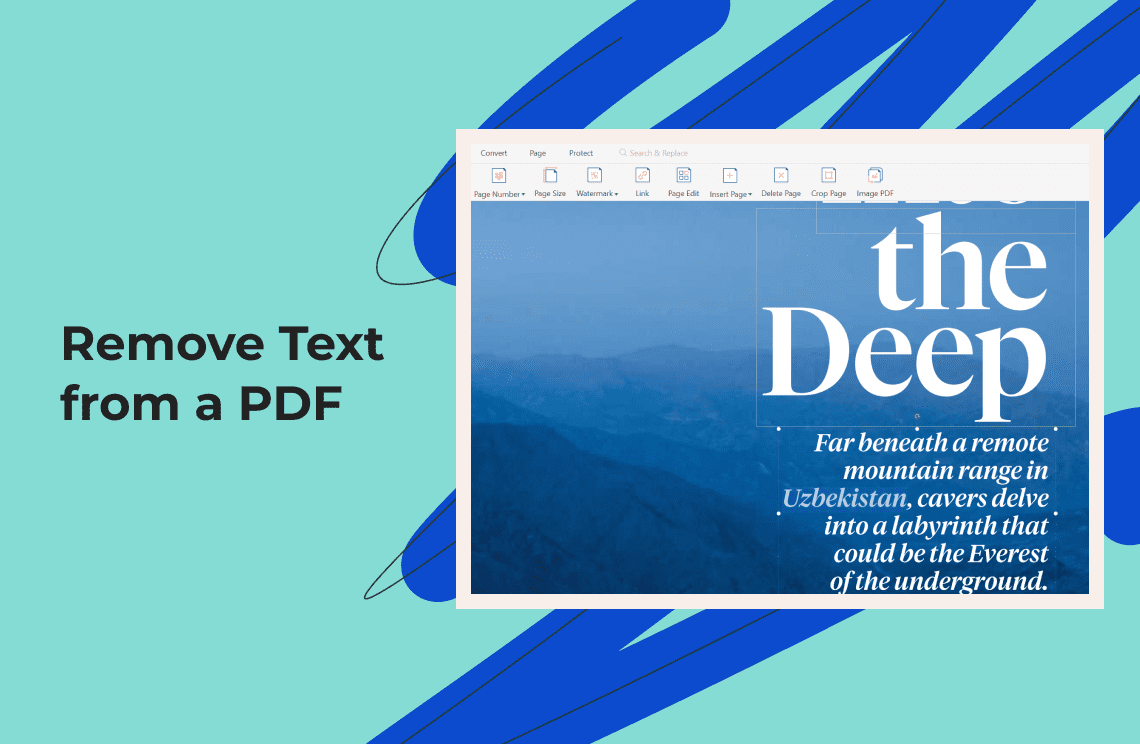
- A whole section has to go, not one line — remove the text instead; see how to remove text from a PDF.
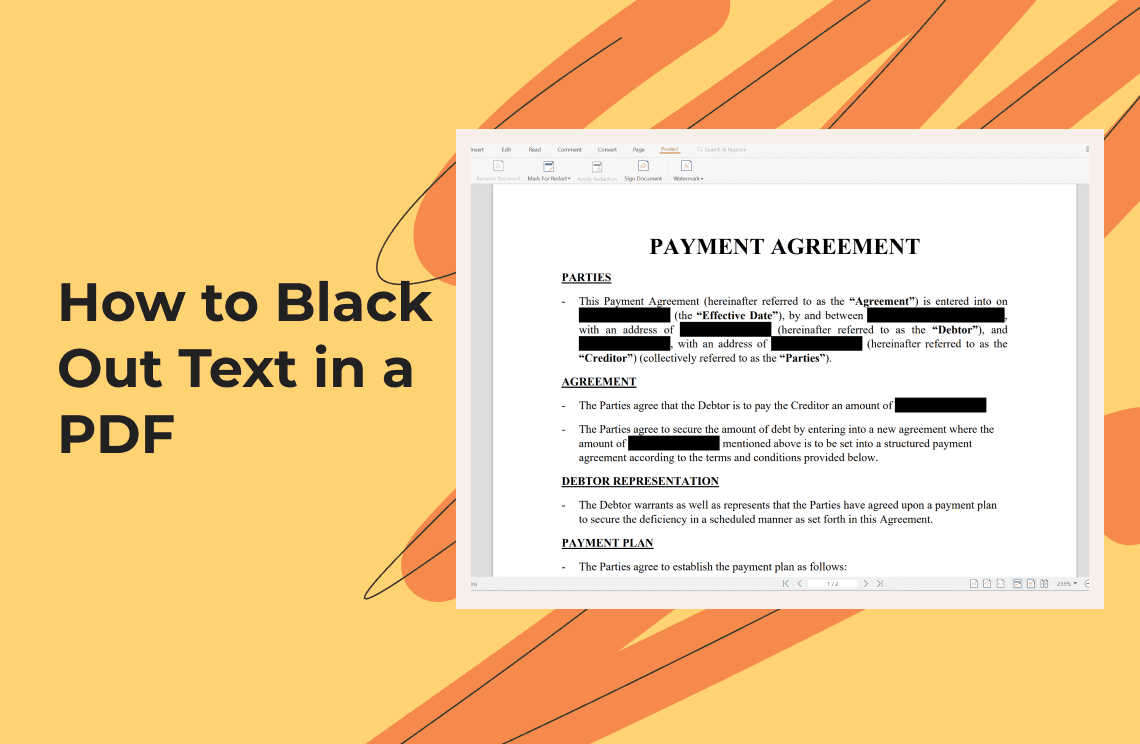
If the text is only embarrassing rather than sensitive, a black box over it is the same idea as a white one and carries the same limit; blacking out text in a PDF covers when that is acceptable.
FAQ
Does a whiteout delete the text?
No. A whiteout covers what is on the page; the text stays in the file, which is why a search or a copy-and-paste can still surface it. Redaction is what removes it.
Is a black box any different from a white box?
Only in color. Both are covers drawn over content, so the text stays intact underneath, and neither is a substitute for redaction on a document leaving your organization.
Can I undo a redaction?
No. Once applied they are permanent. Save a copy first, run the search-and-copy test, then discard the working version.
Can I hide text without installing anything?
Online tools exist for both jobs, but they need the document uploaded to somebody else's server. For an ID or a bank statement, that upload is a bigger risk than the text you were hiding.
PDF Agile handles both jobs in the same file: cover a line when the page only has to look right, redact it when the text must not survive, then run the test before the file leaves your desk.
---
Steps and interface were captured in the desktop app on Windows in November 2026; tabs and button names can change in later versions. Redaction is described as permanently deleting text and illustrations on the publisher's feature page; Adobe Acrobat's redaction tool is part of Acrobat Pro, not the free Reader, per Adobe's help documentation. Adobe, Acrobat, Microsoft, and Windows are trademarks of their respective owners. This guide is published by the team behind the editor used here.
More step-by-step PDF guides: PDF how-to library.