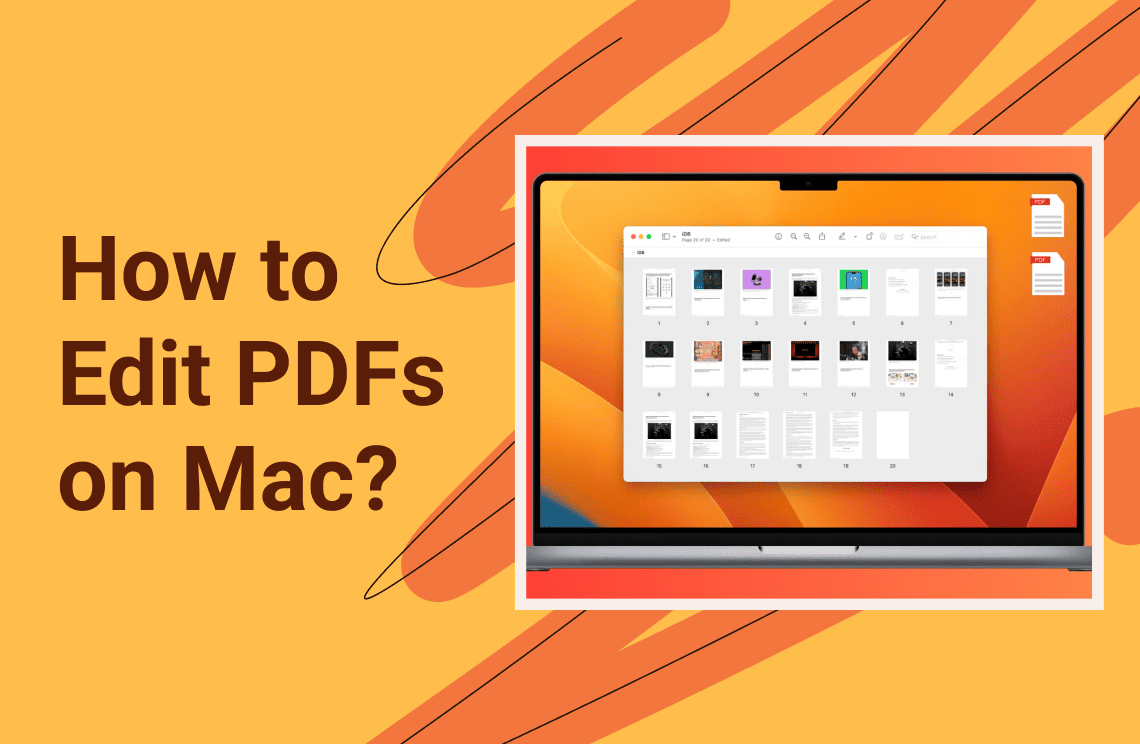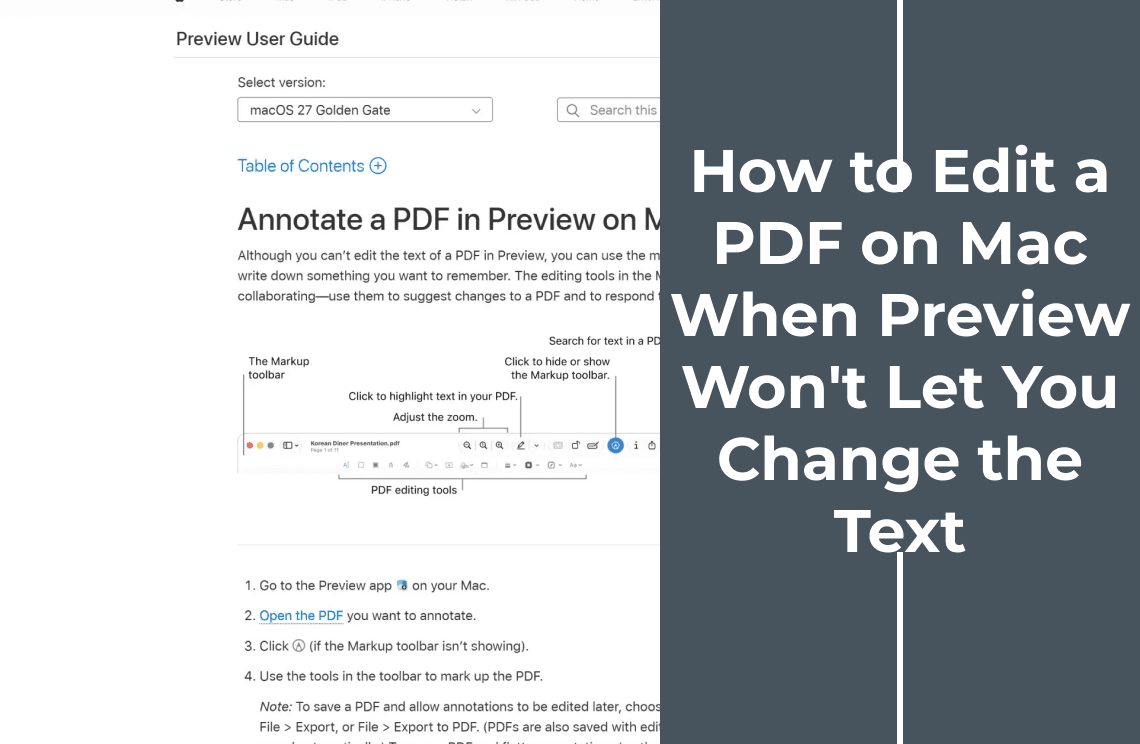
Preview can put new words on a page. It cannot change the words that are already there. The markup toolbar adds annotations, and an annotation sits in front of the page rather than inside it: highlight, text box, shape, signature, note.
So a PDF that accepts a highlight but never shows a cursor is behaving as designed. What you need is not another Preview menu but two answers: does the file hold a real text layer, and which route can do the job without wrecking the page?
What Preview Does to a PDF
Two things are on screen when a PDF is open in Preview. One is the page content — the characters, images and vector shapes the file was built from, each drawn at a fixed position. The other is whatever you add, and Preview only ever adds.
The toolbar behind the pencil icon gives you text boxes, shapes, highlights, notes and a signature; the sidebar and the Edit menu give you page operations: rotate, delete, reorder, insert. Neither set touches the characters the document already contains, which is why a text box dropped on a form line covers that line instead of pushing it along.
Test the File Before You Change Your Tools
Two files that look alike can need different repairs. These checks settle it in a minute.
- Drag across one word. A real text layer highlights letter by letter and follows the line. A scan selects a grey rectangle that snaps to a whole page or block, with no letters inside it.
- Paste the selection into TextEdit. Words arrive if the file carries usable text. An empty paste, or punctuation and accents in the wrong places, means the text exists but its encoding is broken.
- Search for a visible word with Command-F. A hit proves a text layer exists. No result on a page full of words means the words are pixels.
- Zoom to 400%. Sharp letter edges are real type; soft edges and paper grain are a scan.
Three outcomes follow. Selectable and clean: the text is real and Preview will not edit it. Selectable but garbled: a broken character map, common in files from older scanners and some print workflows. Not selectable: an image, and nothing is editable until OCR has run.
Why the Text Will Not Open for Editing
A PDF is not a word-processor file that has been frozen. It is a set of drawing instructions: place this glyph in this font at this coordinate, then the next one beside it. There is no paragraph object and no rule for what happens when a word grows longer.
Rewriting a word therefore means changing those instructions and repositioning every character that followed on the line, plus the lines below, the table cell or the caption. An application that can do that holds a layout engine. A viewer that offers highlighting does not. The fixed canvas is what makes a PDF dependable on a phone, an office printer and a form scanner; the price is that every change is a hand adjustment inside a space that will not stretch.
Pick the Route That Matches Your File
Choose the outcome before the tool: words added, wording changed, a scan recognised, a document rewritten, or pages moved. If the problem is typing into a form rather than changing existing text, why a PDF will not accept your typing is the closer match; if the job itself is still unclear, the general guide to editing a PDF starts from the file type.
If you only need to add a name, a date or a signature
Preview is enough. Place a text box over the blank area, match the size and colour, and sign with the signature tool. Two properties of that box matter later. The added words are not part of the document text, so a reader who selects the page, extracts text or searches the file will not see them. And if the result has to behave like the page, you have to flatten it by printing to PDF — which re-renders everything and drops form fields, links and bookmarks.
If you need to change wording and the layout has to stay
This is the case that sends people looking for a Mac PDF editor: a tool that reads the page's own text, replaces characters in place, and re-flows the paragraph while the rest of the page stays put. On macOS that means a desktop editor with a content-editing mode; Acrobat Pro is the reference, and it is a paid tier rather than a free feature. Test any candidate on your own file: can it put a cursor inside an existing sentence, does it warn when the original font is missing, and can you undo?
If the page has no text layer at all
OCR comes first, and it is the start of the work rather than the end of it. It builds a text layer over the image by guessing each character from its shape — strong on clean printed text, weaker on handwriting, stamps, columns, tables and tilted or low-resolution scans. Check proper nouns, numbers, dates, amounts, codes, checkboxes, headers and footers before editing, then confirm the layer lines up with the image: on a tilted scan the recognised words sit slightly off the characters they belong to. Running OCR on a scanned PDF without uploading it covers the pass and what it leaves behind.
If you are rewriting whole paragraphs
Convert to an editable format instead of fighting the layout page by page. Word conversion rebuilds paragraphs and styles, which is what a half-page rewrite needs. It is the wrong route when the page has to survive untouched: conversion guesses at structure it cannot see, so two columns become one, a table becomes stray tabs, a header lands in the body, fonts are substituted, and the page count can move. Converting a PDF to Word on a Mac covers the settings that limit the damage.
If the job is pages, not words
Deleting, reordering, rotating, inserting and merging are page-level operations, and Preview handles several of them already. When someone asks you to "change the PDF" and the real request is to drop page seven and swap two others, you were never in a text-editing problem.
The White Box Trick, and What It Hides
Preview tips usually suggest the same workaround: fill a rectangle with the page's background colour over the old words, then place a text box on top. It looks right and takes thirty seconds. It is not an edit.
The characters underneath are still in the file. Anyone who selects that paragraph, extracts the text, or opens the PDF somewhere that ignores the drawn shape will read the originals. When those words are a name or an account number, that is a disclosure rather than a formatting choice. Whiteout and redaction are different operations, and only one survives a copy-and-paste.
What Usually Moves After an Edit
Any change to page content can shift the layout. Naming the cause stops you redoing the work.
- Fonts. Without an embedded font the editor substitutes one, character widths differ, and the line breaks somewhere else.
- Length. Longer replacement text pushes the rest of the line past the space available; shorter text leaves a gap. Neither is a defect.
- Tables. A cell cannot grow without moving its neighbours, so overflow clips or spills into the next column.
- Scans. After OCR the text layer and the image are separate objects, so a replacement word may not land where the old glyphs sat.
- Signatures. Editing page content invalidates a digital signature; work on an unsigned copy and re-sign.
Check the Result Before You Send It
These checks take less time than the edit did, and they catch most failed jobs.
- The count. The page count the recipient will see is the one you expect, unless changing it was the point.
- The line. Zoom to 300–400% on the edited sentence. Look for overlap, a gap, a mismatched stroke weight, or text running past the margin.
- The search. Search for the word you changed. The old one should no longer be a hit, and the new one should be.
- The copy. Select the edited sentence and paste it somewhere plain. Real text arrives; a text box does not.
- The edges. Dates, totals, stamps and signature blocks sit near page edges, where a shifted layout shows up first.
- A second viewer. Annotations, fields and substituted fonts can look different in the viewer the recipient actually uses.
Acrobat, Online Editors, and a Desktop App
Little about this is Mac-specific except the tool you reach for first. Acrobat on macOS performs the content edit properly; the free Reader cannot, because text and image editing sit in the paid tiers.
Browser editors are the shortest path for one small change and the wrong path for anything confidential. The file goes to someone else's server, and retention, duration and location are a policy to read before dropping a contract into it. For a payslip, a medical letter or anything under an NDA, a desktop tool working from your own disk is the safer default.
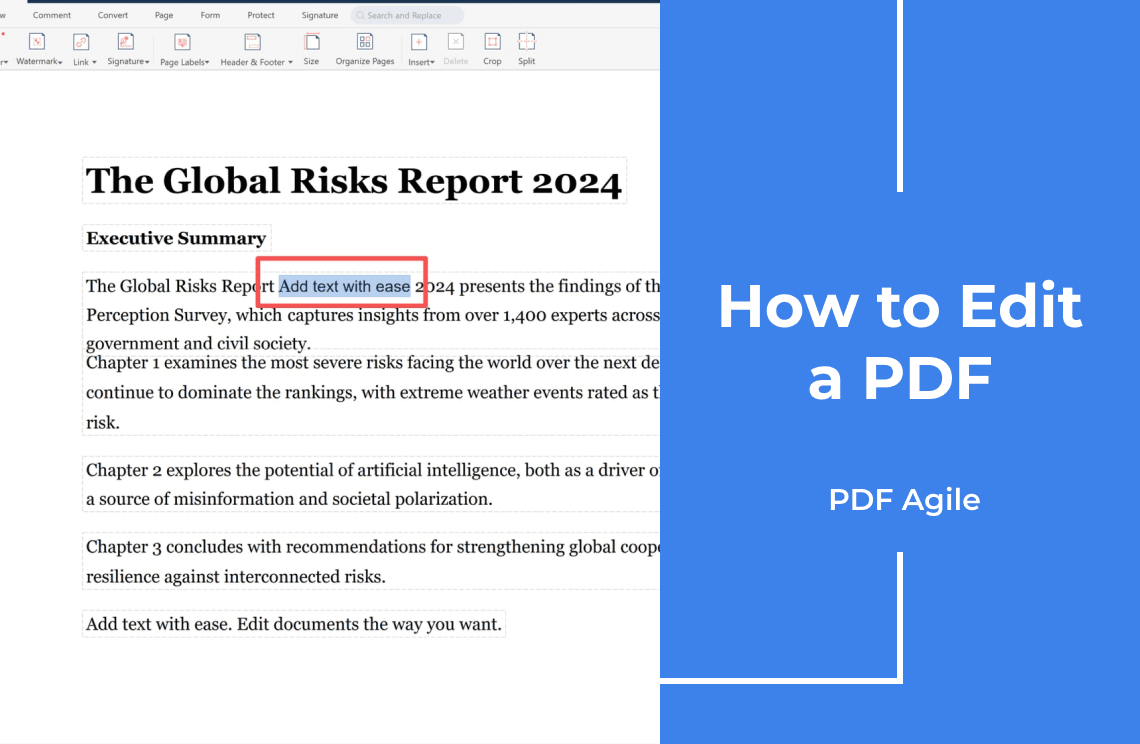
The desktop app we build, PDF Agile, runs on Windows and macOS — 10.15 and later, universal for Apple silicon and Intel — and handles this job in two places: text editing that re-flows a paragraph, and an OCR pass for scans. We build it, so read that as a description rather than a verdict. The edit features page sets out what it claims.
FAQ
Can I edit existing text in Preview on Mac?
No. Preview adds annotations over the page. It does not rewrite the characters the PDF contains, and no menu item or hidden preference changes that.
Why can I select the text but still not type in it?
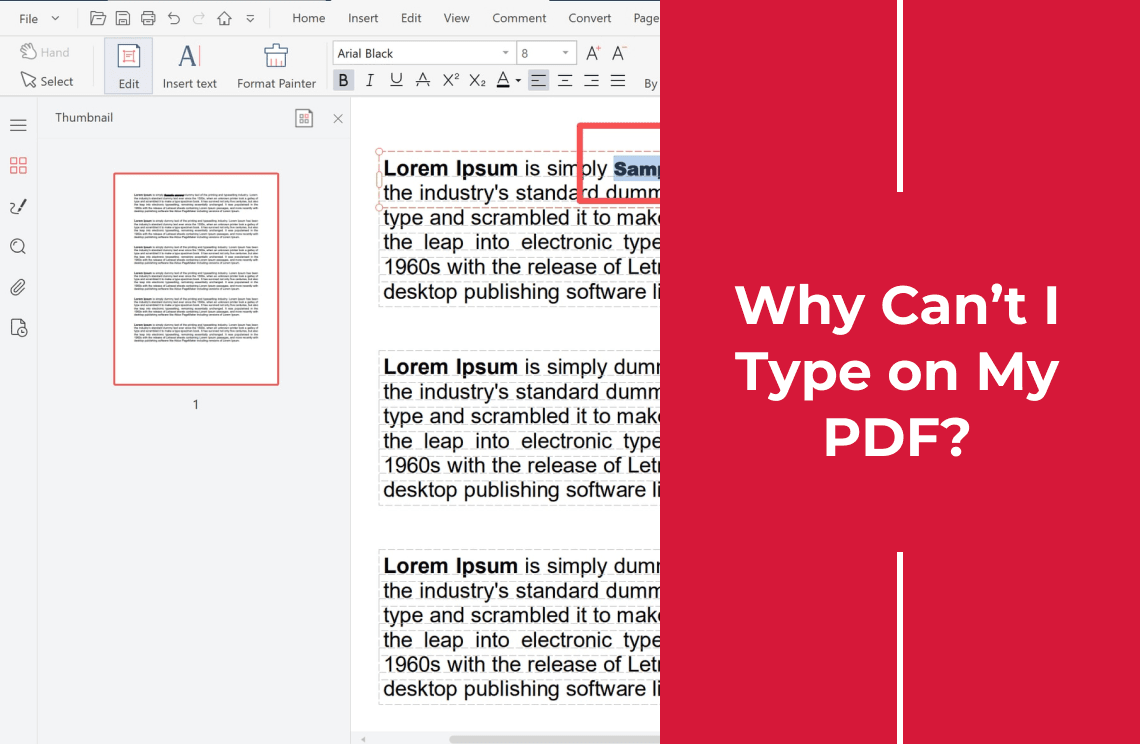
Selection only proves a text layer exists. Typing inside it needs an editor that can replace glyphs and re-flow the paragraph, which is why copy and search work while the cursor never appears.
Does adding a text box delete the original text?
No. The original stays in the file, still searchable and still copyable. A text box covers what sits under it.
Is converting to Word the same as editing the PDF?
No. Conversion builds a new document from the PDF's appearance, so columns, tables, headers and fonts are re-guessed and the page count can change. Edit the PDF when the page must stay exactly as it is.
The Short Version
Preview is a good reader and a limited editor, and the confusion comes from one toolbar doing both jobs. Decide what the file needs — an added signature, a changed sentence, recognised text, a rewrite, a removed page — and the tool choice stops being an opinion.
If the missing piece is a cursor inside an existing sentence, that is what the PDF Agile desktop app was built for, on macOS as well as Windows, and the download page carries the macOS build. The PDF editing guides cover the neighbouring jobs, along with editing PDFs on a Mac and what to do when a PDF will not accept typing.
Steps and interface names describe macOS Preview and the desktop app we build as they stood in November 2026, and menus can move in later versions. macOS Preview is part of macOS; Adobe Acrobat is a trademark of Adobe Inc. and Microsoft Word is a trademark of Microsoft Corporation. Product statements were checked against the vendor's own feature and download pages rather than measured in a head-to-head test.