A downloaded PDF usually looks different for one of six reasons: a font the file does not carry, a page size or scale set at export, images the exporter never wrote, a table that ran off the edge, pages added or dropped on the way, or a reader drawing an old copy.
The repair depends on one question: is the content missing, or only laid out differently? Missing content must be exported again; layout damage can be fixed in the copy you have.
This page separates the two and repairs the case where the download is all you have. It does not cover files that will not open, passwords, or converting a PDF back into Word.
Two Layers: What the File Holds, and How It Is Drawn
A PDF fixes the position of every character and image on a page, so it opens the same on a machine without those fonts. Two layers fail differently.
- The export layer decides what exists: which page holds what, where a break falls, how large each sheet is. Once written, it is frozen.
- The render layer decides how it appears: which font is used, whether an image decodes, whether a form field shows. It belongs to the reader.
A changed page count is an export problem; wrong glyphs and spacing shifts are render problems.
Three Different "Originals"
"Different from the original" can mean three comparisons, and the wrong one wastes an afternoon.
- Against the source document — the Word file, the workbook, the web page. Differences here came in at export.
- Against the on-screen preview — the page you saw in a portal before clicking download. That preview is another engine's rendering, and some portals serve their own or a flattened copy.
- Against the same PDF in another viewer — the file looks wrong on a second machine. The file has not changed; the reader has.
If the difference disappears in the third comparison, the file is fine.
What Looks Different, and What Causes It
Match the symptom before you touch anything.
- The fonts look wrong, but every word is there. The file names a font it does not embed, so the reader substitutes one; the count does not change. Fix it at export — how to embed fonts in a PDF covers the settings.
- Images are missing or moved. Either the image never made it into the file or it was pinned to a different anchor. One that was never written cannot be recovered from inside the PDF.
- A table runs off the right edge. The page width or a scale option did not match the table, and what fell past the edge was never written.
- The page breaks moved. Paper size, margins, footer height or "fit to page" changed how much fits on a sheet.
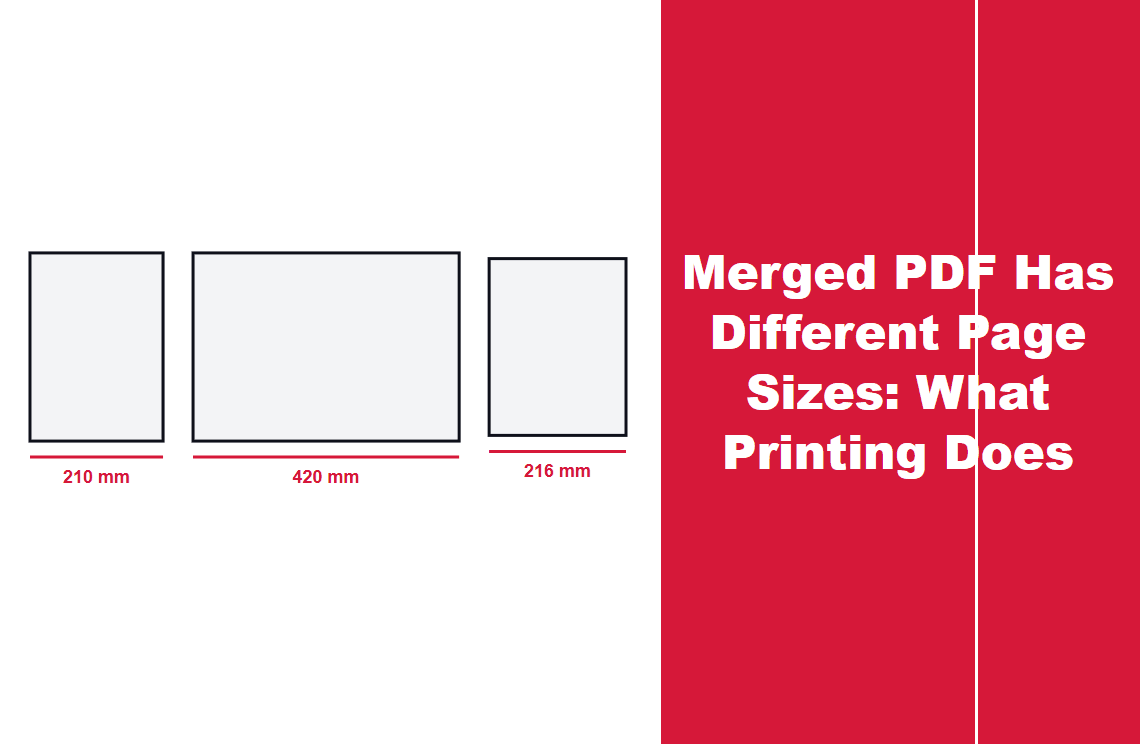
- The page size changed. A4 is 210 × 297 mm and US Letter is 216 × 279 mm; mixing the two crops one dimension and pads the other.
- There is a blank, duplicate or extra page. A trailing page break, a row that spilled, or one file inserted twice — why a PDF has extra or blank pages tells them apart.
- The pages are out of order. The order came from the export or from whoever assembled the file.
- Text cannot be selected. The page is a picture of text, usually a scan; nothing selects until OCR has run.
Missing, or Merely Re-laid Out?
Four checks settle it.
- Search for a phrase that should be on the missing page. If it is found, the content is there and only its appearance changed.
- Compare the page counts. Same count, different look points at rendering; fewer pages means content was lost.
- Zoom to 300–400% where the page looks empty. Some missing images sit behind a white shape or outside the page box.
- Check the thumbnail stack. Blank pages, duplicates and swapped neighbors are obvious there.
A page that is right in one viewer and wrong in another is a rendering problem, not a damaged file.
Fix the Source, or Fix the PDF?
If the file will be exported again, fix the source. If the PDF is the only copy, fix the PDF.
A source you own is cheap to repair: embed the fonts, match the paper size in document and exporter, remove trailing page breaks, narrow the overflowing table. Converting Word to PDF without losing formatting walks through those settings.
Fix the download when the source is gone — an attachment, a portal download, a scan — or when the damage arrived after export.
And if the same difference returns on every export, the PDF is a symptom and the source is the cause.
Repairing the Copy You Have
The steps use the desktop app we build and assume page-level damage — a stray page, a wrong order — which is what can be repaired without the source.
Step 1: Open the download and read the total
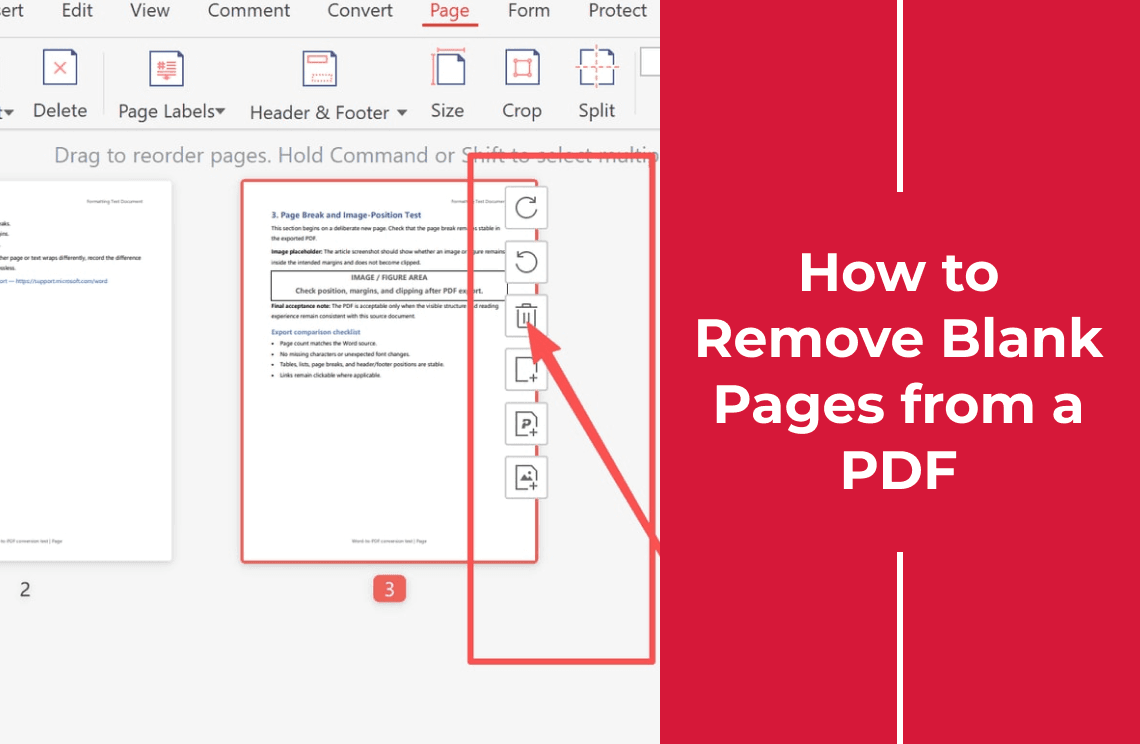
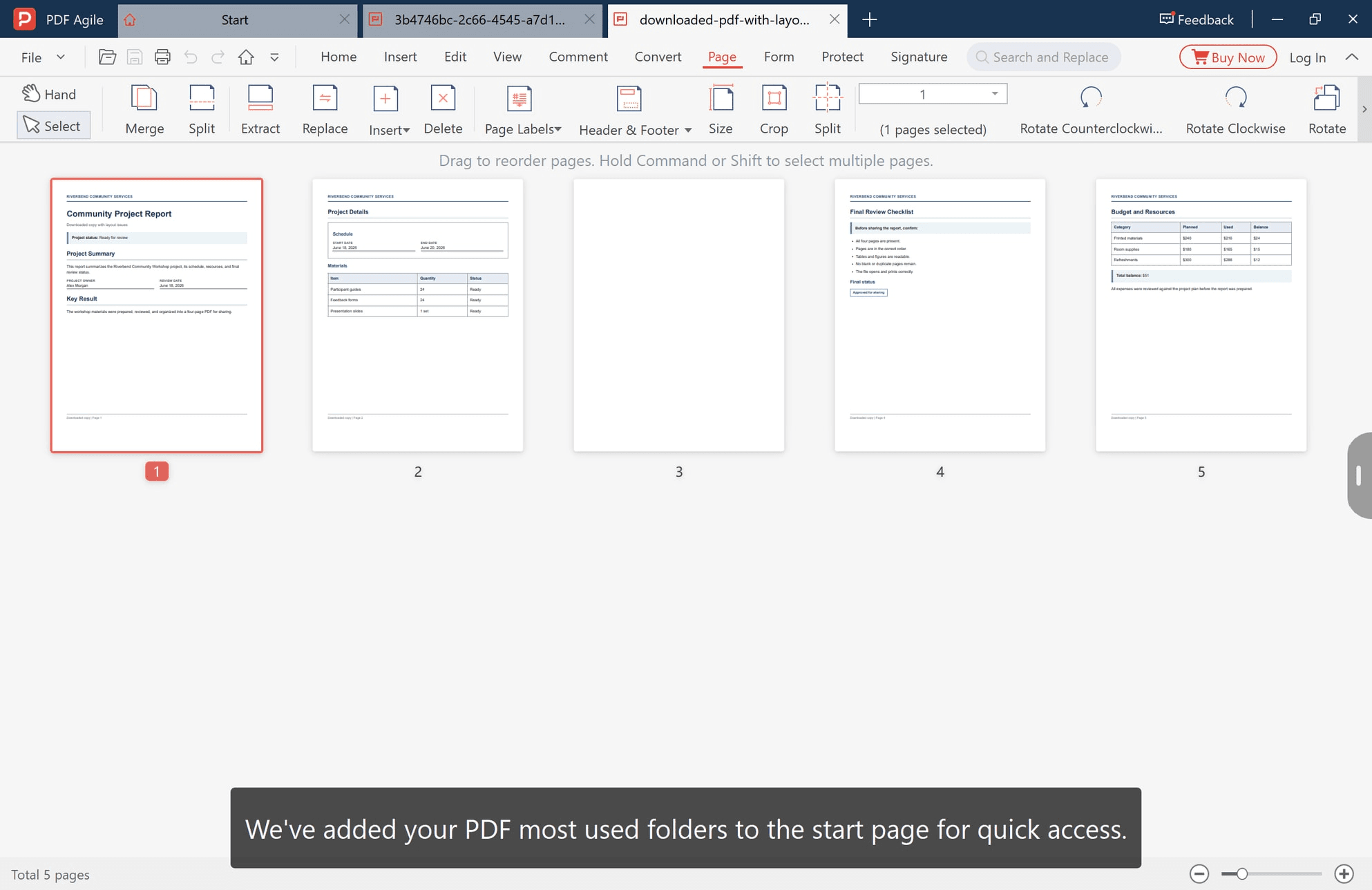
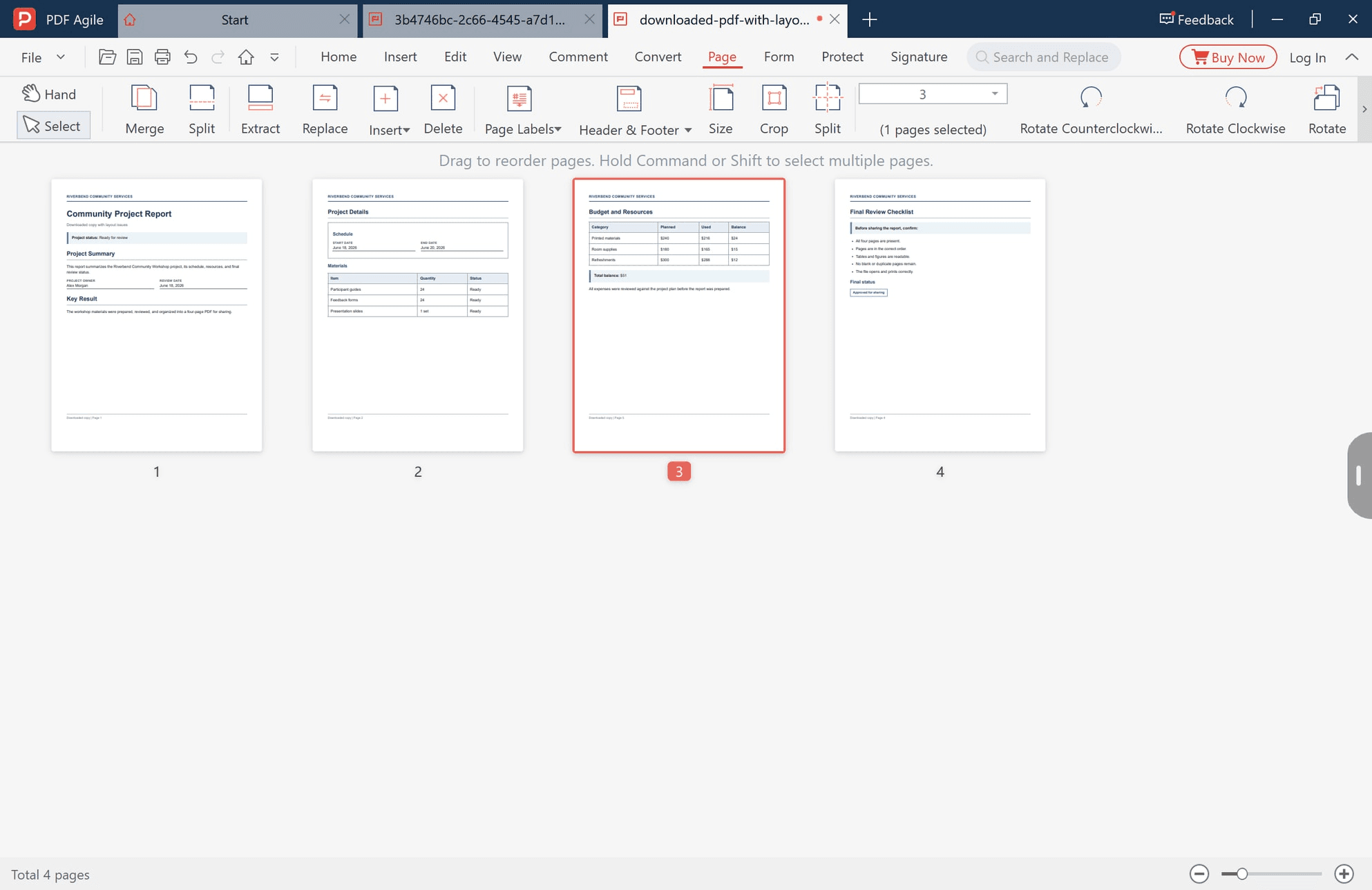
Switch to the Page tab. Every page becomes a numbered thumbnail, and the bottom of the window reports the count — Total 5 pages here, with a blank third page and two pages out of order.
Step 2: Select the page that has nothing on it, then delete it
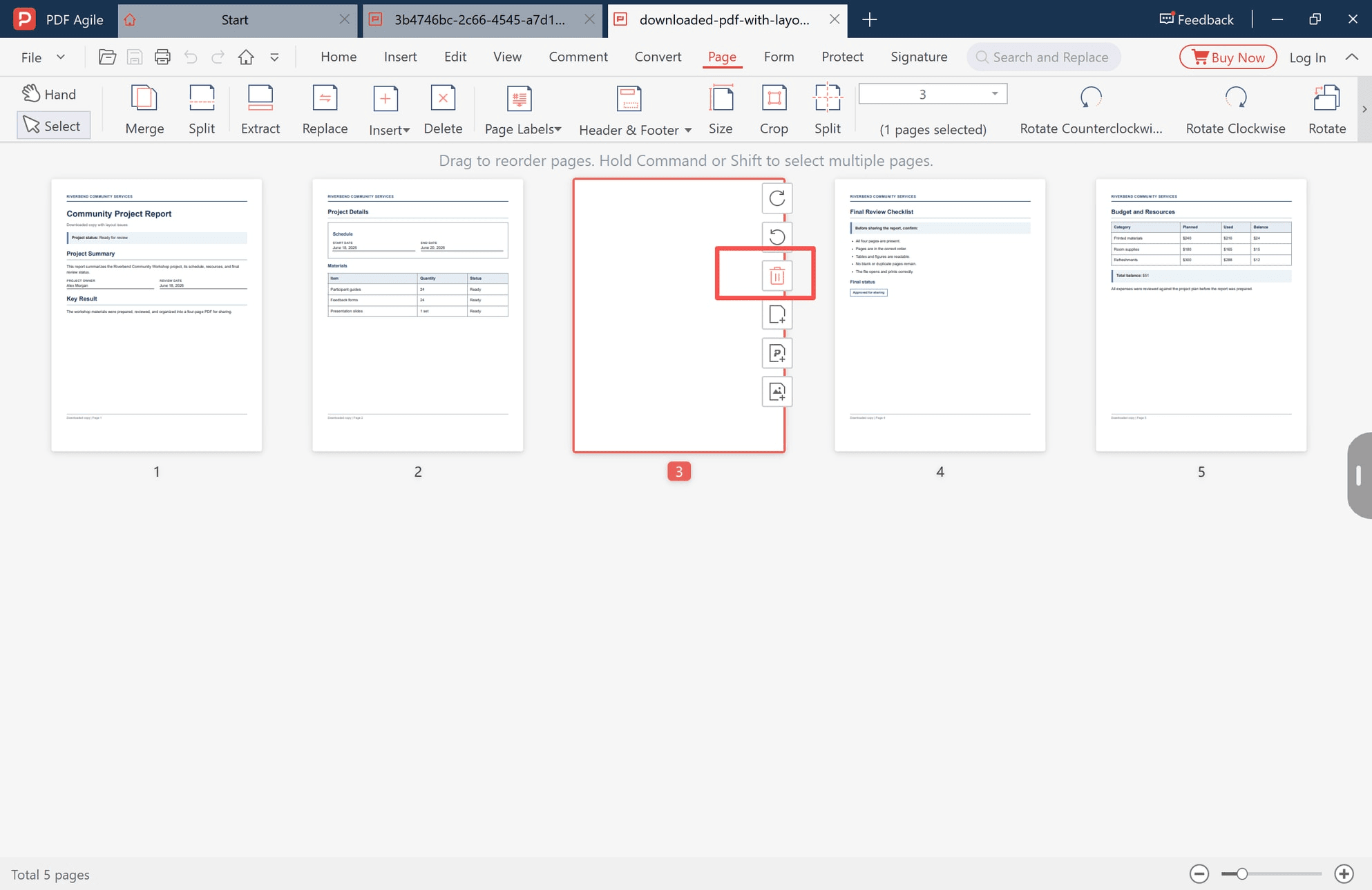
Click the tile: it takes a red outline, a toolbar appears beside it, and the panel above the grid counts the pages selected. Check the suspect page at full size first — a footer or stamp looks empty at thumbnail size.
Step 3: Put the remaining pages back in source order
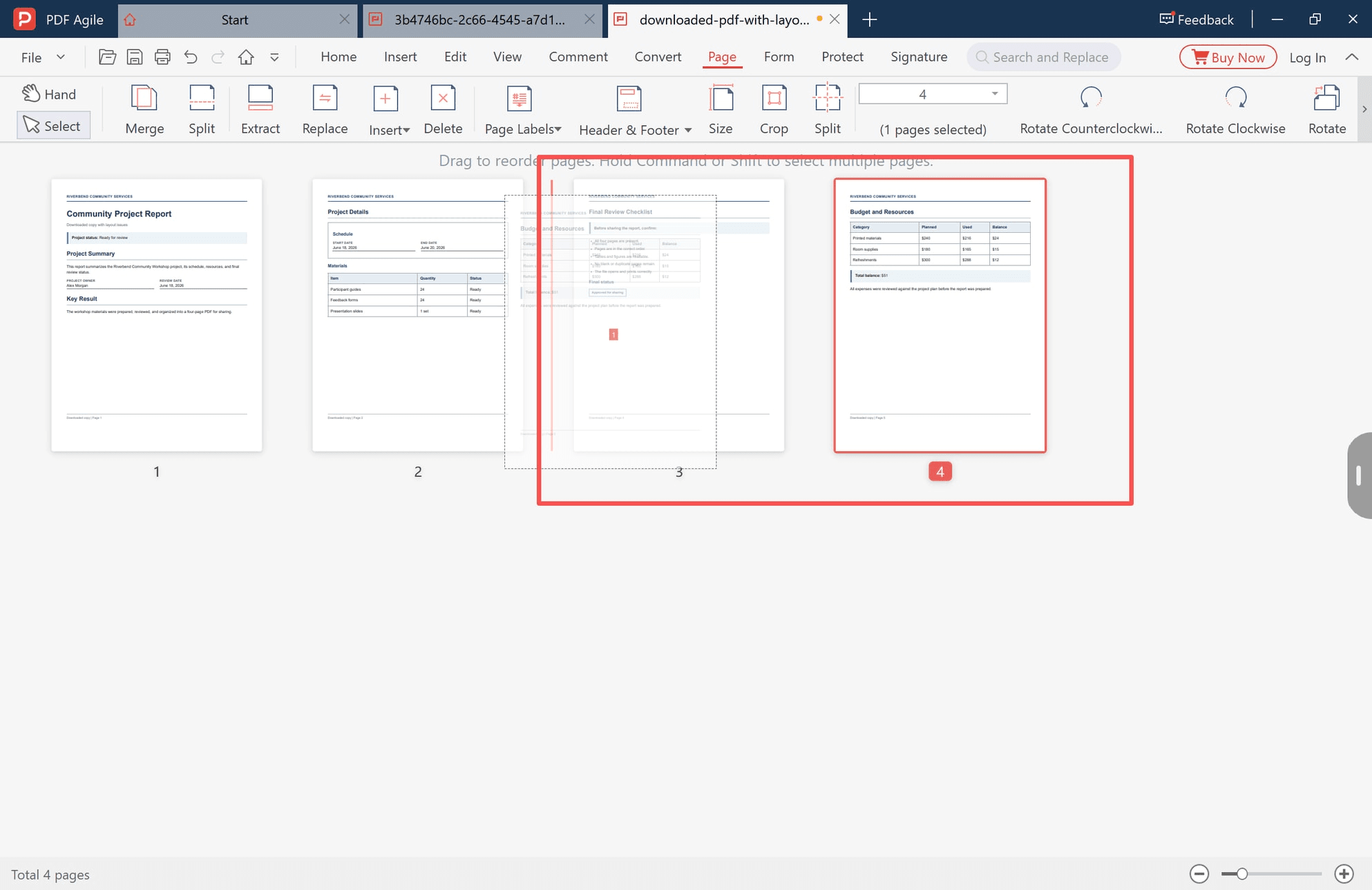
Drag a tile into the gap where it belongs. The gap opens, the neighbors shift, and the numbers follow; the bar above the grid names the modifier key for a run of pages.
Step 4: Compare the result against the source
Compare the joins, not just the count: the first and last page are where off-by-one errors land, because a cover sheet and a signature block sit there.
Step 5: Save a second file and leave the download alone
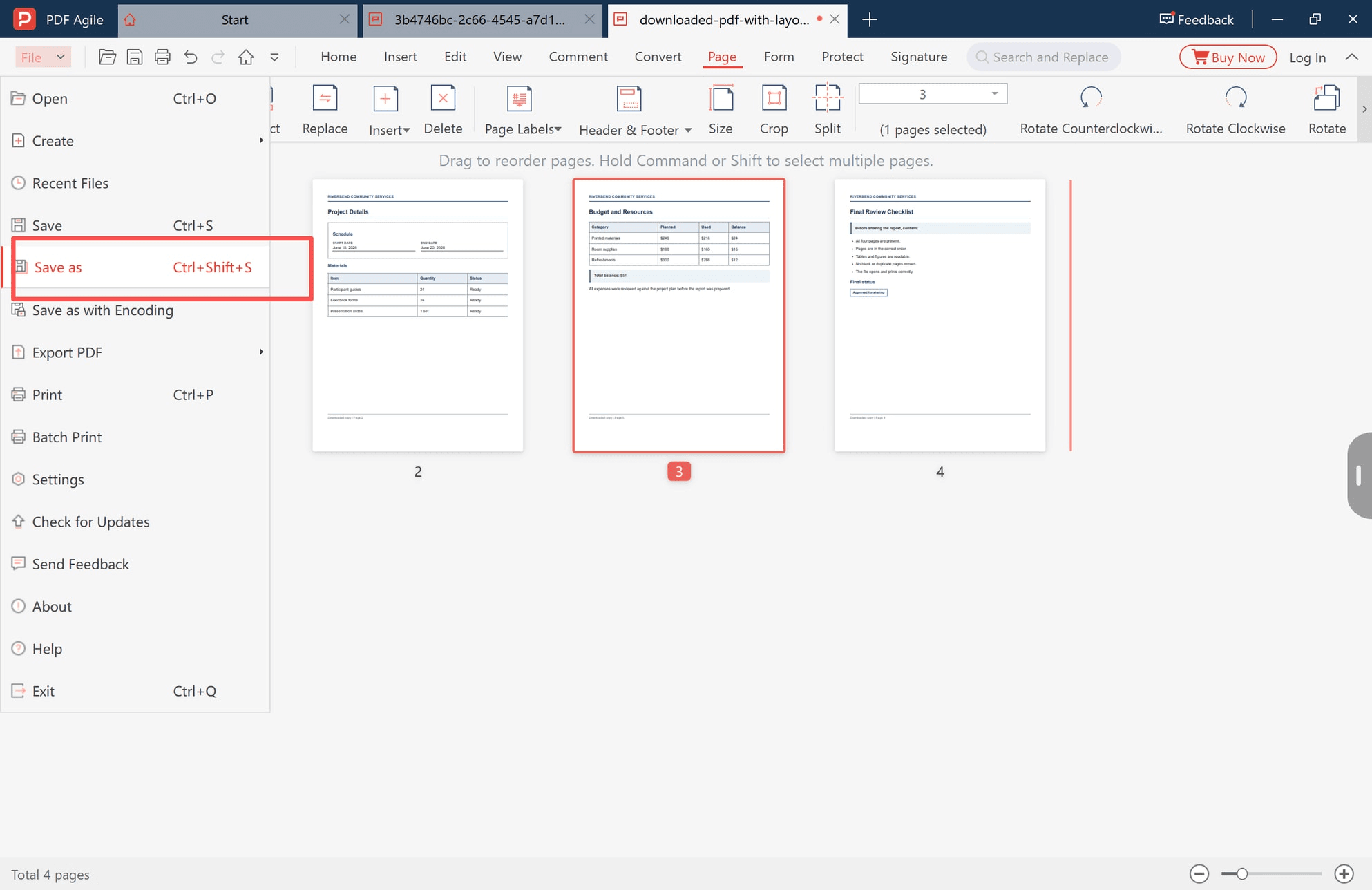
Use File > Save as and give the copy a new name, so you can still compare or start over. Saving is also when the edit becomes real.
What a PDF Editor Cannot Restore
- A font substituted at export. You can change text, but you cannot put back a typeface the file never carried.
- Images and table content that were never written. If the data is not in the file, no editor can draw it.
- Text that reflowed inside a paragraph. Line positions are fixed; no control puts them back.
- Anything the export flattened. Fields, layers, comments, video and animation can all become a picture.
- Selectable text on a scan. That needs OCR, a different operation.
How This Compares With Acrobat
Deleting a page and saving a copy are not differentiators: Acrobat's Organize Pages does the same work, as does any viewer with a thumbnail strip.
The difference is what surrounds it. In the app we build, the page total stays on screen while you work, the same tab carries Merge, Split, Extract, Replace, Insert, Delete, Page Labels, Size, Crop and Rotate, and the save happens in the same window. We build PDF Agile, so read that as a description of a workflow rather than a verdict.
For a one-off with a non-sensitive file, a browser tool needs nothing installed — the online delete tool is the quick route. The trade is that the file goes to a third party, the wrong call for a contract or anything under an NDA.
Check Before You Send or Print
- The page count against the source, not your memory of it.
- The joins either side of every page you removed or moved.
- The first and last page at full size, and every expected image.
- The print preview at the recipient's paper size.
- The file size against the upload limit, and any signature — removing pages breaks it by design.
FAQ
Why does my downloaded PDF look different from the website?
A site preview is drawn by the site's viewer and the file by yours, and unembedded fonts are substituted differently in each. If both readers show the same difference, it is in the file.
The text is identical but the fonts look wrong. How?
The PDF names a font it does not carry, so the reader draws the characters with the closest match it has. Embedding the font and exporting again fixes it.
Can I fix a downloaded PDF that is missing pages?
Only by exporting again from the source. If the page disappeared during a merge or scan, the PDF may still hold it — check the count first.
Why does the same PDF look different on a colleague's computer?
Either the fonts are not embedded, or their reader applies its own color, smoothing or print settings. If their page count matches yours, only the drawing differs.
The Difference Is Usually Explainable
Most "it looks wrong" cases reduce to two questions: is the content in the file, and which layer changed it. Re-export when content is missing, repair the copy when the pages are the problem, and confirm in a second reader before sending anything.
If the damage is page-level and you would rather work on the copy, the page-level editing guide covers the rest. Open the copy in PDF Agile when you want the page total and the page tools on one screen.
Steps and interface describe the desktop app as it stood in November 2026, and menus can move in later versions. Adobe Acrobat is a trademark of Adobe Inc. Statements about font embedding, page labels and flattened content follow the PDF specification. The product descriptions above refer to the app we build.