Key takeaways
- A merge appends pages. Page size belongs to each page, so nothing in the operation forces them to match.
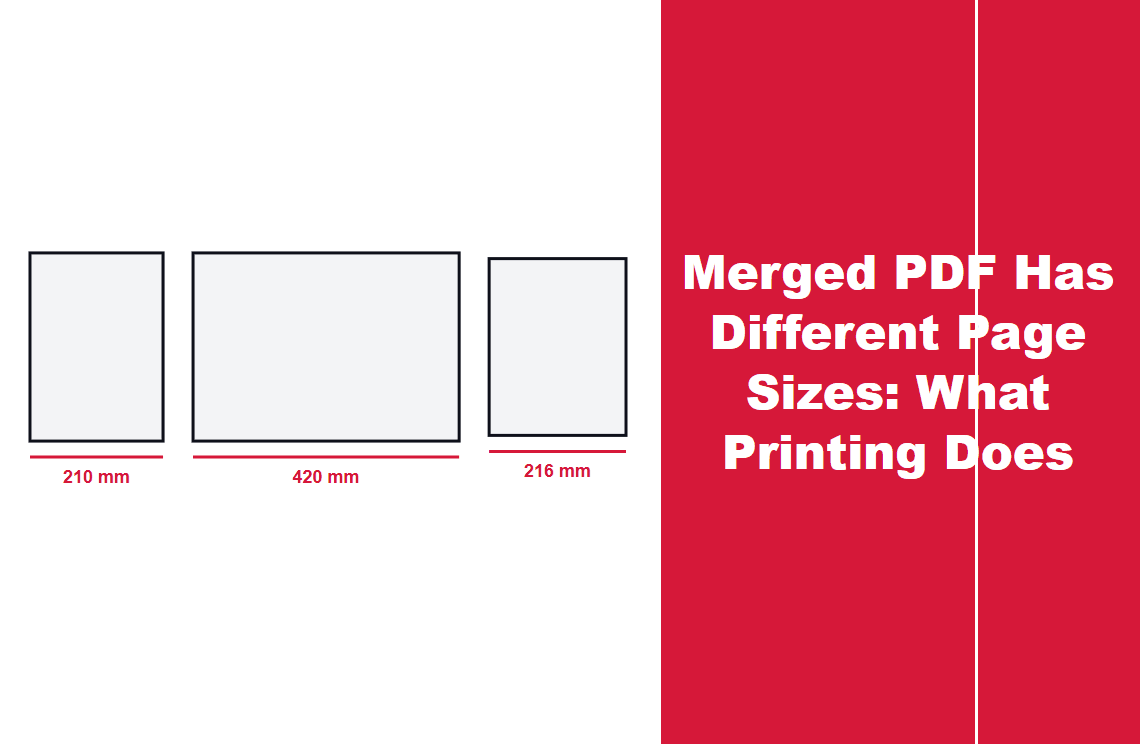
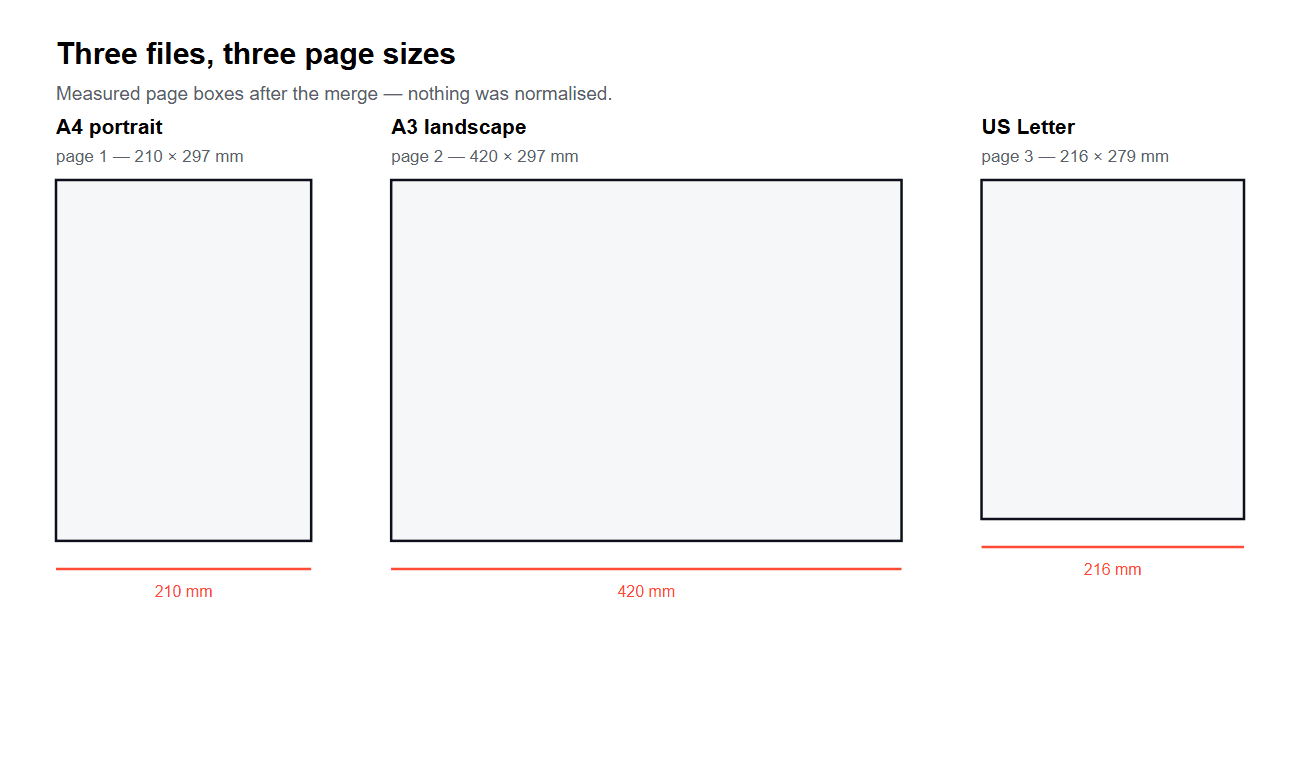
- In the test below, three files merged into one document kept three sizes: 210 × 297, 420 × 297 and 216 × 279 mm.
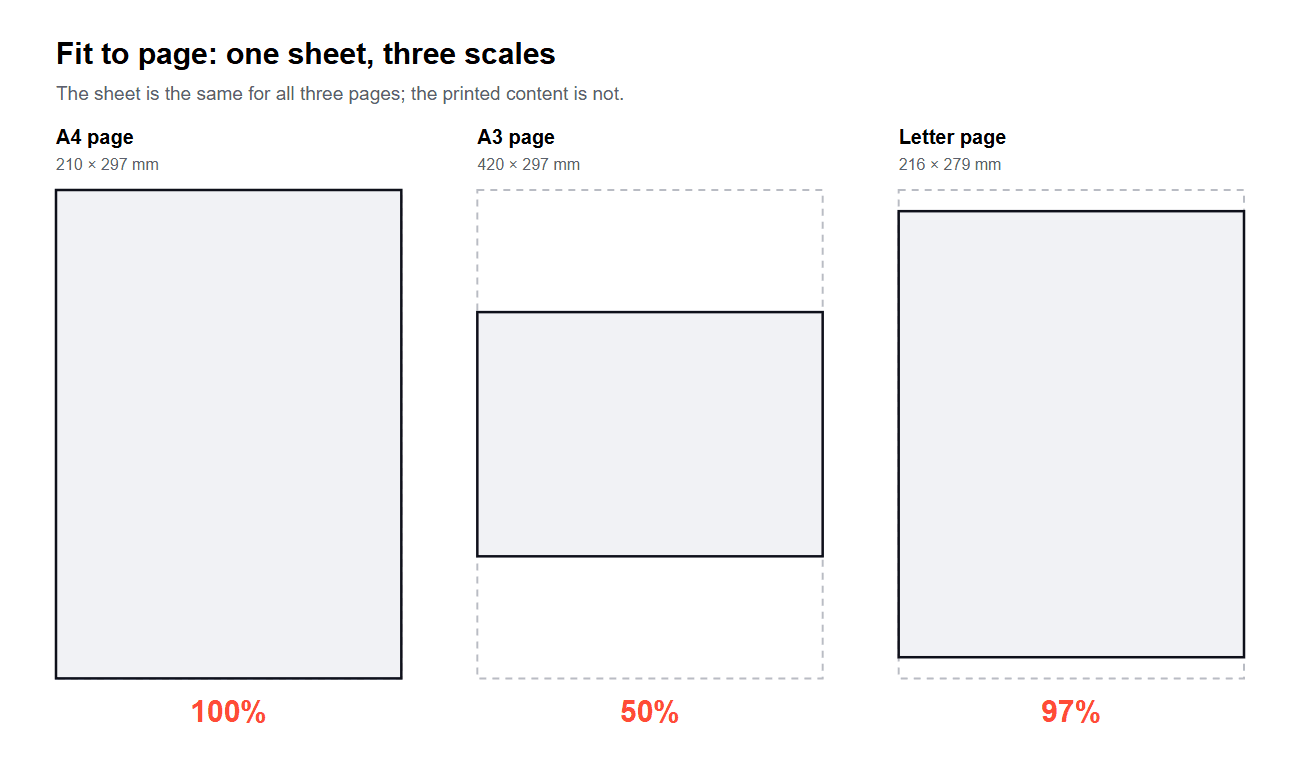
- The screen hides this, because viewers scale every page to the window. Paper does not: fit to page prints the A3 page at 50%, actual size crops it.
A merged PDF is not a re-laid-out document. It is a stack of the original pages, each one still carrying its own size. That is why a file can look perfectly normal on screen and still print badly: the viewer hides the difference by scaling each page to fit the window, and the printer cannot.
What Are You Seeing on Paper?
| What the print shows | What caused it | How to confirm |
|---|---|---|
| White bands at the sides or bottom | The page is smaller than the sheet, printed at actual size | Measure the page: Letter is 216 × 279 mm, A4 is 210 × 297 mm |
| Content cut off at one or two edges | The page is larger than the sheet, printed at actual size | Compare page width with sheet width |
| One page shrunk and floating in the middle | Fit to page was applied to a page much larger than the sheet | Look at the scale figure in the print dialog |
| Nothing wrong on screen, wrong on paper | The viewer scaled each page to the window | Open the print preview, not the reader |
| A blank page appeared at the end | The merge appended a page, not a size problem | Count pages before and after |
The first three are the same underlying fact seen three ways: after a merge, the pages do not share a size. The rest of this page is about what to do with that.
Why a Merge Cannot Make the Pages Match
A PDF page object stores its own MediaBox — the rectangle that defines the page. Merging copies page objects from each source file into one document and renumbers them; it does not resample, rescale or rewrite them.
The test for this page used three files: an A4 invoice page, an A3 landscape drawing sheet, and a US Letter contract page. Merged into one document, the page boxes read back exactly as they went in:
| Page | MediaBox | In millimetres |
|---|---|---|
| 1 | 595.28 × 841.89 pt | 210 × 297 mm |
| 2 | 1190.55 × 841.89 pt | 420 × 297 mm |
| 3 | 612 × 792 pt | 216 × 279 mm |
Three pages, three sizes, one file. No error occurred and nothing was lost — this is the merge working as designed. The problem only exists at the moment a single sheet size has to hold all of it.
What Fit to Page Does to Each Page
Every print dialog offers a scaling option, and the default is usually the one that avoids cut-off: fit to page, shrink to fit, or "scale to fit printable area". It works per page, so each page is scaled by its own factor.
| Page | Page size | Scale on an A4 sheet |
|---|---|---|
| 1 | 210 × 297 mm | 100% |
| 2 | 420 × 297 mm | 50% |
| 3 | 216 × 279 mm | 97% |
Two consequences follow. The A3 drawing prints at half scale, so any dimension you measure with a rule on that sheet is half of what it should be — a drawing printed at 50% is no longer a scaled drawing, it is a picture of one. And the document no longer has a consistent text size: body text from page 3 is slightly smaller than body text from page 1, which is easy to notice in a stapled set.
What Actual Size Does Instead
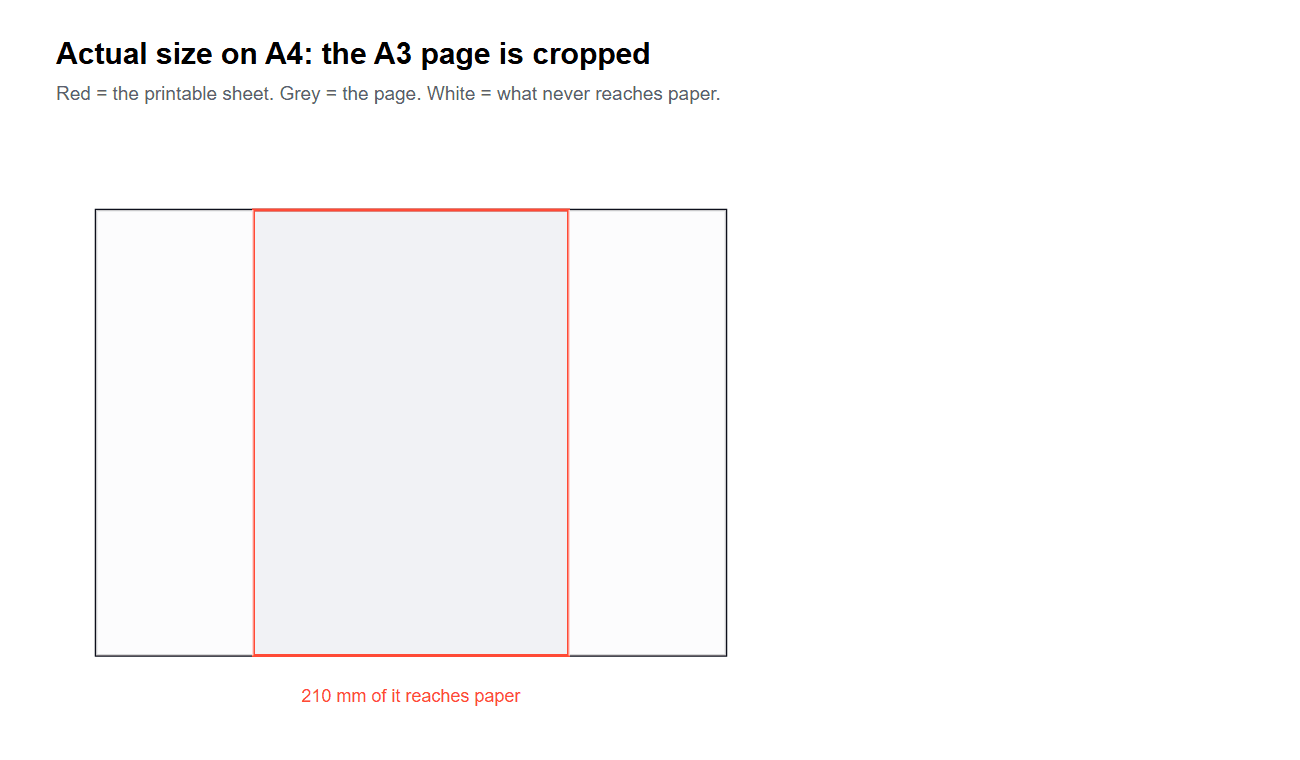
The alternative setting prints at 100% and lets the paper decide what survives. On an A4 sheet, the 420 mm page loses 105 mm on each side; the frame you drew at the edge of the page is gone, and if the content sat near that edge, so is the content.
Most printers cannot place ink within a few millimetres of the sheet edge either, so even a page that matches the sheet exactly loses a thin border. That is why a document with an edge-to-edge frame is the fastest way to see which setting was used: if the frame is intact, the page was scaled; if it is missing, it was printed at actual size.
How Do You Get One Size Before Sending
Four routes, in the order they usually make sense.
- Re-export from the source at one page size. This is the only route that keeps the text selectable and the layout intact. Change the paper size in the source document, export again, then merge the uniform output.
- Rebuild oversized pages as images. Convert just the odd pages to JPG or PNG, then place them on pages of the target size. You get a consistent document at the cost of a text layer — acceptable for an appendix, wrong for a contract.
- Normalise at print time, deliberately. Keep the mixed file and always print with fit to page, with the scale shown on screen. This is fine for internal copies and wrong for anything measured or filed.
- Do not merge at all. Send two files. A merged document that prints inconsistently is worse than two documents that each print correctly.
Check the File, Not the Preview
The reader is the wrong instrument, because it scales each page to the window and every page looks equally full.
- Page size: in most viewers, page properties list the size of the page you are on. Check at least the first page, the largest page and the last page.
- Page count before and after the merge, to catch an appended blank page.
- Print preview with the scaling setting visible, not just the page thumbnail.
- One known dimension: if the document has anything measurable, print one page and measure it. A drawing printed at 90% is not obvious by eye.
What This Cannot Do
- It cannot make the merge pick a size for you. The operation has no opinion about paper.
- It cannot restore what actual size cut off. The printer never received that part of the page.
- It cannot keep text selectable after the image route. Rebuilding pages as images trades the text layer for consistency.
- It cannot fix a source document that is already the wrong size. That has to be changed where it was created.
- It cannot guarantee identical margins. Even same-size pages can carry different internal margins.
FAQ
Why does my merged PDF have pages of different sizes?
Because each page kept the size it had in its source file. A merge appends pages and does not rescale them, so an A4 invoice, an A3 drawing and a Letter contract stay 210 × 297, 420 × 297 and 216 × 279 mm.
Why does one page print smaller than the others?
Fit to page scaled it by its own factor. A 420 mm wide page on a 210 mm sheet prints at 50%, so its text is half the size of the other pages.
Why is part of a page missing when I print?
The page was printed at actual size on a smaller sheet. The part outside the sheet was never printed — it is not hidden, it is absent.
How can I make every page the same size?
Re-export the oversized pages from their source at the target size and merge again. If the source is gone, rebuild those pages as images on a fixed page size and accept losing the text layer.
Is it safe to merge an A3 drawing with A4 documents?
It is safe; it is the printing that needs a decision. Send the drawing as its own file if it has to be measured, and keep the A4 set separate.
Where to Go Next
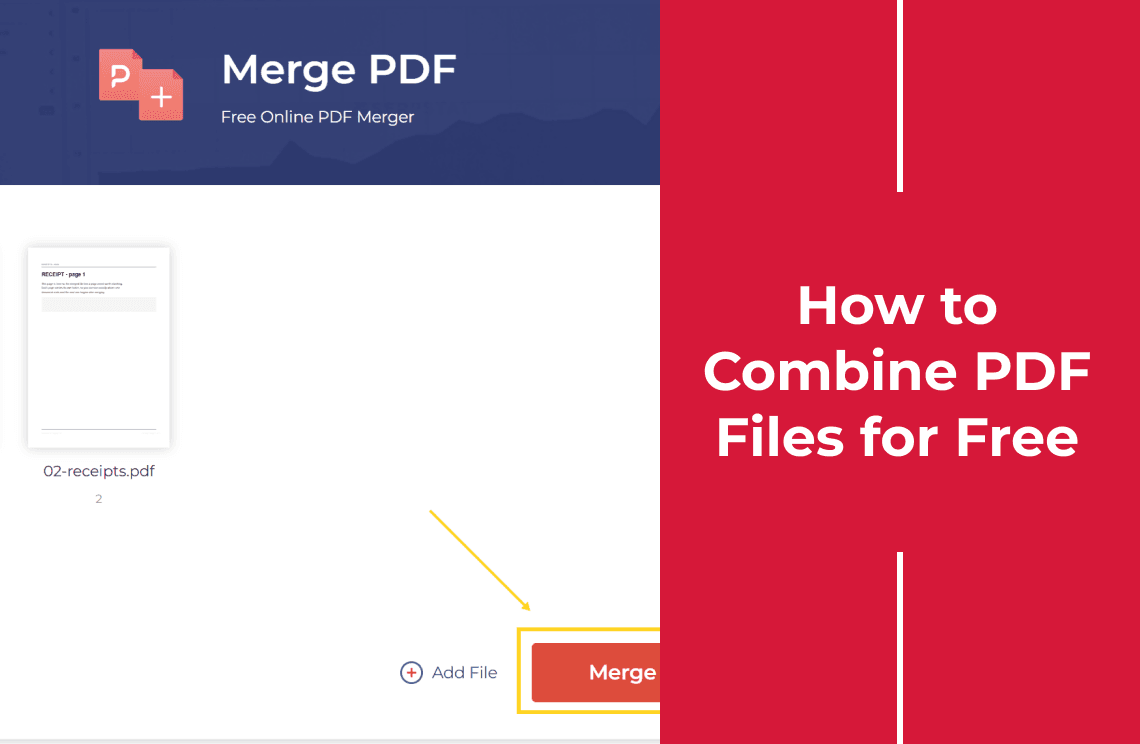
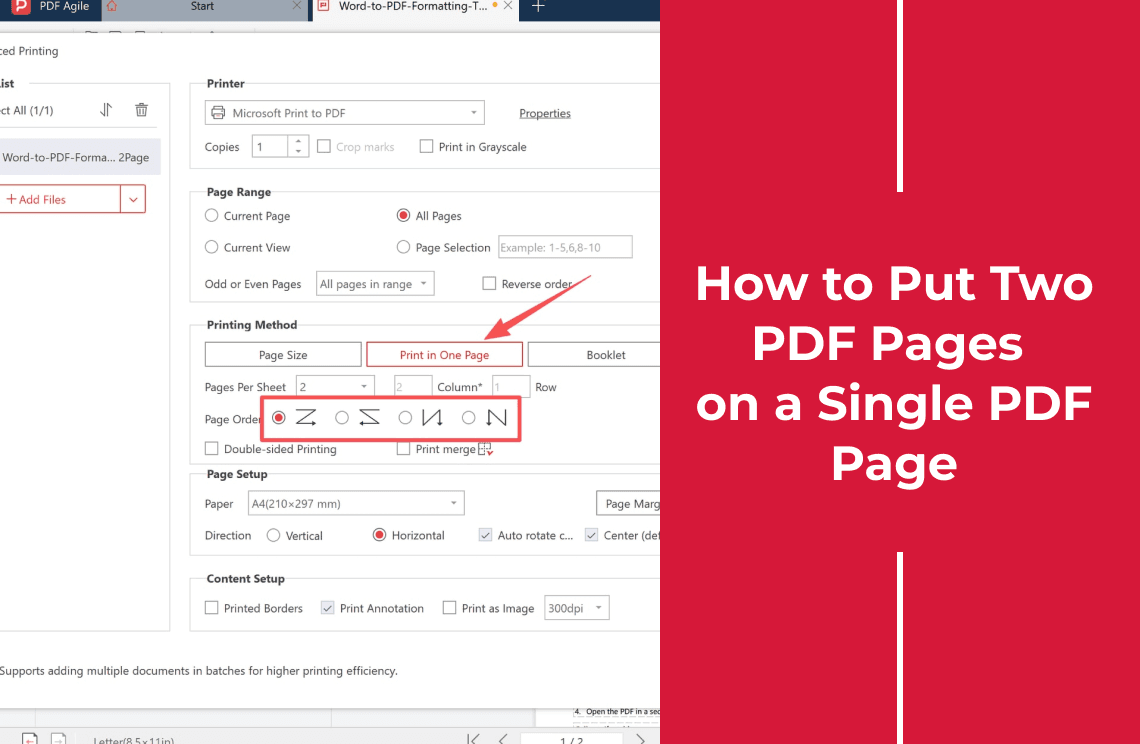
If the merge itself needs checking, combining PDF files for free covers order and page count, and putting two pages on one sheet is the print-side version of the same scaling decision. For rebuilding an oversized page as an image, converting PDF pages to separate JPEG files is the batch route, and resizing a PDF image covers the size change itself.
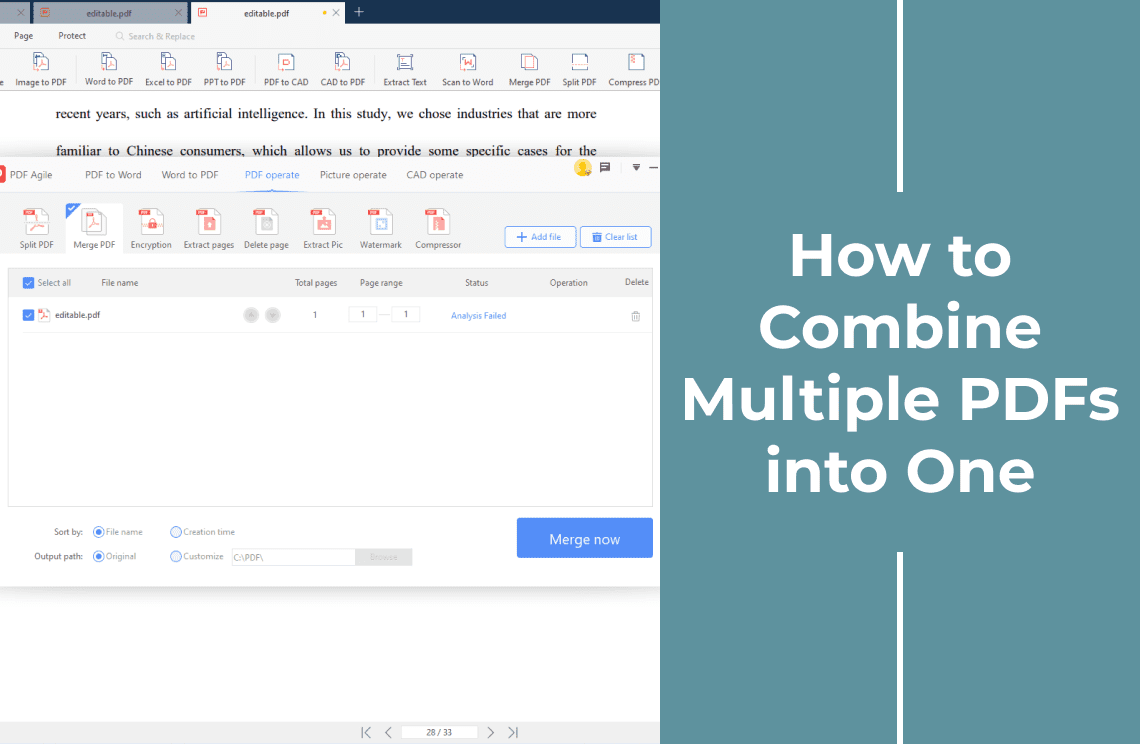
The merge runs in the browser at the PDF merge tool; if the pages only need to be split back apart, split PDF does that without changing any page size.
The short version: a merge preserves page sizes by design — decide once whether you are printing scaled or actual size, and know which one the file will be judged by.