A blank page in a PDF is rarely a decision. It is a leftover: the back of a scanned sheet, an empty paragraph at the end of a Word file, a separator added when two files were merged. Open the page thumbnails, remove the pages that are genuinely empty, save a copy — but first decide that "blank" means empty and not merely invisible.
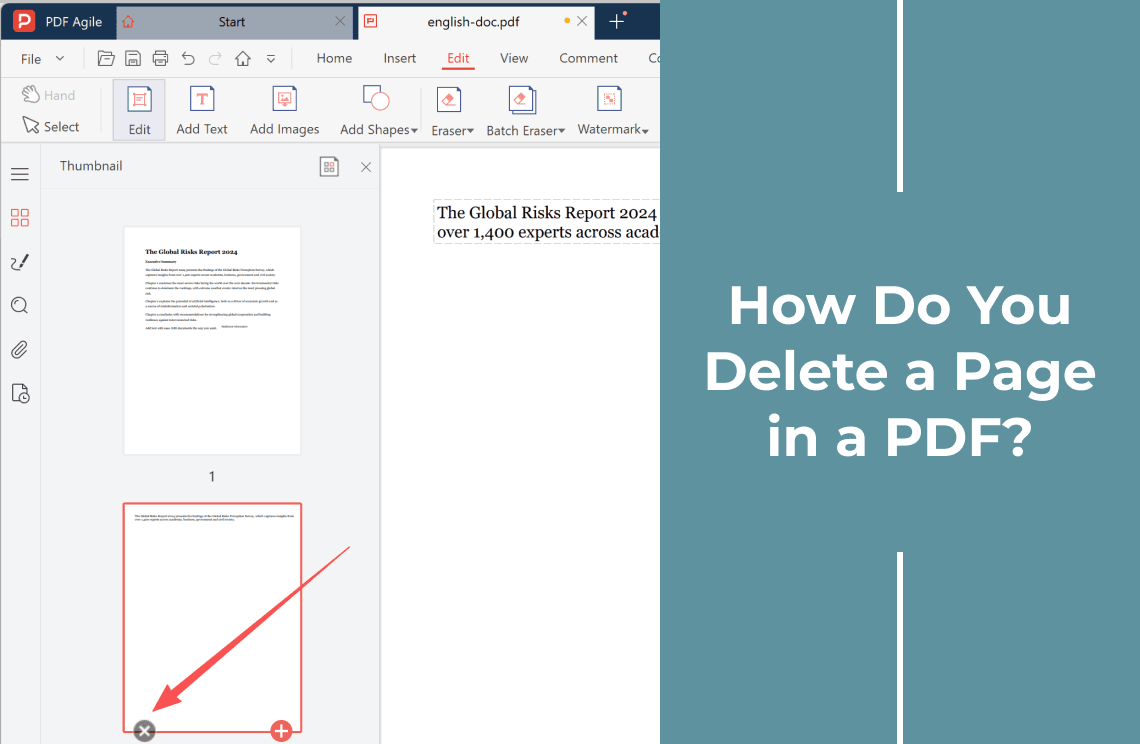
Removal is a structural change: the page stops existing, everything after it moves up one, and a digital signature stops validating. If you already know which page has to go, deleting a specific page covers it; this page is about finding the blanks and proving nothing else moved.
Why a PDF Has Blank Pages
- Duplex scanning. Single-sided sheets through a double-sided scanner leave an empty page after every real one — usually every second page.
- A trailing empty paragraph. An empty paragraph or manual page break at the end of a file exports as its own page, almost always the last one.
- Printing or saving to PDF. A spacer, a footer pushed past the margin, or a page-break setting can add a sheet that holds nothing.
- Merging files. Separator pages went in so each document starts fresh, and nobody took them out.
- Deliberate blanks. Booklets print so a section starts on a right-hand page; some forms specify a page count.
- Text that did not fit. A short paragraph pushed to the top of an otherwise empty page.
A scanned blank is not pure white — it carries grain, so removing it barely shrinks the file.
A Blank Page Might Not Be Empty
Five things look identical at thumbnail size:
- White text. Invisible, still selectable and searchable.
- Text under a white shape. Covering words hides them without deleting them.
- Content outside the visible page. It is still in the file.
- Hidden layers or annotations set not to display.
- A stamp or signature in a corner, faint at small zoom.
Two checks settle it in a minute: Ctrl+F a phrase you expect on that page and see which page the hit lands on, then zoom to 300–400% and read the corners.
Check Before You Delete
- Signed? A signature covers the whole document — work on an unsigned copy, then re-sign.
- Anything interactive? A borderless form field, a comment, or a link can sit on a page that shows nothing.
- Deliberate? A booklet verso or a required page count breaks without it.
- Printed numbers match the viewer? Page labels are separate from page order, so numbering can end up offset.
How to Remove One Blank Page
Step 1: Open the file and switch to the Page tab
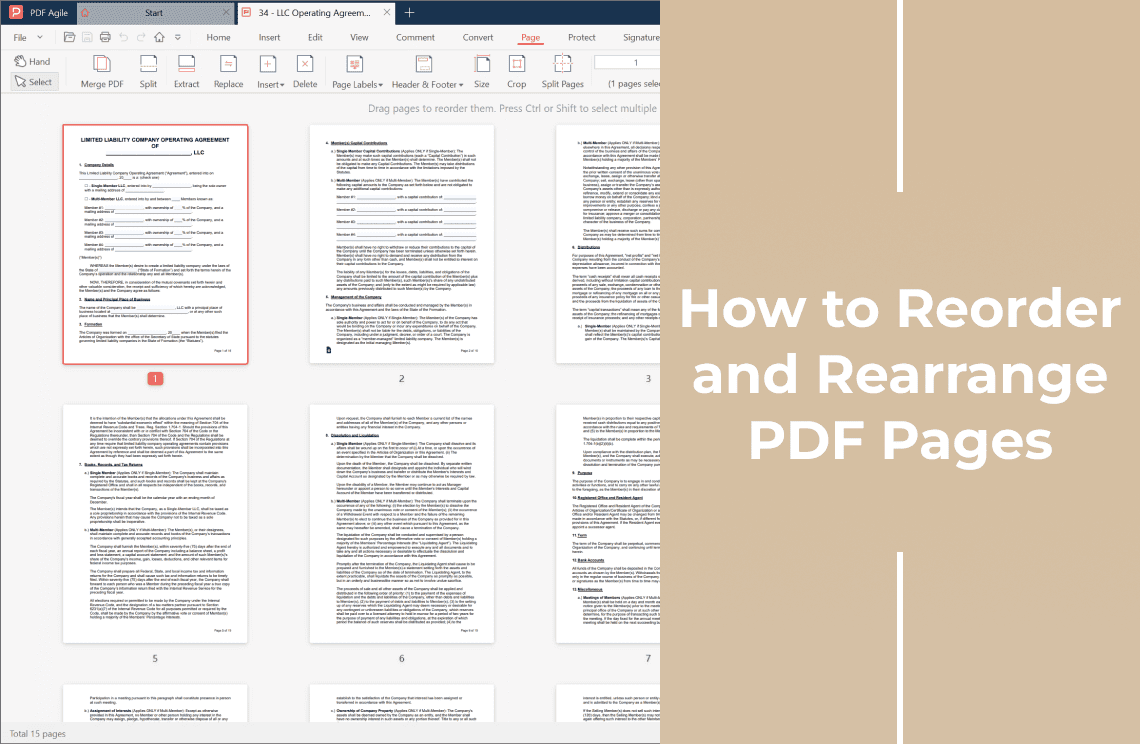
Select the Page tab. The window becomes a thumbnail grid with a page number under each tile — the only view where an empty page is obvious.
Step 2: Read the total, then look at the page
The status bar shows Total N pages. Note it; that is what you check against afterwards. Click the suspect page and zoom in on it.
Step 3: Click Delete
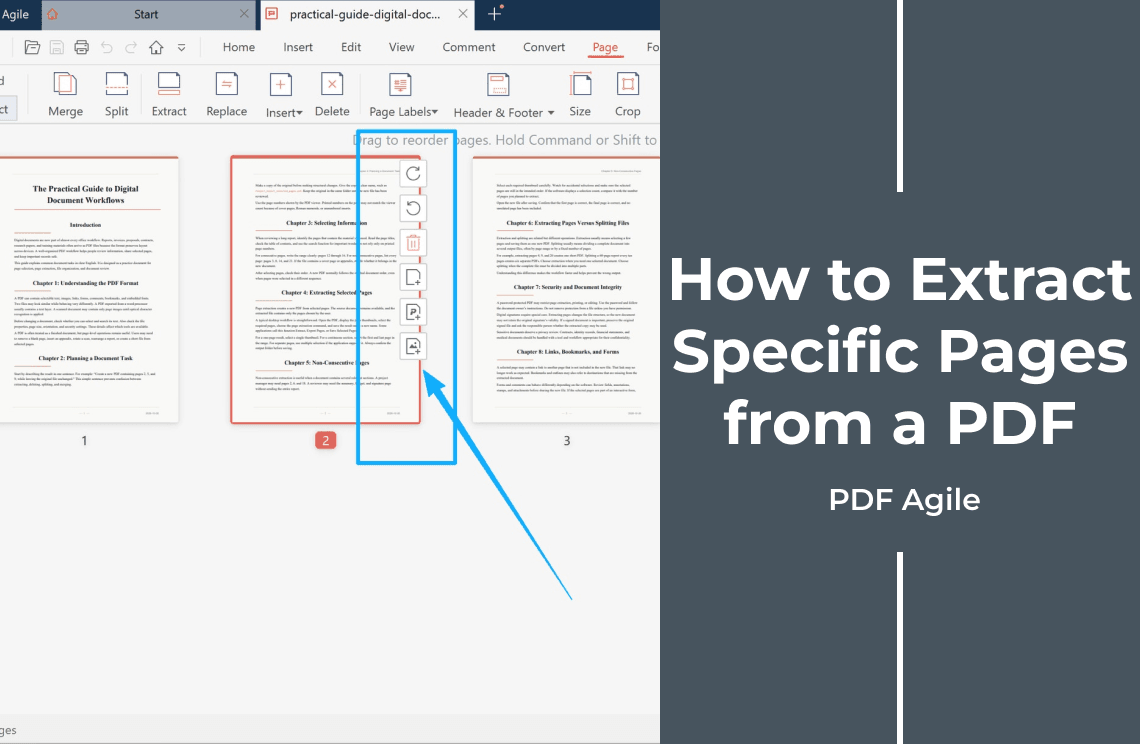
With the page selected, click Delete in the ribbon. The page leaves the document and the pages after it move up.
Step 4: Save as a new file
File > Save as (Ctrl+Shift+S) under a new name, so a wrong call costs one re-open instead of a rebuilt file.
How to Remove Several at Once
Click the first blank page, Shift-click the last to take everything between; for scattered pages, use the modifier key the app names in its hint bar. Delete once, not thirty times — the ribbon shows how many pages are selected, and every delete renumbers what is left.
Then check the arithmetic: new total must equal old total minus the pages removed. If you need several passes, work backwards from the end of the file so untouched pages keep their positions.
What to Check After the Blanks Are Gone
- The count. A 40-page file with 9 blanks removed must read 31.
- First and last page. Where an off-by-one shows up.
- Section starts. If a chapter now begins mid-page, that blank was a separator.
- The outline. Entries pointing at a deleted page lose their target.
- Forms, comments, signature. Fill one field; confirm the signature still validates.
- The file. Re-open it, print one page, check the size against any upload limit.
Delete the Page, or Remove What Is On It?
- Delete the page — it stops existing and the count drops.
- White out — a shape over the content: the count does not change, and the text underneath frequently survives.
- Redaction — the content is stripped and the page stays.
- Crop — the visible area shrinks; useless on an empty page.
- Extract — the pages you want go into a new file, original untouched.
A page that looks blank because a white box covers the text is the trap: deleting it destroys the page, keeping it ships the words underneath.
When the Blank Page Should Stay
A signed document, a form with a required page count, a booklet that needs the verso, the only separator between two exhibits, or a page that is blank in your viewer but not in the recipient's. Where the blank must go but the layout must survive, inserting a page is the counterpart operation, and the page-level editing guide covers the rest.
How This Compares With Acrobat
The delete is a commodity — Acrobat's Organize Pages gives the same result. What differs is the surroundings: in PDF Agile's Page tab the count sits in the status bar as you work, and Delete, Split, Extract and Page Labels share one ribbon. The file opens from your own disk, so nothing is uploaded. We build PDF Agile, so weigh that accordingly. If it is two pages, the online delete tool works in a browser — the file leaves your machine.
FAQ
Why is there a blank page at the end?
Usually a trailing empty paragraph or manual page break from a word processor, or the last sheet of a scan. Check it first: final pages are where a signature block sits.
How can I tell whether a page is really blank?
Ctrl+F a phrase you expected there and see which page the hit lands on; then zoom to 300–400% and check the corners for a stamp or a date.
Can I remove several at once?
Yes — select the first, Shift-click the last, delete once. Single deletes are slower and riskier, because each one renumbers the pages you have not reached.
Will the page numbers change?
The printed numbers do not renumber themselves. Page labels are a separate setting; cross-references that name a page number go stale.
Is an online tool safe for this?
For a brochure, usually fine. For a contract, a payslip, or anything under an NDA, the file is uploaded to someone else's server, so a desktop editor working from your disk is the safer default.
Before You Send It
The cost of this job is never in the click. It is in the page that looked empty, the signature that stopped validating, and the count that no longer matches the form. Identify, remove in one pass, then check the total, the first and last page, and the outline.
More page-level walkthroughs sit under the how-to archive.
Steps and interface reflect the desktop app as of November 2026; menus may change in later versions. Adobe Acrobat is a trademark of Adobe Inc. Page labels, bookmark destinations and digital signatures behave as described by the PDF specification. The product notes above describe the app we build.