A Word document usually converts to PDF without visible damage, because the PDF is generated from the layout the word processor has already calculated: same fonts, same line breaks, same table widths. When the result does look different, the cause is almost never the PDF format itself. It is one of four things: a font that was not embedded, an export done by a different engine, a document that was already sitting on a page boundary, or markup that was never accepted.
This guide covers the export settings that decide whether the layout survives, the four places where it actually shifts, and a two-minute check you can run before you send the file. Everything below is about fidelity — the page looking the way it did in Word — not about editing the PDF afterwards, which is a separate job.
What "Losing Formatting" Actually Means
Six complaints account for almost every report of "the PDF changed", and they do not share a cause:
- The text shape changes and lines end in new places — a different font was substituted, because the font was not embedded.
- A table jumps to the next page — column widths were re-measured, either because the font metrics changed or because the table already filled the page.
- Every page after page 3 is off by one — one extra line pushed content down, and the cascade continued from a single page break.
- Footer or page numbers vanish on some pages — section settings were dropped, usually the different-first-page or odd/even option.
- Text cannot be selected and links do nothing — the page became a picture, because it was printed or rasterised instead of exported.
- Comments, tracked changes or hidden text appear — the export carried markup with it, since a PDF has no pending state.
Only the first is about fonts in the everyday sense. The rest are structural, which is why changing converters rarely fixes them.
Why the Layout Moves
The font is not inside the file
A PDF can carry the fonts it uses. Word embeds the fonts its licence allows and skips the rest, because some commercial fonts forbid embedding. When a font is missing from the file, the reader's machine substitutes its own, and a substitute with slightly different letter widths re-wraps every line in the paragraph.
Word's PDF options include a checkbox named Bitmap text when fonts may not be embedded. It turns the un-embeddable text into an image so the page still looks correct, at the cost of making that text unselectable and unsearchable. That trade is worth it for a one-off submission and wrong for anything that will be indexed or copied later.
The document was already at the edge
A paragraph that ends one line above the bottom margin, or a table whose last row exactly fills the page, has no room for error. A one-percent change in letter width is enough to push it over, and once one page grows, every page after it moves. This is why the same file can convert cleanly on your machine and badly on a colleague's: it crossed the boundary at a different point because a font was substituted.
The export was done by a different engine
Exporting from the word processor uses the same layout engine that drew the screen. Three other routes do not:
- Print to PDF through a virtual printer re-renders the pages and can drop hyperlinks and structure tags.
- A server-side converter opens the .docx with its own library, which is a different layout engine from the one that wrote the file.
- A legacy .doc file is read from its older format first, and that step alone can move breaks.
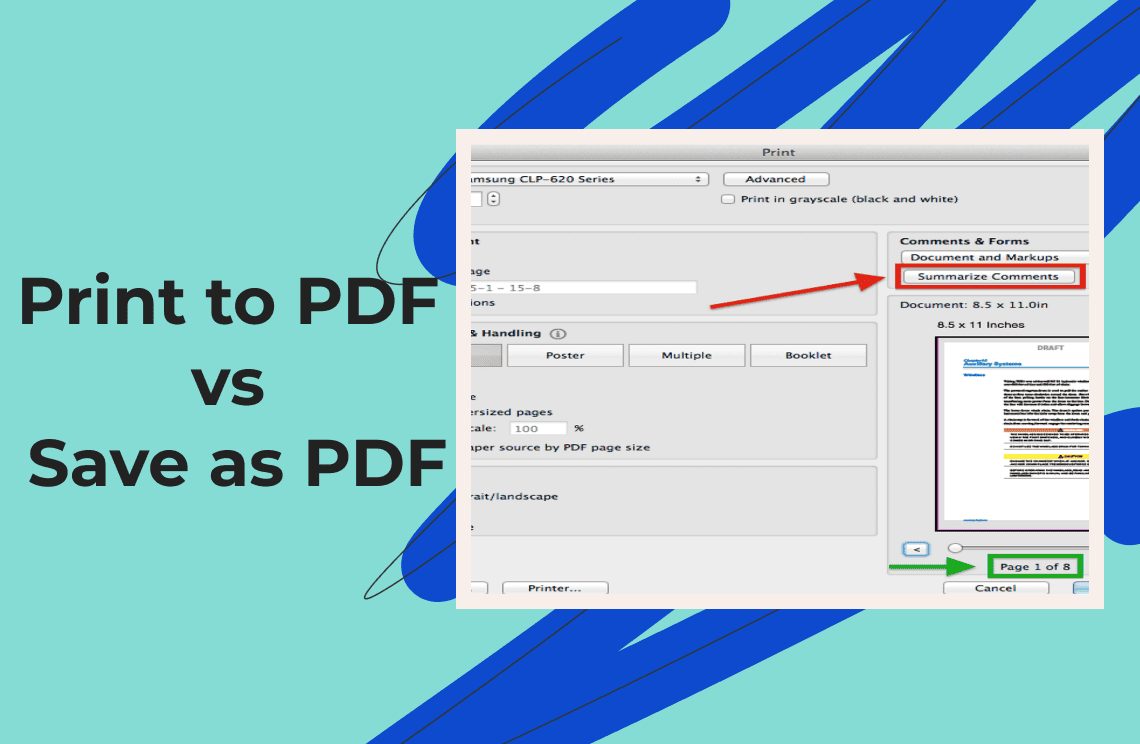
The print route is the most common accident, because the output looks right. The text is still there, but the links are dead and the headings are no longer tagged — print to PDF and save as PDF are not the same operation.
Markup and fields travel with the document
Tracked changes, comments, hidden text, table-of-contents page numbers and cross-references are computed at export time. A table of contents exported before its fields are updated shows the old page numbers even though the body has moved, and markup is included unless you accept or reject it first: a PDF has no notion of a pending change.
Method 1: Export to PDF From Word
This route preserves the most, because it uses Word's own layout, embeds the fonts it is allowed to embed, and keeps hyperlinks and accessibility tags.
Step 1: Check the source before you export
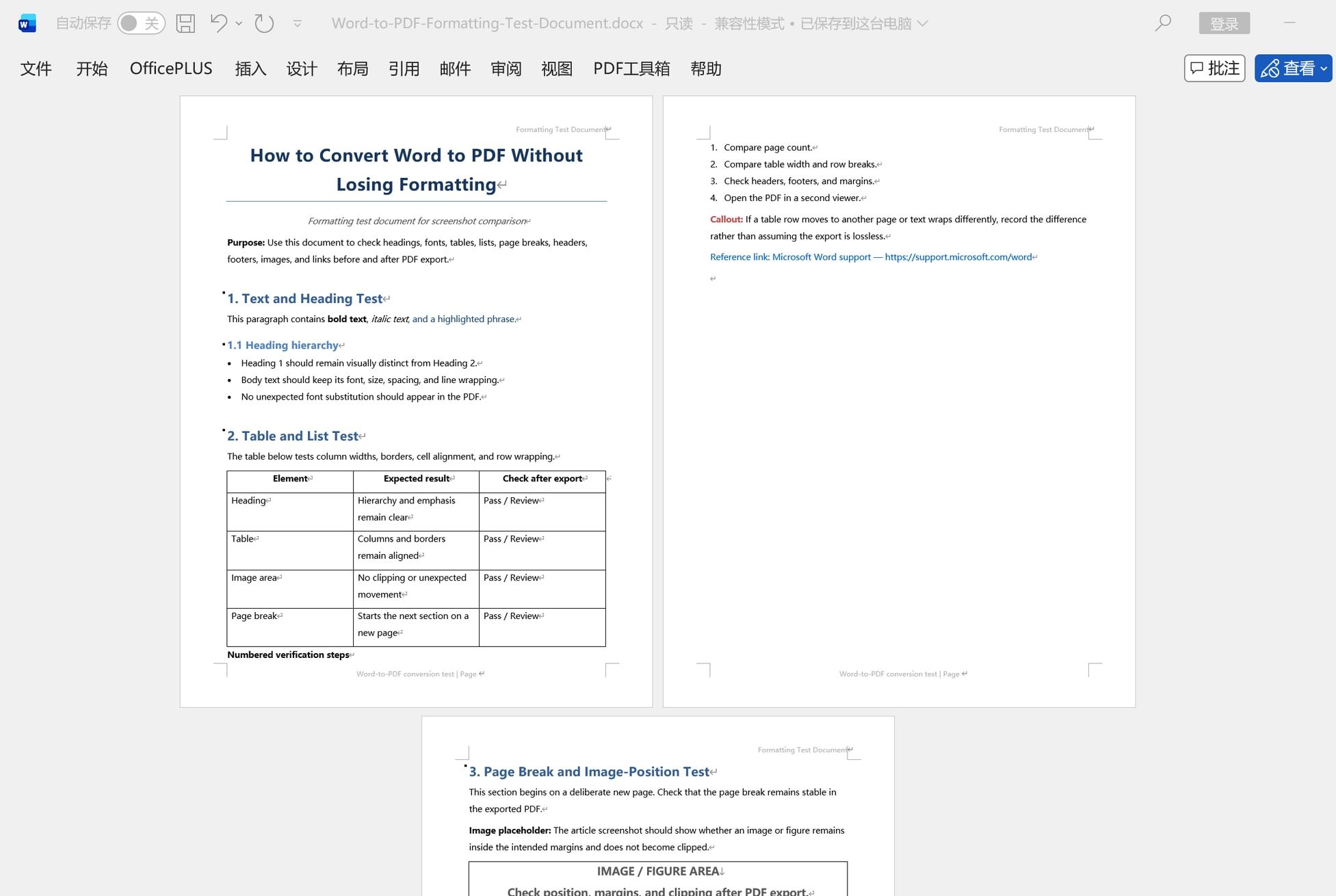
Open the document in print layout and look at three places: the last line of each page, the right edge of every table, and the header and footer. Write down the page count. Then accept or reject tracked changes, switch off the markup view, and update the table of contents and any fields.
That check takes a minute, and it saves finding the problem later in the PDF, where the cause is no longer visible.
Step 2: Use Export, not Print
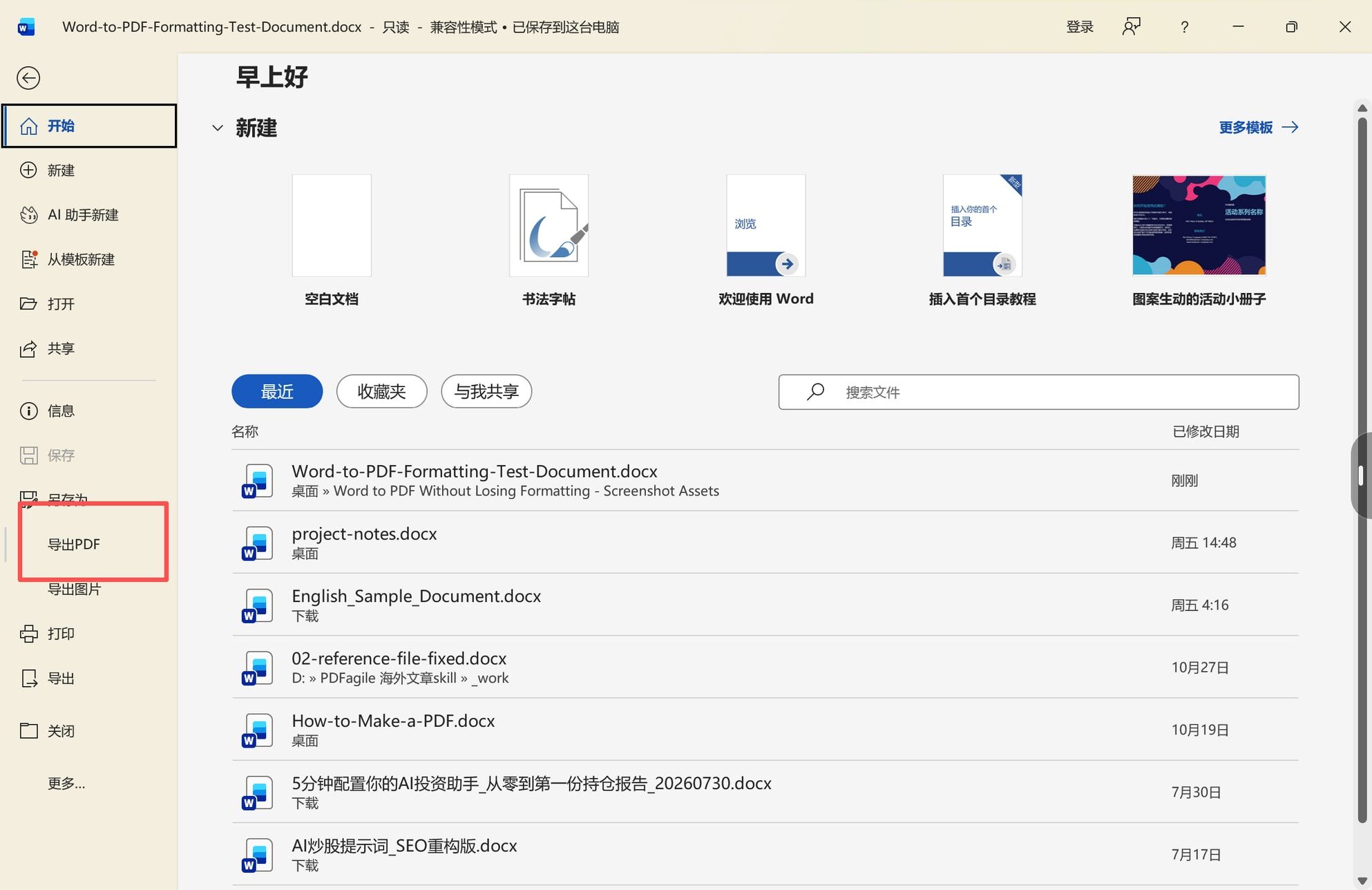
In Microsoft Word the conversion lives at File > Export > Create PDF/XPS Document, followed by the Create PDF/XPS button. File > Save As with PDF chosen from the file type list reaches the same dialog. Both keep the pages as text and keep their links; printing through a printer driver does not.
The command sits in the File menu of every mainstream word processor, under a different label: LibreOffice has File > Export As > Export as PDF, Google Docs has File > Download > PDF Document (.pdf), and WPS Office has Export to PDF in the same File panel. Those labels are translated in localized builds — in the screenshot below the panel is Chinese and the highlighted entry is still the export command.
Step 3: Set the options that decide fidelity
Open Options… in the save dialog. Four settings matter:
- Page range: All. Anything else produces a partial document that still looks complete.
- Optimize for: Standard (publishing online and printing). The alternative, Minimum size, compresses images harder and is meant for on-screen reading.
- Document structure tags for accessibility keeps the heading and table structure inside the PDF, which is what lets software read the file in order and re-use it.
- PDF/A compliant when the file goes into an archive or a submission system that demands it. PDF/A forbids some features, so apply it to the archived copy rather than the one you are still working on.
Leave Bitmap text when fonts may not be embedded switched off unless the document uses a font that cannot be embedded and the visual result matters more than selectable text.
Method 2: Convert Without Word
If Word is not installed, or you have a folder of files to get through, the conversion has to happen somewhere else. That changes the risk, not the goal.
Server-side converters open the .docx with their own library, so the page is re-computed rather than carried over. For letters, reports and simple tables that is usually invisible. For multi-column layouts, text boxes, footnotes and fonts the converter does not have, it is where the layout goes.
Two habits make the difference:
- Compare the page count before anything else. If the converter produced 31 pages where Word produced 30, the layout has already moved and nothing later in the check will be trustworthy.
- Test one file first. Converting a two-page sample of the same template shows what the tool does to that specific layout before your whole submission depends on it.
A browser converter uploads the file to a server, which matters for anything confidential — see the privacy section below. The Word to PDF converter linked here publishes a deletion window of 24 hours for converted files. If you are choosing between tools rather than converting one file, the comparison of Word to PDF converters covers what separates them.
How to Check a Converted PDF in Two Minutes
Do this before the file leaves your desk, not after a client notices something.
Step 1: Open the PDF and compare the page count
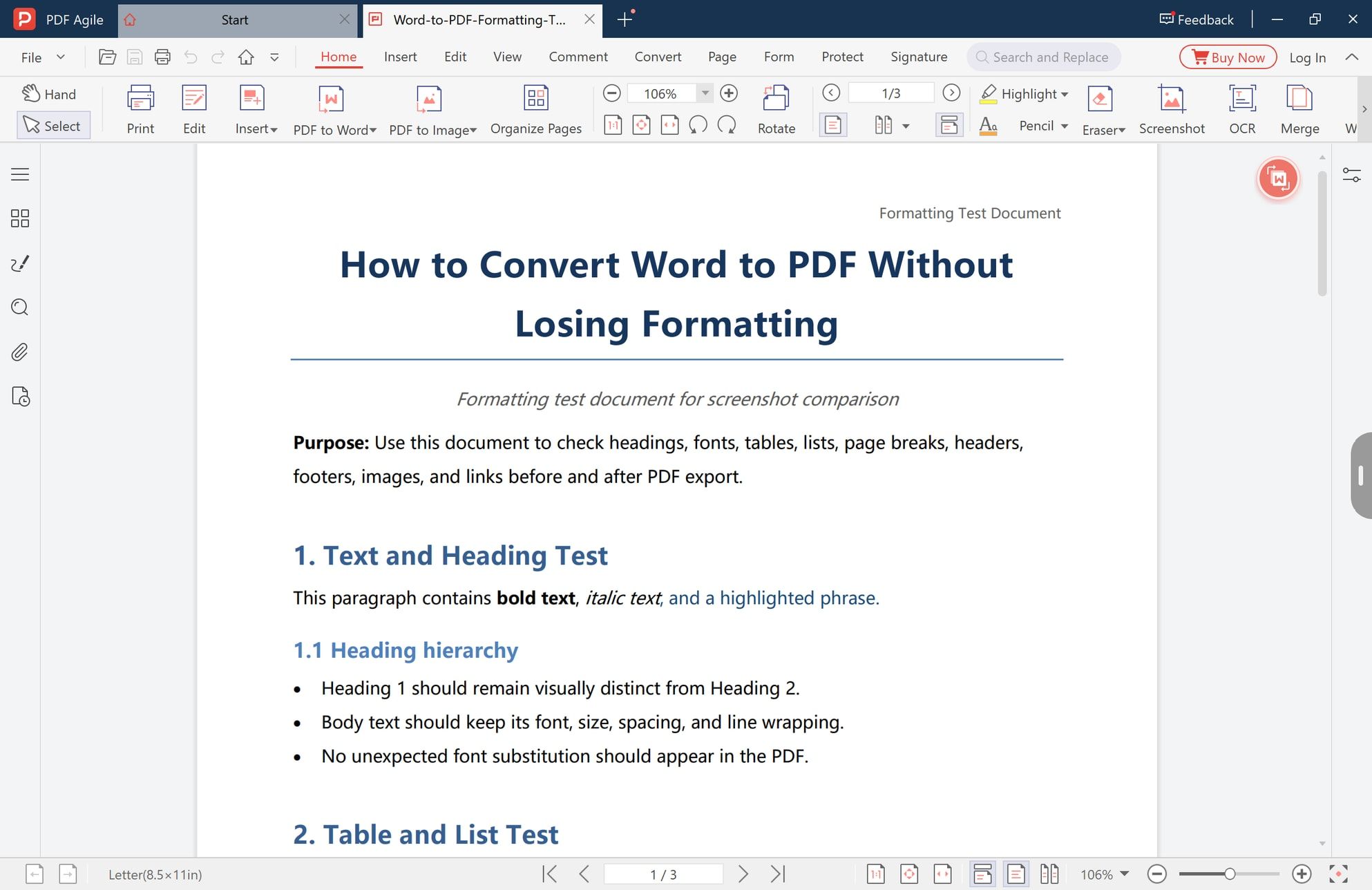
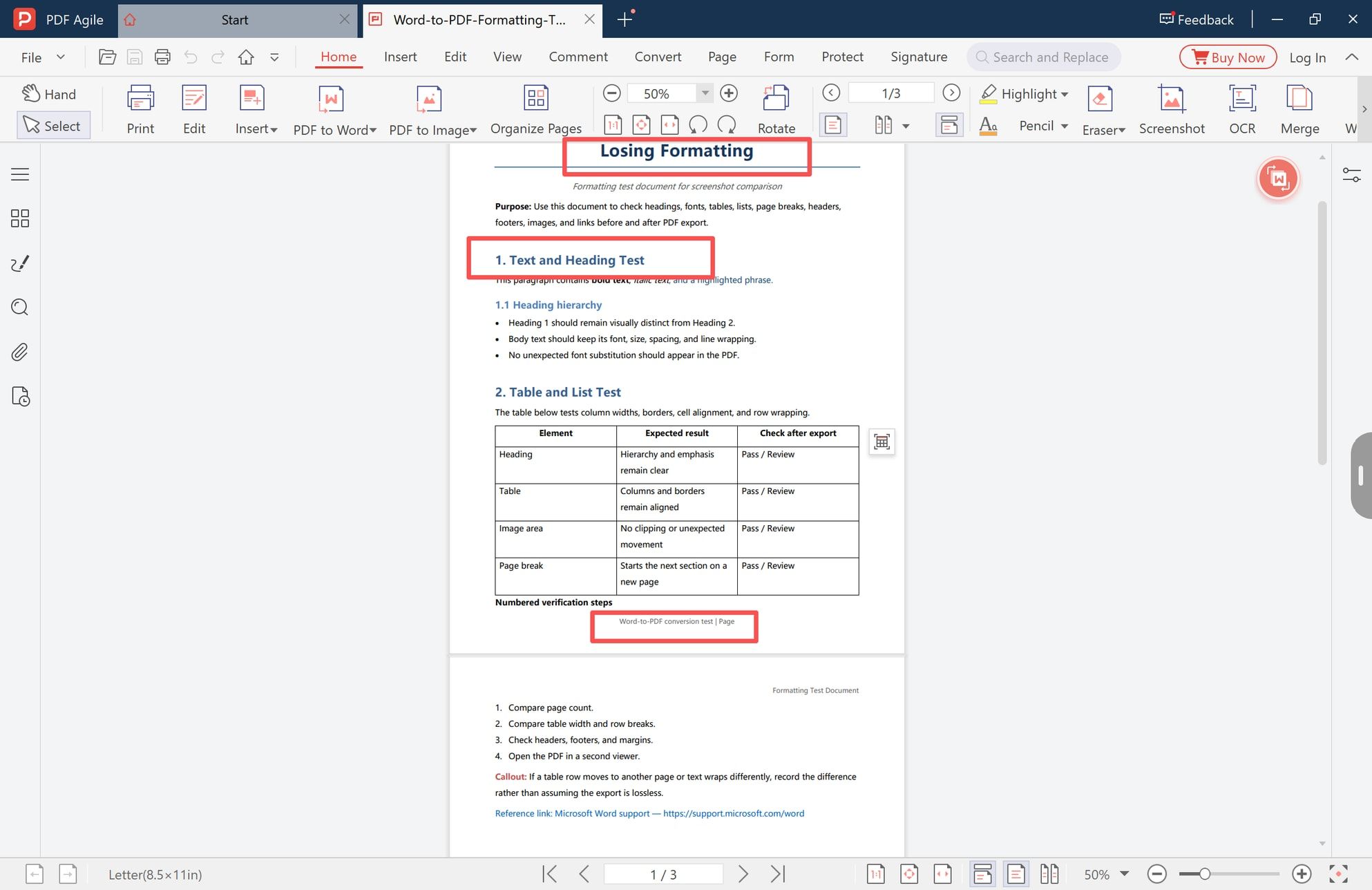
Open the converted file in a PDF editor and put its page counter next to the number you wrote down in step 1. A plain viewer is enough for this, but an editor lets you fix what you find without starting over — the screenshots below are from PDF Agile for Windows.
Step 2: Check the places where breaks happen
Zoom out to see a whole page, then look at four things in order:
- The heading that starts a page. If it has moved up or down, everything after it moved with it.
- The table edges. Columns should line up with the same vertical rules as in the source document.
- The footer and the page number position. A footer that has drifted or vanished points at a section setting, not at a font.
- Any page that mixes text and an image. Text wrapped around a picture is the first thing to break when the layout is recomputed.
Then select a paragraph and zoom in. Text that selects and stays sharp at 200% is real text; text that is fuzzy at 200% was sent as an image.
Fixing Small Breaks Without Re-exporting
One moved table or one missing footer is not a reason to redo the export, and re-exporting can move something else. These repairs are usually enough, in this order:
- Correct a line of text in place. Editing existing text is the right fix for a typo, a wrong date or a renamed item.
- Move or insert a page. If a table spilled onto an extra page, move that page where it belongs, or delete the blank page the spill left behind.
- Add the missing element — a footer, a page number, a link — instead of regenerating the document for one item.
- Run OCR only when the text will not select. It adds a searchable text layer under the page image; it does not restore the original layout or fonts.
Anything that changes the flow of text — a paragraph that re-wrapped, a table whose columns collapsed — cannot be repaired in the PDF. Fix it in the source and export again: that is the only route that leaves the document internally consistent.
When Re-exporting Is the Only Fix
Go back to the source when a font was substituted, when text re-wrapped across a page, when a table re-measured its columns, or when the file is a legacy .doc with a complex layout. In all four cases the damage already happened in the flow of the document, and patching the PDF only hides it.
Acrobat, Foxit, and the Other Desktop Routes
If Acrobat is already installed, its export produces the same result as Word's for most documents, because it also works from the document instead of re-rendering it. What Acrobat Pro adds is a different layer: Preflight for print-production checks, PDF/A validation, Redact, Compare for two versions of a file, and Compress. Those matter when a document has to meet a specification; none of them is needed to get a faithful page.
The difference that matters here is where the work happens. Checking the converted file, correcting one line, moving a page and restoring a footer are four separate jobs when the viewer and the editor are different programs, and one pass when they are the same one. We build the editor shown in these screenshots, so read the product notes as a description of what we make rather than as an independent review.
Privacy: What Actually Leaves Your Machine
Three routes, three exposures:
- Exporting from Word writes a file to your own disk. Nothing is uploaded.
- A browser converter uploads the document to the vendor's server and returns a download link. Deletion windows are usually published — 24 hours is common — but the file is outside your control for that period, and the terms of service decide what else may happen to it.
- A desktop PDF editor opens the file from your own drive, so the conversion and the check stay local.
For a contract, a payslip or anything under an NDA, the second route should be a deliberate choice rather than a default.
FAQ
Why does the font change when I convert Word to PDF?
Because the font was named in the document but not embedded in the PDF, so the reader's machine substitutes its own. Export with the standard quality setting, and check whether that font's licence permits embedding at all.
Why did my table jump to the next page after conversion?
The row above it grew, or the column widths were re-measured when the font metrics changed. A table that exactly fills a page has no room for a one-percent difference and moves as a whole, so trimming the row height slightly in the source is usually enough.
Does a .doc file convert the same way as .docx?
No. A .doc has to be read by the newer layout engine first, and that step can move page breaks on its own. Open it, save it as .docx, check the layout, then export.
Can I convert Word to PDF without Word installed?
Yes. A browser converter or a desktop PDF tool can do it, and both re-lay out the document with their own engine rather than Word's. Simple documents survive that; multi-column layouts and unusual fonts may not.
Do hyperlinks survive the conversion?
They survive an export. They frequently do not survive printing to a virtual printer, which re-renders the pages and can drop both the links and the structure tags. If the links matter, export rather than print.
Is it safe to convert a confidential Word file with an online tool?
The file is uploaded and stored for the vendor's deletion window, so "safe" depends on your obligations rather than on the tool. If the document is under an NDA or contains personal data, convert locally.
Fidelity comes down to three things you control before the file leaves your machine: export rather than print, keep the fonts inside the file, and check the pages where breaks happen. PDF Agile for Windows exports the document and opens the result in the same window, so the check and the one-line correction happen in one pass. More conversion walkthroughs sit under Convert to PDF, the how-to archive groups the rest by task, and the Word to PDF guide for Mac covers the other platform.
Steps and interface reflect the desktop app as of November 2026; menus may change in later versions. Microsoft Word, DOCX, WPS Office, LibreOffice, Google Docs, Adobe Acrobat and Foxit are trademarks of their respective owners. Formatting outcomes depend on the fonts, tables and section settings of the source document, so no converter can promise a page-identical result for every file. We build the editor shown here; the product notes above describe what we make.