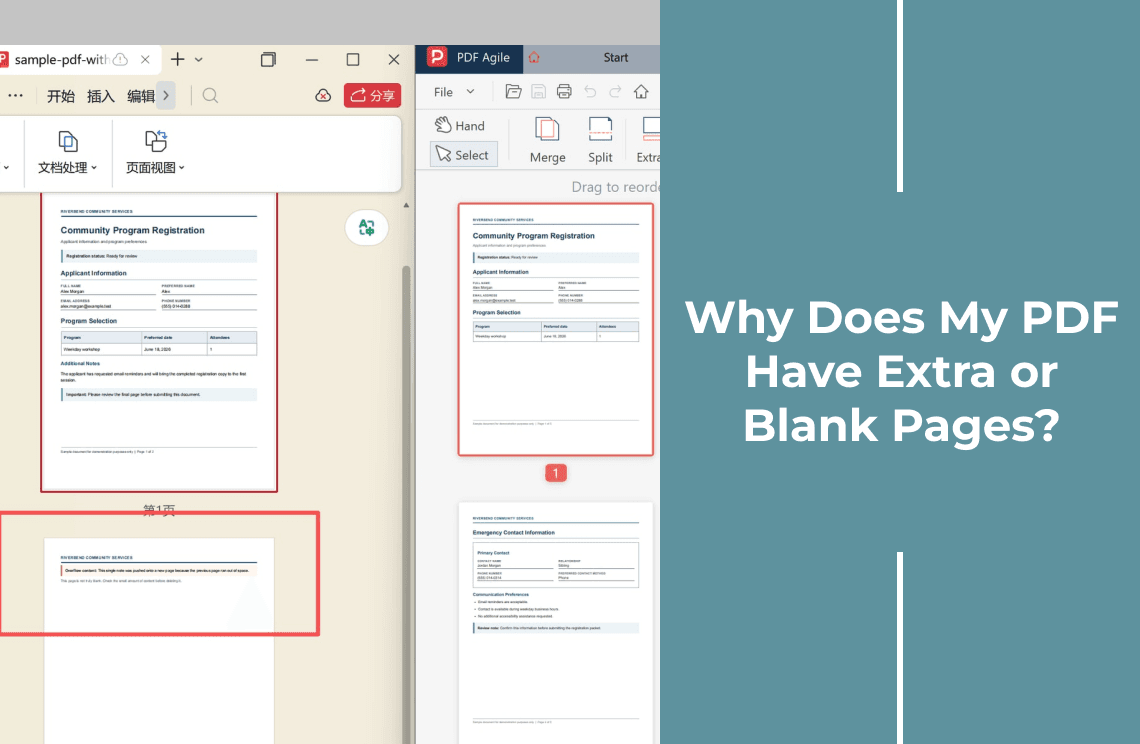
A PDF does not invent pages. Every extra page was written by something: a page break in the source file, a table that ran past the bottom margin, an export setting, a second copy of the same file dropped into a merge, or a scanner that fed one more sheet than the document needed.
The cause decides the fix. If the page exists only because the source file still contains it, deleting it from the PDF repairs this copy and leaves the next export just as broken. If the page came from a scan or a merge, the PDF is the only place it exists and deleting it is the whole repair.
This page covers that diagnosis and the decision. If you already know which page has to go and only want the removal steps in detail, the blank-page removal walkthrough covers the mechanics, including white-out versus redaction and page labels.
Is the Page Really Blank?
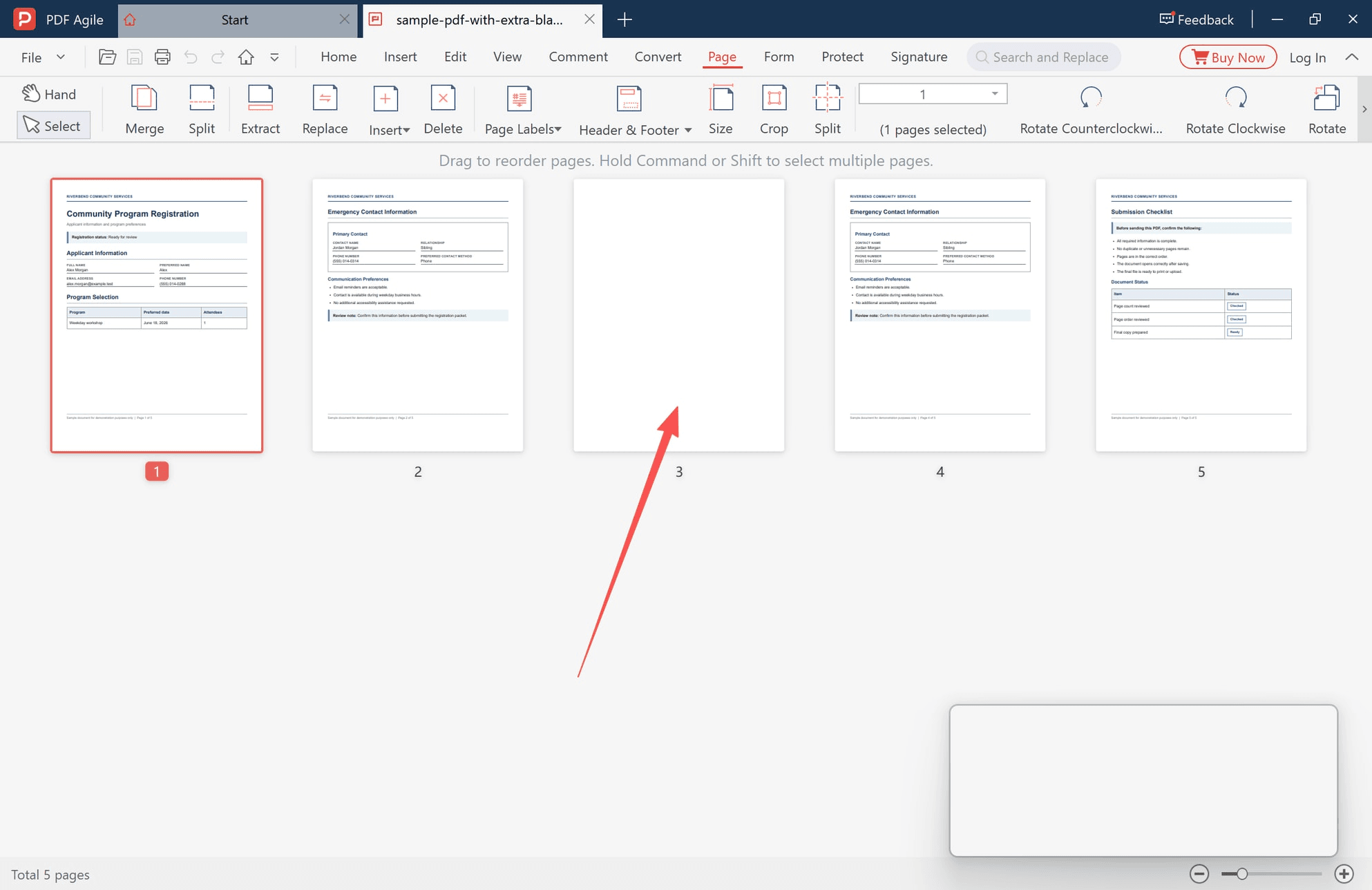
At thumbnail size, six different things look alike: an empty page, a page holding one line of text, a page that carries only a header and a page number, a page with a borderless form field, a scanned sheet with faint marks, and a page with text hidden under a white shape.
Two checks settle most cases in under a minute. Search the file for a phrase you expect on that page and see which page the hit lands on, then zoom to 300–400% and read the corners and edges, where dates, stamps and signatures sit. Open the file in a second viewer as well: a page that looks empty in one reader can show a form field or an annotation in another.
A scanned blank is a special case. It is not pure white, it carries the grain and edge shadow of the sheet, and removing it will barely change the file size. That is not a failed deletion.
Why a PDF Has Extra Pages
- A page break in the source file. A manual break, or a run of empty paragraphs at the end of a Word or Google Docs file, turns into a page that holds nothing but still counts — nearly always the last one.
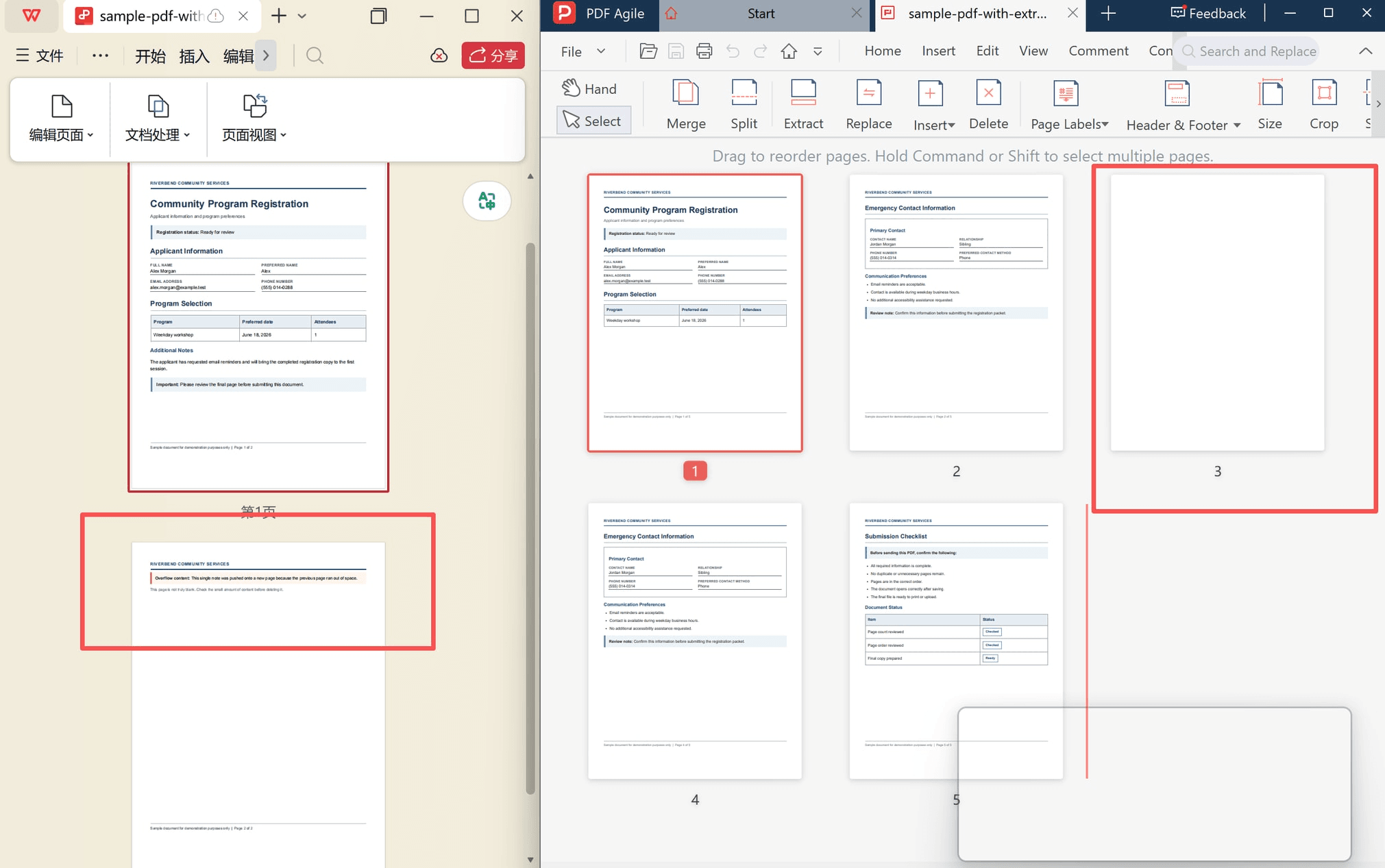
- Content that spilled over. One table row, a taller footer or a paragraph spacing change pushes the last line onto a page that holds almost nothing. You see an extra page; the file sees an overflow.
- Export and print settings. An A4/Letter mismatch, a scale-to-fit option, a print range that runs one sheet long, or a header added during export. Printing to PDF from a browser adds a trailing page when a floating element runs past the page box.
- Merging and scanning. The same file inserted twice, separator pages left in by whoever built the packet, or an automatic feeder pulling a blank sheet. Double-sided scanning of single-sided originals leaves a blank after most real pages.
- A deliberate blank. Booklet imposition needs blank versos so sections start on a right-hand page, and some forms specify a page count their scanner expects.
Extra Page, Duplicate Page, or Overflow Page?
The label decides the repair, so name the page before you touch it.
- Truly blank — no visible or hidden content. Safe to delete once the checks above come back empty.
- Overflow — a few lines, one table row or a stray footer. Fix the layout; deleting the page deletes the content that spilled.
- Duplicate — identical to the page before or after, usually from a double insert during a merge. Compare the two tiles, then remove one.
- Separator or imposed blank — it carries structure: a section start, a booklet verso, a required page count. Leave it, or replace it with a page that says why it is there.
Fix the Source File or Delete the Page?
Fix the source whenever the file will be exported again — reports, invoices, proposals, handouts. The repairs are small: remove trailing page breaks and empty paragraphs, tighten the table row or column that pushed content over, reduce the footer height or bottom margin, set the same paper size in the editor and the exporter, and stop adding a header at export time when the document already has one.
Delete the page from the PDF when the PDF is the only copy you will ever have, when the page appeared after export (a scan, a merge, a print run, a portal download), or when the source is gone, locked or owned by someone else and the file is due today.
The question is not "can I delete this" but "will this page be back". If it will, deleting it is a repair you are going to repeat.
When the version you received differs in more than a stray page — substituted fonts, a different page size, or a shuffled order — why a downloaded PDF looks different from the original covers that wider diagnosis.
How to Remove the Page You Have Confirmed
Removing a page is structural, not cosmetic. The page is removed, everything after it shifts up by one, bookmarks that pointed at it lose their destination, and a digital signature stops validating on the first save. Work on a copy, and treat the count afterwards as part of the job.
The steps below use the desktop app we build, which shows every page as a thumbnail so tiles can be compared before anything is committed.
Step 1: Open the Page tab and note the total
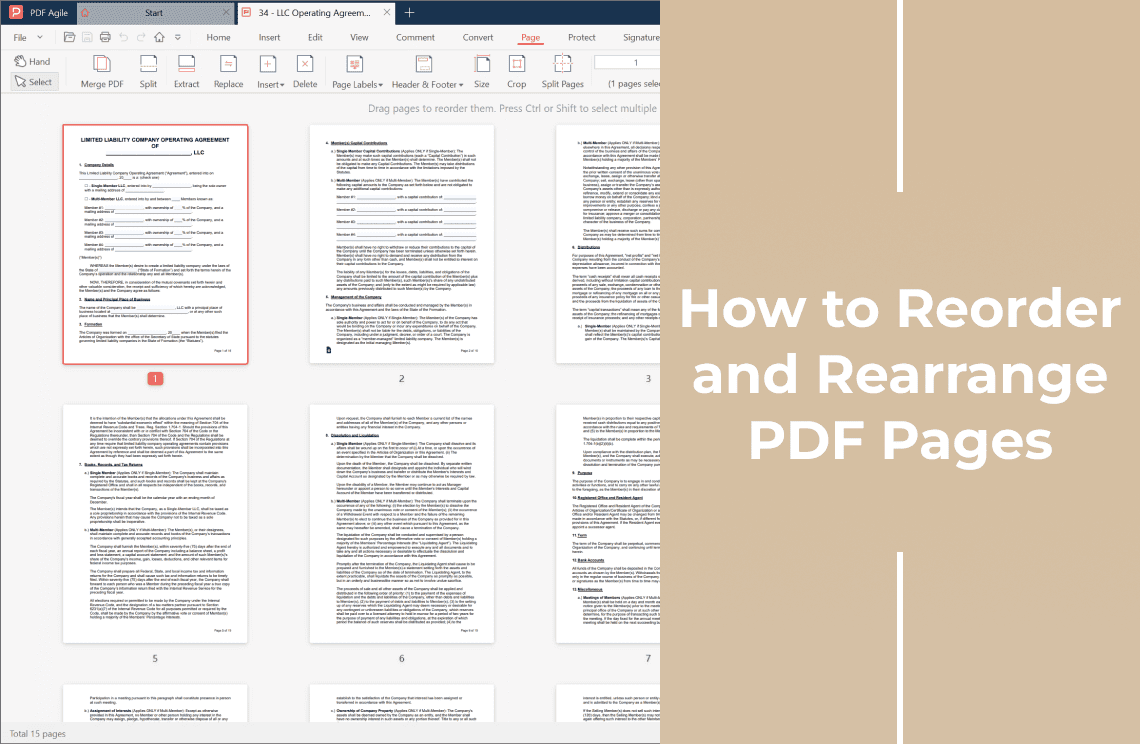
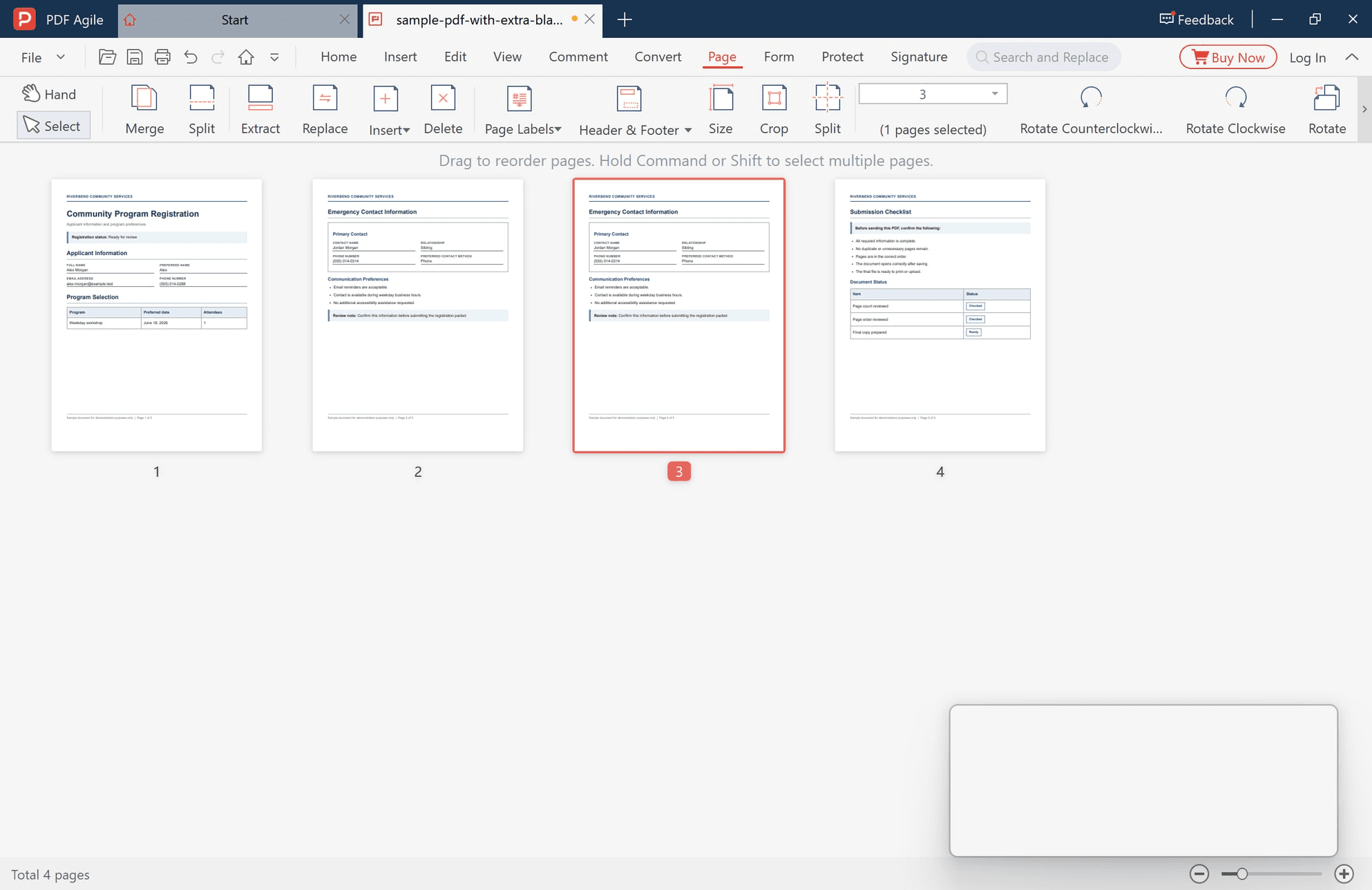
Switch to the Page tab. The document becomes a grid of thumbnails with a number under each tile, and the bottom-left corner shows the total — Total 5 pages for the sample file used throughout these captures. Write that number down; it is what you check in a moment.
Step 2: Select the page and look at it at full size
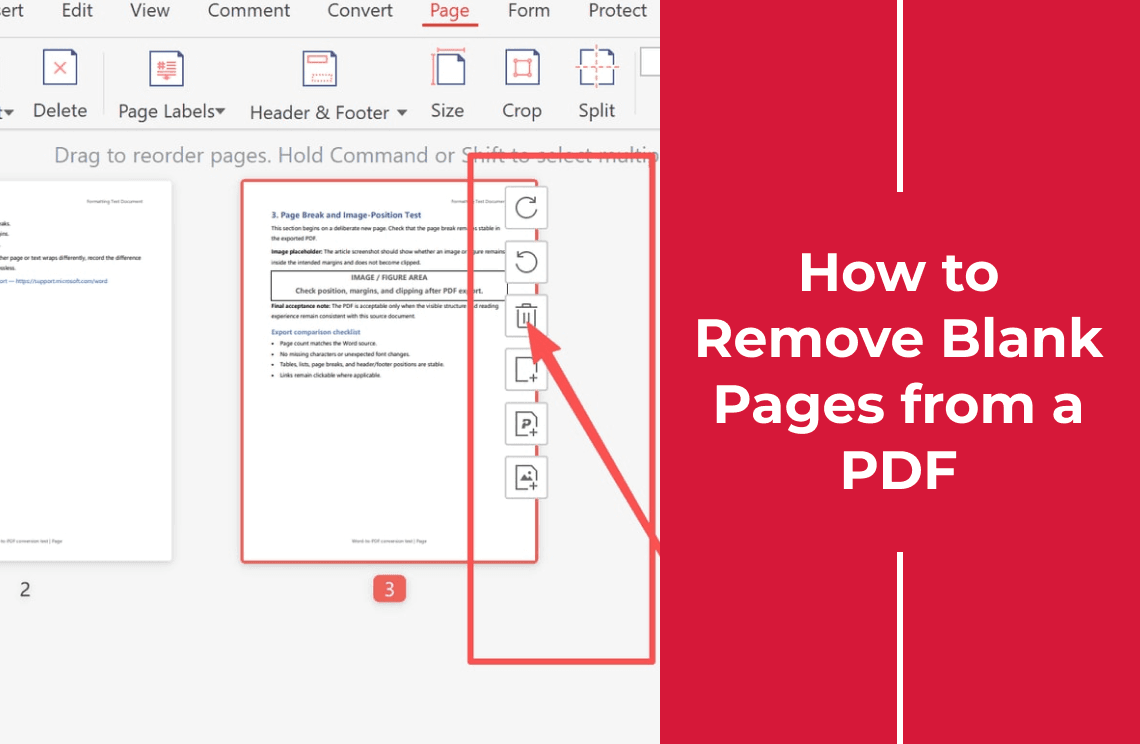
Click the page you believe is unwanted. It takes a red outline and a numbered marker, a small toolbar appears beside the tile, and the panel above the grid reports how many pages are selected — which catches the stray Ctrl-click that took two instead of one.
Step 3: Delete it and read the count again
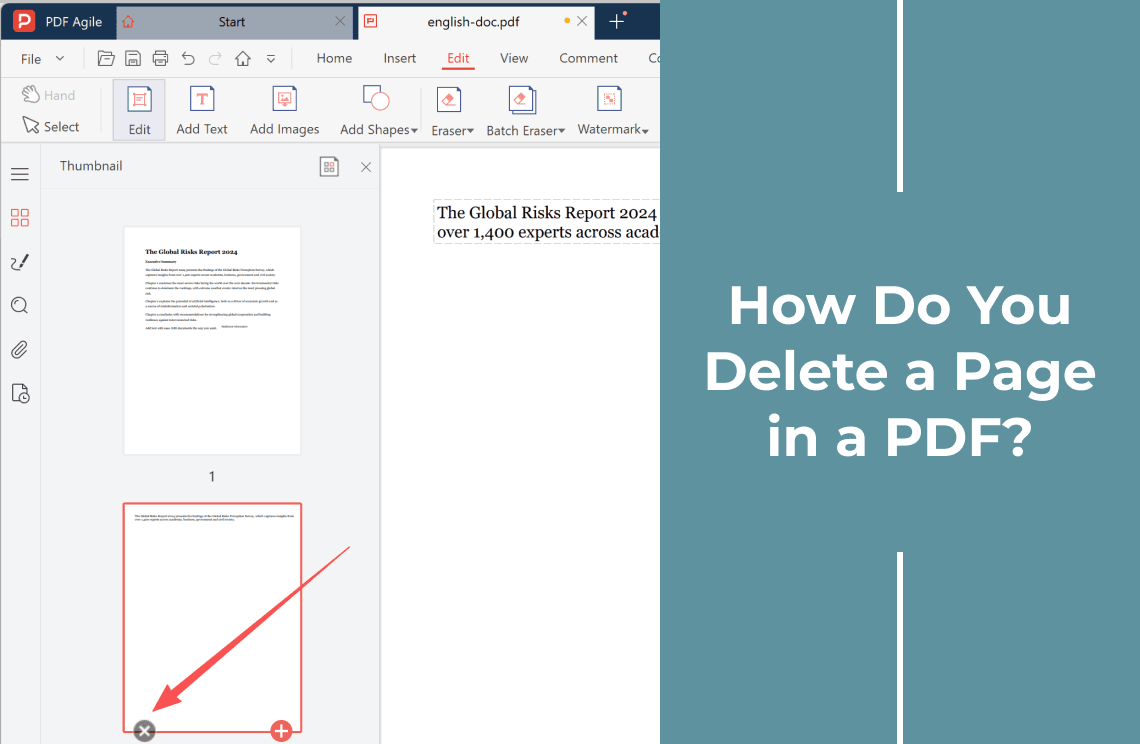
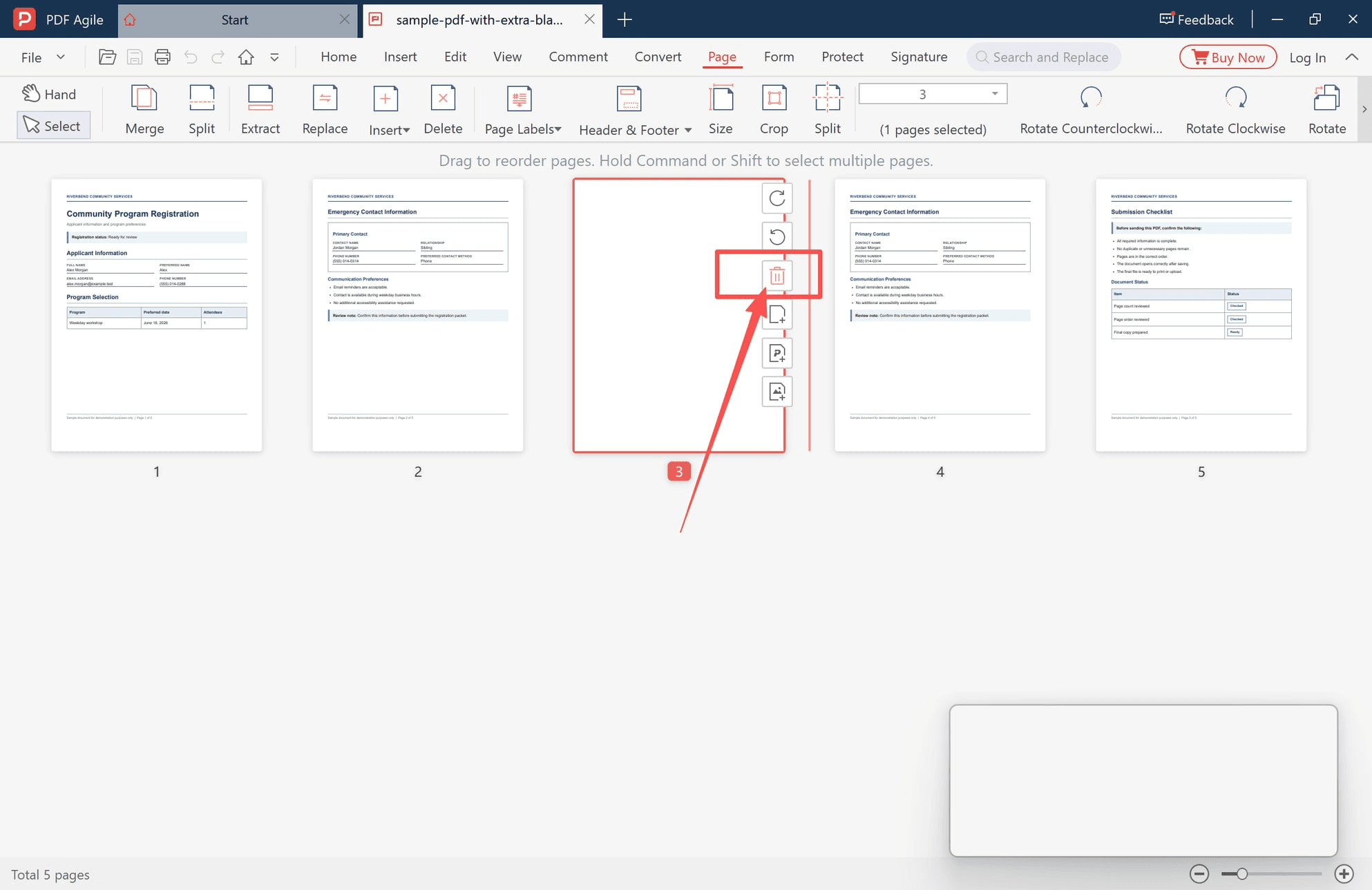
Click Delete on the ribbon, or the bin icon in the tile toolbar. The tile disappears and the pages after it renumber. The change is not final until you save, so read the count before you do.
What to Check After the Page Is Gone
- The arithmetic. The new total must equal the old total minus the pages you removed. If it does not, one page was deleted twice or one was never deleted.
- The joins. Look at the pages either side of the gap. A chapter that now begins halfway down a page means that blank was a separator.
- The ends. Off-by-one errors surface on the first and last page, and that is where a signature block usually sits.
- The outline. Bookmarks and cross-references that named a page number are now stale.
- The file. Reopen it, check the print preview, fill one form field, and compare the size against the upload limit of wherever it is going.
- The signature. If the file was signed, confirm it still validates — page removal breaks it by design.
Why the Extra Page Keeps Coming Back
The stage where the page appears tells you where to fix it.
- Every export from the same file — the source, not the PDF. Start with trailing page breaks, then the table and footer that push the last line over.
- Only when printing — paper size, print range or a scale option. Compare the size set in the document with the one in the printer properties.
- Only after merging — one file went in twice, or the tool added a separator page. Check the count around each merge rather than at the end.
- Only after scanning — the feeder's blank-page detection, or single-sided originals through a duplex scan. Fix it at the scanner.
- Only in one viewer — the page is probably real and the other viewer is showing a cached copy. Reopen the file before re-exporting it.
Deleting a page fixes the copy in front of you. It does not fix the process that produced it.
When the Blank Page Should Stay
A signed document a counterparty expects unchanged, a form with a required page count, a booklet whose blank verso keeps each section starting on a right-hand page, and the only separator between two exhibits are all cases where the blank is doing work. If the blank must go but the layout must survive, inserting a replacement page is the counterpart operation, the page-level editing guide covers the rest, and reordering pages is a separate job from deleting them.
How This Compares With Acrobat
The delete itself is the easy part, and no editor can claim an advantage on it. Acrobat's Organize Pages produces the same result, as does any viewer with a thumbnail strip — which is the argument for spending the effort on the diagnosis instead.
Where the products differ is what surrounds the operation. The total stays on screen in the Page tab while you work, and the same ribbon carries Merge, Split, Extract, Replace, Insert, Delete, Page Labels, Size, Crop and Rotate, so the result can be confirmed without leaving the document. We build PDF Agile, so read that as a description rather than a verdict.
For a one-page flyer you are about to send, a browser tool is enough: the online delete tool does it with nothing to install. The cost is that the document is uploaded to a third party — the wrong call for a contract, a payslip or anything under an NDA, where an editor working from your own disk is the safer default.
FAQ
Why is there a blank page at the end of my PDF?
Most often a trailing page break or empty paragraphs in the source file, or the last sheet of a scan. Check it before deleting: final pages are where signature blocks and revision dates sit.
Why does my PDF have an extra page after printing?
The paper size, the print range, or a scale-to-fit option. If the document is A4 and the printer is set to Letter, or the range runs one page past the end, the output gains a sheet. Print two pages as a sample first.
Can I delete several pages at once?
Yes. Click the first page, then Shift-click the last to take the whole run, or use the modifier key named in the hint bar above the grid. One delete beats thirty, because the pages you have not reached keep renumbering as you go.
Will the page numbers change when I delete a page?
No. Printed numbers are page labels, stored separately from page order, so a file numbered 1–40 ends up offset against its new count. Any sentence that names a page number becomes wrong.
Is an online tool safe for removing a page?
For a flyer, usually fine. For a contract or anything under an NDA, the file is uploaded to someone else's server, so a desktop editor working from your own disk is the safer default.
Before You Send It
The expensive part of this job is rarely the click. It is the page that looked empty but carried a signature, the separator a reviewer expected, and the count that no longer matches the form you are submitting. Name the page, decide whether the source or the PDF is at fault, then remove it in one pass and check the total.
More page-level walkthroughs sit under the how-to archive, including deleting a specific page for the case where the page is unwanted rather than empty.
Steps and interface describe the desktop app as it stood in November 2026, and menus can move in later versions. Adobe Acrobat is a trademark of Adobe Inc. Statements about page labels, bookmark destinations and digital signatures follow the PDF specification. The product descriptions above refer to the app we build.