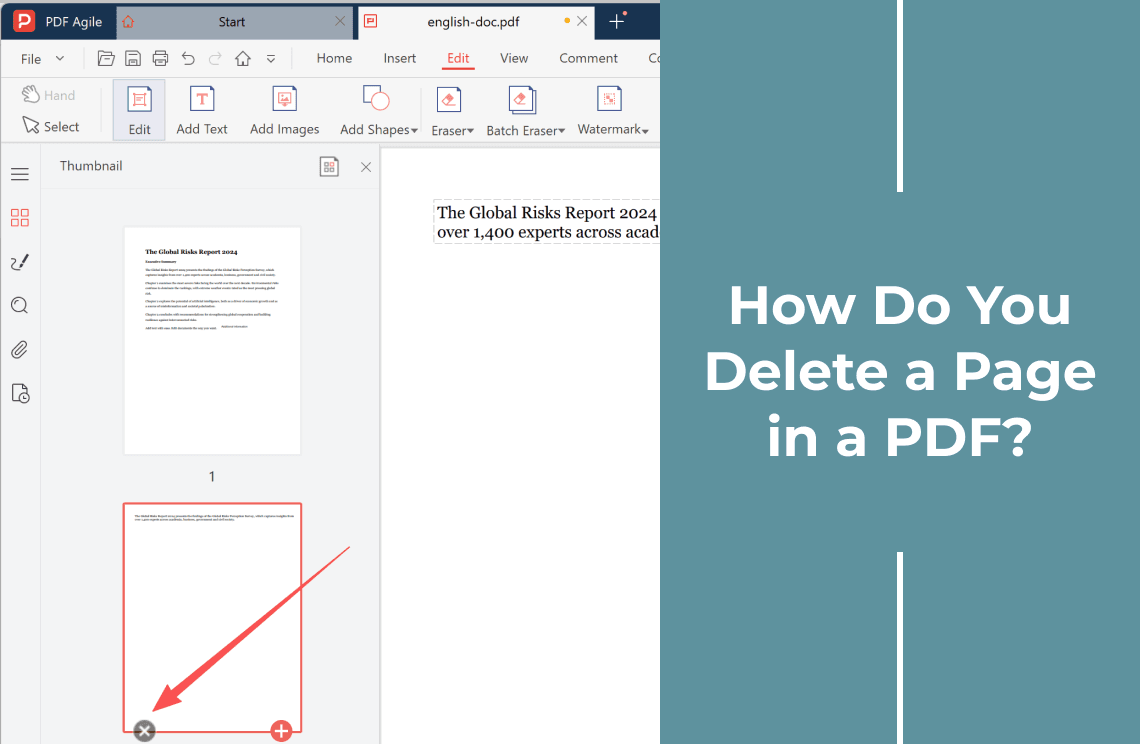
Open the file in any editor that shows page thumbnails, select the page, delete it, and save a copy under a new name. That is the whole operation.
What decides whether it works is not the app. It is the file: whether it is locked, whether the page is a scan, whether anyone signed it, and whether you still have the original. Answer those four questions and the method picks itself.
Delete, White Out, Crop, or Split: Pick the Right One
Four different fixes get called "deleting a page". Only one of them actually removes anything.
- Delete — the page stops existing and everything after it moves up one. Use it when the content should not be in the document at all.
- White out — you paint over text on that page. The page stays, and the original text usually survives underneath, so covering a page is not removing it.
- Crop — you hide the edges of the page. The margins disappear from view; the page count does not change.
- Split — one file becomes several. Use it when the rest of the document should not travel with the part you send.
The expensive mistake is treating white out as deletion. If a recipient can still select the text under the box, the page was never removed.
Why a Page Won't Delete
- The file is read-only or permission-restricted. The owner allowed viewing only. Open a copy, or use a tool that writes a new file rather than editing in place.
- It is password-protected. Nothing on the page works until the password is entered, page operations included.
- The page is a scan. Deleting still works, because you are removing a page, not editing text. What fails on scans is typing on them.
- The document is digitally signed. Removing a page changes the file, so the signature stops validating and the panel reports the document was altered. Work on an unsigned copy and re-sign it.
- You only have a printout or a screenshot. No app can delete a page that is not inside a file; print the range you want to a new PDF instead.
If your file is none of these, the ordinary path is short — the step-by-step walk-through covers it.
The Same Job on Windows, Mac, Phone, and a Browser
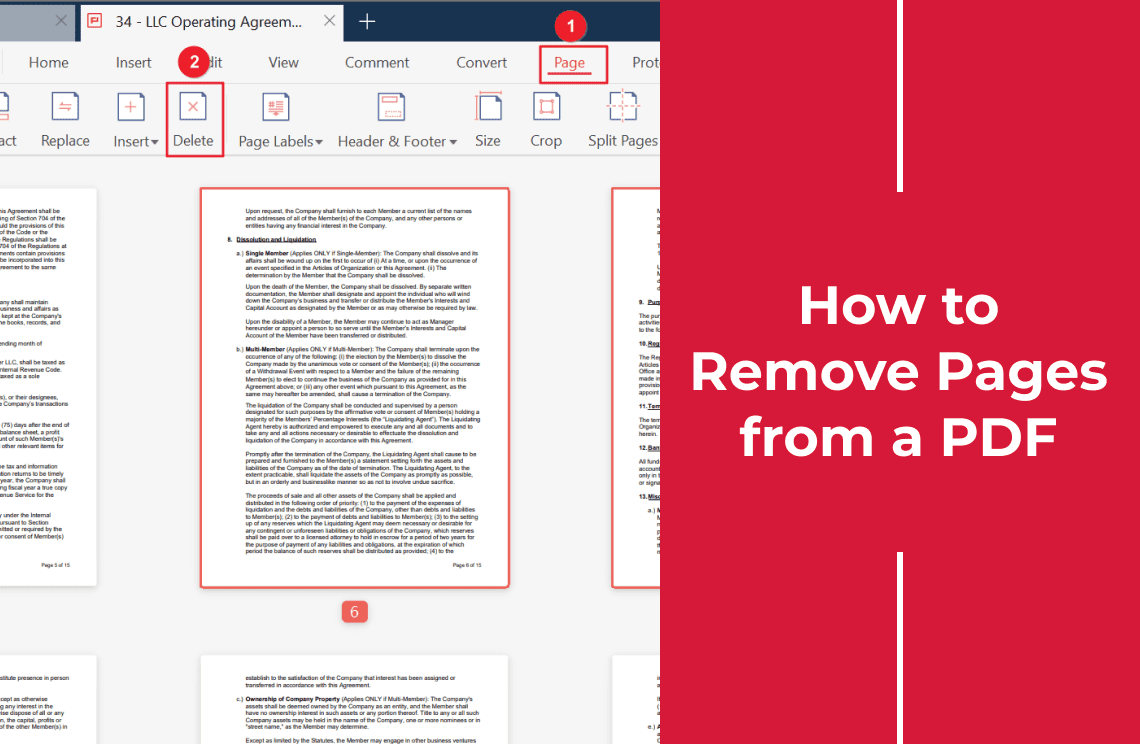
- Desktop editor. The Page tab shows a thumbnail of every page: select one, Ctrl-click to add more, delete, then save a copy. On Windows, PDF Agile does this from its Page tab.
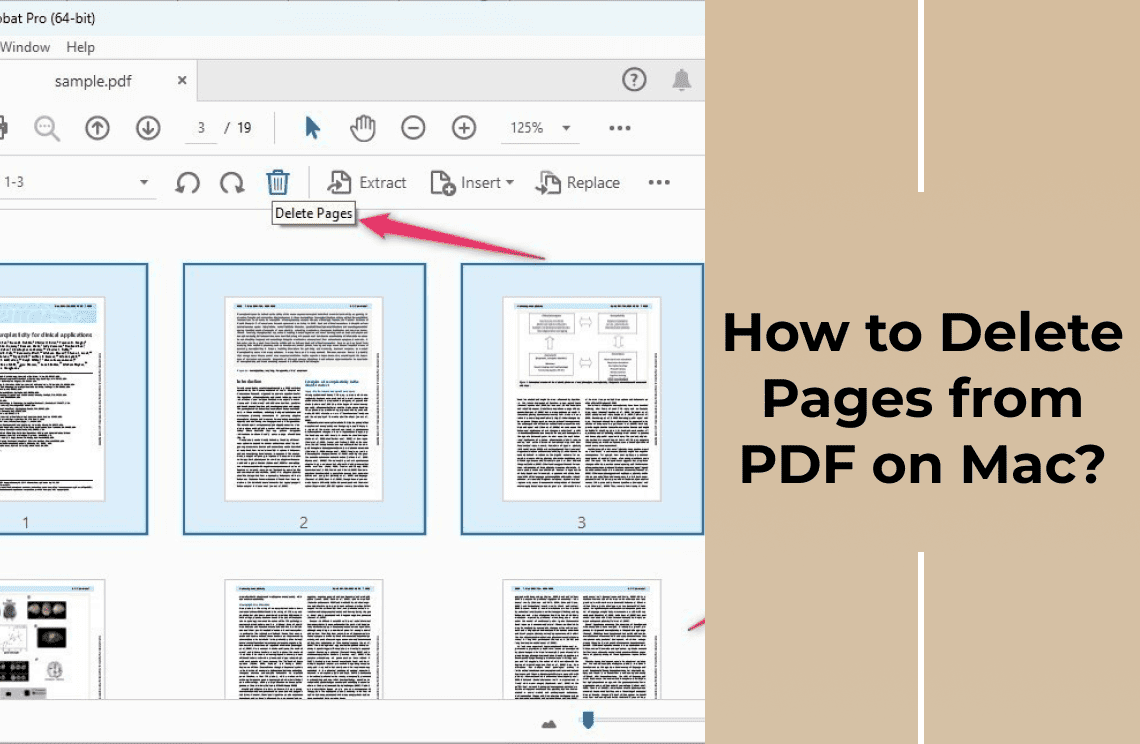
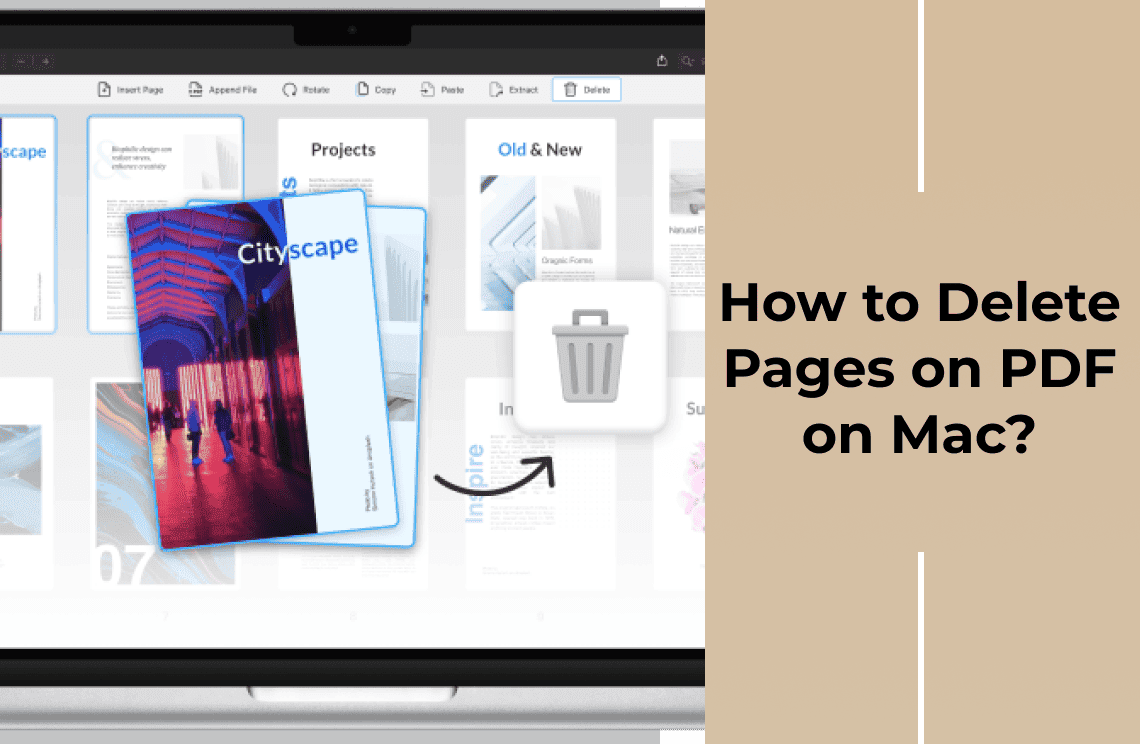
- Mac Preview. Open the file, choose View > Thumbnails, click the page, press Delete, then File > Save.
- Any browser, no account. There is no delete button, so re-print what you keep: press Ctrl/Cmd + P, put the pages you are keeping into Pages (for example `1-3, 5, 8-12`), and choose Save as PDF.
- Phone or tablet. Deleting a page usually needs a third-party app; most built-in viewers will not do it.
- An online delete tool. Convenient, but the file leaves your device. For contracts, statements, medical records, or anything carrying an ID number, keep the job local.
What Happens to the Rest of the Document
Deleting is a structural change; nothing else in the file adjusts for it.
- Printed page numbers do not renumber. The sheet that becomes page 7 still shows "8" in the footer.
- Bookmarks and the outline still resolve, now to whatever content sits there.
- Cross-references go stale. "See page 12" in the body text is wrong and nothing flags it.
- Links and notes on the deleted page disappear along with it.
- The file may not shrink much. Images and fonts carry most of the weight.
FAQ
Does deleting pages make the PDF smaller? A little, unless the page carried a heavy scan. Page structure costs almost nothing; the media inside it takes the space.
Can I undo a delete? Before you save, yes — Ctrl/Cmd + Z, or Edit > Undo in Preview. After saving, restore an earlier version.
How do I delete a blank page? It is an ordinary page, so the steps are identical. Blanks often arrive in runs from a scanner, so Shift-click the range rather than deleting them one by one.
Is deleting a page the same as redacting it? No. Delete removes the page. Redaction keeps the page and strips the content beneath the black bar. White out does neither.
Once the page is gone, check the first and last page of what remains — that is where a one-page offset shows up. If you need the opposite job, inserting a page back uses the same menu in reverse, and this guide to page-level editing covers the rest. More PDF how-tos are filed here. If you would rather keep a contract off a web server, PDF Agile does the same work on your own machine.