Key takeaways
- A PDF stores characters at coordinates. It has no columns, paragraphs or tables to copy, so the converter infers them.
- The first question is whether the source has a text layer at all. Without one, no converter can rebuild a layout.
- Columns and tables usually need a different route rather than a different converter.
Nothing in a PDF says "this page has two columns" or "this is a table". It says where each character sits on the page. A converter turns those positions back into paragraphs, columns and tables by inference, and the inference fails in the same places every time.
Which Failure Are You Looking At?
| What you see | What actually broke | How to confirm it |
|---|---|---|
| Nothing in the source PDF can be selected | There is no text to convert: the page is an image | Drag across the source text |
| Paragraphs from the two columns alternate | Blocks were ordered by their height on the page, not by column | Read the first two paragraphs: do they follow each other? |
| Every line ends with a paragraph mark | Line breaks were read as paragraph ends | Turn on formatting marks in Word |
| The table arrived as loose lines of text | Table detection relies on ruling lines | Look at the source table's borders |
| Headers and page numbers appear mid-document | Repeating furniture was read as body text | Search for the running head phrase |
| Page 1 is fine, later pages drift | Text reflowed after a font substitution | Compare page counts |
The rest of this page takes the first three, because they account for nearly every complaint and they need three different responses.
First Test: Is There Any Text to Convert?
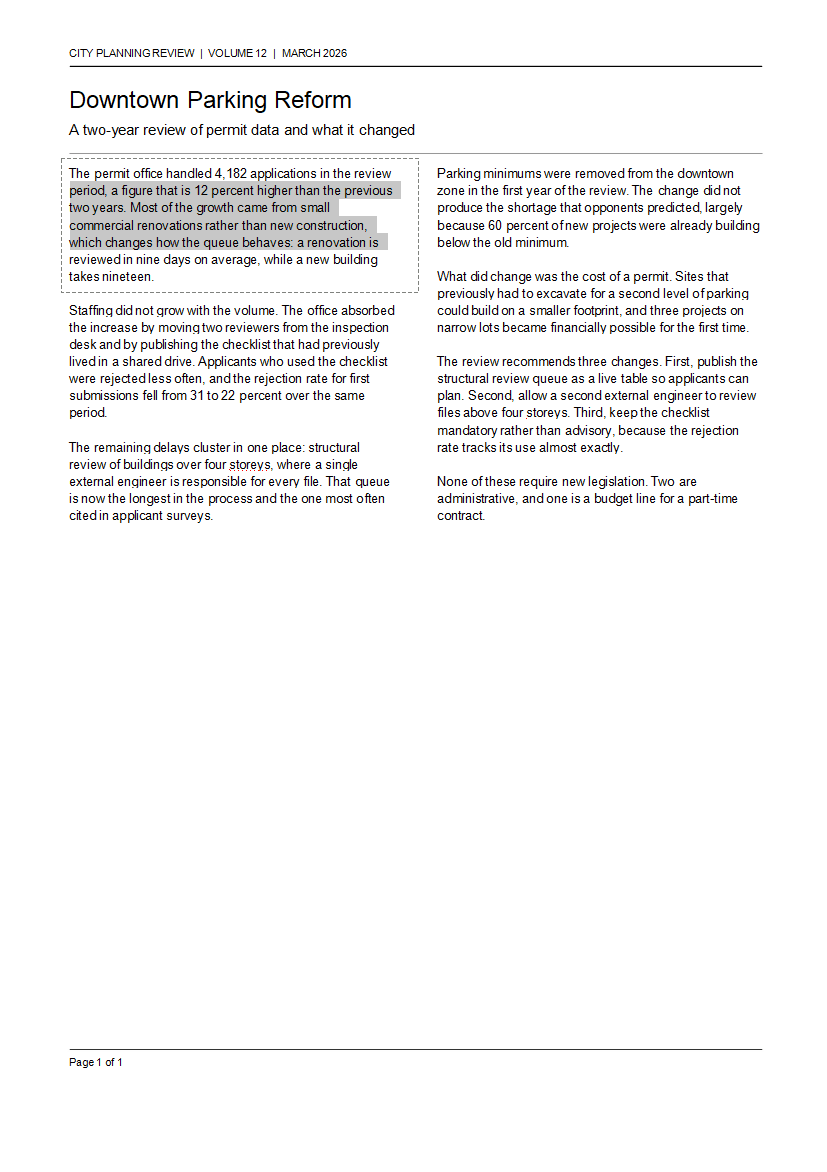
Before the layout question, there is a simpler one. Open the PDF and drag across a paragraph.
If words highlight, the page carries a text layer and the converter has something to work with. If the whole page highlights as a single block, the page is an image — a scan, a photographed page, or an export that rasterised the text. No converter can rebuild columns from a picture; the output will be either the picture itself or OCR text with no structure at all.
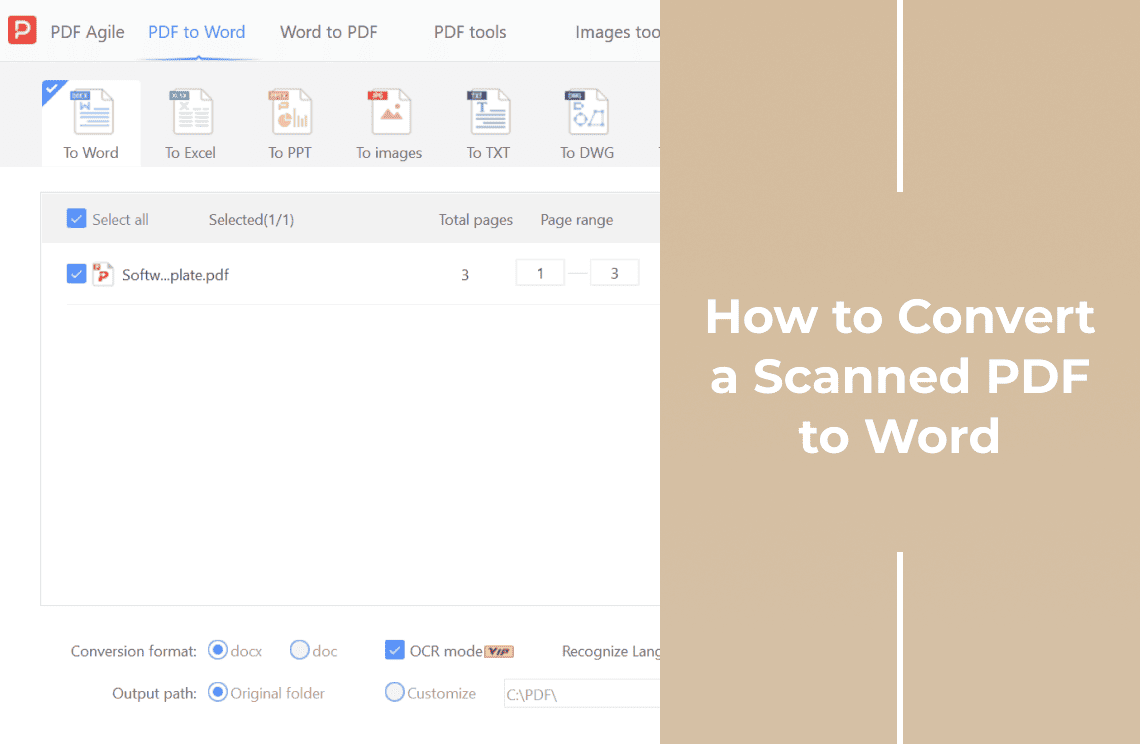
That distinction also tells you what to expect from OCR. OCR gives you characters, not layout: it can read a two-column page, but it will still hand back the reading order it guessed. If the file is a scan, converting a scanned PDF to Word is the route, and the layout advice below applies after it.
Why the Columns Come Back Interleaved
Columns are a visual arrangement of independent text blocks. A PDF may or may not carry tags that say so — most files that people convert do not. Without tags, the only information left is where each block sits on the page.
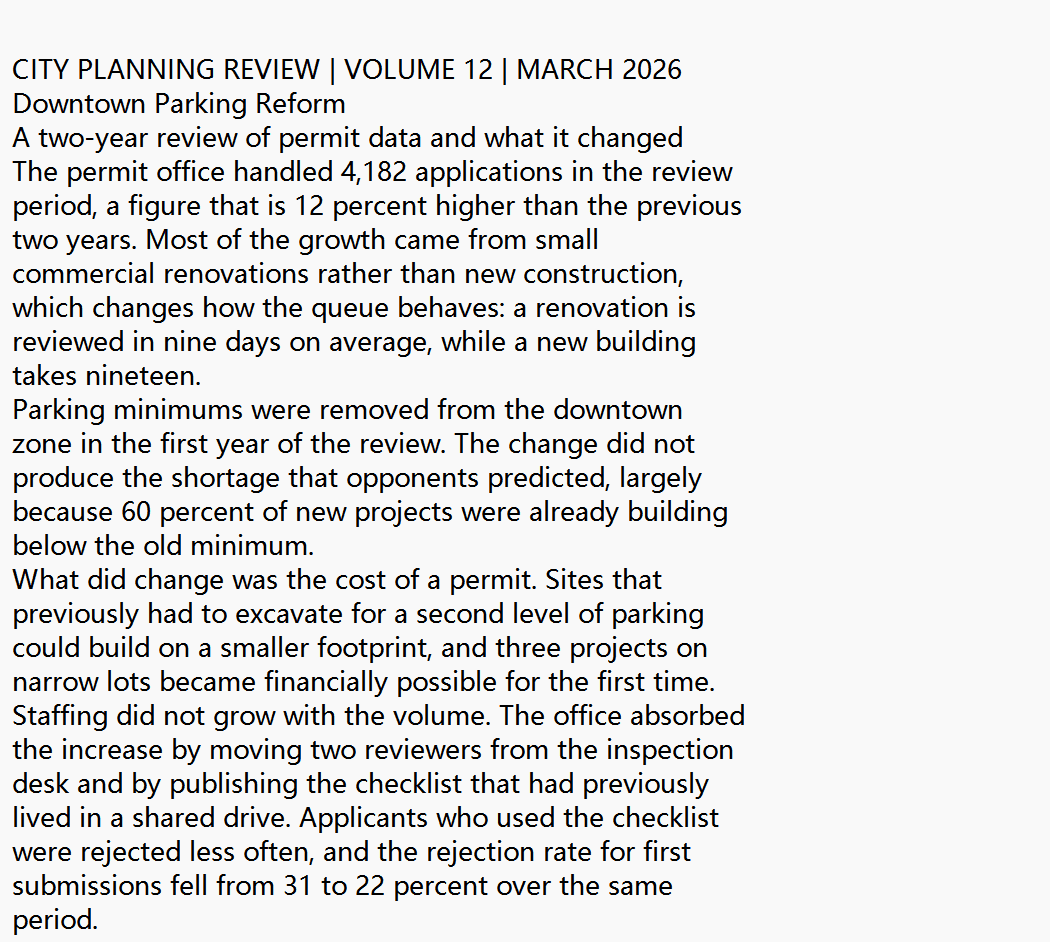
So the converter does not shuffle; it sorts. Blocks are placed in the order of the height at which they start, whichever column they belong to. The test page for this article had two columns of three paragraphs each, and the converted file came back in this order:
| Position in the file | Which block it is |
|---|---|
| 1 | Left column, paragraph 1 |
| 2 | Right column, paragraph 1 |
| 3 | Right column, paragraph 2 |
| 4 | Left column, paragraph 2 |
| 5 | Right column, paragraph 3 |
| 6 | Left column, paragraph 3 |
| 7 | Right column, paragraph 4 |
Nothing in the PDF records that the left column is read before the right one, so there was nothing for the converter to follow. The columns themselves are reproduced as separate blocks rather than as column settings, which is why each one reads straight down on screen and the page looks correct at a glance. The fault is in the order the blocks are written, and it surfaces as soon as the text leaves the page.
Three fixes work, in increasing order of effort:
- Use a layout-preserving mode if the converter offers one. The output becomes text boxes positioned on the page: it looks right, but editing it is miserable.
- Convert one column per page. Crop the page into left and right halves, convert each, and join the results in the right order.
- Rebuild the structure in Word — two columns with a section break, paste each column's text into its own column. Slower, but the result is a document that behaves.
Why Tables Fall Apart
Table detection looks for ruling lines and consistent column edges. A bordered table with even columns usually survives; a borderless table, a table with merged cells, or one whose columns are separated by whitespace alone usually does not.
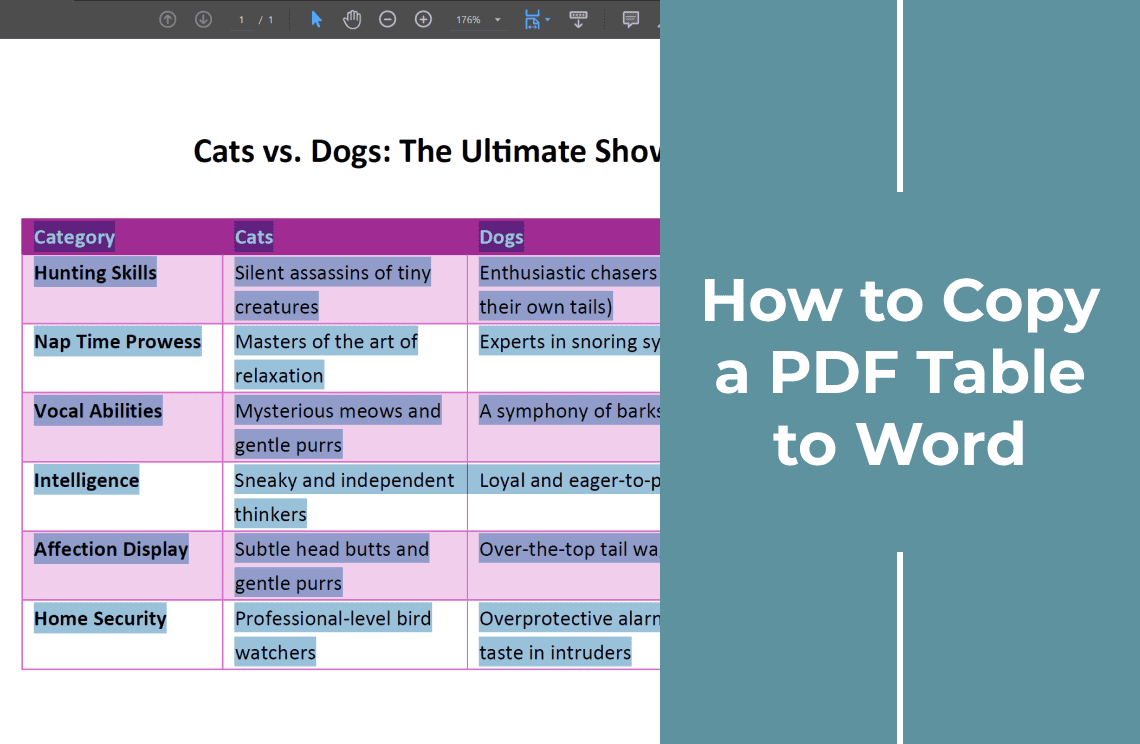
The practical consequence: a table that came through as text is not a table with a formatting problem, it is text. Rebuilding the grid by hand is the only fix, and it is quicker to take the data through a spreadsheet first — copying a PDF table into Word covers the routes, and PDF to Excel is the one that keeps numbers as numbers.
Why Every Line Is Its Own Paragraph
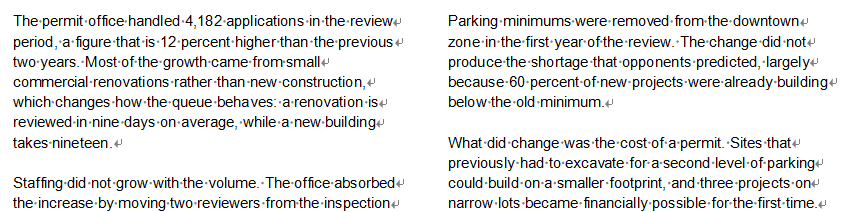
A paragraph is inferred from spacing. Body text has a fixed distance between lines and a slightly larger gap between paragraphs; where the gap is consistent everywhere — justified text with even leading — there is no signal, and the converter treats every line as a paragraph. In the test file, that is exactly what happened: 50 paragraph marks across 37 lines of text, so most lines end a paragraph of their own.
The repair is mechanical, but it has to be done on a selection, not on the whole document. Select the block that should be one paragraph, then use Find and Replace with `^p` in the search field and a single space in the replace field. Replacing paragraph marks document-wide would join real paragraphs as well, which is why the selection matters.
Word uses two characters that look similar with formatting marks on, and they need different replacements: `^p` is a paragraph mark (¶), `^l` is a manual line break (↵). A converter can produce either, and the same document can carry both — the test file here ended lines with paragraph marks as well as manual breaks. Check which one sits at the end of a line before choosing the search term.
Does a Different Converter Help?
Less than people expect. Different engines guess differently, so a page that fails in one tool may come out slightly better in another — but the inference problem is the same, and the settings matter more than the brand.
What does change the outcome is the output mode. Most converters offer a choice between flowing text (editable, structure guessed) and retained layout (positioned text boxes, structure irrelevant). Choosing the mode that matches the job removes most of the disappointment: a form or a brochure wants retained layout, a contract or a report wants flowing text.
Check the Result Before Editing
- Page count against the source. A different count means something already reflowed.
- Reading order: select the whole document and paste it into a plain text editor. On the page the columns read correctly; in the text they are ordered by position, so the jump only appears after the copy.
- Table count: Word's table count should match the source, or you know the tables arrived as text.
- Formatting marks: on, so paragraph breaks are visible before you start fixing them.
- Headers and footers: search for the phrase that appears at the top of every page. If it turns up in the middle of the body, it came in as text.
- Fonts: if the document looks like a different design, check the font list — a missing font was substituted, which changes line widths and can move page breaks.
What This Cannot Do
- It cannot rebuild a structure the PDF does not contain. Columns, tables and paragraphs are inferred, not read.
- It cannot give you both fidelity and editability. Retained layout is hard to edit; flowing text moves.
- It cannot fix a scan. Without OCR there is no text; with OCR there is text but no structure.
- It cannot restore the original fonts. A PDF that did not embed them cannot give them back.
- It cannot guarantee merged cells or nested tables. Those are the first things a table detector loses.
FAQ
Why did my PDF to Word conversion come out scrambled?
Because the PDF stores positions rather than structure. The converter rebuilt paragraphs, columns and tables from coordinates, and the order it guessed does not match how the page reads.
Why are the columns mixed together in Word?
Both columns sit at the same height, and the converter read across instead of down. Convert each column separately, or use a layout-preserving mode.
Why is each line a separate paragraph?
The spacing between lines and between paragraphs was too similar to tell apart, so every line was treated as its own paragraph. Replace the paragraph marks within the affected block.
Can a different converter fix the layout?
Sometimes it guesses better, but the underlying problem is the format. Choosing the right output mode matters more than changing tools.
Why is the text in Word an image?
The source page was a scan or was rasterised before conversion, so there was no text layer to extract. That needs OCR, not another converter.
Where to Go Next
If the table is the part that broke, copying a PDF table into Word starts from the grid rather than from the flow. Scanned sources are covered by converting a scanned PDF to Word, and once the text is in Word, editing a PDF in Word explains what the round trip does to formatting.
The conversion itself is the PDF to Word converter; going back the other way, with fonts embedded, is Word to PDF.
The short version: check for a text layer first, expect columns and tables to need their own route, and repair line breaks on a selection rather than on the whole file.