Key takeaways
- Free, in the browser, no account — up to 50 files in one merge.
- File order in the tool is the page order in the output, so fix it before merging.
- Check the page count and the seam afterwards; a failed upload is silent.
You can combine PDF files for free without installing anything: open the Merge PDF tool, add your files, drag them into the order you want, and download a single PDF. No account is needed, and the free tool accepts up to 50 files at a time.
How Do I Combine PDF Files for Free?
Four steps, about a minute for a handful of documents.
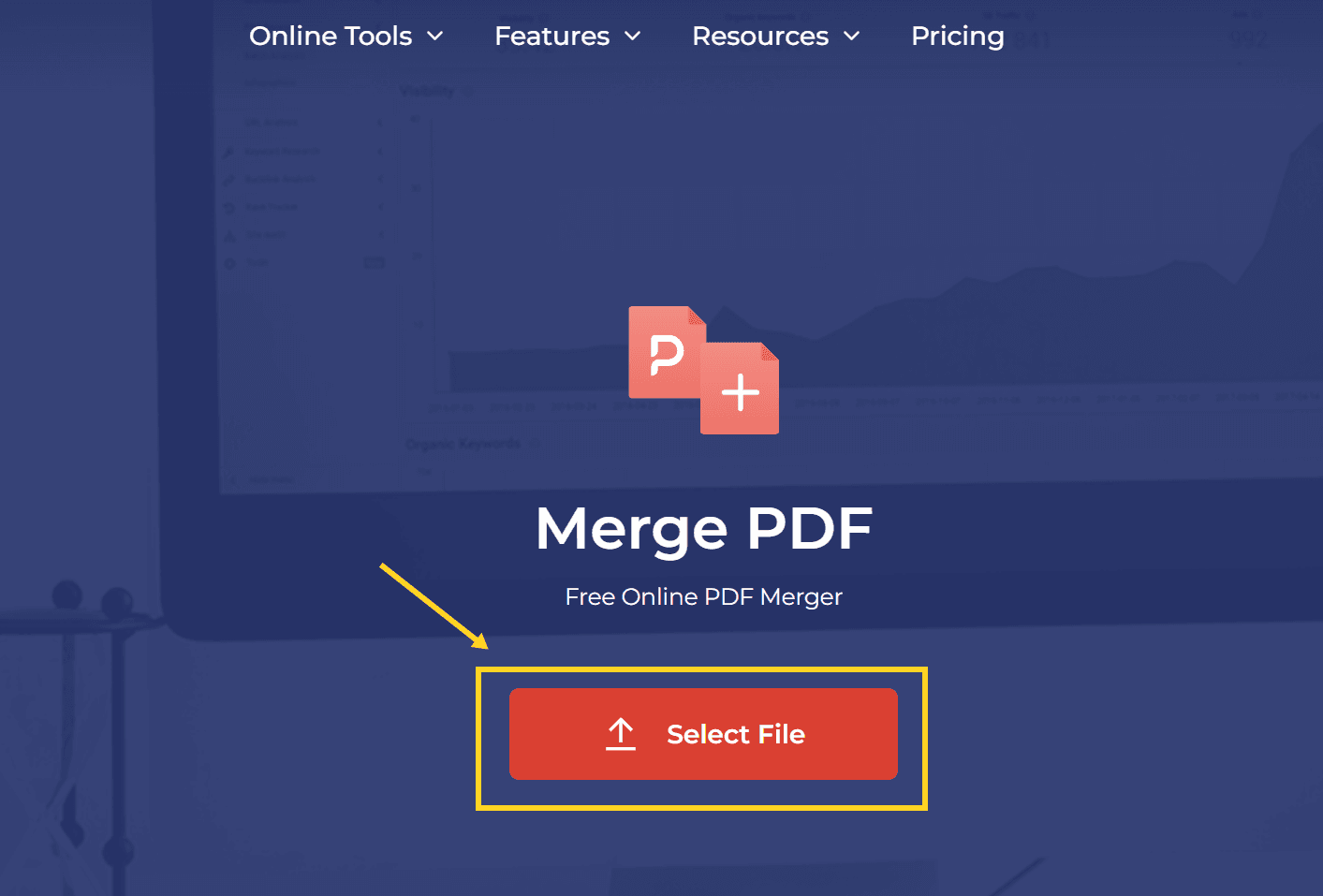
- Open the free Merge PDF tool.
- Click Select File and add the PDFs. You can add them in any order — the next step fixes it.
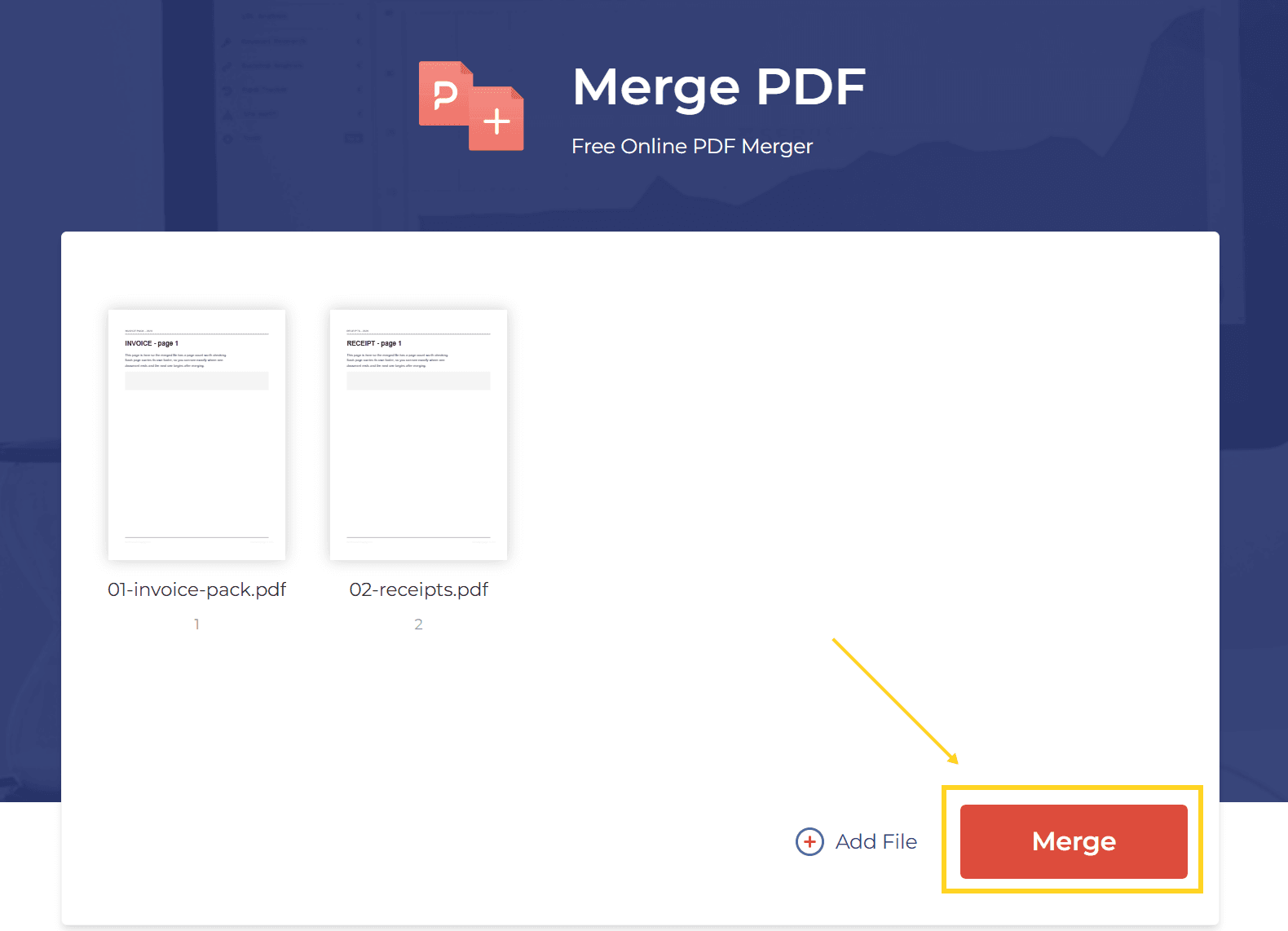
- Drag the thumbnails until the first page of the first document sits at the top. The order here is the order in the output.
- Click the merge button, wait for the file to finish, then download it.
What Does "Free" Include?
The limits are stated on the tool page, and they are worth knowing before you start:
- Up to 50 PDF files in one merge. More than that needs the desktop version.
- No sign-up, no install. It runs in the browser.
- Files are deleted within 24 hours after processing.
- Transfer is encrypted (256-bit) while the file is being handled.
The one thing free does not include is a larger batch. If you are merging hundreds of files, or files that must not leave your machine at all, the desktop route at the bottom of this page is the right one.
Before You Merge: Two Things Worth Doing
Both take under a minute and save a second run.
Number the file names. Most merge tools sort by the order you added the files, but some sort alphabetically. Prefixing files with `01`, `02`, `03` makes the intended order obvious to you and to the tool, and it makes the output easy to check.
Note the page count of each file. Write them down before merging: 12, 4, 30. After the merge, the total should match. If it does not, you know which file went wrong without opening every page.
How Do You Check the Merge Worked?
Merging is fast and usually silent — it will not warn you about a problem. Three checks take a minute:
1. Page count. Add up the pages of the source files. The merged PDF should have exactly that many. One page short usually means a file failed to upload rather than a merge error.
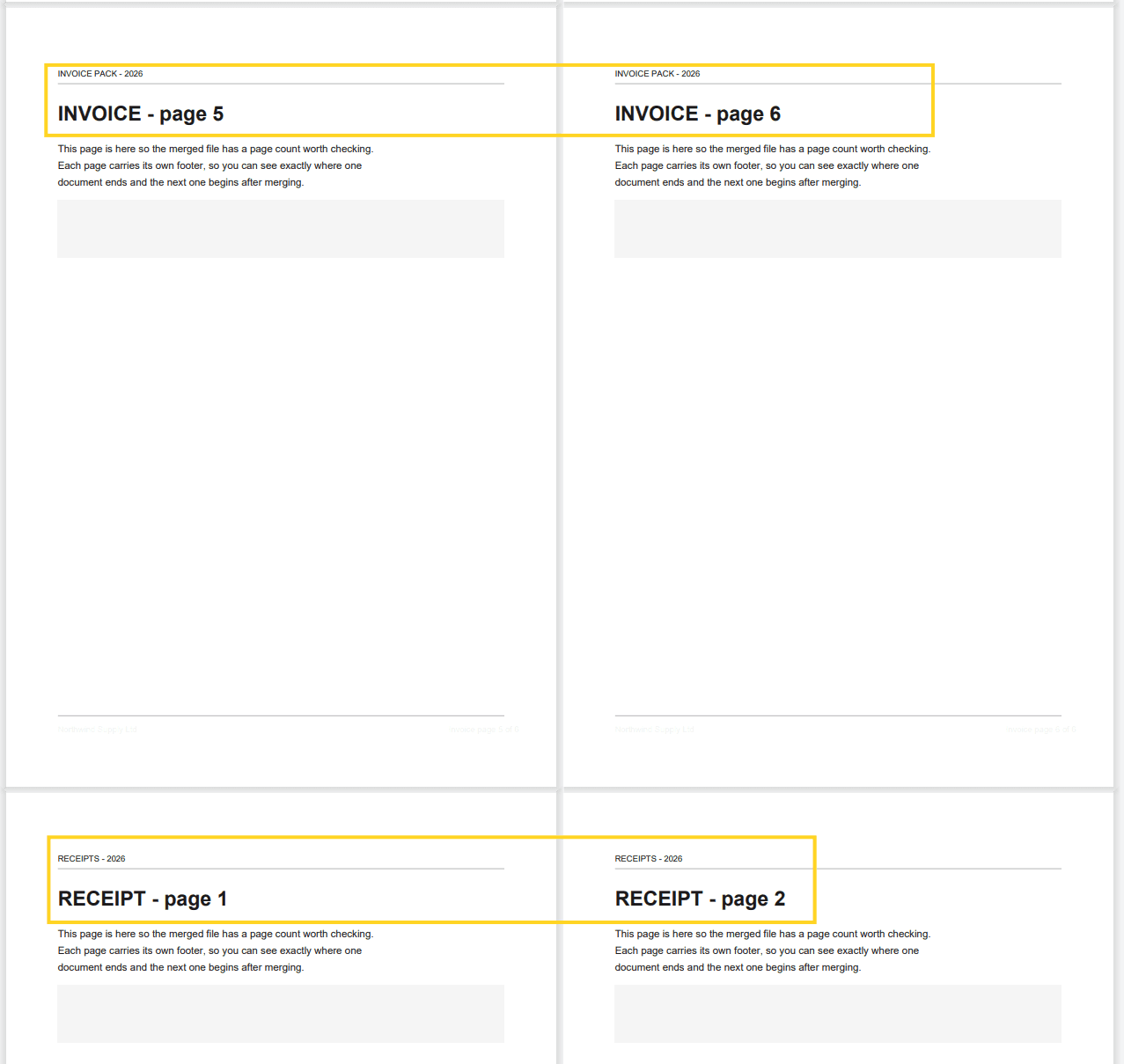
2. The seam. Open the page where document one ends and document two begins. The first page of the second file should be there, in full, and the last page of the first file should not be duplicated.
3. Page size. Look at the seam in two-page view. If one document is A4 and the other is Letter, the pages will be different widths — the merge keeps each page as it was rather than forcing one size.
Which Free Route Fits Your Files?
| If your files are… | Use |
|---|---|
| A few ordinary PDFs, nothing sensitive | The free online merger — fastest |
| Word, Excel, or email printouts | Print to PDF in the right order, no tool needed |
| More than 50 files | Desktop merger |
| Contracts, IDs, medical or financial records | Desktop merger — the files never upload |
The privacy row is not a marketing point. Uploading means the file leaves your machine; the tool deletes it within 24 hours, but it has still left. For documents you would not email to a stranger, do the merge locally.
What Merging Cannot Do
- Reduce file size. A merged PDF carries every page it contains, so it is usually larger than any single input.
- Keep bookmarks and internal links pointing where they used to. Page numbers shift, so a link to "page 12" now opens a different page.
- Make mixed page sizes uniform. A4 and Letter pages stay the size they were.
- Turn scans into text. Merging puts the pages together; it does not recognise anything on them.
- Merge around a signature. If one of the files is digitally signed, merging changes the document and the signature stops validating.
FAQ
Is it really free, or is there a catch?
It is free for the limits on the tool page: up to 50 files, no account. The catch is only scale — larger batches need the desktop version.
Do bookmarks survive the merge?
The bookmark entries usually survive, but their destinations follow the old page numbers, so a bookmark can land a few pages off. Check any bookmark you rely on after merging.
Are my files uploaded to a server?
Yes, the online tool processes files on a server, and deletes them within 24 hours. If that is not acceptable for the document, use a desktop tool instead.
Can I merge PDFs on a Mac?
Yes — the online tool works in Safari and Chrome on a Mac. For local merging, Preview can combine documents by dragging thumbnails between two open windows, though its control over page order is limited.
Why is the merged file bigger than the two originals combined?
Because both files carried shared resources — fonts, colour profiles — that are now stored once but on more pages, and because PDF structure overhead is duplicated. Compress the result if size matters.
Where to Go Next
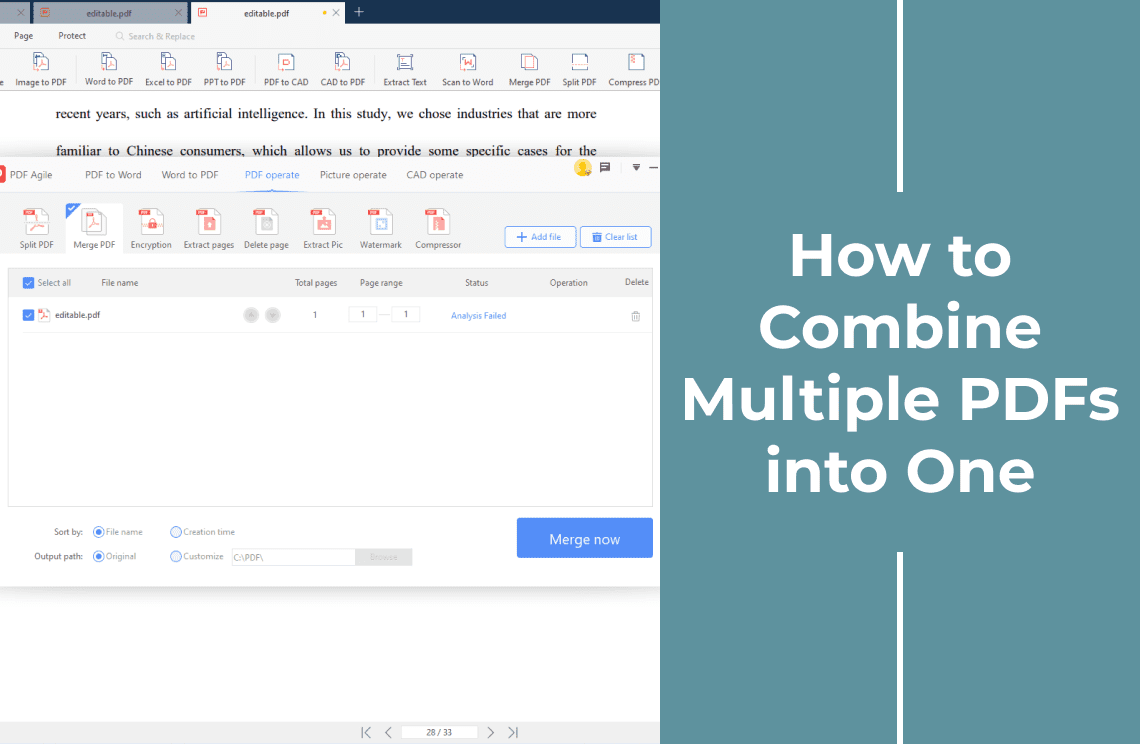
If you are merging many files rather than two or three, combining multiple PDFs into one covers the batch case and the naming habits that keep a big merge readable. If the sources are images rather than PDFs, combining JPEGs into one PDF is the right guide, including how to keep the files on your own machine.
That is the free route: add the files, fix the order, merge, then check the page count and the seam. The merge takes under a minute; the check is what stops a 40-page contract from arriving as 39 pages because one upload silently failed. PDF Agile runs the free merge at the Merge PDF tool, and keeps the desktop merger for batches the browser cannot take. More page-level walkthroughs sit in the How-to & Tips section.