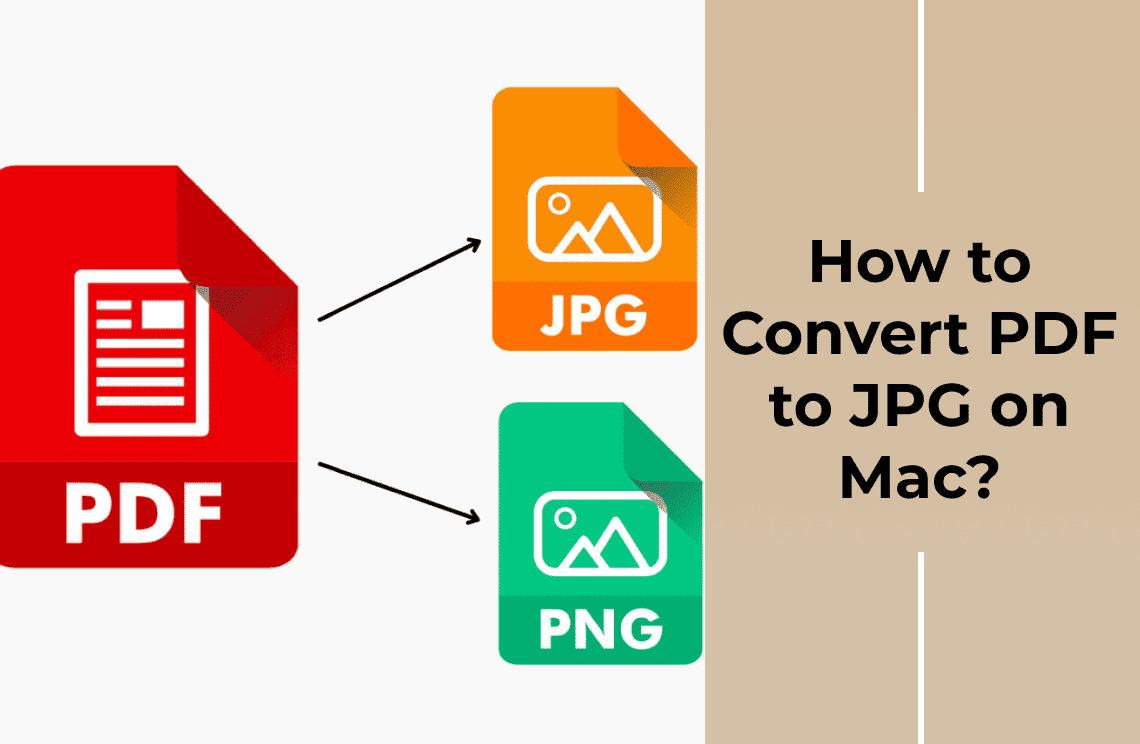
Each page of a PDF can become its own JPEG file on Windows, and you do not need Acrobat to do it. Open the PDF, open a PDF-to-image converter, add the file, set the page range across every page, choose JPG plus a quality preset, pick an output folder, and convert. The result is one .jpg per page rather than one long image or a set of fresh PDFs.
The click path is the easy part. What usually goes wrong is the output: a batch that quietly exported only the page you were looking at, images too soft to read the small print, sixty loose files dropped into the folder that still holds the original PDF, or a pixel copy handed to someone who needed searchable text. Those are the parts this guide covers, along with the neighbouring jobs that look identical from the search box and are not.
What You Get, and What You Give Up
- One file per page. The output method control decides this. Set it to one-by-one and every page is written as its own image instead of being combined into a single file.
- The page becomes a picture. Running text inside the JPEG is pixels. It cannot be selected, searched, copied, or read aloud by a screen reader until OCR runs on it.
- Page sizes will not match. A portrait A4 page and a landscape chart page produce images of different dimensions. Nothing is broken; PDF pages are not all the same shape.
- JPEG has no transparency and no layers. Anything that relied on a transparent background lands on solid white.
- Volume adds up fast. A 40-page document becomes 40 files, and each one carries a full page of pixels rather than a few lines of text.
Three Jobs That Sound Like This One
- Every page as its own JPEG. What this guide covers: a batch of images, one per page, for slides, email, a form that only accepts pictures, or an approval system.
- The pictures already inside the PDF. A PDF built from photos or design files carries those images as separate objects. Extracting them gives you the originals at their own size; rendering pages gives you everything, flattened. Extracting images from a PDF is the guide for that job.
- Several smaller PDFs. If the goal is chapters, one invoice per file, or pages for someone else to annotate, the output should still be a PDF. Splitting a PDF into separate files covers that, and converting to JPEG will not do it.
Your Three Routes on Windows
- Snipping Tool, Paint, or a screenshot. Free and already installed, but it is one page at a time, at screen resolution, with the viewer's zoom baked in. Fine for a single diagram, wrong for a 30-page packet.
- A browser converter. No install, works on any Windows machine, and some services handle large batches well. The file is uploaded to a server to be converted, which matters if the document is a contract, a payslip, or anything under an NDA.
- A desktop converter. Batch conversion in one pass, full control of page range and quality, and the file stays on your drive. It has to be installed first, and that is the only real cost of this route.
How to Convert PDF Pages to Separate JPEG Files on Windows
The walkthrough below uses the PDF to Image converter in PDF Agile for Windows, which does the job locally: the PDF is read from your drive and the JPEGs are written back to it.
Step 1: Open the PDF and Note the Page Count
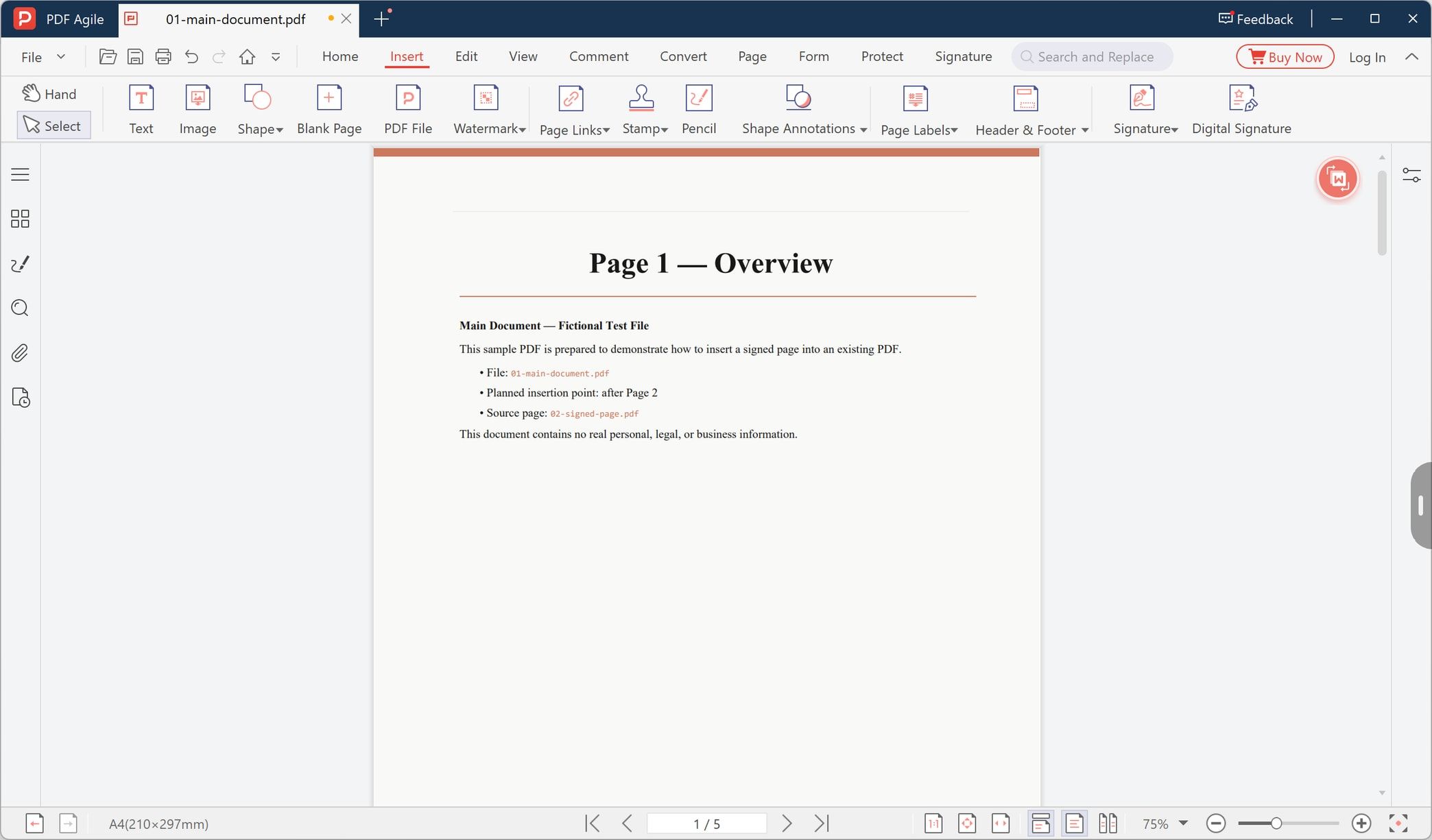
Open the document and check how many pages it holds before converting anything. The status bar shows your position in the file, and the conversion window repeats the total as a column, so you can check the batch later against the document itself rather than against a guess.
Step 2: Open the PDF to Image Tool
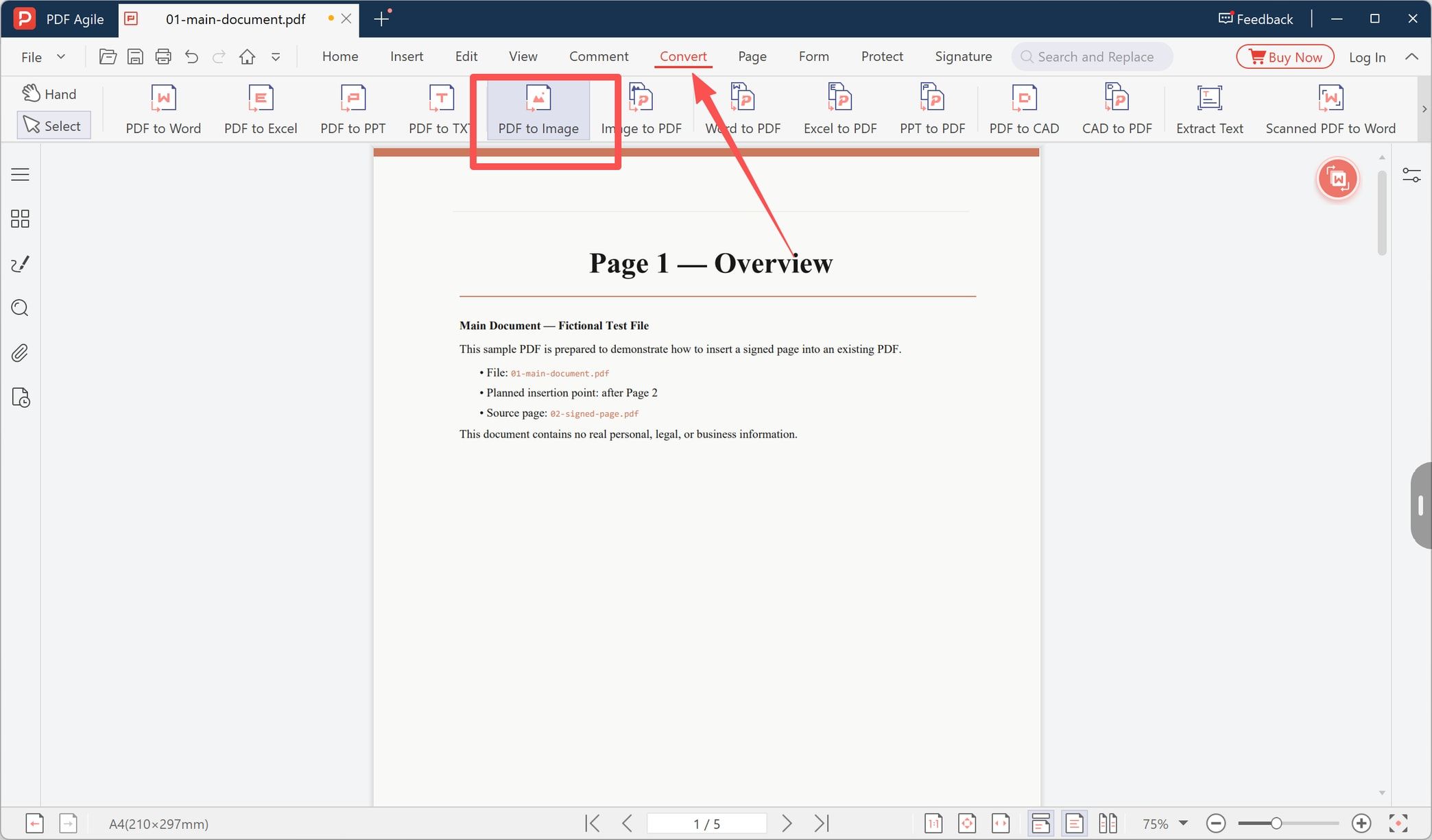
Go to the Convert tab and choose PDF to Image. The window that opens has tabs across the top for each direction: From PDF, To PDF, PDF tools, Images tools, and CAD tools. You want the first one, where To images lives.
Step 3: Add the File and Cover Every Page in the Range
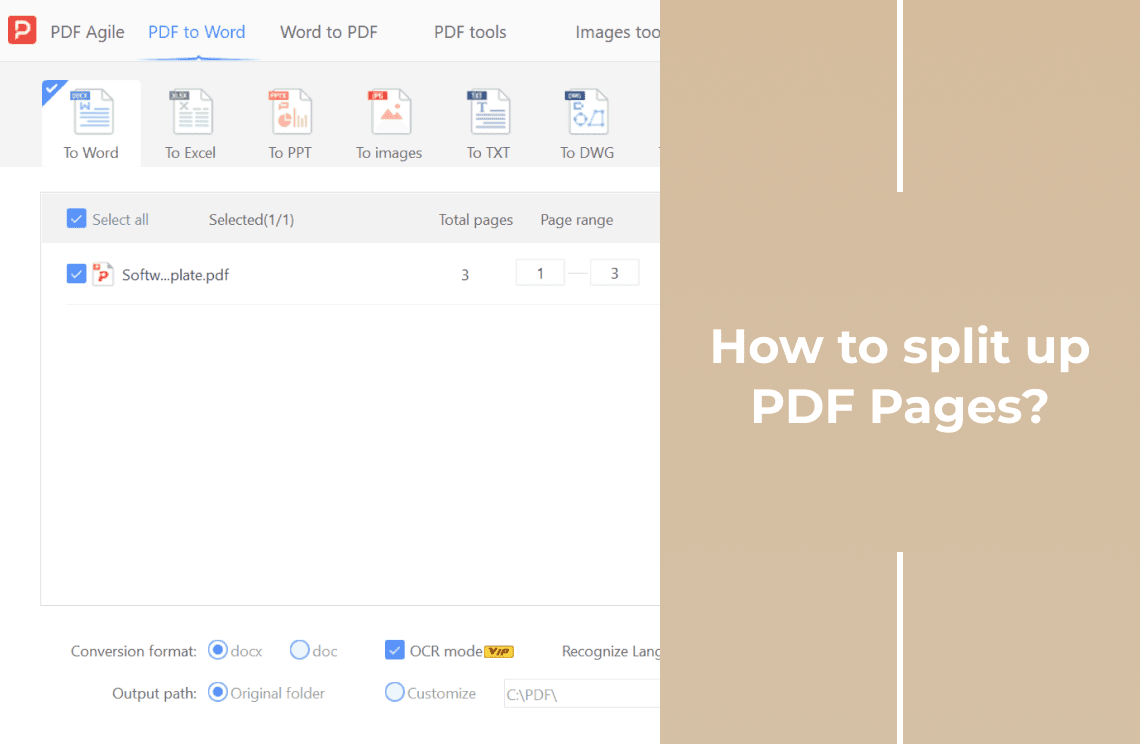
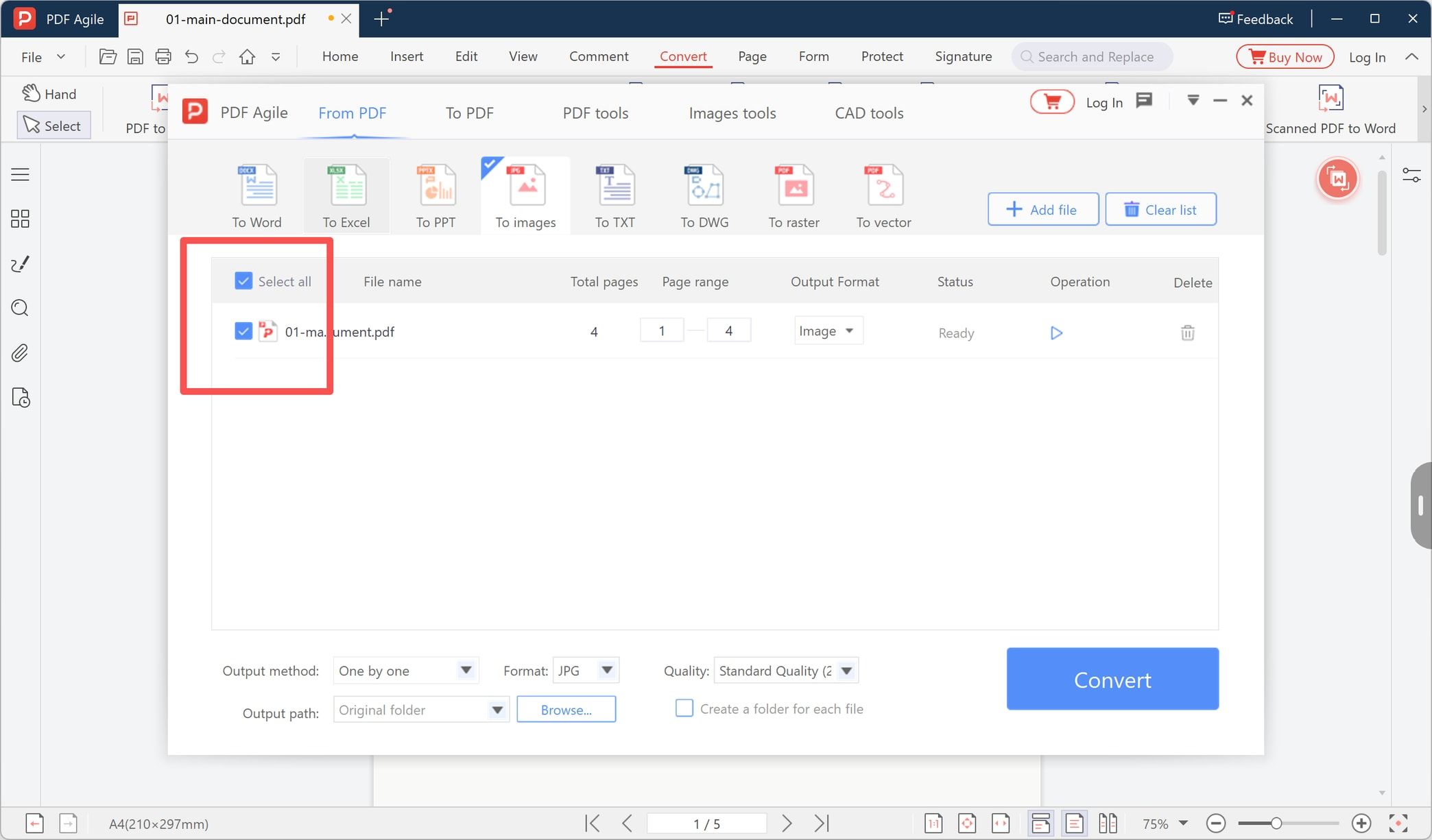
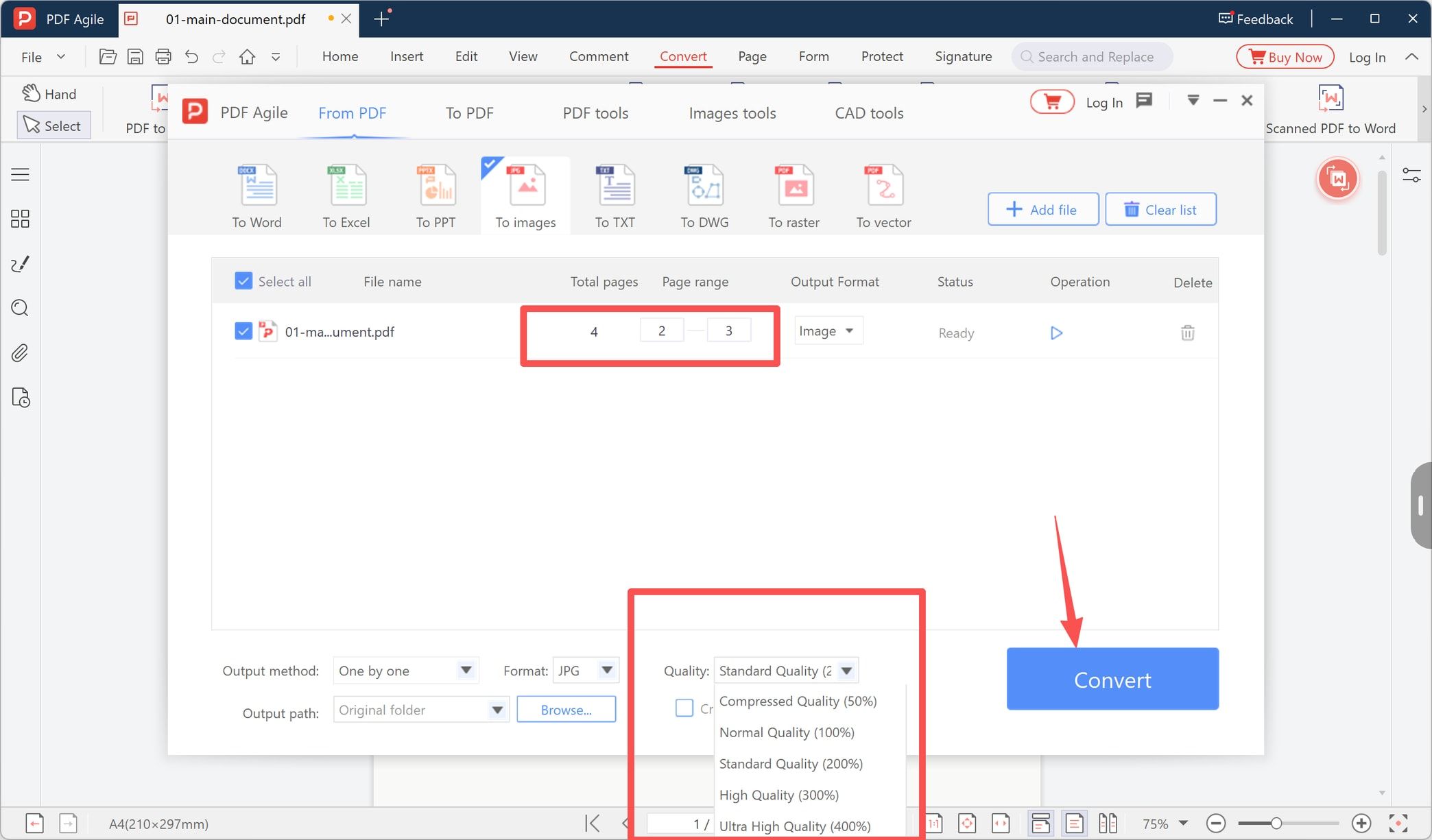
Click + Add file and pick the PDF. Then look at two things in the row it creates: the Total pages value, and the Page range fields beside it, which start on the full document. If you tick Select all, confirm the range still reads first page to last page — that range decides which pages become files, and it is the setting people accidentally leave on a single page.
If you only want part of the document as images, retype the range now, for example 2 to 5. Blank pages are still pages, and they will be exported too.
Step 4: Set the Output Method, Format, and Quality
At the bottom of the window, check four controls before converting:
- Output method — leave it on one-by-one, so each page is written as a separate file.
- Format — JPG for photographs, scans, and anything going into slides or email. Choose PNG instead when a page holds line art, a logo, or a signature whose edges need to stay clean.
- Quality — the preset decides how large each rendered page is, not just how hard the compression is.
- Output path — where the files land, covered in the next step.
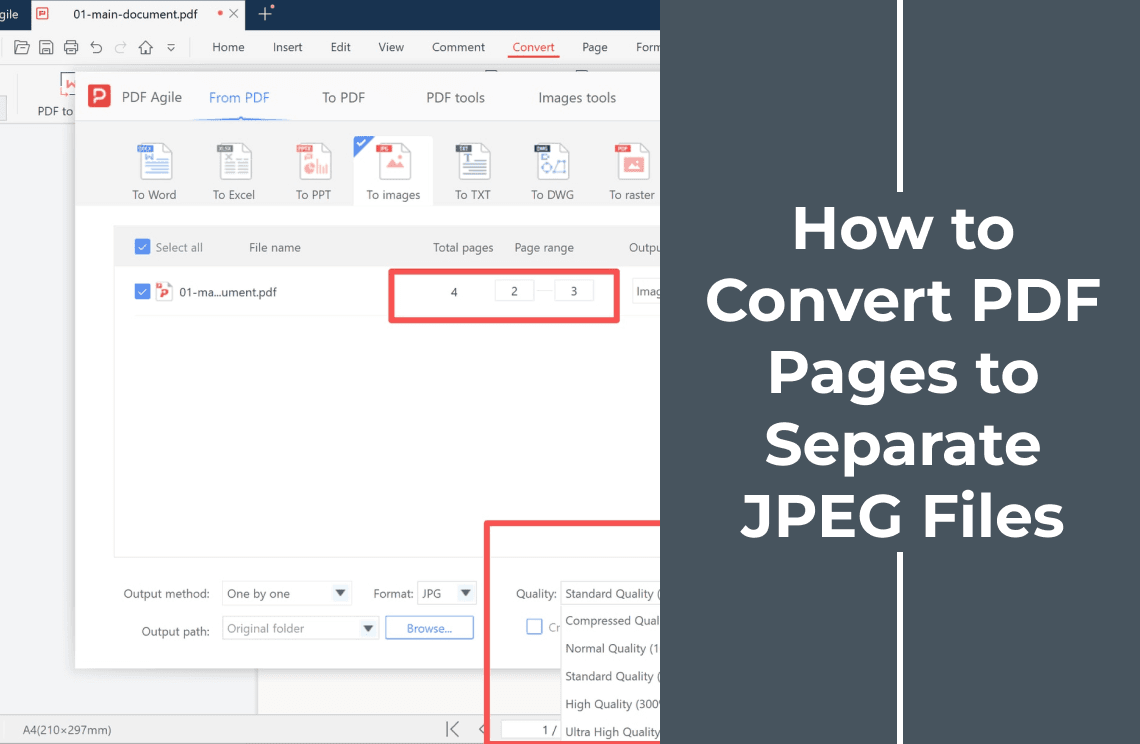
The screenshot below shows the page range narrowed to pages 2 and 3 — that is what a partial export looks like, so if you want the whole document, widen it back to the first and last page before converting.
Step 5: Choose the Output Folder and Convert
Set Output path to Original folder to keep the images beside the source PDF, or click Browse… to send them somewhere else entirely. On a large batch, tick Create a folder for each file so the exports are grouped instead of scattered through your existing documents. Then click Convert and open the folder to count the images against the page count you noted in step 1.
That count is the fastest proof the batch worked. Four pages and three images means the range was wrong, and the fix takes ten seconds while the file is still open.
Which Quality Preset to Pick
The presets step up in fifty-point increments, and each one makes the rendered page larger:
- Compressed (50%) — small files and visibly soft text. For thumbnails and previews only.
- Normal (100%) — the practical default for pages that will be read on screen or attached to an email.
- Standard (200%) — sharper small print and finer table lines without a dramatic jump in size. Try this first when a 100% export looked mushy.
- High (300%) — for pages that will be printed or zoomed into during a review.
- Ultra High (400%) — plenty of detail and very large files. A long document at this setting fills a folder quickly.
Two rules of thumb: raise the preset when small text is the whole point of the page, and lower it when the images only need to be recognisable. Converting a page that was already a scan does not recover detail the scan never had; it only avoids losing more of it.
Adobe Acrobat and the Other Routes
If Acrobat is already installed and licensed, its export command does the same job, and there is no reason to change tools for a one-off conversion. Adobe documents the JPEG quality options behind a settings dialog rather than inside the export dialog, so the sequence runs a little longer.
The choice usually comes down to three questions: does the document have to stay off the internet, does the quality need tuning per job, and how many pages are involved. If the first answer is yes, use a local tool. If you are converting a single page once, a browser converter such as the free PDF to JPG tool finishes before an install would. For a repeatable batch at a fixed preset, a desktop converter pays for itself the second time you use it.
What to Check When the Batch Finishes
- Count against page count. One image per page, or exactly the range you asked for.
- Read the smallest text at 100% zoom. If it is illegible, the preset was too low, not the source.
- Open the first and last image. Those two catch an off-by-one page range.
- Check that nothing else was overwritten. Exporting into the original folder with the same preset can replace an earlier batch.
- Look at a landscape page. Different dimensions are normal; a squashed or stretched page is not.
A blank page is usually one whose content sits in a layer the converter skipped — open the original in the editor to confirm the page really has content before converting again. If the PDF is password-protected or restricted, work from a copy you are permitted to open rather than fighting the protection.
Where Your File Goes
- Local converter: the PDF and the JPEGs stay on your drive. Nothing is uploaded, which is the right choice for contracts, invoices, ID scans, and internal reports.
- Browser converter: the file travels to a server, is converted there, and comes back as a download. Read that service's retention policy instead of trusting a badge on the page, and check what it says about deletion.
- Either way: deleting the JPEGs does not delete the original PDF, and the reverse is also true. Decide which copy you are keeping before clearing a folder.
FAQ
Why did I get one JPEG instead of one per page?
The output method was left on a combined setting, or the page range collapsed to a single page. Check both before converting again.
Can I convert only some pages?
Yes. Type the range into the page fields, such as 2 to 5, and only those pages become files.
Is JPEG the right choice for scanned documents?
It works, but scanned pages are already compressed images, so each JPEG pass softens them a little. If the text matters, raise the preset or export PNG instead.
Can I search or copy text from the exported JPEGs?
No. The text became pixels. Run OCR on the images, or keep a text-based PDF alongside them — adding text to a scanned PDF covers the OCR route.
Does this work on Mac?
Not with these steps. Preview on macOS exports a single page at a time, and the dialog above is Windows-only. Converting a PDF to JPG on Mac covers the Mac side.
Where can I find more page-level PDF walkthroughs?
The How-to & Tips archive groups the step-by-step guides by task.
Turning pages into JPEGs is a two-minute job once the page range and the quality preset are right; the work is in confirming the batch came out the way you meant. PDF Agile for Windows runs the conversion on your own machine, so the page range, preset, and output folder sit in the same dialog as the Convert button, and the document never leaves the drive.