Two pages of a PDF, one page of output. That sentence hides three jobs. Finished pages go through the print dialog — two pages per sheet, saved as a PDF. Your own draft pages get re-laid out on a larger page, so the type keeps its size.
Three Things Two Pages Into One Can Mean
- Two pages per sheet (2-up). Two pages sit side by side, or stacked, on one sheet, and the output is a new PDF or paper. This is not merging: the document still has two pages, they simply share a sheet.
- Two pages re-laid out on one page. The page gets bigger and the content moves onto it, so text stays at 100 percent.
- Two files merged into one document. Only the file count changes. That is a different job.
Two Pages on One Sheet: The Print Route
Print, then find the pages-per-sheet control, usually labelled Multiple or Pages per sheet, and set it to 2. Send the output to a PDF printer rather than a paper printer. Under a minute, nothing to install.
- It is a print snapshot. Bookmarks and internal links are dropped, form fields and comments flatten into marks, and nothing inside is editable afterwards.
- Margins shrink too. A page that ran near the paper edge can lose a few millimetres to the printer's unprintable border.
Two Pages Into One Page: The Re-layout Route
Two A4 pages forced onto one A4 sheet land at about 70 percent, so 9 pt body text prints at 6.3 pt: legible on screen, tiring on paper. You can let that happen, or avoid it.
- Scale. Set the output page size and let the content shrink to fit. Fast, faithful to the layout, and it reduces everything, including the smallest type.
- Re-layout. Set the page to A3 or a custom size, then move the two blocks onto it. Slower, and the only route that keeps a readable font size.
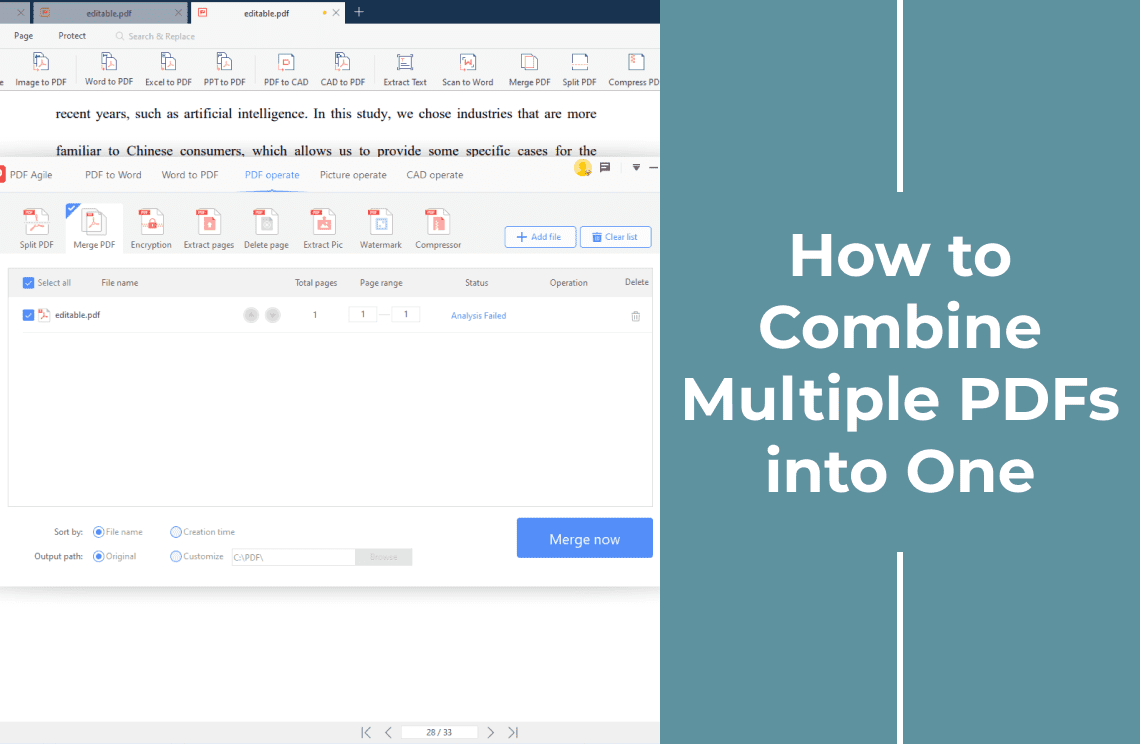
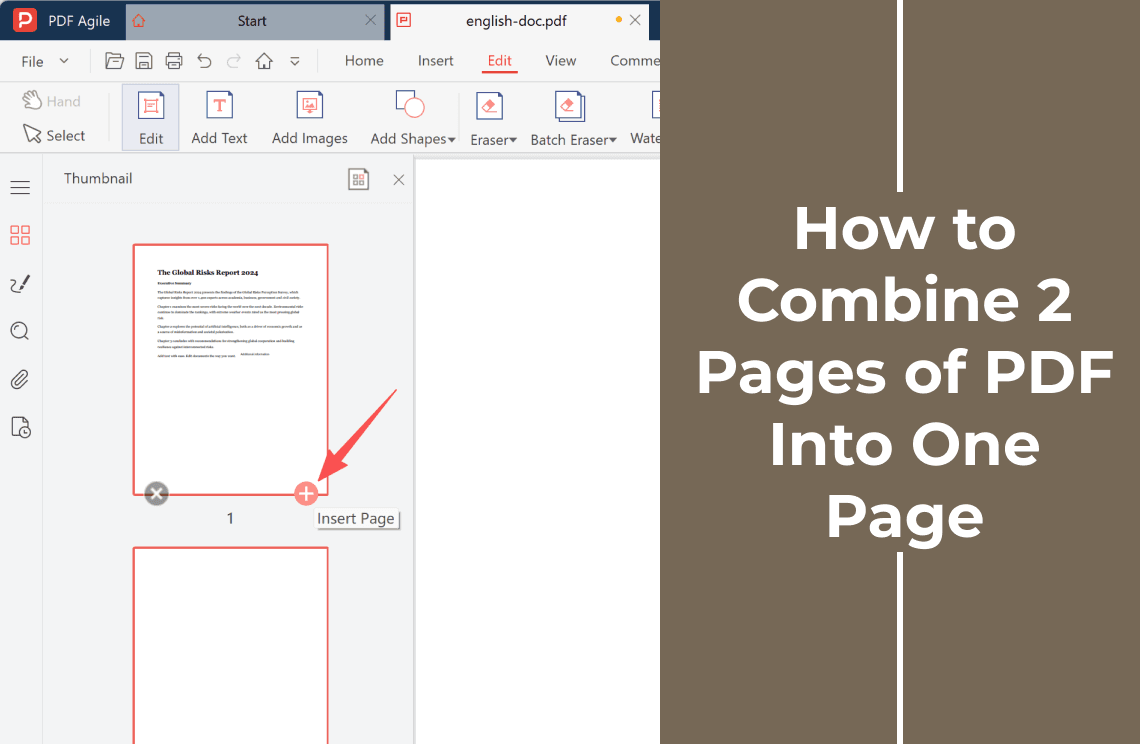
The second wants an editor rather than a print dialog. PDF Agile is a desktop editor for Windows that changes the page size and then moves, inserts or deletes pages in the same file, and it works locally, so nothing is uploaded.
What Breaks When You Squeeze Two Pages Into One
- Headers collide. Two running heads on one sheet, plus page numbers that no longer match the sheet.
- A scanned spread has a gutter. Halves of one book spread have shadow and curvature in the middle; crop them instead of scaling the whole sheet.
- Stamps and signatures shrink. Anything that must stay legible at full size should be re-laid out, never scaled.
How to Do It in Five Steps
Step 1: Decide Which Route the File Wants
Is the content final, and must the type stay full size? Final and legible means print; your own draft with small type means re-layout.
Step 2: Check the Page Size of the Original
Two A4 portrait pages side by side need A3 landscape; two A5 pages need A4. Skip it and you get two small pages on an oversized sheet.
Step 3: Work on a Copy
Save a duplicate under a new name and edit that one. Print output is cheap to redo, a re-layout is not.
Step 4: Run the Route You Picked
Print at two pages per sheet and save as PDF, or change the page size and move the content across. Not both, or the scaling undoes the re-layout.
Step 5: Check the Result at Print Size
Zoom to 100 percent, not fit to window. Read the smallest paragraph, check the outer edges, and check the seam if the pages came from one spread.
FAQ
Is 2-up the same as merging two PDFs?
No. Merging changes how many files there are; 2-up changes how many pages share a sheet.
Can I still edit the text afterwards?
After 2-up, no: it is a print rendering. After a re-layout, yes, if the file was born digital. A scan needs OCR first.
Does it reduce quality?
Scaling does, in proportion to the factor. Re-layout does not. Both suffer if you compress the result afterwards.
Is a free online tool safe for this?
Only for content you would email to a stranger; uploading leaves the whole document on someone else's server.
If you do this once a year, the print dialog is enough. If it lands on your desk weekly — invoices, forms, scans — an editor that changes page size and rearranges pages saves the round trip. PDF Agile covers both on Windows and keeps the file on your machine.
More page-level fixes sit in the How-to and Tips section, and if you plan to touch the text while you are in there, start with how to edit a PDF.