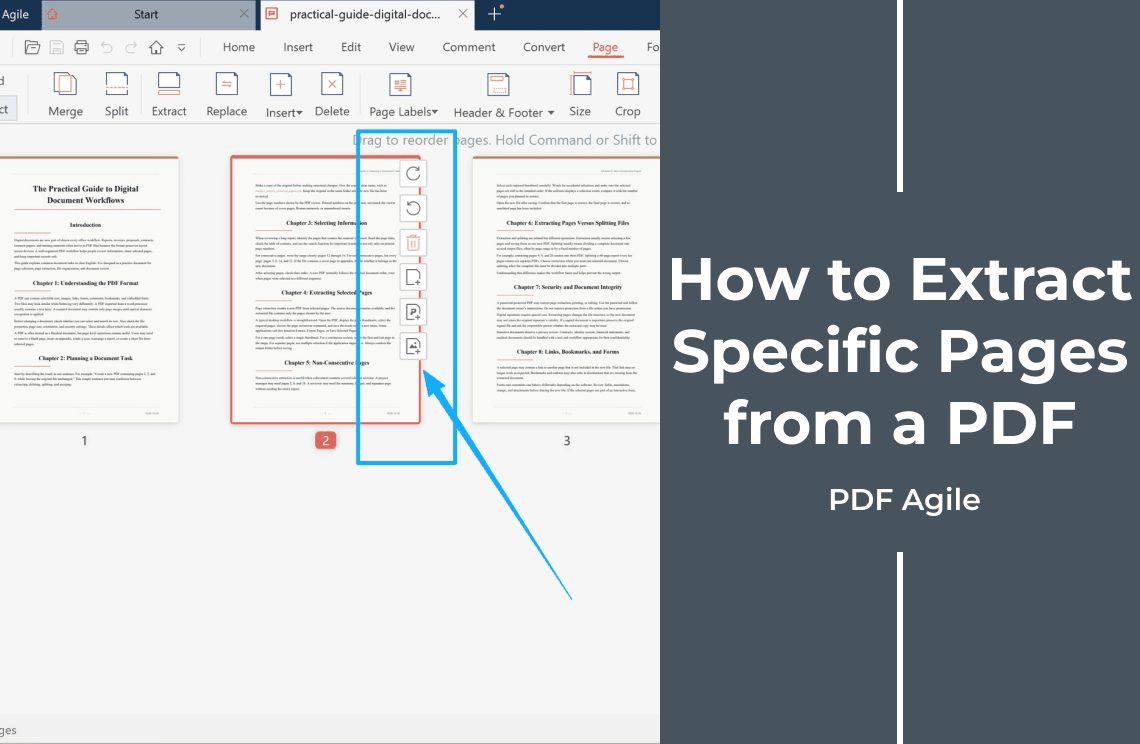
To extract specific pages from a PDF, open the file, switch to the thumbnail view of its pages, select the pages you want, and run the Extract command. The editor then writes those pages into a new PDF that you name and save separately, so the document you started from is left alone. The whole job is four decisions: which pages, in what order, as one new file, and where it goes.
That sounds simple, and for a three-page selection it is. What usually goes wrong happens before the click and after the save: people run Delete when they meant Extract, they get a 40-page file and only look at page 1, or they send a copy that no longer carries the original signatures and bookmarks. This guide covers the selection itself, the difference between the four page commands that all sound alike, and what to check in the new file before anyone else sees it.
Extract, Split, Delete, or Merge: Which Command Do You Actually Need?
Four commands sit next to each other on the same tab, and search traffic for "extract pages" contains all four jobs. Pick first, click second.
- Extract copies the pages you selected into a new PDF. The source document keeps every page. This is the command for "send me pages 2, 5, and 9".
- Split divides one document into several files by page range, or into one file per page. Nothing is selected by hand; you describe ranges and the tool produces a set of files. Use it when a 60-page packet has to become six invoices.
- Delete removes pages from the document you have open. If you only wanted those pages somewhere else, delete is the destructive version of the same gesture.
- Merge goes the other way: several files in, one file out, in the order you arrange them.
The distinction matters because two of these are reversible and two are not. Extracting leaves the source file intact, so a wrong selection costs you one more attempt. Deleting changes the file you have open, and if that file is saved under the original name, the removed pages are gone. If your job is really splitting or deleting, the dedicated walkthroughs for splitting PDF pages into separate files and deleting a page from a PDF cover the settings those commands need.
Choose the Pages Before You Touch a Command
Extraction works on a selection, not on typed ranges: you pick thumbnails, then run the command. Three selection habits save most of the rework.
- One page. Click its thumbnail. A single-page extract is the common case for pulling a signature page, a receipt, or one chapter out of a report.
- A consecutive run. Click the first page, hold Shift, then click the last page you want. Everything between them is included.
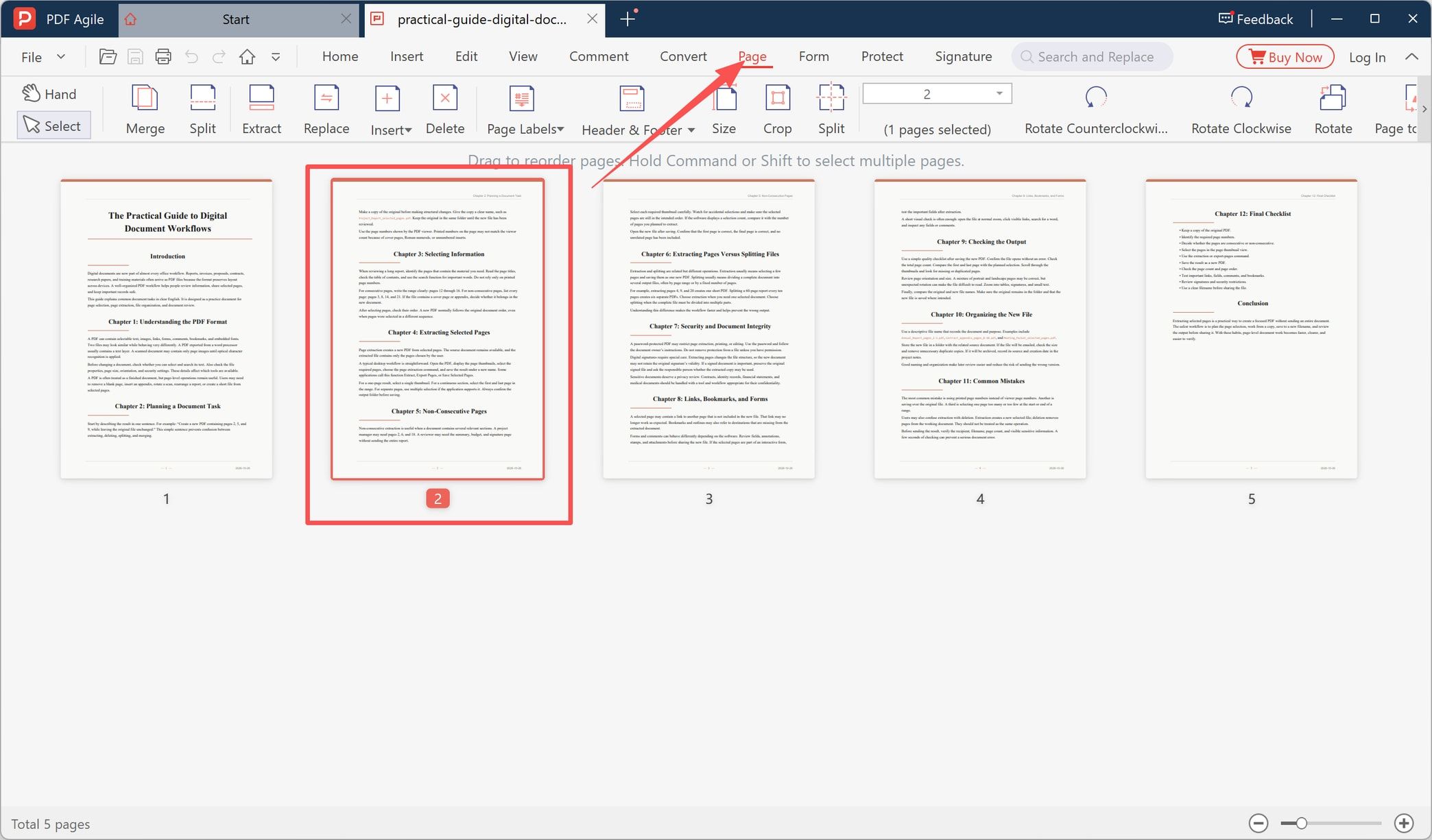
- A scattered set. Pages 1, 4, and 11 are not a range, so a range-based tool cannot express them. Hold Shift — the panel hint puts it as "Hold Command or Shift to select multiple pages" — and click each page you want. The toolbar then reports how many pages are selected, so the selection can be verified before any command runs.
Two traps are worth naming. First, the number printed in the footer is not the page number the viewer uses — a cover sheet or Roman-numeral front matter shifts the count, so "page 10" of a report is often page 12 of the file. Select by thumbnail and the mistake cannot happen. Second, selecting pages is not the same as arranging them: extraction keeps the document order, so if the new file must open with the conclusion, reorder the selection or the file afterwards rather than expecting the click order to survive.
How to Extract Specific Pages on Windows
The steps below use PDF Agile on Windows, where the page commands live on the Page tab and work on the local file.
Step 1: Open the PDF
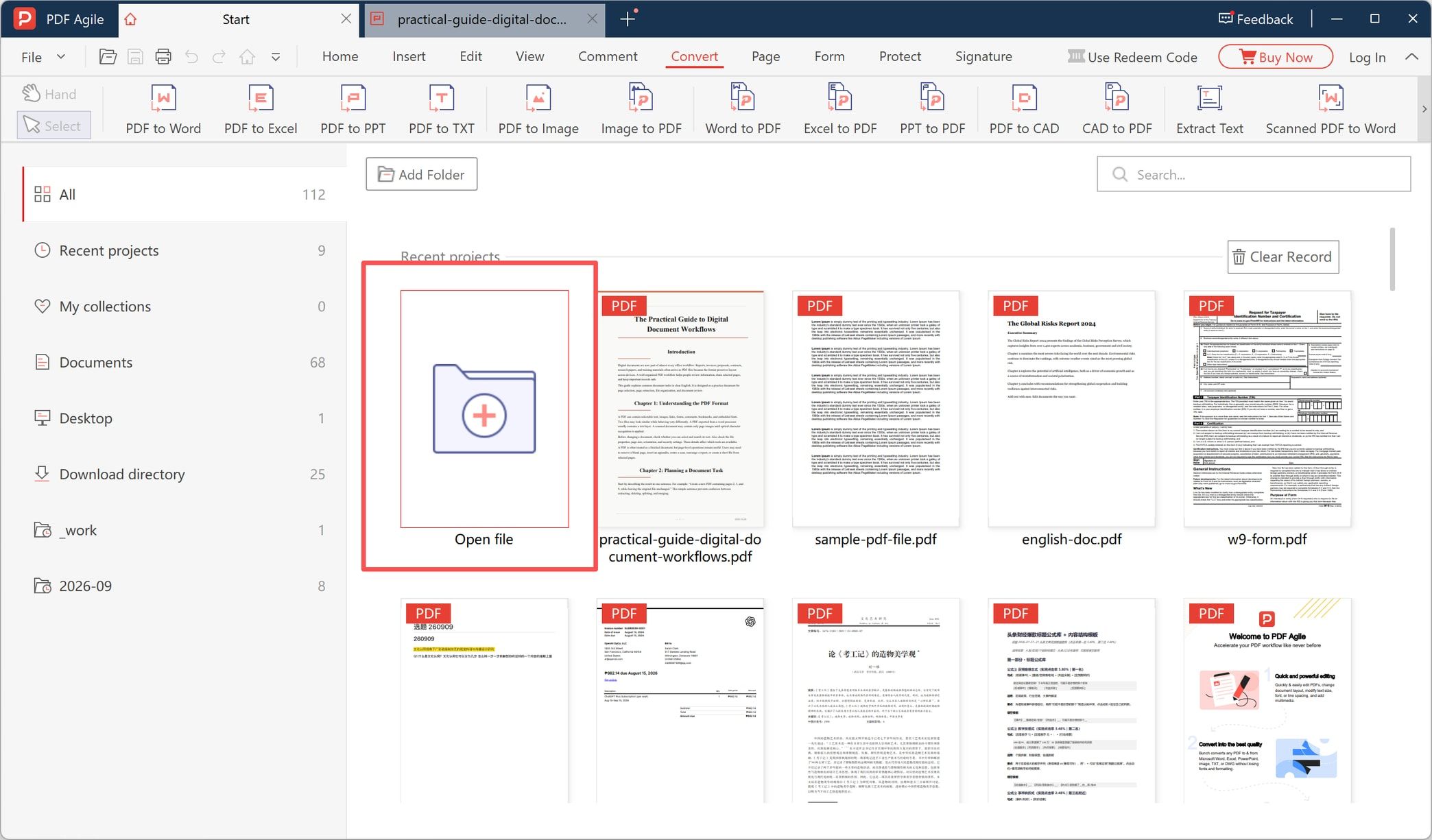
Open the file, or pick it from the recent projects list. The page thumbnails do not appear until a document is loaded, so confirm the right file is in front of you before selecting anything.
Step 2: Open the Page Tab and Select the Pages
Click Page in the top tab bar. The document switches to thumbnail view, with a counter at the bottom of the window showing the total number of pages and the selection count in the toolbar. Select the pages you need — a single thumbnail, a Shift range, or several individual thumbnails.
Step 3: Run Extract, Not the Trash Icon
With the selection active, click Extract in the ribbon. A window then asks for a name and a destination folder for the new PDF, and proposes a default name built from the original file name plus the number of pages being copied.
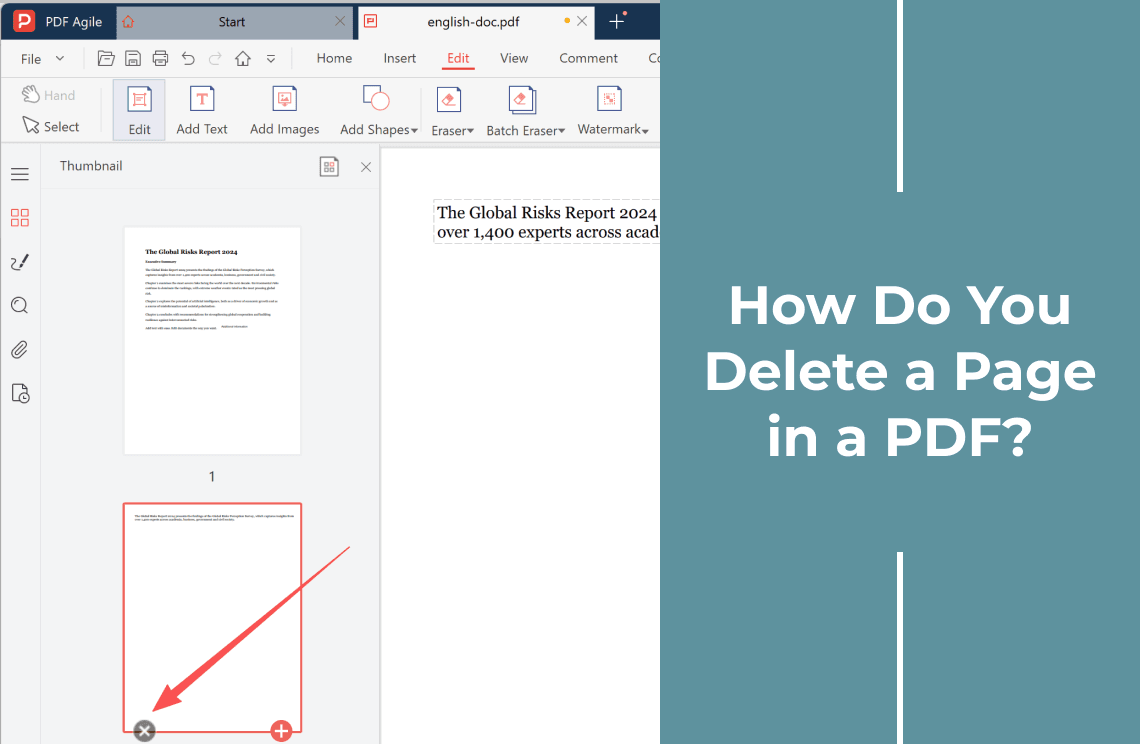
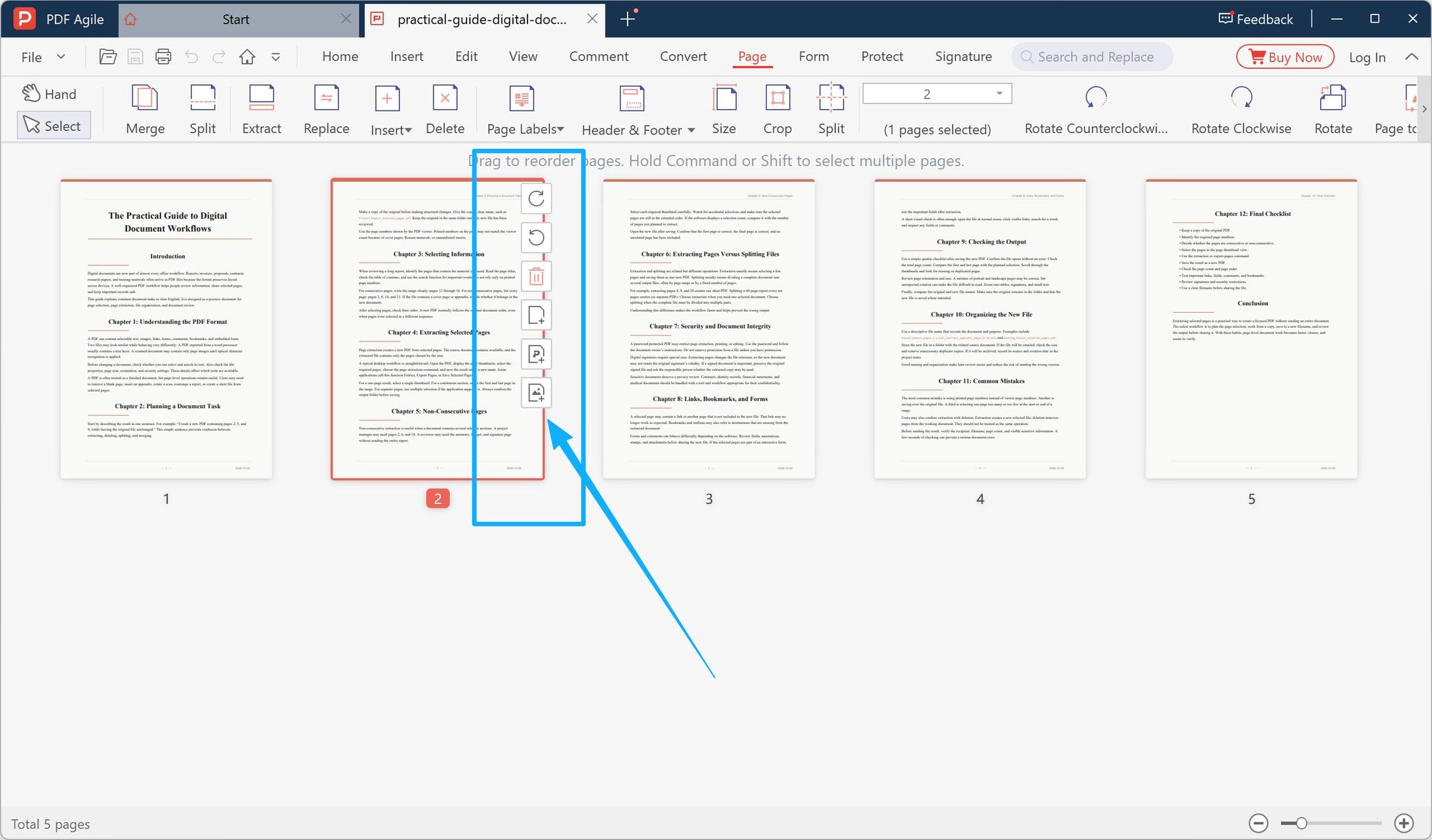
Selecting a page also raises a small toolbar of page actions beside the thumbnail. That toolbar is where people go wrong: its bin icon is Delete, which removes the page from the document instead of copying it out. Extract belongs to the ribbon above, and it is the only one of the two that leaves the original alone.
Save the new file under a name that describes the selection, such as contract-pages-2-5-9.pdf, and not under the original name. Then check the page counter of the new document against the number of pages you selected. If the counts disagree, the selection was wrong, and the original is still there to try again.
Step 4: Keep a Separate Copy of the Original
Extraction gives you a second file, and the source document remains as it was. Use File > Save as with a new name when you need a working copy you can annotate, crop, or trim without touching the file you received.
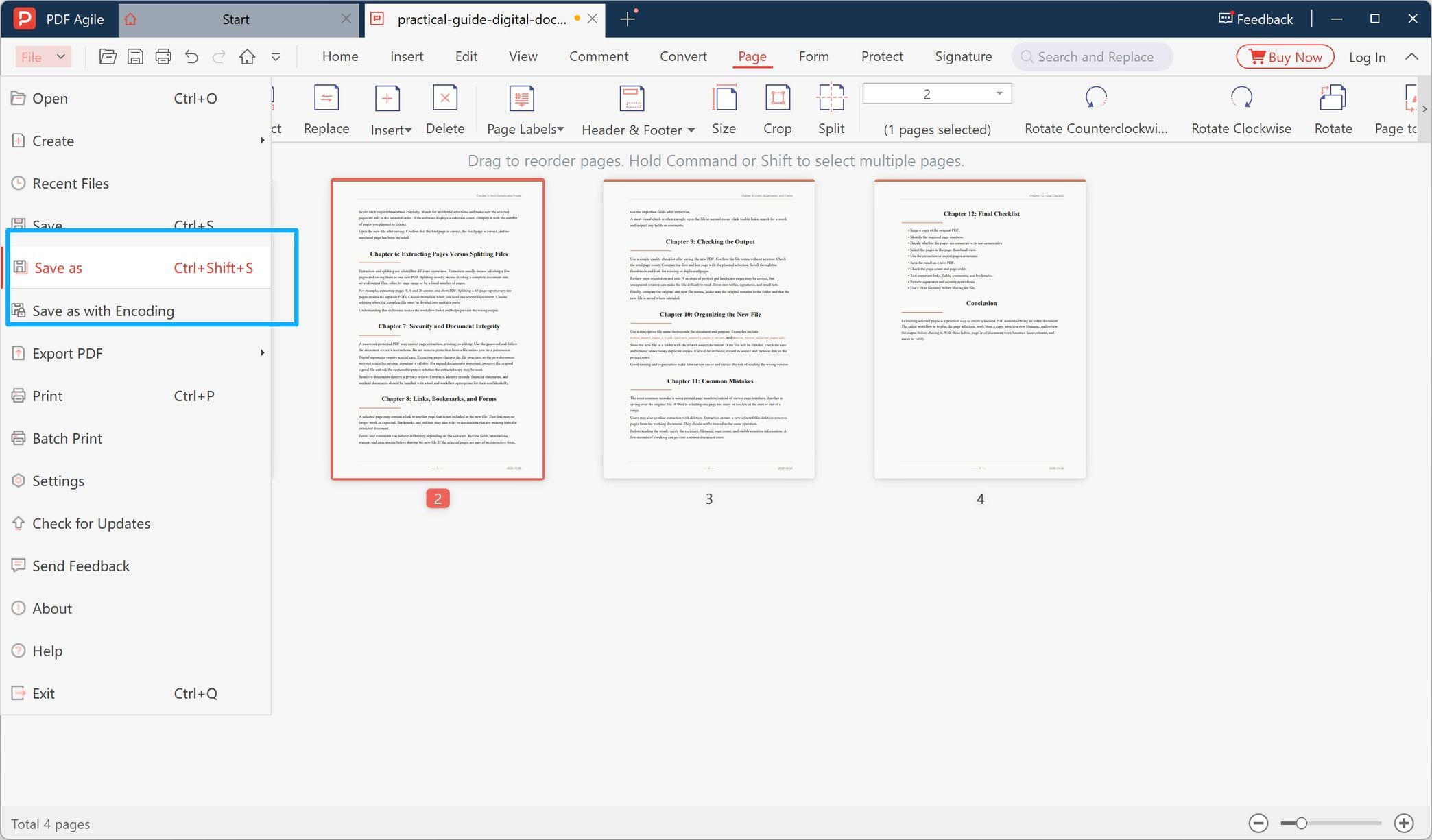
The keyboard shortcut shown in the menu is Ctrl+Shift+S, which is the safer habit than Ctrl+S — one keeps a copy, the other overwrites the file you opened.
What Can Change After You Extract Pages
An extracted PDF is a rebuilt document, not a cut-out. Internal structures that pointed at the full document can point at nothing once most of it is missing.
- Digital signatures. Extracting rewrites the file structure, and a rewritten file no longer matches a signature that was applied to the original. If a contract is signed, keep the signed original as the record and treat the extracted pages as a working excerpt.
- Bookmarks and the outline. A bookmark that pointed to page 27 has no target in a file that ends at page 3. Expect missing or dead entries in the new file's bookmark panel.
- Internal links. Cross-references such as "see page 18" or a table-of-contents link become dead ends when the destination page was not extracted.
- Form fields, comments, and attachments. Some of these travel with the page and some do not; a field that depended on a document-level script can stop working even when it survives.
- Printed page numbers. The numbers printed at the bottom of each page stay exactly as they were. An extracted page that says "18" will be page 1 of the new file, and both numbers are now correct in different contexts.
- File size. Ten small extracts can weigh more than the original, because fonts and colour profiles are copied into each new file.
None of this is a reason to avoid extracting. It is a reason to check the result before you forward it.
Before and After Checklist
Run this list before the extraction:
- Is it one page, a run of pages, or a scattered set?
- Should the selection become one PDF, or does each page need its own file?
- Is the PDF password-protected, and do its permissions allow copying pages out?
- Is the document digitally signed?
- Do bookmarks, internal links, or form fields matter to the reader?
- Is the page a scan, which cannot be searched or copied as text without OCR?
And this one afterwards:
- Does the new file contain exactly the pages you selected, in the right order?
- Is the original file still unchanged and still the full length?
- Do the links and bookmarks the reader needs still work?
- Do comments and form fields still appear?
- Does the file open correctly on a different device or reader?
One more decision sits outside both lists: where the file is processed. An online extractor uploads your document to a server and returns a result, which is fine for a public brochure and a poor fit for contracts, IDs, payslips, or medical records. A desktop editor works on the copy on your disk, which is the main reason this kind of page work is usually done locally.
FAQ
How do I extract just one page from a PDF?
Open the PDF, switch to the page thumbnail view, click the single page you want, and run Extract. Name the new file and save it to a folder other than the source folder, then confirm the new document has exactly one page.
Can I extract non-consecutive pages into one PDF?
Yes, as long as the tool lets you build a multi-page selection. Hold Shift (or Command on a Mac keyboard) and click each page, then extract once. The new file holds every selected page, in document order rather than the order you clicked them.
Does extracting pages delete them from the original PDF?
No. Extraction reads the selected pages and writes a new file; the source document keeps all of its pages. Deleting is the command that changes the open document, and it is a separate action on the same tab.
What is the difference between extracting and splitting a PDF?
Extract takes a hand-picked selection into one new file. Split divides a whole document into several files by range, or into one file per page. Choose extract for "these three pages", split for "every chapter as its own file".
Can I save each selected page as its own file instead?
That is a split job, not an extract job: use the split command with one file per page and, if needed, a page range so the rest of the document is skipped. Running extract once per page also works, but it is the slower route for more than a handful of pages.
Will extracting pages invalidate a digital signature?
The extracted file is a new document, so it is not covered by the original signature. Keep the signed original untouched for the record, and treat the extract as an unsigned working copy.
Why did my extracted PDF lose bookmarks or internal links?
Because those entries pointed at pages the new file does not contain. An outline target or a "see page 18" link has nowhere to go once the destination is left behind, and a table-of-contents link can land on the wrong page when the numbering shifts.
Can I extract pages from a scanned PDF?
You can extract the pages, but the result stays an image: the text is not searchable and cannot be copied until OCR adds a text layer. If the goal is to reuse the sentences rather than the page, run text recognition first.
Need to keep the page work local? PDF Agile for Windows selects pages in a thumbnail view, extracts them into a new PDF, and keeps the original file untouched — useful when the document should not be uploaded to an online converter. For a wider view of page-level editing, see the page organization tools and the full guide to editing a PDF, or browse the rest of the How-to & Tips library.