The signed page almost always arrives late. You already have the contract body, the lease, or the application form open, and the page that carries the signature is a separate PDF: scanned, photographed, or exported from a signing service. Placing it inside the document takes one command. Deciding whether the signature still means anything afterwards takes one question.
The question is what kind of signature is on that page. If you can see ink, a scan, a photo, or a signature drawn on a screen and saved as an image, the signature is simply part of the page's content, and inserting the page works like inserting any other page. If a certificate signature covers the page, the verifiable signature belongs to the file that was signed, not to the page, and it does not move when the page does. The steps below handle both cases; the checks after them do not.
To keep the scope tight: this covers placing a page that is already signed inside another PDF. It does not cover signing a page yourself, and it does not cover joining two whole documents end to end. For everything else you might do to a page, the page-level guide is how to edit a PDF.
Two Different Things Called a Signed Page
- A page with a signature on it. Someone printed, signed, and scanned it, photographed it, or drew the signature on a tablet. The mark is an image or vector shape sitting on the page. Copy the page and you copy the mark, which is all there was.
- A page inside a certificate-signed document. The signature is a cryptographic object applied over the whole file when it was signed. What you see on the page is only the appearance of that signature. Verification compares the file against the certificate, not the pixels.
That difference decides the outcome. An ink signature copies and stays a signature in the everyday sense. A certificate signature does not follow a page into a new document, so a file assembled from a signed document's pages is a normal, unsigned PDF that happens to show a signature block. If the point of the page is that a verifier can confirm who signed what, the document has to be signed as a whole, in its final form, not assembled after the fact.
If you only need pages combined and no signature is involved at all, this is the general case: how to insert a page in a PDF.
What Changes in the Document When a Page Lands
Inserting is not a neutral act, even when it takes one click.
- The page count goes up. In the walkthrough below the document goes from four pages to five, and the new page sits at position 3.
- Every other page keeps its place. Pages after the insertion point shift down one position in the file, but nothing else on them changes.
- Printed page numbers do not renumber. Numbers burned into the page are ordinary text. A sheet that becomes the eighth in the stack may still read "Page 7" in the corner.
- Bookmarks and cross-references can point at the wrong page. A bookmark labelled with a page number still resolves; it now resolves to whatever is there.
- A signature already on the receiving file stops being valid. Adding a page changes the file, and a certificate signature covers the file as it was. If the document you are adding to has been signed, inserting a page breaks that signature.
Where the Signed Page Should Sit
Most signed documents end with the signature block, so the signed page usually goes last, or immediately after the clause it signs. Two things are worth checking before you commit:
- Recipient instructions. Courts, agencies, and some procurement portals specify the order of exhibits and signature pages. If there is an instruction, follow it rather than the layout you find tidy.
- The source page's own header and footer. A page pulled from another document often carries its own page numbers, reference codes, or a letterhead. Once it sits inside the new file, those numbers no longer match their position.
How to Insert a Signed Page Into a PDF
This walkthrough is on Windows, in a desktop editor, with the signed page stored as its own one-page PDF.
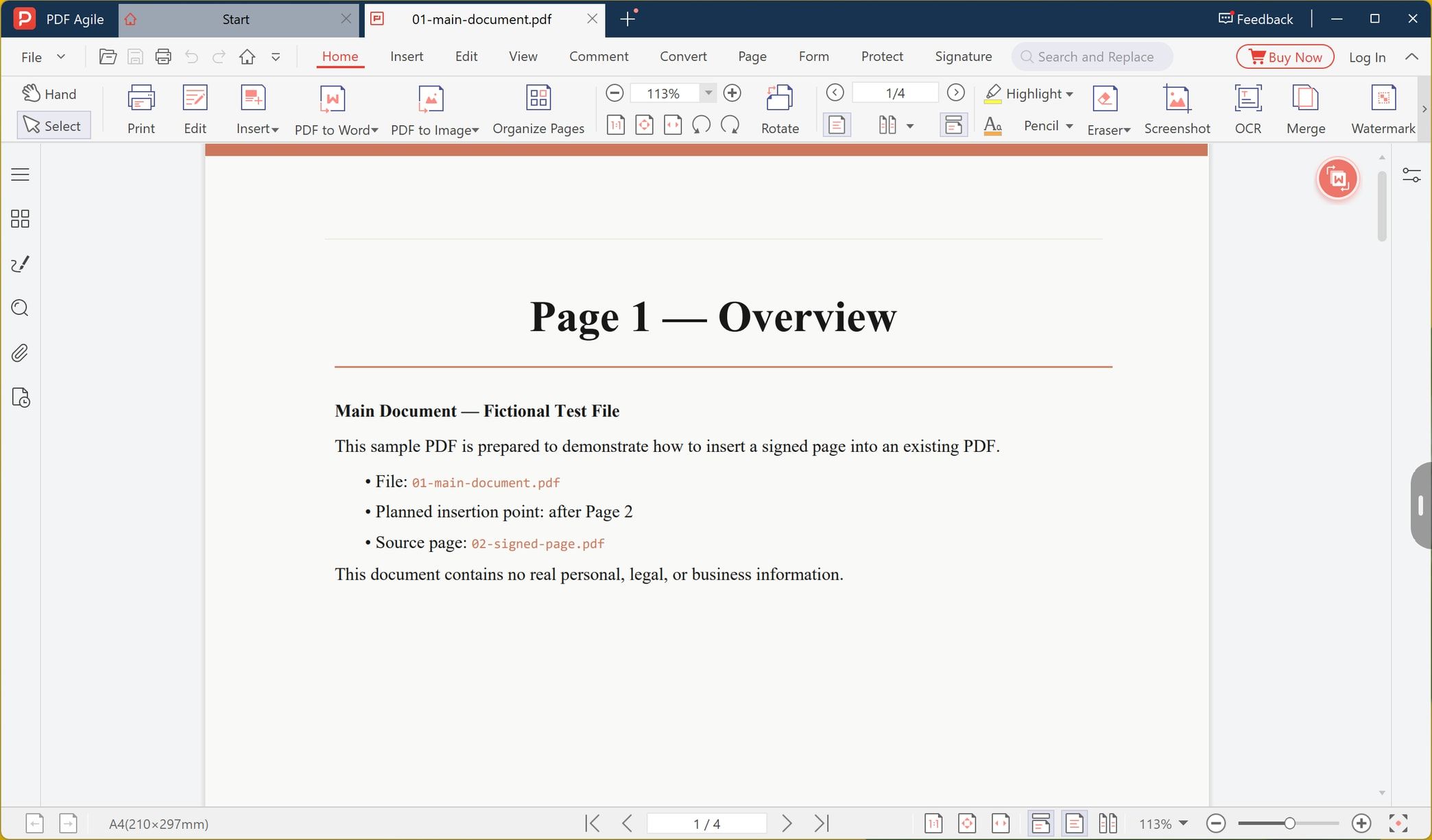
Step 1: Open the PDF That Will Receive the Page
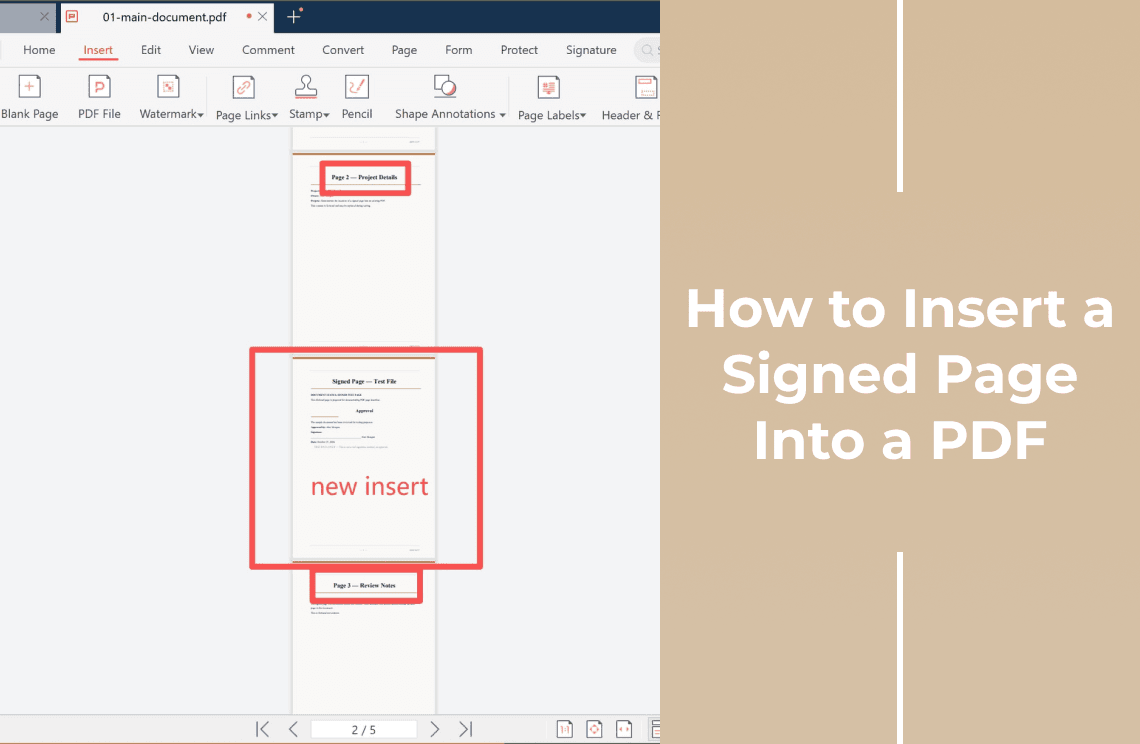
Launch PDF Agile and open the main document, the one that is missing the signed page. The page count in the status bar tells you how many pages you are starting from: four in this example.
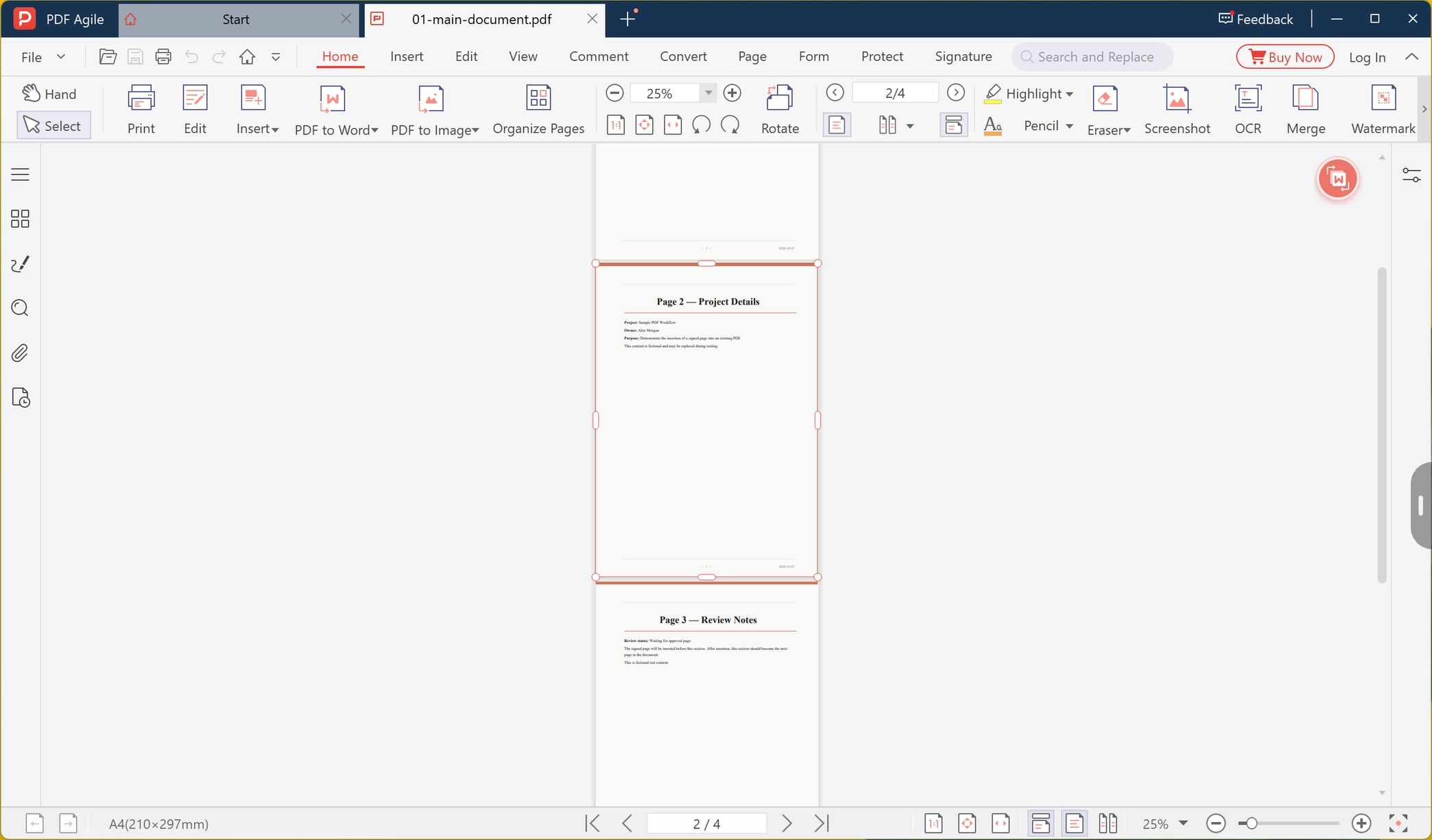
Step 2: Select the Page the Signed Page Should Follow
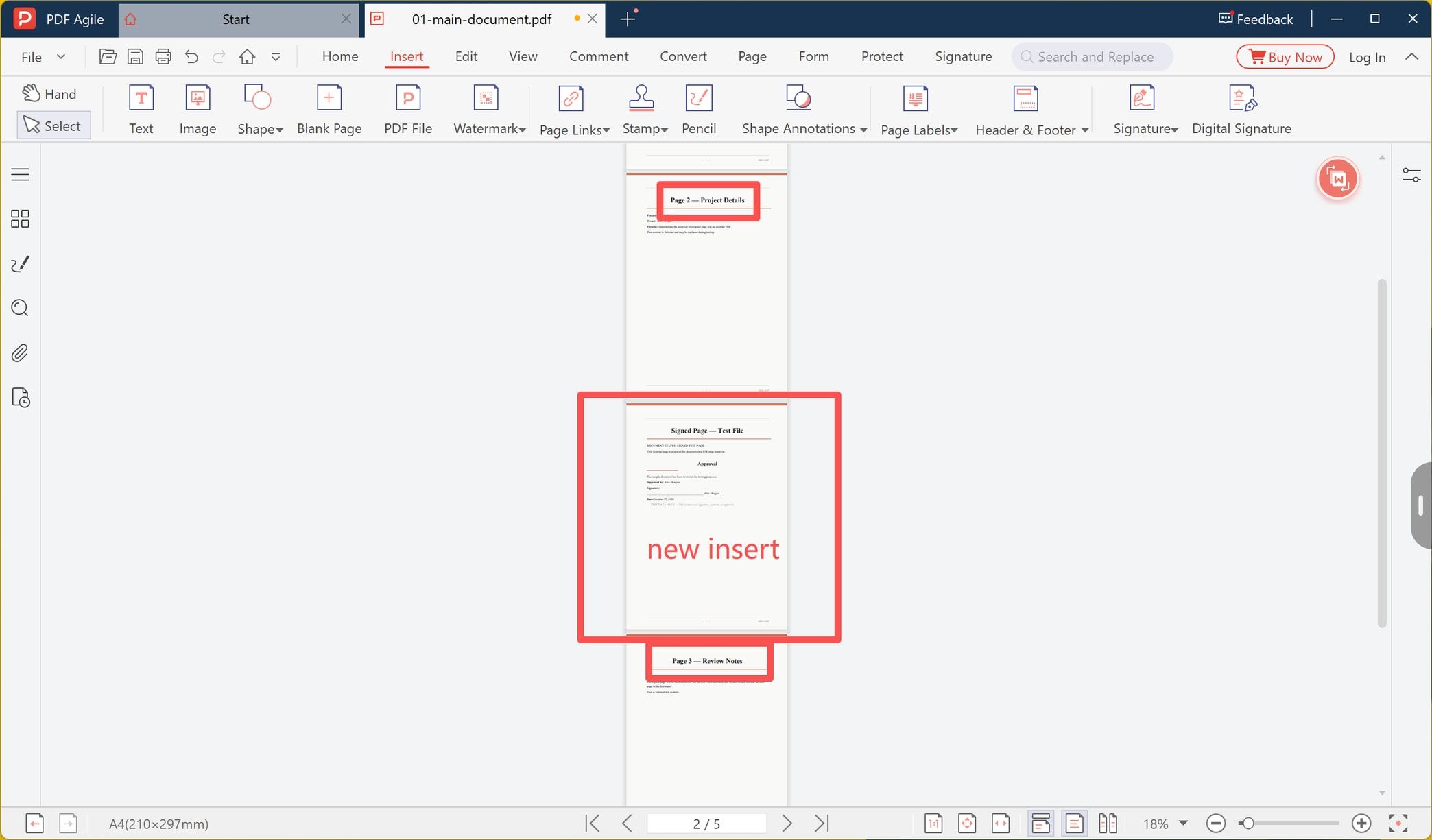
The insertion point is the page you select, and the signed page lands after it. Click the page that should come directly before the signature page. Here page 2 is selected, so the signed page will become page 3.
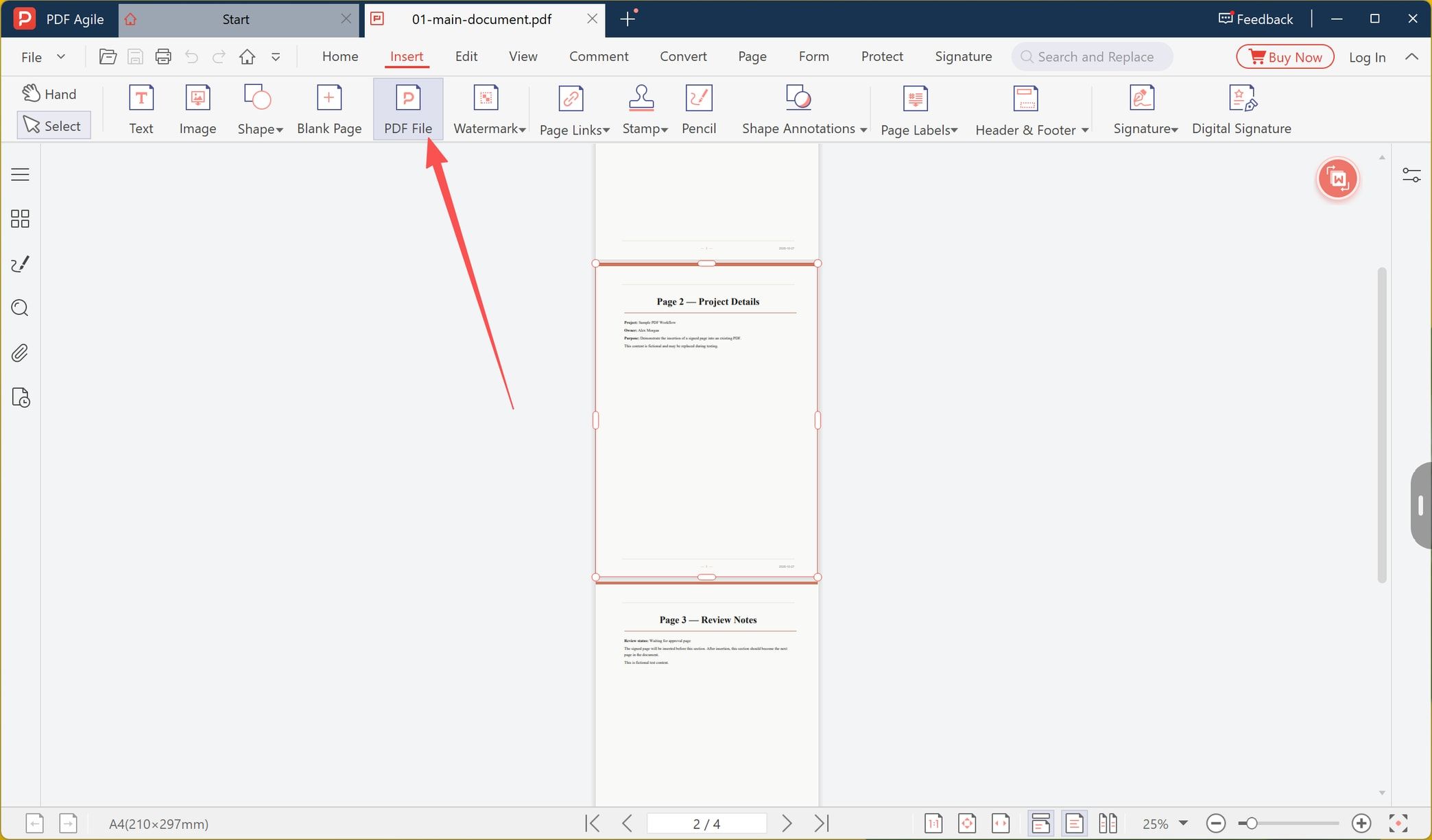
Step 3: Open the Insert Tab and Choose PDF File
Switch to the Insert tab and choose PDF File. The same tab holds Blank Page and Image, which cover the other two ways to get a page in, plus Signature and Digital Signature if the document still needs to be signed rather than assembled.
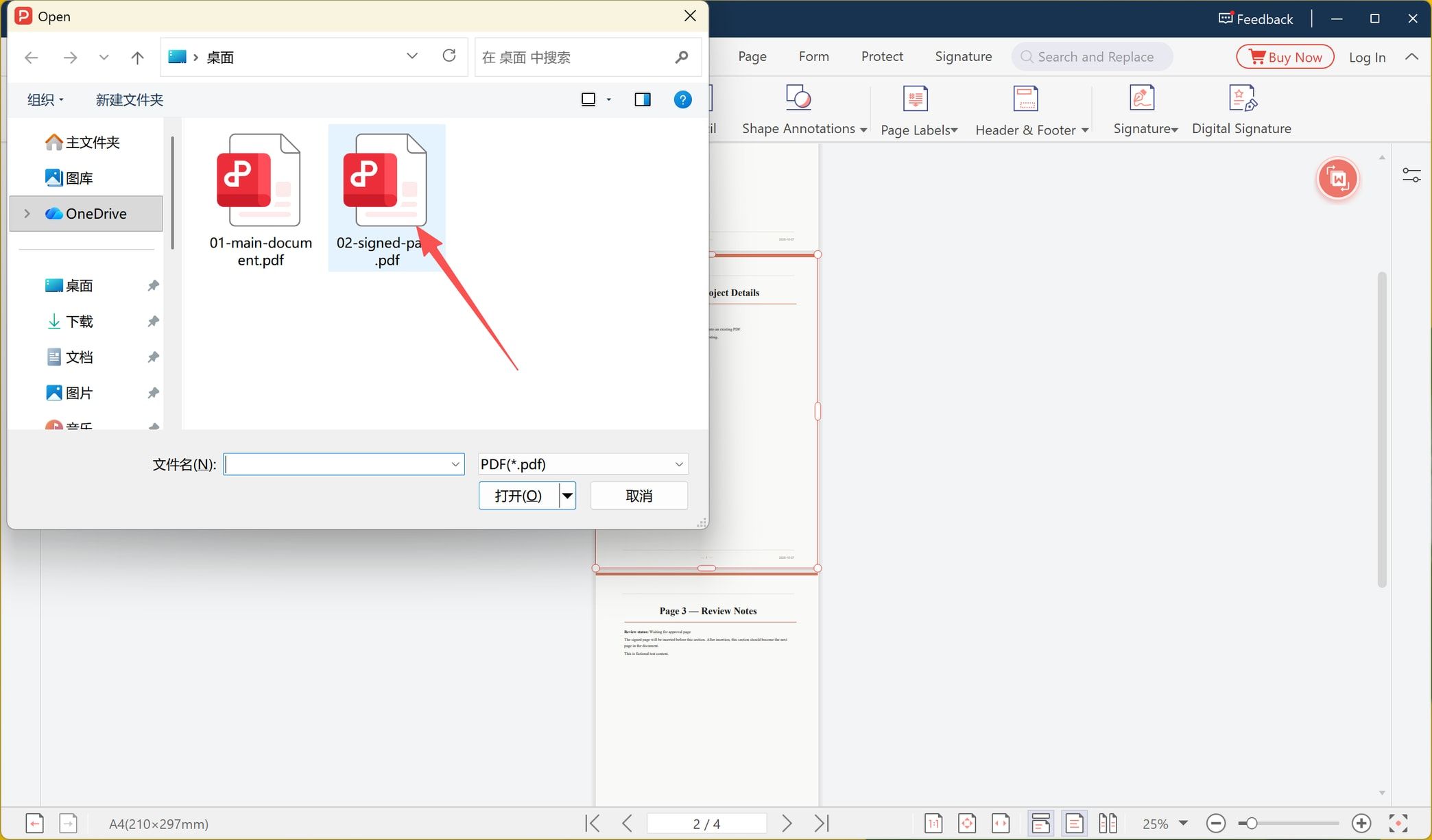
Step 4: Pick the PDF That Contains the Signed Page
Choose the PDF holding the signed page and confirm. What comes in is that file's pages, placed after the page you selected. If the source file has several pages, all of them arrive, so a one-page signature export is the cleanest input.
Step 5: Confirm the Position, Then Save Under a New Name
The page counter now reads five and the signed page sits between the old pages 2 and 3. Check it before saving, then use Save As so the original stays untouched next to the new version.
Checking the Result Before You Send It
Three checks take less than a minute and catch almost every problem:
- Page count and position. The total should have gone up by exactly the number of pages you added, and the page should sit where you intended.
1. Page count and position. The total should have gone up by exactly the number of pages you added, and the page should sit where you intended.
- Legibility of the signature. Zoom to 100% or more. A signature that arrived as a 150 dpi scan often looks fine in a thumbnail and unreadable in print.
2. Legibility of the signature. Zoom to 100% or more. A signature that arrived as a 150 dpi scan often looks fine in a thumbnail and unreadable in print.
- Open the page above and below it. Look for a clause heading that now falls on the wrong side of the signature block, a duplicated letterhead, or a footer that repeats a page number.
3. Open the page above and below it. Look for a clause heading that now falls on the wrong side of the signature block, a duplicated letterhead, or a footer that repeats a page number.
If the file goes to a printer, print the affected spread as well. Signature pages are the ones people sign in the wrong place when the layout shifts.
If the Insert Is Refused, or the Signature Does Not Survive
- The receiving file is permission-locked. An owner can allow printing and still block page changes, in which case the insert command stays inactive. Removing protection is only appropriate on documents you own.
- The file is certified. A certified PDF declares itself complete and declines structural edits.
- It is a dynamic XFA form. The page structure comes from the form definition rather than the page tree, so pages cannot simply be added.
- The page came from a document whose signature has to remain verifiable. The insert will succeed, but the result is an unsigned document. This is the case to solve by getting the finished document signed rather than by assembling it.
- A verification tool flags the result. If the recipient's software reports a broken or unrecognised signature, the page was moved out of the file that carried it. Send the original signed file instead of a rebuilt one.
Inserting, Merging, or Signing in Place
Three routes, three different results:
- Insert places pages at a chosen position and leaves the rest of the document alone. That is what this guide does.
- Merge joins two documents end to end into one continuous file, which is the right choice when the second document has to be complete, not just its signature page. See merge PDF files for that route.
- Sign in place applies a signature to the document you already have, so no page has to travel. The Insert tab carries both a Signature command and a Digital Signature command for this.
If the document has already been signed by someone else and you need to change it, that is a different problem again: editing a PDF that already carries a signature explains what can and cannot be unlocked.
How This Compares With Acrobat and Online Tools
Where the command lives is the practical difference, and it matters more than any feature list.
- Adobe Acrobat. Page organising, including inserting pages, sits in the Acrobat desktop application rather than in the free Reader, which views, comments, and fills and signs. Our own breakdown of which Acrobat version you need covers that line in detail.
- Online insert tools. Fast and account-free in many cases, but the whole document is uploaded to someone else's server. For a signed contract, a lease, or an identity document, that is usually the wrong trade.
- A desktop editor. The command is one button on the ribbon with the pages already visible, and the file is processed on your machine rather than uploaded. That is the reason PDF Agile fits this task: the signed page never leaves the computer it is sitting on.
None of these differences makes one tool correct for everybody. If you already have Acrobat and use it daily, use it. The distinction that matters here is whether a sensitive signed document has to be uploaded at all.
FAQ
Will inserting a signed page invalidate the signature?
Only the signature on the receiving file. If the PDF you are adding to was already certificate-signed, the insert breaks that signature. The page you insert keeps whatever is printed on it, but any certificate signature that covered the source document does not transfer to the new file.
Can I insert a page that came back signed from a signing service?
You can place the page, and the visible signature block will be there. The certificate, the audit trail, and the recipient's ability to verify it stay with the file the service produced. If verification matters, send that file.
Does the page count change, and do printed page numbers update?
The count goes up by the number of pages added. Numbers already printed on the pages are text and do not renumber, so a document with stamped numbering needs the numbering redone after the insert.
Can I insert the signed page as an image instead of a PDF?
Yes, using the Image command on the same Insert tab. The trade-off is that the page becomes a picture: the text on it is no longer selectable or searchable, and the file grows faster than a page insert would.
Is it safe to insert a signed page with a free online tool?
Only for content you would be comfortable uploading. An online tool means the whole document, signature included, is copied to a server you do not control.
Insert first, verify the position and legibility second, and send third. If the signature has to be provable rather than visible, sign the finished document instead of assembling it from parts.