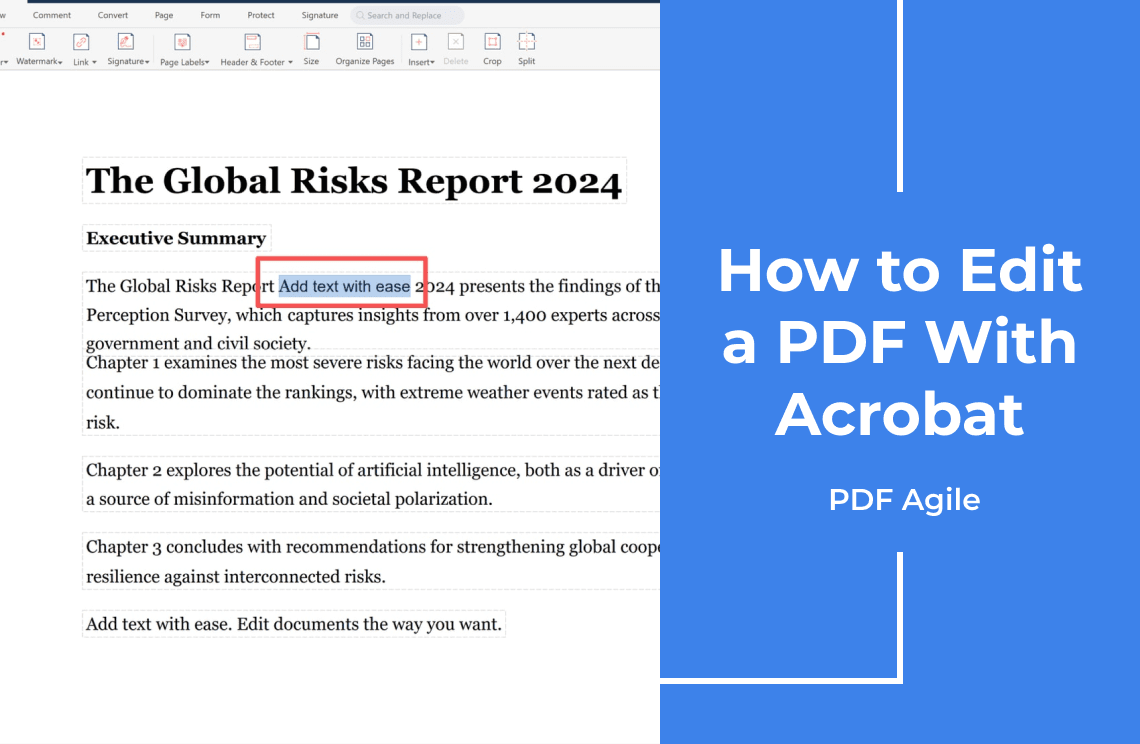
You can edit a PDF in Acrobat, but only in the paid editions. The free Acrobat Reader opens the file and lets you comment, highlight, and sign. It will not change a word on the page, which is where people get stuck.
Check Which Acrobat You Have
Open the PDF and look at the available tools. If Edit PDF is there, you can edit. If you only see Comment and Fill & Sign, you are in Reader.
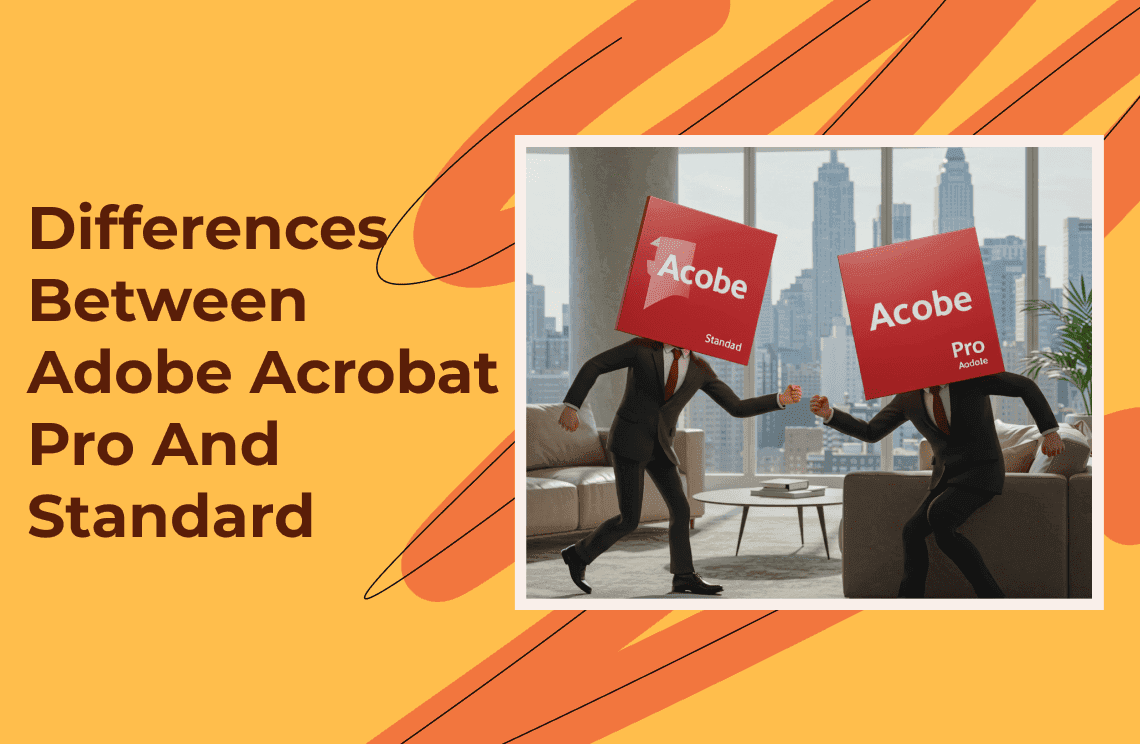
- Acrobat Reader (free): view, comment, annotate, fill and sign. No text or image editing.
- Acrobat Standard: create, edit, convert, export, and organize PDFs.
- Acrobat Pro: everything in Standard, plus OCR for scans, redaction, and version comparison.
How to Edit a PDF in Acrobat
Step 1: Open the PDF and Switch On the Edit Tool
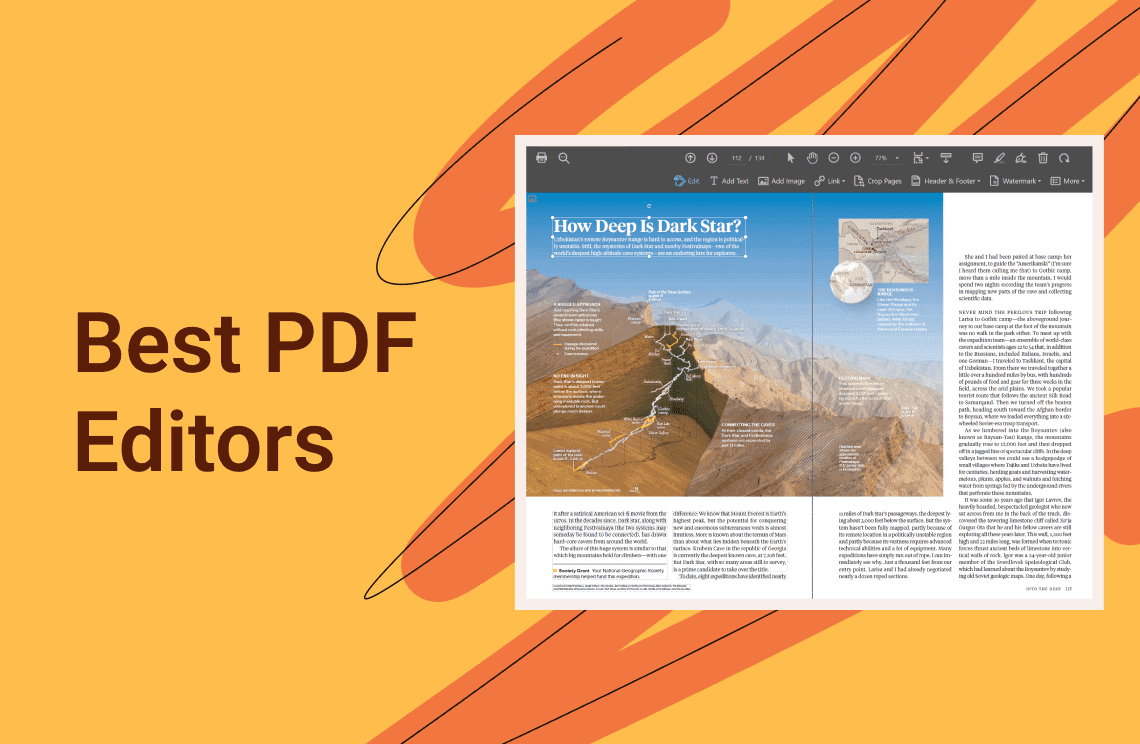
Select the Edit PDF tool from All tools. Acrobat outlines the text blocks and images it can change.
Step 2: Change the Text and Images in Place
Click inside a text block and type. Acrobat reflows the paragraph, so a shorter word pulls the rest up and a longer one pushes it down. Click an image to move, resize, or replace it. If a block jumps out of place, press Ctrl+Z (Cmd+Z on Mac).
Step 3: Save a Copy, Not the Original
Use File > Save As with a new name and keep the untouched original. Once the edited file is closed, the earlier version is hard to get back.
What Acrobat Will Not Change
- Scans. A scanned page is a picture of text, so nothing is editable until OCR runs. OCR is a Pro feature.
- Missing fonts. If the document uses a font that is not installed on your computer, Acrobat substitutes one and the line length shifts.
- Signed files. Changing one character breaks the digital signature. Add a comment instead of an edit.
When Acrobat Is Not the Only Route
Acrobat is a subscription, and a few one-off edits do not always justify one. PDF Agile is a Windows desktop editor that handles the same edits, scans included, and opens the document on your own computer instead of uploading it. That difference matters for contracts, IDs, and tax forms, which should not be sent to a web server just to fix a typo.
FAQ About Editing in Acrobat
Can I edit a PDF with the free Acrobat Reader?
No. Reader views, comments, and signs documents. Editing text and images needs Standard or Pro.
Why does my text jump to the next line?
The paragraph reflows to fit the new characters. Shorten the sentence, or drop the font size in the format panel before you type.
Can Acrobat edit a scanned PDF?
Only after OCR. In Pro, run Scan & OCR first; the page then has a text layer you can edit.
Editing a few pages once? Download PDF Agile for Windows and make the same changes in one desktop app.