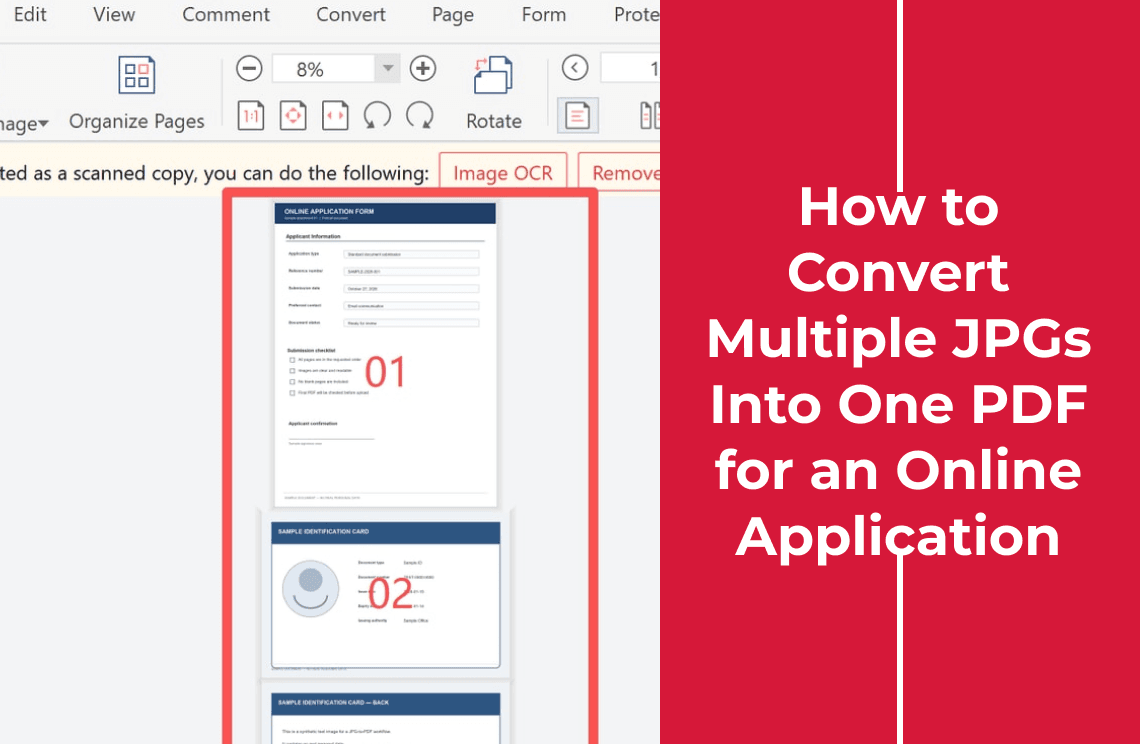
An online application usually gives you one upload slot and one accepted format. That means the photos of your passport, your payslip, and your proof of address have to arrive as a single PDF, in the order the form lists them. You get there by adding all the files to an image-to-PDF converter in one pass, where five pictures become five pages. The conversion itself takes a minute.
This guide is about the part that actually fails: reading the form's rules first, numbering the files so the pages come out in the right order, and checking page size, legibility, and file size before you press upload. It does not cover filling in the form itself, attaching a file inside a PDF, or merging PDFs you already have.
Read the Form's Rules Before You Convert
Most application portals state what they accept, and the wording decides what you build. Look for four things before you touch the files:
- One file or several. A single upload slot labelled "supporting documents" will not take five separate JPGs. If the form has five slots, one per document, do not combine at all.
- A size cap. Usually given in MB. Phone photos are large, and a batch of five can pass the cap on its own.
- A page size. Some forms say A4 or Letter, some only say "PDF", some say nothing. Where a size is named, it is usually because the reviewer prints the file.
- Legibility rules. "Clear colour copy", "all four corners visible", "no glare" are quality requirements, not format requirements, and a converter cannot satisfy them for you.
Write those four answers down. They decide everything below, and it is faster than submitting twice.
Why the Page Order Comes From the Form, Not the Camera
Reviewers read an application against a checklist, so the PDF should open in that order: application form first, then ID, then proof of address. Camera file names work against you, because IMG_2043 and IMG_1015 sort as text, not by the time you took them.
- Rename before you convert, not after. Two-digit prefixes keep a long batch in order: `01-application-form.jpg`, `02-id-front.jpg`, `03-id-back.jpg`.
- Watch the single-digit trap. Without a leading zero, file 10 sorts ahead of file 2 in most lists.
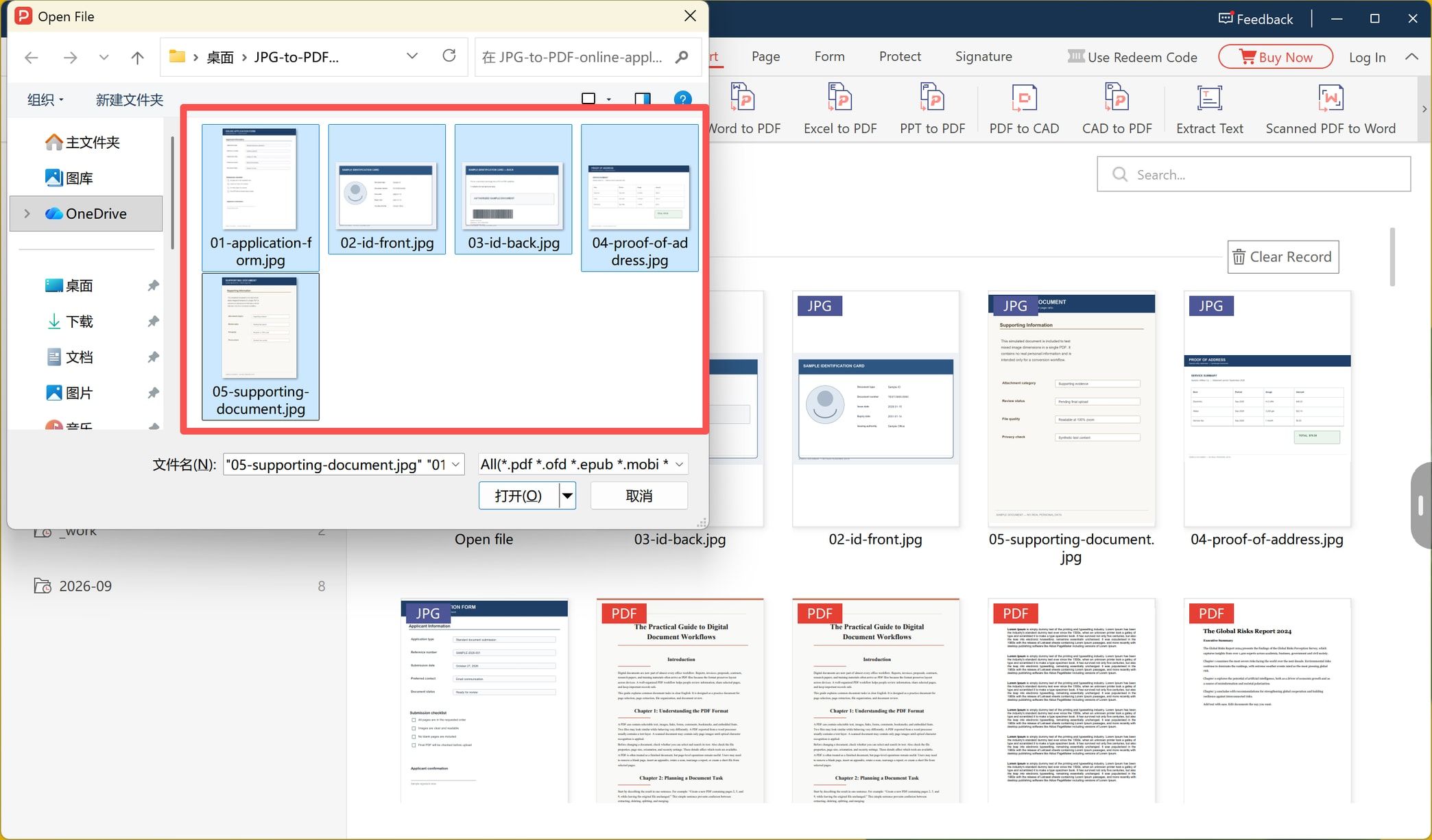
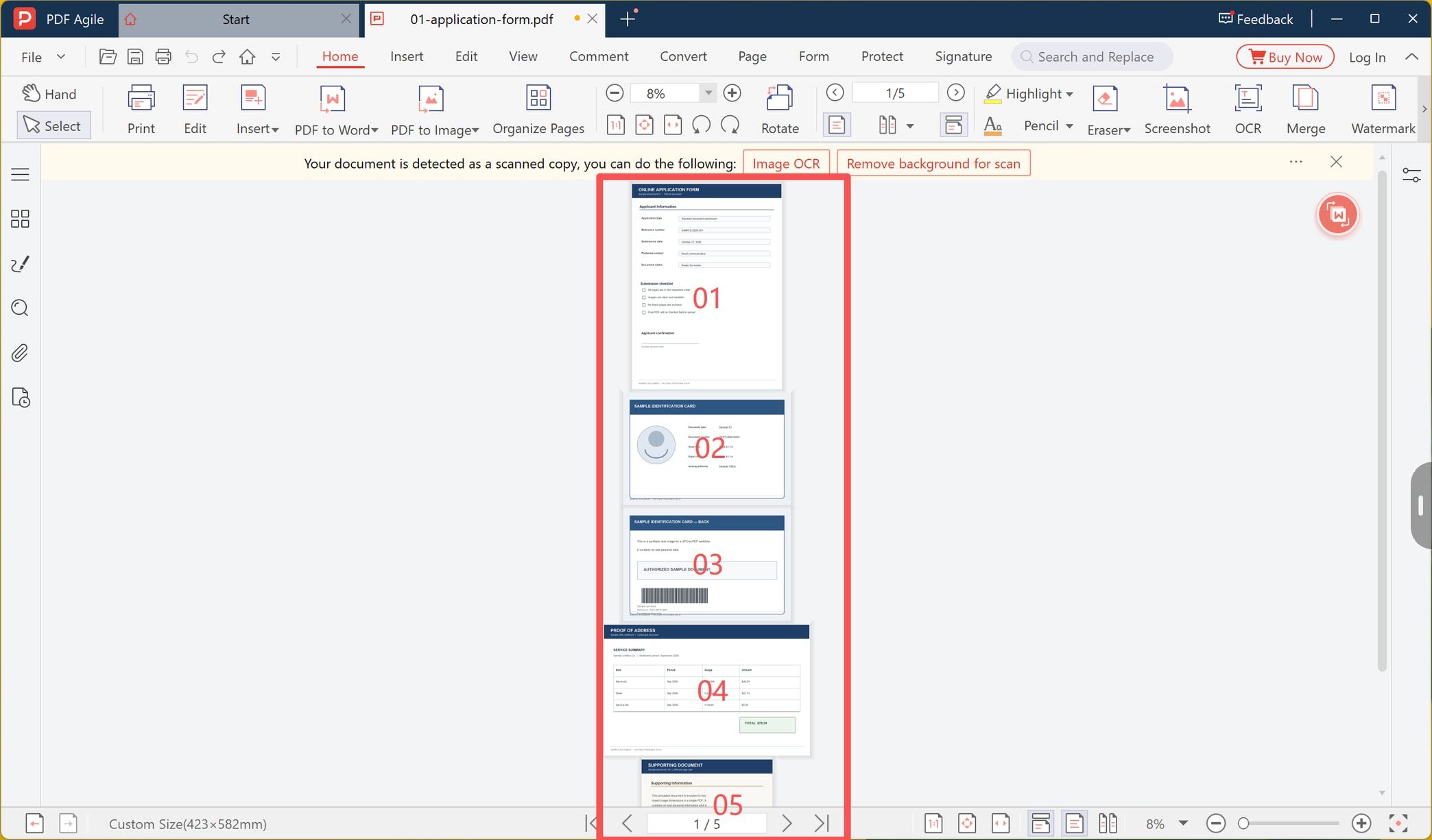
- The file name is the order you control. In the run shown below, the open dialog listed `05-supporting-document.jpg` first, and the finished PDF still ran 01 to 05 — the names decided the sequence.
- Check page 1 and the last page afterwards. Those two catch almost every ordering mistake.
If you are combining images for something other than a form, where page order and page size are the only concerns, the route-by-route comparison in how to combine JPEGs into one PDF covers that ground.
What the Conversion Cannot Fix
Converting JPGs to PDF changes the container, not the pictures. Four problems survive it:
- HEIC files. iPhones set to High Efficiency save photos as HEIC, not JPG. If the form asks for JPG or PDF, export or convert those photos to JPG first — JPG and JPEG are the same format, so either label means the same file — or a JPG-only tool will not list them.
- Blur, shadow, and perspective. A certificate photographed on a table at an angle stays at an angle. Shoot flat, from above, in even light, and check that the smallest printed text is readable at 100% zoom.
- A page that arrives sideways. Conversion preserves the orientation in the file. Rotate the page in the editor afterwards if a landscape shot lands wrong.
- File size. Saving pictures as PDF does not compress them. Five 4 MB photos become a PDF of roughly that size, which matters the moment there is a cap.
None of these is the same job as dropping a photo onto a page that already has text in it; that one is covered in how to make a PDF with pictures.
How to Convert Multiple JPGs Into One PDF on Windows
The steps below were run on the Windows desktop app, starting from five numbered JPGs and ending with one five-page PDF.
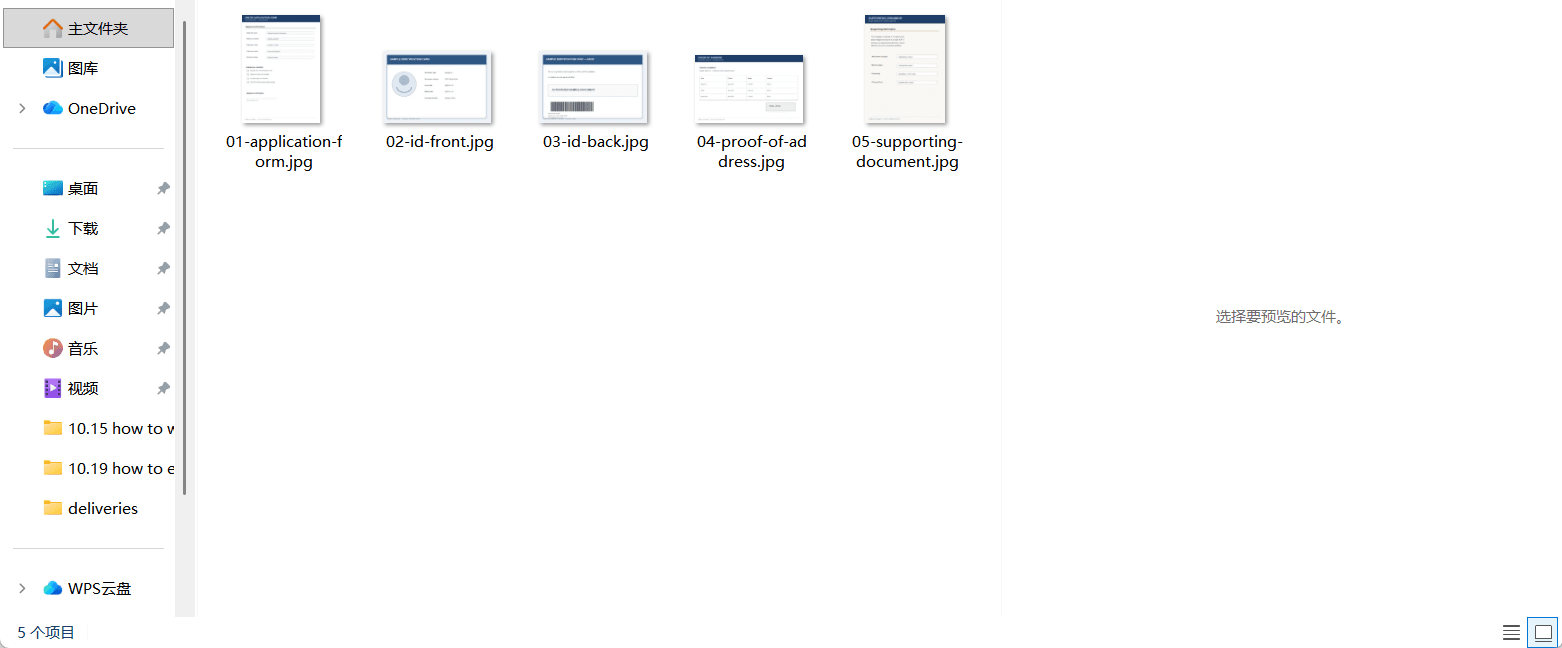
Step 1: Put the JPGs in One Folder and Number Them
Collect every document photo into a single folder and rename in checklist order. Keep the originals untouched in another folder, so a failed submission never costs you the source files.
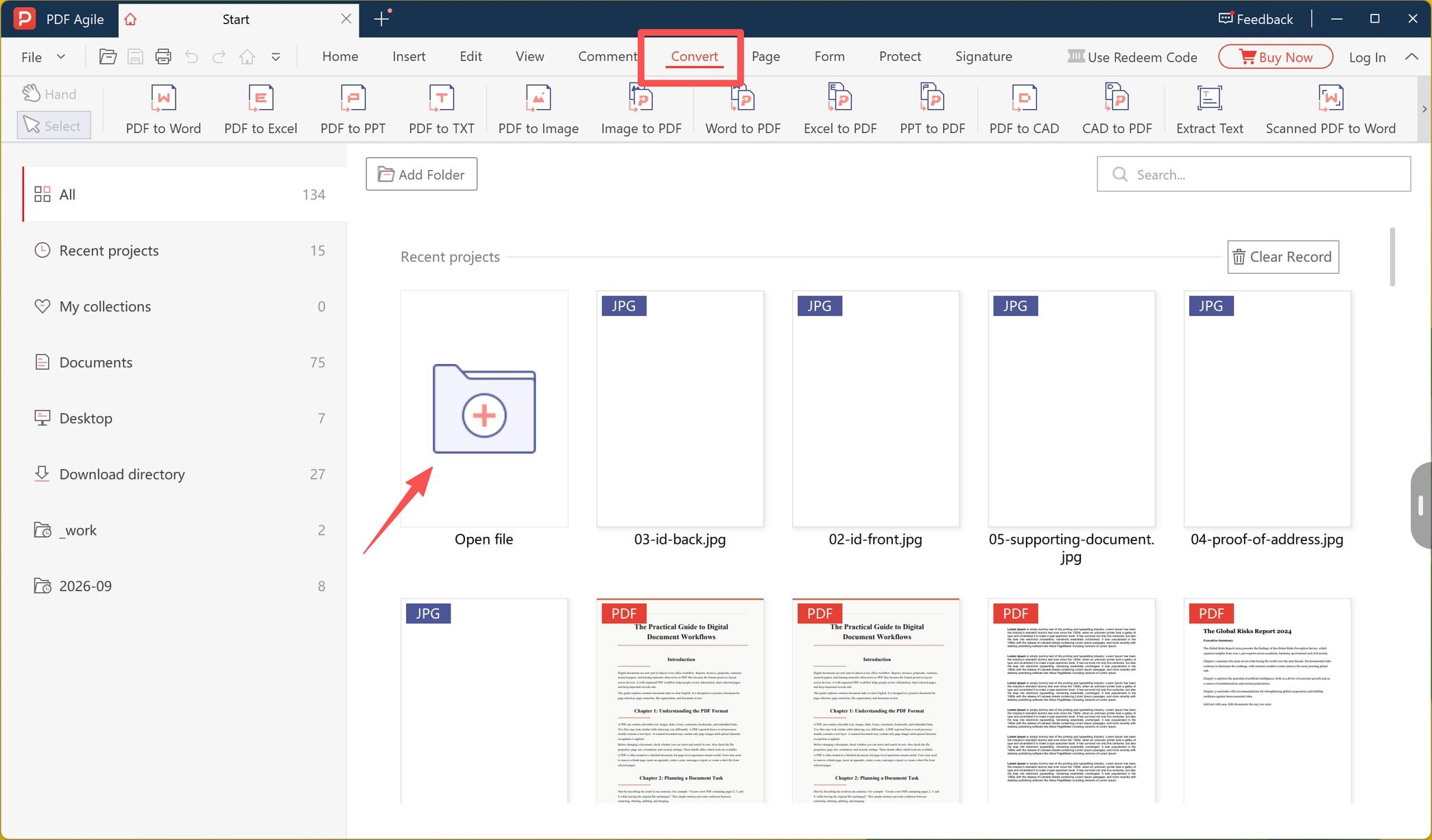
Step 2: Open the Image to PDF Tool
Open PDF Agile and switch to the Convert tab. The ribbon runs PDF to Word, PDF to Excel, PDF to PPT, PDF to TXT, PDF to Image, Image to PDF, Word to PDF, and on through Excel to PDF, PPT to PDF, CAD to PDF, and Scanned PDF to Word. Image to PDF is the one that puts several pictures into one document.
Step 3: Select All the JPGs in One Pass
With Image to PDF chosen, the app opens a standard Open File dialog. Select every JPG at once with Ctrl+click or Shift+click: the file name field lists all five selections, which is the confirmation that the batch is intact. Each selected file becomes one page in the output.
Step 4: Check the Page Count and the Order
The conversion opens the finished PDF in the editor. Confirm the total in the page indicator — 1/5 here — and scroll the thumbnails from the first page to the last. This is the point where a missing document or a swapped pair is still cheap to fix.
Step 5: Save With a File Name the Reviewer Can Identify
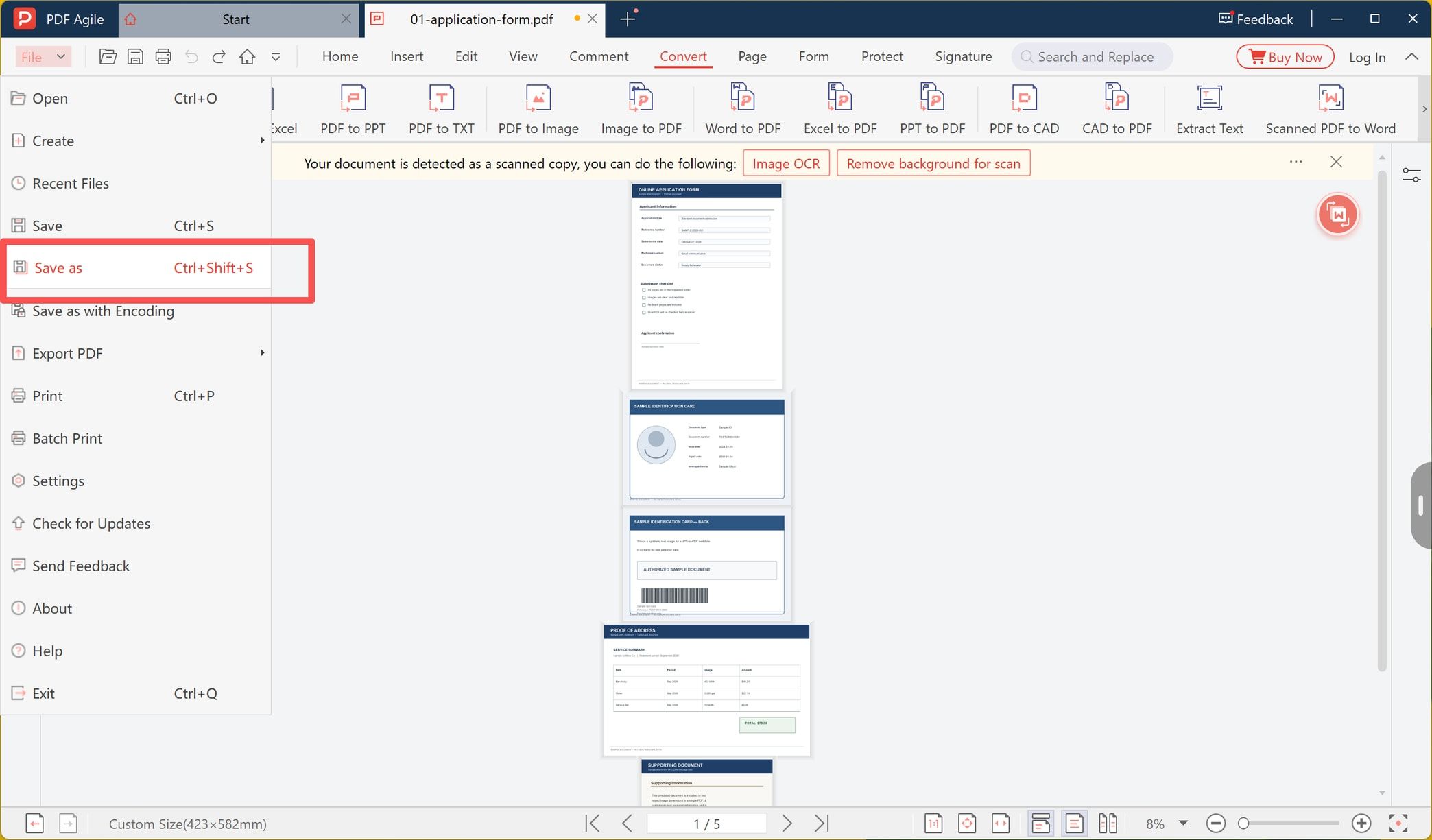
Use File → Save as (Ctrl+Shift+S) and name the file after the applicant and the purpose, for example `surname-application-documents.pdf`. A name like `IMG_2043.pdf` tells a reviewer nothing, and some portals display the file name in the confirmation email.
Check the Page Size the Conversion Produced
Pages built from pictures take their size from the pictures, not from a sheet of paper. In this run the status bar read Custom Size (423 × 582 mm) rather than A4, because the page matched the photo's own dimensions.
That is fine when the reviewer reads on screen. It becomes a problem when the form says A4, or when someone prints the file: oversized pages get scaled down, and a scaled-down page is where small print stops being legible.
- If the form names a paper size, set it before you convert (if your converter offers a page size option), or print the finished PDF to a PDF printer set to A4 afterwards — Microsoft Print to PDF on Windows does this from the print dialog.
- If a photo is landscape on a portrait page, it will either sit small in the middle or be cropped by the uploader's preview. Rotate the page or re-shoot it upright.
- If the pages are different sizes, the uploader's preview will look uneven, even though nothing is technically wrong.
Your Files on Your PC, or on Their Server
An application packet contains an ID, often a payslip or a medical letter. That is the most sensitive material most people ever convert, so where the conversion happens is worth one decision:
- Installed software works on files on your own drive. The pictures are read locally and the output is written locally.
- A browser converter has to receive the file to convert it. The vendor's own online JPG to PDF converter is built for one file at a time, and the site's pages point batch combining and layout options at the desktop version, recommending it for files over 10 MB. If you use one, read its retention and deletion wording before uploading an ID.
- A quick local alternative, if you only need one picture per page and no ordering control, is printing the selection to PDF from Windows Explorer.
If the documents are someone else's — a client, a tenant, a patient — the local route is the easier one to justify, whichever product you use.
If the Form Still Rejects the PDF
Rejections are usually one of four things, and only one of them means the PDF is broken.
- "File too large." Lower the pixel dimensions of the JPGs once and convert again. Re-saving the same photos at lower quality five times degrades them further each pass.
- "Invalid file" or "cannot read this PDF". Open the file in a second viewer. If it opens there, the file is fine and the portal is objecting to size, encryption, or a field limit; if it does not open anywhere, convert again from the originals.
- "Please upload each document separately." Then combining was the wrong move. Split or re-export per document, and check what the form's slots actually say.
- The form needs one more page after you submitted. Adding a page to a finished PDF is a separate job: how to insert a page in a PDF covers blank, borrowed, and scanned pages.
FAQ
Can I combine JPG and PNG files in the same PDF?
Usually yes, because most image-to-PDF tools accept both. Do not rename a PNG to .jpg to force it through; convert it properly, or the uploader may reject the file later.
Will the text in my scanned documents be searchable?
No. Each page is a picture of a page, so the words are pixels until OCR is run on the finished PDF, and OCR output still needs proofreading. For an application that is normally fine, because a human reads it.
Does converting JPGs to a PDF reduce their quality?
Not by itself. The PDF stores the pixels it was given, and the usual quality loss comes from reducing the photos first. If you must shrink the file, do it once and check the smallest text afterwards.
Can I do this without installing anything?
Yes. Windows Print to PDF, macOS print-to-PDF, and browser converters all work. The trade-offs are layout control on the print route, and uploading your documents on the browser route.
Does the order of the JPGs matter?
For an application, yes. The pages should follow the form's checklist, and the safest way to enforce that is numbering the file names before conversion.
Is it safe to upload ID documents to an online converter?
It depends on the service and on your tolerance. Anything uploaded leaves your machine; read the retention and deletion terms, and prefer a local tool when the packet contains an ID, a payslip, or medical evidence.
Combining the pictures is the easy half. Reading the form's requirements first — order, paper size, legibility, size cap — is what keeps the file from coming back. If you would rather do the whole batch in one pass on your own machine, PDF Agile's Image to PDF tool takes the five JPGs at once and writes the PDF locally, so the documents never leave your drive. More walkthroughs like this one are in How-to & Tips.