A picture inside a PDF is usually its own object, pinned to one position on a fixed-size sheet. Select it, swap it, crop it, and the paragraphs around it do not move. That is what "without changing the layout" actually means: not that the whole page is protected, but that nothing except the picture is touched.
Whether you can do it depends on the file, not on how badly you want it. A PDF built in Word, InDesign or a reporting tool stores images as separate objects. A page that arrived as a scan, or was flattened on the way out, stores one large picture of a page, and there is nothing inside it to select.
The other route is conversion, and conversion is the one that moves things. Google Docs, Word and most free web converters turn the PDF into an editable document, retype the text into a flow, and generate a new PDF at the end. That is a fair trade when the words matter more than the geometry, and the wrong tool when a form, a statement or a signed page has to come back looking identical — how to edit a PDF in Google Docs walks through what that route changes.
This guide stays on the narrower job: changing a picture that is already in the PDF — replacing, cropping, resizing, rotating, moving, restacking it — while the page stays put. For putting a new picture into a file, see how to make a PDF with pictures; for the wider map of PDF editing, see how to edit a PDF.
Can You Edit an Image Inside a PDF?
Sometimes no, and the reason is structural. One click tells you which case you are in.
- Embedded image — a photo, logo, chart or pasted screenshot stored as its own object. Clicking gives a box with handles around that picture alone, and image commands become available.
- Scanned page — the page is one photograph of a page. Clicking selects the sheet, not a picture on it, so there is no separate object to swap.
- Flattened page — objects, form fields, annotations or transparency were merged into a single layer, usually by "print to PDF", a file optimiser, or a stamp and signature step. It behaves exactly like a scan.
- Vector artwork — logos and diagrams drawn as paths. A part can be selected and moved, but replacing one piece leaves the rest, and recolouring is a different job.
- Protected or signed — the tools stay greyed out, or the edit voids the signature.
Two tests take ten seconds. Drag across a line of body text: if it highlights as text, the file was born digital, which makes a separate image object likely, though not certain. Then zoom to 400%: real page text stays crisp while a scanned page turns into soft pixels.
If either test says scan, stop here and skip to the section on pictures you cannot select, further down.
Edit, Replace, and Add Are Three Different Jobs
Add Image puts a new picture on top of the page. Replace Image swaps the picture inside the object you already selected. Adjusting covers crop, size, rotation, flip, opacity and layer order on that existing object. Only the last two protect the layout, and dragging in a fresh picture is neither of them.
Deleting the old picture and dropping a new one in is the most common way a PDF layout breaks. The newcomer arrives at the wrong size, lands wherever the cursor happened to be, and any text box that wrapped the old image may reflow around it. Text inside a picture is a fourth job, with its own section below.
How to Edit an Image in a PDF
The screenshots use PDF Agile on Windows and a two-paragraph test page, so you can watch the text behave while the picture changes.
Step 1: Open the PDF in an Editor That Can Select Objects
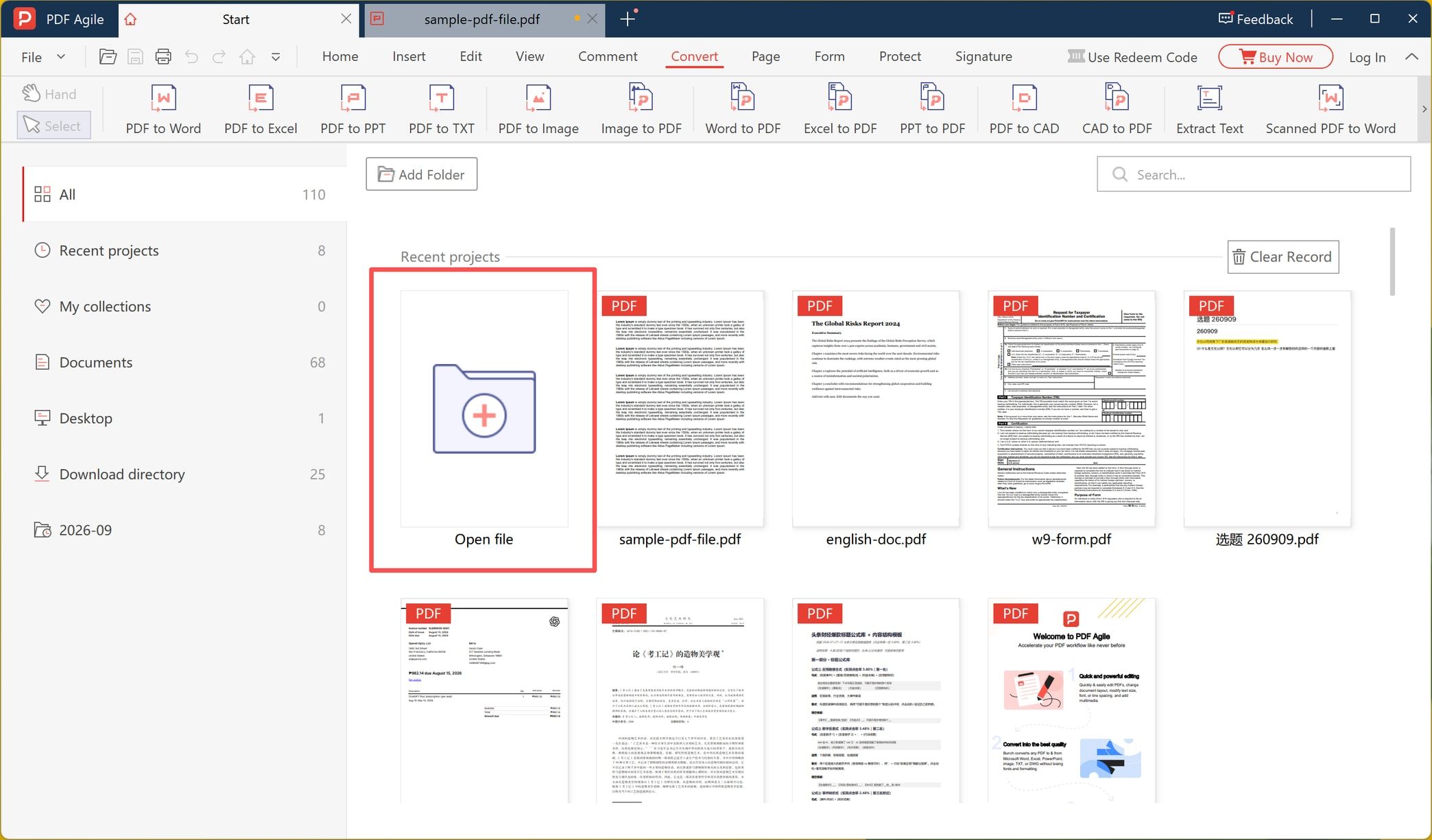
On the start screen, Open file sits at the front of the recent-project grid; the same command lives under File > Open (Ctrl+O). A browser tab can display the file but has no way to select an object inside it, so the choice of tool is settled right here.
Step 2: Click the Picture and Check What Got Selected
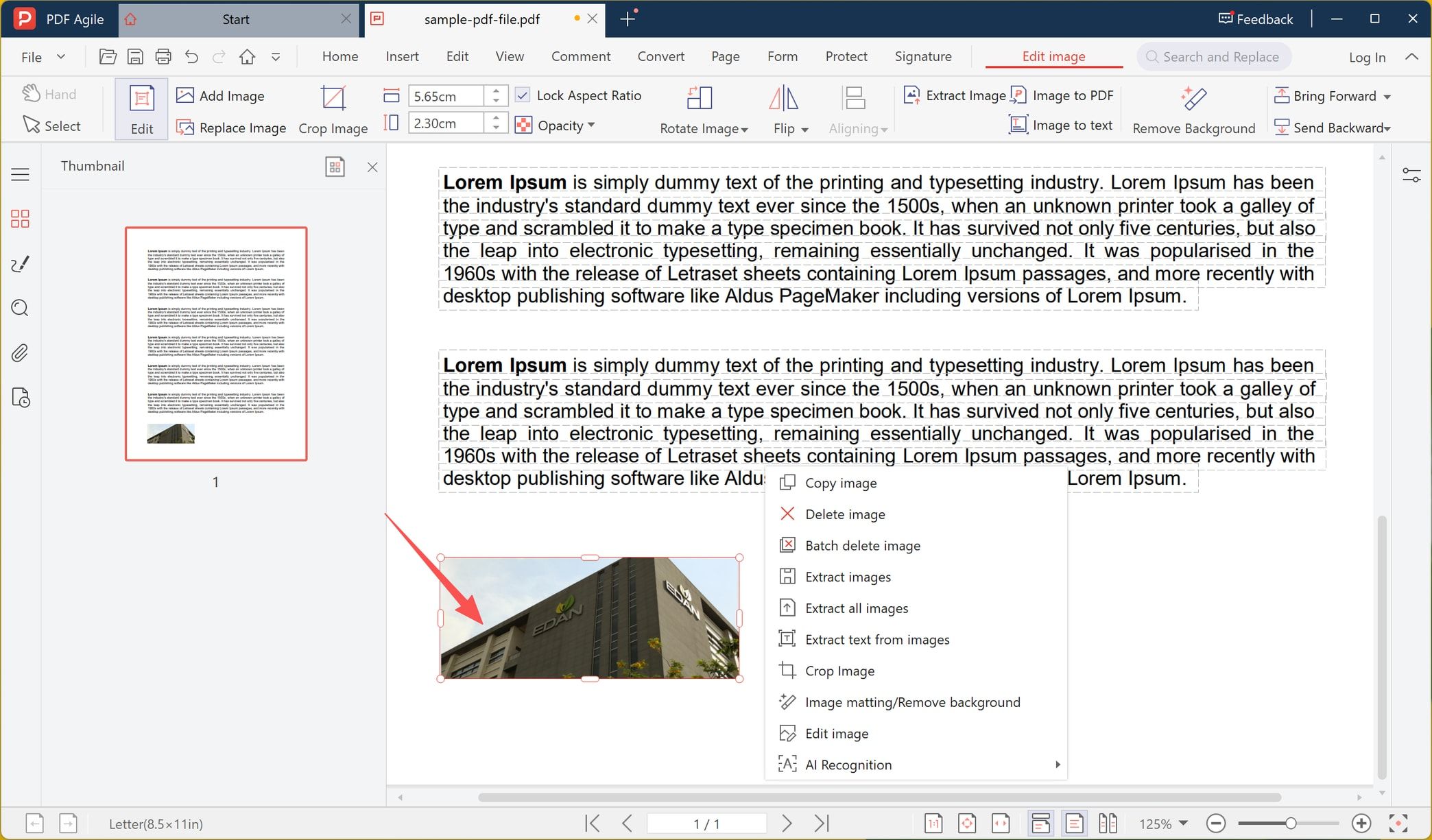
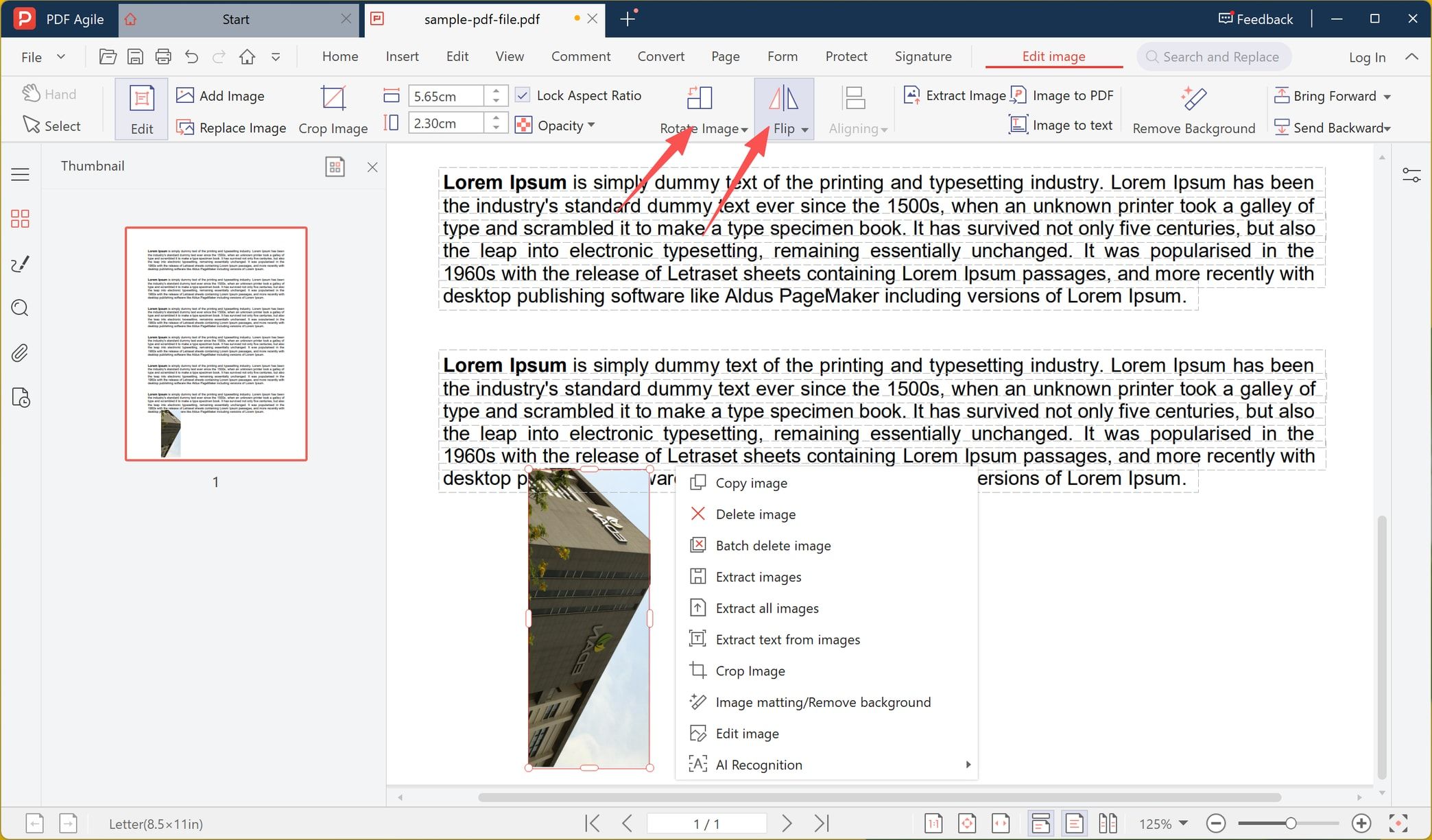
One click should give two confirmations. First, a selection box with handles around the picture alone. Second, a new Edit image tab at the end of the ribbon, beside Home, Insert, Edit, Convert and the rest — a context tab that only exists while an image object is selected.
The right-click menu says the same thing in list form: Copy image, Delete image, Batch delete image, Extract images, Extract all images, Extract text from images, Crop Image, Image matting/Remove background, Edit image, AI Recognition. Page commands in that menu would mean you had selected the sheet instead.
Step 3: Read the Size Boxes Before You Change Anything
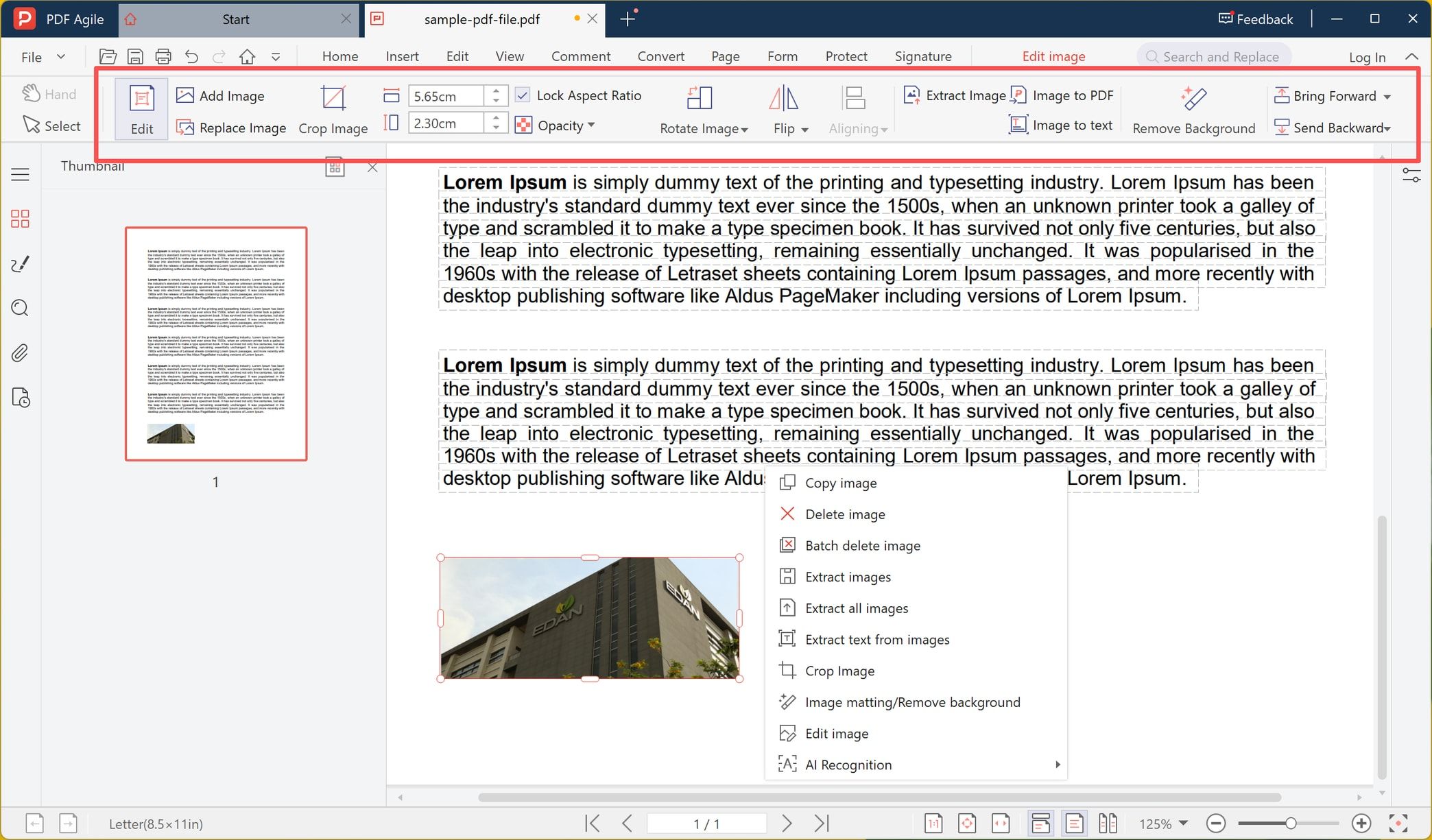
The toolbar opens with the picture's current footprint: 5.65 cm wide and 2.30 cm high in this file. Those two numbers are your target. Whatever you replace, crop or scale, the picture should still measure the same when you finish, because a different footprint is exactly what pushes text.
The rest of the toolbar, in the order it appears: Edit and the selection tools; Add Image, Replace Image, Crop Image; the width and height boxes with Lock Aspect Ratio and Opacity; Rotate Image, Flip, Aligning; Extract Image, Image to PDF, Image to text, Remove Background; and Bring Forward / Send Backward for layer order.
Step 4: Replace, Rotate, or Crop Inside the Frame
Replace Image keeps you inside the selected object instead of creating a new one, so the surrounding paragraphs have nothing new to wrap. With Lock Aspect Ratio ticked, as it is here, a drag changes width and height together, and a face or a logo cannot be pulled out of shape.
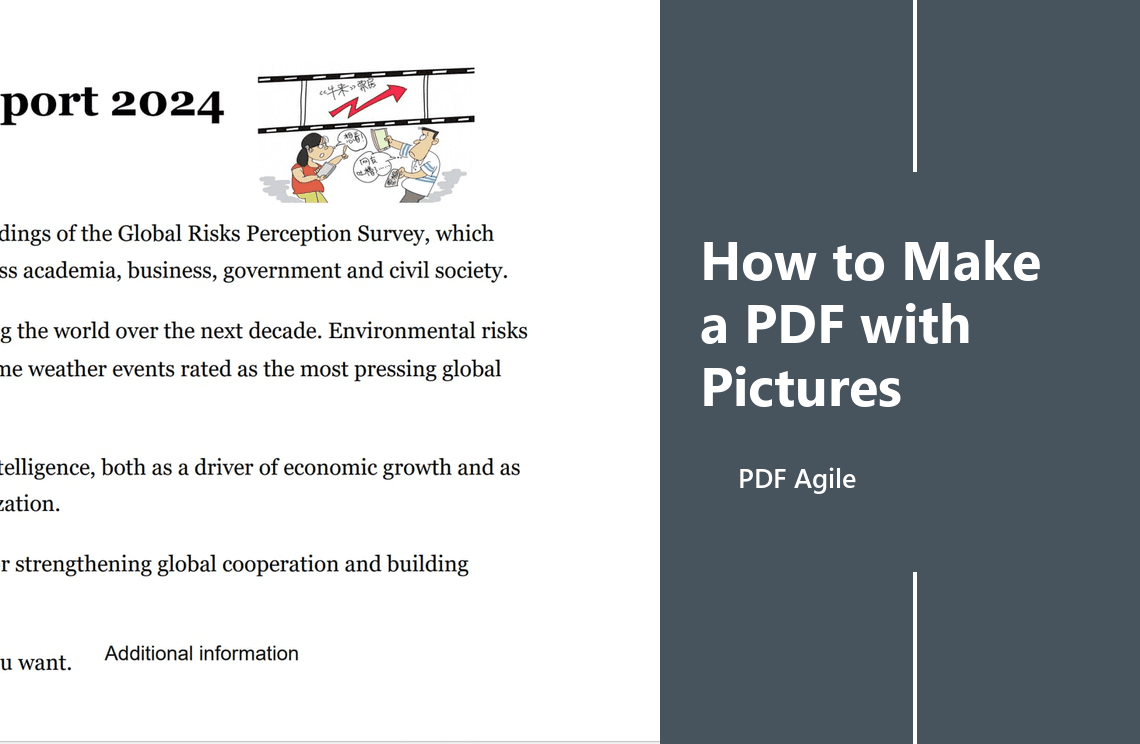
Rotate Image and Flip act on that object alone. In the screenshot the photo is turned a quarter turn and both text blocks stay exactly where they were — but the turned picture now rises into the last line of the paragraph above it. Rotation never moves text; it changes the space the picture needs. Follow it with Crop Image and bring the picture back inside the footprint you recorded in Step 3.
Step 5: Save as a Copy, Then Check It
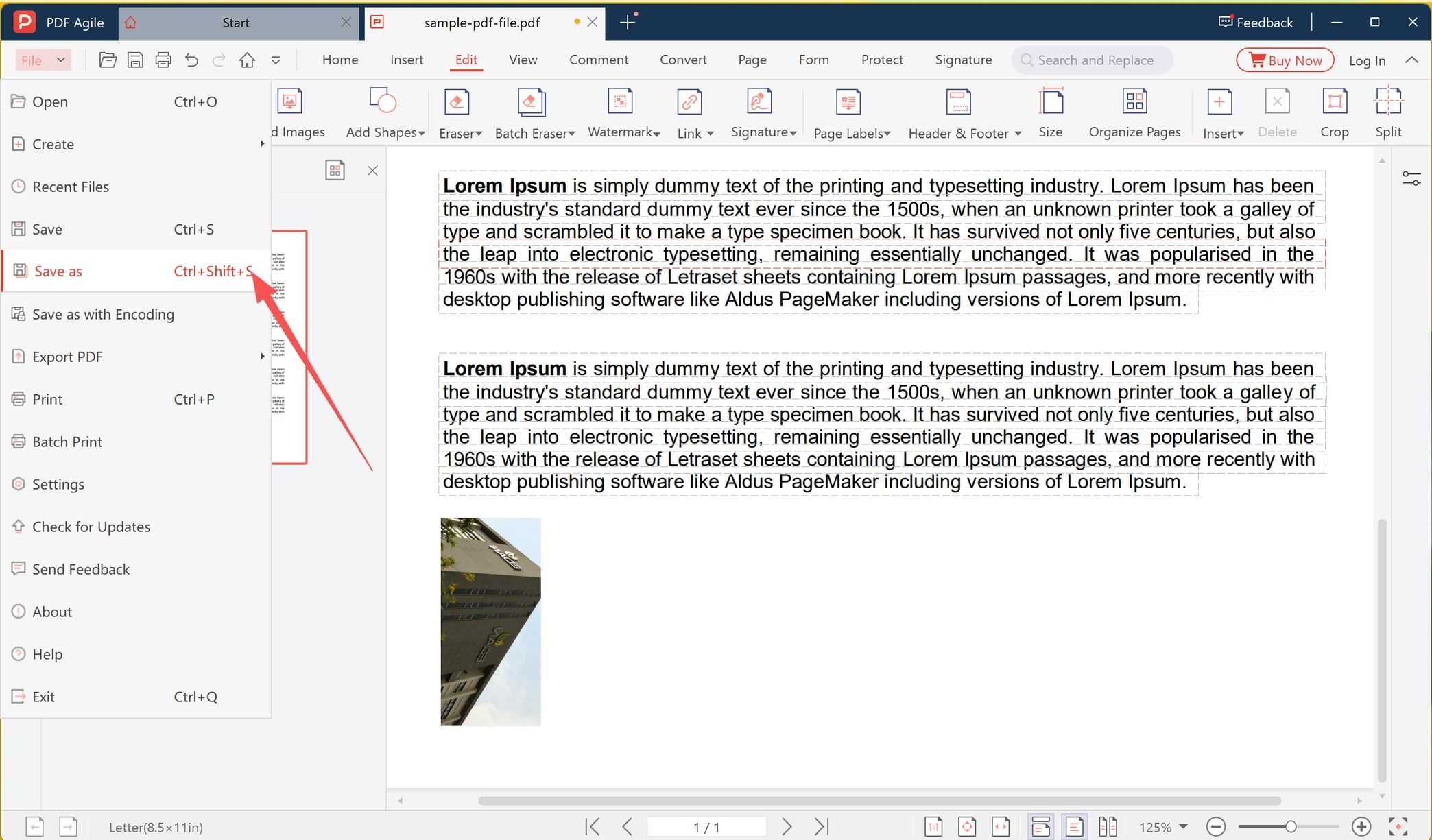
File > Save as (Ctrl+Shift+S) writes a new file and leaves the original as it was; Ctrl+S overwrites the file you opened. Take the copy for anything that leaves your machine, because once the original is gone there is nothing left to compare against.
How to Keep the Layout Unchanged
Layout damage comes from three things: a different aspect ratio, a different footprint, a different layer. Each one has a control, and they sit together in the editor's image and layout tools rather than spread across separate panels.
- Aspect ratio — keep Lock Aspect Ratio on and crop the newcomer to the frame rather than stretching it. A wide photo dropped into a short frame will either lose its edges or show bands.
- Footprint — compare the width and height boxes with the numbers from Step 3 after every change. Identical numbers mean the text cannot have moved.
- Overlap — scroll the page with nothing selected. An enlarged or rotated picture can sit on a line of text without any warning appearing.
- Layer order — Bring Forward and Send Backward decide whether the picture covers a line or sits behind it. A logo that suddenly hides a heading is almost always layer order, not size.
- Page edge — keep the picture inside the margin. Anything past the trim edge is cut when the file is printed, and the screen will not tell you.
- Two zooms — read the page at 100%, then again in whole-page view. Collisions you cannot see at 100% show up when the full sheet is on screen.
What If You Cannot Select the Picture?
- The whole page highlights. The file is a scan or was flattened, and there is no object inside it to swap. Cover the old picture with a white shape and place the new one over it — fast, no reflow, and obvious in a print check — or run OCR and rebuild the page from text, or go back to the source document if you still have it.
- Only fragments highlight. Vector artwork assembled from parts. Move or replace the group as a whole instead of editing one piece.
- The commands are greyed out. A permissions password, or a read-only file. Unlock it first if you have the right to.
- The file is signed. Any edit voids the signature. Work on an unsigned copy, then sign the result.
- The picture is a screenshot of a table. The object is selectable, but the numbers in it are pixels, so you replace the image rather than the cells.
If the real job is page structure — an extra page, a merged file, a different page order — that is a separate operation: how to insert a page in a PDF.
How to Edit Text Inside a PDF Image
A sentence stored as characters can be edited. A sentence stored as pixels cannot, and no image toolbar changes that. The Image to text and AI Recognition commands exist for reading characters out of a picture: you get words to compare against, not an edit inside the photo.
So there are two real outcomes. If the wrong text sits inside a screenshot, a scanned form or a stamped signature, replace the picture with a corrected one. If the entire page is scanned, run OCR first and edit the text layer afterwards — and check whether the page holds characters at all before you assume anything, which is what PDF with text is for.
How to Check the Edited PDF Before Sharing
- Open the saved copy, not the original.
- Page count and page size are unchanged — the status bar still reads Letter 8.5 × 11 in here.
- The picture sits in its old area, and the text beside it starts on the same line as before.
- At 100%, the replacement is sharp. A small image scaled up to fill a big frame looks fine in a thumbnail and poor in print.
- Print preview shows nothing clipped at the edge.
- The copy opens correctly in a second viewer — a phone, another browser. A PDF that looks right in one app can show a shifted object in the next.
- Links, page numbers, headers and footers still behave.
FAQ
Can I edit a picture that is already inside a PDF?
Yes, when the PDF stores it as a separate object. Click it: a box with handles around the picture alone means you can replace, crop, resize, rotate or restack it. A box around the whole page means the file is a scan or was flattened.
How do I replace an image without changing the layout?
Select the picture, note its width and height in the toolbar, then use Replace Image instead of deleting and re-adding. Keep Lock Aspect Ratio ticked, crop the newcomer to the recorded footprint, and read the size boxes again afterwards. If the numbers match, the text has not moved.
Why can't I select the image in my PDF?
Four usual reasons: the page is a scan, the file was flattened or optimised, the picture is vector artwork split into parts, or the document is protected. The first two leave nothing to swap inside the page.
Can I edit the text inside a PDF image?
Not as text. The characters are pixels. Read them with Image to text or AI Recognition, or OCR the page, then replace the picture or the page content. An editor can change the image object; it cannot retype the words baked into it.
Can I crop or rotate an image in a PDF?
Yes. Crop Image and Rotate Image both act on the selected object. Rotating does not move the surrounding text, but it does change the space the picture occupies, so crop it back to the recorded footprint afterwards.
Does replacing an image affect a digital signature?
Yes. Any change to a signed PDF voids the signature, including a swap inside a picture. Edit an unsigned copy and sign that one instead.
How do I stop the replacement image from looking blurry?
Match pixels to final size. A picture that has to print 5.65 cm wide needs enough resolution at that width; enlarging a small thumbnail to fill a large frame is what makes it look soft. Crop rather than scale up, and check at 100% before sending.
Can I edit the image in a scanned PDF?
Only as a whole page. There is no separate object inside a scan, so you cover or replace the entire page image, or run OCR first and rebuild the page from text.
One picture, one page, no rebuild: download PDF Agile for Windows to select an image inside a PDF, replace or crop it, and leave the text where it was. More step-by-step walkthroughs sit in the how-to and tips archive.