You can edit a PDF in Google Docs, but the file is not opened as a PDF. Docs converts it into a document, you edit that document, and the PDF you download afterwards is generated from it. That single conversion explains everything this route does well, and everything that quietly shifts while you work.
It needs no install and no purchase beyond a Google account, which is why it is the first answer for a quick text change. The catch is geometry: a PDF page is a fixed sheet, and a document is a flow.
What Google Docs Does to Your PDF
A PDF stores text at coordinates on a page. Google Docs stores paragraphs in a flow. Conversion re-types the page into that flow: paragraphs become paragraphs, headings are inferred from size and weight, images are re-inserted, and page breaks are recalculated.
That means three files are involved, not one.
- The original PDF in Drive, which is never modified.
- The converted document, a new file in Docs format.
- The PDF you download at the end, a third file built from the document.
There is no in-place edit anywhere in this route, which is good news for your original and the reason nothing stays pixel-identical. If the page geometry has to survive the edit — a signed contract, a form, a two-column statement — rebuilding is the wrong operation, and an editor that changes the page itself is the right one. How to edit a PDF covers those routes.
The same rule applies to pictures: replace an existing PDF image.
Check the Text Layer Before You Convert
Click a sentence in the Drive viewer. If the selection follows the words, the page holds real text and conversion has something to work with.
If the cursor drags a rectangle instead, the page is a photograph of text, and conversion means OCR — a different job with its own terms.
Google's own help for PDF-to-text conversion sets those terms: the file should be 2 MB or smaller, the text at least 10 pixels high, the page right-side up, and it warns that the format might not transfer. A scan that clears those gates comes back as editable text that still needs proofreading.
A password-protected PDF stops here as well. You need the password to open it, and some protected files will not convert at all.
How to Edit a PDF in Google Docs
The first four steps happen inside Drive and Docs, in this order.
Step 1: Upload the PDF to Drive
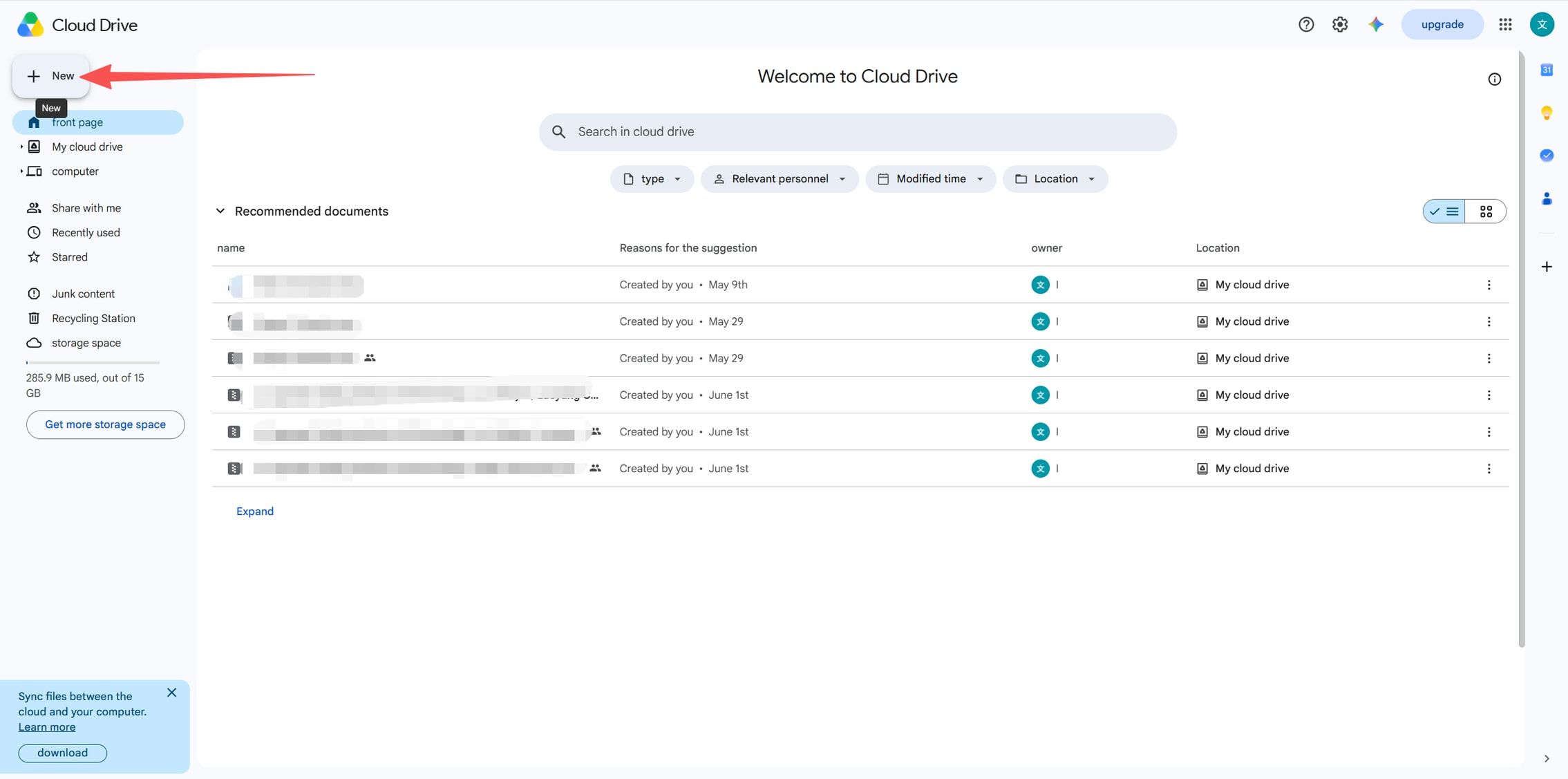
Open Google Drive, click New, then File upload, and pick the PDF from your computer.
Uploading does not convert anything. The file arrives in Drive as the same PDF you started with, so nothing is lost if you stop at this point.
Step 2: Open the File in the Viewer
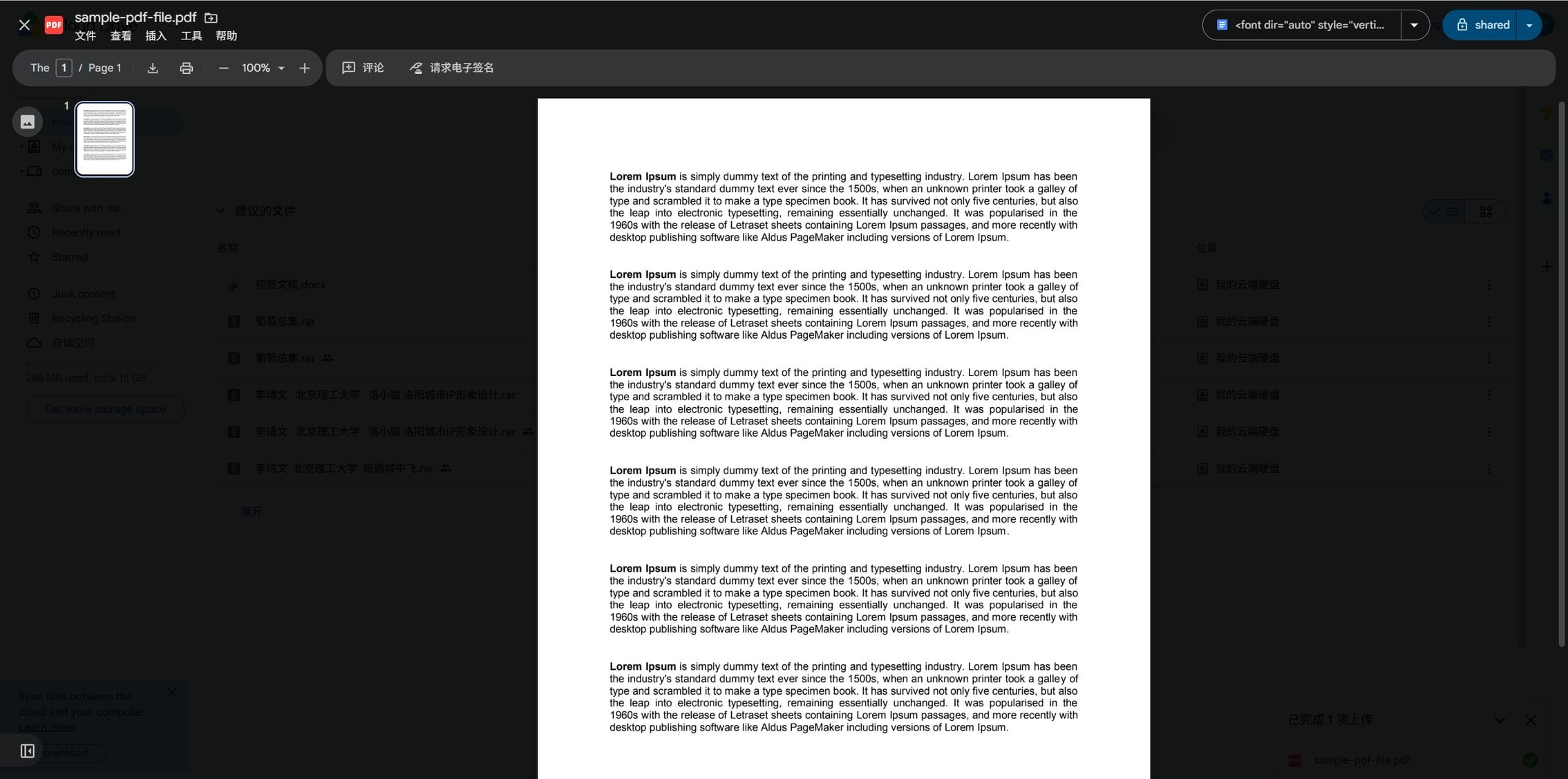
Double-click the PDF. It opens in the browser viewer, where you can read, scroll, zoom, print and share, but not change a word.
Use this pass to confirm it is the right file and that the page count matches what you were told. A missing page is easier to spot here than after conversion.
Step 3: Open It With Google Docs
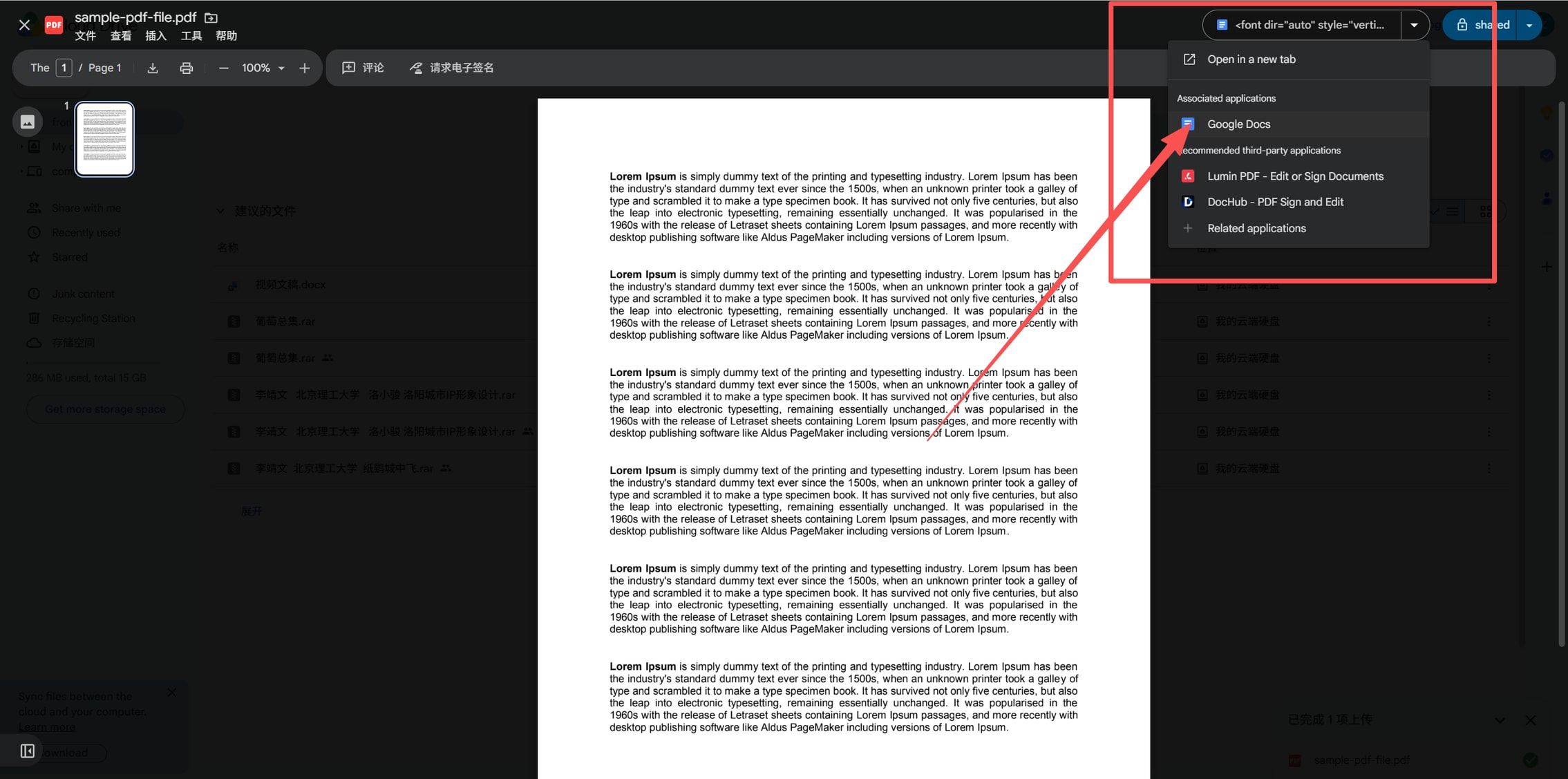
Open the drop-down beside the file name and choose Google Docs under Associated applications. From the file list, the same command is a right-click and Open with > Google Docs.
Docs opens in a new tab with a converted copy of the PDF. On a long file, let the conversion finish before you type: editing a half-converted document is how half-converted pages get saved.
Step 4: Edit the Converted Text
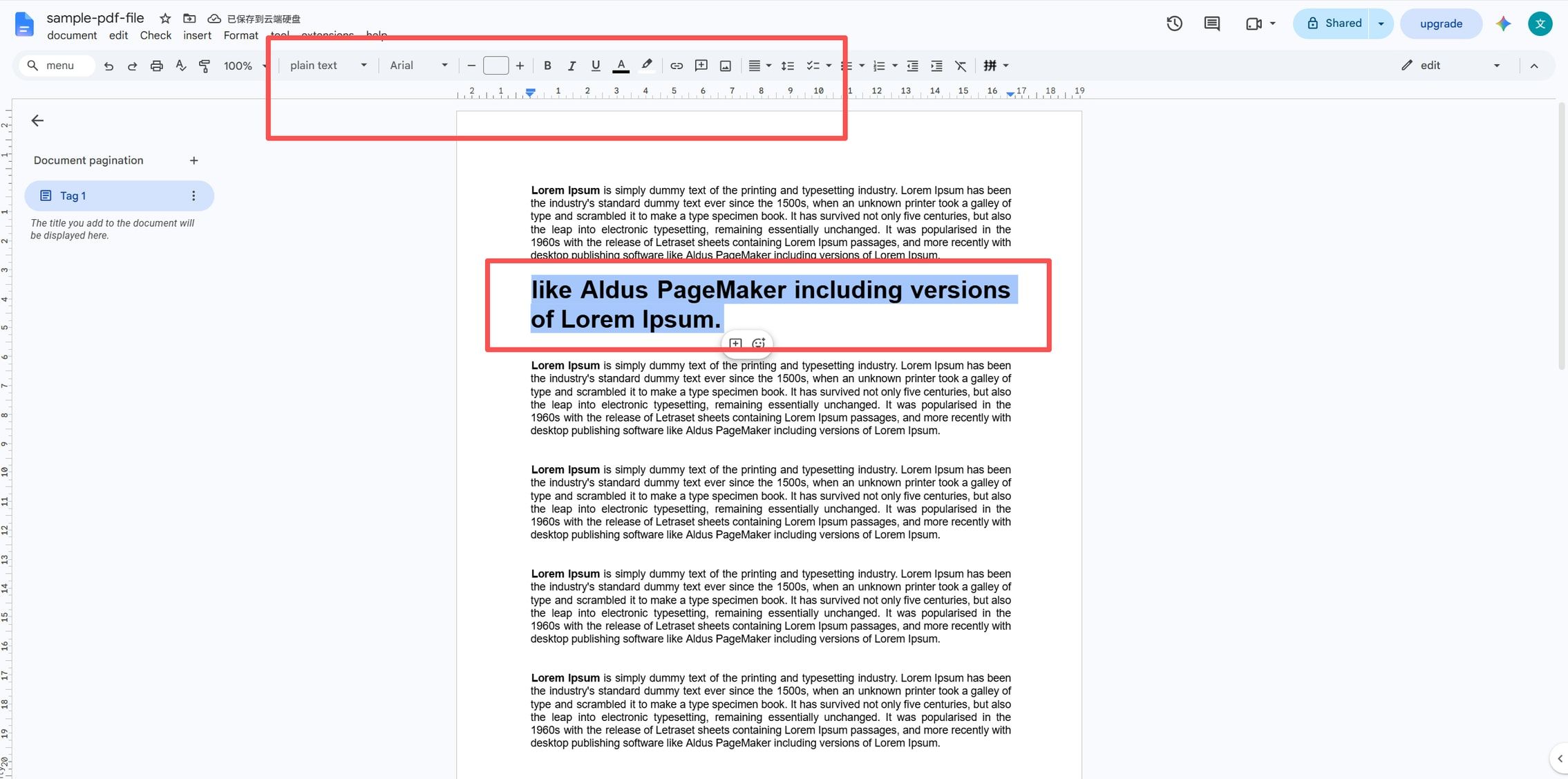
Click into the text, select what has to change, and type. The toolbar carries the usual controls: font, size, bold, italic, underline, colour, alignment, lists, line spacing and comments.
Watch the layout while you work, not afterwards. In the screenshot below, one line of a body paragraph has come back bold and larger than the text around it, as if the conversion read it as a heading. A paragraph that grows also pushes everything below it down the page.
Download the Edited File as a PDF
Finish with File > Download > PDF Document (.pdf). What you get is a new PDF generated from the document, so it will not be byte-identical to the original even where you changed nothing.
Give the export one read-through before it goes anywhere.
- Page count matches, and no paragraph is stranded at the top of a page.
- The headings the conversion invented are styled the way you want.
- Tables, columns and boxed text still line up.
- Images are sharp at 100% and sit where they belong.
- Links still open, and headers and footers still say the right thing.
Where This Route Breaks
- Fillable forms — the words may survive, but a converted document is no longer a form. Check every field before sending it back.
- Multi-column layouts and wide tables — columns arrive as paragraph runs, and a table can land as loose lines.
- Special fonts — a substituted font changes line breaks, and a long line can overflow the space it used to fit.
- Markup from a PDF reader — highlights, sticky notes and stamps are not part of the converted document.
- Digital signatures — a signed file should not be edited at all; a re-export invalidates the signature.
- Scans — OCR handles clean print well, and small type, columns and handwriting less reliably.
- Privacy — the file is uploaded to Google's servers to be converted. Contracts, IDs, tax forms and medical records are worth deciding about before the upload, not after.
Edit the PDF Directly Instead
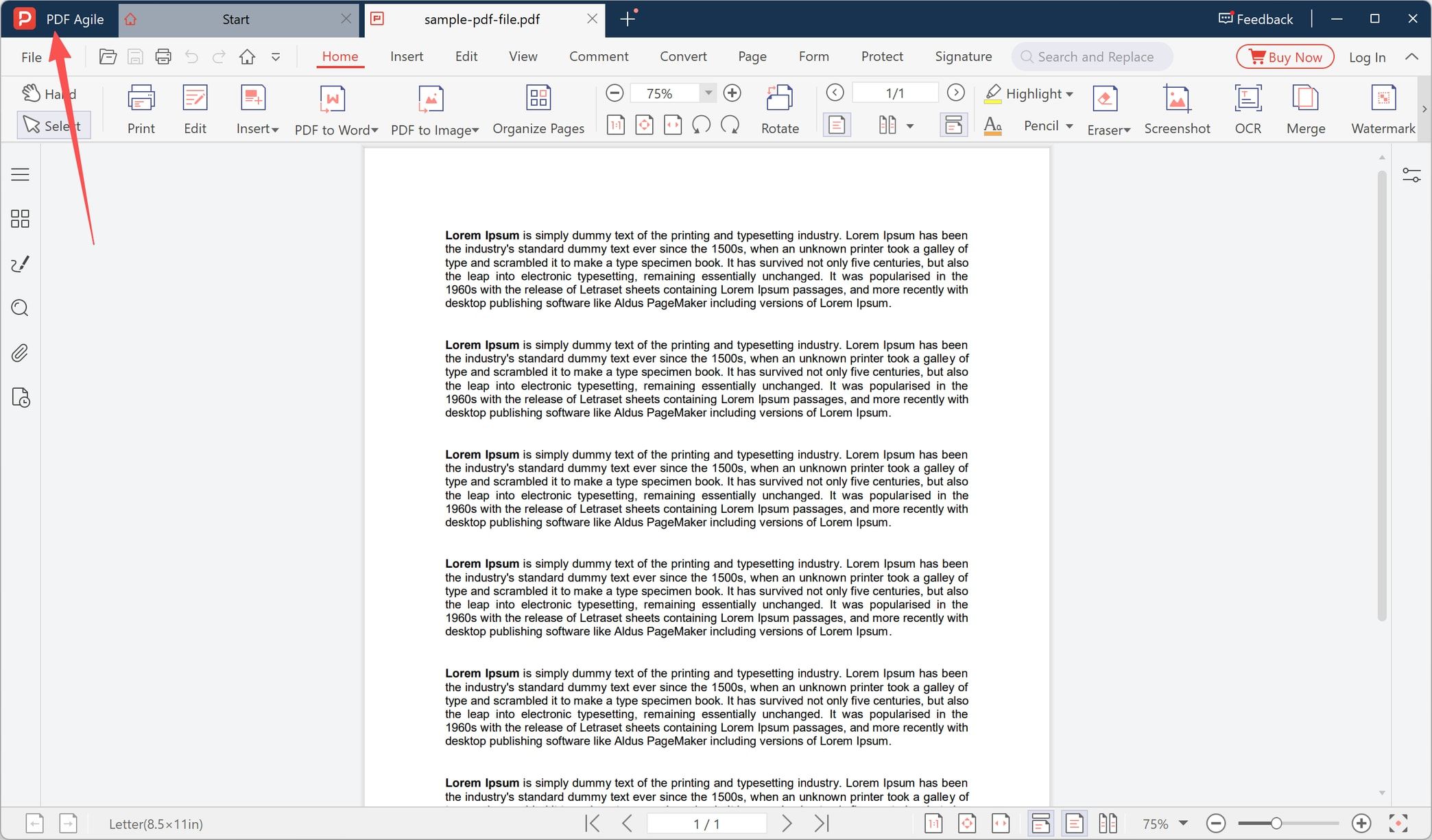
When the page has to stay the page, the file needs an editor rather than a converter. A Windows desktop editor such as PDF Agile opens the PDF as a sheet: the text stays where the layout put it, and an edit changes that text instead of rebuilding a document.
Step 5: Open the PDF and Use the Edit Tools
Open the same file in the desktop app. The Home tab in the screenshot puts Edit and Insert next to the page tools — Organize Pages, OCR, Merge, Watermark — and the editing tools act on the page itself. Text editing is a premium toolset, so a Buy Now notice may sit above the page while you work.
For a scan, run OCR first and proofread the result before you trust it. Finish with File > Save as (Ctrl+Shift+S) so the original keeps its own copy.
Which Route Fits Your File
- A paragraph to fix, a line to add, a heading to reword — Google Docs, as above.
- A form, a signed contract, a two-column statement, anything with fixed geometry — a desktop editor that edits the page.
- A scan — OCR in either route, with proofreading built into the schedule.
- Several people editing at once — Google Docs, because comments, suggestions and version history are the point there.
More task-by-task walkthroughs sit in the how-to and tips archive.
FAQ
Can I edit a PDF in Google Docs without converting it?
No. Docs has no PDF editing mode: the file is converted into a document first, and you download a new PDF at the end. The PDF sitting in Drive is never modified.
Does Google Docs keep the PDF layout?
Partly. Running text usually lands close to the original; columns, tables, headers, footers and precise positions often do not. Google's own conversion help warns that the format might not transfer, so compare the export with the original before sending it.
Can I edit a scanned PDF in Google Docs?
Yes, through OCR, within limits: the file should be 2 MB or smaller and the text at least 10 pixels high, with the page the right way up. Recognised text needs proofreading, especially numbers, columns and handwriting.
Do my changes affect the original PDF?
No. You edit a converted copy and download a separate PDF. Keep both files until the new one has been checked.
Is this free, and does it work on a phone?
Converting and editing in Docs needs a Google account and a browser, on desktop or mobile. Google keeps AI-assisted editing and eSignatures for Workspace plans, so the free route is plain text and layout work.
Changing a form, a contract or a statement, where the page itself must stay intact? Download PDF Agile for Windows and edit the page instead of rebuilding it.