Pictures become a PDF in one of two ways. You either turn each picture into a page of its own, or you place pictures inside a PDF that already exists. Both count as making a PDF with pictures, and both go wrong for the same reasons: the order is wrong, a landscape photo lands on a portrait page, or the picture is re-compressed until small text turns to mush.
So pick the route that matches what you are holding, then check the file before you send it. The five routes below cover Windows, Mac, iPhone, Android, and a PDF editor.
Two Different Jobs Hide Behind One Search
"Make a PDF with pictures" is asked by two different people.
- You only have pictures. Travel photos, receipts you photographed, a stack of scans. Each picture should become a page, and the PDF is just the container.
- You have a PDF and want pictures inside it. A report that needs a chart, a proposal that needs product shots, a form that needs one photo attached. The page already has text and margins, so the picture has to be placed and sized rather than appended.
The first job is a conversion and the second is an edit. Most image-to-PDF tools only do the first, which is why people finish a conversion and find the result is not the document they wanted.
Which Route Fits What You Have
- A folder of pictures and nothing else — a converter, or the print-to-PDF feature already in your operating system. One picture per page by default.
- A PDF that needs a picture on the page — a PDF editor, in five steps, shown in Route 1.
- Pictures that also need captions, headings, or page numbers — a PDF editor or a document tool, not a photo merger.
- Scans whose words must be searchable — convert first, then run OCR, so the pages end up with a text layer.
One setting decides most of the disappointment later: whether the tool keeps each picture at its own page size, or forces every page to A4 or Letter. Fitting a landscape photo onto a portrait page is what produces the white bands people complain about.
Route 1: Add Pictures to a PDF You Already Have
When the document exists and only the picture is missing, this is the shortest route. The five screenshots below were captured in PDF Agile on Windows, starting from a one-page PDF report.
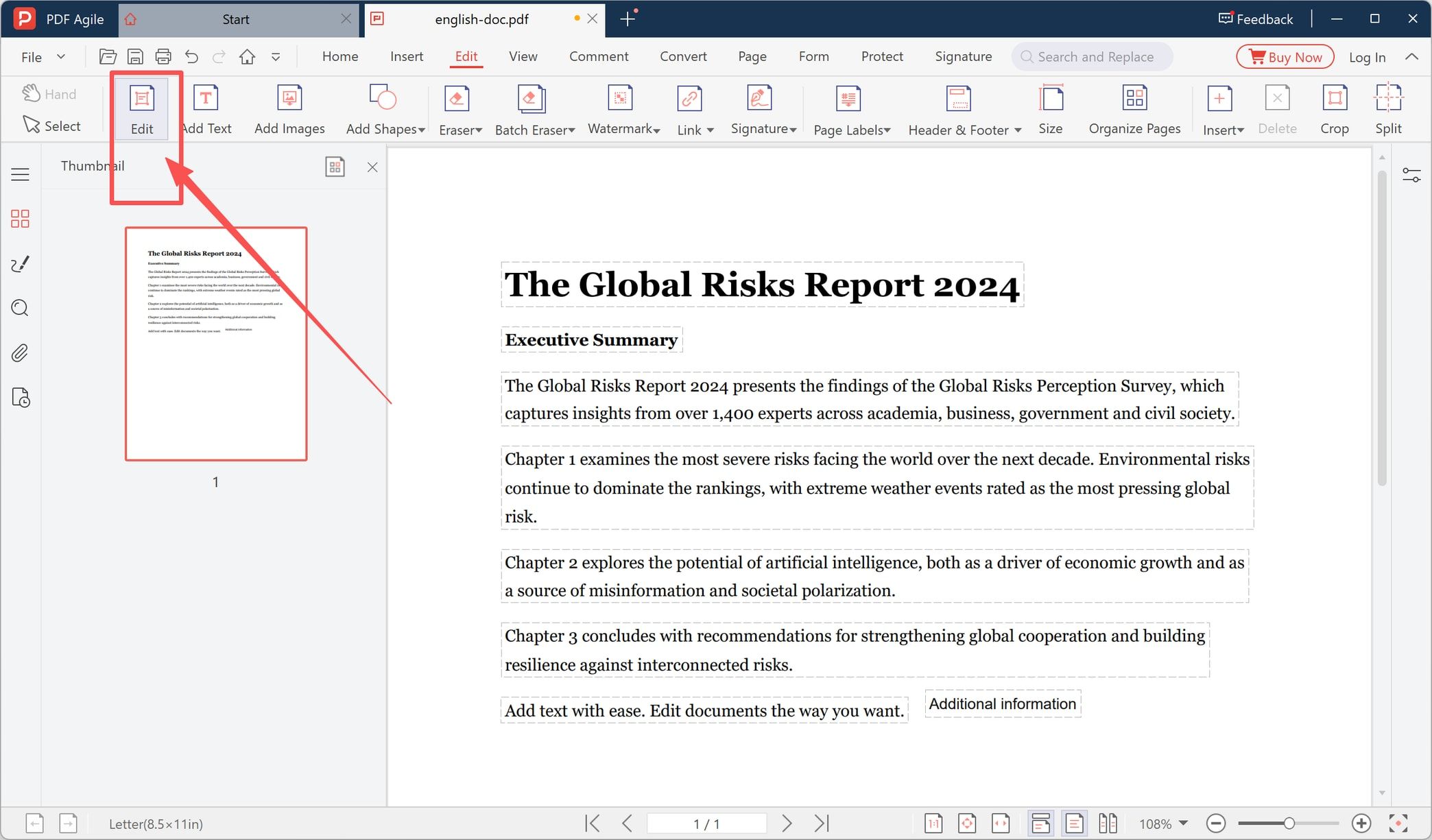
Step 1: Open the PDF and Select the Edit Tool
Open the file, then switch to the Edit tab on the ribbon. That tab holds the tools that change what is already on the page: Hand, Select, Edit, Add Text, Add Images, Add Shapes, Eraser, Signature, Header & Footer, Organize Pages, Crop, and Split.
Select the Edit tool first. It is the one that works on objects already on the page, and the picture tools behave predictably once it is active.
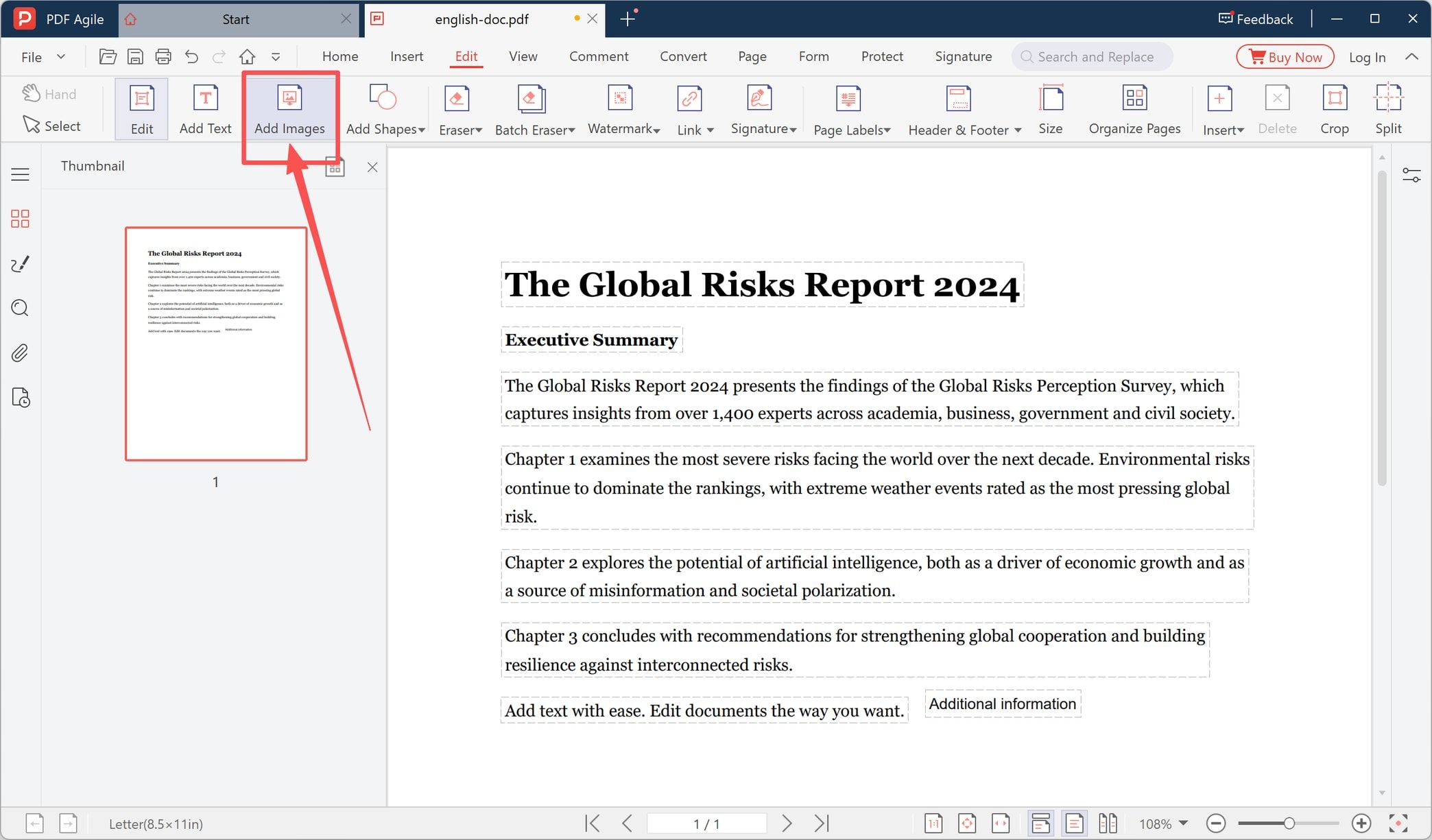
Step 2: Choose Add Images
Click Add Images in the same tab and choose the picture from your computer. The picture is added to the page you have open, not to a new page, so check which page number is showing before you pick the file.
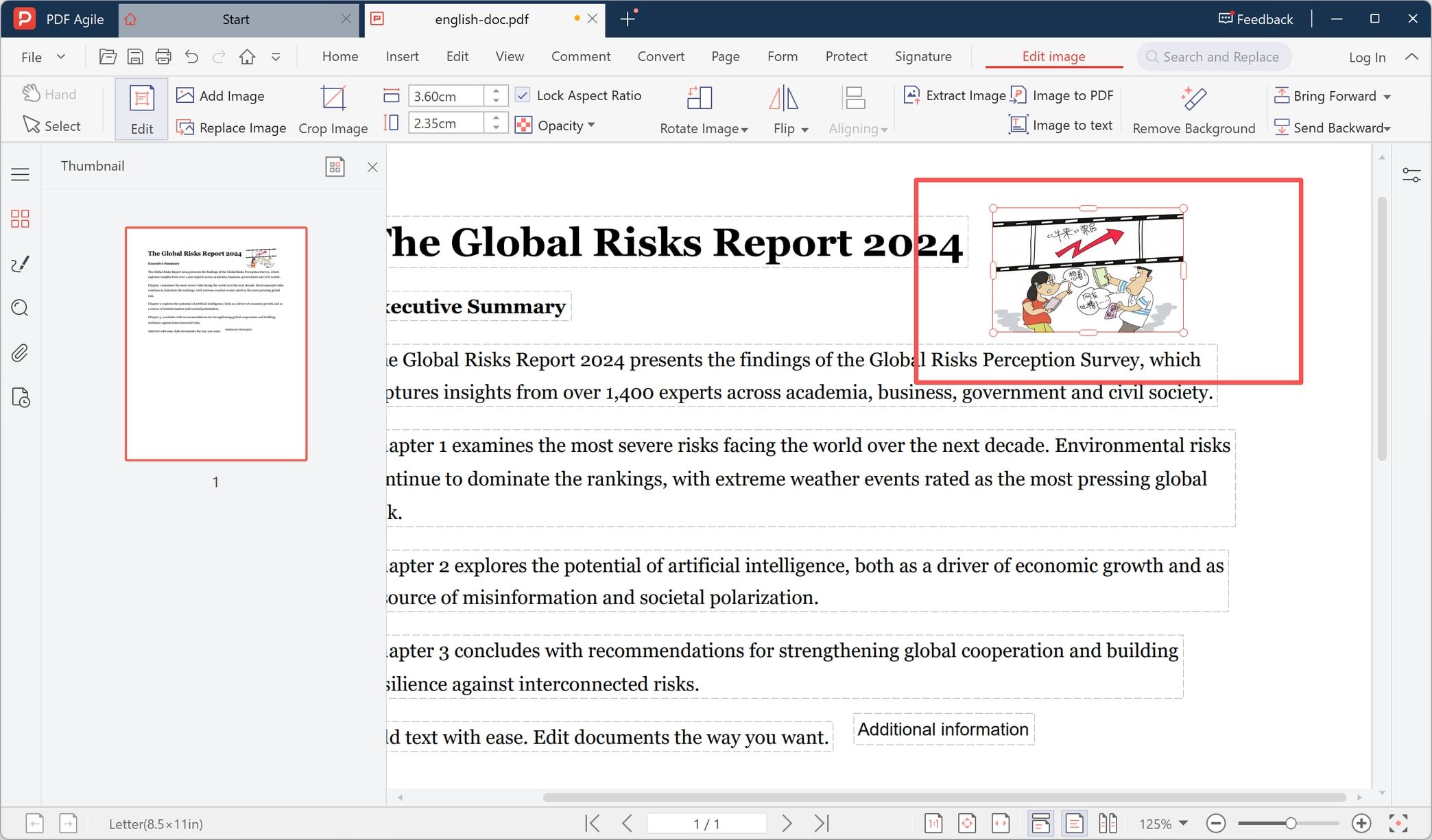
Step 3: Place the Picture and Set Its Size
The picture appears on the page with selection handles around it, and the ribbon switches to an Edit image tab. Drag a corner handle to resize it, or type a value into the width and height boxes — in the screenshot they read 3.60 cm × 2.35 cm with Lock Aspect Ratio ticked, so the picture keeps its shape.
That tab also holds Rotate Image, Flip, Aligning, Opacity, Crop Image, Replace Image, Remove Background, and the layer controls Bring Forward and Send Backward if the picture sits on top of text.
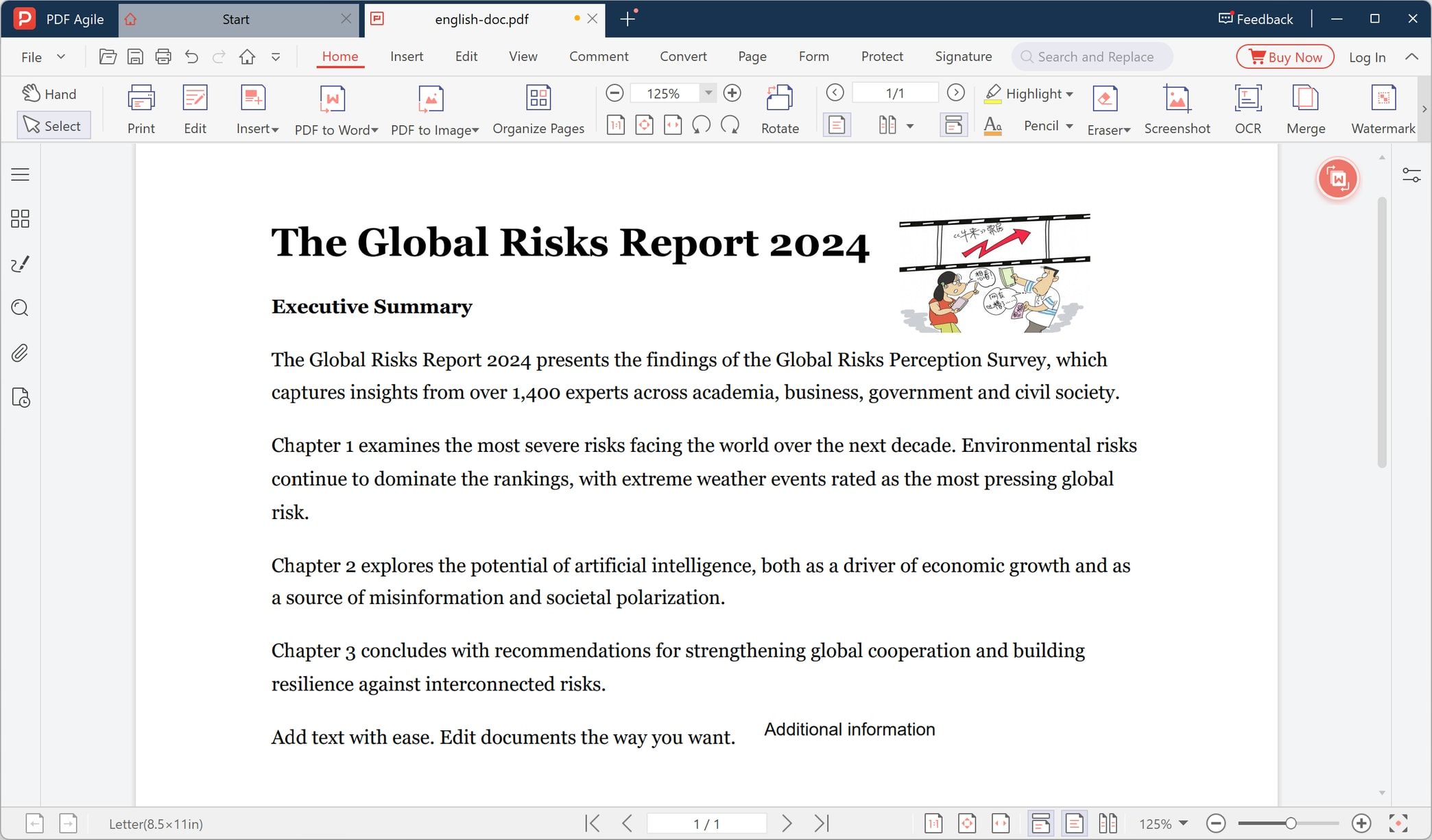
Step 4: Read the Page With the Picture On It
Take the selection off the picture and read the page the way a stranger would. The picture should sit inside the margins, should not bury a line of text, and should not have pushed anything onto a second page.
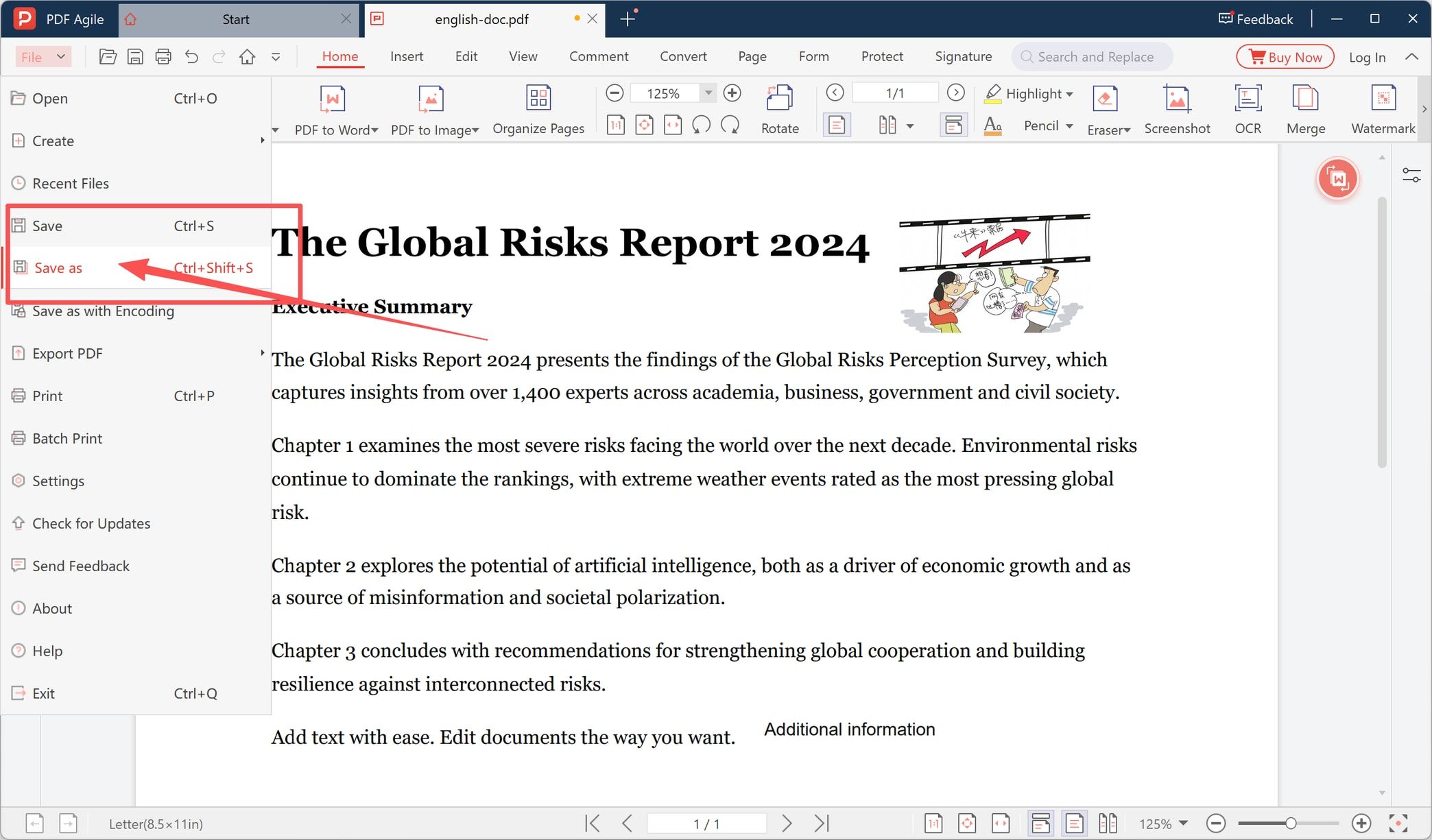
Step 5: Save the PDF Under a New Name
Open File and choose Save as (Ctrl+Shift+S). Plain Save (Ctrl+S) writes over the file you opened, which is correct when you meant to edit the original and a problem when you did not. The same menu holds Export PDF, Print, and Batch Print.
Need more than one picture? Repeat steps 2 and 3 for each of them; every picture is placed on whichever page is open at the time.
Route 2: Turn a Folder of Pictures Into PDF Pages
When there is no document to begin with, you want one page per picture and nothing else.
- Put the files in one folder and rename them so the order is obvious: 01-cover.jpg, 02-page.jpg, 03-page.jpg.
- Open the Image to PDF (or JPG to PDF) tool and add the whole folder in one go.
- Choose one picture per page if a layout option appears, and decide whether pages follow each picture's own size or a fixed paper size.
- Convert, then open the result and check the first page and the last page before you send it.
Renaming matters more than it sounds. Most tools sort by filename, so IMG_2043.jpg and IMG_1012.jpg will scatter the pages in an order you did not plan.
Route 3: Windows — Use Microsoft Print to PDF
Windows 10 and 11 both ship a virtual printer called Microsoft Print to PDF, which turns any print job into a file.
- Select the pictures in File Explorer.
- Right-click the selection and choose Print. Windows opens its Print Pictures window.
- In the printer list, choose Microsoft Print to PDF.
- Pick a layout. *Full page photo* puts one picture on each page.
- Click Print, then name the file and choose where it goes.
Two limits are worth knowing first. The order follows the files as Windows picked them up, so rename before you start if the sequence matters. And the window controls paper size and margins rather than the way a picture is fitted, so a photo whose shape does not match the paper will end up with white edges.
Route 4: Mac — Build the PDF in Preview
- In Finder, select the pictures and open them with Preview. They arrive in a single window with a thumbnail sidebar.
- Choose View › Thumbnails if the sidebar is hidden, then drag the thumbnails into the order you want.
- Choose File › Print, then pick Save as PDF from the PDF menu at the bottom of the print sheet.
- For a single picture, File › Export as PDF is quicker and skips the print sheet entirely.
Preview keeps the pages in the order you dragged them, which makes it the fastest built-in way to fix a sequence before anything is converted.
Route 5: iPhone and Android — Share, Print, Save
On iPhone and iPad, the printing dialog doubles as a PDF maker.
- Open Photos, tap Select, and choose the pictures in the order you want them.
- Tap Share, then Print.
- On the print preview, pinch outward on the thumbnail. It expands into a full-page PDF preview.
- Tap Share in that preview, choose Save to Files, and pick a folder.
Android has no single built-in command for this. Most phones expose the system print service instead: open the picture, choose Share or the menu, tap Print, and select Save as PDF as the printer. Menu names differ by manufacturer, so look for Print rather than a PDF button.
Why the Finished PDF Looks Wrong
Almost every complaint traces back to one of five causes.
- Blank pages. A landscape picture forced onto a portrait page can spill onto a second, nearly empty page. Set the page size per picture, or rotate the page.
- Sideways pictures. Phones store orientation in a metadata tag, and some tools ignore it. If a photo arrives rotated, rotate the page afterwards rather than shooting it again.
- White bands at the edges. The picture's shape does not match the paper's shape. Fitting it to the page either crops the photo or leaves margins, so pick which one you want before converting.
- Blurry pages. The picture was re-compressed on the way in, or it was never sharp enough for print. Converting an already-converted PDF again loses more detail each time.
- Wrong order. The tool sorted by filename, or by the order Windows and Finder handed the files over. Numeric prefixes fix both.
A Picture-Only PDF Is Not an Editable PDF
Placing pictures into a PDF is not the same as making a PDF you can work with.
The pictures keep their pixels. Words that appear inside a photo — a scanned invoice, a whiteboard shot, one page of a contract — stay part of the image, so they cannot be selected, searched, or read by a screen reader. OCR is the fix, and the result will still need proofreading.
The same rule matters for sensitive material. Drawing a white rectangle over a name on a photographed ID hides it on screen only; the pixels underneath are still in the file and can be extracted. Real removal needs redaction, or a replacement picture that never contained that content.
Check Eight Things Before You Send the File
- One picture per page, or the layout you actually wanted.
- Page order matches the story rather than the filename.
- No blank or half-empty pages.
- Landscape pictures are either on landscape pages or fully visible.
- Nothing is sideways.
- No faces, signatures, or page edges are cropped.
- Small text is legible at normal zoom.
- The file fits the mailbox or upload form you are sending it to, and the original pictures are still on your drive.
FAQ About Making a PDF With Pictures
Can I combine several pictures into one PDF?
Yes. A converter takes the whole selection and writes a single file with one page per picture. In the built-in routes, Windows and Preview both keep every selected picture in the same print job.
Does each picture become a separate page?
Only if the tool is set that way. Batch converters default to one page per picture, while the Windows Print Pictures layouts such as wallet size or contact sheet put several photos on one sheet.
How do I change the order of the pictures?
Rename the files with numeric prefixes before converting, or drag the thumbnails into order in Preview's sidebar. Some converter windows also let you drag the list itself; if yours does not, renaming is the reliable way.
Why are my pictures blurry in the PDF?
Either the source picture was low resolution or the converter re-compressed it. Zoom in on the original before converting, keep the highest-quality copy, and avoid running an already converted PDF through the process again.
Can I make the text inside the pictures searchable?
Not by converting. Run OCR on the finished PDF, which adds a text layer over the images without changing how the pages look. Expect to correct a few characters afterwards.
Is it safe to upload pictures to an online converter?
Read the retention policy before you upload. Private photos, IDs, contracts, and financial or medical paperwork are better handled in a desktop tool that works on local files, so nothing leaves your computer.
Ready to put a picture in its place? Download PDF Agile for Windows when you need the picture placed, sized, and saved without uploading the document anywhere.