If you cannot type on a PDF, the problem is usually not your keyboard. The file may be a fillable form, a flat form with no fields, a scanned image, a protected document, or a PDF opened in a viewer that only supports reading. Each case needs a different fix.
The fastest approach is to identify the file first, then choose the matching method. You may need to click a form field, add a text box, run OCR, enter a password, or download the file from a browser. This guide also explains what changes in the final PDF and how to check the result before you send it.
First, Identify Why the PDF Will Not Accept Typing
Use this quick diagnosis before trying random tools:
| What you see | Likely reason | First fix | |---|---|---| | A field highlights when you click it | Fillable PDF form | Click inside the field and type | | The page looks like a form but nothing highlights | Flat PDF form | Add a text box over the blank area | | No existing words can be selected | Scanned PDF | Run OCR before editing the text layer | | Editing tools are greyed out | Password or permission protection | Enter the required password or ask the owner | | The file opened in a browser tab | Browser viewer limitation | Download it and use a PDF editor | | A signature warning appears | Digitally signed PDF | Keep the original and edit before signing again |
A PDF does not behave exactly like a Word document. Its layout is fixed, so typing new text normally places a text box on the page instead of pushing the surrounding paragraphs down.
How to Fix a PDF That Won’t Accept Typing
Step 1: Use Add Text When the PDF Has No Fillable Fields
A flat form can look editable even when it contains no actual form fields. If clicking a blank line does nothing, use a text tool instead of waiting for a cursor to appear.
Step 1: Open the Edit Tools
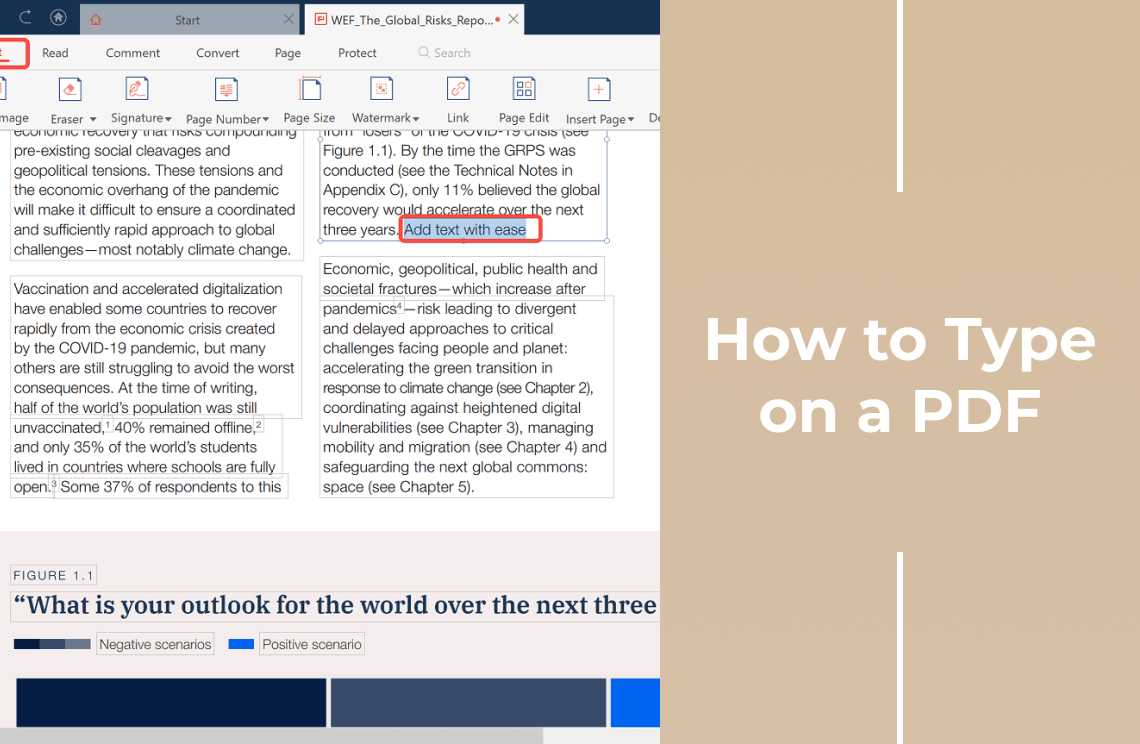
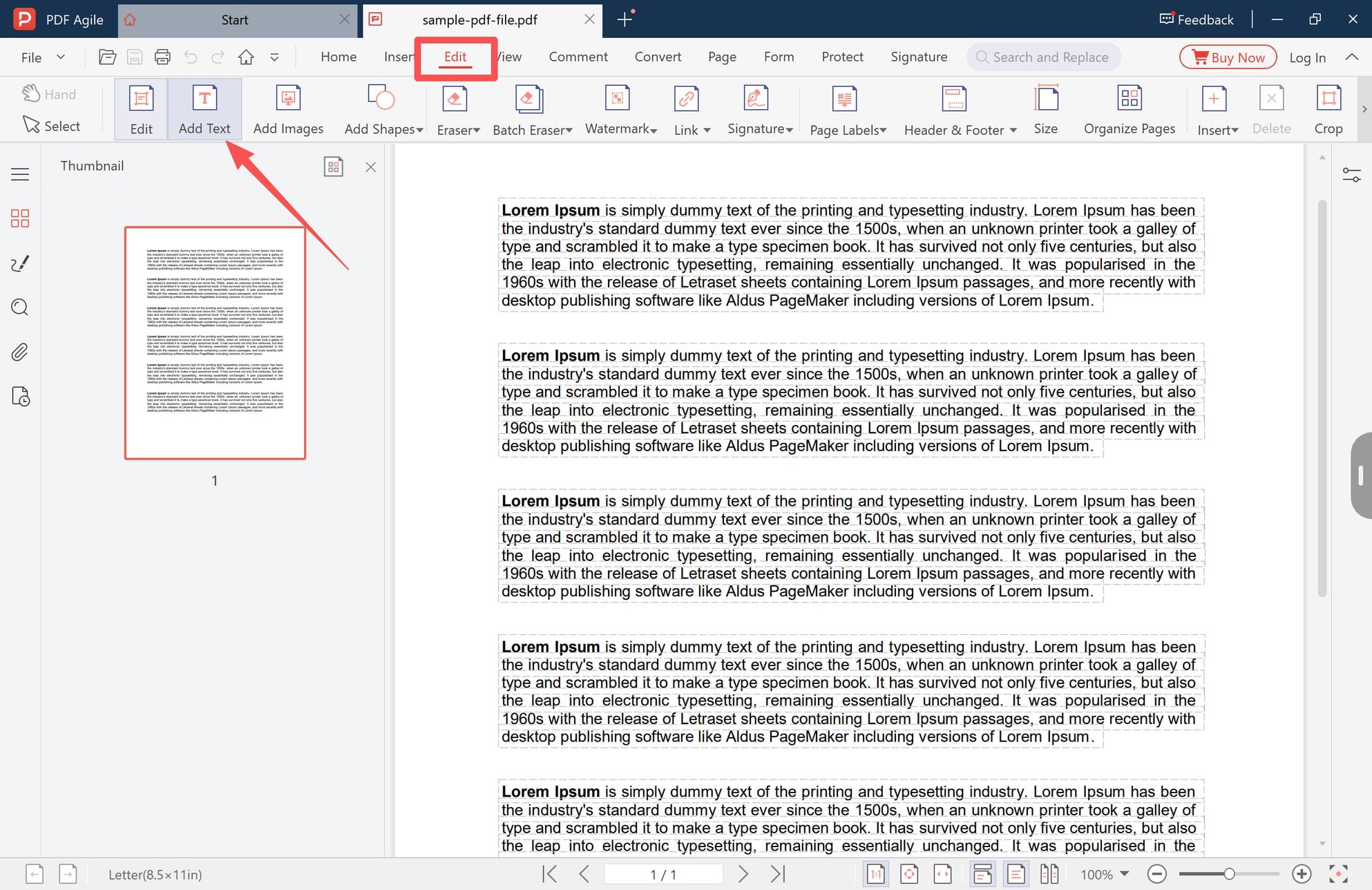
Open the PDF in a desktop editor and select the Edit tab. Look for Add Text, not only the general Edit command.
Step 2: Place a Text Box
Choose Add Text, click on the blank line or empty area, and type your answer. Resize the box if necessary, then match the surrounding font, size, and color.
This method adds new content on top of the page. It does not turn the PDF into a reusable form, and it does not automatically reflow the rest of the layout.
Step 2: Edit Existing Text Instead of Adding New Text
There are two different jobs that are often described as “typing on a PDF”:
- Add new text: place a new text box on an empty area.
- Edit existing text: select words already stored in the PDF and replace them.
If the original words can be selected, click the text itself and type over it. If they cannot be selected, the page may be a scan, flattened artwork, or protected content.
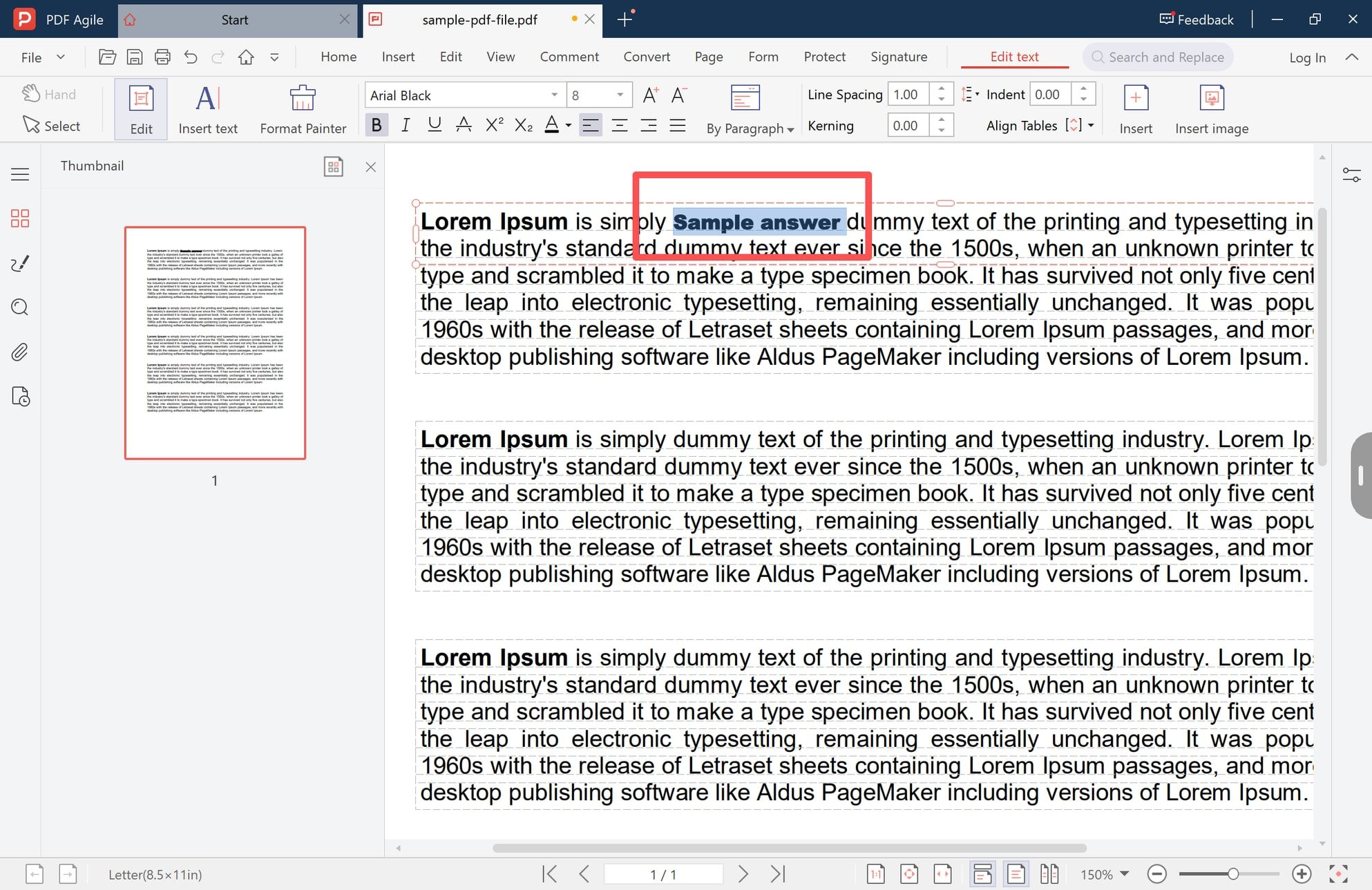
Editing existing text can affect spacing, line breaks, and alignment. Check the whole paragraph after making a change, especially when replacing a long phrase with shorter or longer text.
Step 3: Run OCR on a Scanned PDF
A scanned PDF is usually an image of a page. You can place new text over it, but you cannot edit the printed words until the document has a text layer.
Look for these signs:
- You cannot select individual words;
- search finds nothing on the page;
- the page becomes blurry when zoomed in;
- the document came from a scanner, camera, or image export.
Run OCR first, then proofread the result. OCR may misread names, numbers, columns, stamps, or handwriting. For a form or contract, compare every important field with the original scan before sharing the edited copy.
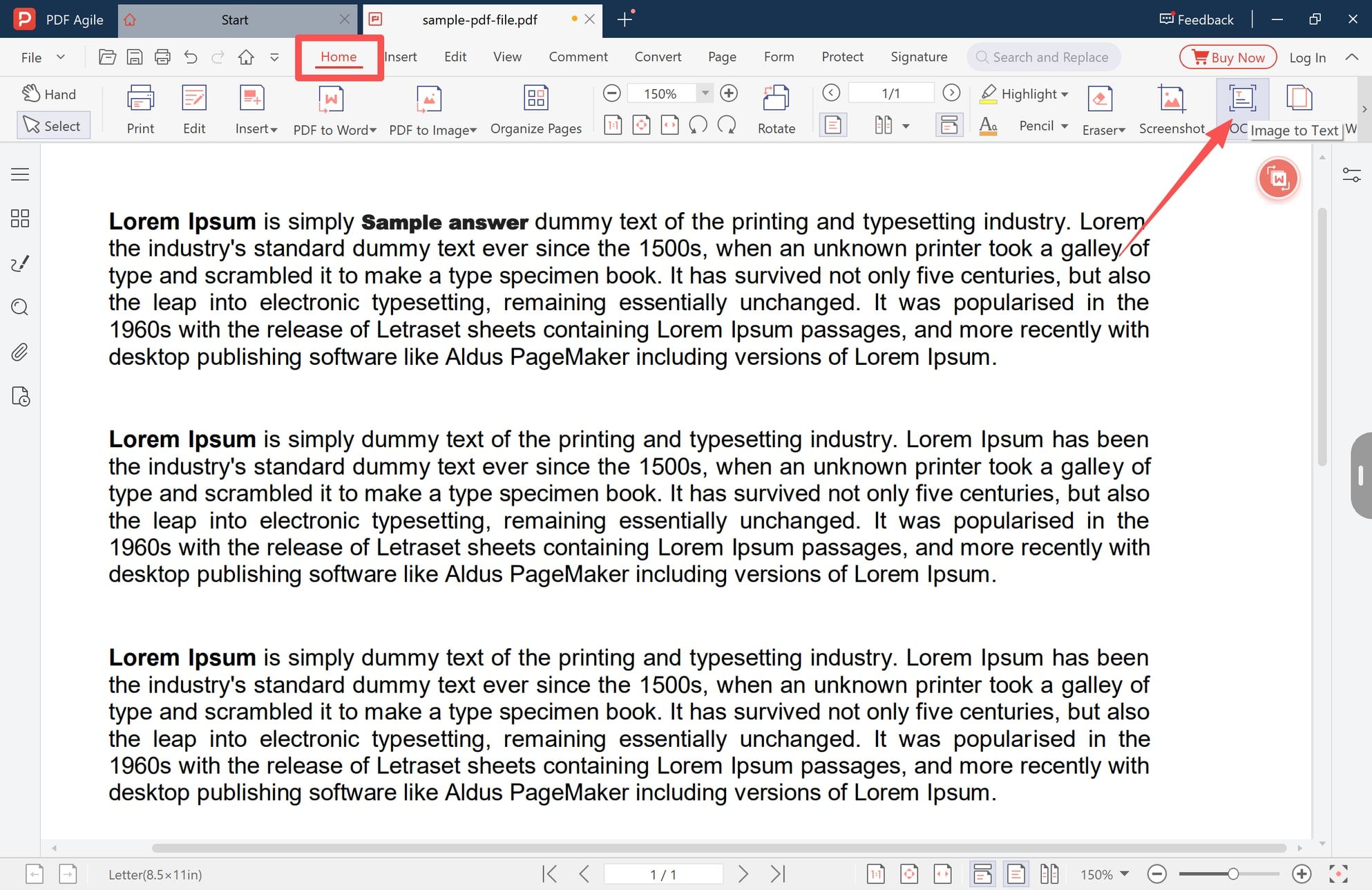
The screenshot shows the OCR entry point used to recognize image-based text. After recognition, you can try selecting and editing the resulting text. If you only need to type an answer on top of the scan, you may not need to convert every word; adding a text box can be safer and faster.
Step 4: Check Whether the PDF Is Password-Protected
Some PDFs require an open password before anyone can view the contents. Others open normally but use a permissions password to restrict editing, copying, or annotations.
When an open password is required, enter it only if you received permission to use the file. Do not try to bypass a password on a document you do not own.
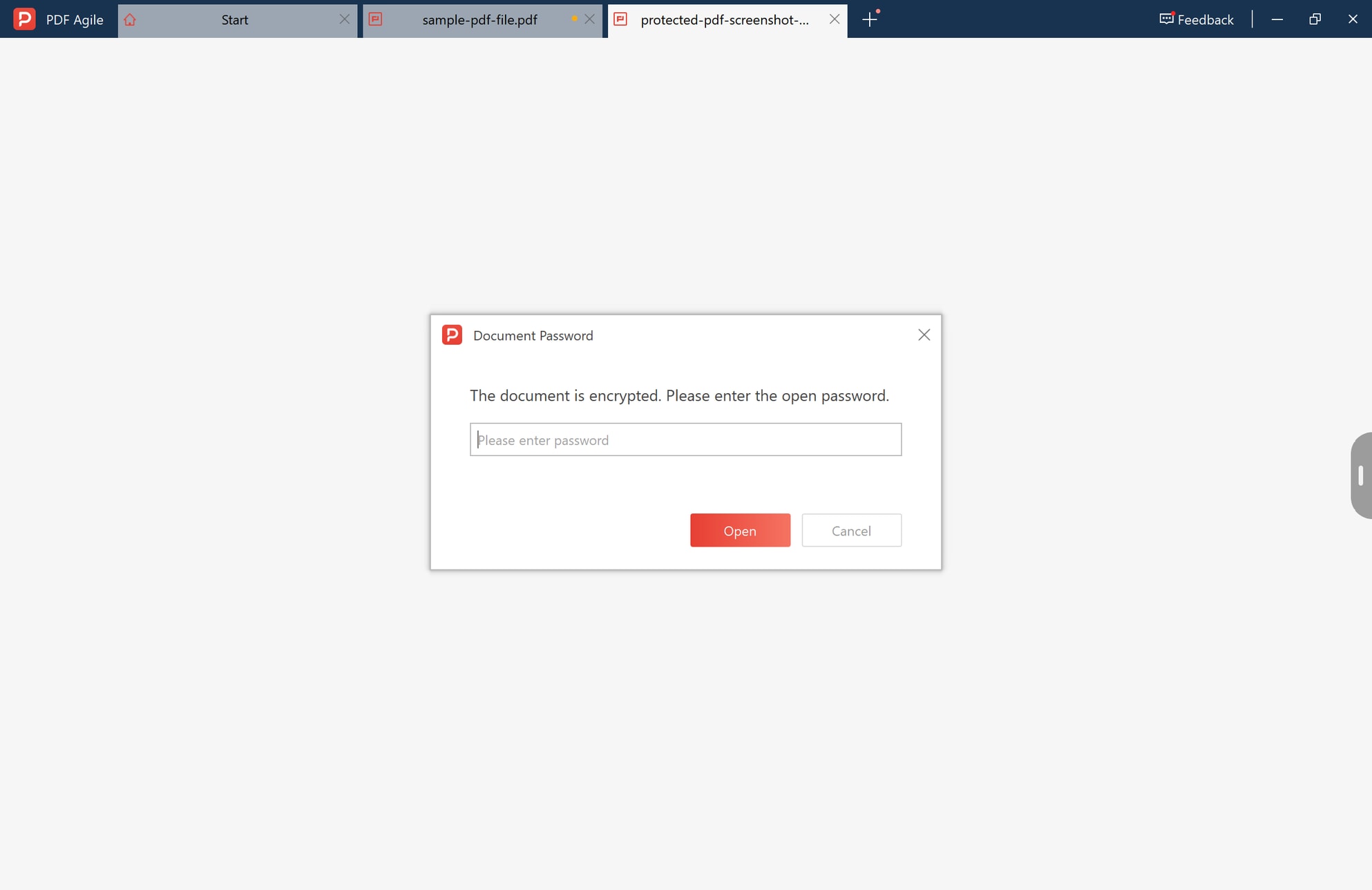
A permissions restriction can appear after the file opens. The editor may show a message asking for a permissions password before it allows editing or copying.
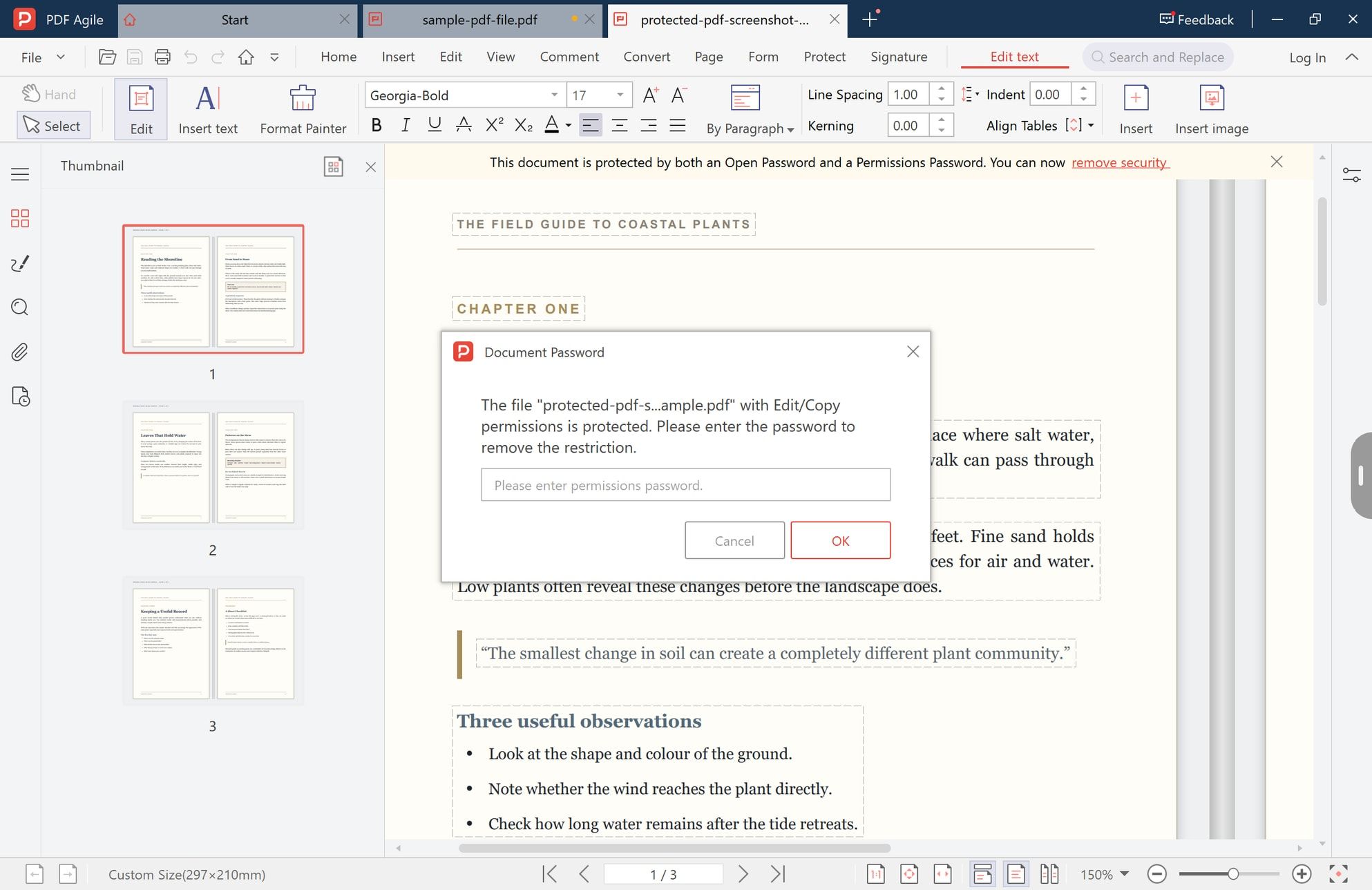
If you have the correct permission, enter the password and then test the edit again. If you do not have it, ask the document owner for an editable copy or for permission to make the required change.
Step 5: Download the PDF When a Browser Only Lets You Read It
A PDF opened in Chrome, Edge, or another browser may allow viewing, searching, and downloading without providing full editing controls. Download the file first, then open the local copy in a desktop PDF editor.
This also makes it easier to preserve the original file. Work on a copy, save the edited version under a new name, and keep the untouched source until you have checked the result.
Step 6: Check for a Digital Signature Before Editing
A visible signature image is not the same as a certificate-based digital signature. Editing a digitally signed PDF can invalidate the signature because the file no longer matches the version that was signed.
If the signature must remain verifiable:
- Keep the original signed PDF unchanged;
1. Keep the original signed PDF unchanged;
- make any required text changes in an unsigned working copy;
2. make any required text changes in an unsigned working copy;
- check the final layout and content;
3. check the final layout and content;
- apply a new signature to the completed version.
4. apply a new signature to the completed version.
Do not treat a PDF that still displays a signature image as proof that its digital signature remains valid.
Step 7: Save a Copy and Check the Layout
After you can type, use Save As rather than overwriting the source file. Then reopen the new PDF and check:
- Is the new text in the intended position?
- Does the font match the surrounding content?
- Did any text box cover existing words?
- Are long lines clipped or outside the page boundary?
- Can the recipient open the file in their PDF reader?
- If OCR was used, are names, dates, numbers, and tables accurate?
A PDF keeps its fixed layout, so a change that looks correct while editing can still need adjustment at 100% zoom or after printing.
Which Fix Should You Use?
Use a fillable field when the document already has interactive form controls. Use Add Text for a flat form or a short answer on a blank area. Use OCR when you need to edit the original words in a scan. Use a password only when you are authorized to open or modify the file.
For local editing, PDF Agile provides the Edit, Add Text, and OCR controls shown above in a desktop workflow. It is useful when you need to work on a local copy rather than upload a confidential document to an online editor. For a broader overview of PDF editing choices, see how to edit a PDF.
FAQ
Why can I type on some PDFs but not others?
Some PDFs contain interactive fields or selectable text, while others are flat pages, scans, or protected documents. The file type determines which method will work.
Can I type on a scanned PDF?
Yes. You can add a text box over the scan immediately. To edit the printed words themselves, run OCR first and proofread the recognized text.
Why is the Edit button greyed out?
The PDF may have editing permissions disabled, require a password, be digitally signed, or be opened in a viewer that does not support editing. Check the file in a desktop editor and confirm that you have permission to modify it.
Will typing on a PDF change the original file?
Not if you use Save As and work on a copy. Keep the original file unchanged until you have checked the edited version.
Can I edit a digitally signed PDF?
You may be able to make changes, but the change can invalidate the certificate-based signature. Preserve the signed original and sign the final version again if verification matters.
Is it safer to type on a PDF online or offline?
For confidential contracts, identity documents, medical records, or financial files, local editing avoids uploading the document to a third-party server. Whichever method you use, check the provider's current data-handling terms.
When a PDF will not let you type, diagnose the file before choosing a tool. Once you know whether it is a form, flat page, scan, protected document, browser preview, or signed file, the right fix is usually straightforward.