Yes, you can turn a PDF into an editable Word file on a Mac without sending it to a converter website. Two routes do the work locally: Microsoft Word itself can open a PDF and rebuild it as an editable document, and a desktop PDF converter covers what Word cannot — scans, long files, and batches — while saving the .docx back to your own drive.
What neither route gives you is the original layout. A PDF stores characters at fixed positions on a page; a .docx stores paragraphs, styles, and text that reflows. The conversion is a reconstruction, so the useful part of this guide is not the click sequence. It is knowing which route fits your file, what will move when the file comes back, and how to check the result before you send it to anyone.
This guide covers macOS only, and it takes the "no upload" part seriously rather than as a slogan. It is not a comparison of online converters; if your file is not sensitive and you simply want the fastest route, the wider overview of how to change a PDF to Word on Mac covers the browser options too.
The Two Local Routes, and What Each One Costs
| Route | Best for | What it will not do | |---|---|---| | Microsoft Word for Mac | Text-based PDFs you want to edit as normal paragraphs | Read a scan, rebuild complex multi-column layouts | | A desktop PDF converter | Scans with OCR, long documents, batches, output settings | Keep the exact original layout, or fix OCR mistakes for you | | Preview and Pages | Nothing reliably, for this task — see below | Preview has no Word export; Pages does not rebuild paragraphs |
The choice comes down to one question you can answer in ten seconds: does the PDF contain selectable text, or is it a picture of a page? Text PDFs go to Word. Image-only PDFs need OCR, and OCR lives in a converter, not in Word.
"Without Uploading" Is Not the Same as "Offline"
A browser converter has to receive the file before it can convert it. An installed app opens the document from your disk and saves the result to your disk, so there is no upload step inside the workflow. That is the difference the phrase is really about.
It is not the whole story, because a Mac moves files around quietly:
- iCloud Drive. With Desktop & Documents syncing on, anything saved to the Desktop or the Documents folder is copied to iCloud. Converting and saving locally still ends with the file in the cloud.
- Word's AutoSave. A document opened from OneDrive or SharePoint saves continuously to the server while you edit it.
- Cloud folders. OneDrive, Dropbox, and Google Drive folders sync whatever lands in them, including the new .docx.
Check where the folder lives before you start: the path in the Finder title bar, or Finder > File > Get Info. Move the file to a plain local folder first.
The other half of the phrase is worth separating out too: "no upload" does not promise "works with Wi-Fi switched off". Licence activation, update checks, and optional cloud features can all want a connection. If the machine must stay disconnected, test the full workflow with the network off before you rely on it.
Do You Need a Word File at All?
Converting is the right move when you have to rewrite paragraphs, reuse the text in a report, apply styles, or hand a colleague something with tracked changes. It is the wrong move for a typo, a missing signature, one wrong number, or a field on a form. Those are edits, and they belong on the PDF itself, as described in how to edit a PDF. A conversion costs you the layout and gives you a document that no longer looks like the file anyone approved.
Why the Converted File Never Matches the Original
A PDF is a page description: each glyph sits at a coordinate, and the file has no idea that a sentence is a sentence. Word works in flow: paragraphs, styles, section breaks, and text that re-wraps when the margin changes. Conversion measures the glyphs and guesses the structure back.
That guess is where the damage happens, and it is predictable:
- Columns. Two-column text often returns as one column, or as alternating lines from both columns.
- Tables. Simple grids survive; merged cells, nested tables, and borderless layouts usually do not.
- Headers and footers. They may turn into body text on page one, repeat on every page, or vanish.
- Footnotes. The marker can stay in the text while the note itself is dumped at the end as an ordinary paragraph.
- Fonts. A font that is not installed, or not licensed for embedding, gets substituted, and line lengths change with it.
- Text boxes and shapes. They float to the wrong place, because a floating box has no equivalent in a flowing document.
- Hyphenation and ligatures. End-of-line hyphens can survive as real hyphens, so "informa-tion" stays broken when the line re-wraps.
- Form fields and links. Fields usually flatten to static text; internal links and bookmarks are often lost.
None of this means the conversion failed. A 20-page report with two-column layout is simply a much harder job than a five-page letter, and the effort you spend checking should match.
Route 1: Convert with Microsoft Word for Mac
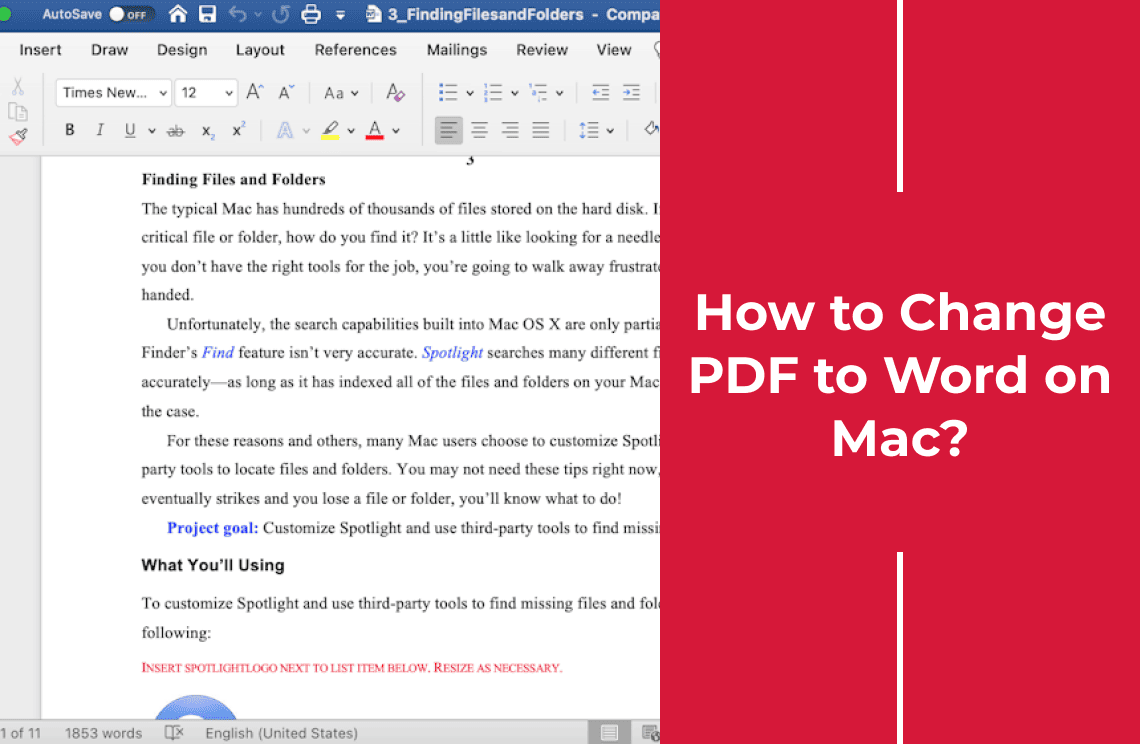
Word for Mac has been able to open PDFs directly since Word 2016, and on a Mac that already has Office installed it is the shortest local route. Nothing is uploaded; the file is read from your disk.
Step 1: Open the PDF from inside Word
Launch Word first, then choose File > Open and select the PDF. Do not double-click the PDF in the Finder: macOS hands that to Preview, which cannot produce a Word file.
Step 2: Confirm the conversion
Word shows a dialog explaining that it will convert the PDF to an editable Word document. Accept it and wait. A long file takes a while, and Word may warn that the result will not look exactly like the original — that warning is accurate rather than cautious.
Step 3: Save as a new .docx and leave the PDF alone
Choose File > Save As, set the format to Word Document (.docx), and give the new file its own name. Saving over the original PDF is how people lose the only faithful copy of a document they had.
When Word Is the Wrong Tool
Word's import is a text reconstruction, not an OCR engine, so a scanned PDF arrives with nothing selectable. It also struggles with magazine-style multi-column pages, documents built from slides, and pages where the arrangement carries meaning. Protected PDFs open only with the password, and some permissions block export altogether.
Route 2: A Desktop Converter for Scans, Long Files, and Batches
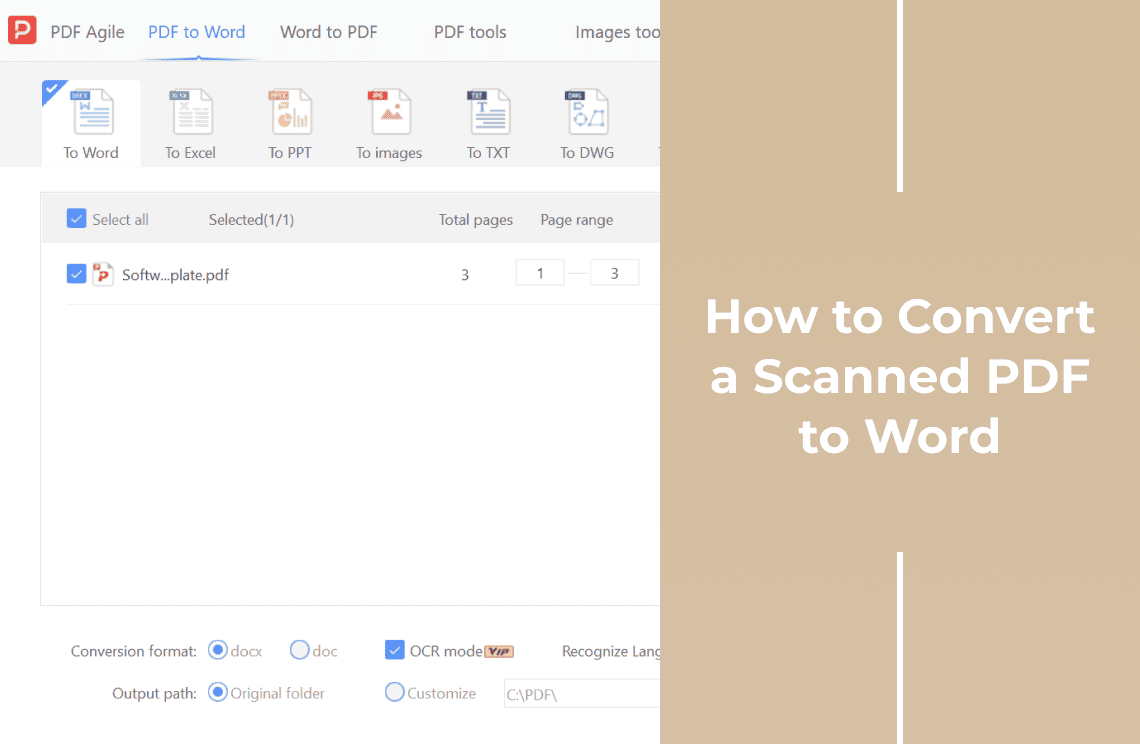
When the file is a scan, or when twenty documents need the same conversion, a desktop converter is the practical answer. PDF Agile for Mac is one: the vendor lists macOS 10.15 (Catalina) or later, with a universal build for Apple Silicon and Intel, and it includes OCR for scanned pages.
The vendor documents the desktop flow in three moves: open the PDF in the program, go to the Convert tab and choose Word as the output format, then start the conversion and save the result to your local device. Because it is installed software working on files on your own drive, the document is not sent to a server to be converted. We have not run the macOS build on this machine, so treat the exact wording of the Convert tab as the one thing to confirm on screen.
Step 1: Decide whether the PDF needs OCR
Open the PDF, press Command-F, and search for a word you can see on the page. If the search finds it, there is a text layer and you can convert straight away. If nothing is found, or you cannot select a sentence, the page is an image and OCR is required.
Step 2: Open the file and set Word as the output
Add the PDF, then choose Word (.docx) as the output format. If the converter offers a layout option, such as preserving the page layout or prioritising flowing text, pick flowing text for a document you intend to edit.
Step 3: Run OCR only for the pages that need it
OCR is slow and it introduces errors, so do not run it over a file that already has text. If the PDF mixes text pages and scanned inserts, recognise the scans and convert the rest normally.
Step 4: Save next to the original and proofread
Save the .docx in the same folder as the PDF so the pairing is obvious, then read the first page and the last page in full. OCR errors concentrate in numbers, small print, tables, and handwriting, and a wrong digit is far more damaging than a wrong word.
Route 3: Preview and Pages — What They Do Not Do
Plenty of advice online suggests exporting the PDF from Preview, opening it in Pages, and exporting Word from there. It is worth knowing what that chain actually produces.
- Preview has no Word export. Its File > Export offers PDF, JPEG, PNG, and TIFF, because Preview is a viewer with annotation tools. Select All and copy gives you the words, pasted with the layout gone.
- Pages brings PDF content in as placed material. A PDF opened or dropped into Pages arrives as fixed page content rather than paragraphs to reflow, so heading styles, columns, and footnotes do not come back as structure. The exported .docx can look close to the original and still be uneditable in the way you need.
- The ten-second test. Open the PDF in Pages, click into the body text, and retype a sentence. If the text re-wraps like a document, the import worked for that file. If you are moving boxes around, it did not.
For retyping a one-page letter, the Pages route is fine. For anything you intend to reuse, it is a detour.
If the PDF Is a Scan, No Converter Can Invent the Text
When a page is a photograph there are no characters to extract, only pixels. Word cannot help, and a converter without OCR returns a .docx containing an image — which looks like a failure but is the correct result of the wrong job. OCR is the only fix, and it is an interpretation rather than a copy. Expect mistakes wherever the original was hard to read: small print, light scans, stamps over text, tables, and handwriting. The full route is covered in how to convert a scanned PDF to Word.
Check the .docx Before You Send It
Work through these in order; the first two catch most failures.
- Click into the first paragraph and retype a few words. If the text reflows and pushes the rest of the paragraph down, you have a real document.
1. Click into the first paragraph and retype a few words. If the text reflows and pushes the rest of the paragraph down, you have a real document.
- Compare the page count with the PDF. A missing page is usually a conversion failure, not a formatting quirk.
2. Compare the page count with the PDF. A missing page is usually a conversion failure, not a formatting quirk.
- Read a two-column section from top to bottom. If sentences jump between columns, the structure was misread.
3. Read a two-column section from top to bottom. If sentences jump between columns, the structure was misread.
- Check every table with merged cells, and any table that had no visible borders.
4. Check every table with merged cells, and any table that had no visible borders.
- Look at the header and footer on page two, not page one.
5. Look at the header and footer on page two, not page one.
- Check footnotes, endnotes, and figure captions against the original.
6. Check footnotes, endnotes, and figure captions against the original.
- Search for a double hyphen or a stray mid-word hyphen left over from line-end hyphenation.
7. Search for a double hyphen or a stray mid-word hyphen left over from line-end hyphenation.
- Open the file where the original fonts are missing, or read the font list for substitutions the converter already made.
8. Open the file where the original fonts are missing, or read the font list for substitutions the converter already made.
Do this before you edit, not after. Editing a broken import doubles the work and hides the original problem.
When Uploading Is the Better Call
There are honest reasons to use a browser converter: no installation, no admin rights on a locked-down work Mac, a colleague's Windows laptop with none of your tools. The online PDF to Word converter is one option in that category — choose the file, wait for the conversion, download the .docx. The vendor states that files are deleted from its server within 24 hours and that transfers use 256-bit SSL.
That is a reasonable arrangement for a brochure, a public report, or a form you downloaded yourself. It is the wrong arrangement for identity documents, signed contracts, medical letters, payroll data, client material under NDA, or your own unpublished work. The rule is about the document, not the tool: if a leak would cost you something, keep the file on the Mac.
FAQ
Can I convert a PDF to Word on a Mac without uploading it?
Yes. Word for Mac can open a PDF and rebuild it as an editable document, and a desktop converter does the same job with OCR and batch support. Neither needs the file to leave the machine.
Does Word for Mac open PDF files?
Word 2016 and later can. Choose File > Open, select the PDF, and accept the conversion prompt. Older versions cannot, and the import does not perform OCR, so scans come back empty.
Why does Preview not offer Word as an export format?
Preview is a viewer and annotation tool, and its export formats are image and PDF only. Any guide promising a .docx from Preview is describing a different app.
Why is my converted Word file a mess?
Because the conversion rebuilt the document from positioned glyphs. Multi-column pages, floating text boxes, merged table cells, and custom fonts are the usual casualties, and the fix is manual re-layout rather than a second conversion.
Can I convert a scanned PDF to Word locally?
Only with OCR. A scanned page has no text layer to extract, so the converter has to recognise the characters, and the result needs proofreading — especially numbers, tables, and handwriting.
Does "no upload" mean it works without internet?
Not automatically. Installed software removes the upload step, but licence activation, updates, and optional cloud features can still need a connection. Test with the network off if that matters.
Final Thoughts
The file never needs to leave your Mac, and the conversion is the easy half. The hard half is accepting that the .docx is a new document: it will not match the approved PDF, and the parts most likely to break are the ones people care about — tables, columns, footnotes, signatures.
Convert a copy, keep the PDF untouched, and run the eight checks before anyone else sees the result. More Mac walkthroughs are in the how-to and tips section. If you would rather keep the whole job on the machine, including the scans Word cannot read, PDF Agile for Mac handles the conversion and the OCR locally.