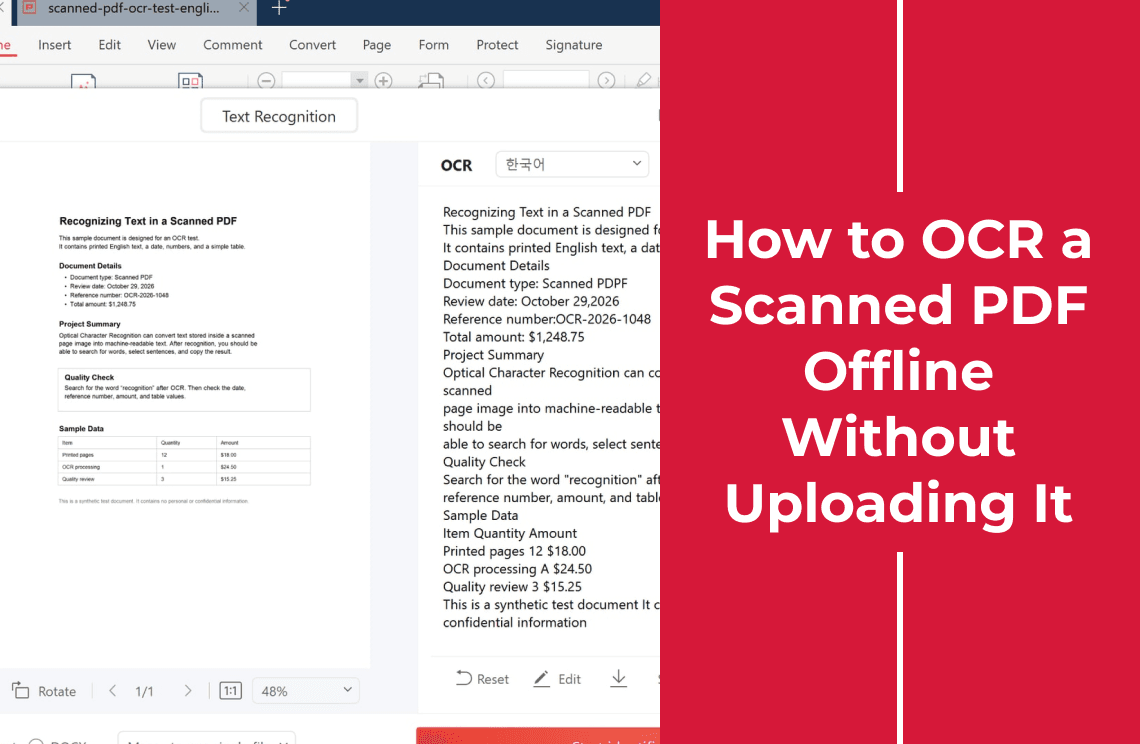
A scanned PDF contains no words. Each page is a photograph of a page, so clicking a sentence puts no cursor between the letters, search finds nothing, and dragging across a paragraph gives you a blue rectangle of pixels. Text recognition, usually called OCR, is the step that reads those pixels and writes characters you can select.
That step can run on the machine in front of you. A desktop app opens the file from your own drive, recognizes the page, and hands back the text, so the document never goes to a converter website. What the tool gives back matters more than the click path: some outputs leave the PDF untouched and give you text in a side panel or a TXT or DOCX file, while others write an invisible text layer into the PDF so the file itself becomes searchable. Decide which of the two you need before you start.
Two Jobs That Both Get Called "Recognizing the Text"
- Text out. You want the words themselves, to quote in an email, paste into a report, translate, or count. The output is TXT, DOCX, or the clipboard, and the original PDF stays as it was.
- A searchable PDF back. You want a file that still looks like the scan but now answers to Ctrl+F, so it can be filed or handed on. The page image stays and a text layer goes underneath it.
- An editable document. You want paragraphs and tables you can restyle. That is conversion rather than recognition, and the layout will shift on the way, as the guide to editing a PDF explains.
The walkthrough below covers the first job, because that is what people usually mean when they are holding a scan and a deadline. If the page needs your own words added on top of it rather than pulled out of it, that is a different task: adding text to a scanned PDF.
Ten Seconds to Confirm the Page Is Really a Scan
Before installing anything, prove the text is missing.
- Drag across a line of body text instead of clicking it.
- If the words highlight and copy, the file already has a text layer and needs no recognition. The test for whether a PDF has selectable text also covers the mixed case, where a digital cover sits in front of scanned attachments.
- If a rectangle of pixels appears, or nothing at all, the page is an image and everything below applies.
What "Without Uploading" Really Rules Out
A converter website has to receive the file before it can recognize anything. That is not automatically unsafe, but it is a different arrangement from software that reads the file where it sits.
- Browser converter: the PDF travels to a server, is processed there, and is deleted on that company's schedule rather than yours. Fine for a public brochure, poor for a signed lease, a medical letter, or anything under an NDA.
- Installed desktop app: the page is read on your machine and the text lands in a window you can copy from. This is why an offline tool still earns its place for confidential paper.
- A desktop suite you already license: the same structural advantage, usually with more setup. Working offline is not unique to any one vendor, so choose on the starting point and on the output you get, not on the word "offline".
- Retyping the page by hand: no tool, no risk, and the only method that is always accurate. It is the right answer for one line, and it stops being practical at about a page.
How to Recognize the Text on Windows, Step by Step
The screens below come from a desktop PDF application on Windows working on a file stored in a local folder. Nothing in this flow asks you to upload anything.
Step 1: Open the Scanned PDF
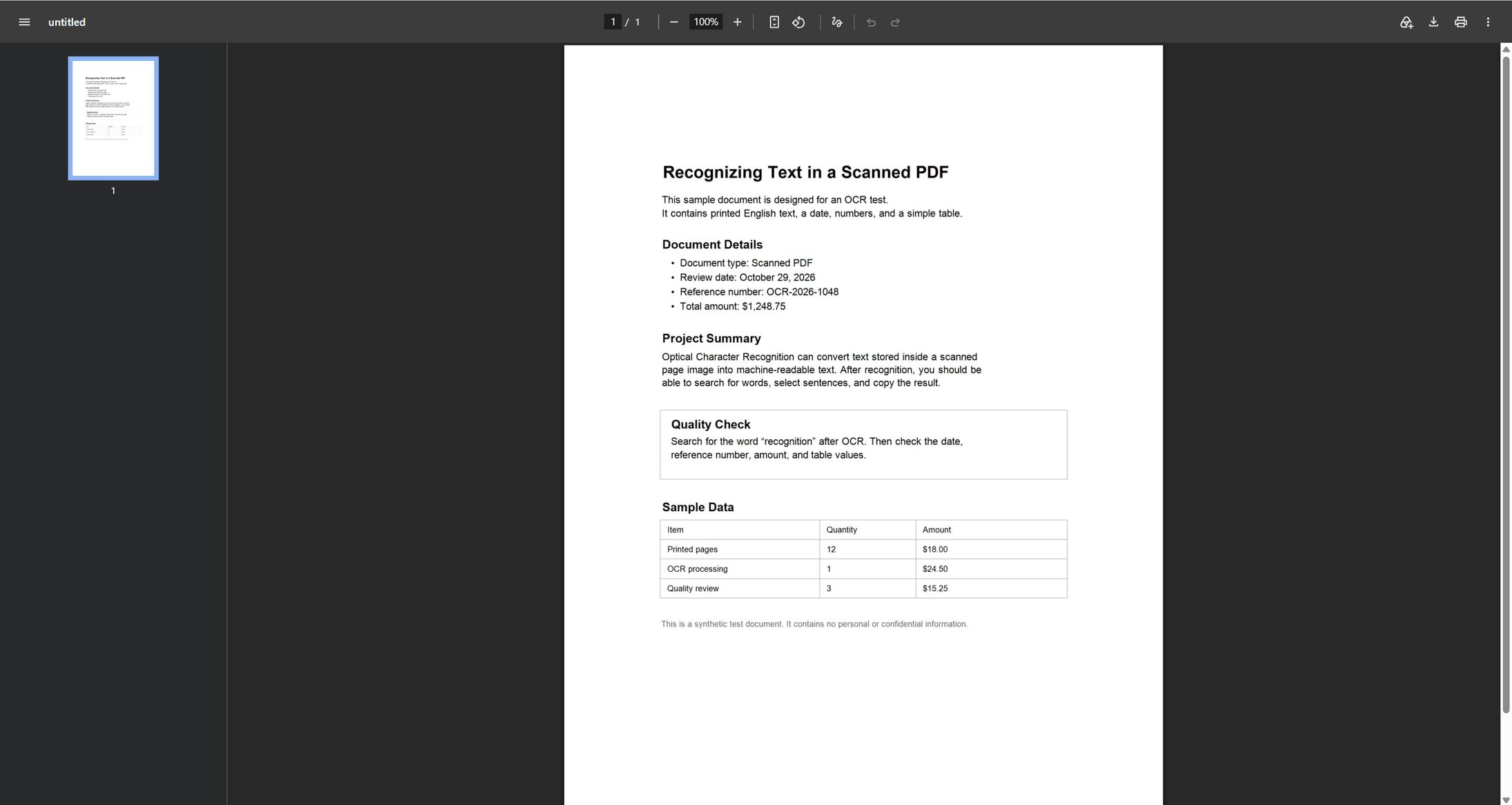
Open the file you want to read. If the pages arrived as separate scan files, put them in one folder first so you are not reopening the same window for every page.
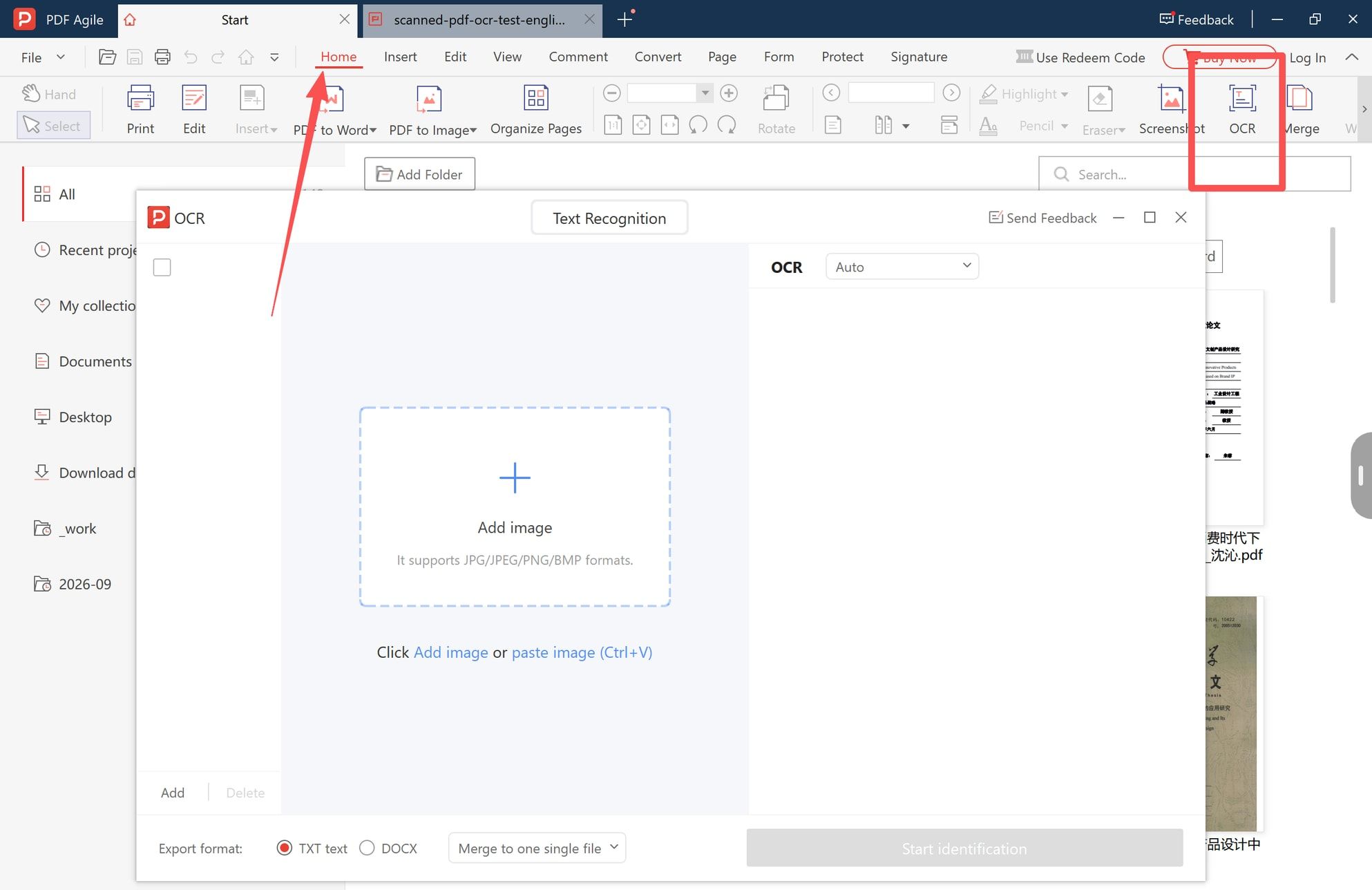
Step 2: Open the OCR Window from the Home Tab
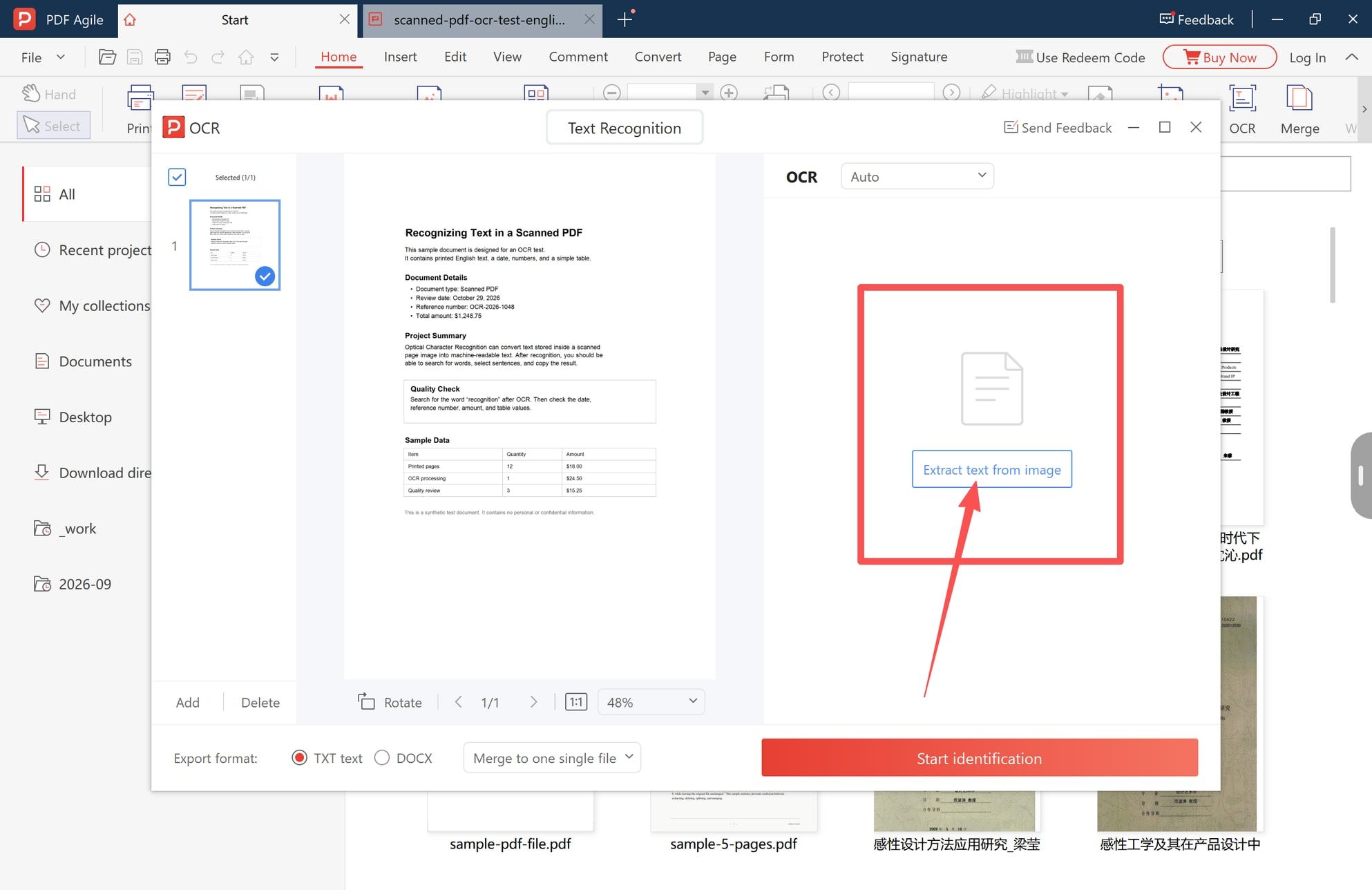
Switch to the Home tab and click OCR. The Text Recognition window opens, with an Add image area that accepts JPG, JPEG, PNG, and BMP files, and a panel for the pages you want to process.
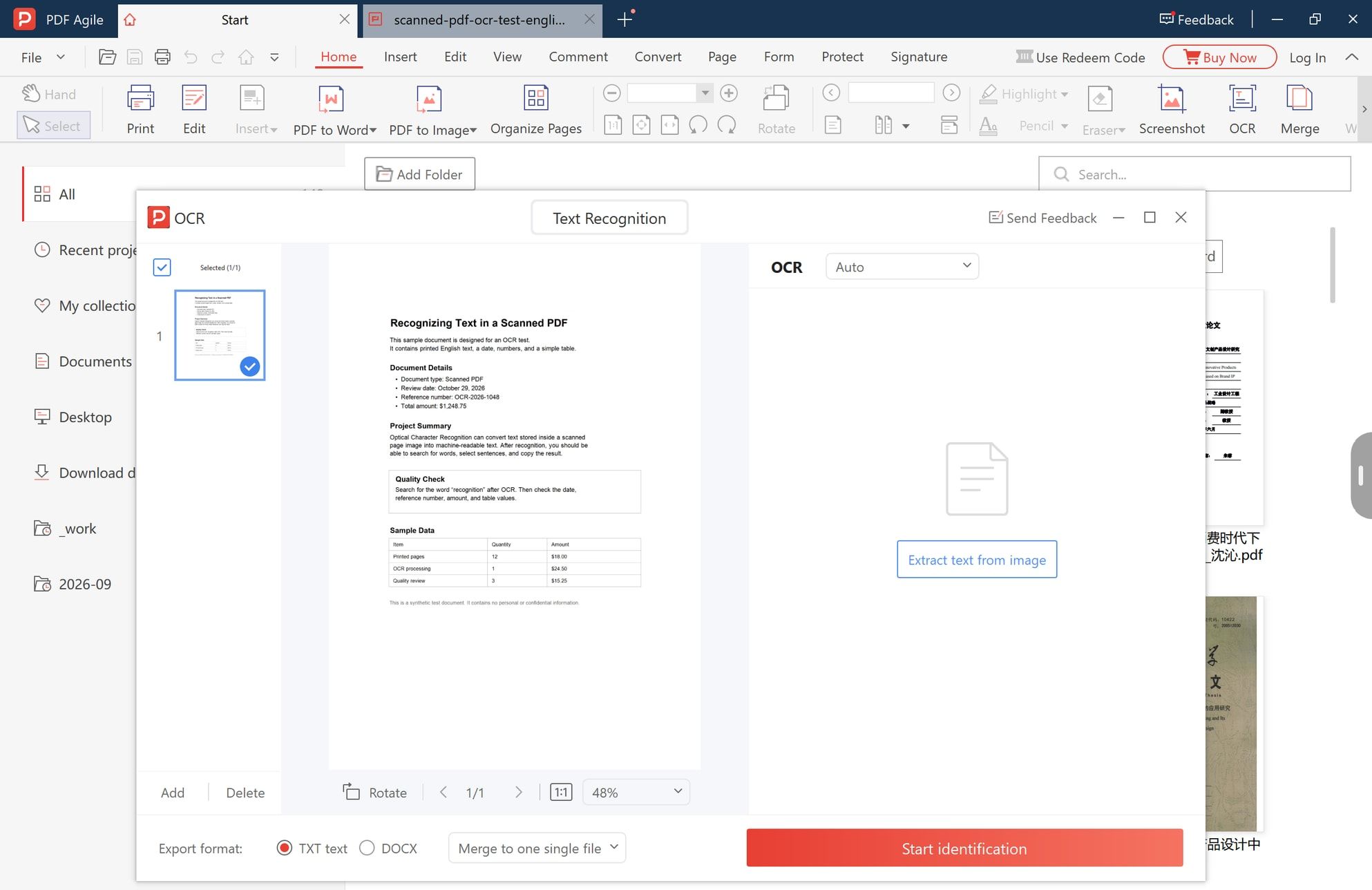
Step 3: Select the Page and Set the Language
The scanned page appears as a thumbnail on the left. Tick it, and the full page shows in the middle so you can confirm it is the right scan and sitting the right way up. Then look at the language menu, which sits at the top of the result panel and defaults to Auto. Auto is a reasonable start, but naming the document's actual language is the setting that most often rescues a page that comes back as nonsense: a German invoice read as English produces confident gibberish. The same bottom bar carries the export format and the run controls, so set everything here before anything starts.
Step 4: Choose the Output Format and Extract the Text
Pick TXT text for plain words you will paste elsewhere, or DOCX if the text is heading into a word processor. With several pages selected, Merge to one single file keeps the result in one document instead of one file per page. Then click Extract text from image.
Step 5: Read the Result Before You Save It
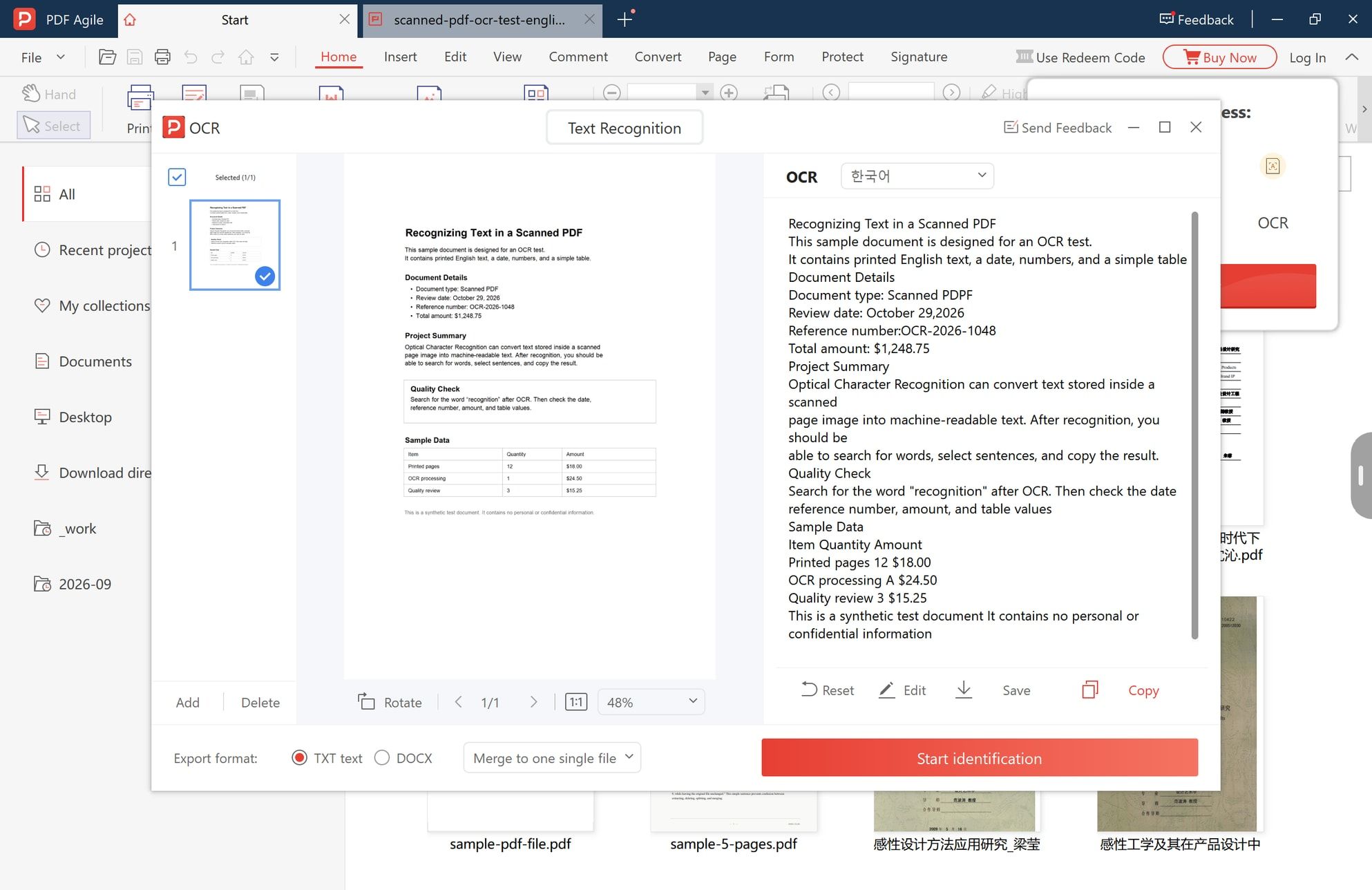
The recognized text appears in the right-hand panel. Scroll it, correct a line with Edit, then use Copy for a quick paste or Save to write the file to disk. Proofread here rather than after the text is already inside something else.
What the Result Gets Wrong, and Where to Look
The sample above is a clean page, and it still shows the failures worth checking on every job.
- Numbers lose their shape. In the second table row, the quantity 1 came back as the letter A, and the count and the amount closed up into one string. A wrong digit is invisible afterwards because it looks like ordinary text.
- Columns drift. A price that belonged to one line ends up attached to the label beside it, which quietly changes what the row says.
- Confusable characters. Zero and capital O, one and lowercase l, five and S, rn and m.
- Line breaks appear where the page had none, so a sentence splits mid-thought when you paste it into a paragraph.
Check the three things a reader would quote: dates, reference numbers, and totals. Put the original page next to the text and compare those fields character by character, then read one full paragraph for sense. That catches nearly everything.
Accuracy is a property of the scan, not of the button. Straight, clean, 300 dpi print in an ordinary font reads well. Handwriting, stamps across text, fax-era noise, a page photographed at an angle, and 7-point footnotes all raise the error rate, and no setting repairs a bad image.
When Recognition Is the Wrong Answer
- Handwriting and initials. Recognition guesses at shapes, and cursive defeats it. Sign or annotate the page instead.
- Two lines on one form. Retyping wins on time, accuracy, and cleanup.
- You need to restyle the text. Convert the page to an editable document, and expect fonts, line breaks, and table columns to move.
- You need the PDF to stay a scan but become searchable. Choose whichever output writes a text layer into the PDF and confirm the option exists in your tool first. Not every app offers it, and the export list in this OCR window is TXT and DOCX, so check before you assume.
The Privacy Detail People Skip
Keeping the file off someone else's server is a real improvement, and it is not the whole story.
- The text is a new copy. Once saved or pasted, the protections on the original do not follow it.
- Clipboard and autosave. Pasting into a cloud document, an email draft, or a synced notes app puts the confidential page in the cloud anyway.
- Shared machines. An exported TXT usually has no password. Delete it if the computer is not yours.
- If you do use a web converter, read the deletion policy and the storage location before the file leaves, and keep the genuinely sensitive pages local.
FAQ
Can I OCR a scanned PDF for free and offline?
Yes. Free and paid desktop tools both recognize text on your own machine; the free route usually carries a page limit, a feature cap, or a watermark on exported files, so judge it by the exported text rather than the feature list.
Do I need an internet connection to recognize the text?
Not for the recognition step, once the app is installed and working, because the page is read from your own disk. Licence checks and updates are the parts that may want a connection.
Why did my text come out as random characters?
The usual causes are the wrong OCR language, a page rotated 90 degrees, or a scan too low in resolution or too shadowed to read. Check the language and the orientation first.
Can OCR make the PDF searchable instead of giving me a separate text file?
That is a different output. A searchable PDF keeps the page image and adds an invisible text layer, so search and copy work inside the same file. Confirm your tool offers that output; the workflow above exports TXT or DOCX.
Can I recognize text in a password-protected scan?
Only once the file is open. If the PDF is locked, remove the password with a tool you trust, recognize the page, and remember that the unlocked copy is a new, unprotected file.
Is the recognized text safe to quote?
For dates, prices, and reference numbers, check against the page image every time. For narrative text in a clean scan, proofread one paragraph and spot-check the rest.
Bottom Line
Recognizing a scanned page is two decisions, not five clicks: choose the output you actually need, either text out or a searchable PDF, and keep the file on your own machine while you do it. The check that matters afterwards is boring and fast. Compare the dates, amounts, and reference numbers in the recognized text against the page image before anyone relies on them.
If you would rather not hand a scanned contract or a medical record to a converter website, the OCR feature inside PDF Agile for Windows runs in the installed desktop app: open the page, set the language, then copy or save the text without an upload step. Its output options and export formats are listed on the extract data from a PDF page, and more document walkthroughs sit in the PDF how-to guides.