Splitting up PDF pages takes less than a minute once you pick the tool that fits the job. If you only need two or three pages out of a long file, your browser's print dialog saves them as a new PDF for free. If you need to divide a whole document into several separate PDFs in one pass, a dedicated split tool finishes it without repeating the same steps.
Three Jobs People Call Splitting PDF Pages
- Divide one PDF into multiple files — break a 40-page packet into chapters or invoices by page range, so every range becomes its own file in one run.
- Pull a few pages into one new PDF — grab pages 3 to 5 to send to a client while leaving the rest behind. Most editors call this extracting pages.
- Cut a two-page scan down the middle — turn one wide landscape page holding two book pages side by side into two portrait pages. Duplicate the wide page and crop each copy instead of running a standard split.
How to Split Up PDF Pages Step by Step
Step 1: Check the Viewer Page Numbers
Check the page counter in the toolbar rather than the numbers printed in the footer. Cover sheets and Roman numerals shift the count, so "page 10" printed on a report is often page 14 in the file. Split tools follow the viewer's counter.
Step 2: Open the Split Tool
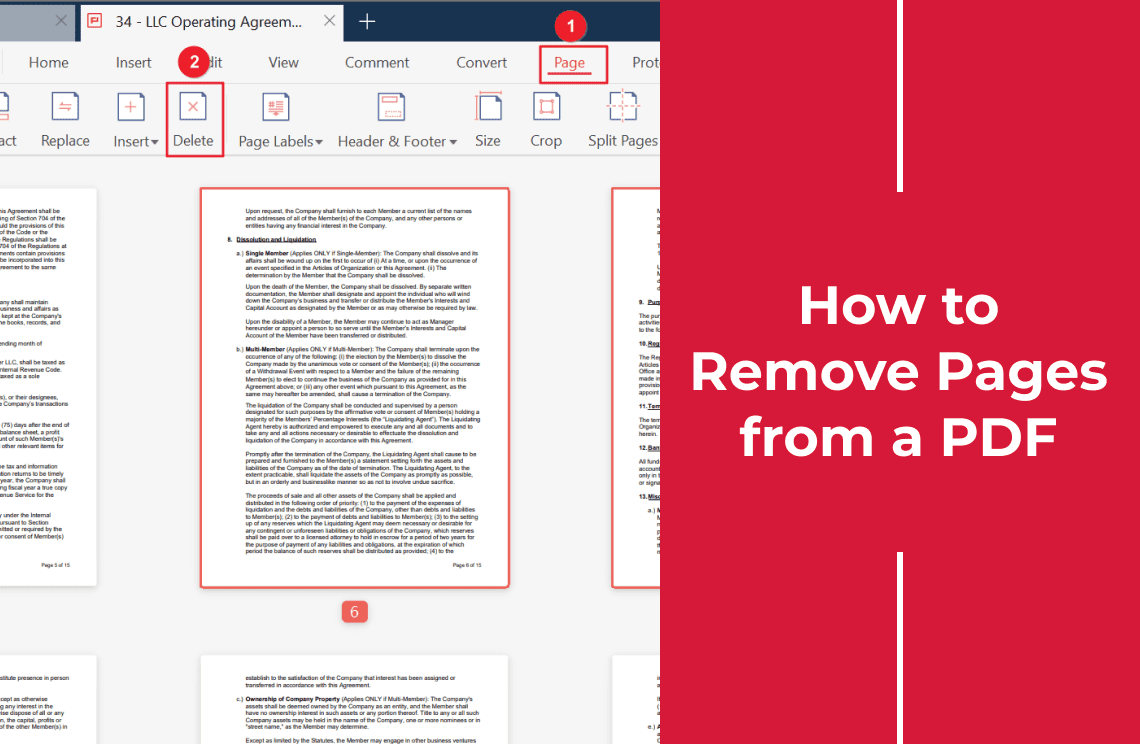
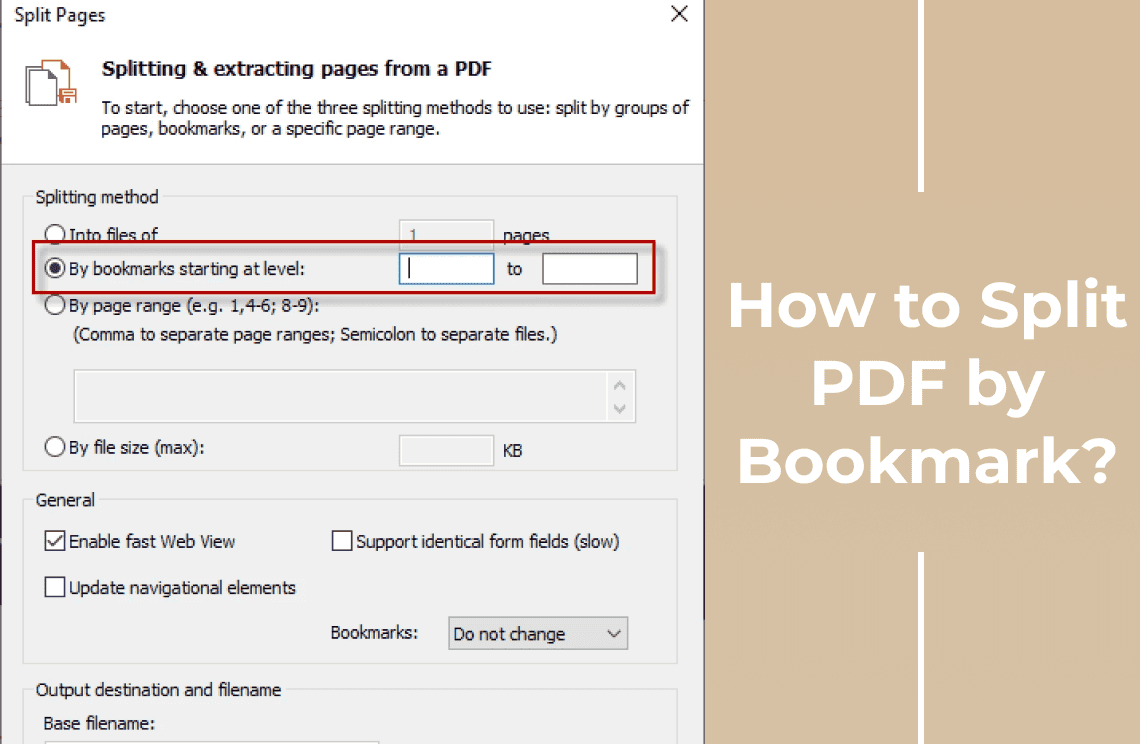
In a desktop PDF editor, open the Page tab or choose Split from the toolbar. On Windows, PDF Agile includes Split and Organize Pages on the Edit and Page tabs to divide a PDF into multiple files by page ranges on your computer. Keeping the job local matters for contracts, bank statements, or tax forms that should not be uploaded to a web server.
Step 3: Set Your Page Ranges
Enter the ranges you want — such as 1–4, 5–9, and 10–15 — or divide the file every N pages when each record has the same length. Pick an output folder so the new files stay together.
Step 4: Run the Split and Check the Output
Run the split and check the first and last page of each new file. Those two pages show right away if a range was off by one, while your original PDF stays untouched.
Free Built-in Ways for a Quick One-Off Split
When you only need a single section, use what is already on your computer:
- Chrome, Edge, or Windows — open the PDF, press Ctrl+P, and choose Save as PDF or Microsoft Print to PDF. Set Pages to your custom range (such as 2-5 or 1, 4, 7) and save.
- Mac Preview — open the PDF in Preview and turn on View > Thumbnails. Command-click the pages you want and drag them to the desktop to create a new PDF, or use File > Print > PDF > Save as PDF with a page range.
Both routes produce one file per run — fast for one excerpt, slow when a packet must become ten files.
What Can Break When You Split a PDF
- Digital signatures — splitting a signed PDF changes the file structure and invalidates the signature on the output files.
- Permission locks — a permissions password that blocks page extraction or printing must be unlocked first.
- Bookmarks and internal links — a table of contents link pointing to a page split into another file stops working.
- Total file size — ten split files often weigh more in total than the original PDF because font subsets and color profiles are copied into each new file.
FAQ
How do I split a PDF into individual pages for free?
For a few pages, open the file in Chrome, Edge, or Preview and use Print > Save as PDF one range at a time. For a large file, use a desktop Split tool set to split every 1 page in one pass.
Why did my split PDF cut off at the wrong page?
Cover pages or Roman numerals before page 1 shift the numbering. Enter the page numbers shown in the viewer toolbar, not the numbers printed on the page.
How do I split a scanned double-page spread into two single pages?
Standard split tools divide between pages, not down the middle of a sheet. Duplicate the wide page, crop the first copy to the left half, and crop the second copy to the right half.
Is it safe to use an online PDF splitter for sensitive documents?
Online splitters upload your file to a remote server. For contracts, IDs, or tax forms, split pages locally in a desktop app or with your system's Print to PDF option.
Need separate files? Download PDF Agile for Windows to split PDF pages by range, reorder thumbnails, and delete extra pages offline.