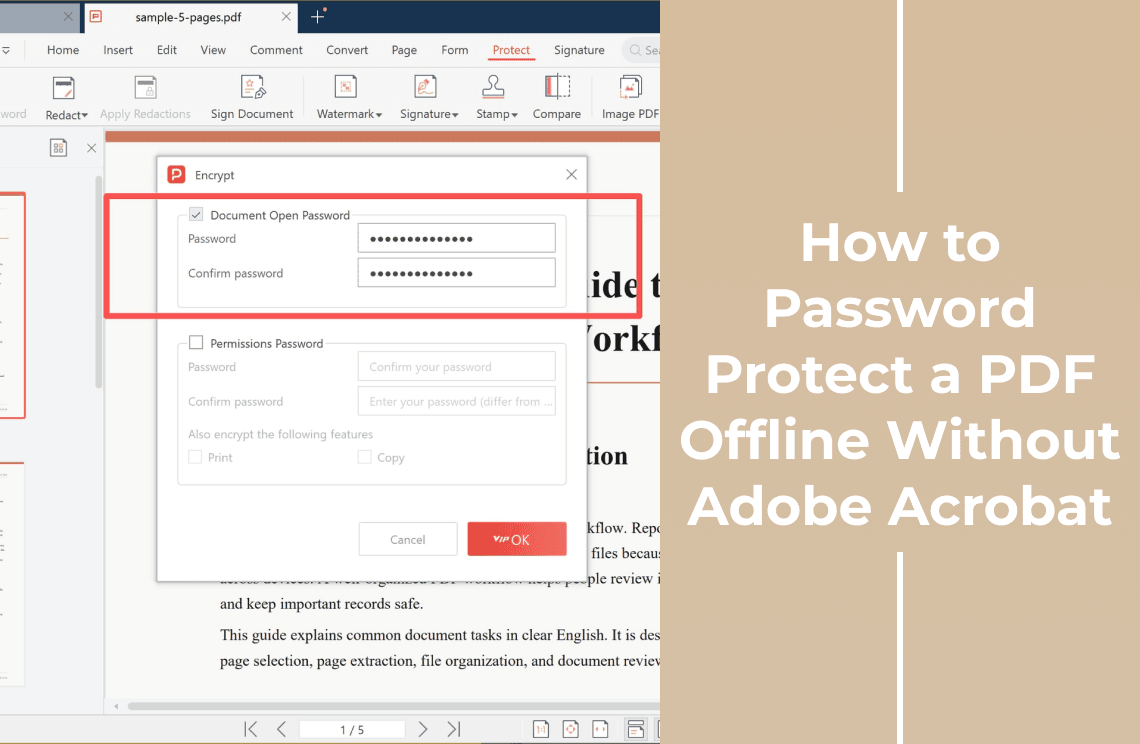
Offline password protection means the encryption happens on your own machine: the PDF is opened from your disk, locked there, and saved back to it. Nothing is uploaded, no account is created, and no server ever holds a readable copy of the file.
The PDF format carries two different passwords, and they are easy to mix up. An open password encrypts the file so nothing renders without the key. A permissions password leaves the file readable but switches off printing, copying, and editing. This guide sets an open password in a desktop editor, explains what a password still does not protect, and lists the routes that cost nothing, including the ones that quietly fail. Encryption wraps the file you already have, so the page count and layout do not change.
What Offline Actually Means for a PDF You Are Locking
Offline is a claim about where the work happens, not a line on a pricing page. Before you hand a confidential file to a tool, check four things.
- No upload step. The file is opened from a local path and saved back to one. If the interface wants you to drag it into a browser window, it is not an offline tool.
- No sign-in. No account, no email confirmation, no session that expires halfway through the task.
- It works with the network off. Disconnect first, then encrypt. If the confirm button stays grey or the app stalls, the encryption was happening on someone else's server.
- Nothing leaves in the background. A desktop app can still sync. Look for cloud backup, autosave into an online library, or diagnostic upload settings before you treat it as local.
A tool that passes all four is doing the arithmetic on your machine. A tool that fails the third is an upload service with a desktop shell around it.
Open Password or Permissions Password?
Both controls usually sit in the same dialog, and picking the wrong one produces a file that does not do what you promised the recipient.
- Open password. Encrypts the file so nothing renders without the key. Use it when the file itself must not be read: a contract, a payslip, an ID scan.
- Permissions password. Leaves the file readable and switches off printing, copying, and editing. Use it when the reader has to open the document but should not reflow or extract it.
- Print and copy switches. Sit inside the permissions block and decide what a reader may take out of a file they can already see.
A permissions password is honoured by mainstream readers rather than enforced by the format: it is a setting, not DRM. If the real goal is stopping edits or sharing rather than stopping viewing, that job belongs to how to lock a PDF from editing, copying, sharing, and printing.
How to Set an Open Password Offline in a Desktop Editor
The steps below use a Windows desktop editor (PDF Agile). Other editors word the labels differently, but the sequence holds: open the file locally, find the protection tab, set the password, save a copy.
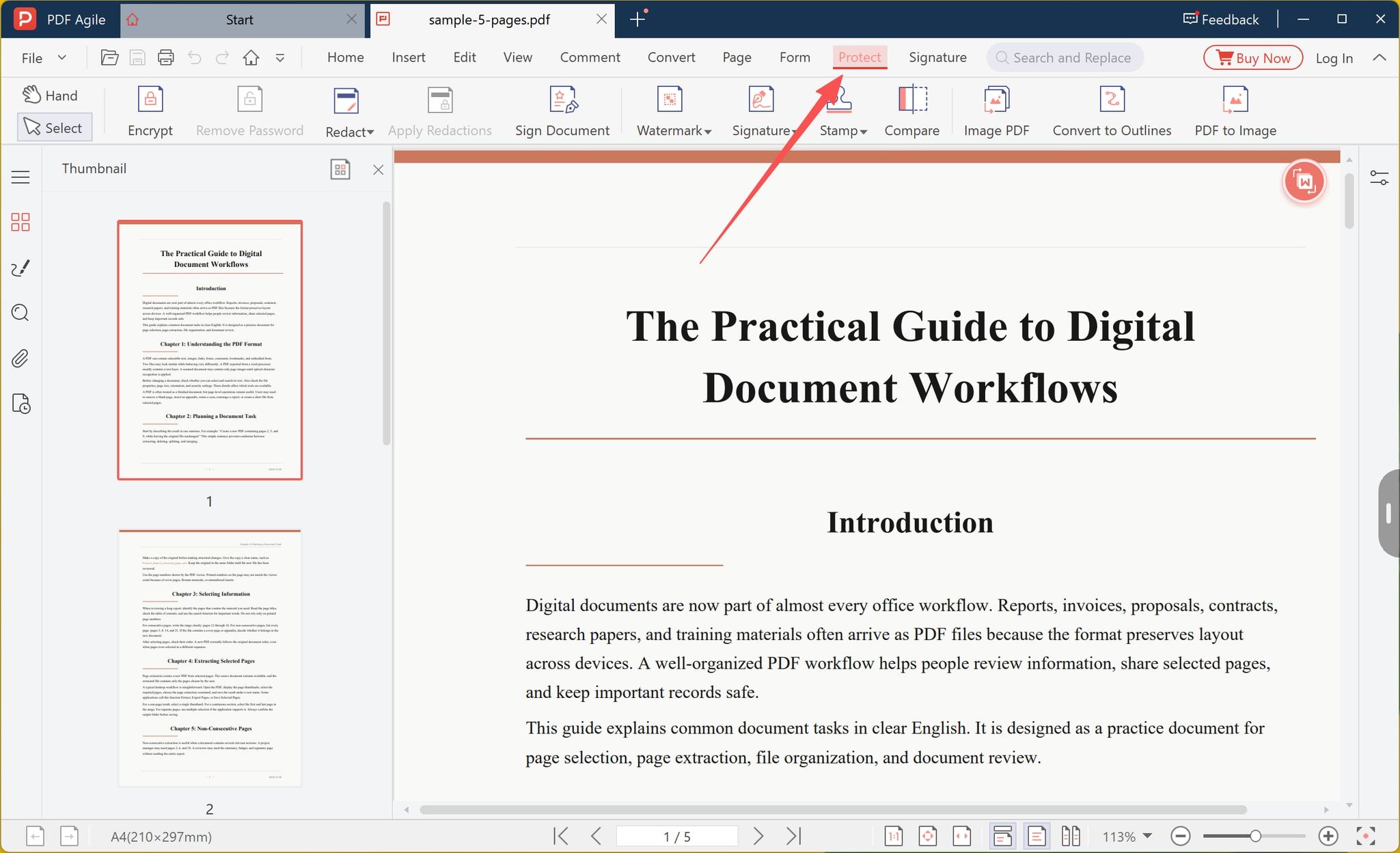
Step 1: Open the PDF and Select the Protect Tab
Open the file from your own disk rather than from a browser download panel. With no password set yet, Remove Password is greyed out, which confirms the file is currently unencrypted.
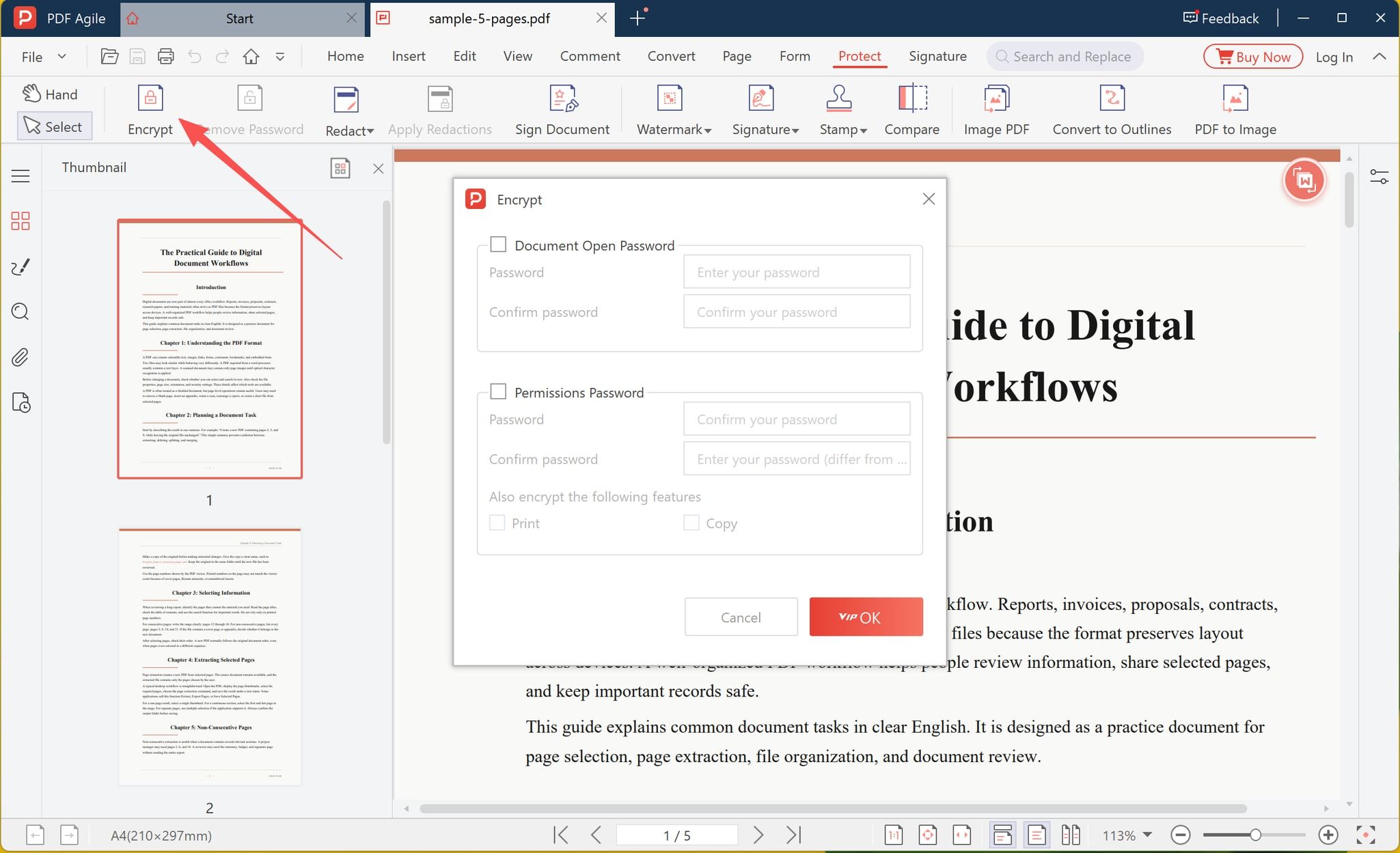
Step 2: Open the Encrypt Dialog
Click Encrypt. This dialog is where the file's protection state changes, and it lists both password types in one panel, so you can set an open password, a permissions password, or both at once.
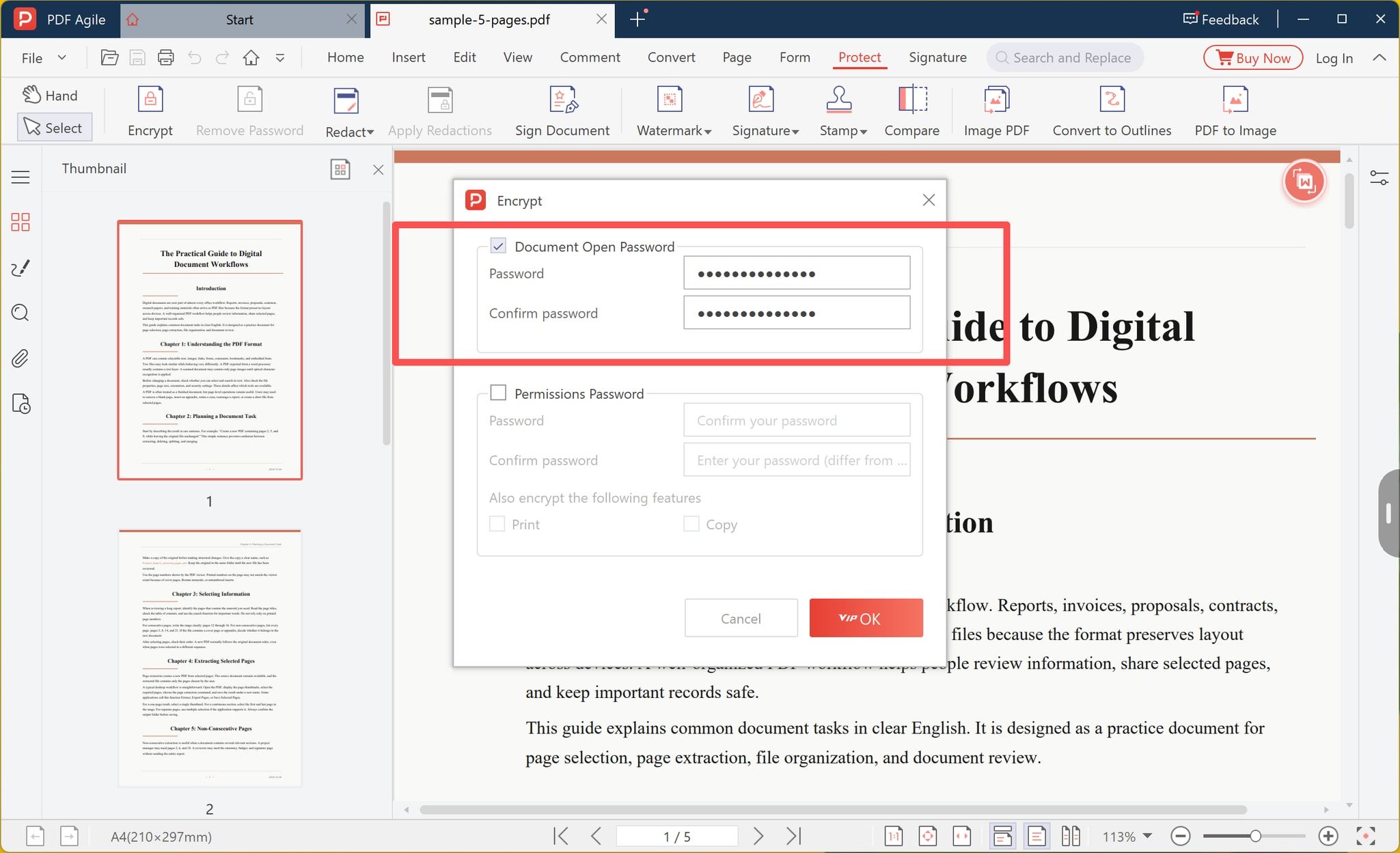
Step 3: Turn On Document Open Password and Enter It Twice
Tick Document Open Password, type the password, then confirm it in the second field; both entries have to match. In the build captured here the confirm button carries a VIP badge, so check that your licence covers encryption before you plan around it, because on a free tier the same button can be blocked or point at an upgrade. No cipher selector appears in this dialog either, so if your organisation names an encryption level, confirm which one the tool applies.
Step 4: Save a New Copy and Test It
Use Save As under a new name and leave the unprotected original where it is. Then close the file completely and reopen it: the password prompt is the proof, and a deliberate wrong-password attempt is worth the ten seconds. If the copy opens with no prompt at all, the encryption never reached the file you are opening.
Test the recipient's reader as well. Lightweight viewers and a few mobile apps reject an encrypted file instead of asking for the password, and that is better discovered before you send it than after.
What a Password Still Does Not Protect
- Hidden text. A password encrypts the file; it does not redact. A black rectangle drawn over a figure leaves the figure underneath, selectable and searchable, until a real redaction tool removes it.
- Anyone holding the key. Whoever can open the file can save an unencrypted copy in a few clicks, so the password governs the first recipient, not the tenth.
- A screen or a printer. If printing is allowed the content leaves the file, and screenshots and screen shares ignore the password entirely.
- A forgotten password. There is no reset and no recovery service worth trusting. Without the open password the content is gone, which is why the unlocked original should stay on your disk until the recipient confirms they opened the new copy.
- Everything around the file. Names, folders, and the message that carried the attachment are outside the encrypted payload.
Free Ways to Lock a PDF Offline
Encryption is one of the few PDF jobs an operating system already does, so a subscription is not always the answer.
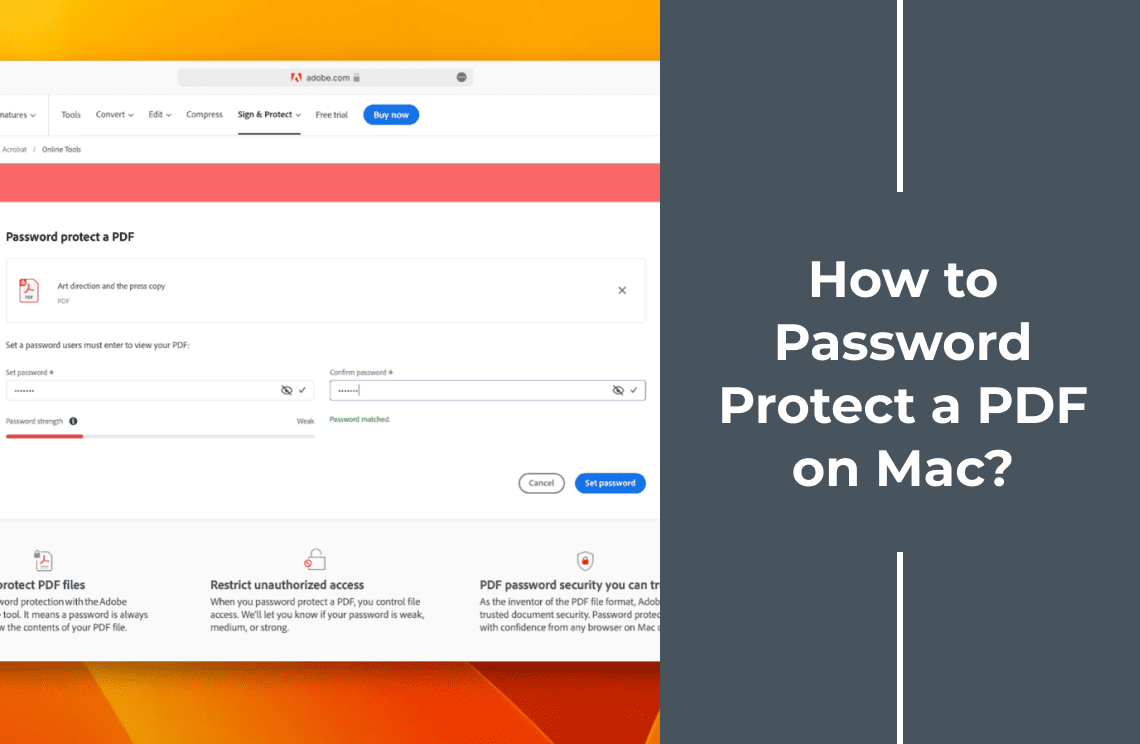
- macOS Preview. Free and built in. The export dialog's permissions section sets a password to open and an owner password, and the file never leaves the Mac. The walkthrough is in how to password protect a PDF on Mac.
- LibreOffice. Free and offline. Its Export as PDF options include a security section where an open password and a permissions password can be set, and the document is processed locally.
- Adobe Acrobat Reader. Opens a protected file but cannot add the password. Adding one belongs to the paid Acrobat, which is the part most people are trying to avoid.
- Microsoft Word. Its password box encrypts the Word document, not the PDF you export from it; the exported PDF arrives unprotected. This is the most common wrong turn in this topic.
- Print to PDF. Produces a flat copy with no password at all.
- An encrypted archive. 7-Zip and similar tools lock a container rather than a PDF: the recipient needs the same tool and the result is not a PDF file. Fine as a courier, wrong as a PDF password.
When the Online Route Is Good Enough
Upload-based tools are not automatically worse, but they change who holds the file. On a free tier the file usually sits on the vendor's server for a limited window, and the download link behaves like a key anyone can reuse while it lives. For a brochure that is an acceptable trade. For a passport scan, a medical letter, or an unsigned contract, the local route removes the question altogether.
If uploading is acceptable, the browser Protect PDF tool covers the same task without installing anything, and the general password protection guide compares it with Word, Preview, and the other desktop routes.
FAQ
Can I password protect a PDF for free without Adobe Acrobat?
On a Mac, yes: Preview encrypts a PDF locally with no extra software. On Windows the built-in tools cannot add a password, so printing to PDF or saving from a browser gives you an unprotected file and you need a PDF editor. Whether encryption sits in a free tier depends on the product; the editor shown above marks its confirm button with a VIP badge in the build we captured, so check the licence before you count on it.
Does the file go online at any point during these steps?
No. The steps above are local file operations. Only the links at the end of this guide open a browser, and none of them is required to finish the task.
What if the recipient cannot open the file?
Send the password through a separate channel from the file and check the plain causes first: capitals, keyboard layout, a trailing space, a password manager pasting an extra character. If the password is right, test the file in the reader the recipient uses, since a viewer that cannot handle encrypted PDFs fails rather than prompts.
Does an open password stop printing or copying?
No. It controls whether the file opens at all. Printing and copying are permissions settings, and those are only as strong as the reader's willingness to honour them.
Can the password be removed later?
Yes, if you know it: reopen the file in the same editor and use Remove Password in the Protect tab. The option is greyed out until a password exists, which also makes it a fast way to check whether a file is encrypted.
Setting the password is usually the last five minutes of a longer job, because the same document still has to be assembled, trimmed, or filled before it goes out. A desktop editor such as PDF Agile keeps that work on the machine too, which is the reason to use one when the file itself cannot leave it. More guides sit under PDF protection and in the how-to library.