A PDF prints cropped on Windows when the paper size in the print window does not match the page size the file declares, and it prints soft when the page reaches the printer as a picture instead of as text. Neither one damages the document. Set the paper to the page size, then pick a scale mode that matches how the two relate, and the edges come back at full sharpness.
The reason this trips people up is that Windows hides the decision. The page looks perfect on screen, the browser preview is a thumbnail, and Fit and Actual Size sound like the same promise. This guide separates the settings that change the printout from the ones that change the file, shows where each one lives, and explains how to prove the result as a PDF before you load paper.
Why a PDF Prints Cropped or Soft on Windows
Four causes account for almost every complaint, and they need different fixes:
- The paper is smaller than the page. Letter is roughly 216 × 279 mm and A4 is 210 × 297 mm, so each one is narrower than the other in a different direction. There is no size that contains both.
- The scale mode is set to Actual Size. At 1:1 onto smaller paper, the overflow does not shrink to fit. It runs past the paper edge and disappears.
- The printer reserves a margin. Almost every office inkjet and laser leaves a few millimetres on each edge that it physically cannot print on, even when the page fits the sheet exactly.
- The page is sent as a bitmap. If the output is being rasterised on the way to the printer, or the source is a scan, the text is pixels and softness is baked in before the paper is touched.
The first three are print settings. The fourth is a rendering choice, and it is covered separately below because raising the scale does not fix it and lowering it makes it worse.
Cropping, Shrinking, and Scaling Are Three Different Things
These get used interchangeably, and that is how people end up editing a file to fix a printer problem.
- Cropping changes the visible page area in the file. The page box is rewritten so the margins and everything outside them stop showing. The document you save is genuinely different from the one you opened.
- Scaling is a print setting only. Nothing in the file changes, and the page count stays the same no matter what percentage you type.
- Shrinking is scaling with a limit. It reduces a page that is larger than the paper and leaves everything else alone.
So a printout that loses its right edge is a paper-and-scale problem, not a cropping problem, and re-saving the file will not help. If what you actually want is to remove white margins or trim a scanned border from the document itself, that is cropping a PDF page, and it is a different job with a different tool.
Which Scale Setting Does What
Four choices appear under the page-size method in a Windows print window, and the difference between them is not cosmetic:
- Auto Fit Printing Margin — scales the page down until it fits inside the printable area. This is the default, and it is the right choice whenever the paper and the page size differ.
- Actual Size — prints at 1:1 with no scaling at all. Correct only when the paper matches the declared page size exactly.
- Shrink Oversized Page — shrinks a page that is bigger than the paper and does nothing otherwise. Built for mixed-size documents and oversized scans in one job.
- Customize Scale — applies the percentage you type, in either direction. Use it when you want a deliberate margin, such as 95%.
The one that surprises people is Shrink Oversized Page: it only ever shrinks. A Letter page sent to A3 paper with this option selected still prints at Letter size in the corner of the sheet, because nothing about the page is oversized. If you need the page to grow into a larger sheet, that is Auto Fit Printing Margin or a custom scale above 100%.
How to Print a PDF on Windows Without Cropping or Losing Quality
The walkthrough below is on Windows 11 with PDF Agile, a desktop PDF editor. The settings that decide the result — paper size, scale mode, and whether the page is sent as an image — exist in Acrobat, Foxit, Edge and every other Windows print dialog; only the labels move around.
Step 1: Open the PDF and Check the Page Size It Declares
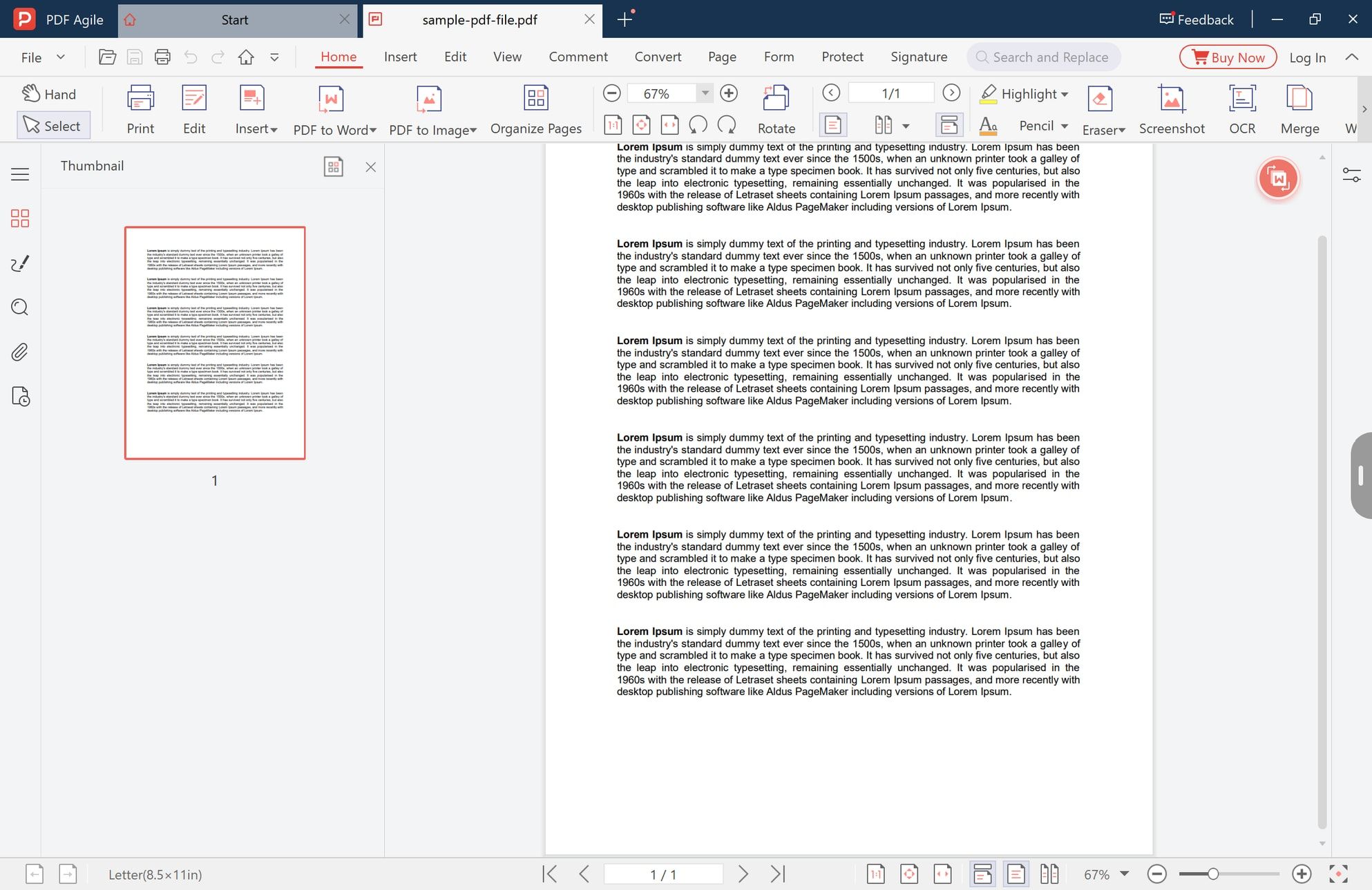
Open the document and look at the status bar before you go near the printer. It reports the page size the file itself declares — in the screenshot below, Letter (8.5 × 11 in) — alongside the page counter. That number is what you will match in step 3, and it is the one piece of information most people skip.
If the document mixes page sizes, note that now. A single paper choice cannot be correct for both Letter and A3 pages in the same file.
Step 2: Open the Print Window
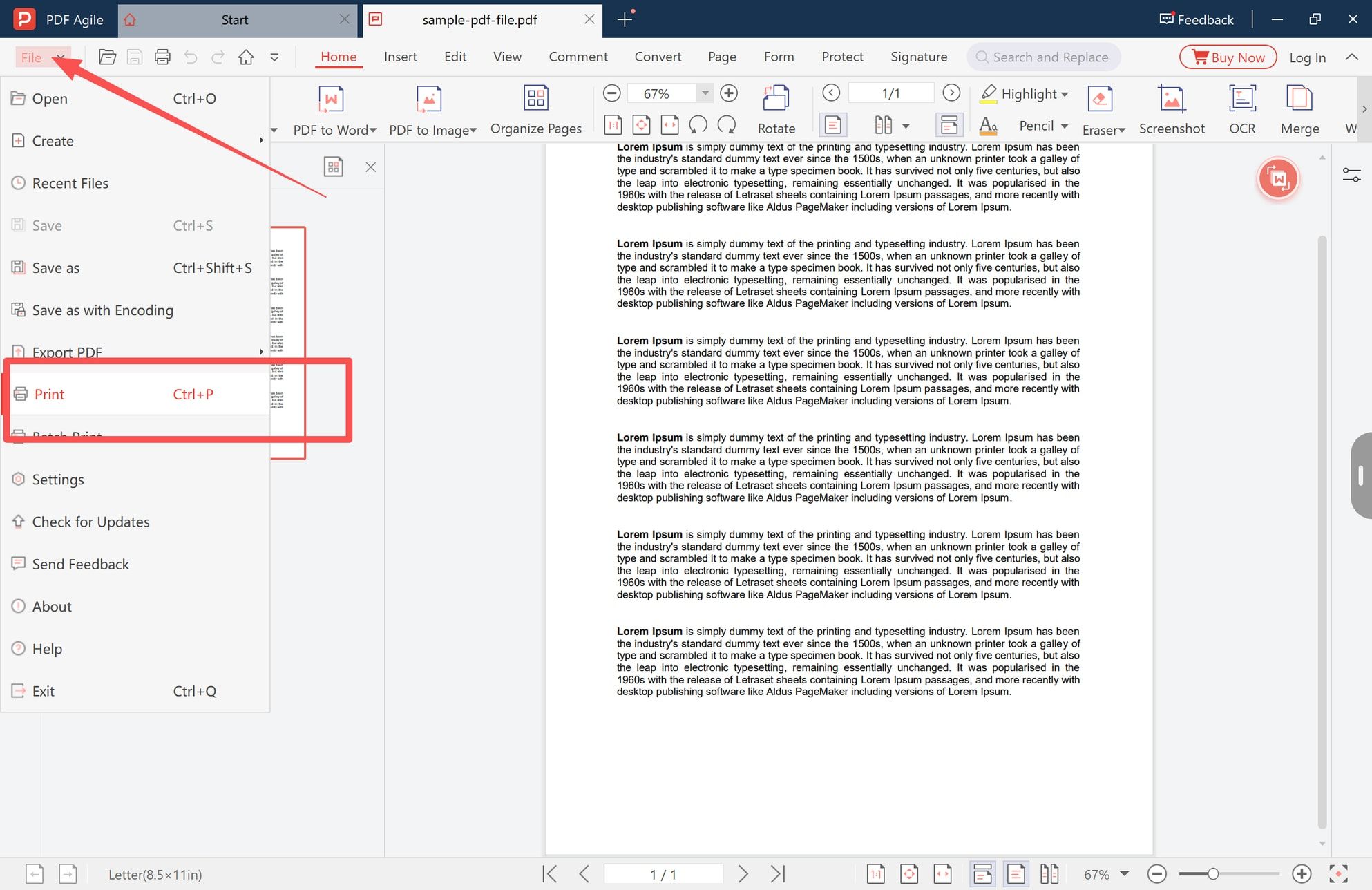
Use File > Print (Ctrl+P), or the Print button on the Home tab. Both open the editor's own print window rather than the Windows system dialog, which matters here: the system dialog gives you the scale choice but not the paper list in the same place.
Step 3: Set the Paper to the Page Size
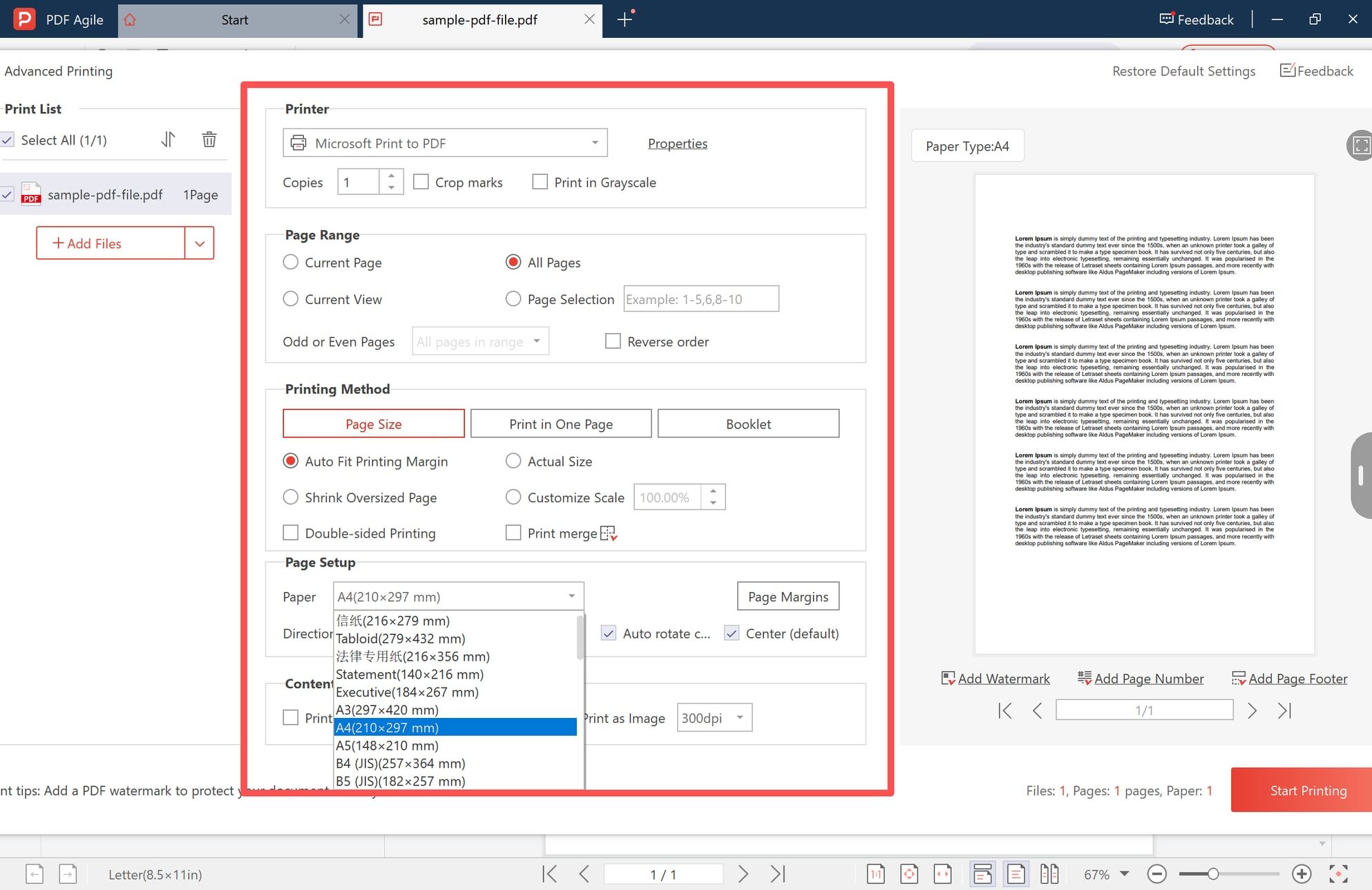
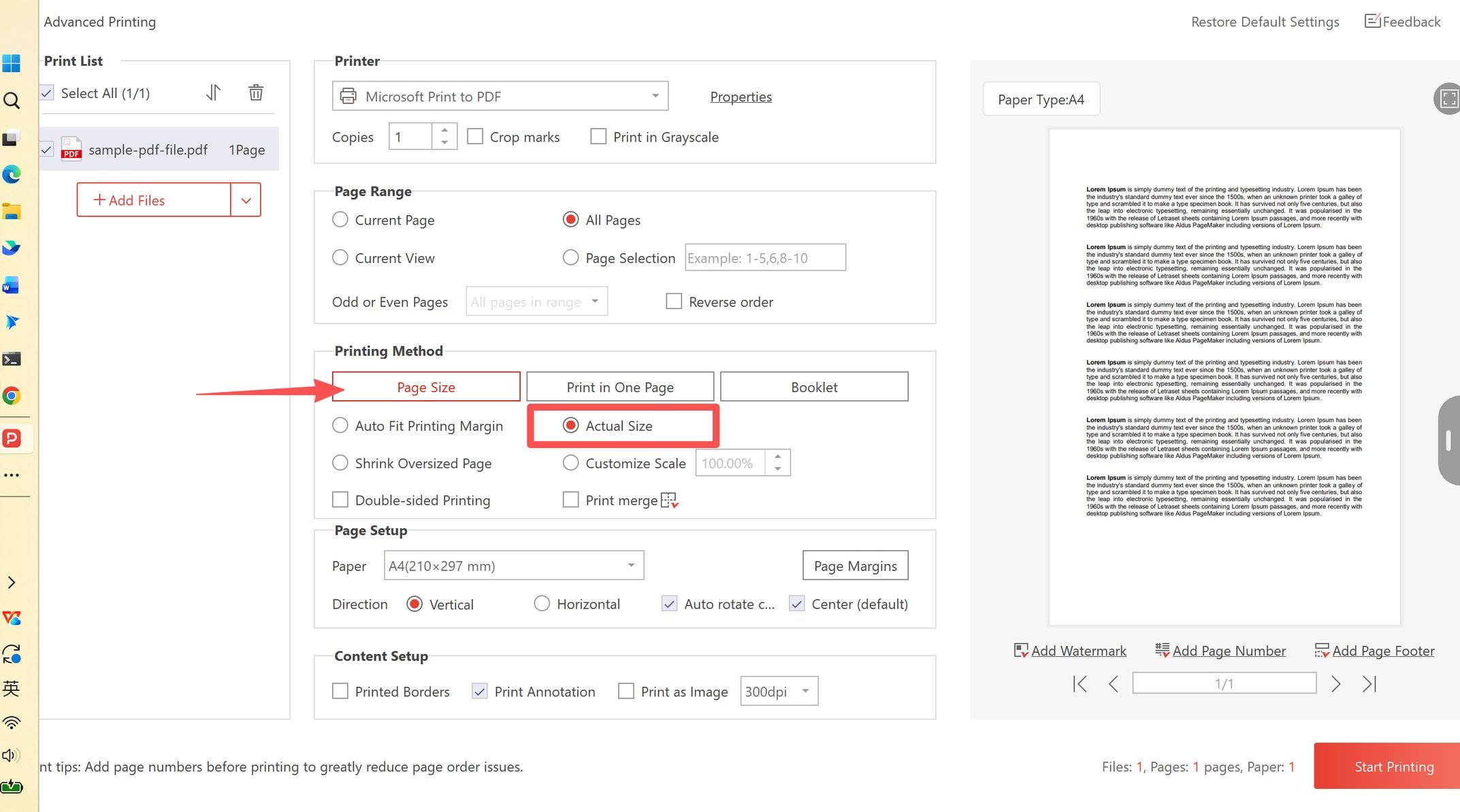
The window is titled Advanced Printing. The left column is the print list, the middle column holds the printer, page range, printing method and page setup, and the right side is a live preview labelled with the paper type it will print on.
Open the Paper dropdown under Page Setup and choose the size that matches what you saw in step 1. The list covers Letter, Tabloid, Legal, Statement, Executive, A3, A4, A5, B4 JIS and B5 JIS.
Which edge is at risk depends on which direction the two sizes disagree:
- Letter PDF on A4 paper — A4 is about 6 mm narrower, so the right edge is what gets clipped at Actual Size.
- A4 PDF on Letter paper — Letter is about 18 mm shorter, so the bottom edge is what gets clipped.
That asymmetry is useful for diagnosis. If the cropping always happens on one specific side, the paper size is wrong; if it happens evenly all round, you are looking at the printer's unprintable margin instead.
Step 4: Choose Actual Size Only When the Sizes Match
Printing Method offers three modes across the top. Stay in Page Size for this job. Underneath it sit the four scale options described above, and the rule is short: Actual Size is only safe when the paper and the page size are the same number.
Everything else in the middle column exists to keep the page where you expect it:
- Center (default) keeps the page centred instead of pinned to a corner, which is what stops a small overshoot from turning into a one-sided loss.
- Auto rotate handles landscape pages inside a portrait document, so they print sideways on the sheet rather than being cut down to fit.
- Double-sided Printing is a separate checkbox; the driver settings behind it are covered in the back-to-back PDF printing guide.
- Print Annotation in Content Setup decides whether comments and markup reach the paper at all. If markups matter, printing a PDF with comments explains what each reader does with them.
The screenshot shows Actual Size selected on an A4 sheet for an A4 page — the one combination where 1:1 cannot clip.
Step 5: Read the Preview, Then Print
The preview panel is labelled with the paper type and draws the page as it will land, including page numbers and footers if you add them. Check two things before committing: the margins look even on all four sides, and no line of text runs into the edge.
The counters at the bottom right — files, pages, paper sheets — are the last sanity check. They should match the document you meant to send.
The panel under the preview also adds marks before the sheet is printed, such as a watermark, page numbers or a footer. They are drawn at print time, so they appear on paper without being saved into the PDF.
Proof It on a PDF Before You Use Paper
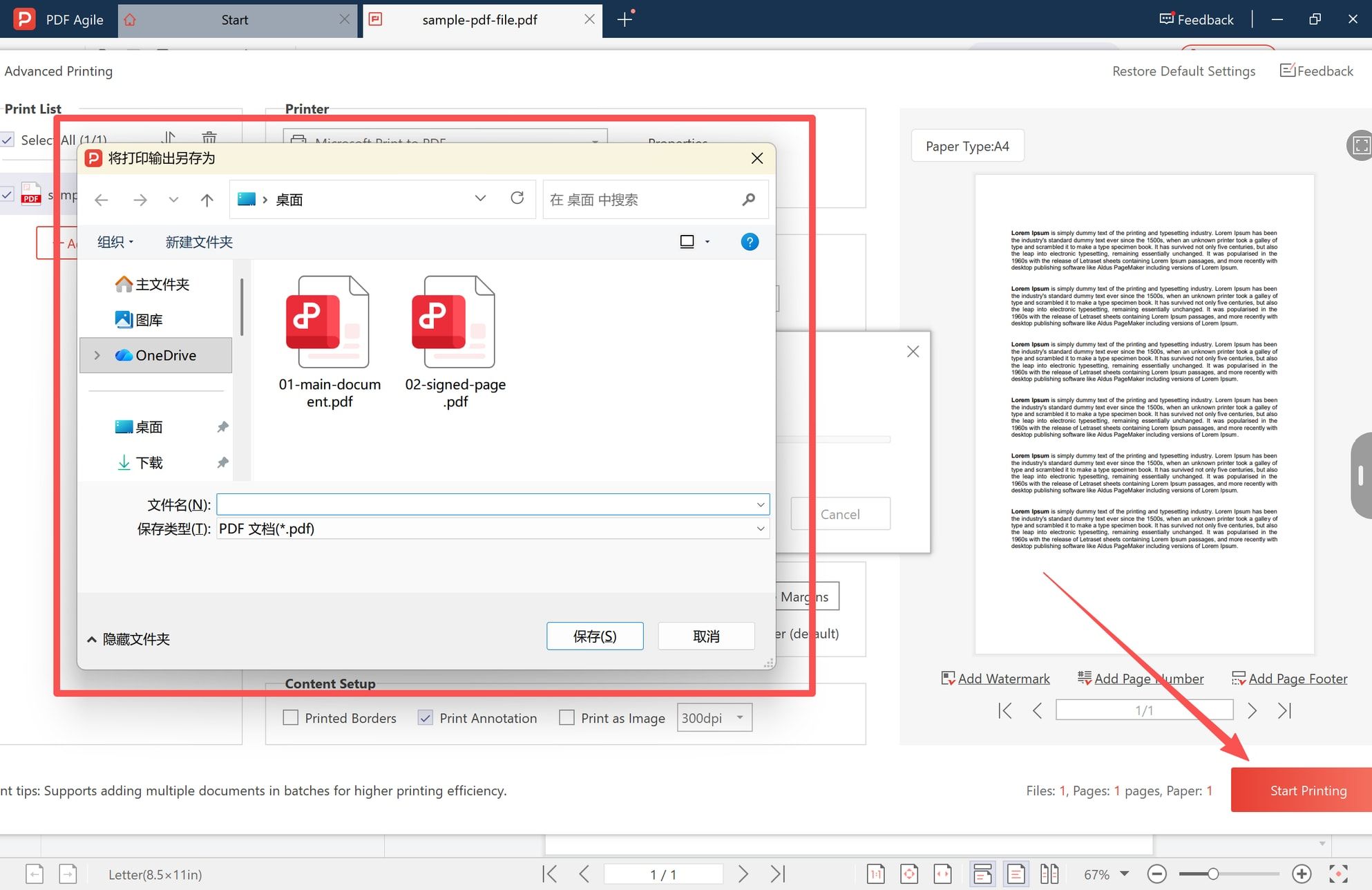
The cheapest way to test a paper-and-scale combination is to not use paper. Set the printer to Microsoft Print to PDF, which is built into Windows, and press Start Printing. Windows asks where to save the output, and you get a PDF instead of a sheet.
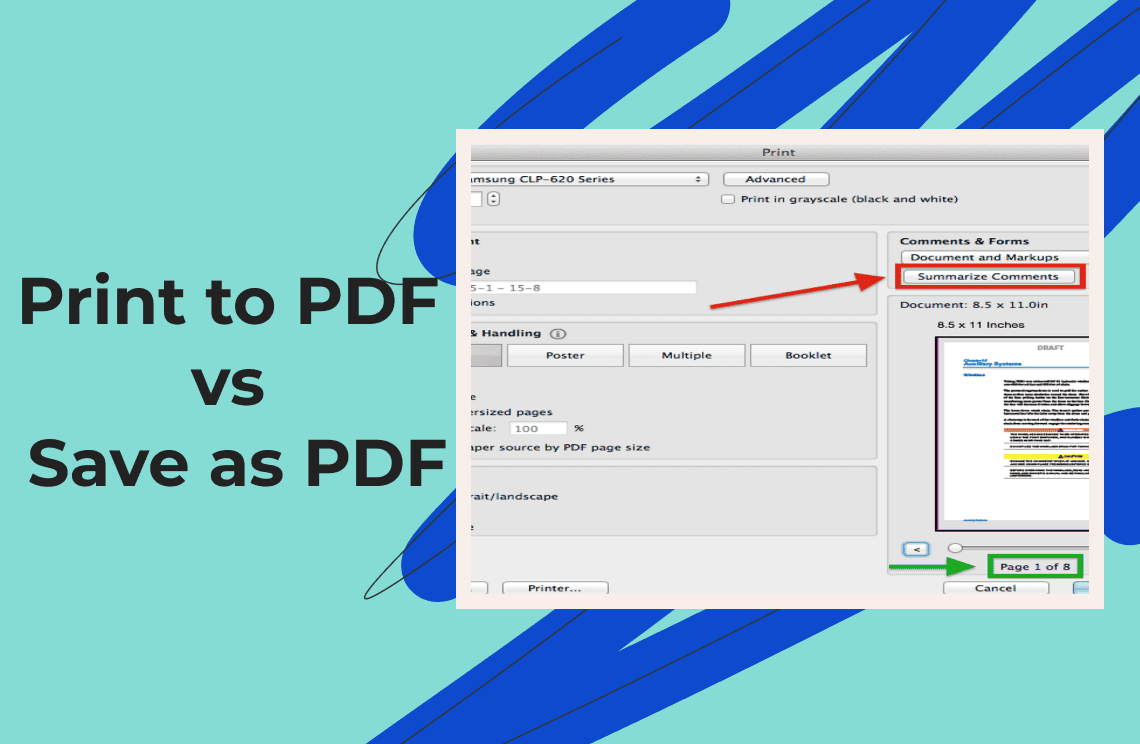
Open that file and compare its page count and its edges against the original. A clipped edge in the proof means the paper and scale pair is still wrong, and you have spent a file rather than a sheet. This is the same mechanism as printing to PDF instead of saving as PDF, used deliberately as a proof rather than as a way to make documents.
The save dialog follows your Windows display language, so its buttons will not necessarily be in English — the file name field and the save button are in the same place either way.
One caveat: the proof is a rendering, so judge layout from it and not sharpness. Rasterisation on the way out can make a correct print look softer than it will be.
When the Text Still Looks Soft
If the layout is right and the page still prints mushy, the cause is almost always that the page is being flattened into an image before it reaches the printer.
- Print as Image in Content Setup sends each page to the printer as a bitmap at the resolution shown beside it (300 dpi in the screenshot). Leave it switched off when the PDF contains real text — vector glyphs stay sharp at any print size. Turn it on only for files that will not print otherwise, such as unsupported fonts, heavy transparency, or certain CAD exports.
- A scan cannot exceed its own resolution. Raising the setting on a 150 dpi scan produces a large, faithful copy of a soft original.
- Print-to-PDF copies compound. Printing a print-to-PDF copy of a print-to-PDF copy rasterises twice, and each pass costs detail.
- Higher dpi is not free. It enlarges the spool file and slows the job, which is noticeable on a long document.
Limits No Setting Can Fix
Some cropping is not a misconfiguration, and knowing the difference saves an afternoon of changing settings:
- The printer's unprintable margin. A few millimetres on each edge on nearly all office printers. Borderless printing exists mainly on photo printers, on specific paper sizes, and with specific driver settings.
- Content outside the page box in the original file. A bad export, a bleed area, or crop marks extending past the trim will be cut because they were never inside the printable page to begin with.
- Mixed page sizes in one document. Auto rotate helps, but one paper choice cannot suit pages of different sizes.
- Permission-restricted files. A permissions password can block printing entirely, and no scale setting overrides it.
- Engineering sheets reduced to A4. A1 or A3 drawings scaled onto office paper come out complete and unreadable at once; that is scale, not quality.
Adobe Acrobat and the Other Windows Routes
If Acrobat is already installed and licensed, its Print dialog does the same job, with the same four choices under Page Sizing & Handling: Fit, Actual size, Shrink oversized pages, and Custom scale. There is no reason to change tools for a one-off sheet.
The practical difference in this scenario is where the paper size lives. On Windows, Acrobat leaves paper selection to the printer driver's Properties dialog, so the paper size and the scale mode are chosen in two different windows — and a mismatch between two windows is exactly what produces a clipped printout in the first place. The print window above keeps the paper list, orientation, auto-rotate, centring, margins and the scale radios on one screen, with the paper type named in the preview beside them, so the two numbers that must agree are chosen together. That is a workflow difference, not an output-quality one; the PDF printer page covers the rest of what the window does.
Its print list also accepts several PDFs at once through Add Files and Select All, which means one paper-and-scale decision applies to a whole batch instead of being re-entered per file.
The browser route — opening the PDF in Edge or Chrome and pressing Ctrl+P — is the quickest for a single copy, but it exposes fewer controls and a small preview, so it is a poor place to diagnose a size mismatch.
Whichever route you take, the print job is produced from the file on your own machine. Nothing is uploaded to make a printout, so a contract or a payslip does not leave the drive just because it is being printed.
FAQ
Why is my PDF printing cut off on the right side only?
The paper is narrower than the page. Letter paper on an A4 page loses about 6 mm at the right edge at Actual Size. Choose the matching paper size, or switch to Auto Fit Printing Margin.
Does Shrink Oversized Page make a small PDF fill the paper?
No. It only reduces pages that are larger than the sheet and never enlarges anything. Use Auto Fit Printing Margin, or a custom scale above 100%, to grow a page.
Does printing at a smaller scale change the PDF file?
No. Scale and paper size are print settings, so the file keeps its page count and its page dimensions. Cropping the PDF with a crop tool is the operation that edits the page.
Why does my PDF print blurry at Actual Size?
Because the page is going out as an image, not as text: Print as Image is switched on, the source is a scan, or the file is a copy of a print-to-PDF output. At 1:1 with real text and no rasterisation, the page should print crisp.
Can I print a PDF with no white border at all?
Only if the printer supports borderless printing for that exact paper size, which in practice means photo printers and a short list of sizes. Otherwise a few millimetres of margin are reserved by the hardware, not by the software.
How do I test a print setting without wasting paper?
Set the printer to Microsoft Print to PDF and print. Compare the saved PDF's page count and edges against the original, then change one setting at a time until the proof is clean.
Clipping and softness are both decided before the paper moves: the paper size has to match the page, and the page has to stay text rather than becoming a picture. PDF Agile for Windows puts the paper list, the scale mode, the printable-margin options and a paper-labelled preview in one print window, and applies the same settings across a whole print list, which is what makes the two numbers easy to keep in agreement. More printing walkthroughs sit under PDF printing, and the how-to archive groups the rest by task.