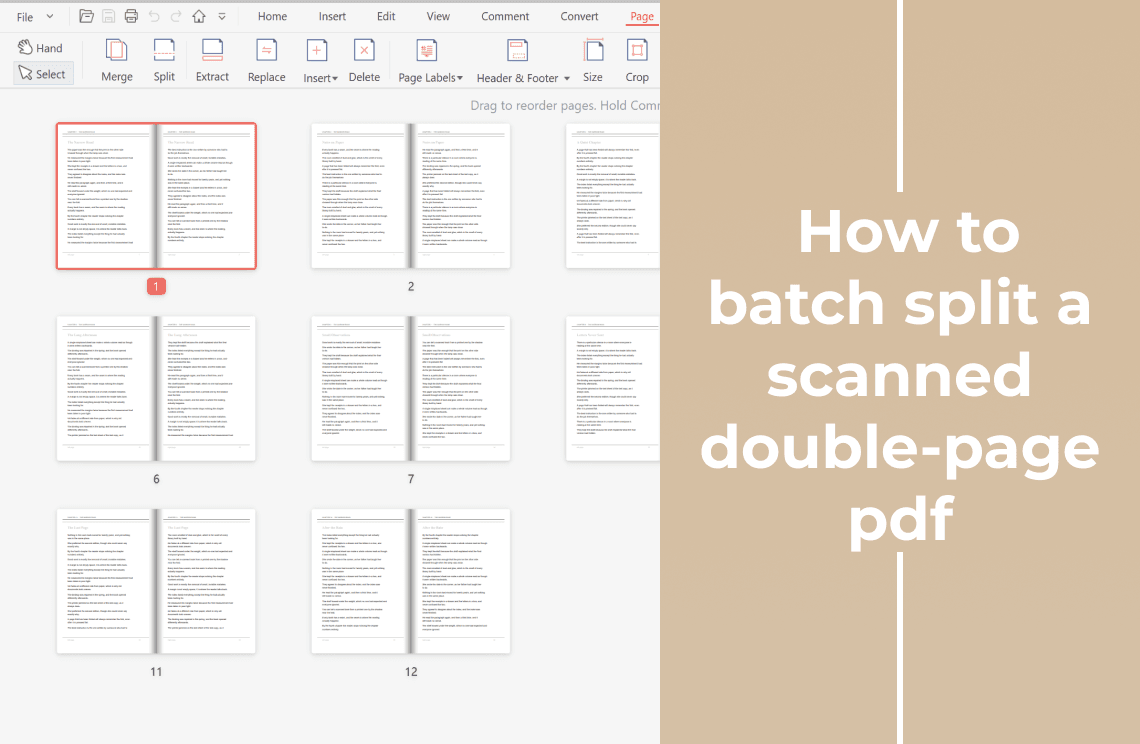
A scanned book usually arrives as spreads: one wide PDF page holding the left printed page and the right printed page side by side. One sheet is easy to fix — duplicate it, crop one copy to the left, crop the other to the right. A book is the same job repeated a few hundred times, which is where it stops being reasonable.
This page covers the at-scale route: duplicate the whole file once so every half has its own copy, apply each crop to a whole set of pages instead of to the sheet you happen to be looking at, then restore the reading order. It assumes the scan is readable and only badly paginated. For a single spread, or for why the ordinary Split command cannot cut a page in half, the single-sheet walkthrough of splitting a scanned double-page PDF is the shorter read.
Why One Spread at a Time Stops Working
A 200-sheet scan needs 400 crops. At roughly forty seconds per box — open the crop tool, drag the edge to the fold, check the result, apply it — that is close to four and a half hours of dragging before any checking. The number is not the real problem. The real problem is that the work has no checkpoints: nothing tells you that sheet 17 came out wrong until you read the finished file.
The second cost is consistency. Where you put the crop is a decision about where the fold is on that particular scan, and making that decision 400 times produces 400 slightly different answers. A finished book whose inner margin changes on every page looks worse than the spread it came from.
Under about a dozen sheets, do it by hand and look at each one. Above that, batching wins, because it replaces 400 decisions with two.
What "Batch" Actually Means for a Scanned Book
The word suggests software that finds the fold for you. It does not exist for this file. A scanned spread carries no mark saying where one printed page ends; the gutter is a shadow, and in a real bound book it is never exactly in the centre. OCR does not help either — it reads text, not page boundaries.
What you are batching is the repeat: one crop rectangle, applied to many pages in one action. Three things follow from that.
- One rectangle for the whole set. Every page in a set gets the same boundary, so a set has to be homogeneous — all spreads, same orientation, same scanner position.
- Drift is the normal failure, not a mistake. If some sheets went through the scanner a little differently, the same rectangle will cut too far into one page and leave a strip of the facing page on another.
- Sampling replaces reading. You cannot inspect 400 pages, so you check the first, a middle one, the last, and one at random.
One property of cropping decides the order of the steps below: a crop changes the visible area of a page, it does not delete what falls outside it. The other half is still in the file. That is why an untouched copy can still produce its right page after you have cropped its twin — and also why a crop is never a way to remove something private.
Duplicate First, Then Crop Both Sets
Two sequences produce the same output, but only one survives a second pass.
Per sheet — duplicate one page, crop copy A to the left, crop copy B to the right, repeat — is the right method for a handful of pages and does not scale.
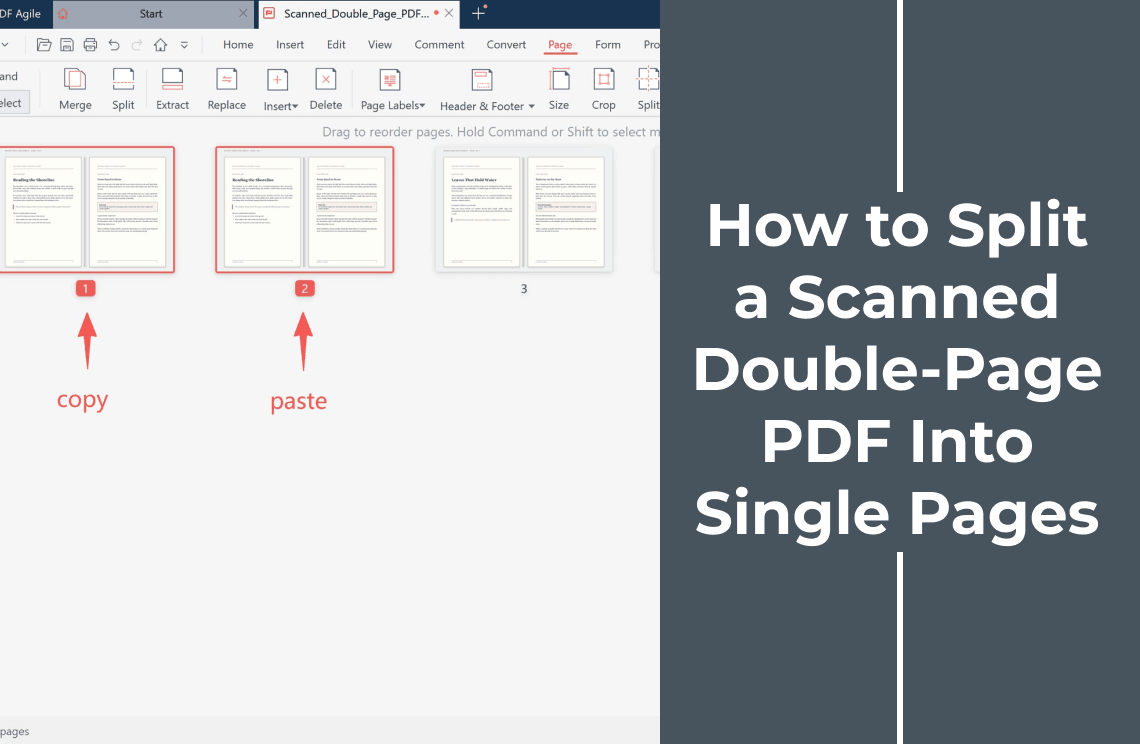
Whole file first does scale: select the page strip, copy, paste. Every sheet now exists twice, and each pair is one future left page and one future right page. Then crop one set to the left and the other set to the right, in two actions rather than four hundred.
This only works because of the property above. The copy you have not cropped still holds both halves, so the second pass still has something to keep.
Before you crop, look at where the copies landed. Depending on where the paste inserts them, they may sit next to their originals or arrive as one block at the end of the file. The thumbnail strip tells you in a second, and it changes the pages you will name in the next two steps. Do not assume.
How to Batch-Split a Scanned Double-Page PDF
Step 1: Open the File and Confirm Every Sheet Is a Spread
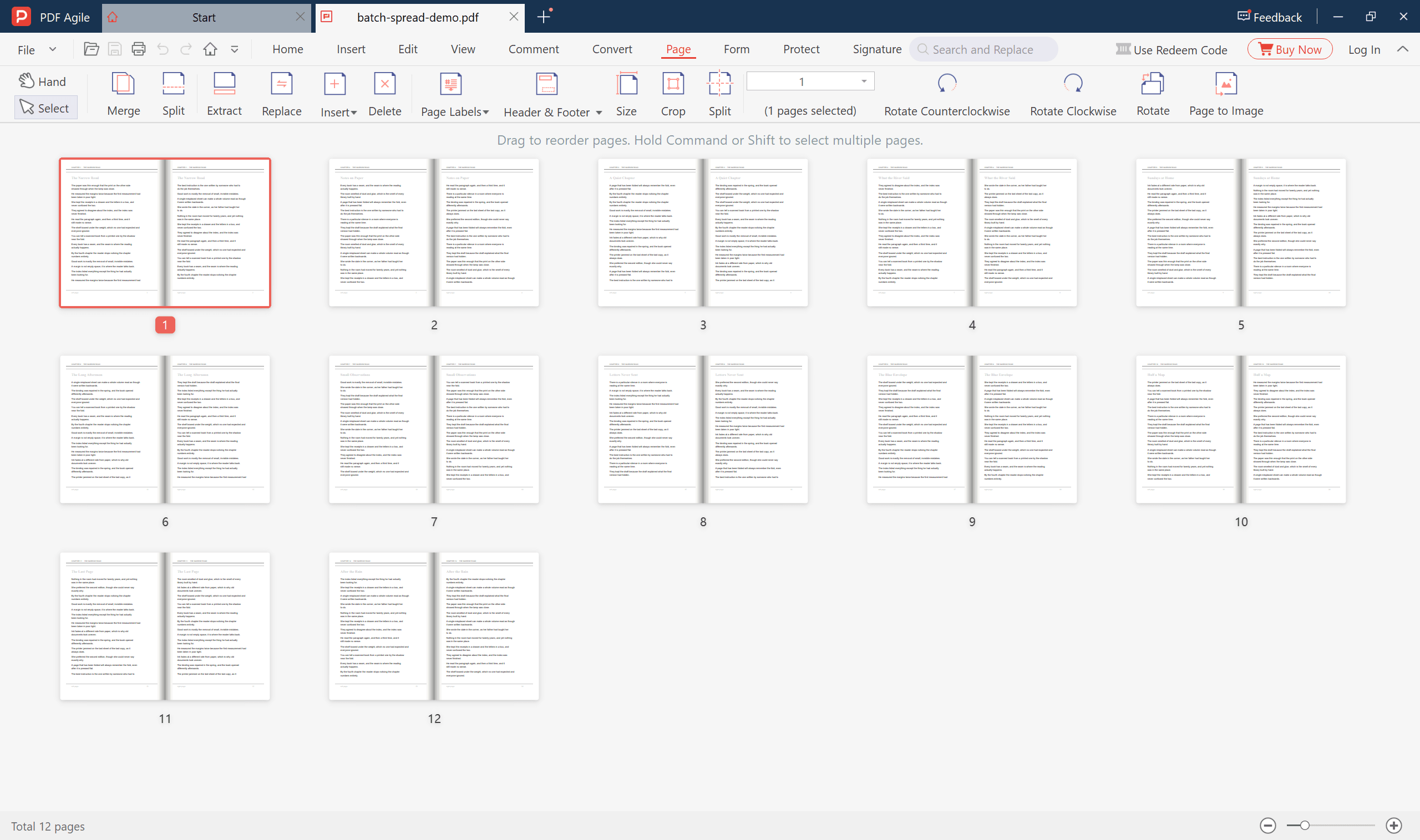
Open the scan in PDF Agile and switch to the Page tab, which shows the document as a strip of thumbnails. Each sheet should be one wide thumbnail holding two printed pages. The total page count sits in the status bar — note it, because it is the number that is about to double.
Look for exceptions now rather than later: a cover, a title page or an index scanned as a single page. Those have to be left out of the crop ranges, because cropping a single page to half its width cuts off text that belongs on it.
Step 2: Duplicate the Whole File
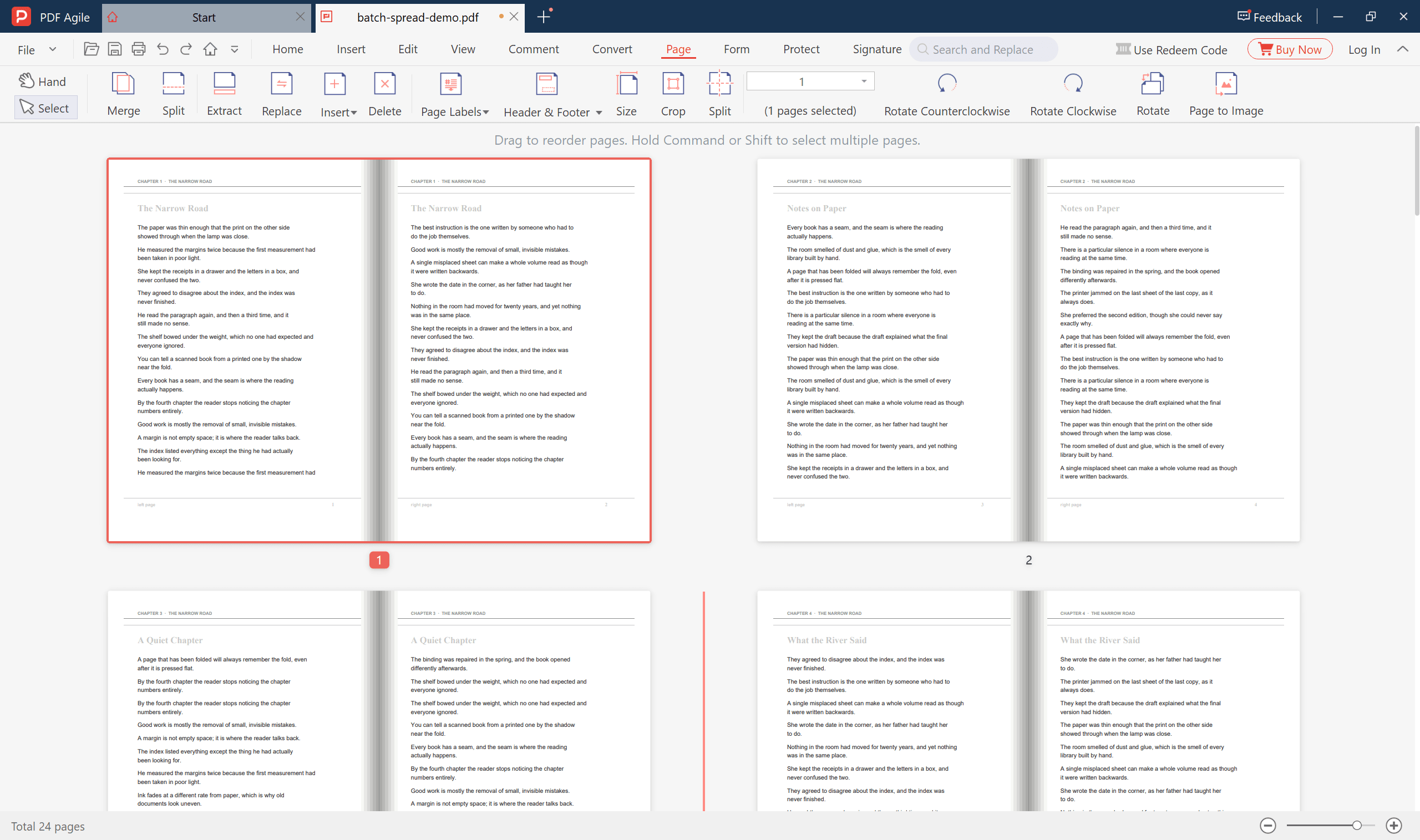
Click any thumbnail so the strip has focus, then press Ctrl+A, Ctrl+C and Ctrl+V. The page count doubles and each sheet appears twice; the pair shares the same content, which is the point — one copy becomes the left page, the other the right page.
This is the step where the usual advice inverts. Told to split one spread, the sensible instruction is to duplicate a single sheet at a time and never the whole book, because 200 doubled pages give you 400 thumbnails you cannot tell apart. Batch cropping reverses it: the crop is applied to a range of pages, so the range has to exist before the crop does.
Do not reorder anything yet. Order is easier to judge once every page is a single portrait page.
Step 3: Crop the Left Half Across the First Set
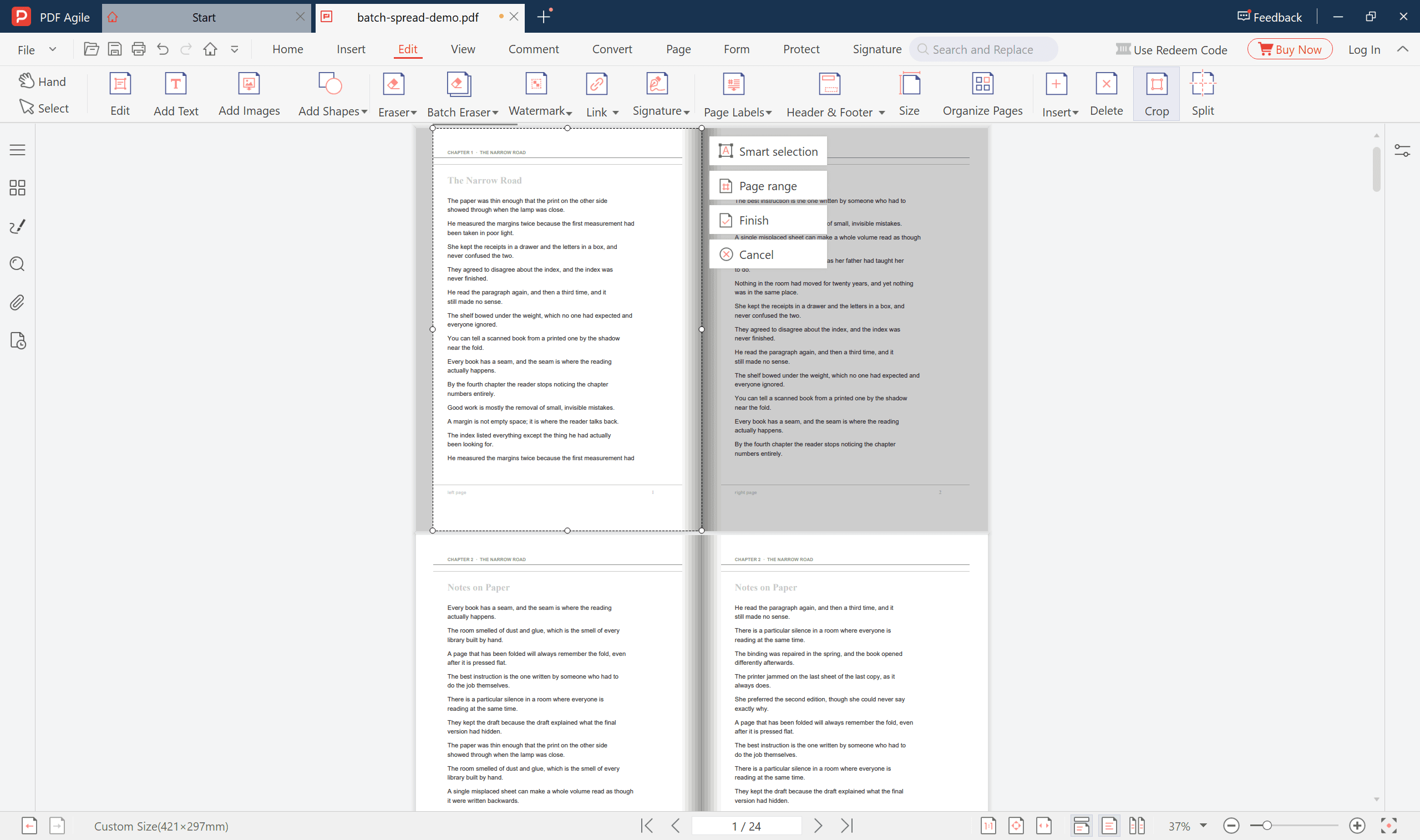
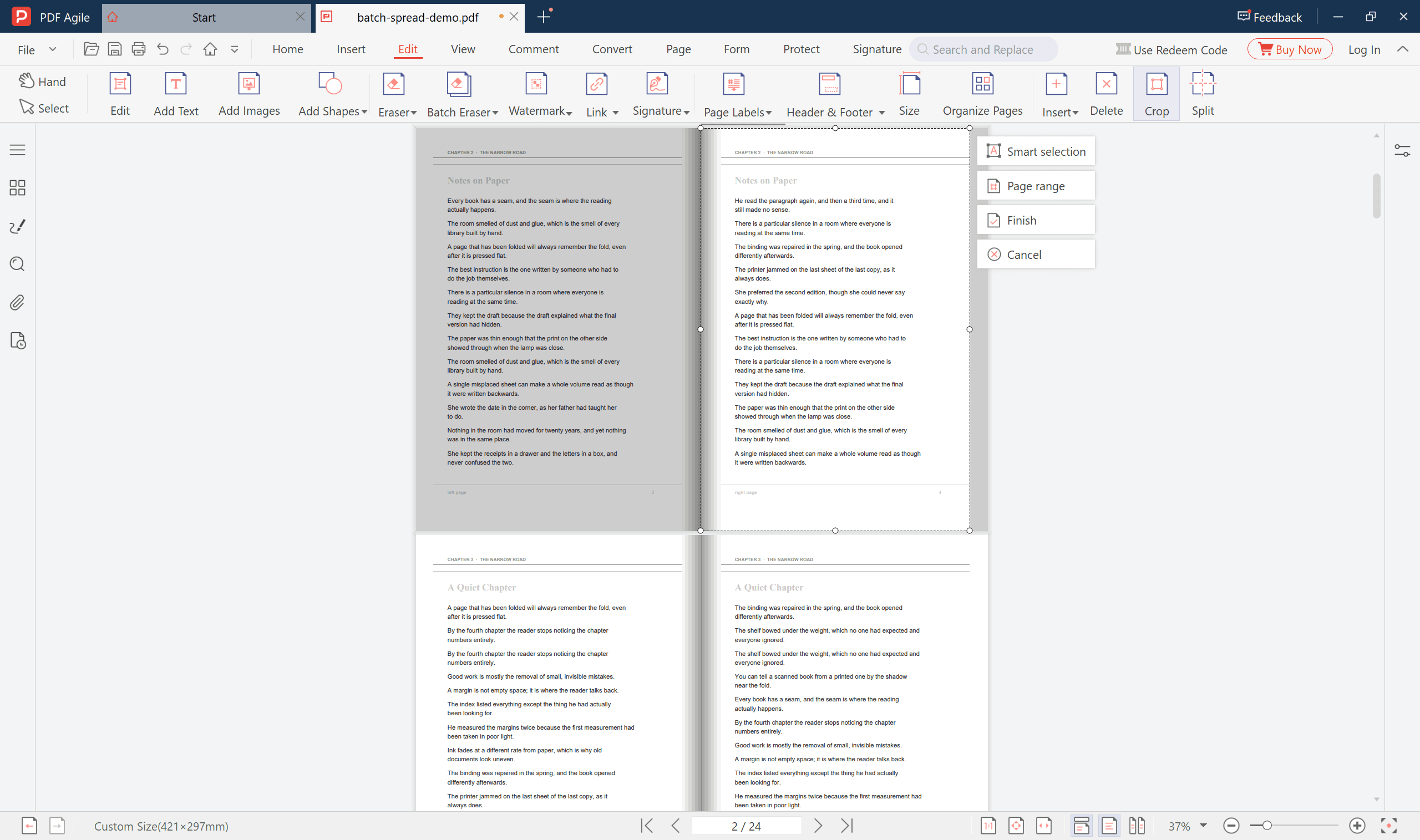
Open Crop and drag the right edge of the box to the fold, so only the left printed page stays. Take the boundary from the first spread, then check it against one more before committing; a gutter that leans the other way on later sheets is the usual reason a batch looks uneven.
Crop just inside the gutter rather than just outside it. A millimetre or two of the dark strip belongs with the half you are discarding — the sliver you lose sits in the binding anyway, and keeping it leaves a grey band down the inner edge of every page.
The crop box carries its own menu: Smart selection, Page range, Finish, Cancel. Choose Page range and give it the pages that should keep their left half, so one drag covers the whole set. Finish applies it.
Step 4: Crop the Right Half Across the Second Set
Repeat on the other set: open Crop, place the left edge of the box at the fold, and keep the width close to what the first pass produced. Equal halves are what make the finished file read as a book instead of a stack of mismatched scans.
Then choose Page range again and name the second set. If the copies sit next to their originals, that set is every other page; if they arrived as a block at the end, it is the block. This is where the earlier look at the thumbnails pays for itself.
Check one finished pair at 100 percent before moving on. The left page should end where the right page begins, with no doubled line and no leftover shadow.
Step 5: Restore Reading Order
The pages are single and portrait now, but the order may still be wrong. A book reads left then right, spread by spread: page 1 left, page 1 right, page 2 left, page 2 right.
If the copies ended up next to their originals, the order is already correct. If they came as a block at the end, the file currently runs all left pages and then all right pages, and needs reordering. Drag thumbnails into place, and hold Shift to move a run as a block rather than one page at a time.
Fix rotation while you are here. A sheet scanned sideways is easy to rotate now and much harder to find again in a file twice as long.
Step 6: Save One Page per File
If the halves belong together, save the file as it stands: a 12-sheet scan becomes a single 24-page PDF. If you need one file per page, run Split on the finished pages, choose one page per file, and pick an output folder.
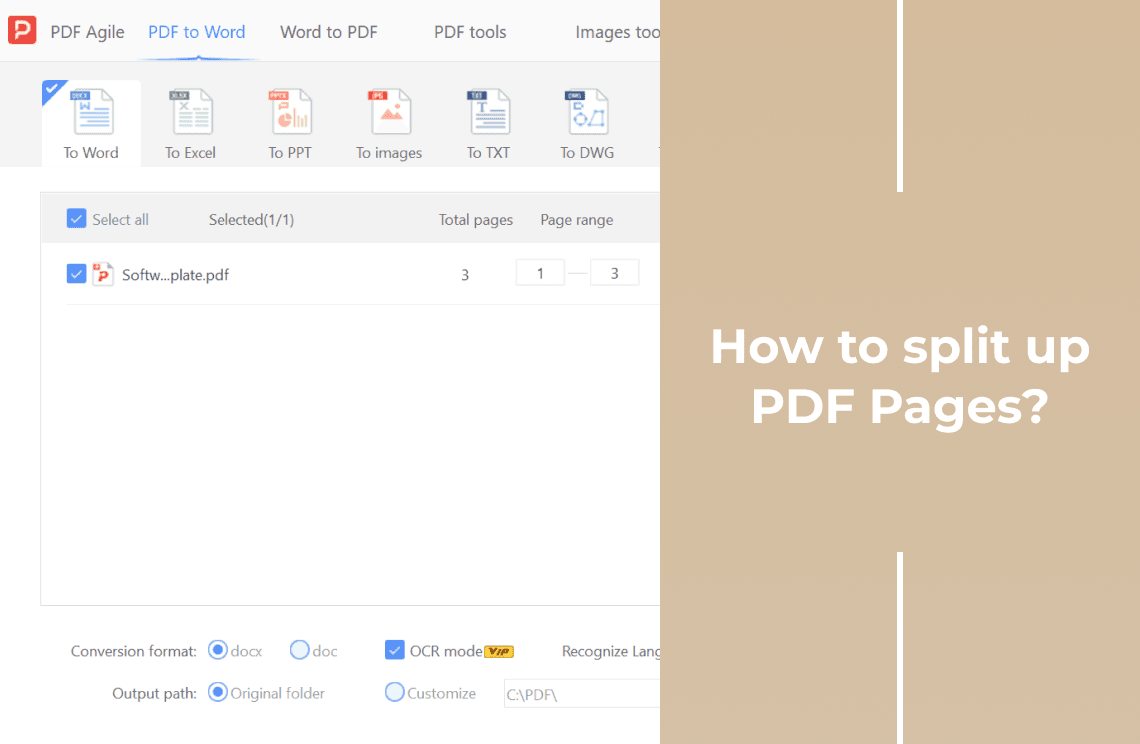
Run Split before the crops and you get the original wide sheets back, one per file, because Split distributes pages rather than dividing them. When the job is really "make separate files" rather than "cut each page in half", the panel for splitting up PDF pages into separate files is where to start.
Checking a Book-Sized Output Without Reading It
- Page count. Twice the number of sheets you started with. Anything else means a page was duplicated or lost.
- First two pages. Page 1 should be the left half of sheet 1 and page 2 its right half. If page 2 shows a different chapter, the two sets are out of step.
- Width. Measure three pages with the same tool you will print with. All three should match to within a millimetre or two.
- Zoom on the fold. Open one dense page at 100 percent at the inner edge and look for a doubled line or a grey band.
- Resolution. Cropping does not resample the scan, so a 300 dpi A3 sheet yields a 300 dpi A4 half. Print that half back onto A3 and you are printing at 150 dpi — useful to know before you promise anyone a large-format copy.
What Goes Wrong at Book Scale
- Drift. The same rectangle on 200 sheets eventually meets a sheet the scanner took 4 mm off centre. Sampling is what catches it.
- A sliver of the facing page. The box sat just outside the gutter. Move it in a millimetre and rerun that set.
- A rotated sheet inside the set. It gets cropped on the wrong axis. Rotate first, then decide whether it needs its own pass.
- A single page inside the set. A cover or a blank leaf gets cut in half. Exclude it from the range.
- Both copies cropped to the same side. The pair then looks identical, which is easy to miss in a thumbnail. The check in Step 4 is the one that catches it.
- File size barely moves. Cropping hides the discarded area rather than deleting it, so the file still carries the pixels. Compress the finished file separately if size matters.
How This Compares With Acrobat
Both routes end with the same pixels: the halves are the original scan, cropped to a smaller page area. Adobe documents one detail that holds for every editor — cropping hides content and does not reduce file size — which is why the file stays roughly the same weight here.
The practical difference is where the tools sit. In Acrobat, cropping lives under Edit while page order and splitting live in Organize Pages, so the duplicate, crop and reorder loop crosses two views. The desktop app in these screenshots keeps Crop, Split, Size and the thumbnail strip on one Page tab, and works on the file as it sits on your machine rather than on a server.
A subscription editor is the better tool when the surrounding work is heavy — preflight, print production, accessibility review. For a scanned book that only needs its spreads divided, the two passes above are the whole job.
FAQ
Do I have to duplicate the whole file?
No, but cropping first removes the option. Once a page is cropped to its left half, the copy you need for the right half no longer exists as a page, so you would be cropping the same sheet twice in two passes anyway. Duplicating first is what lets the second pass work on untouched pages.
I applied the crop to the wrong pages. Is the content gone?
Probably not. Cropping hides content instead of deleting it, so a page cropped on the wrong side can usually be re-cropped. Whether you can drag the box back out past the current boundary depends on the editor — try it on one page before you repeat it across a set.
Can I keep the searchable text layer?
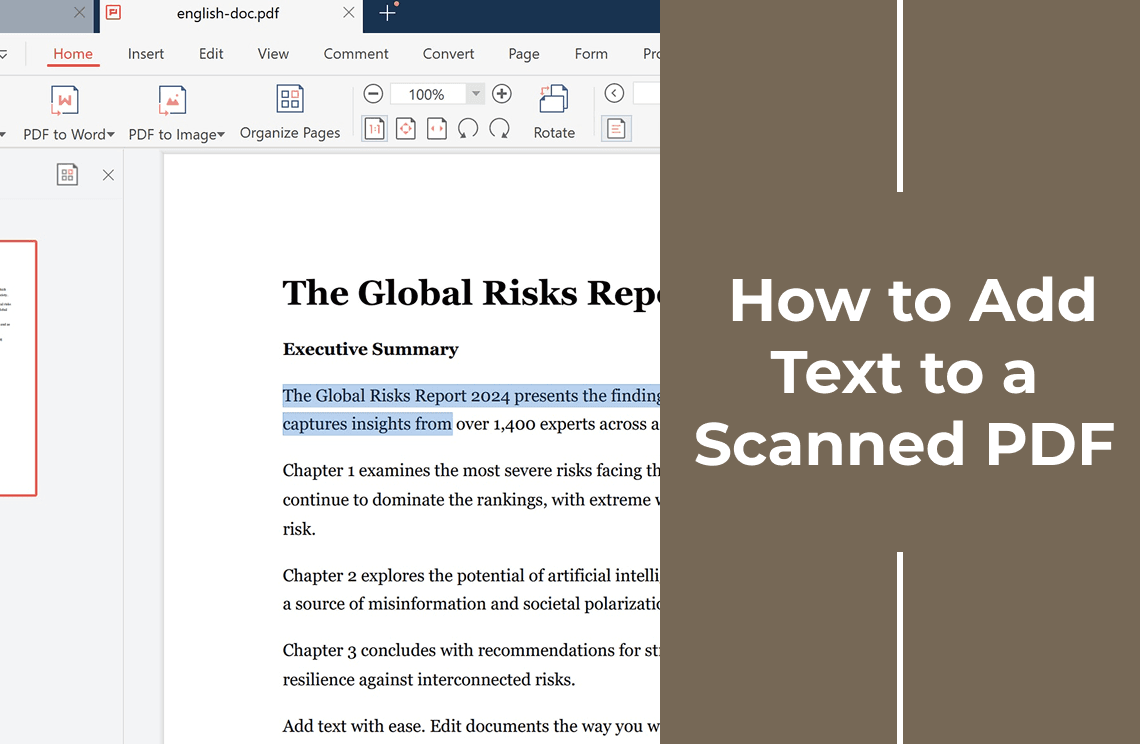
If the scan already had OCR, cropping leaves the text where it was, so each half keeps its own text. If it had none, both halves are images. Running OCR after the split is the cleaner order, and adding text to a scanned PDF covers that step.
Why is the file barely smaller after all this?
Because the discarded area is hidden, not removed. The page count doubles while the total pixel data stays put. Compressing the finished file is a separate job.
Can I do this on macOS?
The two-pass structure is the same anywhere. What changes is whether the editor will apply one crop to a range of pages — check that before choosing a tool, because a crop that only applies to the page in front of you turns this back into 400 drags.
How long does a 200-sheet book take?
Duplicating is a few seconds. The two crops are one drag each plus a page range. The slow part is the sampling check and any reordering, which depends on where the copies landed.
Where to Go Next
If the problem is the content of the scan rather than its pagination — text you cannot select, a form you cannot fill — editing a PDF covers those cases separately. Going the other direction, combining two pages into one sheet is the mirror of this job, and a browser-based split PDF tool handles the finished pages the same way the desktop app does.
That is the whole method: duplicate once, crop left across one set, crop right across the other, then put the pages in reading order and check four of them. Two drags instead of four hundred, which is the only reason this job is worth doing at book scale. If you would rather run the sequence in one window, PDF Agile keeps duplicate, crop, rotate and split on the same Page tab and processes the file locally. More page-level walkthroughs sit in the How-to & Tips section.