A scanned book usually arrives with two printed pages per PDF page: the left page and the right page sit side by side on one wide sheet. Most split tools divide between pages, and the boundary you need runs through the middle of a single page. That is why running Split on this file gives you the same wide sheets back, just in more files.
There is no one-click command for this cut. You need two moves per sheet: duplicate the page so each half has its own copy, then crop each copy down to one page. A 10-page file of spreads becomes 20 portrait pages in reading order.
This walkthrough covers that case only. Splitting by page range, extracting a few pages, and adding a searchable text layer to a scan are adjacent jobs with different steps.
Why a Split Tool Does Not Fix a Double-Page Scan
A split works on a page counter. Pages 1–4 go into one file, 5–9 into another, and the unit it moves is always a whole page. A two-page scan has one counter entry for two printed pages, so the counter has nothing to divide.
Three different jobs tend to get called splitting here, and only one of them happens inside a page:
- One PDF per page — the cut falls between pages. Ten pages become ten files.
- A shorter document — the cut still falls between pages. You keep pages 3–5 and drop the rest.
- A book spread on a scanner bed — the cut falls down the middle of one page. Ten pages become twenty.
If your job is the first or second, splitting PDF pages by page range is the shorter route. The rest of this page is about the third.
What Changes, and What a Crop Does Not Do
Know these five things before you start, because they decide whether the output is usable.
- The page count doubles. Ten spreads become twenty pages. Whether that is one twenty-page file or twenty one-page files depends on how you save.
- The scan is not resampled. Cropping changes which part of the page stays visible. The pixels do not move, so the half you keep is exactly as sharp as the sheet you started with.
- The file barely shrinks. Adobe's own crop documentation says it plainly: cropping hides content and does not reduce file size. The material outside the crop box is still inside the PDF.
- Cropped-out content is not deleted. Following from the point above, a line of text you cropped away is still in the document and returns if the page size is reset. Cropping is a layout operation, not redaction.
- Text does not change. If the scan already carries an OCR text layer, cropping will not re-run OCR and the invisible text keeps its position. If there is no text layer, both halves stay images.
If the problem is the content of the scan rather than its pagination — text you cannot select, a form you cannot fill — start from the wider how to edit a PDF guide instead. This page assumes the scan is readable and just badly paginated.
How to Split a Scanned Double-Page PDF Into Single Pages
Step 1: Open the File and Find the Spreads
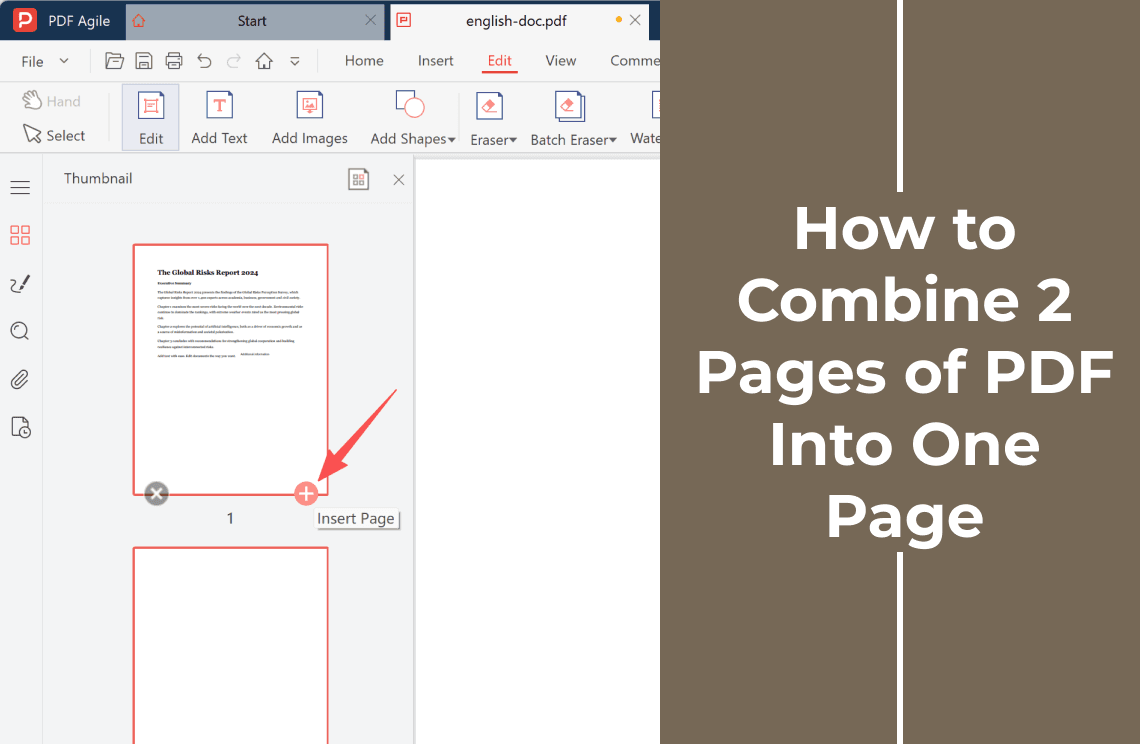
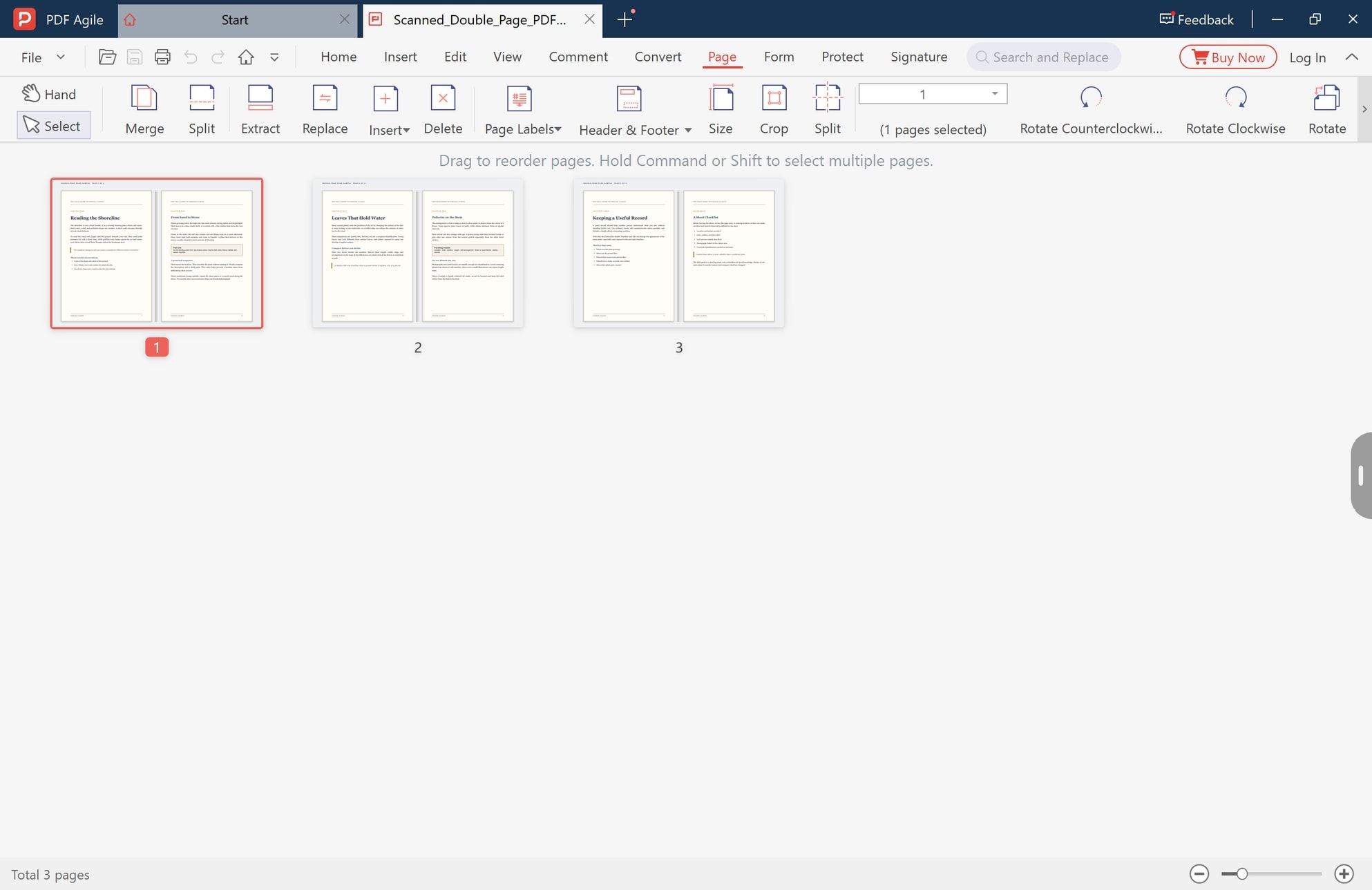
Open the PDF in PDF Agile and switch to the Page tab, which shows the document as thumbnails. Check the first few before you touch anything: you want one wide page per sheet, not one page per printed page. The status bar in the corner gives you the starting page count, which is worth knowing because it will double.
Step 2: Duplicate the Page With Copy and Paste
Select the thumbnail of the first spread, press Ctrl+C, then Ctrl+V. You now have two copies of the same sheet, which is exactly what you need: one becomes the left page, the other the right.
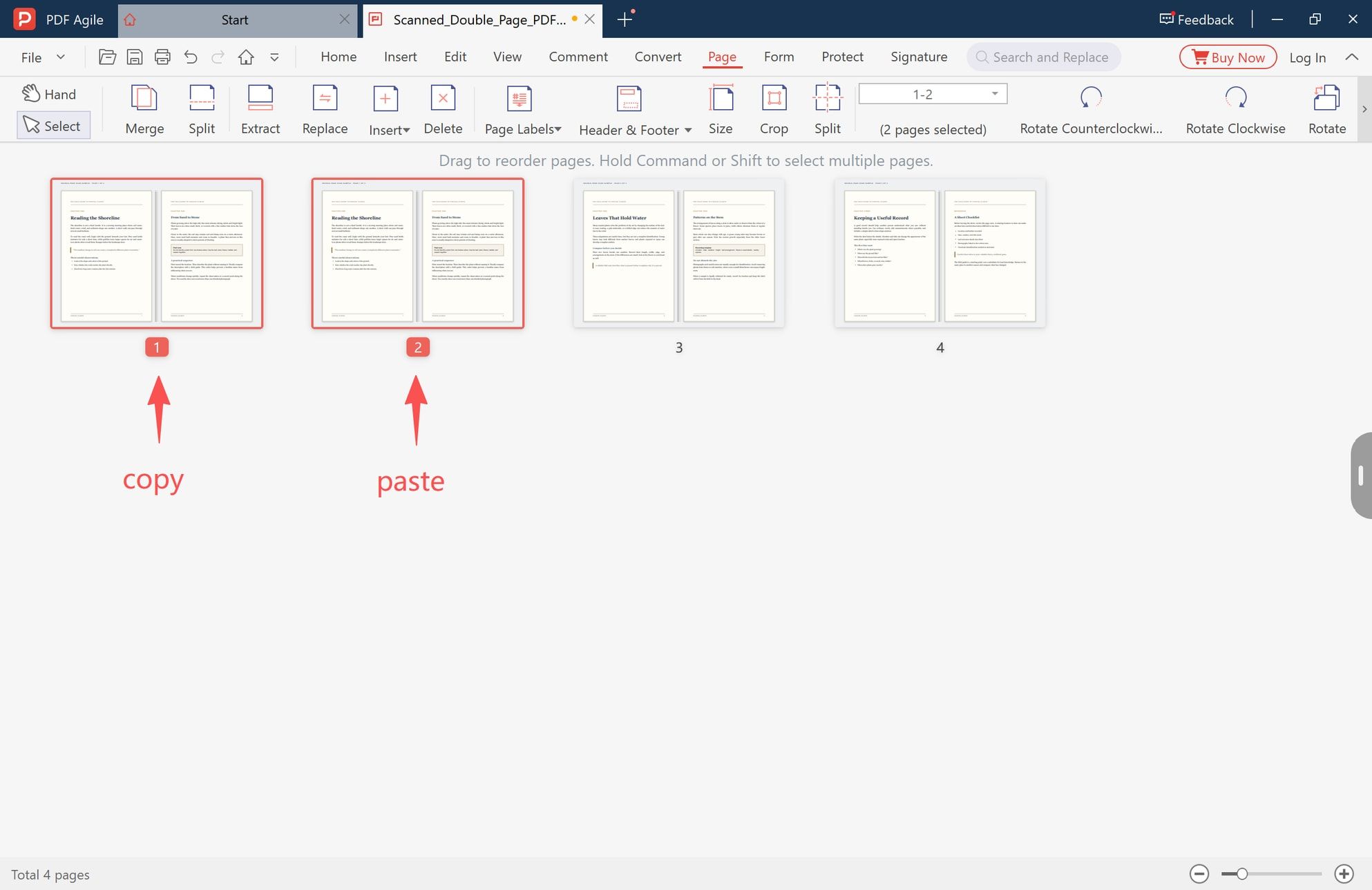
The pasted copy usually lands right next to the original. If it turns up elsewhere in the document, drag it back so the pair sits together — a pair that drifts apart is the usual cause of scrambled page order later.
Work one spread at a time: duplicate, crop, duplicate, crop. Duplicating the whole book first leaves you with twice as many identical thumbnails and no way to tell which pair belongs to which sheet.
Step 3: Crop the First Copy to the Left Page
Select the first page of the pair, choose Crop in the Page tab, set the boundary so only the left half of the sheet stays, and apply it. The thumbnail now shows one portrait page instead of a spread.
Two details decide whether the crop looks right:
- Do not assume the fold is in the exact centre. In a bound book the gutter sits slightly off-centre, and on some spreads it leans the other way. Take the boundary from the first spread, then check it against the next one.
- Crop just inside the gutter, not just outside it. Slicing a millimetre or two into the dark strip removes the shadow, and the sliver you lose sits in the binding anyway.
If you only need a single page cropped and have no desktop editor handy, a browser crop a PDF tool does the same operation one page at a time — workable for a proof page, slow for a whole book.
Step 4: Crop the Second Copy to the Right Page
Select the second page of the pair and crop it to the right half, measuring from the other edge and keeping the width roughly equal to the left crop. Symmetry is what makes the finished file look like a book instead of a stack of mismatched scans.
Then check the pair at full size. The left page should end at the fold and the right page should begin there. A gap, a doubled line of text, or a shadow down one edge shows up immediately at 100 percent zoom.
Step 5: Put the Pages Back in Reading Order
The halves are separate pages now, but a book reads left then right, spread by spread. Drag the thumbnails until the order runs 1 left, 1 right, 2 left, 2 right. The panel header reminds you that pages are reordered by dragging and that Shift selects a run of pages, which is faster than moving them one at a time.
- Hold Shift to select a run and move it as a block.
- Fix rotation before you move on. If a spread was scanned sideways or upside down, rotate that page now; finding it again in a document twice as long is the annoying part.
- Leave single pages alone. A title page or index that was scanned as one page needs no crop, only its place in the sequence.
Step 6: Save One Page per File
If the finished pages belong in one document, save the file as you normally would: ten spreads become a single twenty-page PDF.
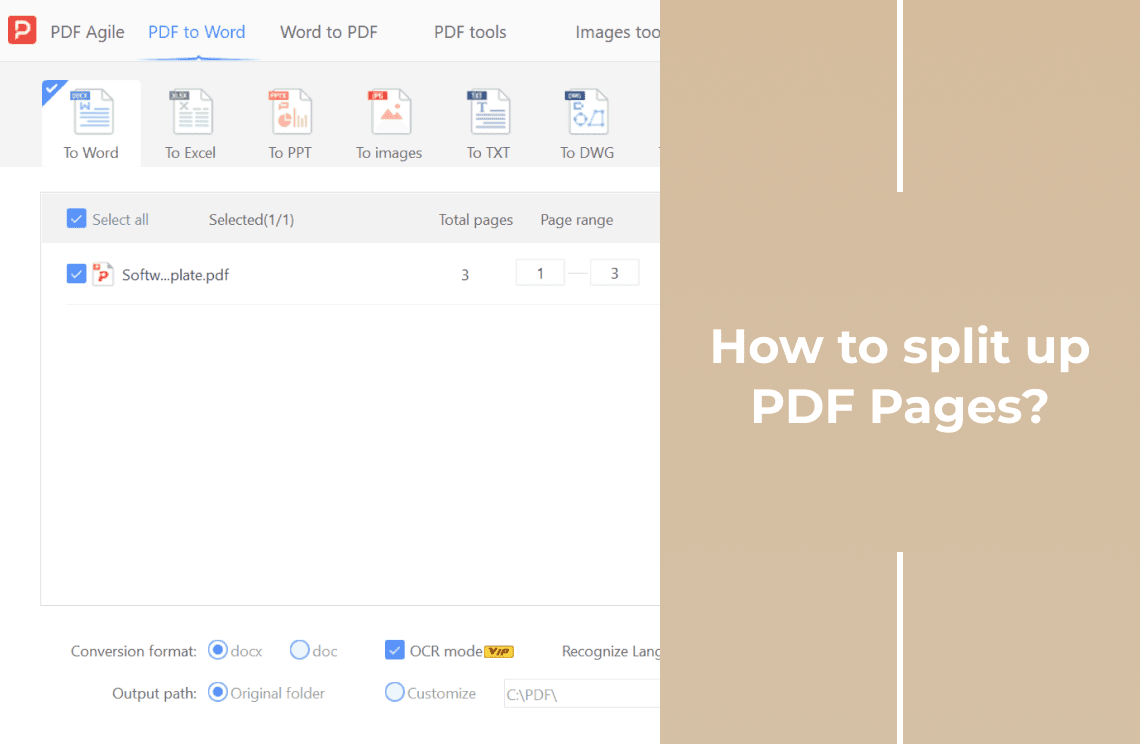
If you want one file per page, use Split. Click the Split button in the Page tab. In the PDF tools window, select All, choose Save 1 page as one file, select an output folder, and click Split.
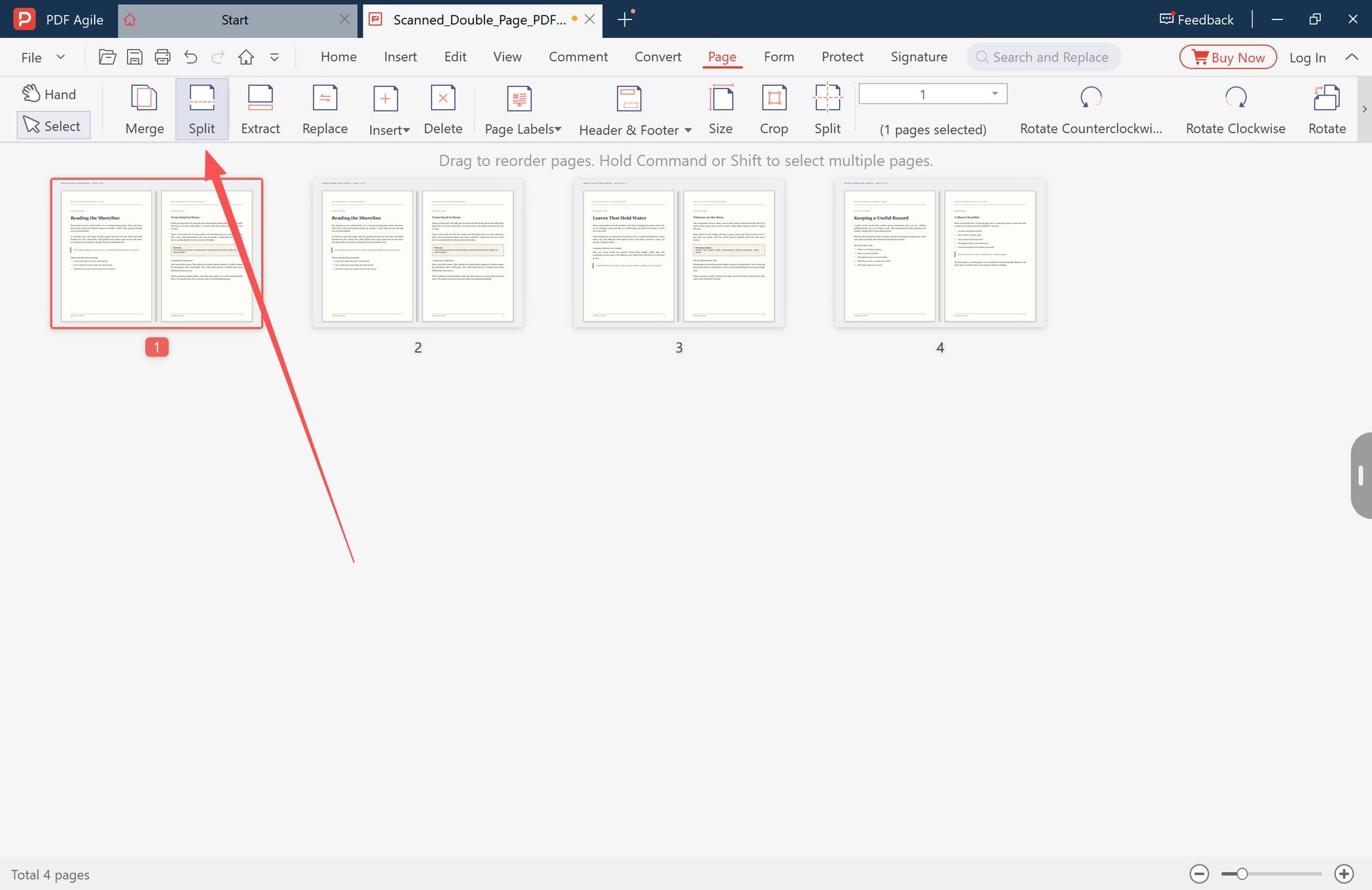
Split only distributes pages that are already finished. Run it on the untouched spreads and you get the same wide sheets back, one wide sheet per file — the same dead end as the first section of this page. The online split a PDF tool behaves the same way.
What Usually Goes Wrong
- A dark stripe down one edge. The crop was taken outside the gutter. Redo it a couple of millimetres further in.
- Text missing at the inner margin. The crop went too far in, or that spread is not centred like the one you calibrated on. Check it against the page before.
- Pages in the order 1 left, 2 left, 1 right, 2 right. Every copy was duplicated in one go and never reordered. Drag them back into reading order in Step 5.
- Both halves are the same page. The second crop landed on the first copy again. Watch the page counter as you select, since it names the page you are about to change.
- A half still looks landscape. The scan was rotated, not the crop. Rotate the page, then re-crop it.
How This Compares With Acrobat
Both routes need the same two moves, because the underlying operation is the same. Acrobat's crop tool sits under Edit and applies to a page range, so you can duplicate the wide page and crop the copy. Adobe's crop help page is also the source of the "cropping hides content, it does not reduce file size" statement above, and that holds for any PDF editor rather than one product.
The practical difference is where the tools sit. In Acrobat, cropping lives in the Edit tool while page order and splitting live in Organize Pages, so the duplicate-crop-reorder loop crosses two views. In the desktop app used for these screenshots, Crop, Size, Rotate and Split all sit on the Page tab next to the thumbnails, so the whole sequence happens in one panel.
Neither route changes what comes out: the halves are the same scanned pixels, cropped to a smaller page area.
FAQ
Why doesn't the Split command split my two-page scan?
Because Split counts pages, and your scan has one page entry for two printed pages. The boundary you need is inside a page, and only a crop can move it there. Split becomes useful afterwards, when you want one file per finished page.
Does cropping make the text sharper or blurrier?
Neither. Cropping does not resample the image, it changes the visible page area. If a half looks soft, the scan was taken at a low resolution and cropping will not add detail.
The file is the same size after cropping — did it work?
Yes. Cropping hides the rest of the sheet instead of deleting it, which is why the page count can double while the file size stays roughly where it was. Compress the finished file separately if size is the problem.
Can I still select and search the text after splitting?
If the scan already carried an OCR text layer, yes, and cropping leaves that layer in place. If there is no text layer, both halves are pictures — run how to add text to a scanned PDF first and split afterwards, so the text positions stay with their pages.
I cropped out a line I did not want to share. Is it gone?
No. Content outside the crop box stays in the file and comes back if the page size is reset. For anything that must be removed properly, redact it instead of cropping.
Can I do the whole book in one pass?
Only if every sheet was fed through the scanner in the same position, which you cannot assume. The safe route is one crop per half. If a batch is genuinely aligned, the crops can be repeated at the same coordinates, but check the first and the last spread before you trust that.
That is the whole method: duplicate, crop each copy to one half, fix the order, save. It is two crops per sheet, so settle into a rhythm and check the first spread properly before you commit to it.
The screenshots come from PDF Agile for Windows, a desktop editor that keeps duplicate, crop, rotate and split on one Page tab and works on the file on your own machine rather than on a server. If that is the way you would rather handle a scanned book, the whole sequence above runs in one window.
More page-level walkthroughs — trimming, reordering and pulling pages out — sit in the How-to & Tips section. If you are going the other direction and need two pages on one sheet, combining two pages into one is the mirror image of this job.