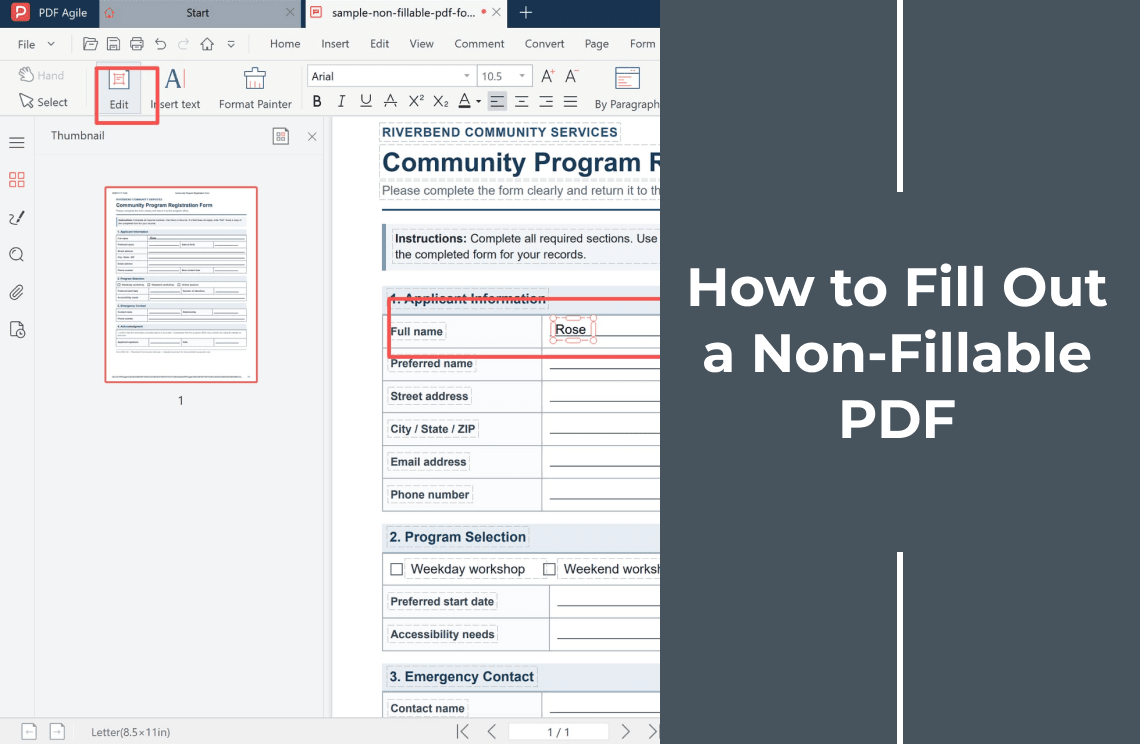
A non-fillable PDF is a form with printed lines and boxes but no fields, so clicking a blank space produces no cursor. You can still complete it by placing text on top of the page. The answer becomes a new object drawn over the existing content, and the page is not re-laid-out: the size stays, the page count does not grow, and the printed words do not shift to make room.
What goes wrong is not the document moving — it is an answer landing a fraction too high, too large, or in the wrong row. For the wider route, how to fill out a non-fillable PDF form covers which form you are holding; this page covers what decides whether the file is accepted.
What "Non-Fillable" Means for the Page
A PDF carries text in two ways, and only one of them is a field. Form fields are named objects with a value: the viewer draws them, stores what you type, and software can read the answers later. Printed labels, rules, and option boxes are page content — part of the drawing, with nothing behind them to click.
The example below is a one-page Letter-size registration form with printed answer lines and three printed option boxes. Nothing on it is a field.
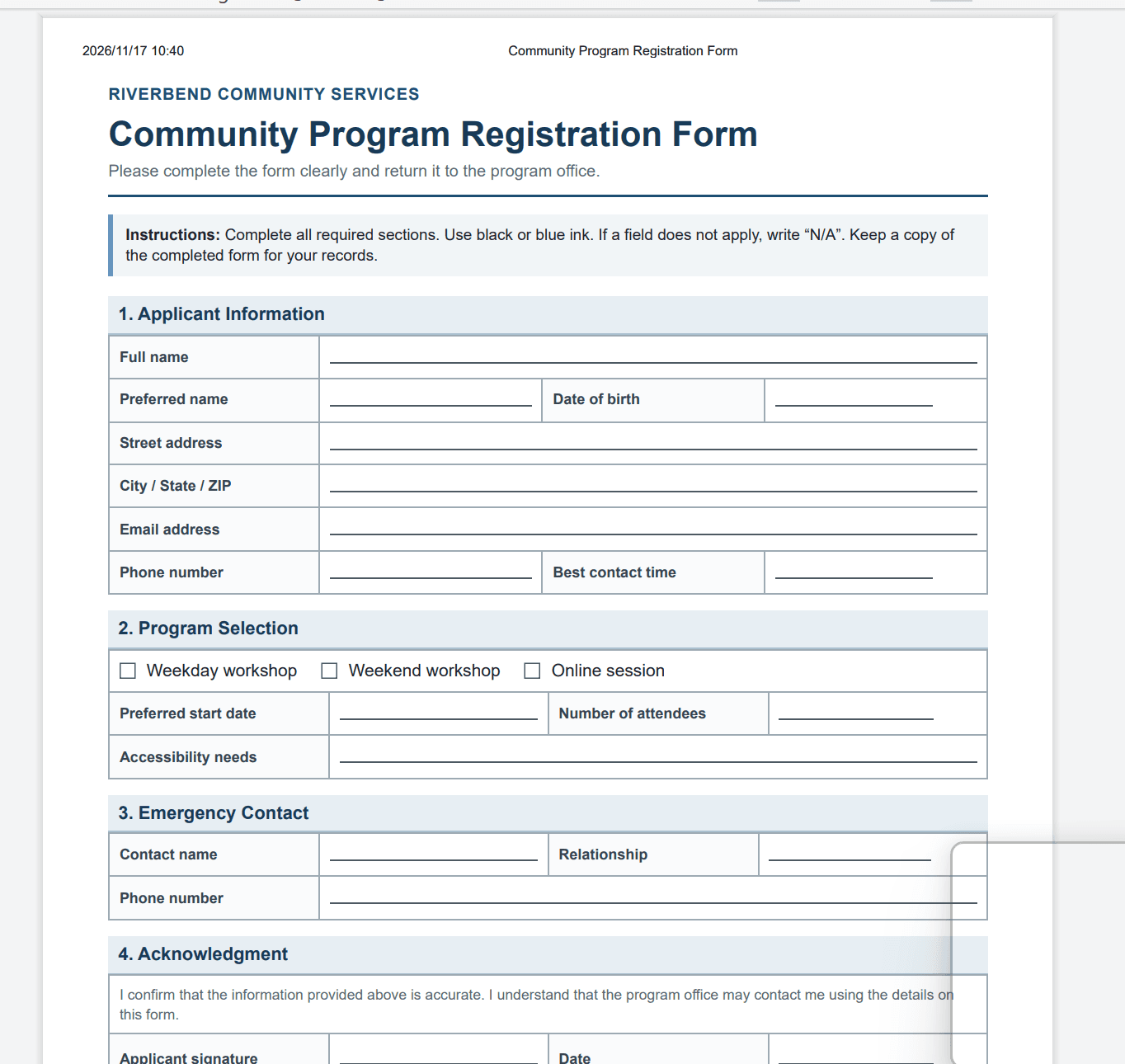
Two files can look identical and behave differently. A flat digital form, exported from Word or a design tool, keeps its labels as real text, so they can be selected and used as a guide when you align a value. A scanned form is one image, so alignment is judged by eye until OCR runs.
Why Clicking a Blank Line Does Nothing
- There is no field there. The line is ink on the page, and clicking does not turn ink into an input.
- The page is an image. A scan has no text objects at all.
- The form was flattened on the way to you, often by a print-to-PDF export that discarded the fields.
- The file is protected, so fields exist but editing is switched off. Placing text does not fix that one.
Choose the Route That Leaves the Page Intact
- A few answers, and the printed page must stay as it is. Place text over the page — the steps below. Nothing is regenerated, so nothing moves.
- The file is a scan and you need selectable text afterwards. OCR adds a text layer but may rebuild the page: adding text to a scanned PDF.
- You must change wording or add rows. That is editing a document, not filling it: start from how to edit a PDF.
- The receiver's portal demands a fillable file. Ask for it; text placed on a page is invisible to field extraction.
How to Fill Out the Form Without Moving Anything
The screenshots show a blank form opened in a desktop editor, with answers placed on the page rather than typed into fields.
Step 1: Work on a Copy
Save the file under a new name before you touch it and keep the blank original. Forms come back a second time, and a value in the wrong row is easier to abandon than to unpick.
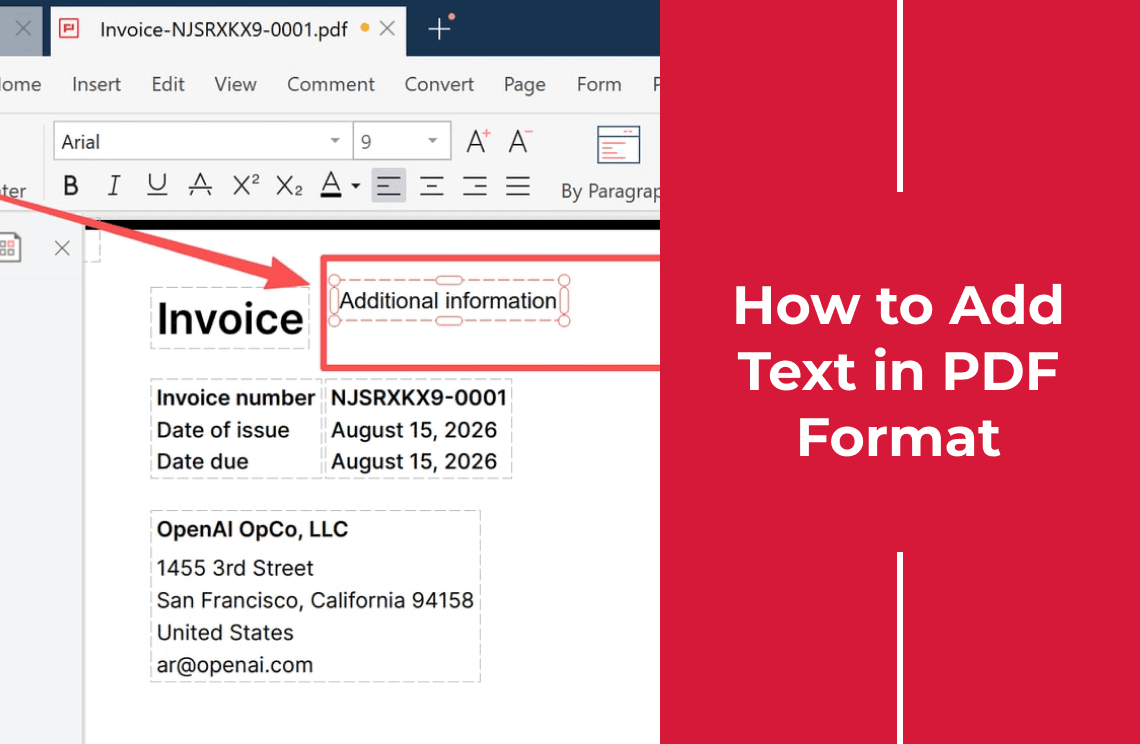
Step 2: Turn On the Text Tool
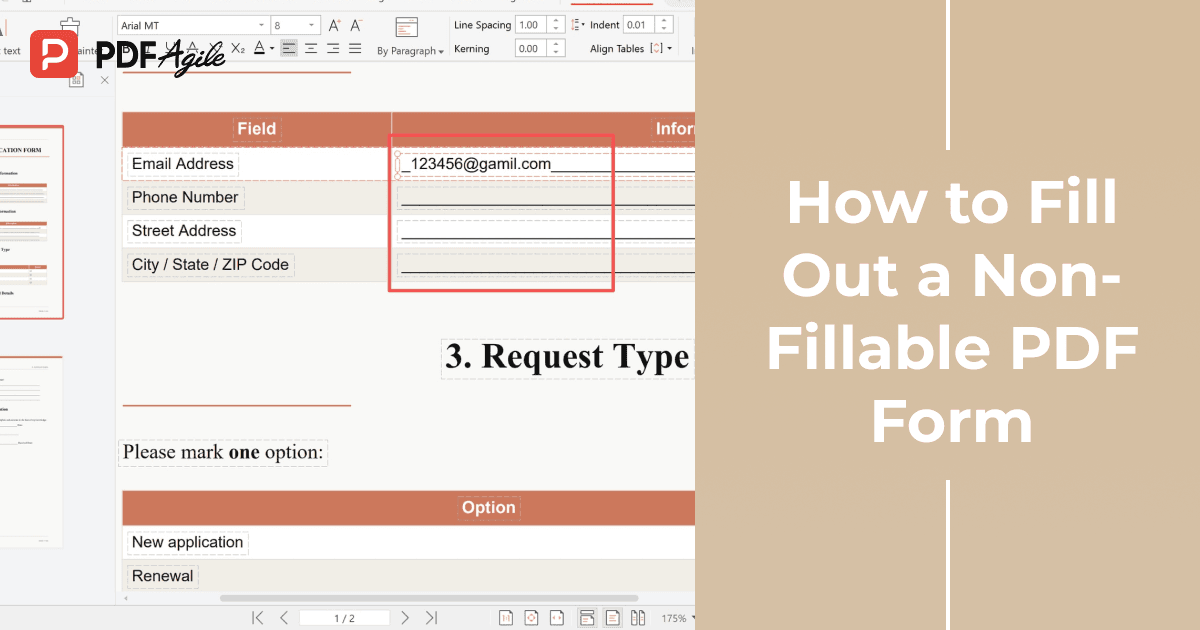
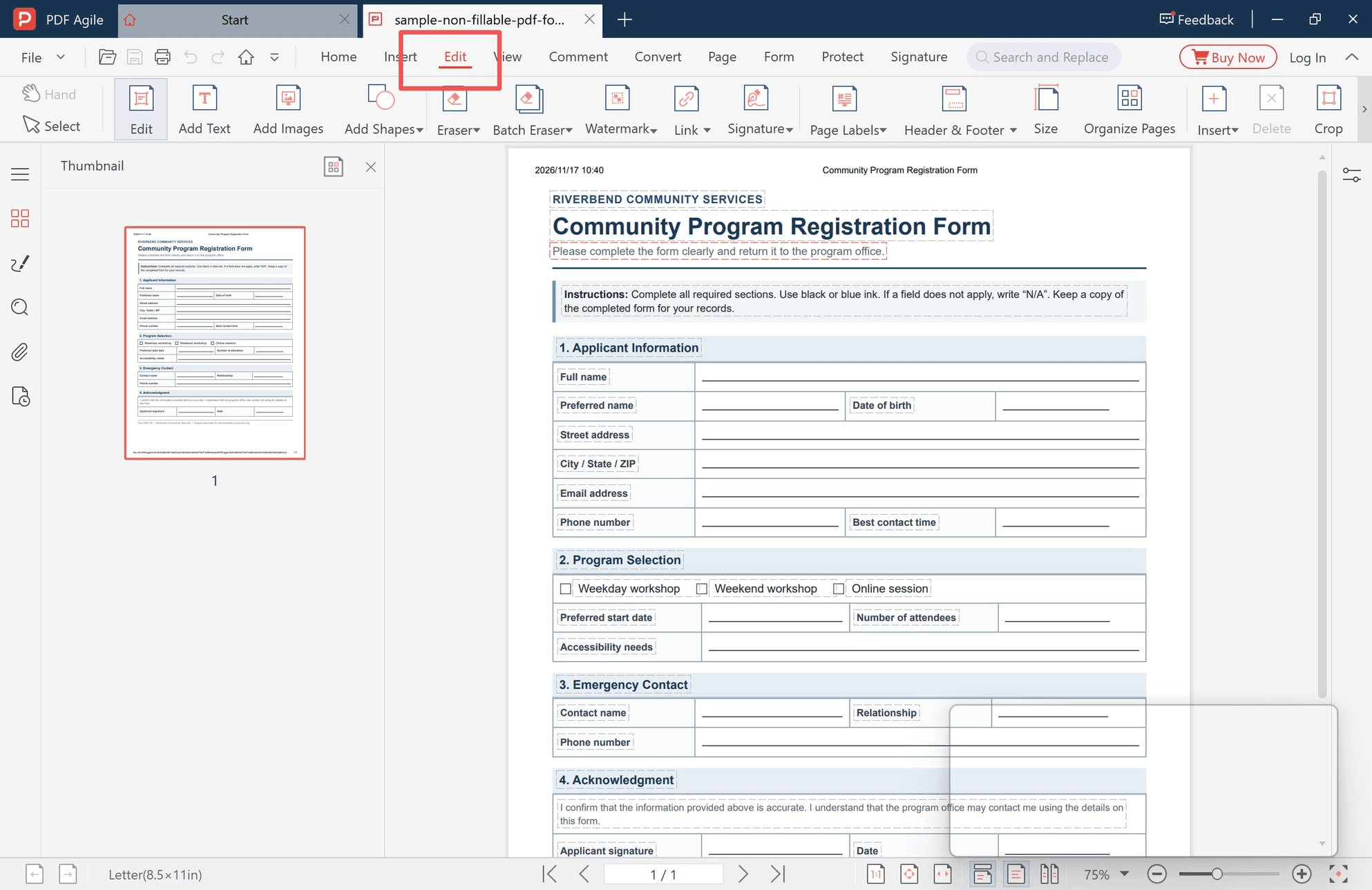
The text tool sits in the editing group on the Insert tab, next to Edit and Add Images. Choose Add Text, then click once where the answer belongs. Notice what the editor outlines: the printed labels, because they are text objects it can select, and not the blank rules, because there is nothing there.
Step 3: Click Inside the Answer Area, Not on the Line
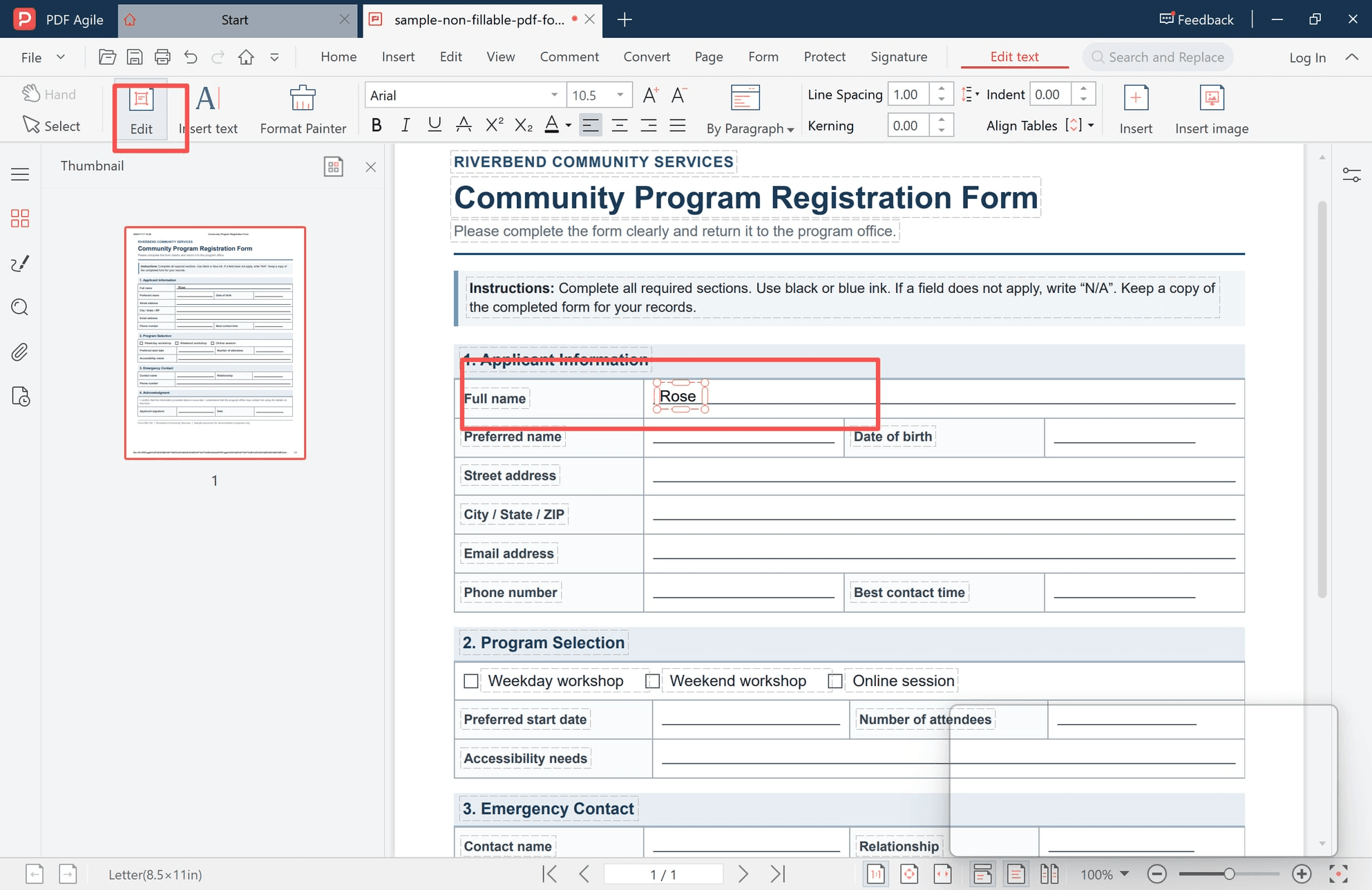
The click point is the whole decision: the insertion point lands where you click and the text grows rightward. Aim just right of the label column and a little above the printed rule, so the baseline settles onto the line instead of cutting through it.
Step 4: Set the Size Before You Type the Rest
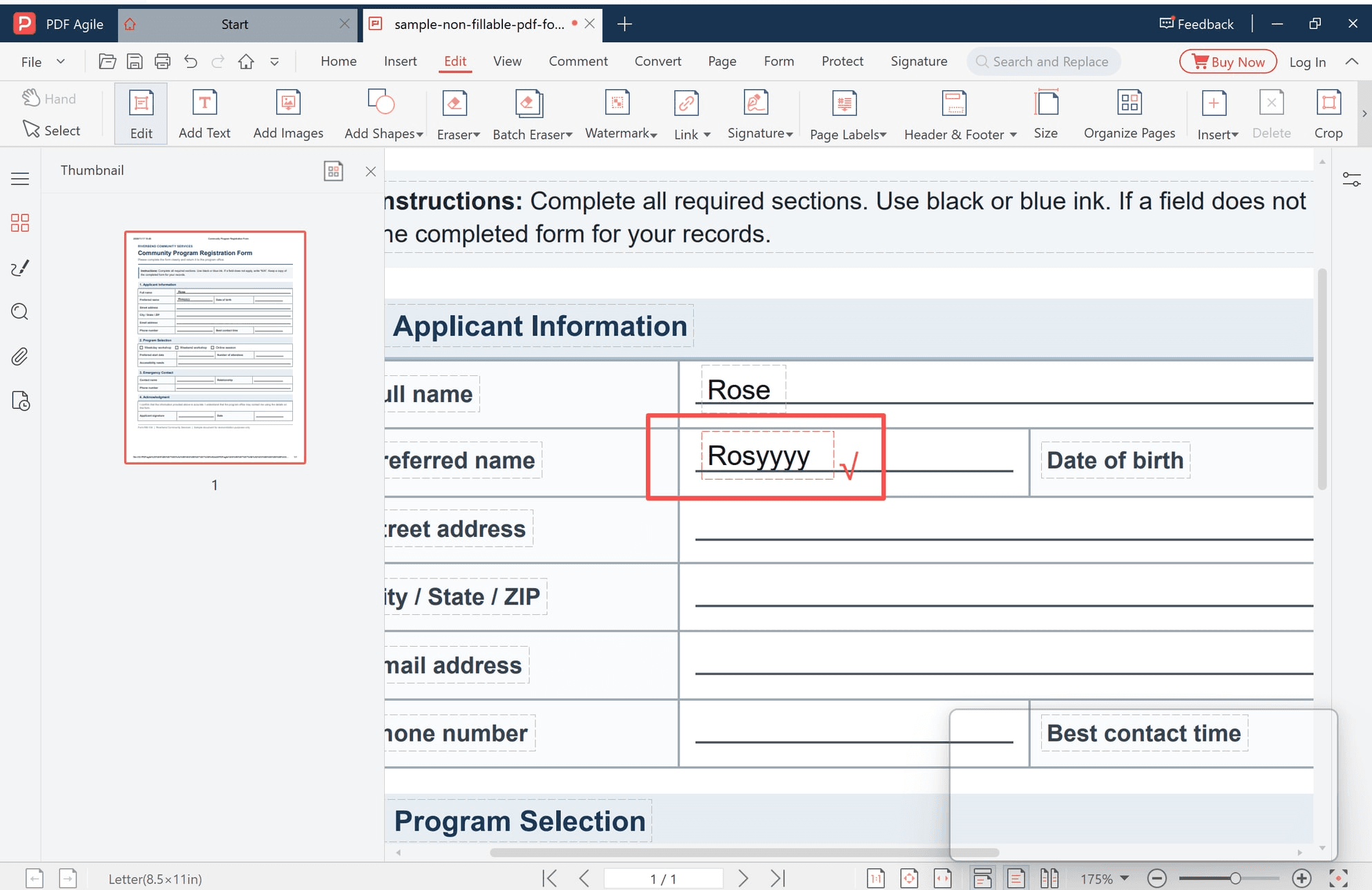
The default is built for body copy — 10.5 pt in the screenshot — which is taller than a form row, so the value crowds the border above it. Reduce it until the answer sits between both borders, then keep that size for the remaining answers.
If a value will not fit at a readable size, shorten it or continue on a second page. Shrinking to 5 pt produces a form a clerk cannot read.
Step 5: Mark the Printed Option Boxes
The three boxes on this form are printed squares, not controls. Type an X or a check mark inside the square, aligned with the box rather than beside it, and use the same mark throughout. On a single-choice row, exactly one mark — a leftover second mark is a common reason a form comes back.
Step 6: Save the Filled Copy
Save under the name from Step 1 and leave the blank master alone. Saving over the original hands your answers to whoever needs that form next.
Repairing Text That Landed in the Wrong Place
Misalignment is easy to fix, but only at a zoom where you can see it. Below, the same value sits too high and runs past the column border, which reads as damage even though the words are correct.
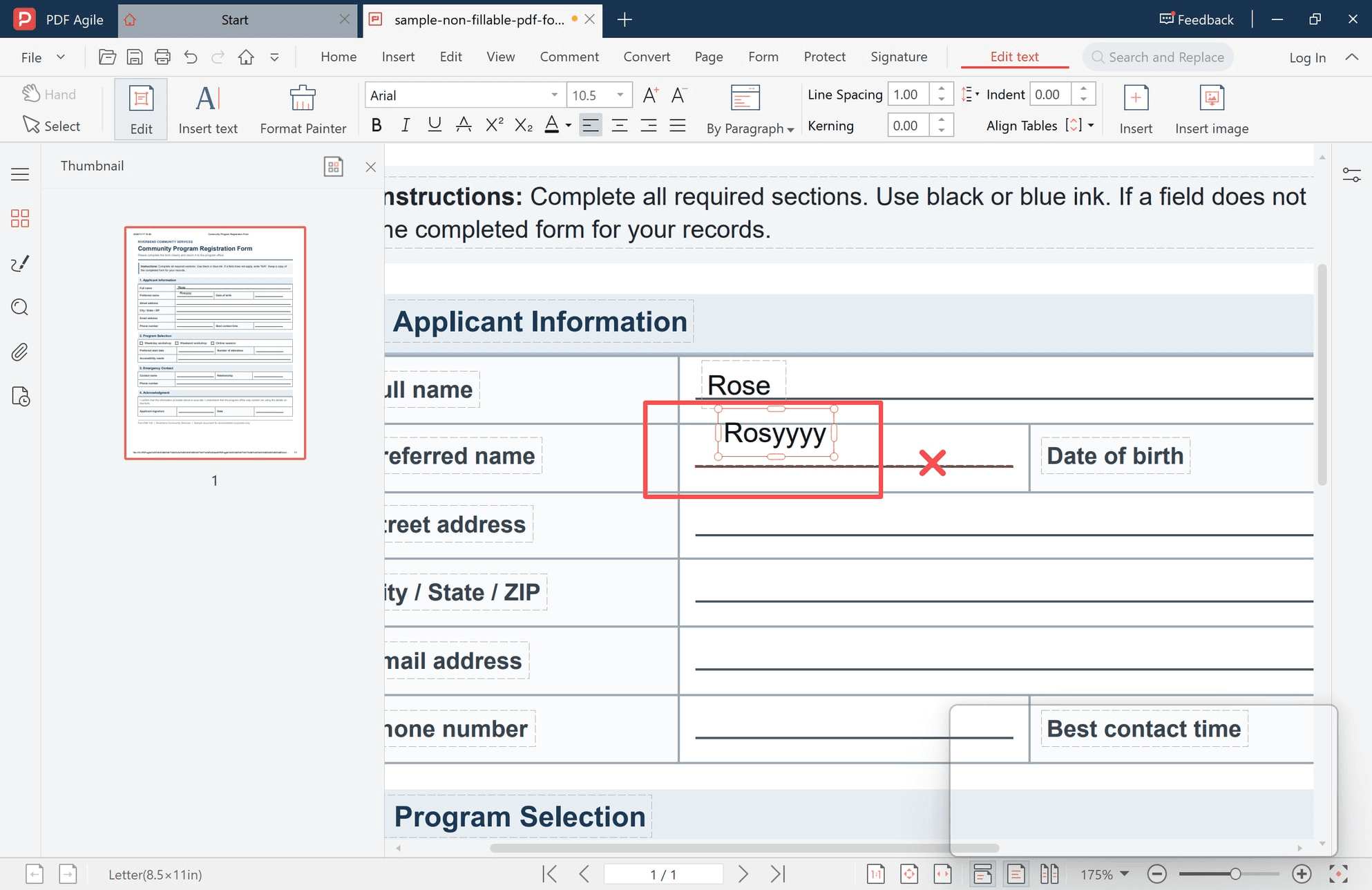
Select the block, drop the size one step, then drag it down until the baseline rests on the rule. At 175% that takes a second; at 75%, where the whole page fits on screen, the same offset is easy to miss. Place text at 100% or closer, and review at the zoom a reader will use.
What Actually Moves a Layout
Placing text does not. These do:
- OCR. Some tools rebuild the page while adding a text layer, which can shift baselines and drop the original typeface.
- Converting to Word and back. The document reflows, pagination changes, and the lines you were aligning to land elsewhere.
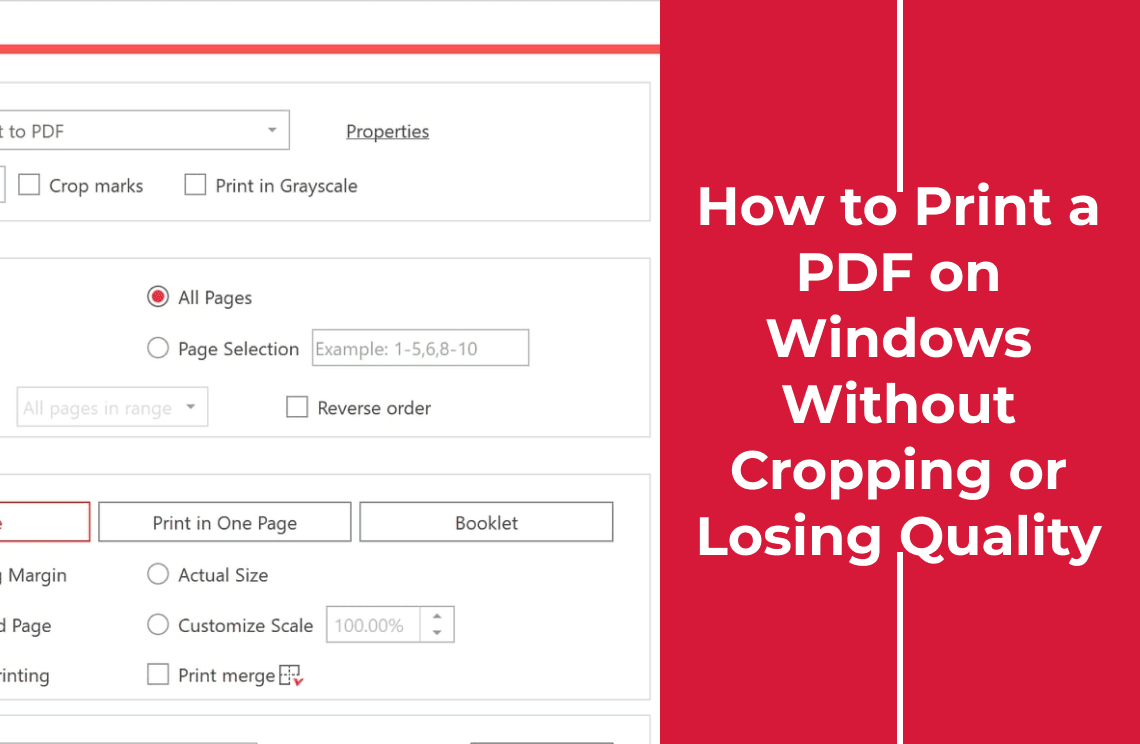
- Printing to PDF with "Fit to page". The page is scaled, so every answer moves relative to the paper edge. Use Actual size, the setting behind printing a PDF without cropping.
The page count only changes if you add a continuation page; placed text never adds one.
Check the Finished File Before You Send It
- Reopen the saved copy, not the window you worked in, and confirm Letter stayed Letter and one page stayed one page.
- Scan every answer at a reader's zoom — on the line, inside the box, clear of the label above and the border to the right.
- Open print preview at actual size, not fit-to-page, and check the file in a second reader.
- Confirm who receives it. A person opening the page sees your answers; software extracting field values sees an empty form, however full the page looks.
When Placing Text Is the Wrong Choice
- The portal validates fields, so an overlaid answer reads as a blank form.
- The signature has to hold up. A typed name is not a digital signature.
- The file is protected. Settle permissions first instead of working around a lock.
- Content must be removed, not hidden. A white rectangle covers a number; the number stays in the file and stays copyable.
- Staff must edit the answers as fields later. Ask for the fillable version; page text cannot be tabbed through.
FAQ
Does adding text change the original layout or the page count?
No. The answer is drawn on top of the page as a new object, so the printed content, the page size, and the page count stay as they were. Text in the wrong spot can look like a changed layout, which the check list above catches.
Can I fill out a scanned form the same way?
Yes, for the placement itself: text sits over a page image as it sits over a digital page. Nothing on a scan can guide you, so you align by eye, and OCR is worth adding only when you need selectable text afterwards.
How do I stop text from spilling outside a field?
Click further left in the answer area, reduce the size one step, and drag the block until the baseline meets the rule. If it still overflows, the value is too long for the row — shorten it or use a second page.
Does a white box delete the text underneath?
No. It is a drawing placed over the content; the original text stays in the file, searchable and copyable. Real removal is redaction, which deletes rather than covers.
Where a Desktop Editor Fits
PDF Agile is the desktop app the screenshots were taken in. Its editing tools keep the text, size, and alignment controls above the page, and the file is edited on your machine rather than uploaded to a server — which matters for a form carrying a date of birth or an ID number.
Placing text is not unique to one product: Acrobat, Preview, and most desktop editors can do it. The honest difference is how quickly a misplaced block can be seen and corrected.
If blank, unclickable forms arrive often and you would rather place answers than print and re-scan, PDF Agile for desktop is built for that workflow. More of these guides are filed under How-to & Tips.
Steps and interface reflect the desktop app shown in the screenshots, captured in November 2026 on Windows; menus may change in later versions. Adobe Acrobat and macOS Preview are trademarks of their respective owners. Disclosure: this article was written by the team that builds the editor described above.