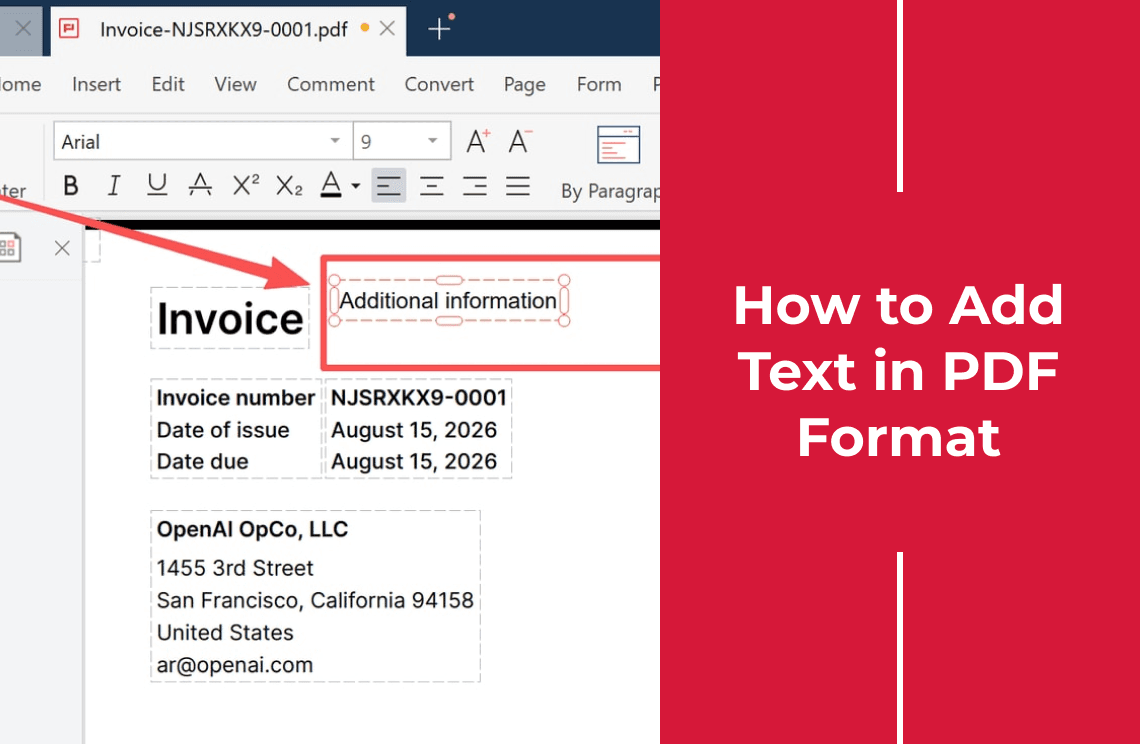
Adding text in PDF format means placing a new text box on top of the page: you type the words, they land where you put them, and nothing in the original document is rewritten. You need a desktop editor with a text tool, and the job takes four steps.
What Adding Text Does to a PDF Page
A PDF page is a fixed layout. The text you add goes into its own box above the page, so the paragraphs, columns, and table rows already there stay exactly where they are. That is why you can drop a line into a margin, over a blank line on a form, or beside an existing heading without pushing anything out of place.
It also explains the two jobs people mix up. Adding text puts something new on the page. Changing words that are already there means editing the PDF's own text layer, and that only works when the page holds real, selectable text.
The result is an ordinary PDF. The words you add become part of the page, so they appear in any reader and in print — in step 3 below the page thumbnail updates the moment the text is placed. Nothing else has to be switched on for the addition to show.
How to Add Text to a PDF
The four steps below use PDF Agile for Windows, a desktop editor, so the file stays on your computer while you work.
Step 1: Open the Edit Tools
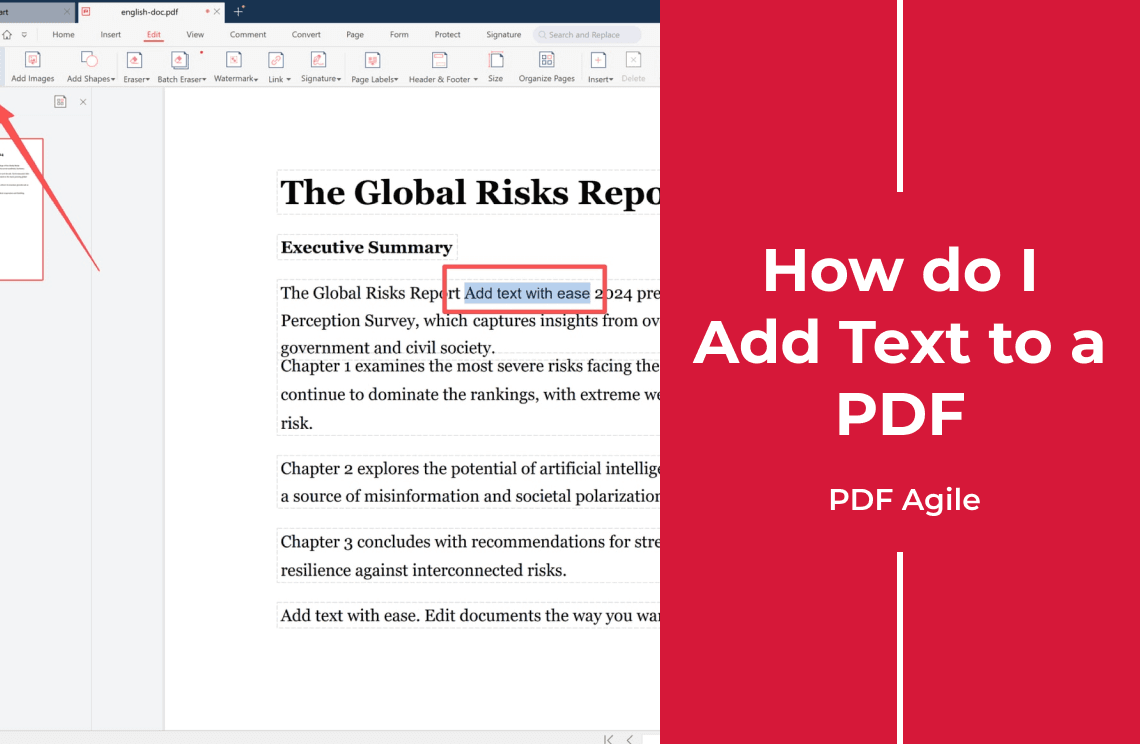
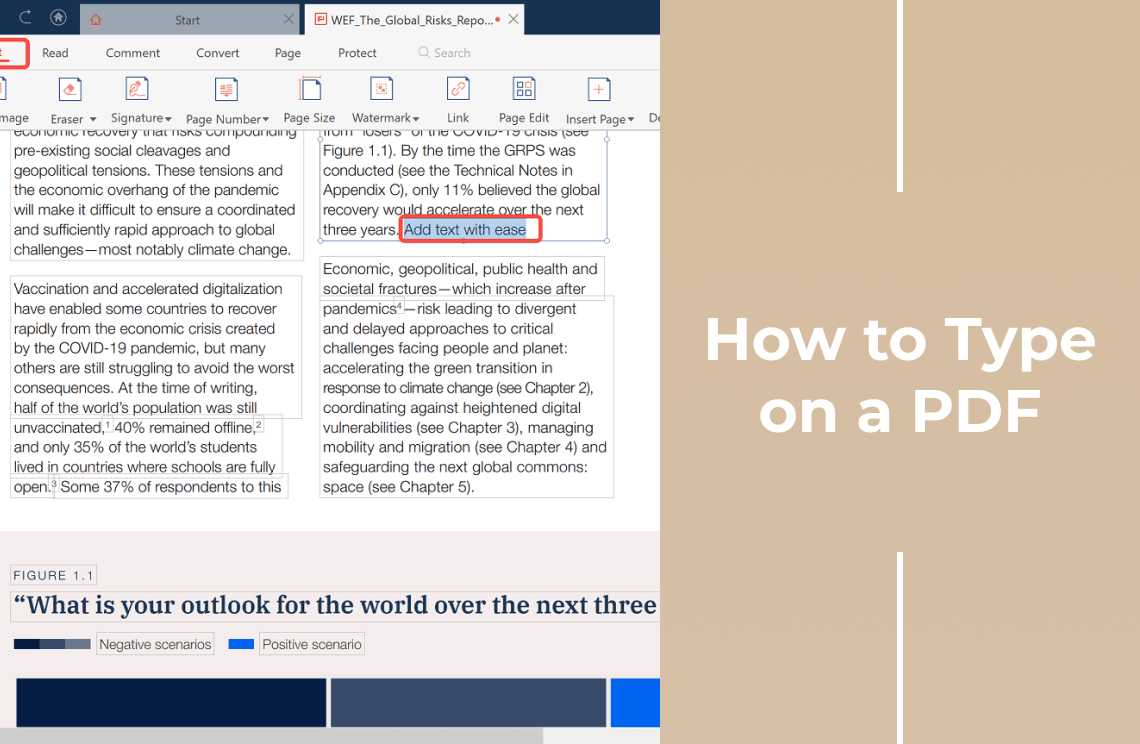
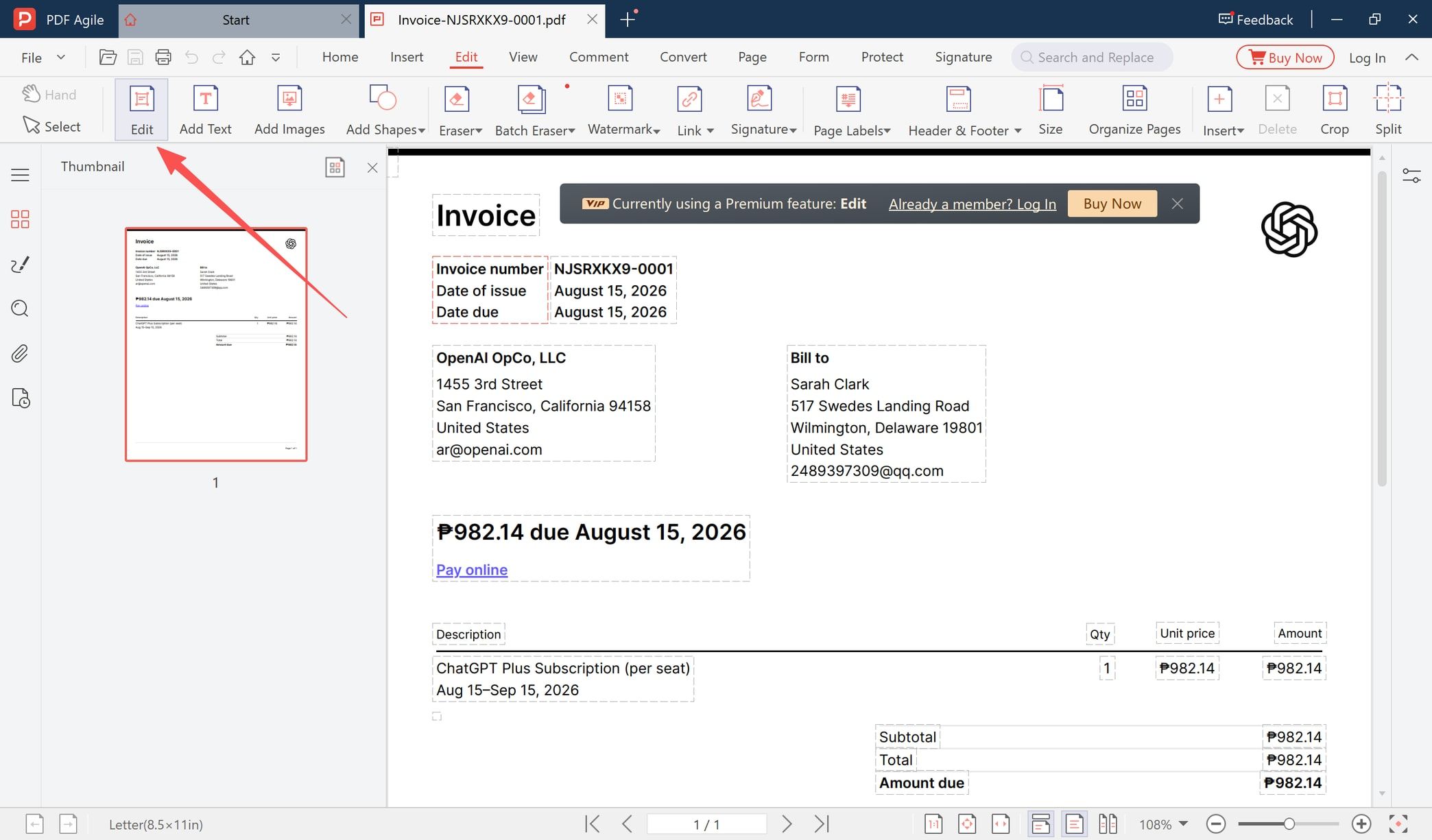
Open your PDF and click Edit on the ribbon. The editing toolbar appears with Add Text in the first group, next to the image, shape, and eraser tools.
The editor flags this toolset as a premium feature, so a notice with a Buy Now button may sit above the page while you work.
Step 2: Insert the Text
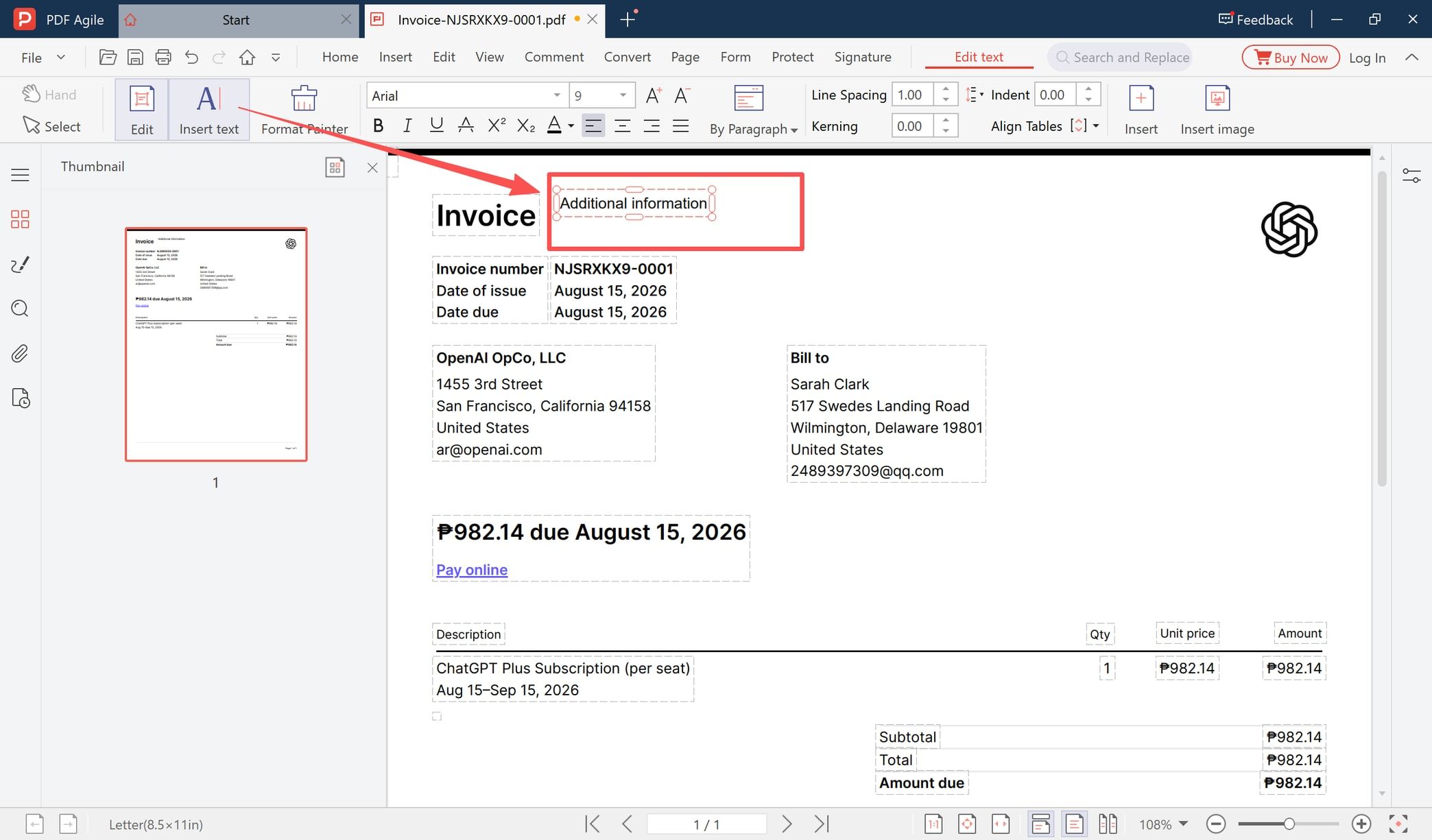
With the Edit text tools open, choose Insert text, click the page where the new words should start, and type. In the example below, the invoice gains a short line reading "Additional information" in the empty space above the Invoice heading.
The box can be moved and resized afterwards, so place it roughly first and adjust it once the words are in. If the target line is narrow, zoom in before you click: the status bar at the bottom of the window shows the current zoom level, and a closer view makes the box land where you want it.
Step 3: Format the Added Text
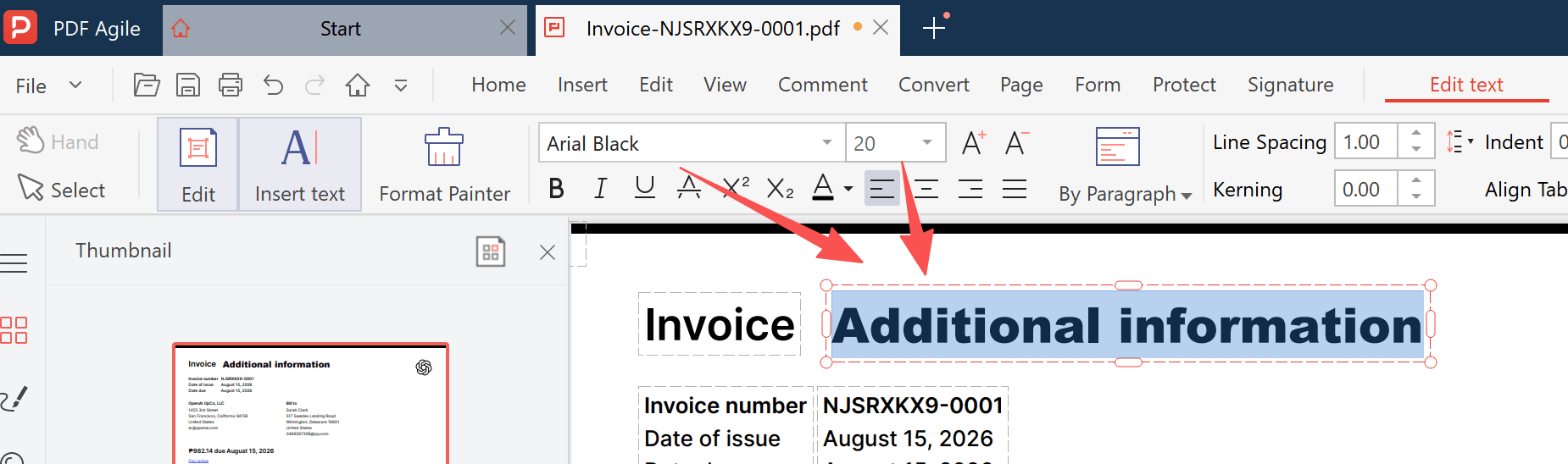
Select the text you added. The toolbar shows the font name and size — Arial Black at 20 points in the example — along with bold, italic, underline, superscript, subscript, highlight, alignment, line spacing, and kerning controls.
For a note that should blend in, match the font and size already used on the page. For a label or a heading, a heavier font and a larger size make the addition read as a deliberate part of the document.
Step 4: Save the Edited PDF as a Copy
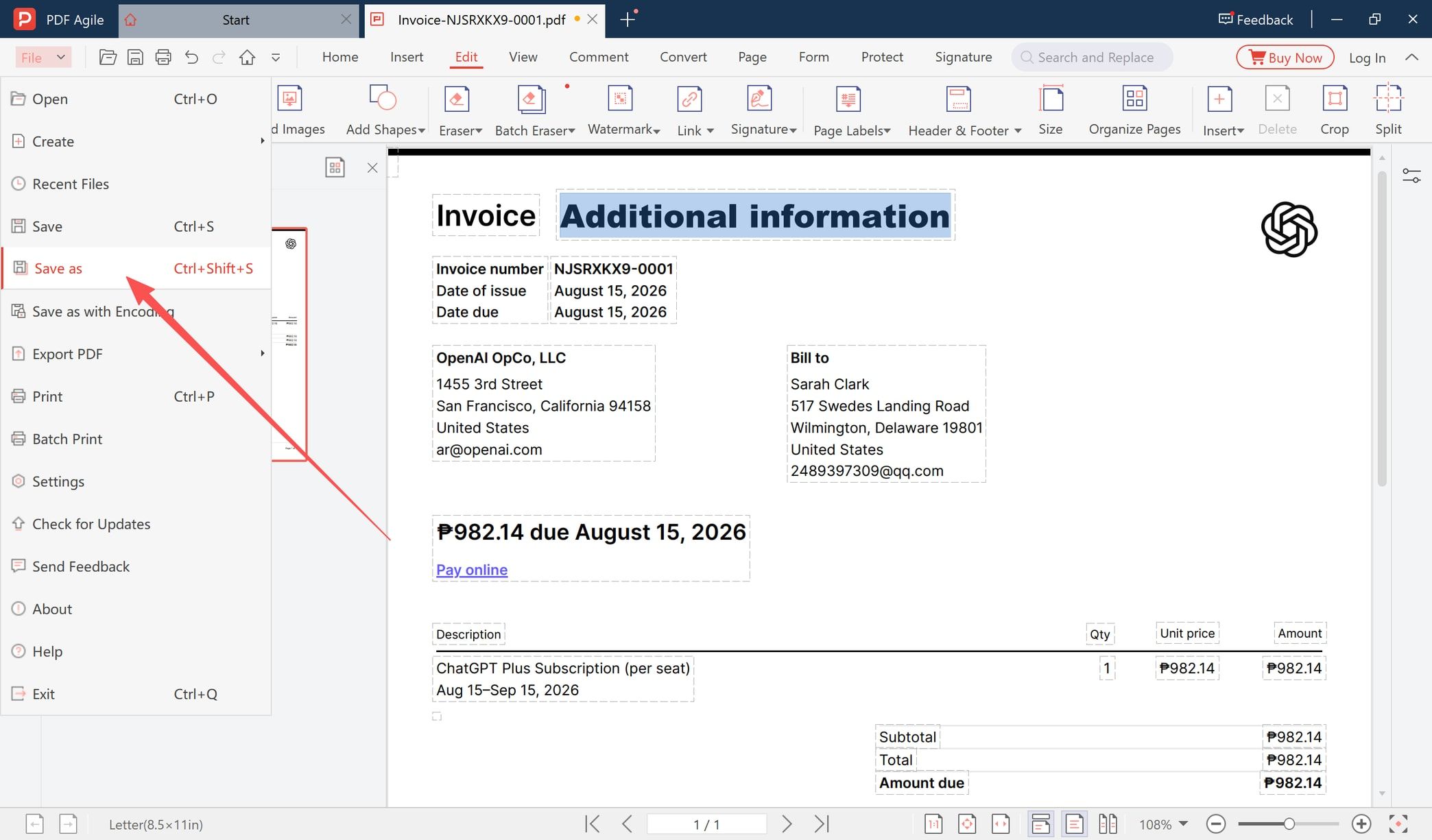
Finish with File > Save as and give the edited file a new name, so the original stays as it was. On Windows the shortcut is Ctrl+Shift+S.
The same File menu also offers Save to write over the current file, Save as with Encoding, and Export PDF when you need the result in another format.
Scans, Locked Files, and Signed Documents
- Scanned PDF — the page is only an image, so your new text still sits on top of it, but the words already printed there stay pixels. To change them, run OCR first and check the recognised text, because recognition can misread characters.
- Password-protected PDF — the editing tools stay locked until you enter the password that opens the file.
- Digitally signed PDF — editing after a signature is applied breaks that signature, so make your changes first and sign last.
- A form with real fields — skip the text tool entirely: click inside a field and type.
- Hiding something — placing text or a white box over a word does not remove it: the original text stays in the file. Use a redaction tool when the content has to be gone for good.
- Privacy — the editing happens inside the desktop app, so you are working on the file on your own computer instead of sending it to a service. With an online editor your invoice, ID, or contract is copied to someone else's server, which is the part worth avoiding for sensitive documents.
After the Text Is In Place
You rarely stop at adding one line. In the same app you can compress the file before emailing it, add a signature, arrange or delete pages, remove a watermark, or convert the PDF to Word when the layout itself has to change.
FAQ About Adding Text to a PDF
Does adding text change the original file?
No, if you save as a new file. The original keeps its own text layer and layout, and the added box lives in the copy.
Can I change words that are already on the page?
Only when the PDF contains real text. A scan has to go through OCR first, and the result is worth proofreading.
Why does nothing happen when I click the page?
Pick the text tool before you click: the page accepts typed text only after Insert text is active. A protected file also stays locked until the password is entered.
Can I add text to a PDF on a Mac?
The four steps above use a Windows editor. On a Mac, any desktop editor with a text tool offers the same two moves: place a new text box on the page, and change existing text when the page holds real text.
Can I add text to the same PDF more than once?
Yes. Each pass adds another text box, and you can select an earlier box and edit or delete it before saving again.
Adding text to an invoice, a contract, or a form? Download PDF Agile for Windows and place text on the page without uploading the file.