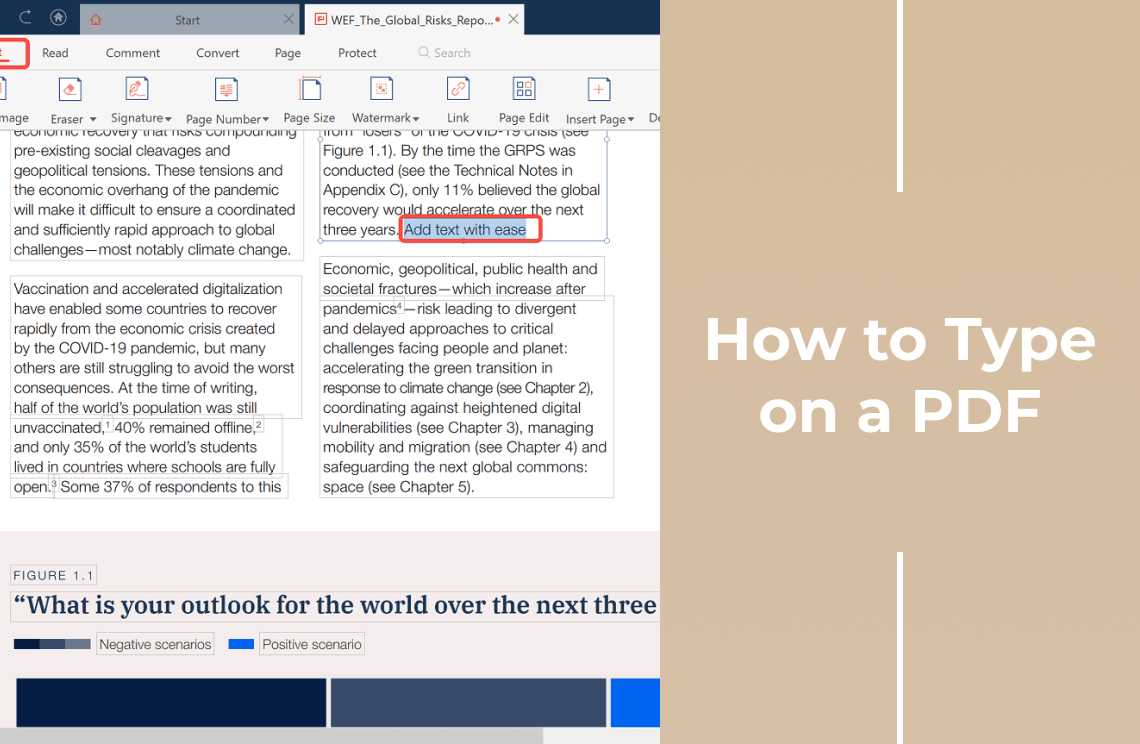
Adding text to a PDF used to mean printing the page, writing on it by hand, and scanning it back in. PDF Agile lets you type on a PDF instead. You can add new text anywhere on the page, or change text that is already there, and then save the file as a normal PDF.
If you need to type on a PDF, this guide shows the exact steps: download PDF Agile, open your document, switch to the Edit tab, add text with the Add Text tool, and save your changes.
Can You Type on a PDF?
A PDF has a fixed layout, so it does not behave like a Word document by default. That is why many people assume you cannot type on a PDF at all. You can. PDF Agile is built for exactly this kind of work: it edits a PDF like a word processor, so you can reflow text across paragraphs, columns, and pages, change the document layout, and adjust the font size, font style, or line spacing.
Typing on a PDF is useful when you want to:
- fill in a blank line on a form
- add a date, a name, or a signature line
- fix a typo in text that is already on the page
- leave a short note on a document you are sharing
You can also fill in simple forms directly, work with scanned pages after running OCR, and mix typed text with images and other markup.
How to Type on a PDF with PDF Agile
The steps below use the desktop version of PDF Agile. You only need the app and the PDF that you want to edit.
Step 1: Download and Install PDF Agile
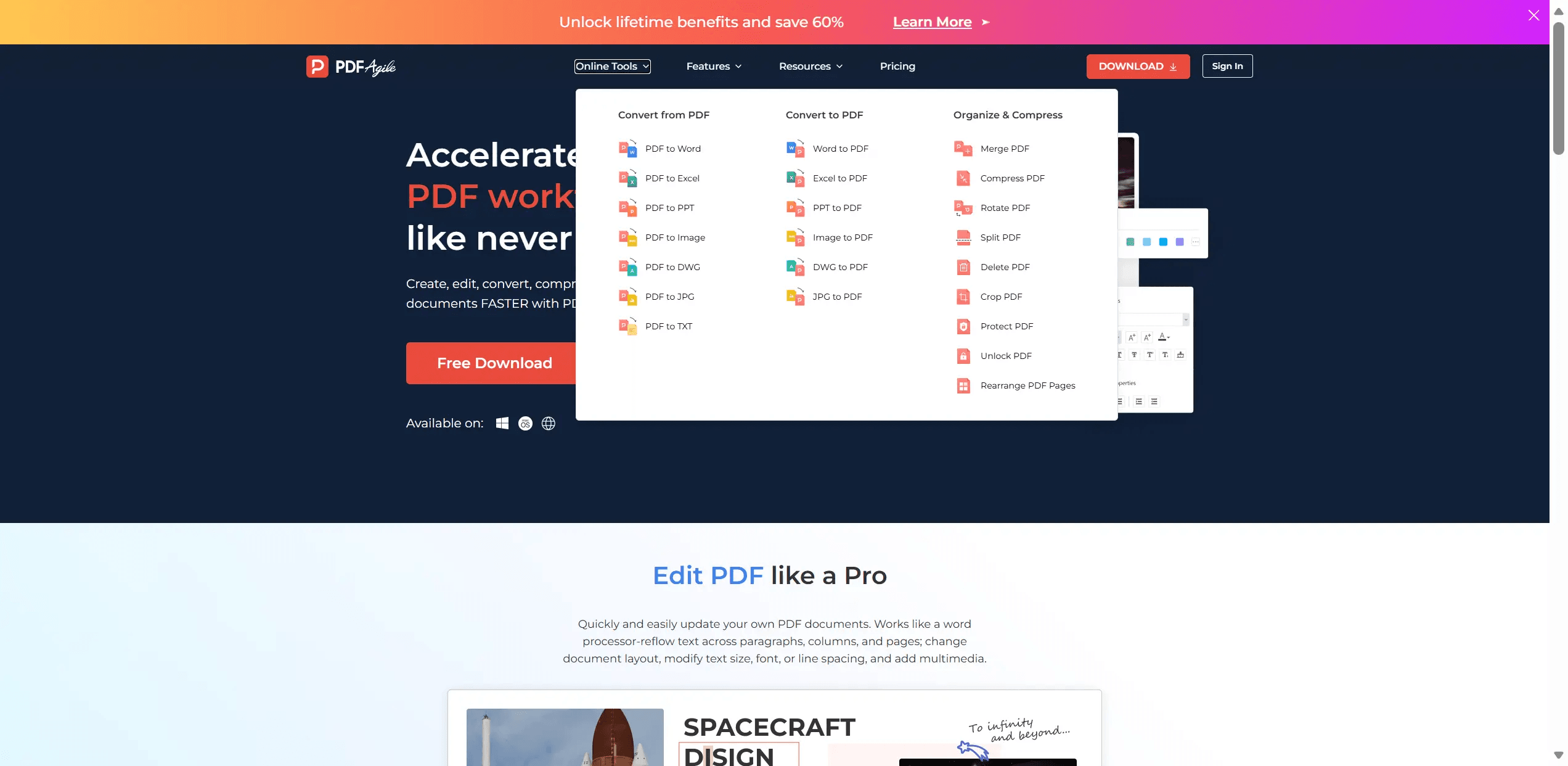
Open the PDF Agile website and click Free Download to get the installer. Run the installer, then launch the app. The Start workspace opens when PDF Agile finishes loading.
Step 2: Open Your PDF
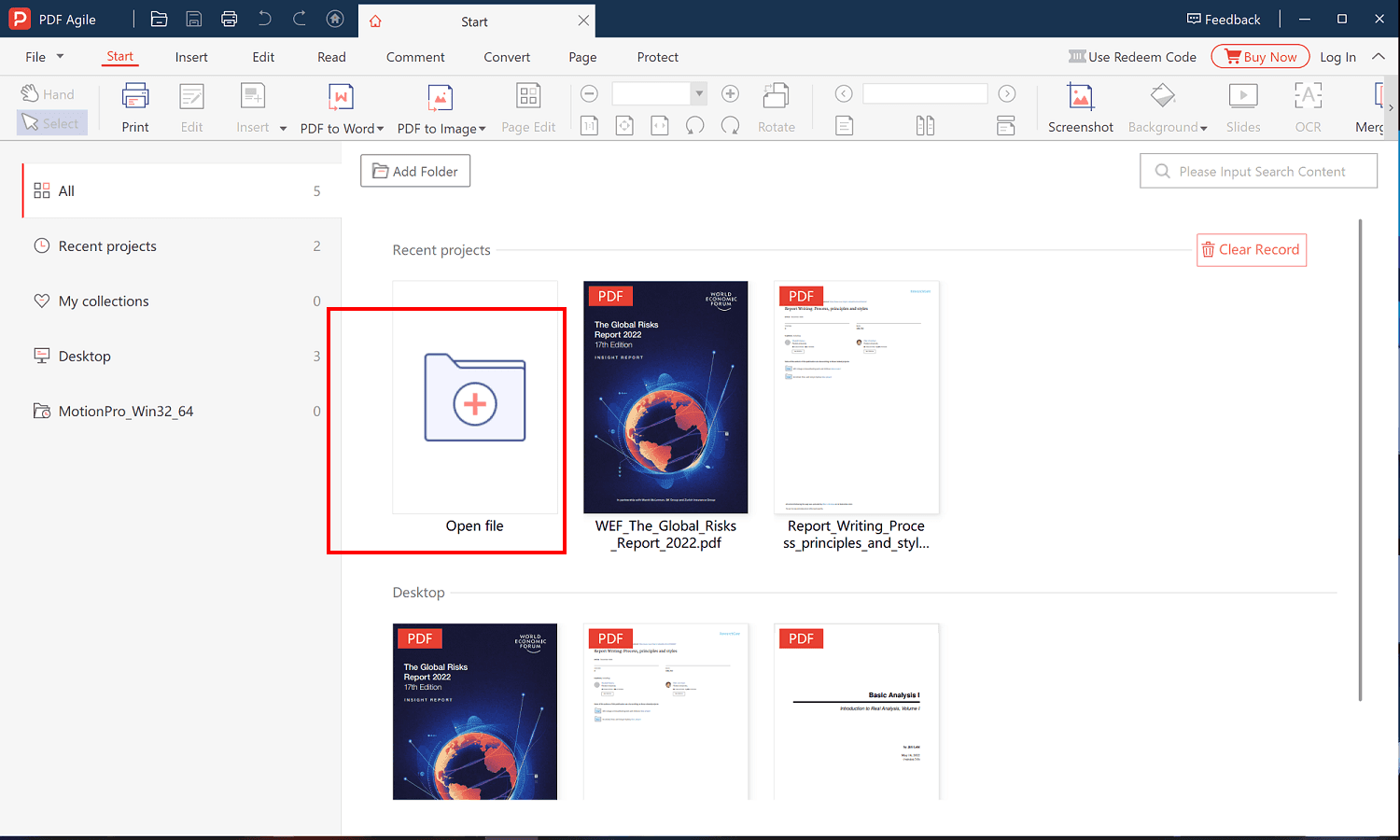
On the Start workspace, click Open file and choose the PDF you want to type on. You can also open a recent document from Recent projects or from a folder in the left sidebar.
Step 3: Switch to the Edit Tab
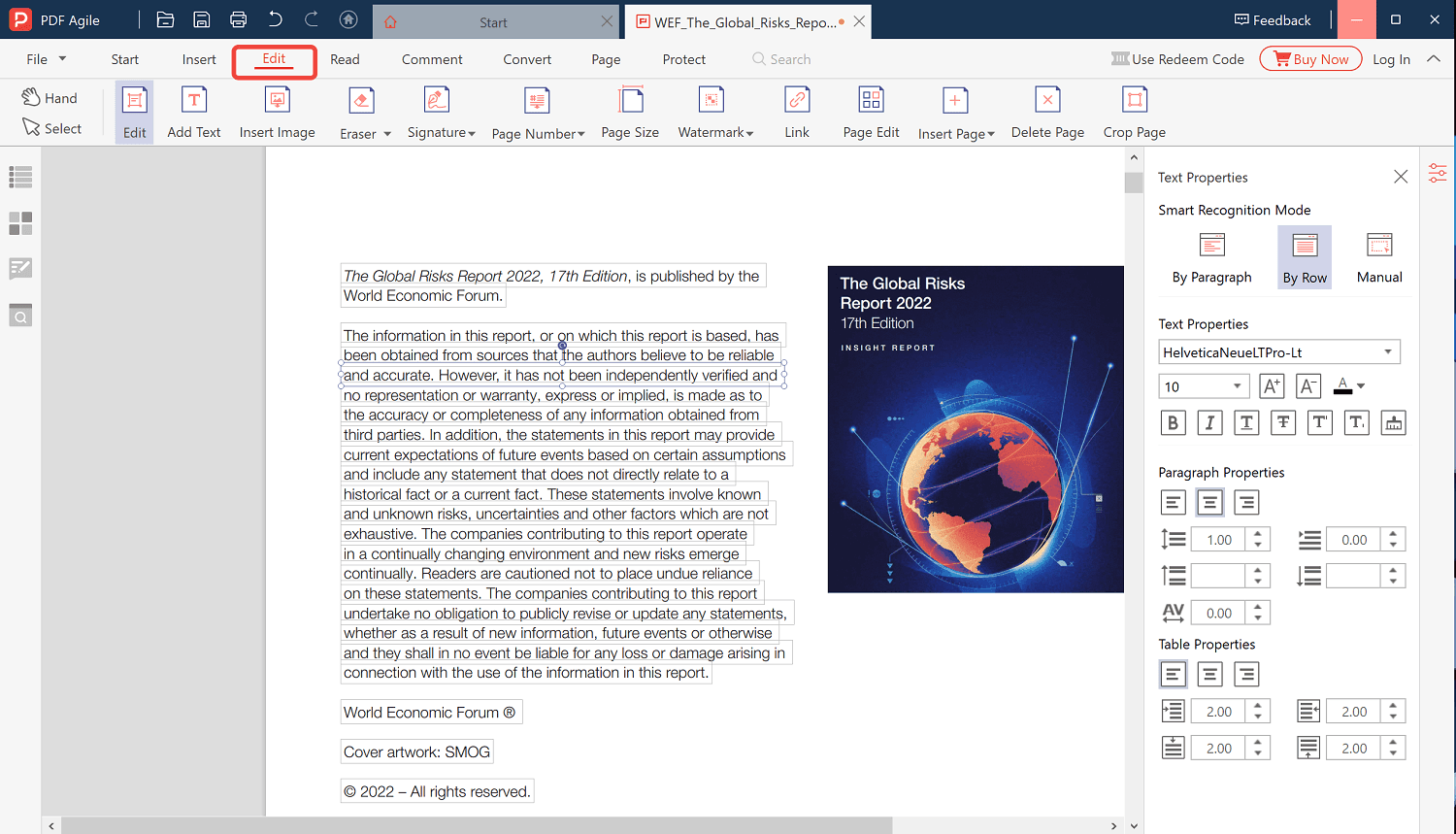
With the document open, click Edit in the top toolbar. The Edit tools appear, including Add Text, Insert Image, Eraser, and Signature. The Text Properties panel on the right shows the font and the size that new text will use.
Step 4: Add Text and Start Typing
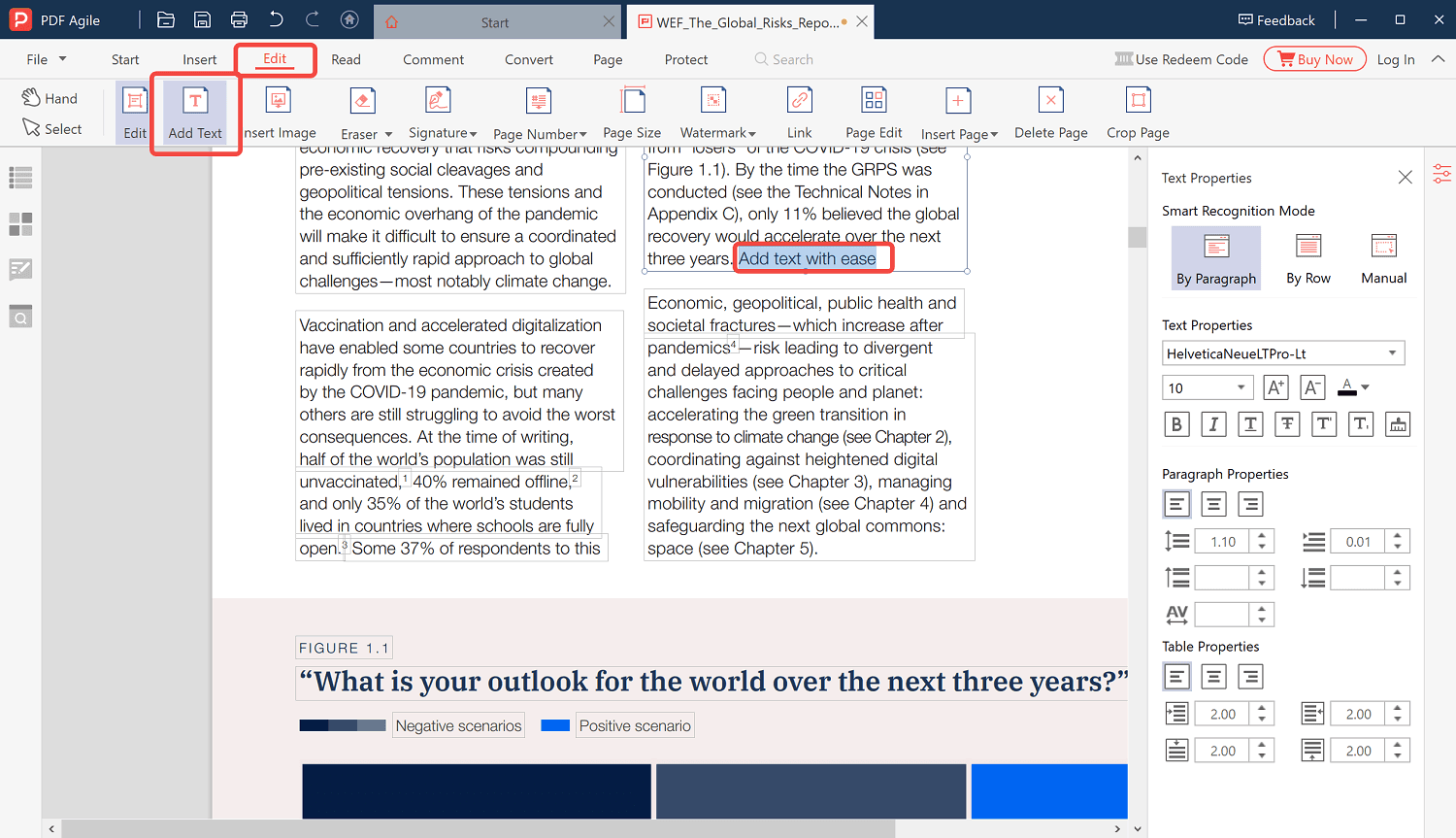
Click Add Text, then click the place on the page where you want to type. A cursor appears and you can start typing. Use the Text Properties panel on the right to change the font, size, style, or line spacing of the text you just added.
If you want to change text that is already on the page instead of adding new text, click directly on the words you want to edit and type over them.
Step 5: Save Your Edited PDF
When you are finished, open the File menu and choose Save as. Pick a name and a location, and save the file. Open the saved PDF and check the text, spacing, and page layout before you share it.
Add New Text or Edit Existing Text?
Typing on a PDF covers two different jobs, and it helps to know which one you need.
- Add new text — use Add Text, click an empty spot on the page, and type. Use this to fill in blanks, sign a page, or write a short note.
- Edit existing text — click the text that is already in the PDF and change it. This works best when the PDF contains real, selectable text.
A scanned PDF is a picture of a page, so there is nothing to click on until you run OCR. That case is covered in the next section.
What About Fillable Forms and Scanned PDFs?
If the PDF is a fillable form, you usually do not need the Add Text tool at all. Click inside a field and start typing, then save the file.
Scanned documents are different. The page is an image, so PDF Agile uses OCR to pull the text out of the image and make it editable. Once OCR has recognized the page, you can type on it as usual.
Tips for Typing Cleanly on a PDF
- Match the text that is already on the page so the document still looks consistent. Set the same font, size, and color in the Text Properties panel.
- Use Save as so the original PDF stays unchanged. Keep a copy of the source file until you are sure the new version is correct.
- Keep sensitive files local. PDF Agile is a desktop app, so you edit the PDF on your own computer instead of uploading it to a website. Online converters require you to send the file to a third party, which is worth avoiding for confidential documents.
- Check the layout after saving. New text does not always flow the way you expect on a fixed-layout page.
- Use the other Edit tools, such as Insert Image, when a page needs more than text.
FAQ About Typing on a PDF
How do I type on a PDF for free?
You can download PDF Agile free from the official website, and it can add text and edit your PDF. The free version has usage limits, and the paid plans are one-time purchases that remove them, so check the pricing page for the current details.
Can I type on a PDF without Adobe Acrobat?
Yes. PDF Agile is a standalone PDF editor, so you do not need Adobe Acrobat installed to add text and edit a PDF.
Which systems does PDF Agile run on?
PDF Agile runs on Windows 7 or later (64-bit) and on macOS 10.15 or later, and there is also a web version. The steps in this guide use the desktop app.
Do I need to upload my PDF to add text to it?
No. PDF Agile is a desktop app, so you open the PDF from your own computer and add text there. You work with the file on your own machine instead of uploading it to a website, which is the safer choice for confidential documents.
Can I type on a scanned PDF?
Yes, but run OCR first. A scan is an image, so PDF Agile needs to recognize the text before you can click on it and type.
Does typing on a PDF change the rest of the page?
New text is placed where you put it. Because a PDF has a fixed layout, the surrounding content does not automatically reflow the way it would in a Word document.
How do I edit text that is already in a PDF?
Open the PDF in PDF Agile, go to the Edit tab, click the text you want to change, and type over it. Choose File, then Save as, when you are done.
Final Thoughts
When you need to type on a PDF, the fastest route is a tool that lets you add text and edit existing text without converting the file first. PDF Agile does both, and it also handles the jobs that usually come next, such as combining, compressing, and converting PDFs.
Download PDF Agile from the official website, open your PDF, and start typing in a few simple steps.