You do not have to print a contract, sign it with a pen, and scan it back in. A desktop PDF editor lets you write directly on the page by hand, drawing a signature with a mouse, a trackpad, or a pen, and then save the file as a normal PDF you can send back.
This guide covers what you can put on a PDF by hand, which signature type to choose, and the five steps that take a blank signature line to a signed, saved document.
Why Writing by Hand Still Matters on a PDF
Most PDFs are only read. The exception is the moment a document becomes personal: a signature, an initial, a date, a short note in the margin. Those marks carry weight that a typed font does not. A drawn signature looks like the one on your passport, and whoever opens the file can see at a glance that a person handled it.
A PDF is a fixed-layout format, and that is exactly why it works for this. The page you sign today is the page the other side opens tomorrow, on a different computer, with every mark still sitting where you left it.
The Signature Types You Can Choose From
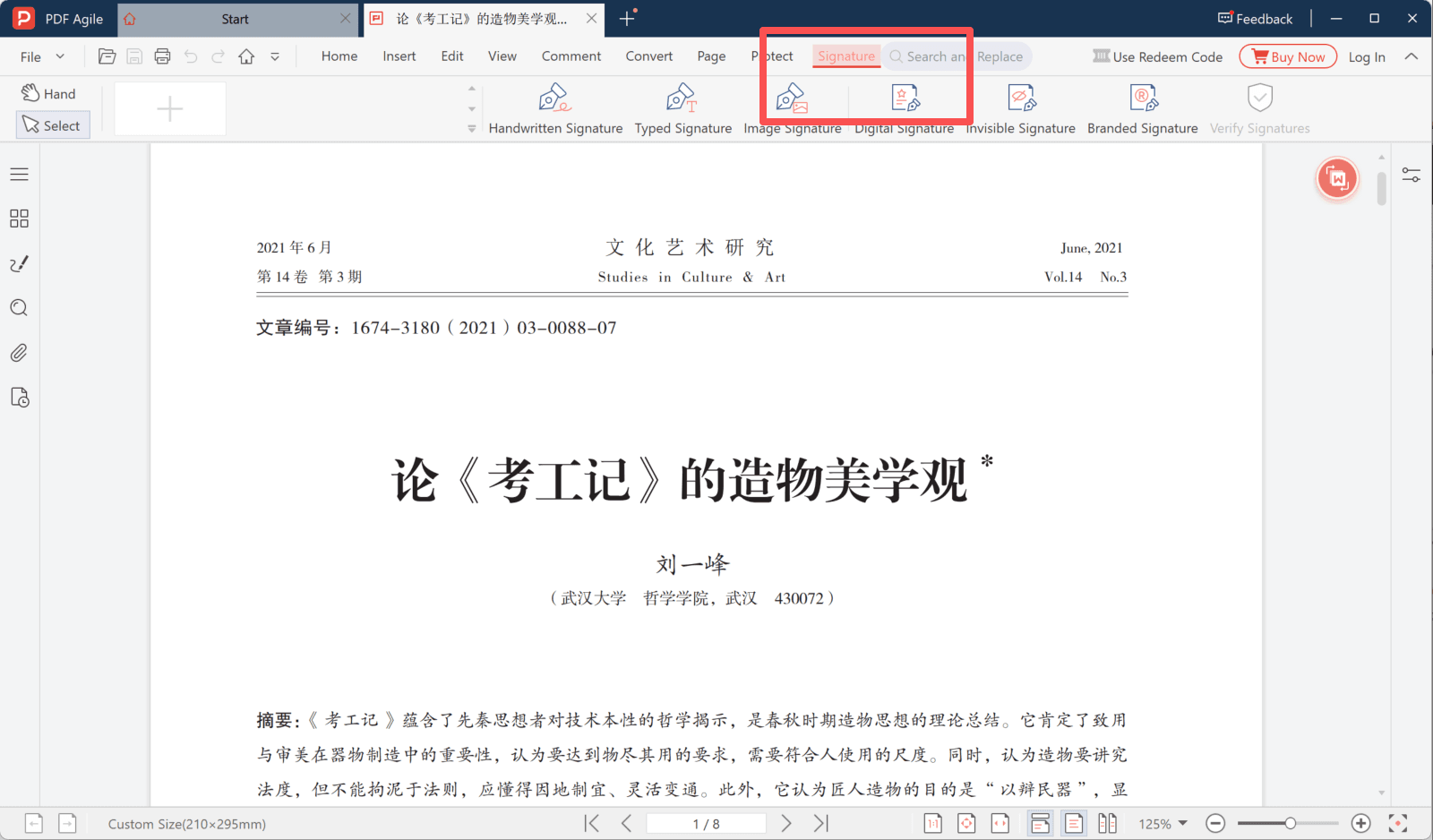
Open the Signature tab and you get more than one way to sign. Which one you pick depends on the document and on how you want it checked later.
- Handwritten Signature — draw the signature yourself with a mouse, a trackpad, or a pen. Closest to signing on paper.
- Typed Signature — type your name and let the app set it in a signature-style face. The quickest option.
- Image Signature — place a picture of a signature you already scanned, when you want the exact handwriting you use elsewhere.
- Digital Signature — a certificate-backed signature, meant to be checked by software rather than read by eye.
- Invisible Signature — embeds a signature in the file without drawing anything on the page.
The same tab also holds a Branded Signature option and a Verify Signatures tool for documents that arrive already signed.
How to Write on a PDF by Hand, Step by Step
The walkthrough below uses the Windows desktop editor. Have the PDF open in front of you; once you know where the Signature tab is, the whole job takes a minute.
Step 1: Open the PDF That Needs a Signature
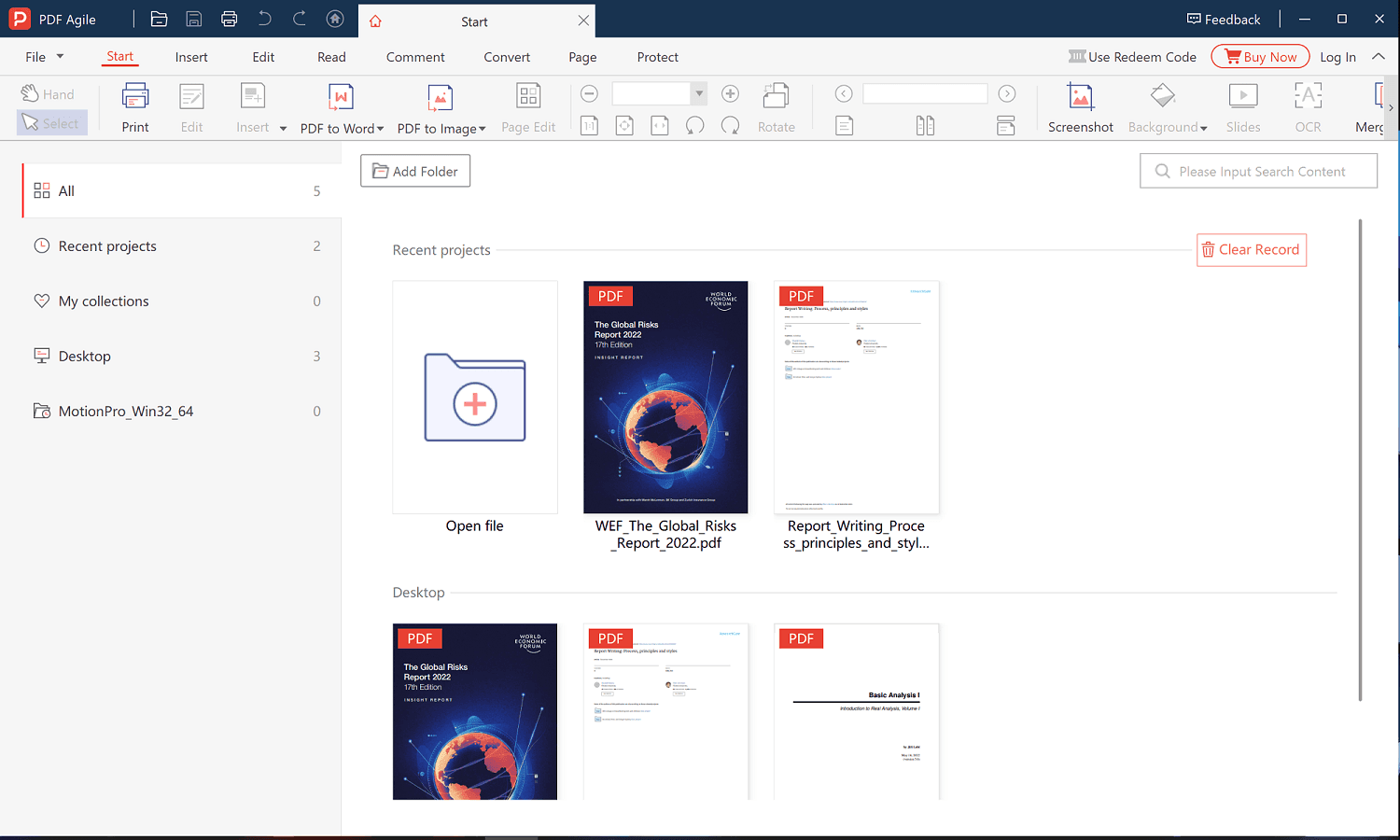
Download PDF Agile from the official website, install it, and launch it. The start workspace lists your recent documents, so a file you opened earlier is one click away. For anything else, click Open file and browse to it. File then Open (Ctrl+O) reaches the same place from the menu.
Step 2: Open the Signature Tab
The signature tools live on their own tab at the top of the window. Click Signature and the ribbon fills with the signature types listed above, with Verify Signatures at the end for files that arrive already signed. Choose Handwritten Signature if you plan to draw yours.
Step 3: Add the Date or Any Text Beside the Signature Line
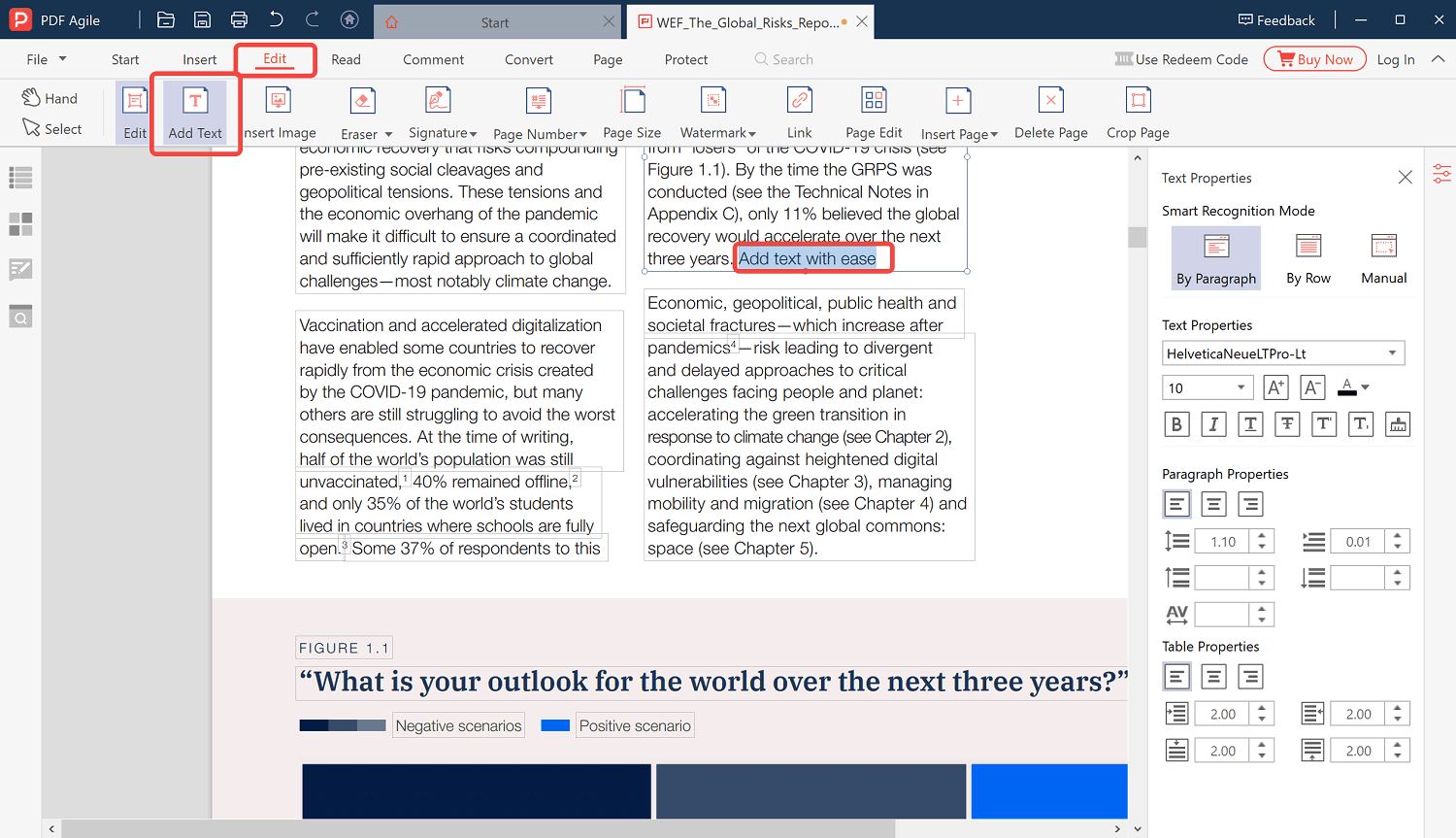
Signed documents usually want a name, a date, or a job title next to the signature. Click Add Text, then click the spot on the page and type. A text box opens wherever you click, so the date can land under the signature line exactly where a form expects it. What you add behaves like any other text object: move it, resize it, or delete it until it sits right.
Step 4: Match the Font and Size to the Page
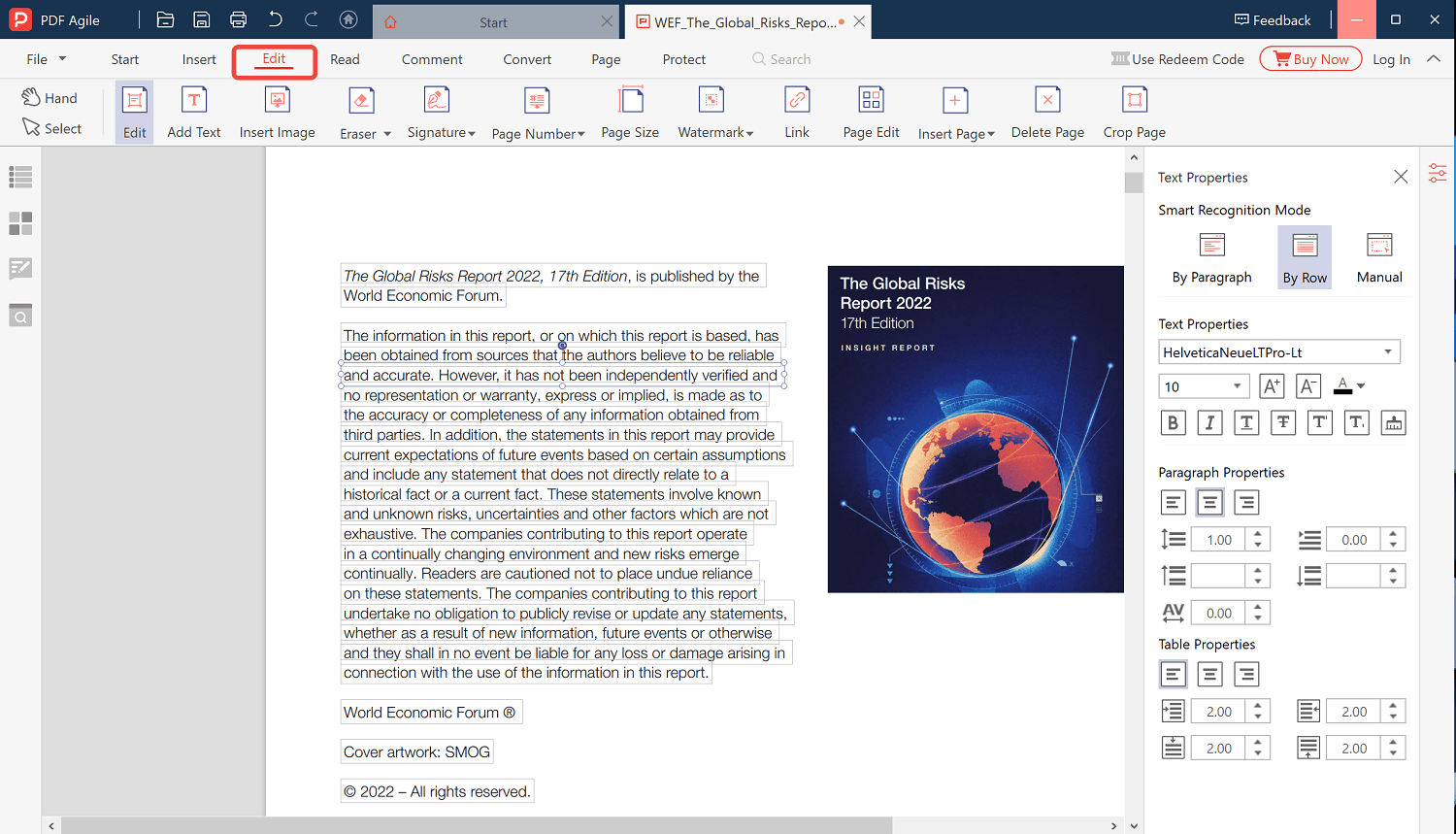
Text that does not match the rest of the document looks pasted on. Switch to the Edit tab and the Text Properties panel on the right shows the font, the size, the alignment, and the line spacing of the text you are working with. Set the new date or note to the same font and size as the lines around it before you carry on.
Step 5: Save a Signed Copy
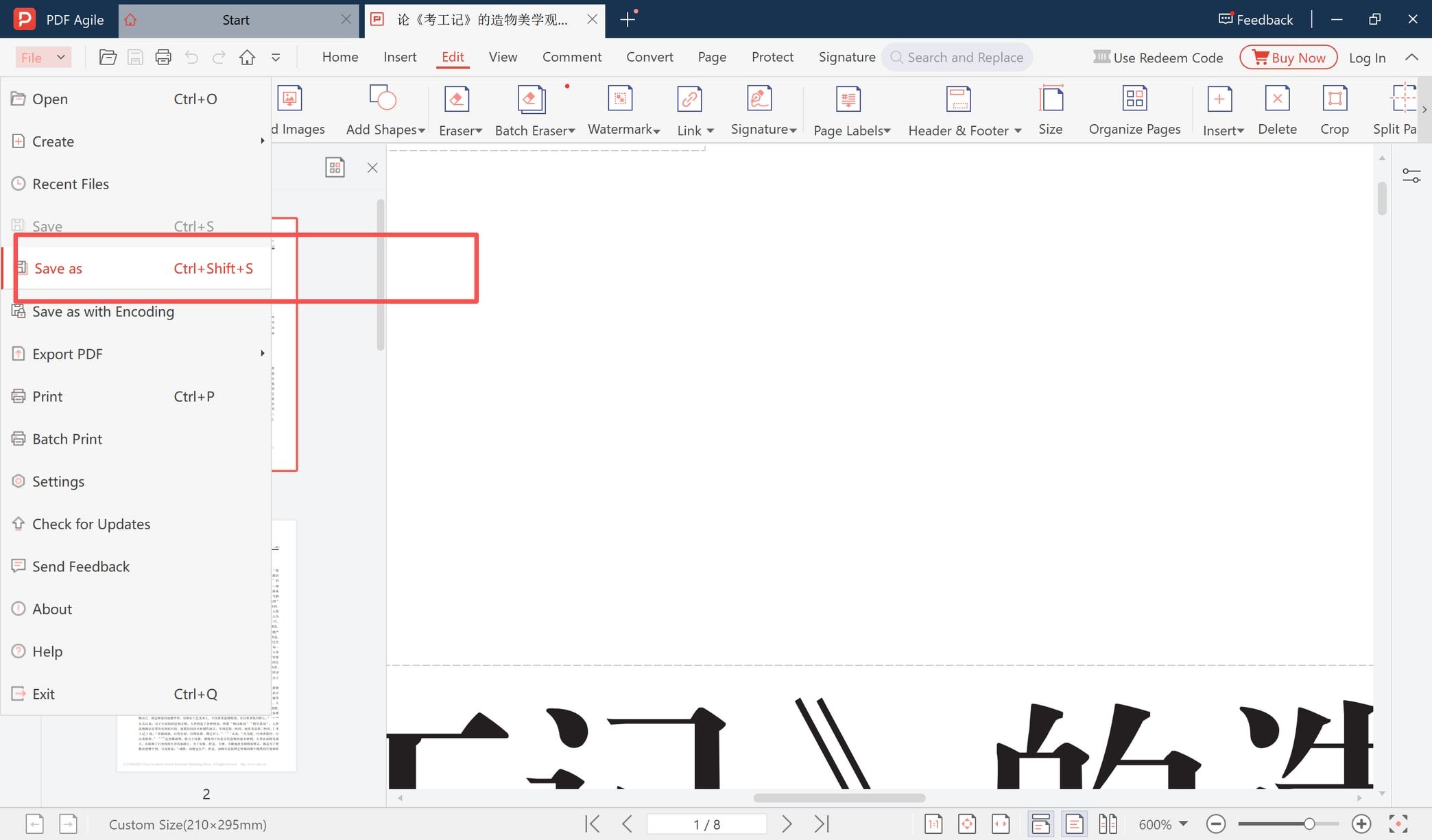
Open the File menu and choose Save as (Ctrl+Shift+S), then give the signed version its own name, something like `contract-signed.pdf`. Save as writes a new file, so the unsigned original stays on disk untouched. If the document came from someone else, that new copy is the one you send back.
Mouse, Trackpad, or Pen?
A drawn signature is only as good as the device you draw it with, and the difference shows.
- A pen on a touchscreen or a drawing tablet gives the most natural stroke.
- A trackpad handles a short signature if you slow down; curves come out better than straight strokes.
- A mouse is fine for initials and short signatures. Write larger than you would on paper and scale the result down afterwards, because small mouse strokes look shaky.
If the drawing does not come out cleanly, delete it and try again, or drop in a scanned Image Signature instead.
What If You Would Rather Type?
Not every mark on a PDF has to be drawn. Typing is the better choice for anything that has to be read rather than recognised: a corrected figure, a filled-in blank, a sentence that needs one word changed. The same Edit tab handles it, either by clicking the words already on the page or by starting a new line with Add Text.
For a name at the foot of a document, Typed Signature on the Signature tab is faster than typing the name and formatting it yourself.
A scanned PDF is a picture of a page rather than text, and that changes what is possible. Signing a scan is no problem, because a handwritten or image signature is placed on top of the page like a stamp. Rewriting the words in a scan is a different job: there is nothing to click on until the app runs OCR and turns the picture back into text.
Before You Send a Signed PDF
- Check every page that needs a mark. Multi-page agreements often want initials on each page, and one missed page sends the whole file back.
- Look at the placement. A signature that overlaps the printed wording on the line above is the usual mistake after resizing.
- Keep the unsigned original. Save as does this for you; do not overwrite it.
- Name the file clearly. `contract-signed-2026-10-15.pdf` tells the other side what they are opening.
- Work from your own computer for anything confidential. A desktop editor reads the file from your drive and writes it back to your drive. Tools that run in a browser make you upload the document to a server you do not control first, which is a poor trade for contracts, IDs, and medical paperwork.
FAQ About Signing and Writing on a PDF
Can I draw a signature with a mouse, or do I need a pen?
A mouse works, and so does a trackpad. Both are easier if you draw larger and then scale the signature down. A pen on a touchscreen or a drawing tablet gives noticeably smoother strokes, so use one if you sign documents often.
What is the difference between a handwritten signature and a digital signature?
A handwritten signature is a drawing or an image placed on the page, meant to be recognised by people. A digital signature is backed by a certificate and is meant to be checked by software, which can tell whether the document changed after it was signed.
How do I sign a PDF that someone emailed me?
Save the attachment to your computer, open it in the editor, add your signature on the Signature tab, and use File then Save as to store the signed version. Attach that saved copy to your reply.
Can I put a date next to my signature?
Yes. Use Add Text to place the date on the same line as the signature, then match its font and size to the rest of the page in the Text Properties panel.
Does signing change the original file?
No. Save as writes a separate file, so the document you received stays on your disk exactly as it arrived.
What should I check before I send a signed document back?
That every page needing a mark has one, that the signature and any added text sit on their lines without covering the printed wording, and that the saved file opens with all the marks in place.
Where to Go Next
Writing on a PDF by hand is one job among several that the editor handles on the same page. Once the signature is in place you can still add a watermark, number the pages, merge in an appendix, or compress the file before it goes out.
Download PDF Agile from the official website, open the document you need to sign, and draw your signature on the Signature tab.