An application portal rarely asks for "a PDF". It asks for your passport, your bank statements, your proof of address, each in its own upload slot. So the file that has to be produced is not "the PDF, cut in half" — it is one file per document, with the right pages in each one. If you scanned the whole packet as a single PDF, the hard part is deciding where one document ends and the next begins.
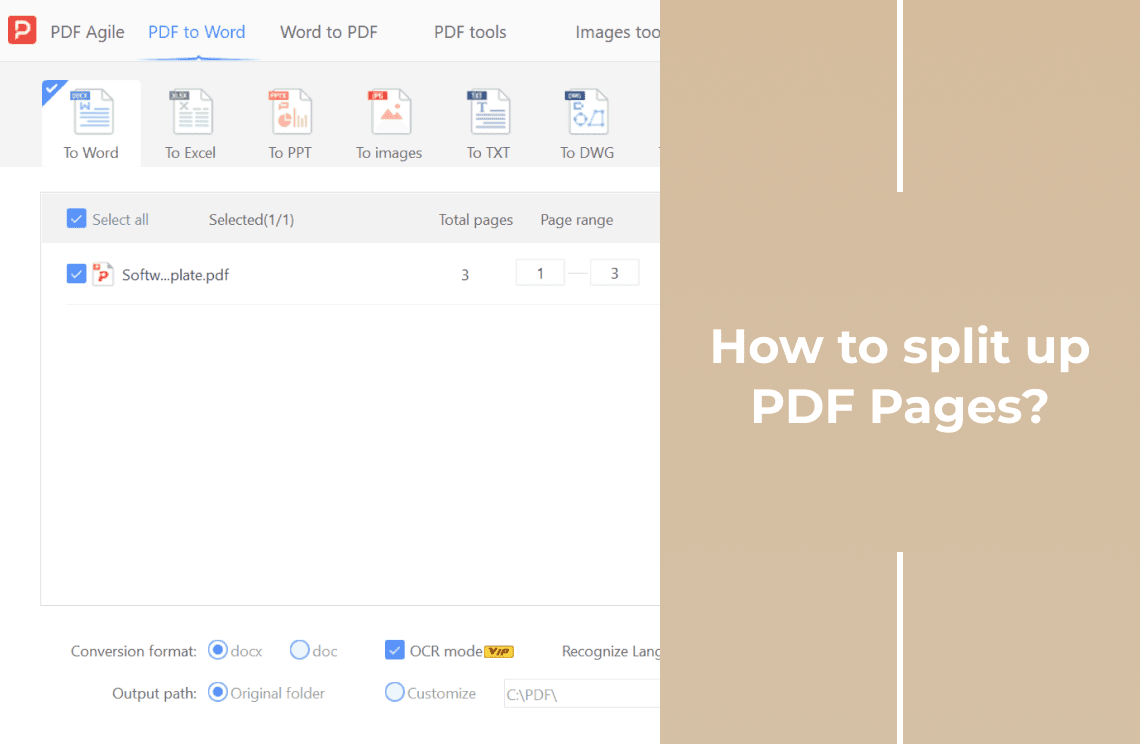
This guide works through that decision in order: what the portal demands, which pages make up each document, how to split them, how to name them, how to check them, and what order to upload in. The page-range mechanics are the short part. The parts that get applications sent back are the grouping, the file names, the size and page limits, and the pages that should never have been included. If your job is dividing a long report into chapters with no form involved, how to split up PDF pages into separate files is the closer guide.
Check What the Application Portal Requires
Read the upload page before you touch the file. Five things on it decide what you build:
- How many upload slots. One per document means one file per document. A single slot marked "supporting documents" means the opposite.
- A size cap, per file and sometimes in total. Often given in MB. A scan-heavy passport file can pass the per-file cap and still break the total.
- A page limit. Some portals cap pages per file, for example two pages for an ID or five for statements. That limit decides where you split a document, not just between documents.
- The accepted format and any naming rule. Most accept PDF only. A few ask for a specific file name pattern, and a few reject files whose name contains spaces or symbols.
- Whether the reviewer prints the file. "Clear colour copy" and "all four corners visible" are quality requirements a split cannot fix.
Write the answers down, even as five lines in a note. It is faster than submitting twice.
When the Form Has One Slot per Document
This is the case the rest of this guide is about. Each document becomes its own PDF, the pages of one document stay together, and the file name has to tell the reviewer which slot it belongs in.
When the Form Has One Upload Slot
Then do not split. If the slot says "all supporting documents in one PDF", four separate files create a second problem: the reviewer receives four attachments for a field that accepts one.
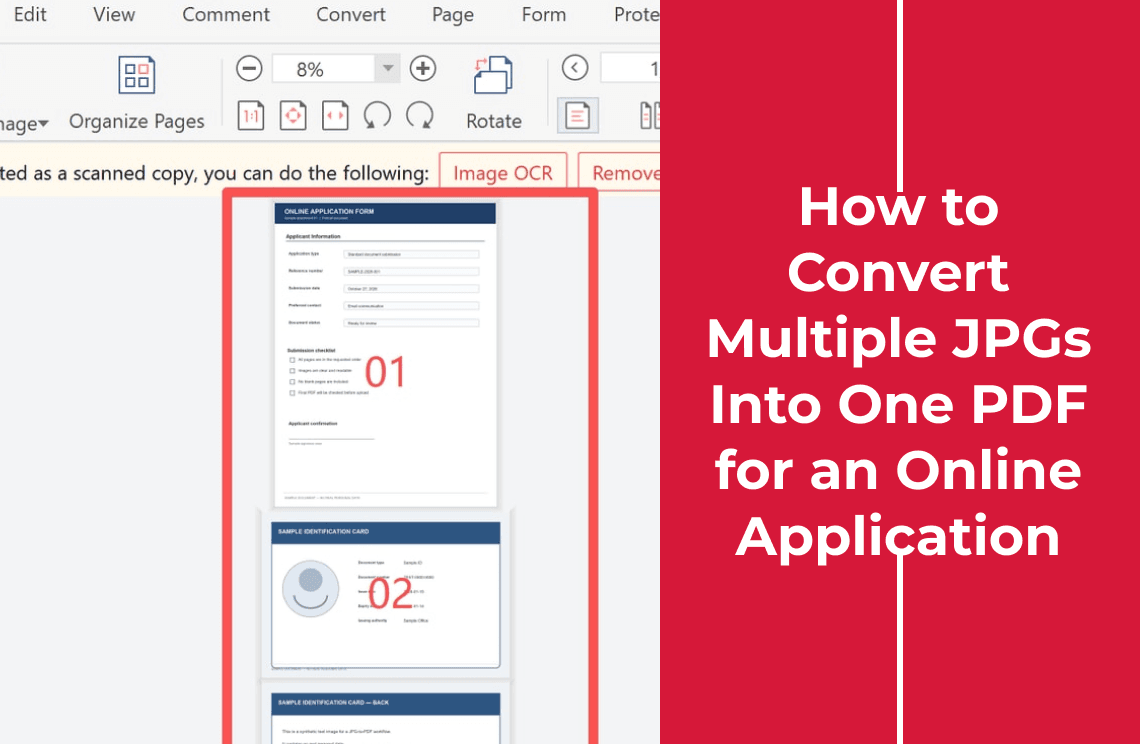
The job in that case is the reverse one — putting images or separate files into a single ordered PDF — which is covered in how to convert multiple JPGs into one PDF for an online application.
An optional slot marked "additional documents" is still one field, so anything you put there should be one PDF as well.
Map Your PDF Pages to Separate Documents
Open the packet and look at its first page. Application packets usually open with a cover or a checklist, and that page is the map for everything below it.
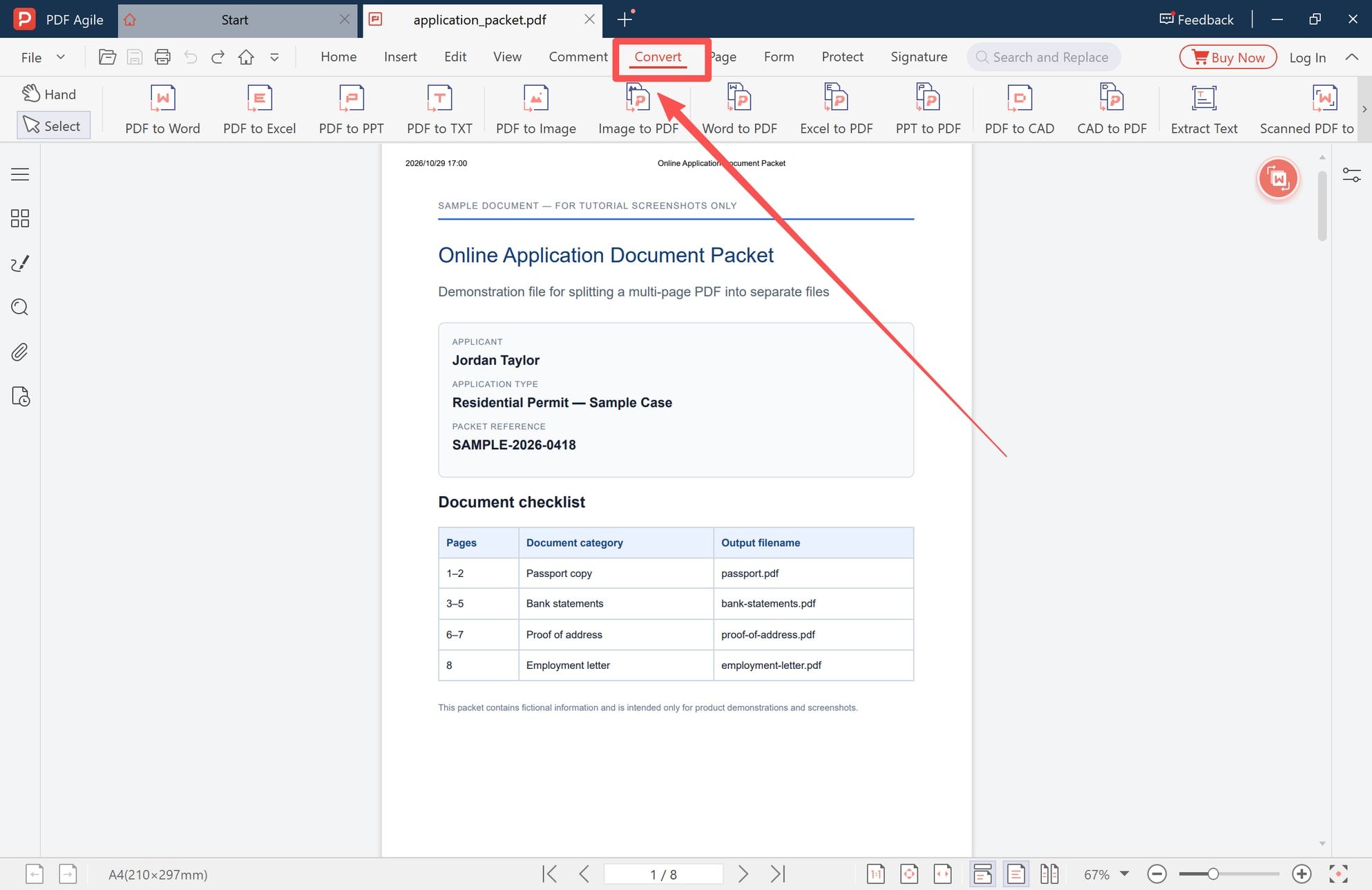
The sample used in the screenshots is an eight-page packet that opens with a checklist mapping each category to a page range and to the file name the applicant should produce:
- Pages 1–2 — passport copy — passport.pdf
- Pages 3–5 — bank statements — bank-statements.pdf
- Pages 6–7 — proof of address — proof-of-address.pdf
- Page 8 — employment letter — employment-letter.pdf
Treat that table as the intended grouping, not as a set of instructions to copy. Confirm each range against the page thumbnails, and read the page numbers in the viewer's own counter at the bottom of the window rather than the numbers printed in the footer. A cover sheet, a checklist page, or a fax header shifts every number by one — which is how a passport file ends up opening with a page of bank statement.
Four grouping rules cover almost every application:
- One category per file, always. A passport and a utility bill are two documents even when they would fit on two pages together, because the reviewer files them under two headings.
- A document that is already several pages stays together. Three months of statements are one document. Split them into three files only if the portal asks for one file per month.
- One page can be a whole file. The employment letter in the sample is a single page, and a single-page PDF is a normal upload.
- Leave out pages nobody asked for. An expired bill, a medical note, a page carrying a full account number — none of it is "extra context". It is material the reviewer has to ignore and you have to justify.
Check the PDF Before You Split
Five minutes here saves a rejected upload:
- Total pages. The counter tells you which ranges are even possible. A packet that should be eight pages and reads six is missing two, and splitting it produces short files with no warning.
- Blank and duplicate pages. Scanner feeders produce both. A blank page inside bank-statements.pdf looks like a missing statement to a reviewer.
- Two documents on one sheet. A flatbed scan often puts two pages side by side on one landscape sheet. That is not a split job: the sheet has to be cropped in half first, as splitting a scanned double-page PDF into single pages explains.
- Legibility at 100%. Zoom in on the smallest text — an account number, a date, a stamp. Splitting preserves the resolution it is given, so a blurry page stays blurry in the new file.
- Orientation. Landscape pages stay landscape. Rotate them before the split if the portal's preview will not.
Also confirm you are splitting the right file. The version emailed to yourself last week is often not the version on the desk.
Choose Between Split, Extract, and Split Every N Pages
Three commands sit next to each other, and people reach for the wrong one:
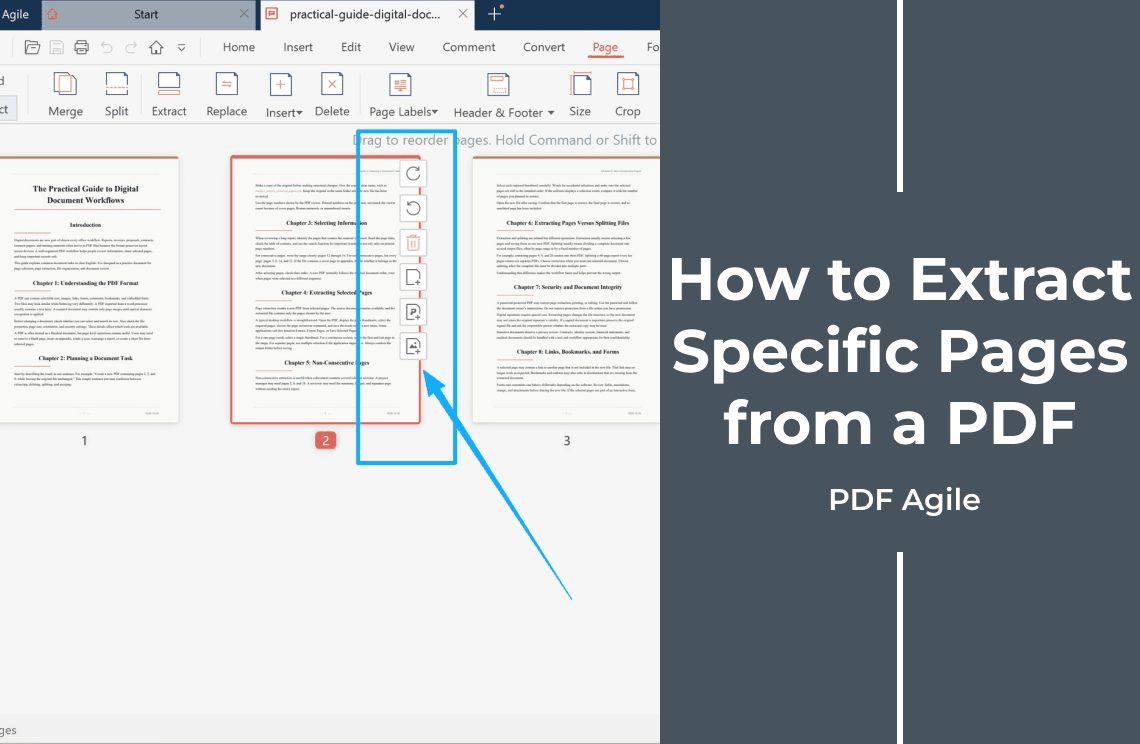
- Extract copies a selection of pages into one new PDF and leaves the source alone. It works on thumbnails you pick by hand, and it produces a single file per run. Extracting specific pages from a PDF is the right guide when you need one excerpt for a single upload.
- Split by range takes typed ranges and writes one file per range. This is the application case: four documents of unequal length come out of four ranges, each in its own file.
- Split every N pages writes a file every fixed number of pages. It suits a batch of identical records — invoices, delivery notes, forms of exactly two pages. It is the wrong tool for an application packet, because two-page IDs and three-page statements do not divide evenly, and a fixed count cuts a document in half.
The setting that causes the most damage is the one that looks like a default: splitting into one file per page. A 40-page packet becomes forty PDFs, and forty upload slots do not exist.
How to Split a Multi-Page PDF into Separate Files
The runs below were done in PDF Agile on Windows, on the eight-page packet described above. A desktop app matters for this job: a passport scan and a payslip stay on the machine instead of being uploaded to a splitting service.
Step 1: Open the Packet and Confirm the Page Count
Open the multi-page packet in the app and read the counter at the bottom of the window — 1/8 here, so every range you type has to fall between 1 and 8. Then switch to the Convert tab.
Step 2: Open the Split Tool
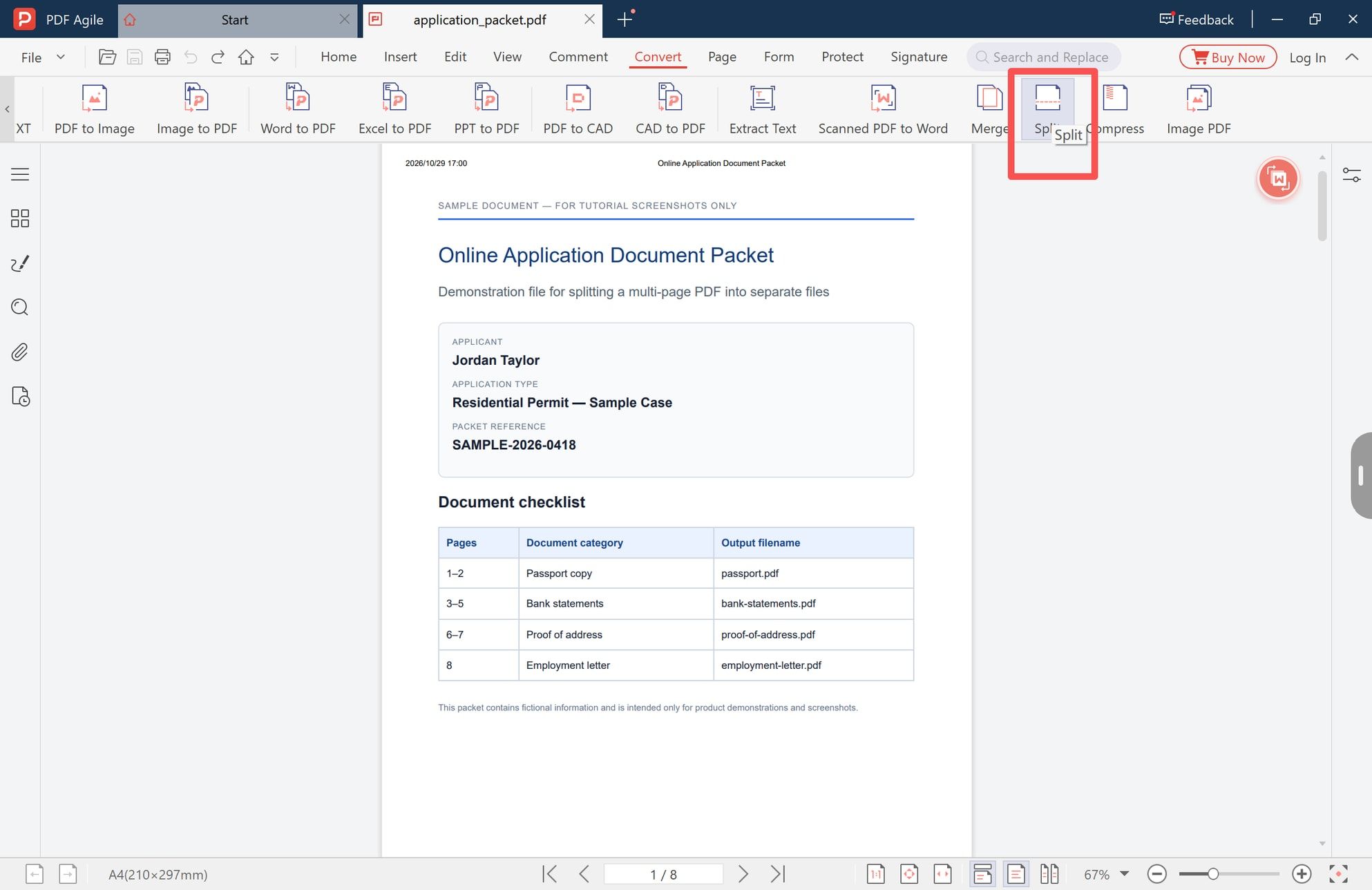
The right end of the Convert ribbon holds the PDF tools. Click Split. The panel that opens also carries Merge, Encrypt, Extract Pages, Delete Page, Watermark, and Compress — the same window you would come back to if the job turned out to be one of those instead.
Step 3: Enter the Page Range, Set the Split Mode, and Run
Click + Add file, select the packet, and type the range for the document you are producing now — 3 to 5 for the bank statements. Three controls in that panel have to agree before you click Split:
- Page range — the numbers for the current document.
- Split by — the mode. Left in its "save N pages as one file" state it writes one file per page, which is not what an upload wants; type ranges and use the range mode so the numbers you entered are the numbers that get written.
- Output path — Browse to a folder you can find again, rather than the folder the packet came from.
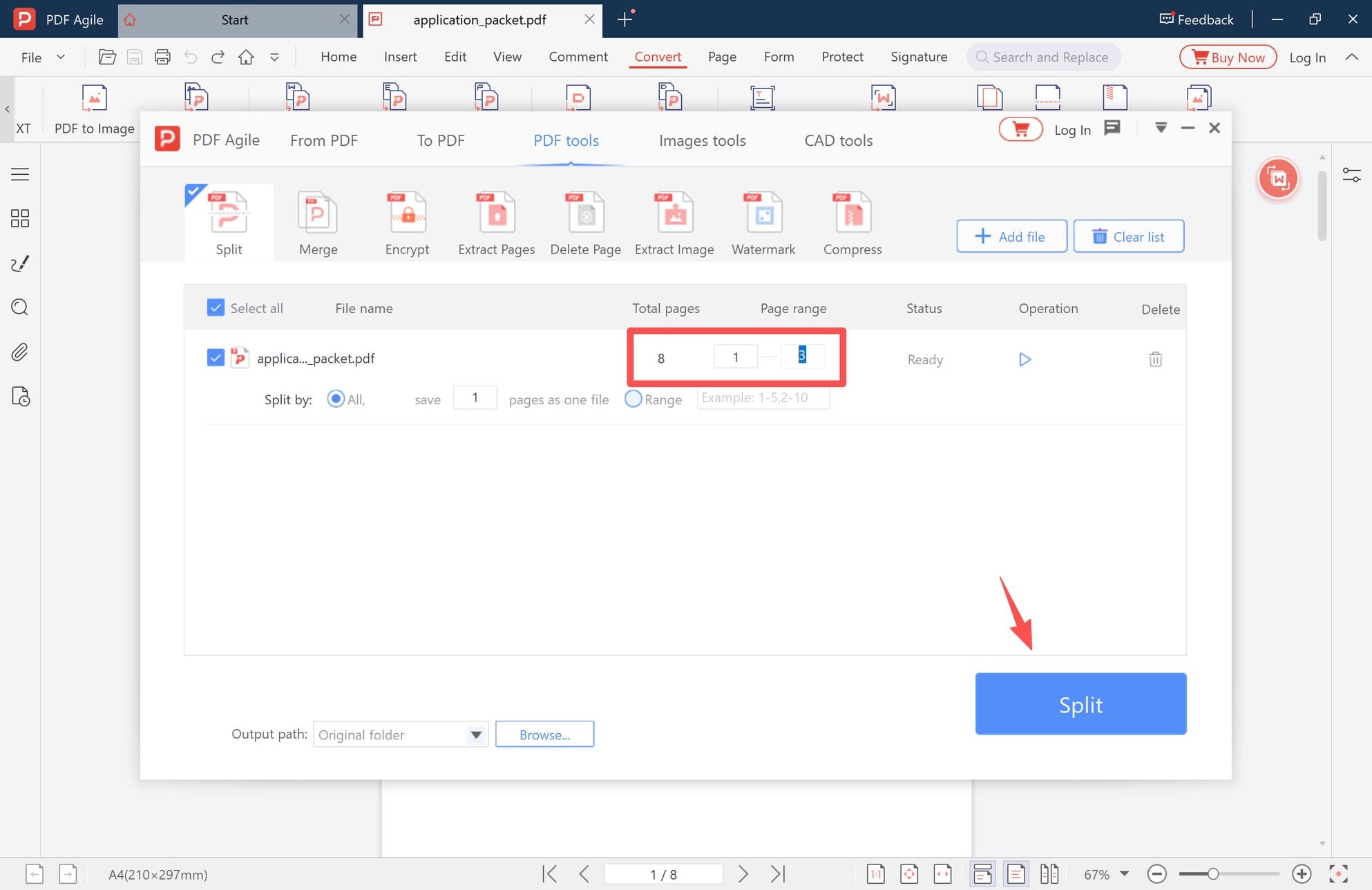
Click Split, then repeat for the next range, keeping the output path the same so all the new files land together. Four documents means four runs and four files: 1–2, 3–5, 6–7, and 8. Count them in the output folder before moving on.
If one document is still too large for the portal's cap after splitting, compress that single file — the same panel has Compress — rather than splitting it down further.
Rename the Files for Your Application
The file name is the only part of the upload a reviewer reads before opening anything, and some portals show it back to you in the confirmation email and in the case worker's document list.
- Start with the category, in the form's words. proof-of-address.pdf, bank-statements.pdf, passport.pdf. Not scan_0042.pdf, Doc1.pdf, or IMG_20261029.pdf.
- Add the period when the document has one. bank-statement-jan-2026.pdf says what is inside; four copies of bank-statements.pdf do not.
- Use lowercase and hyphens. Spaces cause occasional upload failures, and underscores read as noise in a list.
- Leave personal identifiers out. File names travel into shared queues and email threads: passport.pdf, not passport-jordan-taylor-A1234567.pdf. The reviewer already has your details from the form.
- Number only when the order is ambiguous. 01-passport.pdf and 02-bank-statements.pdf help when the portal's own checklist is numbered.
- Mirror the slot label. If the upload button says "Proof of address (utility bill)", then proof-of-address-utility-bill.pdf is unambiguous.
Check Every File Before Uploading
Open each new file in a viewer and check five things. This takes two minutes for four files.
- Page count. The passport file has two pages, the statement file three, the proof of address two, the letter one. A file with the wrong count usually means a boundary was off by one.
- The boundary pages. Look at the first and last page of every file. A passport file whose second page is a bank statement, or a statement file that opens mid-table, is the classic symptom of a range typed from the printed footer instead of the viewer.
- Legibility at 100%. Check the smallest text in each file, not just the page that looked fine on screen.
- Orientation and page size. A mixed packet often contains one sideways scan. Splitting does not straighten it.
- File size. Compare each file against the portal's cap. Four small files are usually fine; a 300 dpi colour scan of six pages may not be.
Open each file in a second program as well — a browser, or the system viewer. A file that only one application can open is worth re-saving before a portal rejects it.
Upload the Files in the Required Order
Put the portal's checklist next to the folder and match files to slots one at a time.
- Upload into the slot with the matching label, not the next one down. "Passport" and "proof of identity" are often two different slots in the same form.
- Follow the portal's numbering if the slots are numbered, even when your own file names run in a different order.
- If there is one slot and one file, the ordering job moves inside the file: pages should run in checklist order, application form first, then ID, then address.
- Do not submit while a slot is empty, and check that each slot shows the file name you expected. A slot can display "uploaded" and still hold the wrong document if you picked from the previous file dialog.
- Read the summary page before closing the tab. Some portals list the received files only there, and a mismatch is visible in that list.
Keep the original packet. Splitting does not change the source file, and if a reviewer asks for a page you left out, you will not have to rescan it.
Common Mistakes When Splitting Application Documents
- Splitting every page into its own file. One packet becomes eight uploads, and no portal asks for that.
- Splitting a document the form wanted as one file. Three monthly statements usually belong in one bank-statements.pdf, not three files.
- Trusting the checklist's printed page numbers. Cover pages and Roman numerals shift the count. The viewer's counter is the one the tool obeys.
- Leaving the cover or checklist page inside the first document. It adds a page the reviewer did not ask for, and it is usually why the passport file reads three pages instead of two.
- Naming files after the scanner. scan1.pdf gives the reviewer nothing to match against a slot label.
- Uploading the whole packet as well "just in case". A duplicate of everything is a second pile of ID pages to handle.
- Deleting the original after a successful upload. Splitting is not destructive, but deleting is.
FAQ
Should each page be a separate file?
No. A file should match a document, not a page. Two pages of passport are one file, three pages of statements are one file, and a single-page letter is one file. One page per file makes sense only when the portal asks for it explicitly.
What if the form has one upload field for all documents?
Then do not split into several files. Put the documents into one PDF in checklist order and upload that single file — the combining route is covered in how to convert multiple JPGs into one PDF for an online application.
How do I split a PDF for an application without installing anything?
Two routes. On Windows or macOS, open the PDF and print one range at a time to a PDF printer (Ctrl+P → Save as PDF or Microsoft Print to PDF), which produces one file per run. Or use a browser splitter such as Split PDF online — and read its retention wording first, because a browser tool has to receive the whole packet, including the ID pages.
Why did the portal reject my file as too large?
A split does not shrink anything: each page carries its original scan resolution. Compress the file that broke the cap, or rescan that document at a lower resolution, then check the smallest text. Re-saving the same file again and again degrades it with every pass.
Do the file names actually matter to the reviewer?
They matter more than most applicants expect. File names appear in the reviewer's document list, in confirmation emails, and on some portals' status pages. A name that mirrors the slot label removes the guesswork; a camera default adds it back.
Can I split a PDF on a Mac?
Yes. In Preview, turn on View > Thumbnails, select the pages for one document, and drag them to the desktop — that creates a new PDF for the selection. Repeat for each document, or use File > Print > PDF > Save as PDF with a page range. The same page-counter caution applies.
Splitting is a two-minute job once the grouping is decided. What decides whether an application goes through is everything around it: one file per document, names that match the slots, page counts that add up, and nothing in the upload that the form did not ask for. If you would rather keep a passport scan and a payslip on your own machine, PDF Agile's Split tool writes each range to the folder you choose and leaves the original packet untouched — the same panel also carries Compress, Extract Pages, and Merge for the follow-up edits. More walkthroughs like this one are in How-to & Tips.