If you need one file containing both an existing PDF and a Word document, the reliable route is to convert the Word document to PDF first, then merge the two PDFs. A normal PDF merge tool works with PDF pages; it does not automatically turn a `.docx` file into pages in the same step.
This produces one continuous PDF with the pages in the order you choose. It does not keep the Word document editable, and it is different from attaching a file to a PDF without adding pages. If the recipient needs to edit the Word file later, keep the original `.docx` and send it separately instead of treating the merged PDF as an editable source.
What Happens When You Combine a PDF and Word Document?
The word “combine” can describe several different results:
- Convert and merge: the Word content becomes PDF pages, then those pages are joined to the original PDF.
- Copy and paste: Word content is placed into a document manually, which can change spacing, fonts, and page breaks.
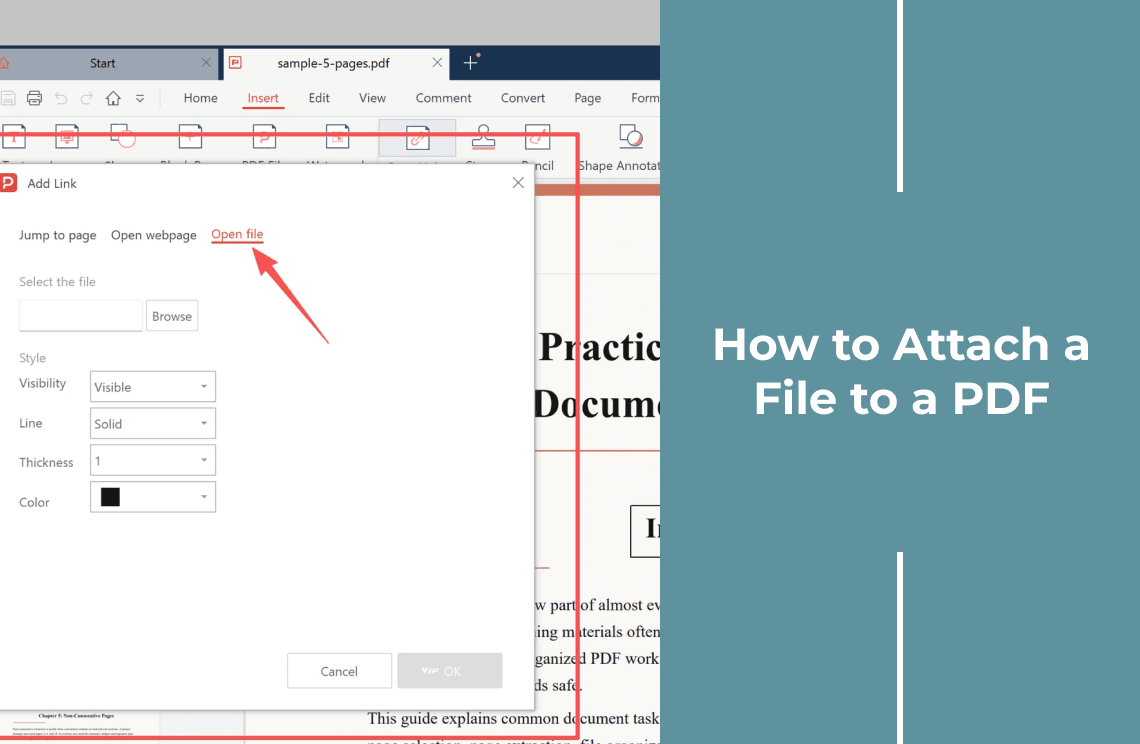
- Attach a file: the Word file remains separate from the PDF and may open from a link or attachment. No pages are added.
- Send two files together: the PDF and `.docx` stay independent, which is better when the Word file must remain editable.
This article focuses on the first option: a single, shareable PDF made from one PDF source and one Word source. For the attachment option, see how to attach a file to a PDF without merging pages.
Choose the Page Order Before You Start
Decide which document should appear first. Common arrangements include:
- PDF, then Word: A cover letter, instructions, or existing PDF comes before supporting pages.
- Word, then PDF: A report or explanation comes before an appendix or supplied form.
- Selected pages from both: Only the pages needed for a submission are included.
The merge process normally treats each input as a block of pages. If you need to place one Word page between two PDF pages, convert the Word document first and then use a page organizer to move the converted page into position.
Convert the Word Document to PDF First
A Word document can look different on another computer if it uses missing fonts, wide tables, floating images, or different printer settings. Exporting it to PDF before merging gives you a fixed page version to review.
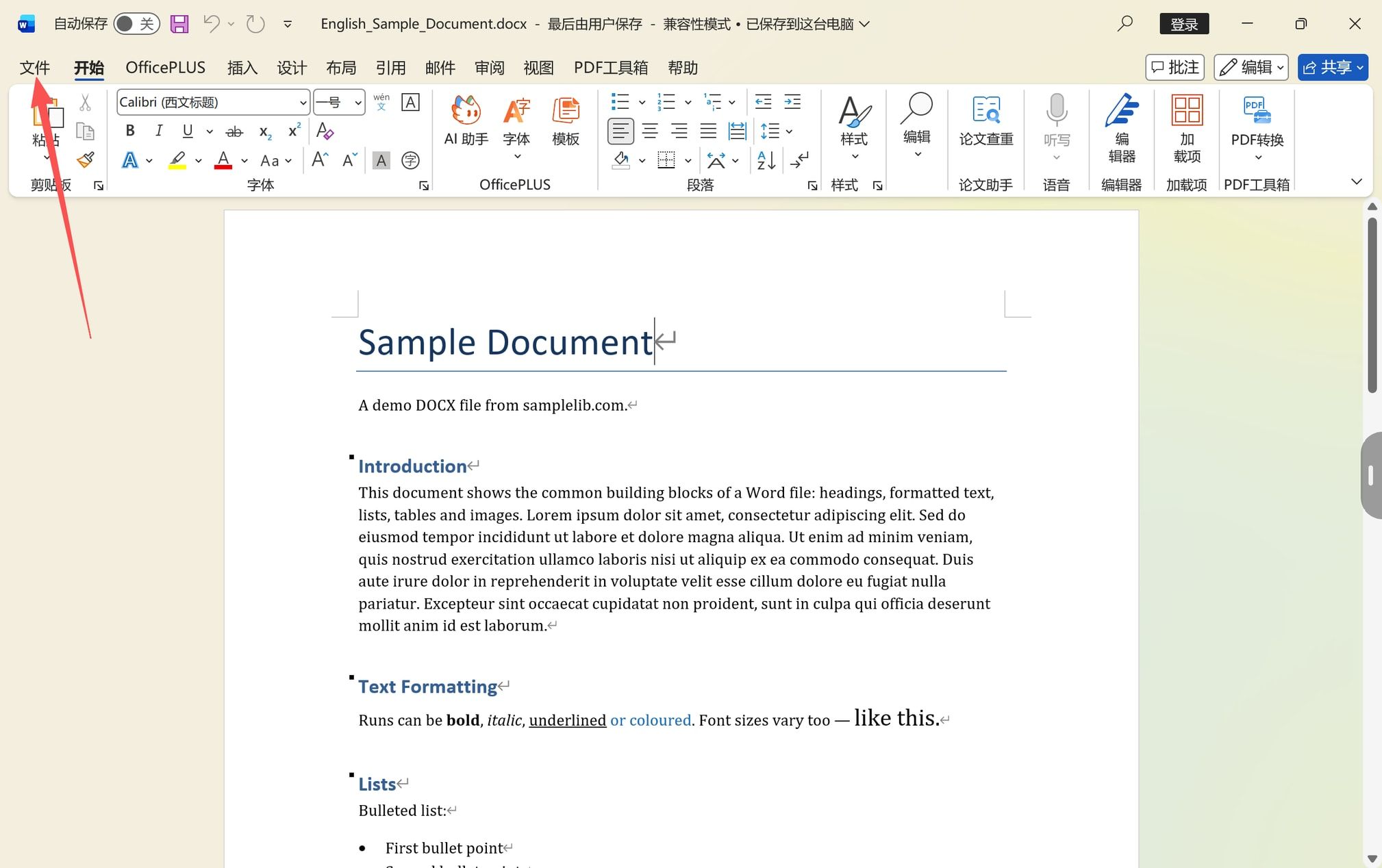
Step 1: Open the Word Document
Open the `.doc` or `.docx` file that you want to include. Review the document before exporting it: accept or remove tracked changes if they should not appear, check comments, and confirm that the page breaks are intentional.
Step 2: Save or Export the Word File as a PDF
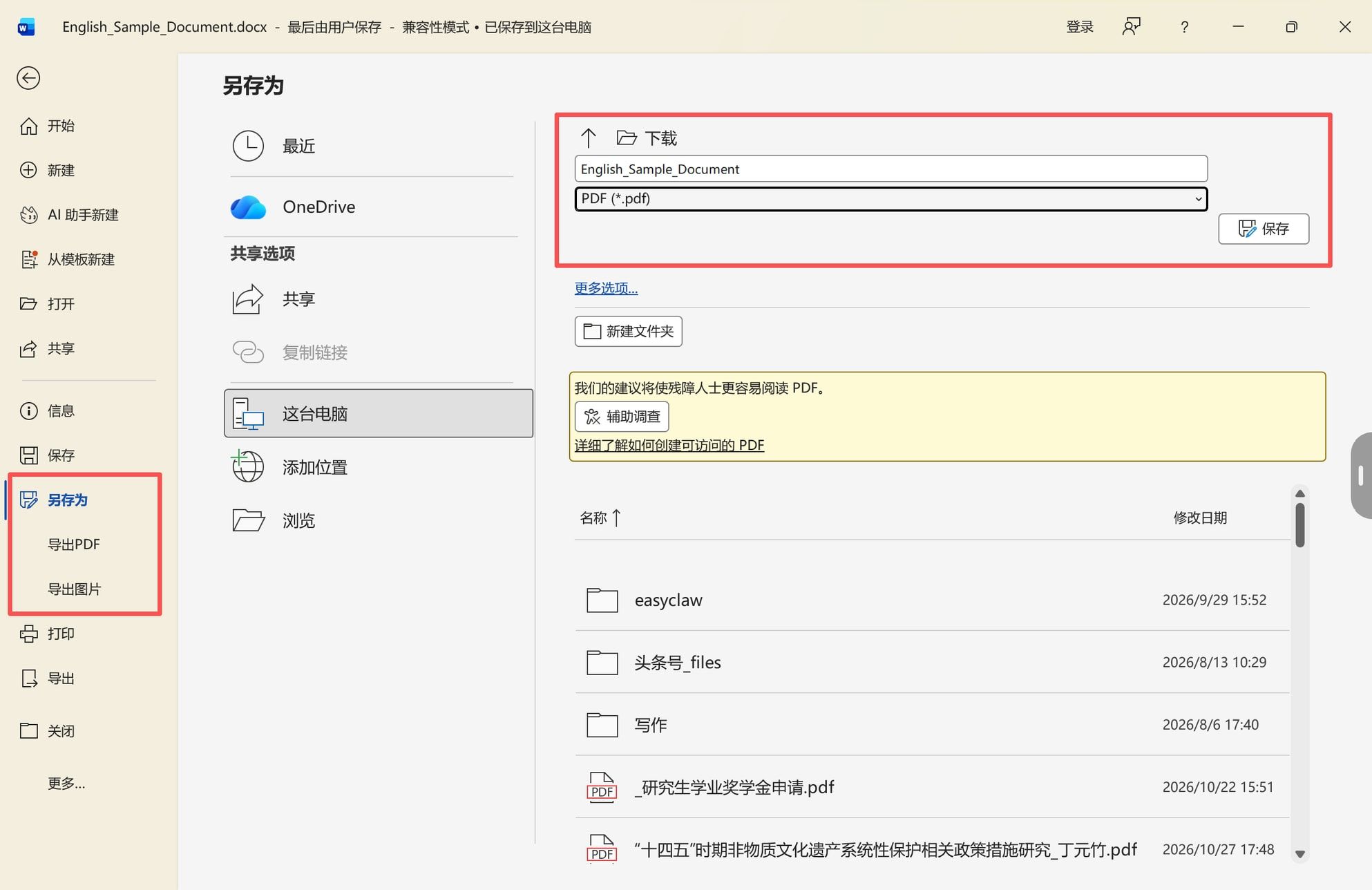
In Word, use File > Save As or File > Export, choose PDF as the output format, and save a new file such as `project-notes.pdf`. Keep the original Word file; the PDF is the fixed copy that will be merged.
Check the exported PDF before moving on. Look at the first page, the last page, any table-heavy page, and any page containing images or headers and footers.
Merge the Two PDF Files
Once the Word document has become a PDF, you have two PDF inputs: the original PDF and the converted Word PDF. You can now use a desktop PDF tool or an online merge tool. If the files contain confidential information, a local desktop workflow avoids sending them to a browser-based service.
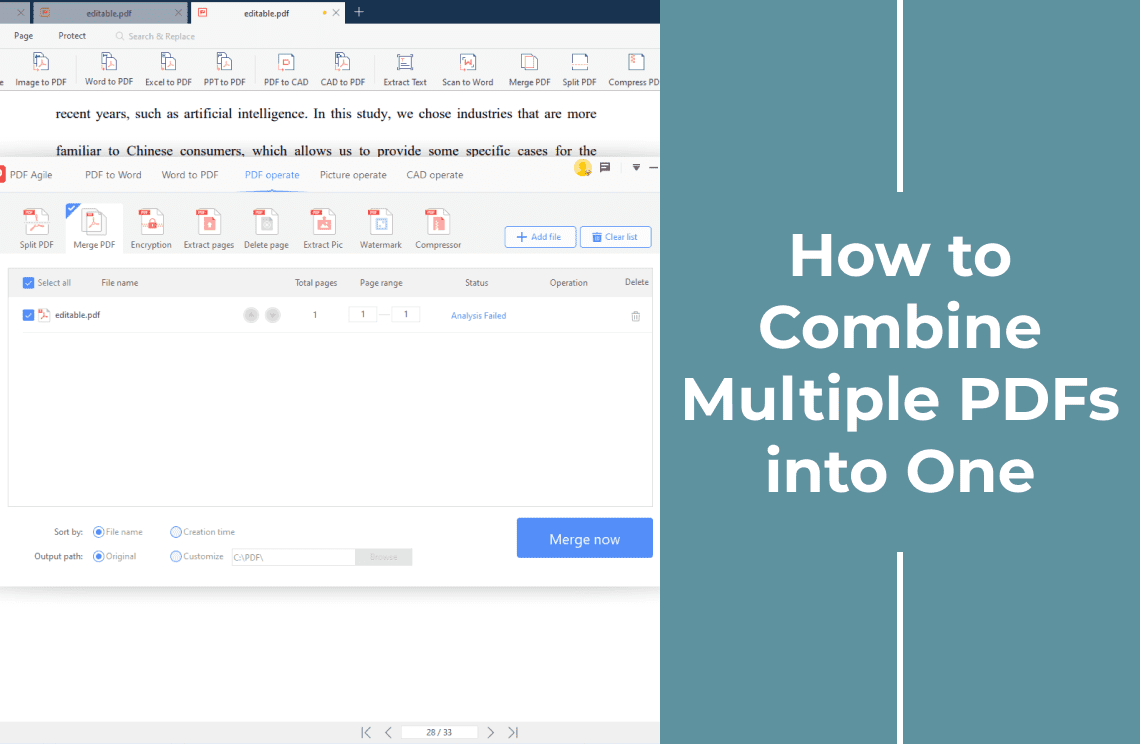
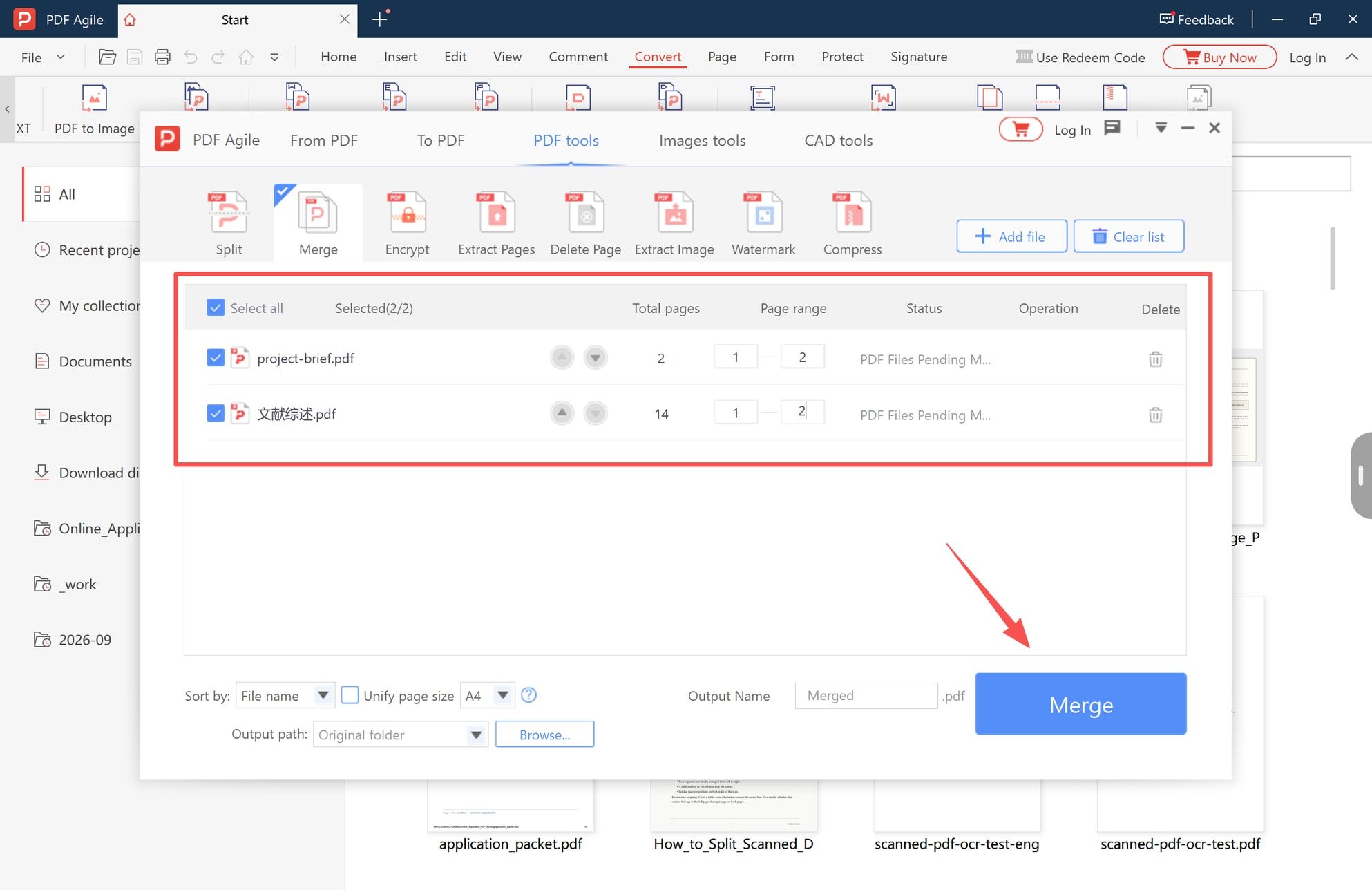
The screenshots below show the desktop workflow in PDF Agile. The visible merge window accepts PDF files, so the Word conversion must happen before this stage.
Step 3: Open the PDF Merge Tool
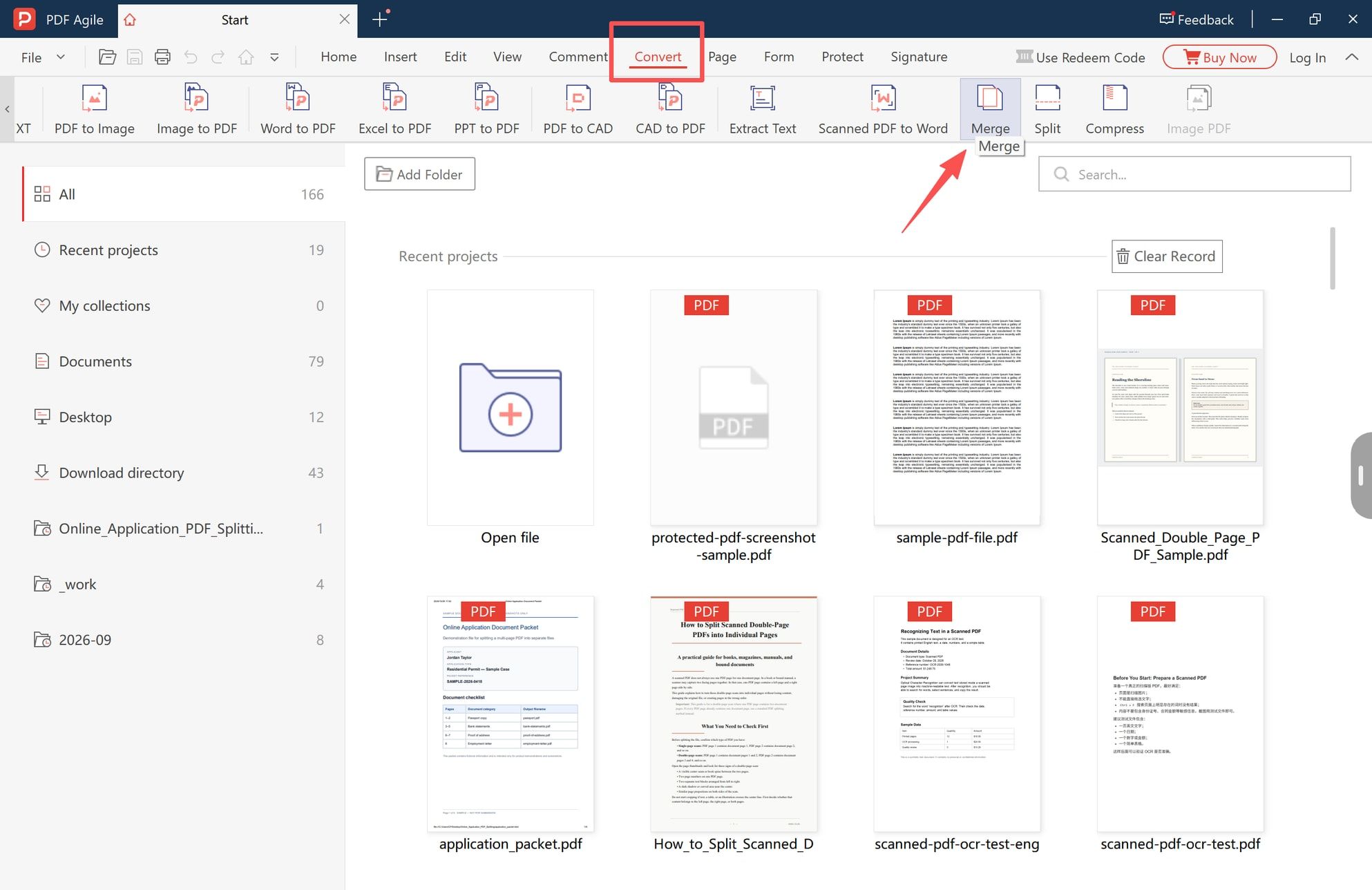
Open the application and select the Convert tab. The conversion ribbon includes a Merge option. Open it to reach the PDF merge workspace.
Step 4: Add the Original PDF and the Converted Word PDF
Use Add file to add both PDF files. Add them in the order you want them to appear, or use the available move controls to correct the order. In this example, `project-brief.pdf` comes before `project-notes.pdf`.
Confirm that you selected the converted `project-notes.pdf`, not the original `.docx` file. Review the displayed page counts when the files load; an unexpected count can indicate that the Word export needs to be checked before merging.
Set a clear output name, such as `combined-project-document.pdf`, and click Merge.
Step 5: Save the Combined PDF and Check the Result
Open the new PDF instead of assuming that a successful merge means the document is ready to send. Check the following:
- The original PDF pages appear in the intended position.
- The pages converted from Word follow in the correct order.
- The total page count equals the pages in both source PDFs.
- Page orientation and page size are not unexpectedly mixed.
- Fonts, tables, images, headers, and footers look correct.
- Links, bookmarks, and form fields still behave as expected.
- The final file name and file size meet the recipient’s upload rules.
For example, a two-page original PDF plus a two-page converted Word PDF should produce a four-page result. If the page count is wrong, reopen the two source PDFs separately and identify which export or selection caused the difference.
Desktop Merge vs. Direct Multi-File Combining
A two-stage workflow is useful when you want to inspect the Word-to-PDF conversion before it becomes part of the final document. It also makes the source of a layout problem easier to identify: the issue is either in the Word export or in the later merge.
Some PDF applications offer a direct “combine files” workflow that accepts Word and PDF files in one list. Adobe Acrobat’s official combine-files workflow is an example of that approach. It can be convenient, but you should still review the generated PDF because a direct workflow does not remove the usual font, table, page-size, and permission issues.
The screenshots in this guide document the two-stage desktop route: export the Word file, then use the PDF merge list. That is the route to follow when your merge screen is designed for PDF inputs rather than mixed office files.
When You Should Not Merge the Files
Merging is not always the right result:
- The recipient must edit the Word document: send the `.docx` separately or provide both files.
- The PDF is only a reference link: attach or link to the file instead of adding its pages. See how to attach a file to a PDF without merging pages.
- The PDF is signed: editing or merging may affect the signature’s validity. Preserve the signed original and verify the result before distribution.
- The source is password-protected: unlock it only when you are authorized to do so, and do not include passwords in the output file name or document.
- The Word file contains tracked changes or comments: decide whether those review marks belong in the final PDF before exporting.
- The files contain sensitive information: use a local workflow where appropriate, keep the originals protected, and verify that you did not include extra pages.
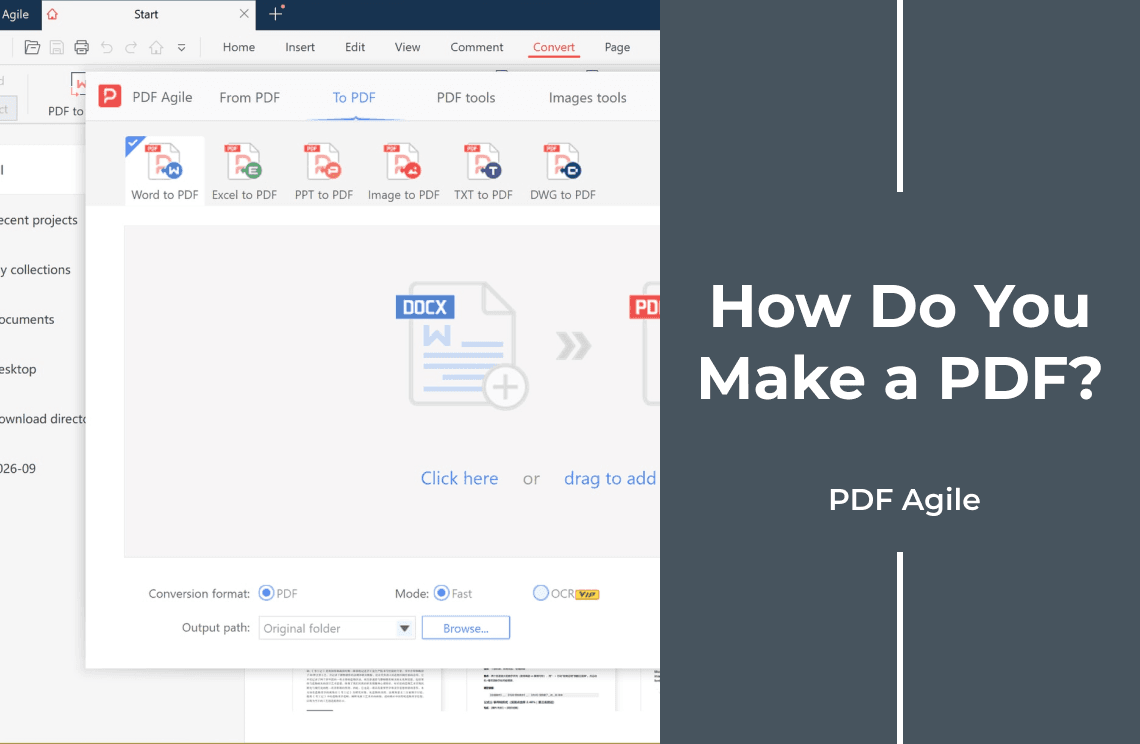
If you are working with many source files, how to make a PDF from a folder of files covers batch conversion. If you only need to create a PDF from one source, how do you make a PDF? compares the main routes.
Frequently Asked Questions
Can I merge a Word document directly with a PDF?
Not in every PDF merge window. The dependable cross-tool method is to save the Word document as a PDF first, then add both PDF files to the merge list.
Will the final PDF still be editable in Word?
No. The result is a PDF, not a Word document. Some PDF editors can modify text or add objects, but that is not the same as preserving the original Word structure. Keep the `.docx` source if future Word editing matters.
Will combining the files change the page count?
Yes. The pages from the converted Word PDF become part of the final PDF, so the page count normally increases by the number of pages in that file. This is different from a file link or attachment, which can leave the page count unchanged.
Why did the Word pages change after conversion?
Common causes include missing fonts, different page settings, floating objects, wide tables, comments, tracked changes, or content that was already close to a page break. Review the converted PDF before merging it.
Can I combine only selected pages?
Yes, if the merge tool supports page ranges or if you first create a smaller PDF containing only the pages you need. Check the resulting page order and count before sending it.
Is merging better than sending two files?
Use one merged PDF when the recipient expects one upload or one continuous document. Send the files separately when the Word document must remain editable, when the documents have different owners, or when the recipient needs to process them independently.
Final Checklist
Before sharing the combined file, confirm that:
- The Word document was exported to PDF.
1. The Word document was exported to PDF.
- The original PDF and converted Word PDF are both included.
2. The original PDF and converted Word PDF are both included.
- The page order matches the intended submission order.
3. The page order matches the intended submission order.
- No extra draft, comment, or review pages were included.
4. No extra draft, comment, or review pages were included.
- The final PDF opens correctly on the device where it will be sent.
5. The final PDF opens correctly on the device where it will be sent.
- The original PDF and `.docx` files are still saved separately.
6. The original PDF and `.docx` files are still saved separately.
For a browser-based option, you can also use the online PDF merge tool. For a local desktop workflow with the screenshots shown above, use the merge route after converting the Word document to PDF.
Once the Word file has been converted and the page order is clear, the merge itself is straightforward. The important part is the final review: a single PDF is only useful if its pages, layout, and source content are all correct.