Splitting a PDF in half means dividing its page sequence into two consecutive files at the midpoint: a 12-page file becomes pages 1–6 and pages 7–12, and a 13-page file becomes 1–6 and 7–13, or 1–7 and 8–13 if the extra page belongs at the front. Both halves are still whole pages. Nothing is cut, cropped, or resized.
That single sentence settles most of the confusion around this search, because "in half" gets used for three different jobs. This guide covers the one that means two balanced files: where the midpoint falls, what to do with an odd page count, how to save both halves, and how to prove that no page went missing. It does not cover cutting a scanned sheet down the middle, and it does not cover pulling three pages out of a long report — both have their own guides, linked below.
Three Jobs People Call Splitting a PDF in Half
- Divide the file at the midpoint. Every page stays in one of two files, in order, and the two page counts add up to the original. This is the task the steps below handle.
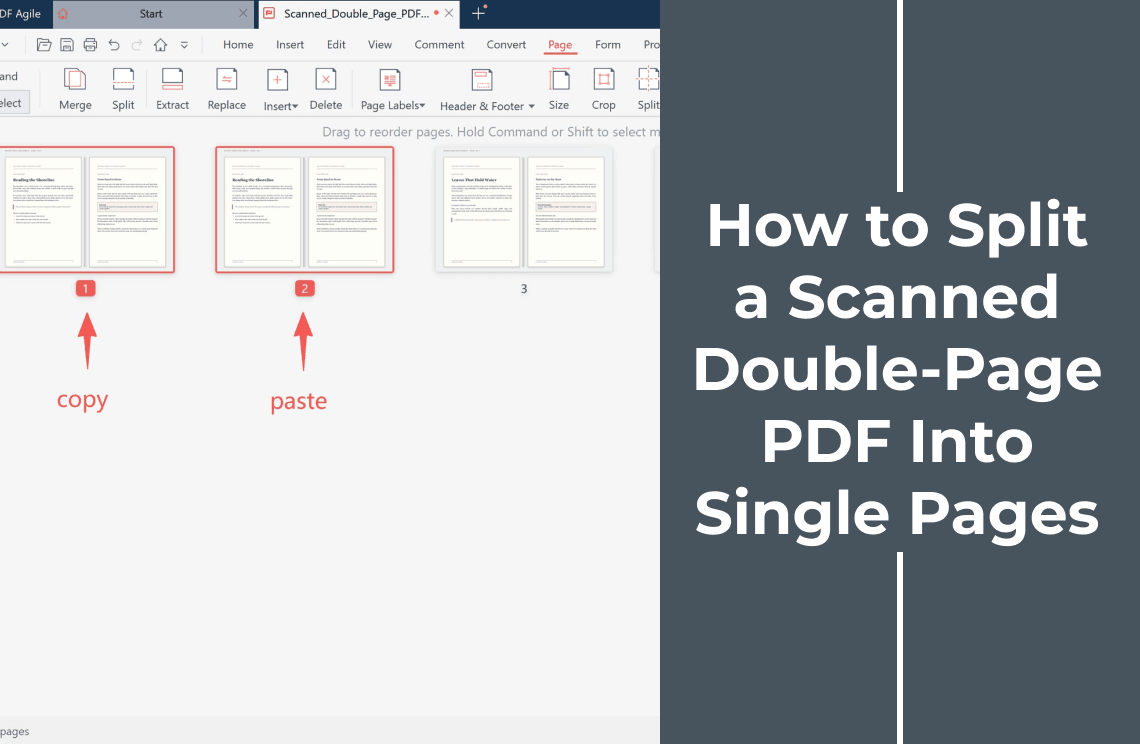
- Cut each page down the middle. A book scanned two pages at a time puts a spread on one landscape sheet. The sheet has to be duplicated and cropped, which is a different operation from splitting. How to split a scanned double-page PDF into single pages covers it.
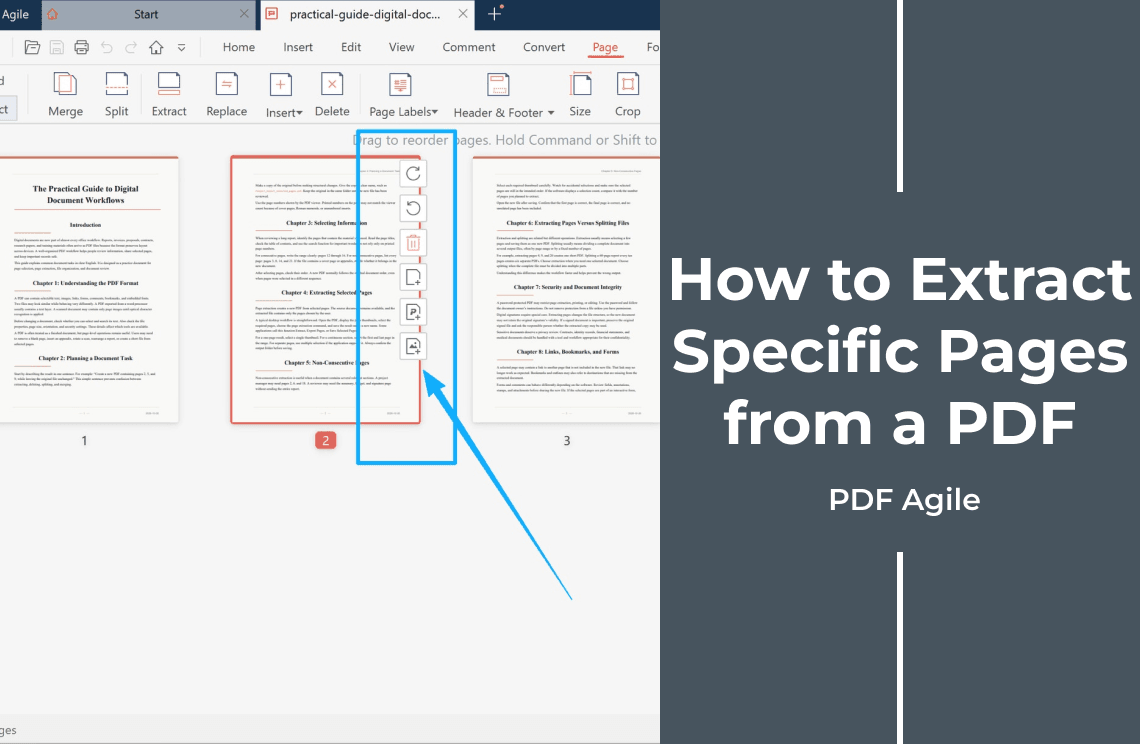
- Pull out the pages you picked. Pages 3, 7, and 9 into one new file is extraction, not a halving. How to extract specific pages from a PDF is the right walkthrough.
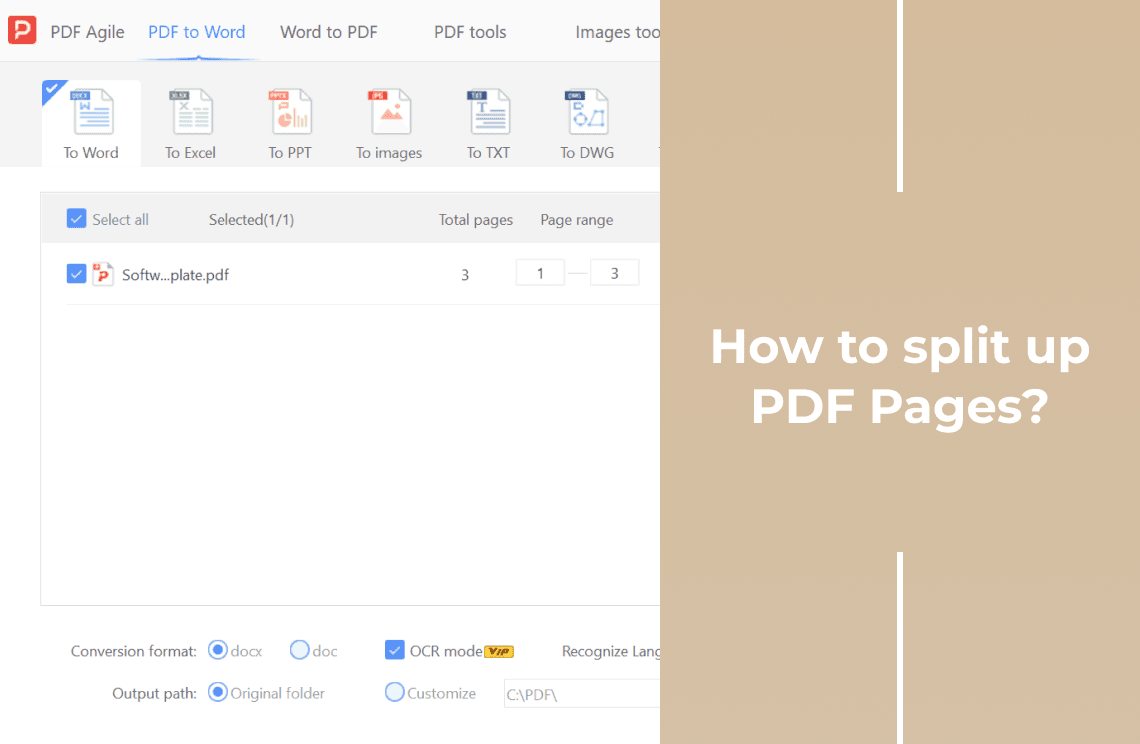
There is also a fourth job that looks similar and is not this one: dividing a document into many files — one per chapter, one per invoice, one per applicant document. When there are more than two outputs, how to split up PDF pages into separate files is the closer guide.
Decide Where the Midpoint Falls
The midpoint is arithmetic, not a feeling, and it is the only decision this task actually requires.
Even Page Counts
Half of ten is five, so pages 1–5 and 6–10. Half of twenty is ten, so 1–10 and 11–20. Two files, same page count, no judgement needed.
Odd Page Counts
A 15-page file cannot become two 7.5-page files. Something has to give, and the useful question is not "which half is bigger" but "which side does the extra page belong to":
- Split by structure, not by count. If page 8 opens a new section, 1–7 and 8–15 keeps the sections intact. A file that is balanced to the page but splits a chapter in half is the more annoying result.
- Split 7 + 8 or 8 + 7. When the content gives no signal, either is fine. Put the extra page in the half where it reads as a continuation, not as a stray page.
- Keep front matter where it is. A cover, a contents page, or a signed approval page is usually the reason a range looks wrong by one. Do not move it into the second half just to even out the numbers.
Read the Viewer's Page Counter, Not the Printed Page Number
PDF viewers number pages from 1, starting at the file's first page. The number printed at the bottom of the page belongs to the document's own design, and it drifts: a cover adds one, a contents page adds one more, and Roman numerals throw the arithmetic out completely.
In a file where the printed footer says "Page 12" but the viewer says 14, typing 12 into a split tool cuts in the wrong place and there is no warning. Use the counter in the toolbar, and check the two pages that sit either side of your chosen midpoint before you commit to it.
How to Split a PDF in Half into Two Files
The run below was done in PDF Agile on Windows with a ten-page test report, split into pages 1–5 and pages 6–10.
Step 1: Open the PDF and Read the Total Page Count
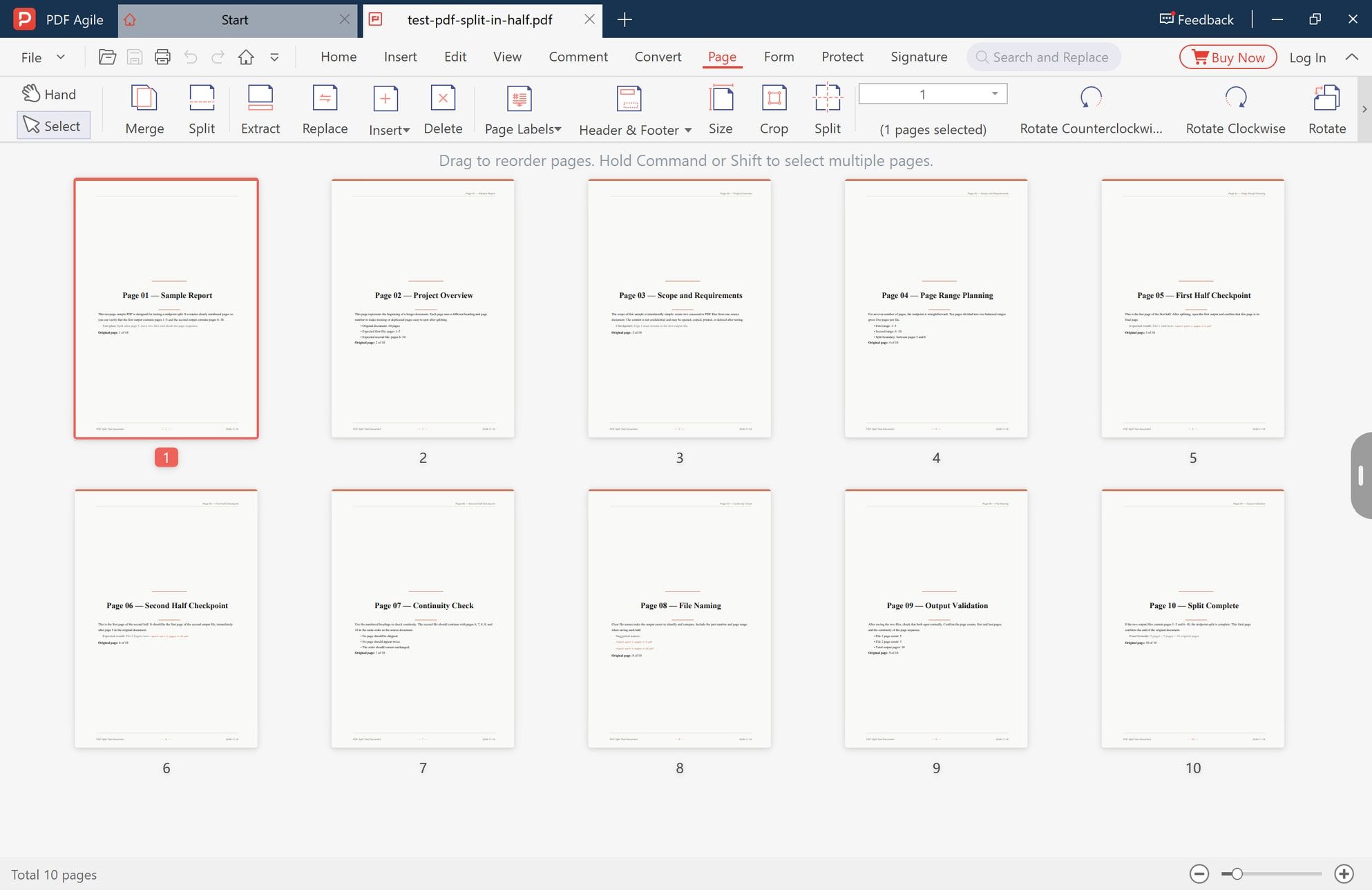
Open the file and look at the bottom of the window: Total 10 pages. That number sets the limits for every range you type, and it is the number the last step checks against. If it disagrees with what you expected, stop here — a file that opens with nine pages was truncated before it reached you.
Step 2: Confirm the Midpoint on the Thumbnails
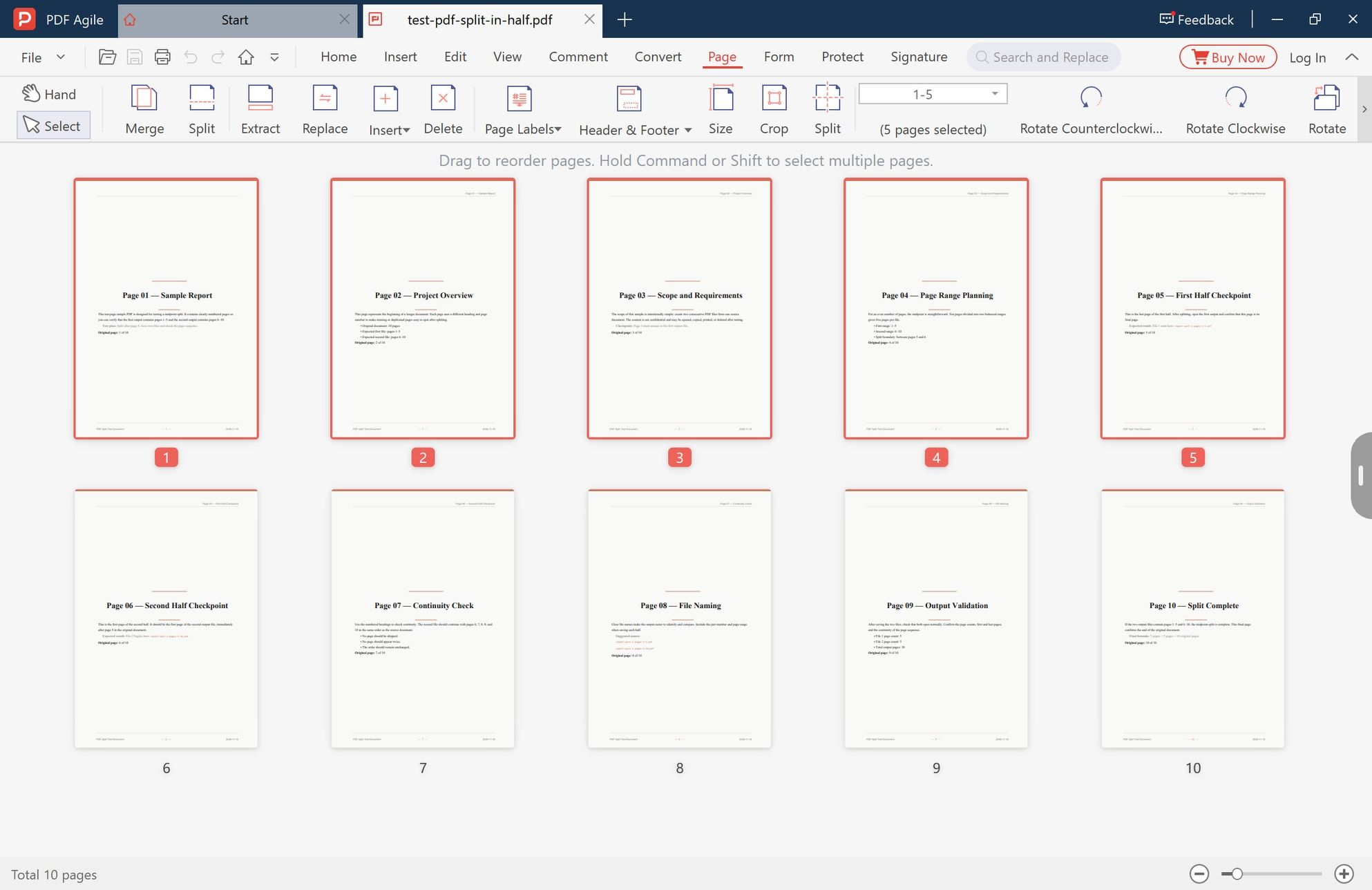
Stay on the Page tab, where the thumbnails are laid out in a grid with their page numbers underneath. Read the last page of the first half and the first page of the second half: in this sample, page 5 is labelled "First Half Checkpoint" and page 6 is labelled "Second Half Checkpoint", so 1–5 / 6–10 is the cut the document was built around.
Selecting the pages you intend to keep together is the quickest way to confirm the count. Here pages 1–5 are selected, and the toolbar reports 5 pages selected with 1-5 in the range box — which is the same range the split will use.
Step 3: Open the Split Panel and Set the First Range
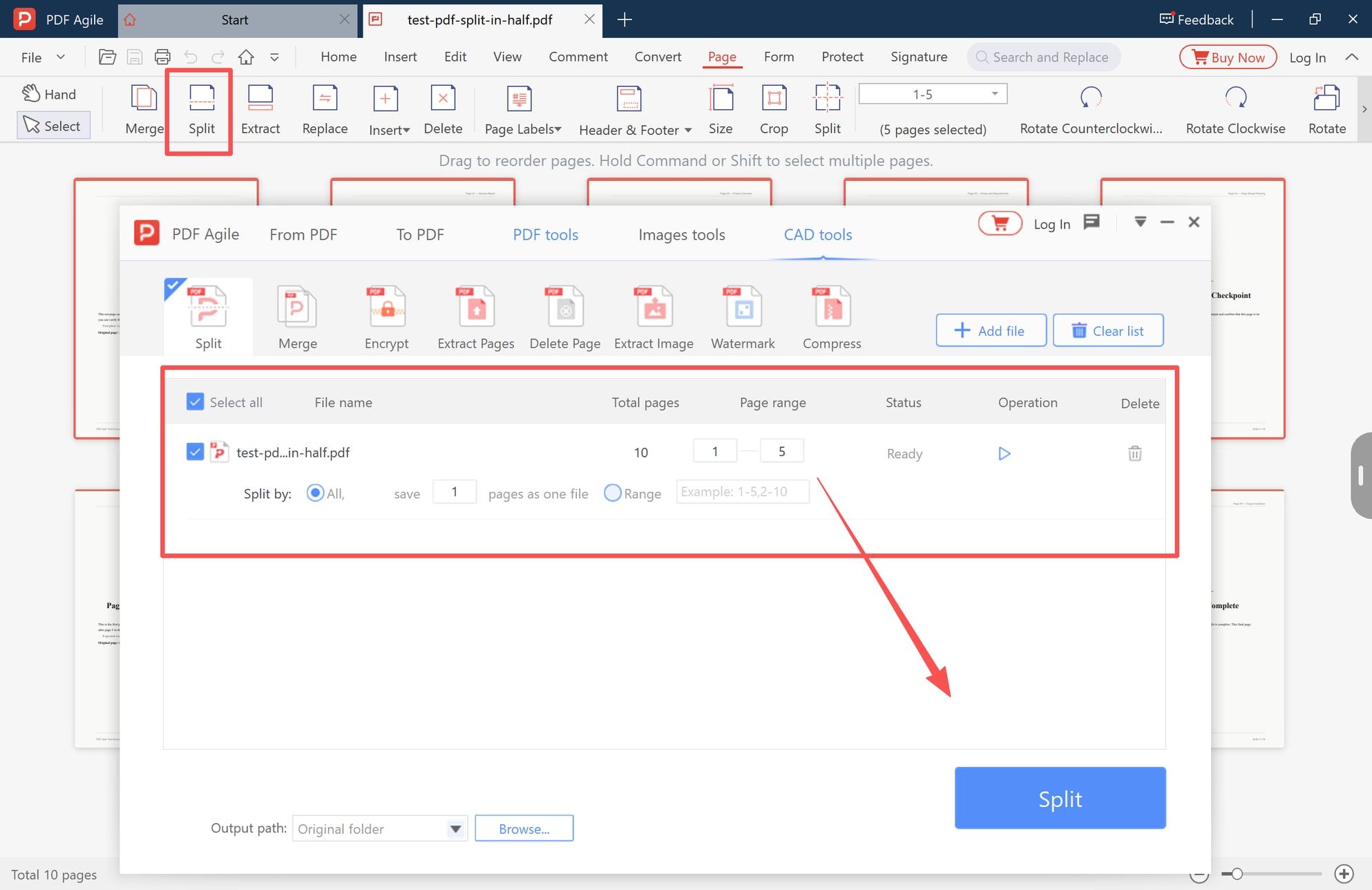
Click Split in the Page tab ribbon, next to Merge and Extract. The panel opens with the current file already listed:
- Total pages — 10, read from the document itself.
- Page range — two boxes for the start and end of the half you are producing. Type 1 and 5.
- Split by — how the pages are packaged. Its Range option shows the example 1-5, 2-10, which is exactly this job; the other setting writes one file every N pages.
- Output path — Original folder by default. Use Browse to send both halves somewhere you can find again.
Then click Split. One warning worth having in advance: if the mode is left at one page per file, a ten-page document comes back as ten single-page files. Count the files in the output folder — you want one per range, not one per page.
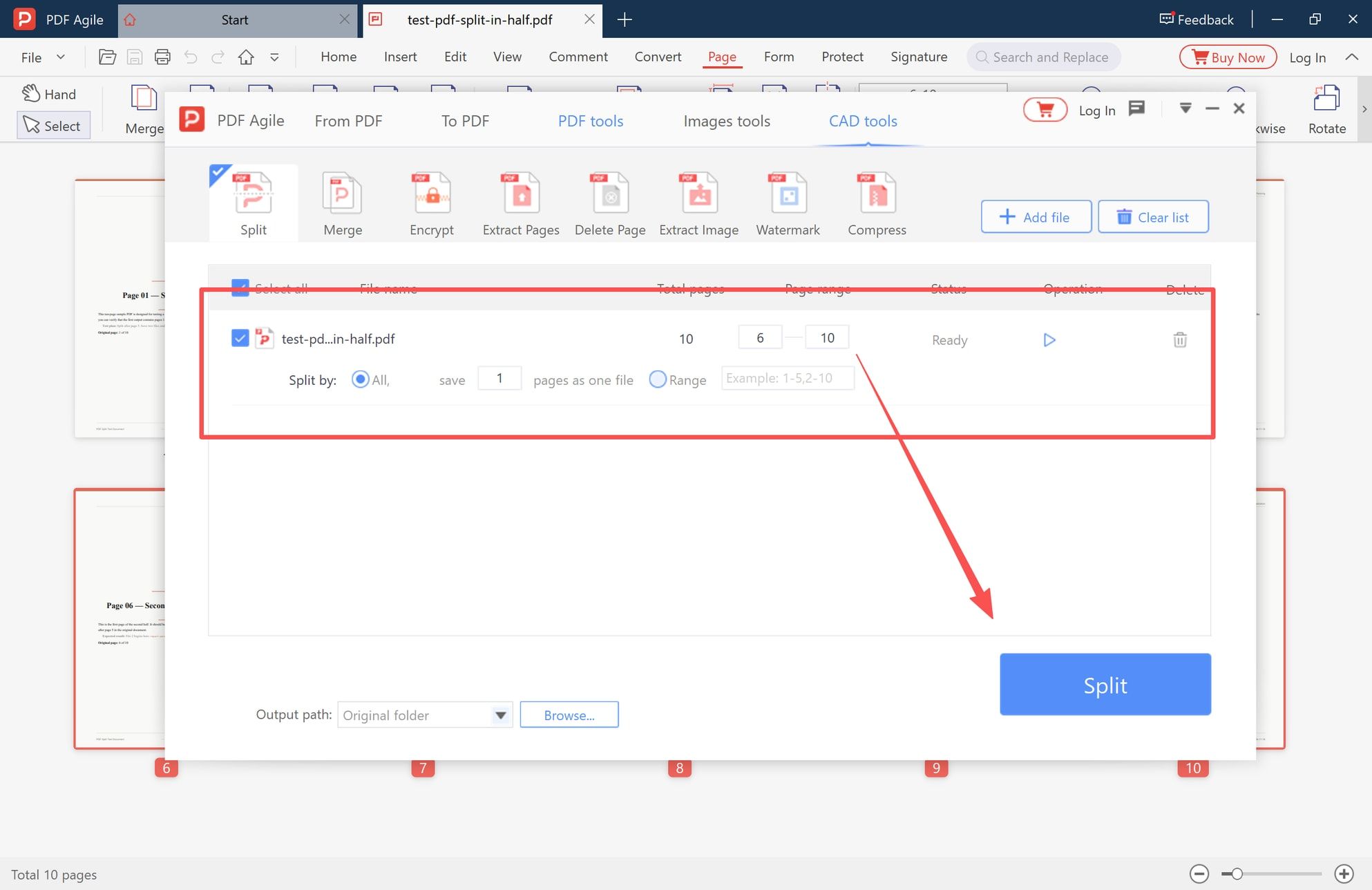
Step 4: Change the Range to the Second Half and Run Again
Change the same row to 6 and 10, and run the split a second time. Keeping the output path unchanged puts both files in the same folder, which is what you want for the comparison in the next section.
Rename them so the ranges are self-evident — report-part-1-pages-1-5.pdf and report-part-2-pages-6-10.pdf — rather than leaving whatever the tool produced. The original PDF is untouched by either run, so nothing is lost if the second range turns out to be wrong.
Check Both Halves Before You Send Them
The split is not finished when the second file appears. It is finished when the two files are shown to be complete, and that takes a short list:
- Both open. Open each file in a viewer, not just the folder preview.
- The page counts add up. File 1 has 5 pages, File 2 has 5, the original had 10.
- The boundary is clean. The last page of File 1 and the first page of File 2 should read as consecutive pages, not as a repeat or a gap.
- No duplicates. A page that appears in both files is the classic symptom of a range typed as 1–5 and 5–10.
- No missing pages. Read the last page of File 2 against the original's final page.
- Names say what is inside. report-part-2-pages-6-10.pdf is checkable at a glance; report (1).pdf is not.
- Bookmarks and internal links. A link or bookmark that pointed to a page now living in the other half becomes a dead end. Open the ones that matter and click them.
- Forms, signatures, and comments. Form fields and annotations travel with their page, but a digital signature does not survive being written into a new file — a signed PDF that has been split is a modified document.
- Both print. Print the first page of each file, or check the print preview's page count.
The arithmetic that decides pass or fail is one line:
pages in File 1 + pages in File 2 = pages in the original
If the total is short, a page was excluded from both ranges. If it is long, a page appears twice. Either way, the fix is to re-read the ranges rather than to patch the files.
Why the Two Halves Are Not the Same Size in MB
The halves are balanced by page count, not by megabytes, and they are rarely equal in bytes. Five pages of scanned invoices can weigh more than five pages of typed text in the same file. Photographs, embedded fonts, colour profiles, and annotations all sit on specific pages, so an even split can still produce a 3 MB file and a 0.8 MB file. When a size cap matters — an upload form, an email limit — compare each half against the cap rather than assuming they match each other.
If You Meant Cutting Each Page Down the Middle
If the PDF was made from a book or magazine scanned two pages at a time, splitting will not help: each landscape sheet is a single page, and a split only ever breaks between pages. What you need is a duplicate of the sheet, a crop of the left half, a crop of the right half, and the pages put back in reading order. That workflow is set out in how to split a scanned double-page PDF into single pages.
FAQ
Can I split a PDF into two equal page ranges?
Yes, whenever the page count is even. Half of the total is the midpoint: 20 pages becomes 1–10 and 11–20.
What happens if the PDF has an odd number of pages?
One half gets one more page. For 21 pages that is 1–10 / 11–21 or 1–11 / 12–21 — a 10 + 11 split. Choose by content: keep a chapter, a section, or a signed page whole, and let the page counts fall where they land.
Will both halves have the same file size?
No. Page count and file size are independent. Images, scans, and embedded fonts are not spread evenly, so equal page counts routinely produce different sizes.
Can I split a PDF in half without cutting each page?
Yes. A page-range split copies whole pages into new files and leaves every page's content and dimensions alone. Cutting the page itself is a crop, which is a different tool.
How do I check that no pages were lost after splitting?
Add the two page counts and compare with the original. Then read the two pages either side of the boundary, and open one file in a second viewer — a file that only one application can open is worth re-saving before you send it.
Do bookmarks and links still work after splitting?
Bookmarks and links that point to a page inside the same half keep working. Ones that pointed to a page that moved into the other file now point at nothing, so click through the important ones in both files. If the document is signed, expect the signature to be reported as invalid, because the split wrote a new file.
Splitting in half is two typed ranges and two checks. The part that fails quietly is the midpoint: an odd page count decided by habit, or a range typed from the printed footer instead of the viewer's counter. Get those right and the two files are correct the first time. PDF Agile keeps the page count, the thumbnail grid, and the range boxes on one screen, and writes both halves to the folder you choose — which makes the arithmetic and the split part of the same pass. The desktop app is on the download page, the browser route lives at Split PDF online, and the rest of the page-level jobs — reordering, deleting, inserting — are mapped in how to edit a PDF. More walkthroughs like this one sit in How-to & Tips.
Steps and screenshots reflect the desktop app as of November 2026; menus and panel labels may change in later versions.