A revised page usually arrives as a Word file: one clause changed, one price corrected, one paragraph rewritten. The document around it is finished and must not move. Replacing a page is not the same job as combining two files, and treating it as one is how a 24-page contract turns into a 25-page contract with a duplicate page 7.
This page covers that narrow case: one page is out of date, the page count has to stay the same, and everything that points at a page has to keep pointing at the right one. If the page count is meant to grow, or two documents are meant to become one, those are different jobs and the links below go to them instead.
Replace, Insert, and Merge Are Three Different Jobs
The three get called "combining" in conversation, and they end with different files.
- Merge joins two documents. Two files become one, and the page count is the sum. That is the PDF and Word file combining job, which starts by deciding page order.
- Insert adds a page. The file grows by one, and every page after the new one shifts. That is inserting a page into a PDF, whether the page is blank, borrowed from another file, or scanned.
- Replace swaps a page. The count does not change, no page shifts, and the new page takes the old one's position. Most editors do it as two actions rather than one button.
Only the third leaves the rest of the document untouched. Most editors implement it as two actions — delete the outdated page, then insert the new one into the slot it left behind — and the job is doing those two in that order without losing the position.
When Only One Page Changes
The shape of the problem is always the same: something outside the file already refers to the inside of the file.
A contract that has been signed and circulated, where clause 4.2 was renegotiated. A price list where one tier changed. A proposal where the team page gained a name. A manual where one procedure was rewritten after a support call.
In each case the file is in other people's hands, or in a system that expects a fixed page count: a portal with a 24-page limit, a print run already quoted, a page-numbered index that someone built by hand. Adding a page means every one of those references is now off by one, and the reader has no way to know.
What Has to Survive the Swap
Five things, and they are the acceptance test at the end of this page.
1. The page count. Same as before. If it changed, something was inserted rather than replaced. 2. The position. The new page sits where the old one sat, not at the end. 3. Page numbers printed on the page. If the footer says "Page 7 of 24", the new page has to say the same thing, because the file around it did not change. 4. Bookmarks and internal links. A bookmark that pointed at the old page 7 still has to land on page 7. 5. Page size. The new page has to match its neighbours, or printing and two-page view will show one odd sheet.
How to Replace a Page in a PDF
Step 1: Export the Single Page From Word
Open the Word file and export only the page you need: choose Print, set the page range to that one page, and print to a PDF writer such as Microsoft Print to PDF or the app's own export. Do not export the whole document and delete the rest afterwards — the extra pages carry headers, footers and section breaks that change the layout of the page you wanted.
Check the exported file opens as one page before you go further.
Step 2: Match the Page Size Before the Swap
A Word file defaults to Letter or A4 depending on where it was set up, and the PDF you are keeping may use the other. Put the two side by side and compare the width and height; the page size is shown in the file's properties or in the page setup of the viewer.
If they differ, fix it now, not after the swap. A page that is 6 mm wider than its neighbours gets scaled down at print time, so the text on that one page is slightly smaller than the text on every other page — a difference readers feel before they can name.
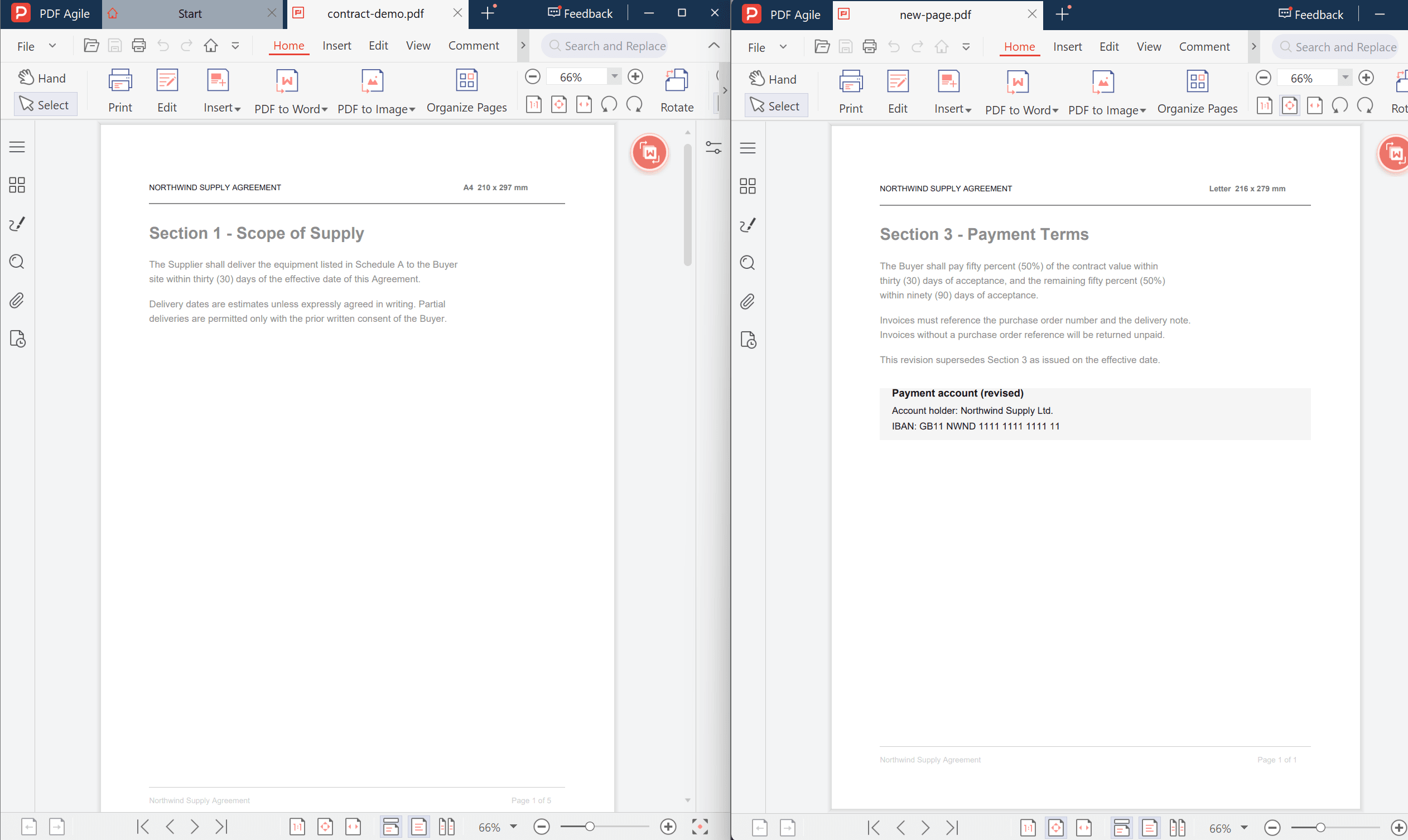
Step 3: Note the Position, Then Delete the Outdated Page
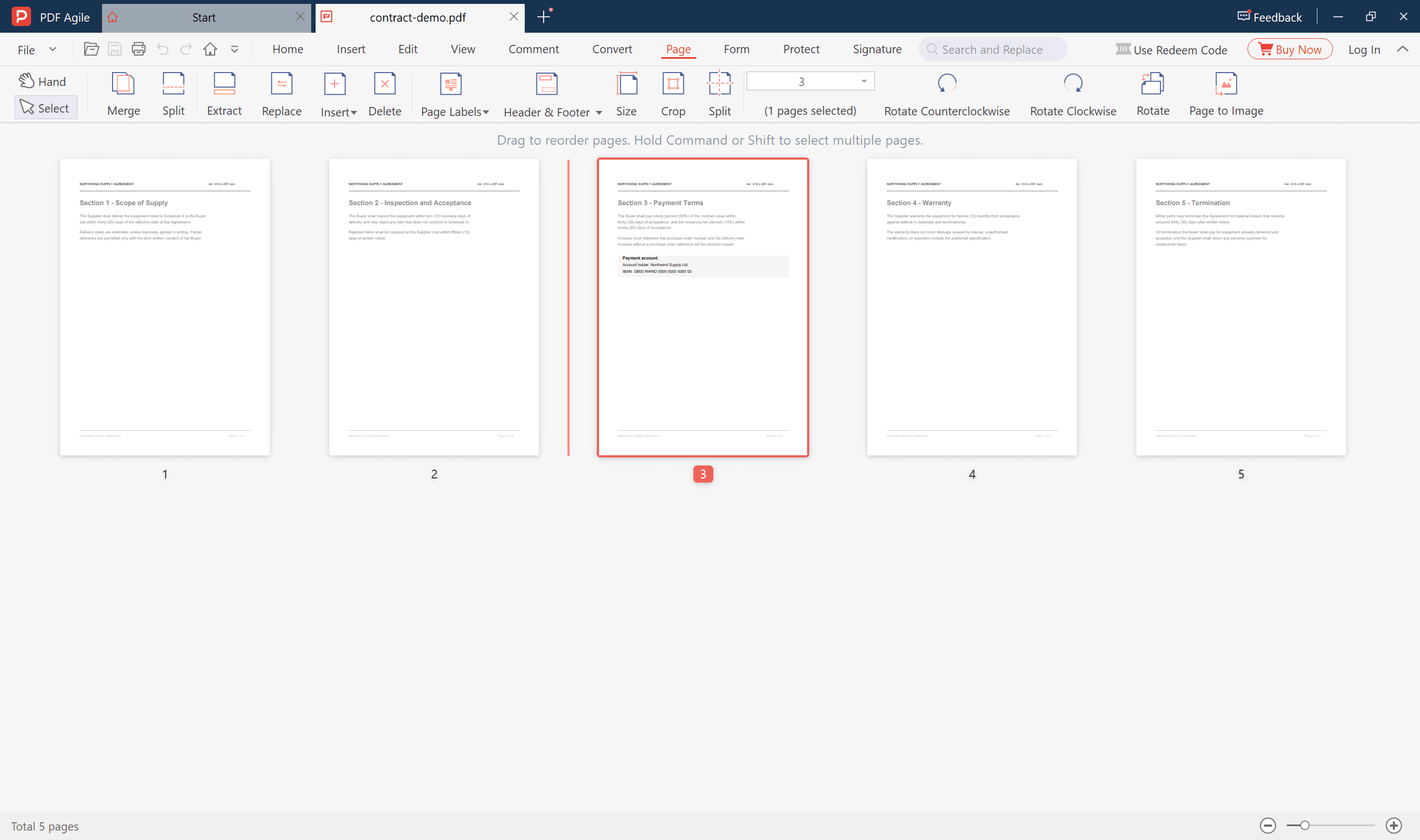
Open the PDF you are keeping in PDF Agile and switch to the Page tab, which shows the document as a strip of thumbnails. The page numbers under the thumbnails are the position you have to restore, so write down which page you are removing — "page 3" — rather than remembering it as "the payment terms page".
Click that thumbnail, and check the counter in the toolbar before you touch anything: it should say 3, and the strip should say (1 pages selected). Then click Delete.
The file is now one page short, and everything after page 3 has moved up by one. That is expected; the next step puts it back.
Step 4: Insert the New Page Into the Slot You Emptied
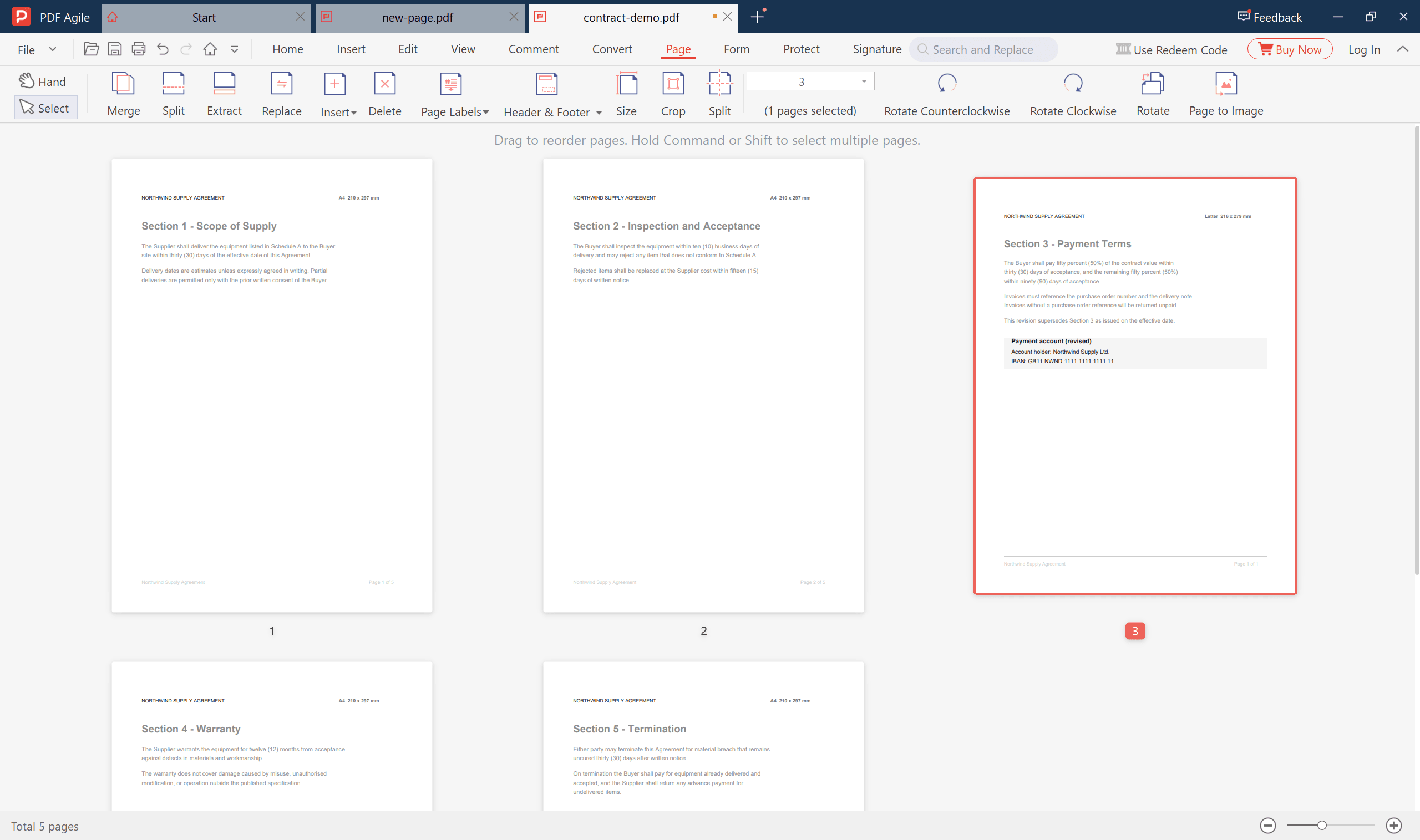
With a page still selected near where the gap is, click Insert and choose the one-page PDF you exported. The insert lands after the selected page, so select page 2 — not page 3, which is now the old page 4 — and the new page arrives exactly where the deleted one was.
Then check the two numbers that matter: the total is back to five, and the thumbnail under the new page reads 3. If the page count is six, a page was inserted without one being deleted. If the new page sits at the end, the insert was applied to the last page of the file.
Step 5: Confirm the Count and the Printed Number
Look at the total page count before and after. It should be identical, and the page should be in the same position in the strip as the one you removed.
Then open the new page and read its footer. If the old page said "7 of 24", the new one has to as well. Word restarts this numbering in its own file, so a page exported on its own almost always arrives saying "1" — retype or re-add the footer field before the swap if the printed numbering matters.
Step 6: Re-point Anything That Referred to the Page
Open the bookmarks panel. A bookmark whose target was the deleted page can end up pointing at the page that took its place only if the editor remapped it; if it now jumps to a blank area or to the previous page, set the destination again.
Do the same for any table of contents built from links rather than from text, and for cross-references inside the document ("see page 7").
Step 7: Save a Copy, Not Over the Original
Use Save As and keep the original file. If the swap went wrong — wrong page, wrong size, a crop left over from an export — the old file is the only clean reference you have, and re-exporting from Word is not the same document the recipient already has.
What Usually Goes Wrong
- The count went up by one. A page was inserted without one being deleted first. The file now has 25 pages and every reference built on 24 is off by one.
- The new page is a different size. The Word file's paper size did not match the PDF's. Print preview shows the odd page scaled.
- The footer says 1. The single page was exported on its own, so Word numbered it from one. The surrounding file still says 7 of 24.
- The bookmark now opens the wrong page. The old page is gone and the bookmark kept its destination coordinates rather than its page.
- A stray header from the previous section came along. The page range was right but the section break was not; export from a page that starts its own section, or strip the header in the one-page PDF.
How This Compares With Acrobat
Acrobat keeps page order in Organize Pages, and deleting and inserting both happen there. The desktop app used for these screenshots keeps Delete, Insert and the thumbnail strip on one Page tab, so the two actions sit next to each other and the strip shows the gap between them.
Neither route has a cost-free shortcut around the order of operations: the page has to come out before the new one goes in, and the insert lands after whichever page is selected. Some editors offer a single Replace action that does both; it produces the same file, and it removes the one step where people lose their place.
The output is identical either way. What differs is how many chances you get to pick the wrong page.
FAQ
Does replacing a page change the page numbers?
Not by itself. The file's page count is unchanged, so page 7 is still the seventh page. What can change is the number printed in the footer, because a page exported from Word starts its own numbering at 1.
Can I replace a page without the original Word file?
Yes, if you have the replacement as a PDF already — a scan, an export from another tool, or a page sent by the person who wrote it. The rest of this page applies unchanged; Step 1 becomes "obtain that page as a single-page PDF".
What happens to signatures on the replaced page?
An electronic signature applied to the file covers the file as it was. Changing a page alters the document, so the signature no longer validates against it — and on a signature that covers the whole document, replacing any page breaks it. Replace a page before signing, not after.
Will the bookmarks survive?
The bookmarks themselves stay; their destinations may not. Check the ones that pointed at the replaced page and set them again if they now land in the wrong place.
Can I replace several pages at once?
Replace one page at a time when the pages differ in content. If a block of pages was rewritten as a block, deleting the block and inserting the new block at that position is the cleaner route — the count still has to match at the end, and that is the check worth keeping.
Where to Go Next
If the job turned out to be "add this page" rather than "change this page", inserting a page into a PDF is the shorter read, and it explains why position is the part people get wrong. If the Word file is a separate document that has to travel with the PDF rather than replace part of it, attaching a file to a PDF without merging pages keeps the page count untouched. And when the two documents really do become one, combining a PDF and a Word document is the other job.
For a page you need to pull out rather than swap, splitting up PDF pages into separate files covers the extraction side, and a browser-based delete PDF tool handles a single removal when you are not on your own machine.
That is the whole swap: export one page, match the size, take the old page out, put the new one in its slot, then check the count, the printed number, the bookmarks and the page size. Four checks, one minute, and the document stays the document everyone else already has. If you want both actions and the page strip in one window, PDF Agile keeps Delete, Insert and the thumbnails on the same Page tab and works on the file locally. More page-level walkthroughs sit in the How-to & Tips section.