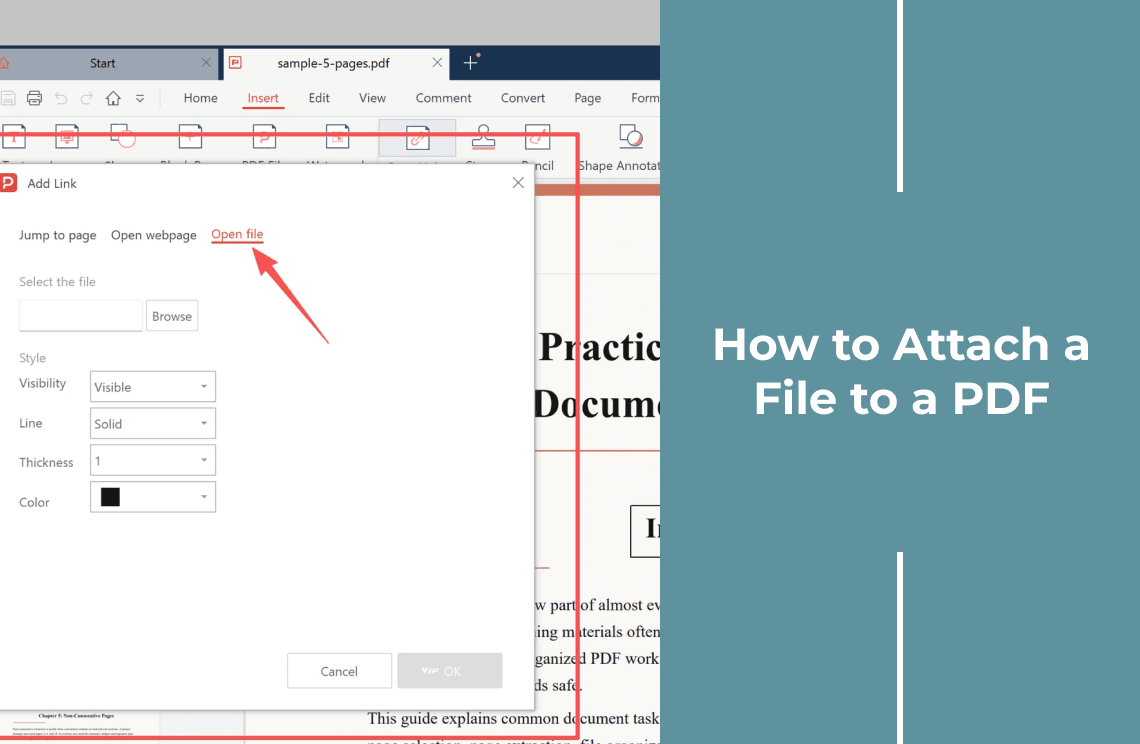
People search "attach a file to a PDF" for two different jobs, and most tools use one word for both. In one job the file has to sit inside the PDF so it travels with it. In the other, the PDF only needs a clickable area that opens the file, with the file staying where it is. Neither job adds a page, and that is where attaching separates from merging and inserting.
This guide separates the two meanings first, then walks through the second one end to end on Windows: open the PDF, point a page link at the file, save it, and check that the link really opens the file. Nothing is converted, nothing is appended, and the page count stays exactly as it was.
Attaching Is Not Merging, Inserting, or Linking
The four actions get used interchangeably, but they leave the document in four different states:
- Merge — two documents become one continuous file. The page count goes up, and the second document stops existing as a separate file. Merge and split sit in the Organize PDF toolset.
- Insert — pages from another document are placed at a chosen position, and those pages become your pages. If that is what you actually need, how to insert a page in a PDF covers it.
- Open-file link — a clickable area on a page points at a file that stays outside the PDF. No pages are added, and the file is not stored in the document.
- Embedded attachment — a copy of the file is packed inside the PDF container itself. No pages are added either, but the copy now travels with the document.
The first two change the document. The last two leave the pages alone. The difference between the last two decides everything that happens later, when someone else opens the file.
Which Kind of Attachment Do You Need?
One question settles it: does the file have to arrive with the PDF?
- If the recipient must end up with the file itself, you need an embedded copy, or you send both files together in one folder or archive, which is what most people actually do.
- If the file already lives where it will be opened — same machine, same shared drive, a link inside your own archive — an open-file link is faster, keeps the PDF small, and adds nothing to the page count.
- If the "file" is a PDF you need to read as part of the document, that is not attachment at all. Merge or insert the pages instead.
The rest of this guide is the second case: the link version, built on a real document, with the exact clicks.
How to Attach a File to a PDF Without Adding Pages
Step 1: Open the PDF That Will Carry the Link
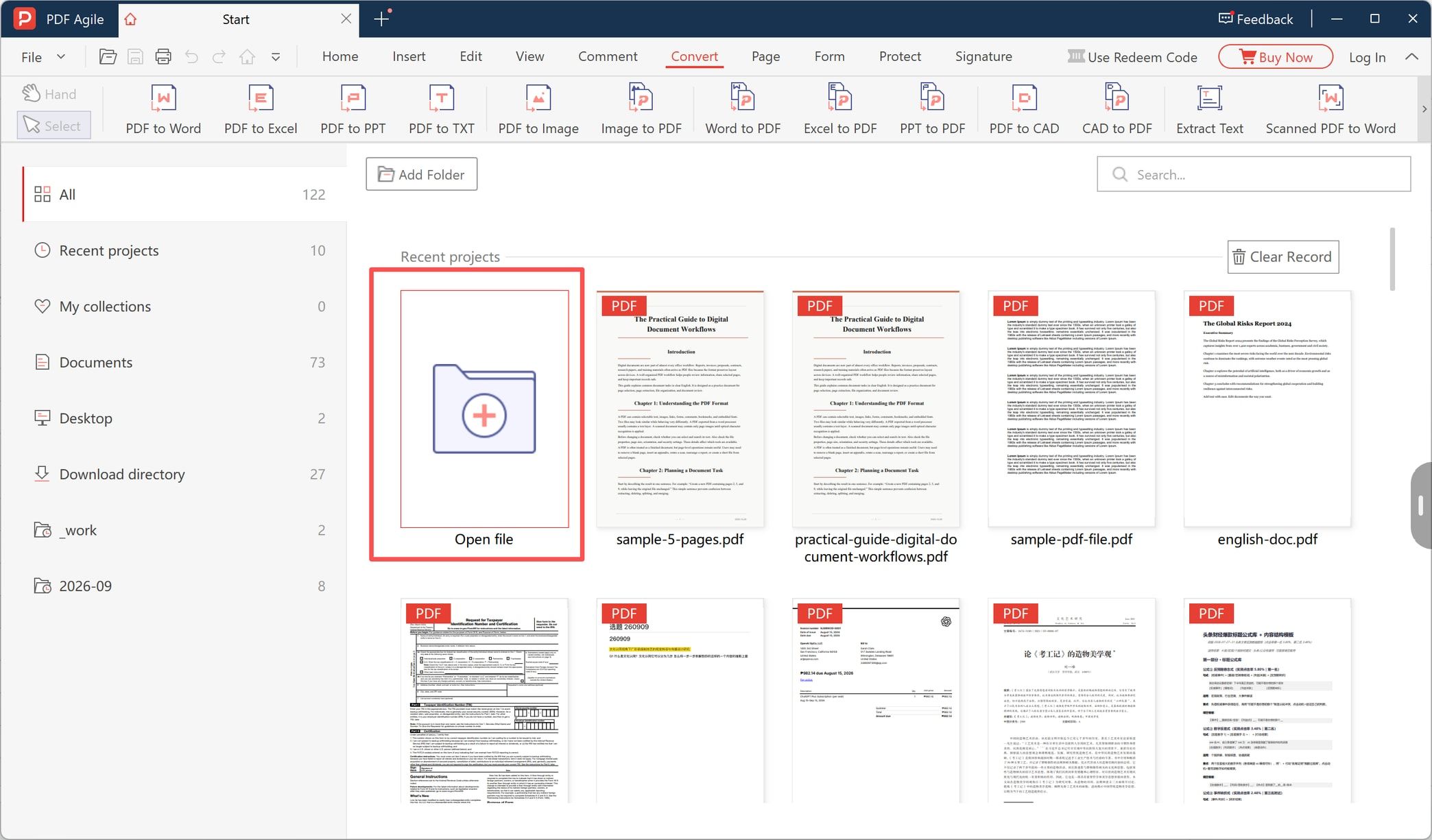
Launch PDF Agile and choose Open file on the start screen, the tile with the folder and plus sign, or use the folder icon on the toolbar. Pick the document whose pages must stay untouched. The file you are about to attach stays outside it, so this is the only document you open.
Step 2: Go to the Insert Tab and Choose Page Links
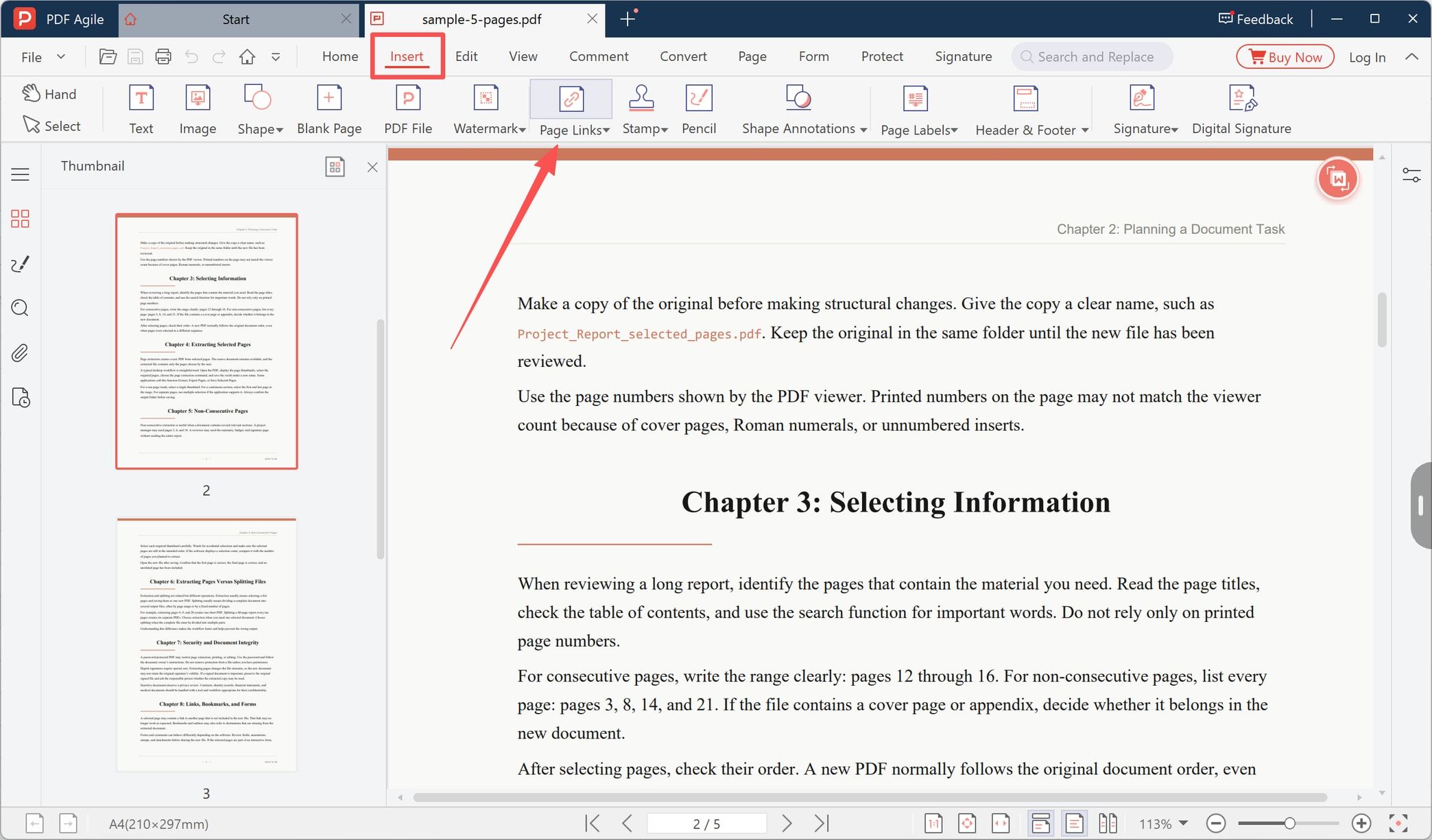
Switch to the Insert tab. The ribbon runs Text, Image, Shape, Blank Page, PDF File, Watermark, Page Links, Stamp, Pencil, and the annotation tools. PDF File would pull pages in from another document, so do not use it here. Page Links adds a link instead of pages.
Step 3: Pick Open File and Select the File
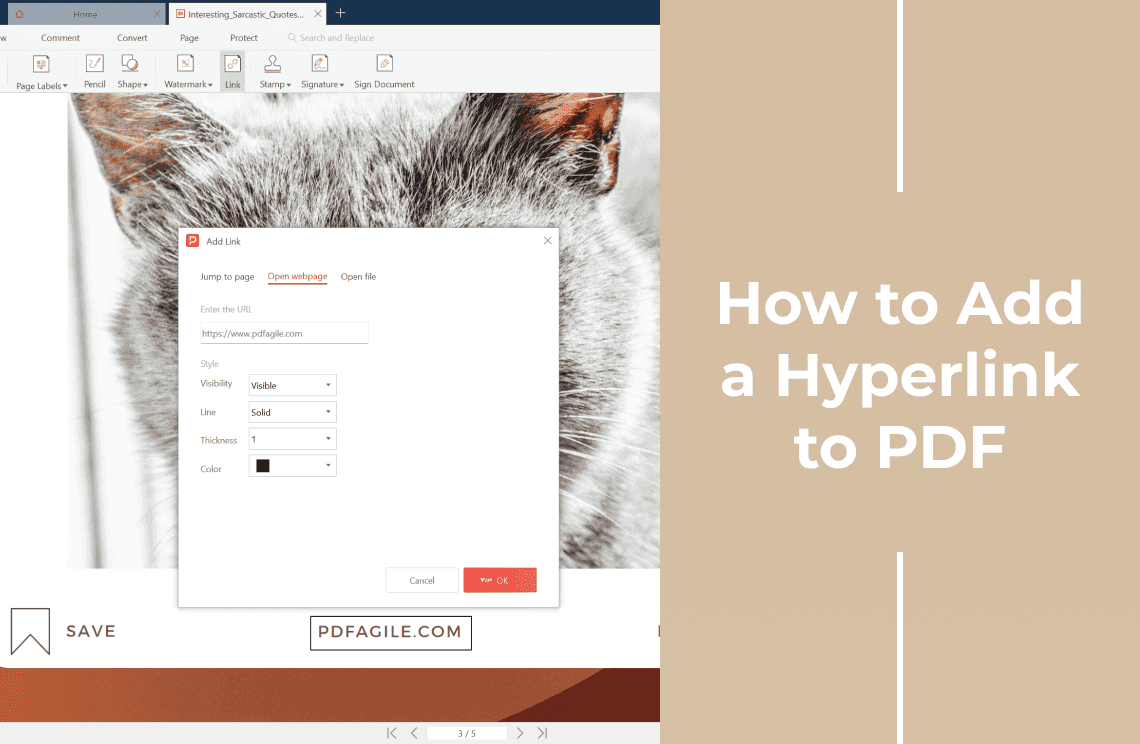
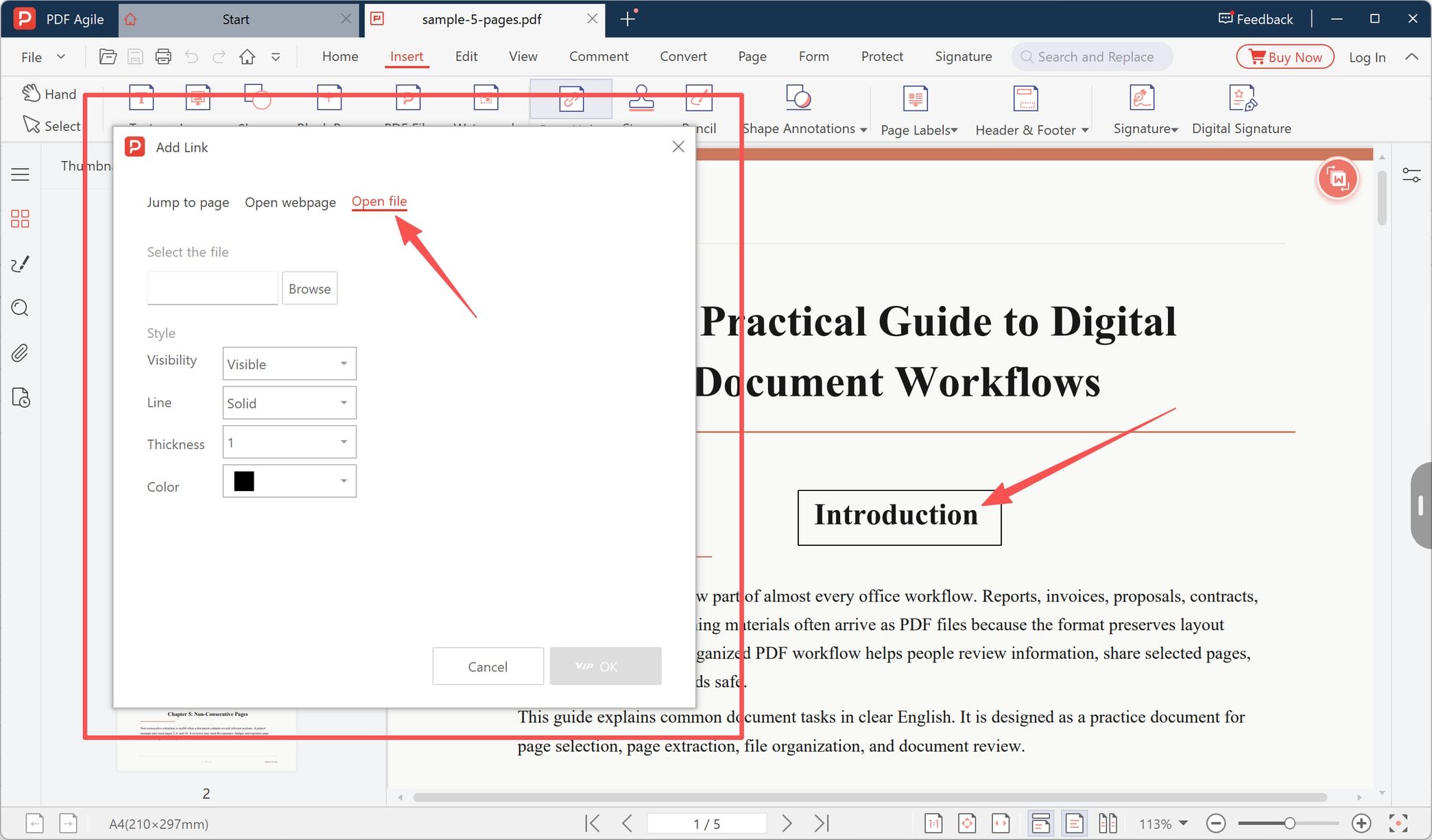
The Add Link dialog offers three targets: Jump to page, Open webpage, and Open file. Choose Open file, then click Browse under Select the file and pick the document you want attached. Before or after that, drag a rectangle over the text or image that should be clickable; here it covers the word "Introduction".
The Style section controls how that rectangle is drawn: visibility, line style, thickness, and color. OK stays greyed out until a file has been selected, which is a useful reminder that an open-file link without a target is not a link.
Step 4: Save the PDF and Test the Link
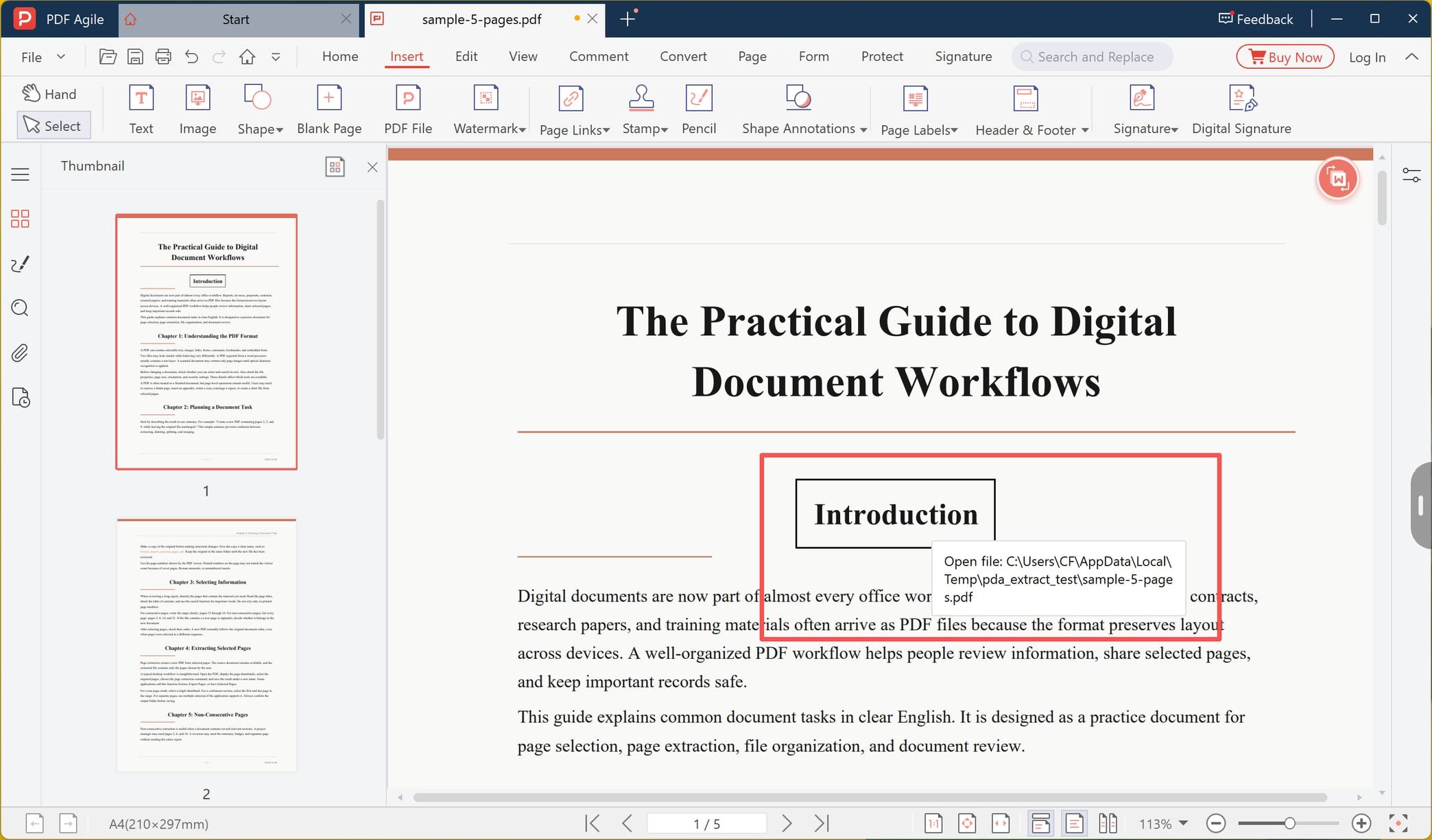
Save the document, then hover the linked area. A tooltip names the target, in this case Open file: C:\Users\...\sample-5-pages.pdf. That tooltip is the most useful diagnostic in the whole workflow, because it shows the path the link remembered rather than the file it was supposed to attach. Click it once and confirm the document opens.
What the Link Does and What It Doesn't
An open-file link is a pointer, and a pointer keeps its own copy of the address.
- It stores a path, not the file. Move, rename, or delete the target and the link is dead, even on your own machine.
- It does not follow the PDF. Copy the PDF to a shared folder, email it, or upload it, and the path inside still points at where the file sat on the computer that made it. An embedded attachment behaves the opposite way: Adobe's documentation on attachments says the file moves with the PDF.
- It changes the document. A link is still an edit, so a PDF that is already digitally signed loses that signature. Attach first, sign last, and see how to edit a PDF for the rest of the editing surface.
- Browser previews usually refuse it. Most browser PDF viewers will not launch a local file from inside a PDF, so the recipient needs a desktop reader, which may show a security prompt before opening an external file.
- A web address is a different feature. If the target is a page on the internet, you want a hyperlink: how to add a hyperlink to PDF is the matching guide.
Making It Work on the Recipient's Computer
Because the link holds a path, it behaves differently on a different machine. Three things decide between "it opened" and "it does nothing":
- Keep the files near each other. If the attached file travels in the same folder as the PDF, the chance of the link resolving elsewhere is much better than if it stays in Downloads or a temp folder.
- Test after copying. Send it to yourself first, open it from the new location, and click. The tooltip tells you immediately whether the path still resolves.
- Ask what "attach" meant. If the other person needs the file to arrive, rather than to open from your disk, use an embedded copy. Zipping both files together is the low-tech version of the same idea.
If the File Has to Travel Inside the PDF
An embedded attachment is the other meaning of the word: a copy of the file stored inside the PDF container. No page is added, the page count and layout stay identical, and the file appears in the reader's attachments panel, where it can be opened or saved on the other side.
The trade-offs are real. The PDF grows by roughly the size of the attached file, some readers hide or block the attachments panel, and executable file types are often blocked outright for safety. Adobe's own documentation puts the command under Edit → More → Attach file and notes that the attachment moves with the PDF. Not every editor ships an attachments panel, so check yours before promising anyone the file is inside. PDF Agile covers the pointer version described above, which is enough whenever the file is not expected to travel.
FAQ
Can I attach a Word or Excel file to a PDF this way?
Yes. The link accepts any file type, because nothing is converted: the PDF only records where the file lives. The recipient still needs Word or Excel installed to open it.
Does attaching add pages to the PDF?
No. An open-file link adds a clickable area, and an embedded attachment adds a file to the container. Neither changes the page count, and neither renumbers anything.
Is an open-file link the same as an embedded attachment?
No, and the difference matters the moment you share the file. The link stores a path to a file that stays where it is; an embedded attachment stores a copy inside the PDF. Only the second one survives being opened on another computer.
Why does the link open on my PC but not on my colleague's?
The path inside the PDF points at a location on your computer. Unless the same folder exists at the same path on theirs, the link cannot resolve. Rebuild the link from a shared folder, or embed the file.
What happens if I move the attached file?
The link breaks. The PDF keeps the old path, and nothing in the document flags the problem. Recreate the link after moving files, or leave the linked file where it is.
Attach to point, embed to carry. Decide which one you mean before you build it, test the result on a second machine, and the page count stays where it started. More step-by-step walkthroughs like this one are in How-to & Tips.