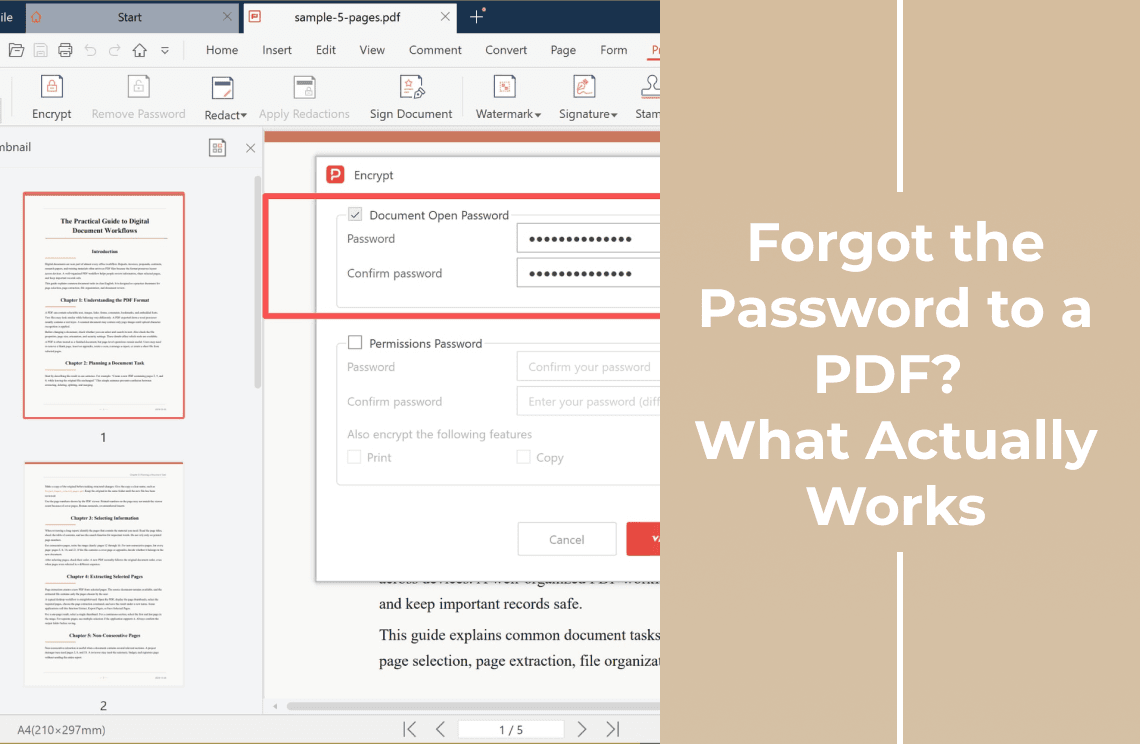
Most people searching for this are dealing with one of two very different problems, and the correct answer depends on which one they have. A PDF can be locked with a document open password, which you must type before the file will display anything at all, or with a permissions password, which lets the file open normally but blocks printing, copying, editing, and sometimes even selecting text.
If your file opens without a prompt and only refuses to let you change anything, you have several workable options, and none of them involve guessing a password. If the file asks for a password you no longer have, the honest answer is that the password itself cannot be recovered — not by a free tool, not by a paid one, and not by this guide.
What you can still do is confirm which of those two situations you are in, work through the legitimate routes back to the original file, and avoid the downloads that promise a miracle.
Why two locked PDFs can need completely different answers
PDF password protection is not a single mechanism. Most readers show the same padlock icon either way, which is why so many people spend an evening on the wrong solution.
- Document open password (also called a user password): the file content is encrypted. Without the password, the pages, text and images cannot be rendered at all.
- Permissions password (also called an owner password): the file opens for anyone, but the author has restricted actions such as printing, copying, editing, or extracting pages.
- Certificate-based encryption: a rarer setup where access depends on a digital ID instead of a typed password. If the ID is gone, only the document owner can help.
The first case is a genuine encryption problem. The second is closer to an access-control setting, and that difference decides whether you can get back into the file today.
Check which lock you are facing before you try anything
Four quick checks, in this order, will tell you which branch you are on:
- Open the file. Does it ask for a password, or does the first page appear straight away?
1. Open the file. Does it ask for a password, or does the first page appear straight away?
- If it opens, try to select a paragraph and copy it. Blocked selection usually points to restrictions rather than encryption.
2. If it opens, try to select a paragraph and copy it. Blocked selection usually points to restrictions rather than encryption.
- Look at the document's security panel — File > Properties > Security in most desktop readers, or the padlock in the toolbar — and read the security method it names.
3. Look at the document's security panel — File > Properties > Security in most desktop readers, or the padlock in the toolbar — and read the security method it names.
- Note where the file came from. Documents downloaded from a bank, payroll portal or government service are often protected in a way that can be reissued on request.
4. Note where the file came from. Documents downloaded from a bank, payroll portal or government service are often protected in a way that can be reissued on request.
If step 1 produced a password prompt, the recovery advice further down is the part that applies to you.
If the file opens but blocks editing or printing
Here the content is already readable, and your reader is simply obeying the author's restrictions. Two approaches work in practice.
Save a fresh copy through the print path. Open the file, choose Print, and select a PDF printer — "Microsoft Print to PDF" on Windows, or "Save as PDF" on macOS. The result is a new document without the original restriction flags, because you are generating a fresh file rather than editing the protected one.
Export a clean copy on macOS. In Preview, open the file and use File > Export as PDF, then leave encryption unchecked in the save dialog. This produces an unprotected copy that usually keeps text selectable.
Expect a few trade-offs on the print route. In most cases the text stays searchable, but bookmarks, form fields, tagged accessibility structure and existing digital signatures do not survive, and any signature on the original stops being valid. If you need those intact, printing is the wrong tool.
One caution that matters more than the technical detail: a permissions password may reflect a licence or a confidentiality agreement rather than a casual setting. Use these routes on files you own or have explicit permission to modify.
If the file asks for a password you no longer have
This is the case no software can solve, and it is worth understanding why before you spend money on it.
Modern PDF encryption derives the key from the password instead of storing the password in the file. There is nothing inside the document to read back, so "recovery" in the account-reset sense does not exist here. A tool can only try candidate passwords until one works, which is why the products in this category are slow, expensive, or dishonest.
The vendors take the same position. The online Unlock PDF page from PDF Agile states plainly that the tool does not bypass passwords, and Adobe does not offer a password-recovery feature for encrypted PDFs either. A site promising instant removal is either doing something other than decryption, or about to attempt millions of combinations that may still fail.
Realistic routes, roughly in order of success rate:
- The original unprotected source file. Most locked PDFs were exported from a Word document, a portal or a design tool, and that file still exists somewhere.
- The person or organisation that sent it. A short email asking for an unprotected copy resolves this faster than any tool.
- A copy you have already opened. Email attachments, chat downloads, older backups and cloud drives often hold an earlier version, or a version whose password your device still remembers.
- Cloud version history. OneDrive, Google Drive and Dropbox keep previous file versions, and a pre-protection version may still be sitting there.
- Your own records. Search password managers, browser saved passwords, notes apps and device keychains by filename or issuer, not just by the document.
- The issuer's reissue process. Banks, payroll systems and government portals routinely regenerate statements without protection for the account holder.
A recovery checklist that follows the odds
Step 1: Confirm which lock you have
Run the four checks above. If the file opens at all, you are in the permissions branch and the recovery advice does not apply to you.
Step 2: Search your own devices first
Search by filename across your password manager, notes and browser saved passwords. Attachments in old email threads are the most common place a working copy survives.
Step 3: Go back to the sender
Ask for an unprotected copy or for the password itself. Keep the request short and name the file — institutions often have a standard reissue process that takes minutes.
Step 4: Use a copy you can already open
If you hold an unlocked copy of the same document, that copy is your working file. Re-saving the protected version is not required.
Step 5: Replace the password once you are back in
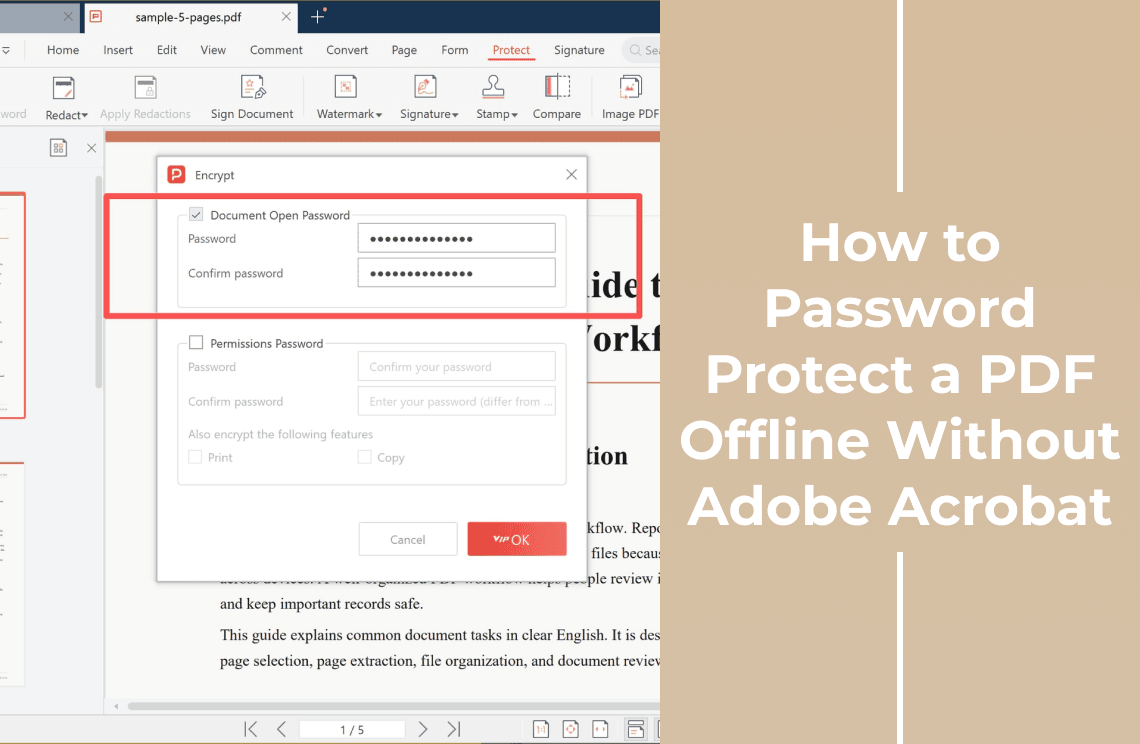
When you have access again, set a password you will actually keep and store it in a password manager. A short phrase you remember beats a random string you lose twice.
Why the "PDF password remover" downloads are a bad trade
Search results for this problem are full of free unlockers. Three reasons to skip them:
- Malware risk. Crackers and keygens remain a reliable distribution channel for infostealers, and the file you are unlocking is usually the sensitive one.
- Legal exposure. Removing protection from a document you do not own can breach a contract or a data-protection rule, whether or not the tool works.
- Physics. Encrypted files do not yield to a five-second browser job. Anything claiming instant recovery is either testing an empty password or was never decrypting anything.
What a PDF editor can and cannot do here
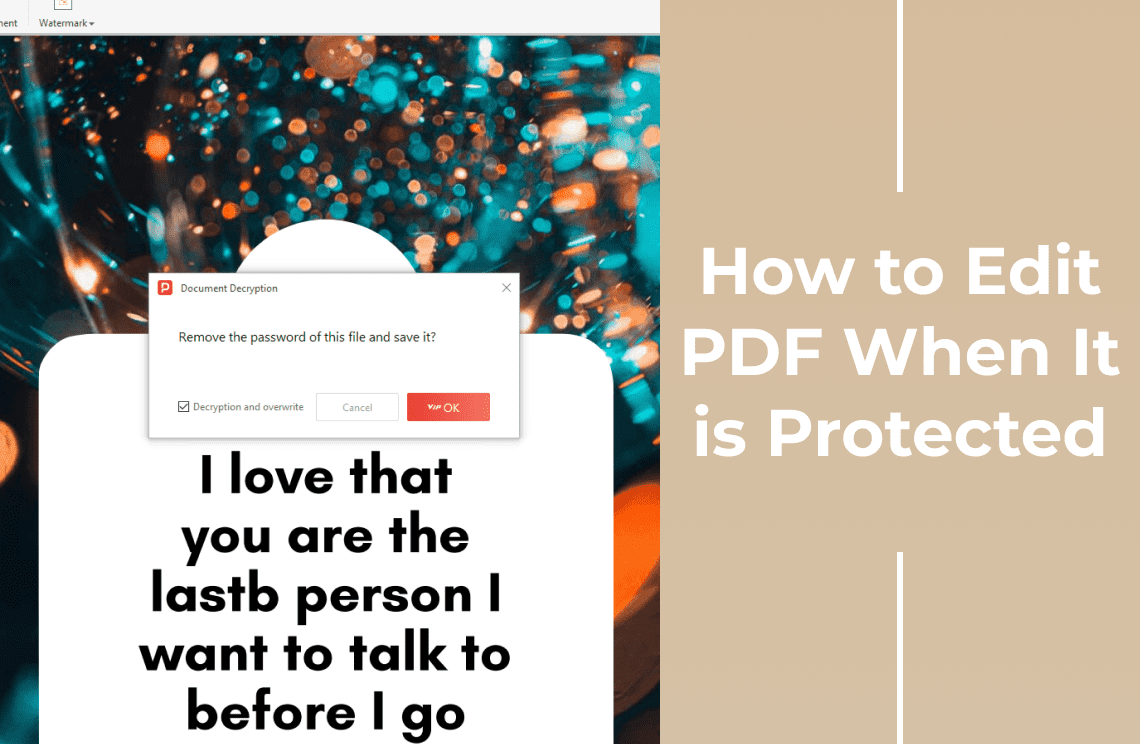
Once you have access, a desktop editor is genuinely useful: it can remove the protection properly, change the password, or save a clean copy. In a desktop editor that is usually the Protect tab and a Remove Password command, which asks for the existing password before it applies the change.
The difference between editors in this situation is narrower than the marketing suggests. None of them can recover a forgotten open password — that is a limit of the encryption, not of one product. What does differ is the workflow: a desktop app does that work locally on your machine, while browser tools require uploading the document to a service, which matters when the file is confidential. The password protection feature page lists what each workflow covers.
If your file is only permission-restricted, an editor is not needed at all — the print-to-PDF route above is enough.
FAQ
Can I open a password-protected PDF in Chrome, Edge or Preview without the password? No. These viewers show a password prompt and render nothing until the correct password is entered. None of them has a bypass, and no other PDF viewer does either.
Does renaming the file or changing its extension help? No. The extension is only a label; the encryption sits inside the file. Renaming a .pdf to another extension will not make a reader display it.
Can I copy the pages into a new PDF? Only if you can already open the file, and only if the author did not restrict page extraction. Copying pages out of a document you cannot open is impossible, because there are no pages to read.
Is it legal to remove a password from a PDF? It depends on ownership and on any agreement attached to the file. Removing protection from your own document is normally fine; doing it to someone else's protected document can breach a contract or a data-protection rule.
Does a scanned, password-protected PDF behave differently? Not for unlocking. The password is checked before any content is read, so it makes no difference that the pages are scans. OCR only becomes relevant after you are back in and need to search or edit the text.
The sender insists the file has no password. What then? Ask them to re-export it. Some portals apply protection automatically on download, and the person who sent it may not realise the file arrived locked.
Where to go next
- If you have the password and want the protection gone, follow how to remove a PDF password you know.
- If the file opens but editing is disabled, the guide to editing a protected PDF covers the reader-by-reader details.
- If you want protection you will not lose again, see how to password protect a PDF offline.
- For everything else you can do once the file is open, start with how to edit a PDF, or read the broader PDF security guide.
A locked file is usually a records problem rather than a technical dead end: find the copy you already have access to, ask the sender, and only then reach for a tool. When you do have the password and want a straightforward desktop workflow, PDF Agile removes or sets protection locally through its Protect tab, and the online Unlock PDF tool handles a one-off file in the browser.