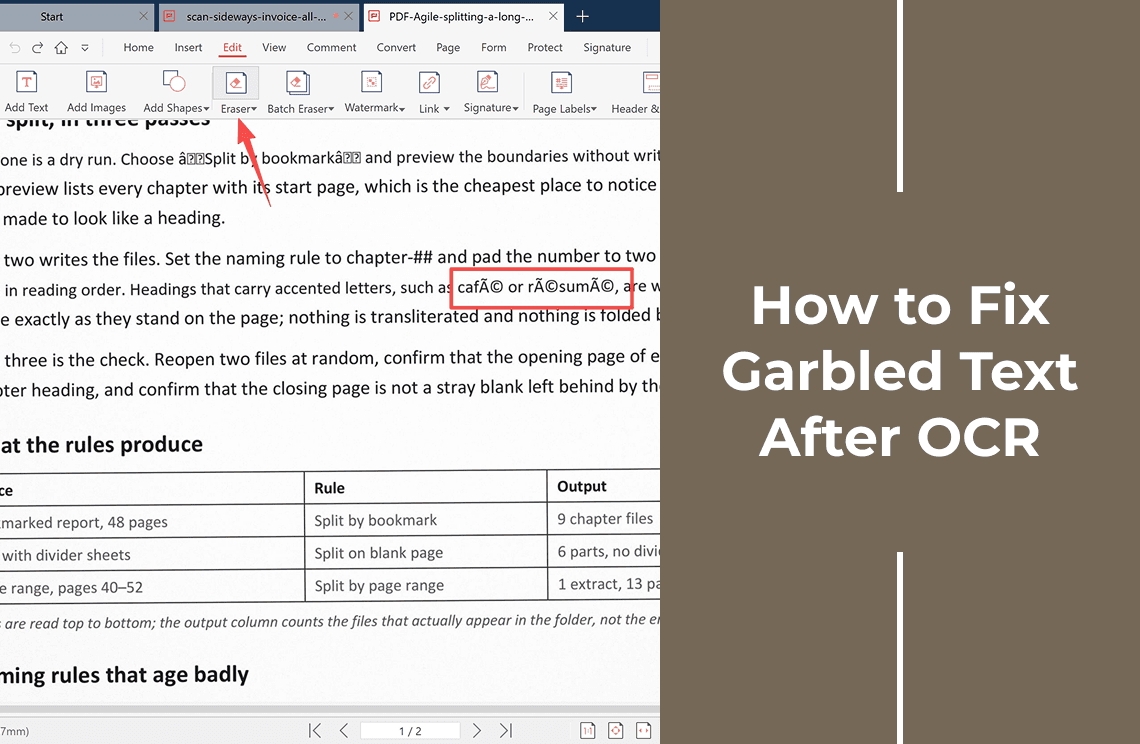
A scanned page comes back from text recognition with letters that are not letters. Accented characters arrive as pairs like café, quotation marks become ​, or a French invoice shows a plain e wherever é belongs. The page looks fine, which is what makes it confusing: nothing was lost on screen, but search, copy and paste now fail.
Nearly every case is one of three faults. They look identical, they need different fixes, and only one is cured by running recognition again, which is the one people try first. This guide separates the three, then repairs the characters in the file you already have.
Where the Broken Text Sits
A scanned PDF holds two things on each page: an image of the paper, and, once recognized, a text layer over or behind it. Which one is broken decides what you can do.
- Text layer broken. The page reads correctly because you are seeing pixels. Drag across a line: if the highlight is clean but the copied text is café, the image is fine and the layer is wrong.
- Image broken. If the letters are visibly smudged or have lost their accents in the picture itself, no character edit helps. The scan has to be redone.
Copy a sentence into a plain text editor. That is exactly what search, screen readers and translation tools see.
Three Faults That Look the Same
- Mojibake. café, résumé, über, ​quoted​. Recognition read the words correctly and the characters were decoded with the wrong character set. Another run reproduces it, because the damage happens after the letters are read.
- Wrong recognition language. caf? or caf6 or a bare caf. The engine saw the glyph but had no é in its alphabet, so it substituted the nearest shape. Fixed by running recognition with the document language set.
- Unreadable source page. Marks vanish in smudged strokes, small serif type collapses, a stamp across a line turns words into noise. Software cannot recover letters the scanner never captured.
The fingerprints separate easily. Mojibake is systematic, so the same letter breaks into the same two characters every time. Misrecognition is erratic and often puts punctuation where a letter belongs.
Why Mojibake Happens
More than one numbering system is still in use for the same letters. The accented e in café is one byte in older Western encodings and two bytes in UTF-8, written as C3 A9. Read those two bytes as Windows-1252 and they print as two separate characters, so the word becomes café.
The mechanism is deterministic, so you never have to guess the original word. It also explains why the damage is selective: plain letters are identical in both systems, so the sentence around a broken word survives and only accents, curly quotes, dashes and symbols come out wrong. A paragraph that is otherwise clean, apart from a few character pairs, is an encoding fault rather than a bad scan.
The cost is more than cosmetic. A search for café returns nothing when the file holds café, and a surname with an accent becomes a row that matches nothing in the list you join it to.
How to Repair the Characters in the File You Have
When the text layer is the problem you need neither the original document nor a rescan. You need to correct the characters in place. The screens below come from PDF Agile on Windows, working on a local file.
Step 1: Open the File and Confirm What Is Broken
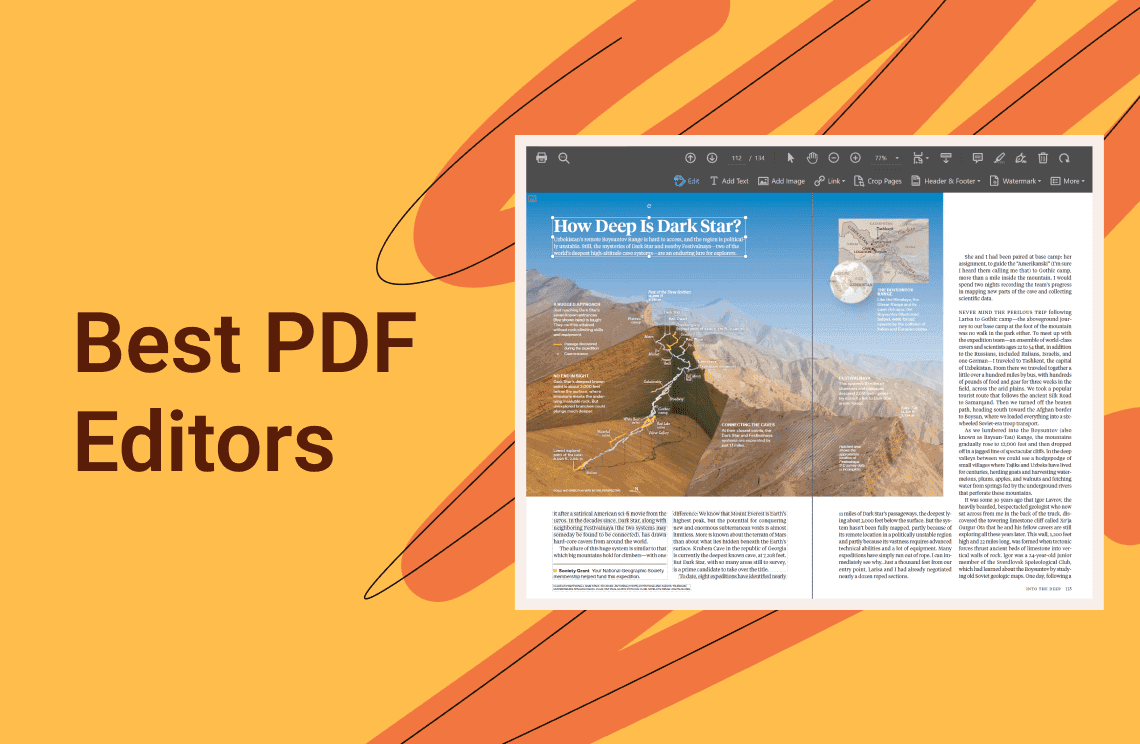
Open the PDF. When the app finds a page image with no usable text, it says so at the top of the document and offers the two actions that matter: recognize the page, or edit the text that is already there. Put a broken line beside the Word file it came from to confirm that recognition was right and only the characters are wrong.
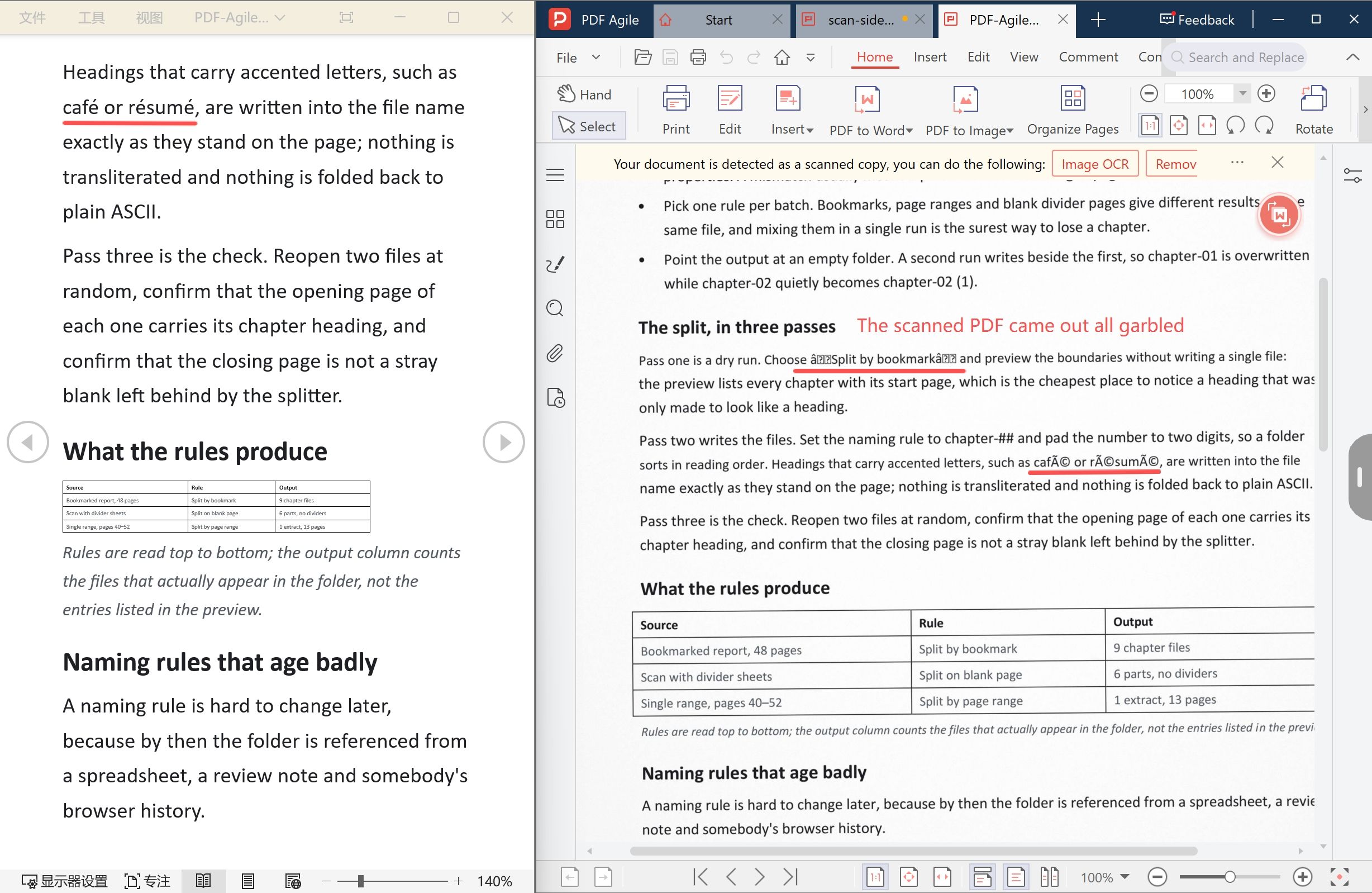
Step 2: Select the Garbled String
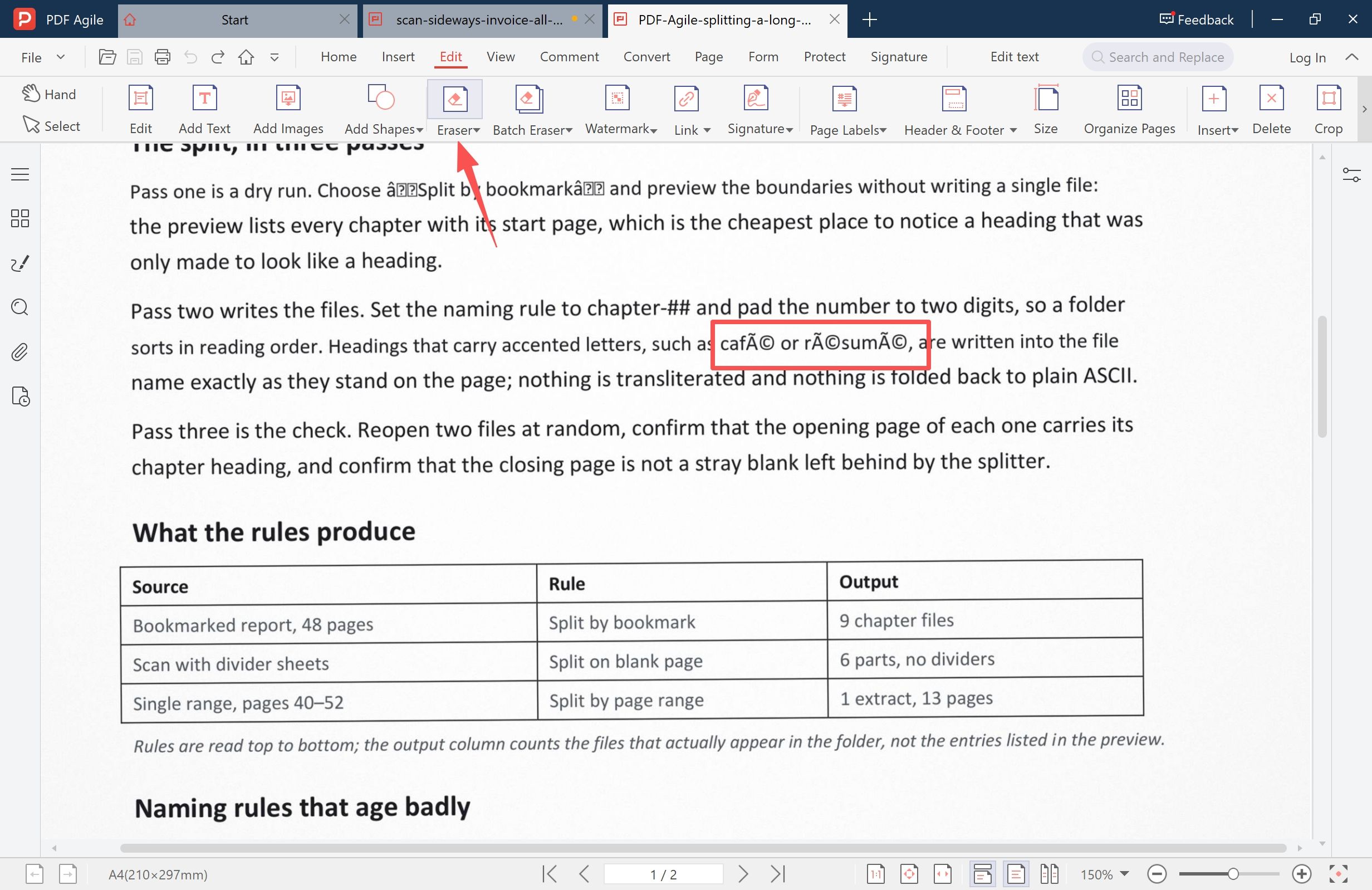
Switch to the Edit tab, choose Edit text, then click into the paragraph and select the broken string. Starting with one token shows whether the text layer holds the right number of characters and keeps each repair easy to check.
Step 3: Retype the Correct Characters
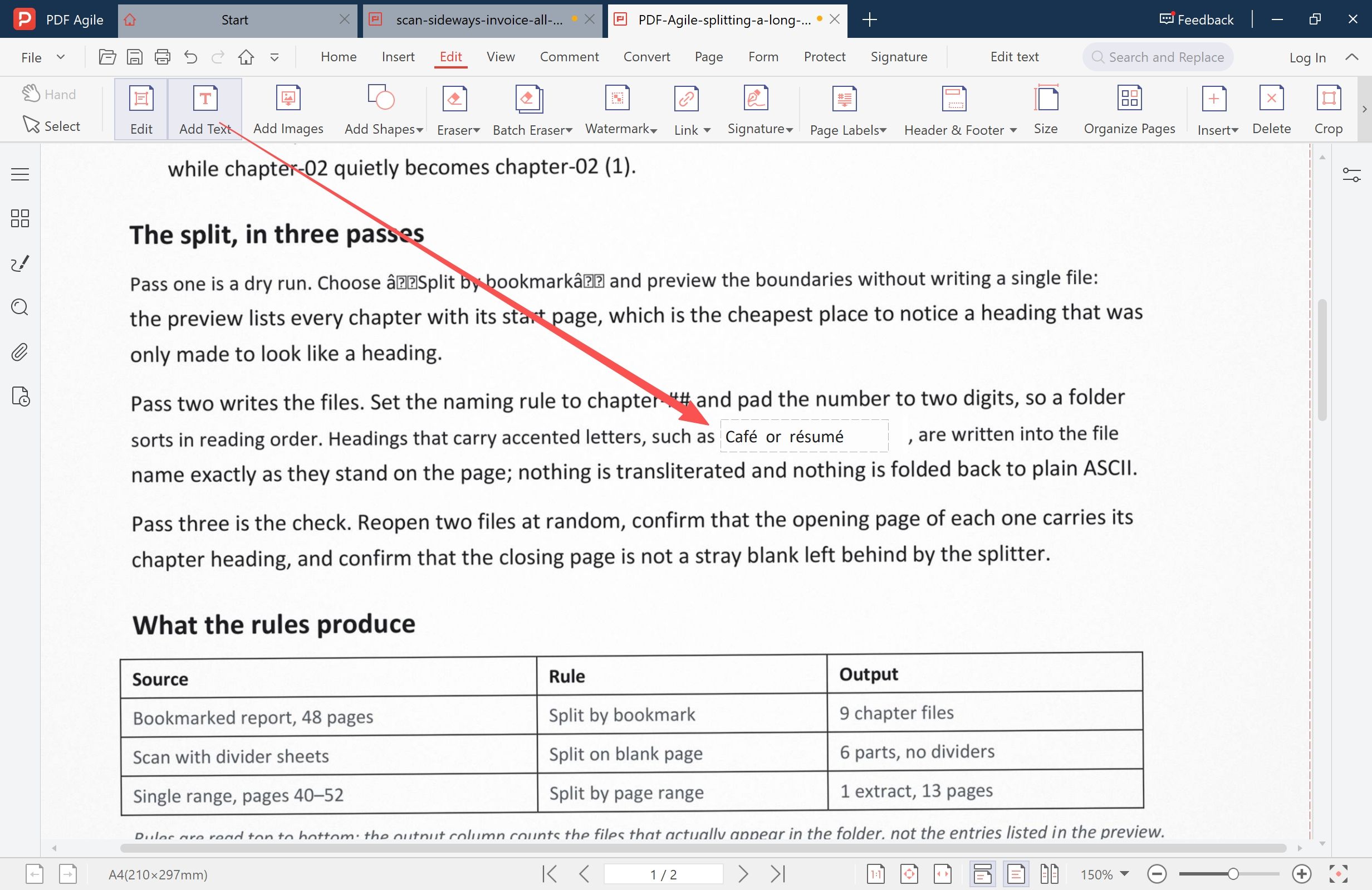
Type the word as it appears on the page. On a scan the visible letters are pixels, so what you are correcting is the text layer behind them: the page keeps its appearance while search and copy start working again. If the document font cannot supply the accented glyph, switch to one that can rather than accepting a plain e. For changes larger than characters, see how to edit a PDF.
Step 4: Use Find and Replace for Tokens That Repeat
A long document repeats the same broken word dozens of times. Search and Replace in the toolbar handles one token at a time: paste the broken form, type the correct form, replace all, then compare the count with what you expected. It is the same tool as any bulk text change, covered in find and replace text in a PDF.
Step 5: Convert and Repair When Half the Page Is Wrong
If most of a paragraph is broken, fixing it in a word processor beats clicking inside the PDF. Export the page to an editable document, repair the text with a spell checker that understands accents, and export back. Columns and tables tend to move on that route, the failure described in PDF to Word comes out scrambled, so use it for prose.
Why Running Recognition Again Rarely Helps
The instinct when output is garbled is to run OCR again, harder. Three reasons it usually changes nothing:
- The recognition was already correct. In the mojibake case the engine read é properly and the corruption happened on the way out, so a second pass yields the same café.
- The pixels did not improve. A page that was low in resolution or skewed the first time reads the same way the second. Rescan at 300 dpi, square to the glass, then recognize.
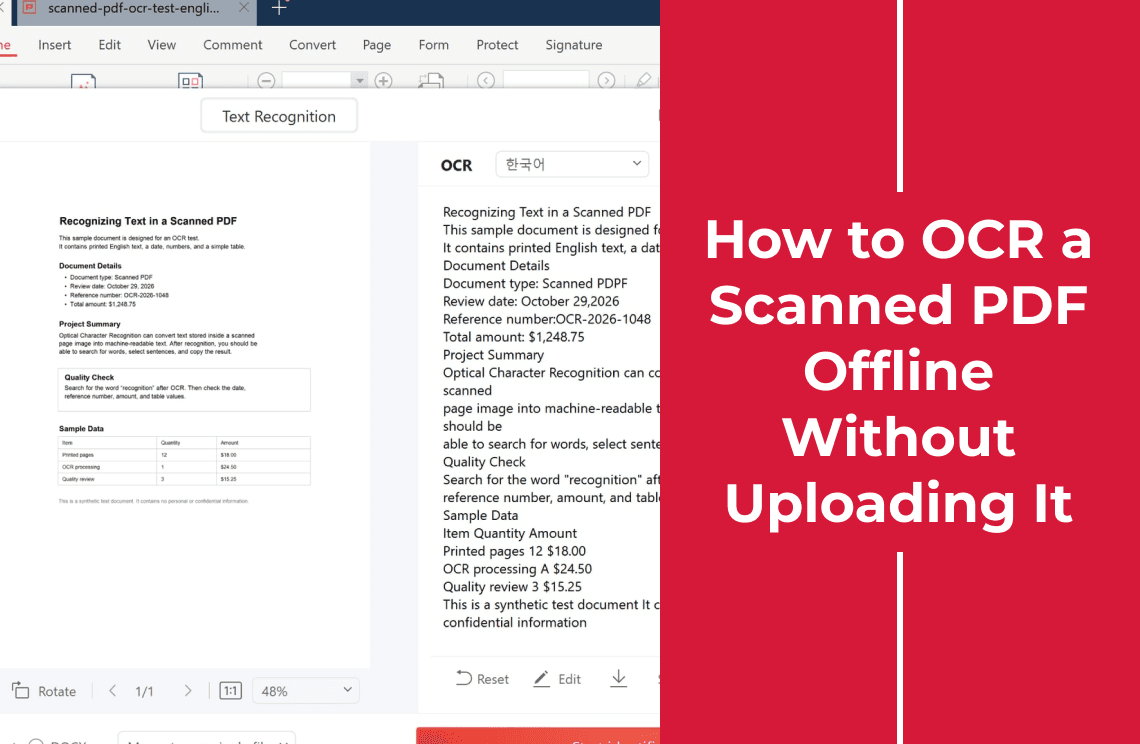
- The language setting is the exception. Wrong-language output is the one fault a second run fixes, and only if you change the setting instead of leaving Auto on. The walkthrough is in OCR a scanned PDF offline.
A fresh pass also overwrites corrections you have already made.
Preventing It on the Next Document
- Scan at 300 dpi, straight, in grayscale. Most lost accents start in the image rather than the engine.
- Name the language instead of leaving Auto. Auto is a fair default for a mixed folder and a poor one for a single-language invoice.
- Keep the source file. A PDF exported from Word can be exported again; a scan of a printout cannot.
- Save recognized text as UTF-8. Where a tool offers an encoding choice, this one keeps accents.
What the Repair Does Not Change
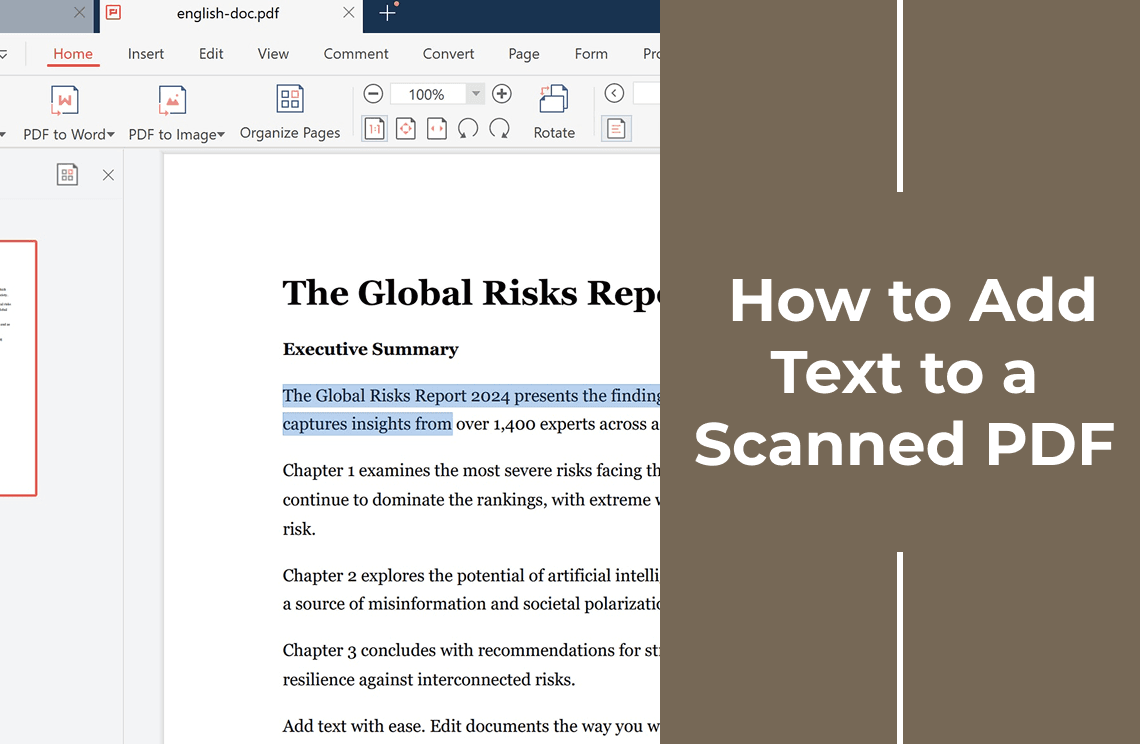
Correcting the text layer does not turn a scan into an editable document and does not improve the picture. If you need paragraphs and tables you can restyle, conversion is the task, and adding text to a scanned PDF marks that boundary. If you only need the words out, extracting text with and without OCR covers the routes.
Desktop App or Online OCR
Both routes can read a page, so accuracy rarely decides between them. What matters for garbled output is what you can do with the result, because the repair is an edit rather than a second recognition run.
Adobe's free online OCR tool is upload-based: in Adobe's own description the file is handled on Adobe servers and deleted unless you sign in to save it, and the output is a searchable PDF. Editing the recognized text, which is what a garbled page needs, is where Adobe's page points to the Acrobat Pro trial. Fair for a brochure, awkward for a signed lease.
The desktop route reads the file where it sits, with no upload step, and keeps the editing tools in the same window as the page. No accuracy claim is made here: that comes from the scan.
Disclosure: we build PDF Agile, the app used in these screenshots, so weigh the comparison accordingly. The editing side is described on the PDF editor page, the conversion route on PDF to Word.
FAQ
Why does my OCR show café instead of café?
Two bytes were read as two characters. The word was recognized correctly and then decoded with the wrong character set, which is why the damage repeats identically instead of varying.
Does re-running OCR with the right language fix mojibake?
No. The language setting changes how shapes are interpreted, and in the mojibake case they were interpreted correctly. It repairs dropped accents, not doubled characters.
Can I fix it without the original Word file?
Yes. The repair happens in the PDF's own text layer, so you only need to know what the word should say. The source document helps you verify a line, not repair it.
Will correcting the text change how the page looks?
Replacing characters in the text layer leaves the page image untouched, so the page prints the same. Retyping into a new text box places new text on top of the page instead.
Bottom Line
Garbled text after OCR is not one problem, so read the pattern before touching a setting. Doubled pairs such as café mean the characters were re-encoded, flat letters such as caf where café belongs mean the wrong language was set, and smudged letters mean the scan was never good enough. Only the middle case is worth another recognition run.
When the text layer is the broken part the repair is small: select the string, retype it with the accents, and use find and replace for the tokens that recur. The desktop app shown above does both on your own machine, and more walkthroughs sit in the PDF how-to guides.
Steps and interface reflect the desktop app on Windows as of November 2026 and may change in later versions. Adobe Acrobat is a trademark of Adobe; the description of its online OCR tool follows Adobe's own page at the time of writing.