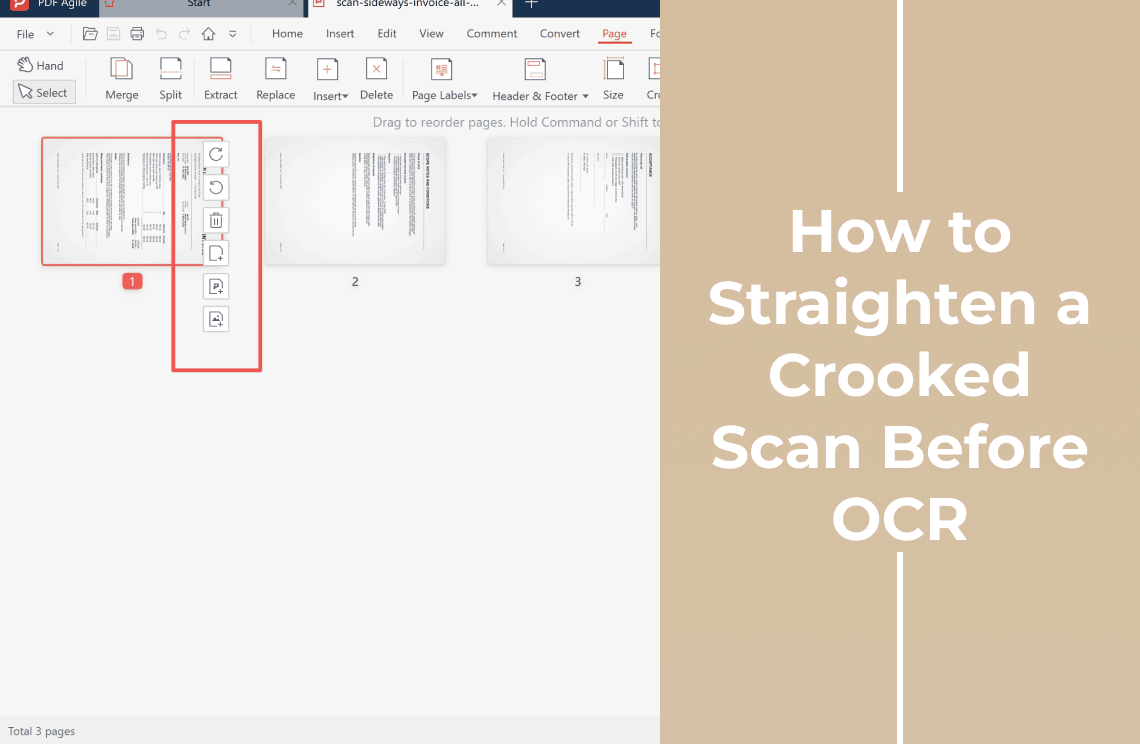
Two different faults get called a crooked scan. One is a whole page lying on its side; the other is a page that sits the right way up but is tilted a few degrees. The first is a quarter-turn problem and you can fix it in the file you already have. The second happened at the scanner, and no rotate button repairs it.
The order matters because recognition reads the page as it is displayed. OCR looks for rows of characters running left to right; hand it a page standing on its end and the output is either nothing or confident nonsense. This guide covers the straightening step only: how to tell the two faults apart, how to turn a sideways page upright and save the change, and what to do when the tilt is real. It does not cover running the recognition, or making a PDF searchable.
Two Faults That Look Alike and Behave Nothing Alike
Name the fault before reaching for a control.
- Sideways page. The content is fine; the sheet went through the scanner in the wrong direction. Text runs from top to bottom of the screen, or the page reads bottom-up. Every mainstream PDF app corrects this in quarter turns, 90 degrees per click.
- Skewed text. The sheet was pulled through the feeder at an angle, so the lines slope while the page frame stays square. Correcting it means re-sampling the page image, and no quarter turn lands on 2.4 degrees.
- Perspective. A phone photo of a page, where one edge of the paper is longer than the other. This needs a geometric transform, in the app that captured the image.
Only the first is repairable inside a PDF editor. Acrobat and the desktop app shown below both rotate in 90-degree steps, and neither turns a page by an arbitrary angle, so there is no deskew slider to hunt for in a PDF tool.
How to Tell Which One You Have
Zoom to 200% and look at one line of body text rather than at the page as a whole.
- If the letters are upright and the line runs left to right but slopes against the page edge, the scan is skewed.
- If the line of text runs down the screen, the orientation is wrong; rotate the page.
One check settles most cases: find the page number. A footer at the bottom with its words the right way up rules out rotation and leaves only a tilt.
Straighten the Sideways Pages, Step by Step
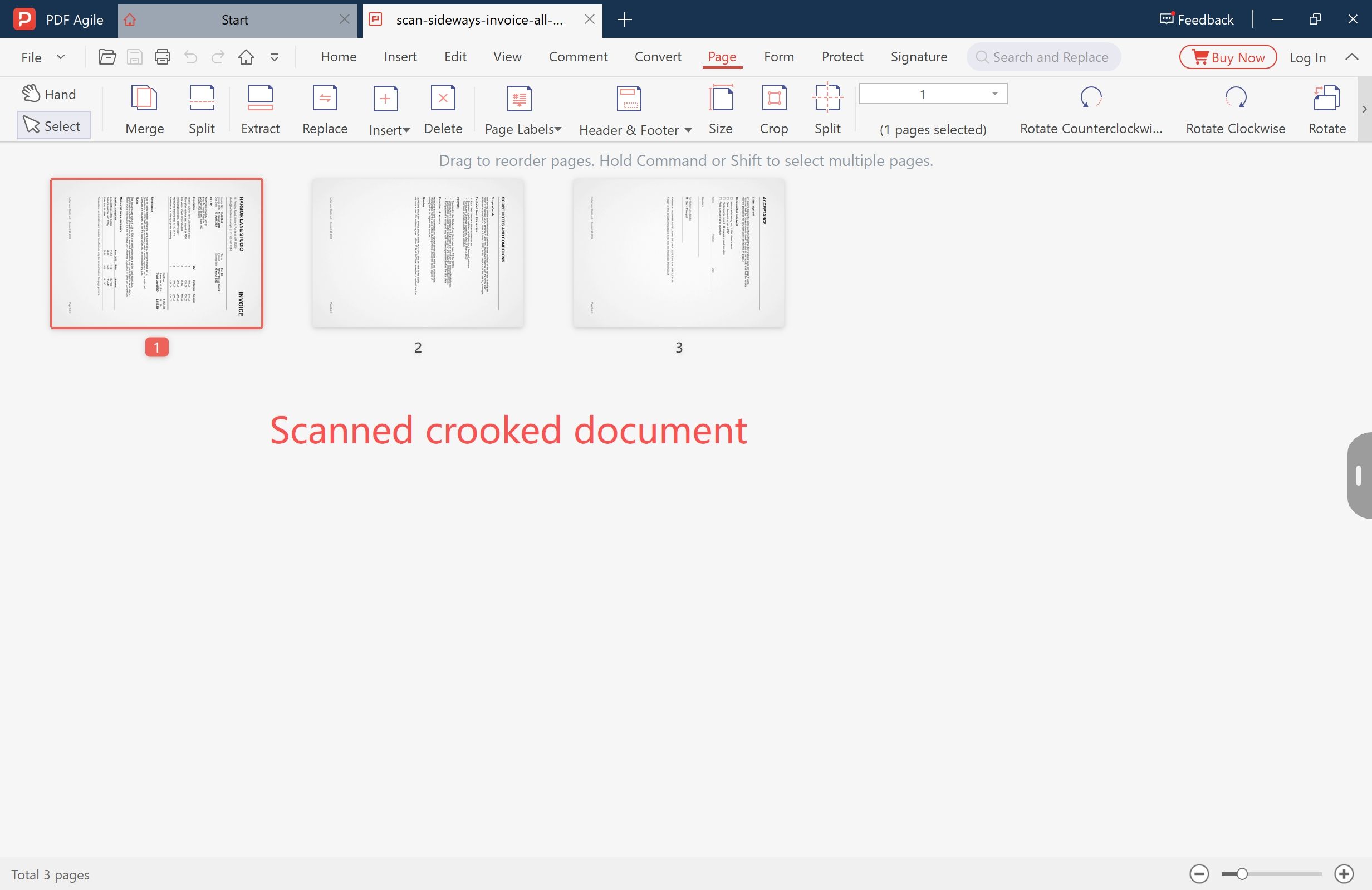
The screens below show a three-page invoice that came back from the scanner on its side, opened in PDF Agile for Windows. The text was intact; only the orientation was wrong.
Step 1: Open the file and look at every page at once
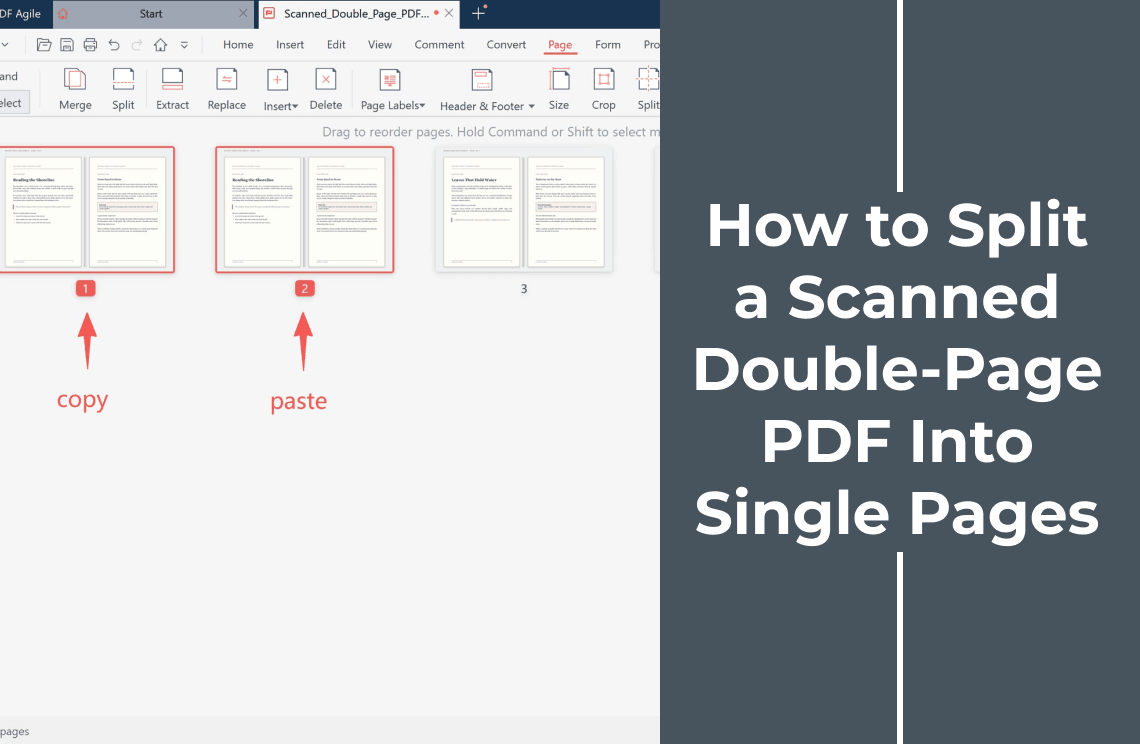
Switch to the Page tab. The pages appear as thumbnails, with the selection count in the toolbar and the page total at the bottom of the window. That view is how you find the odd page in a long batch, because page three is often upside-down while the rest are fine. Look before you click, since rotating a correct page costs a second pass to undo.
Step 2: Select the wrong page and turn it a quarter at a time
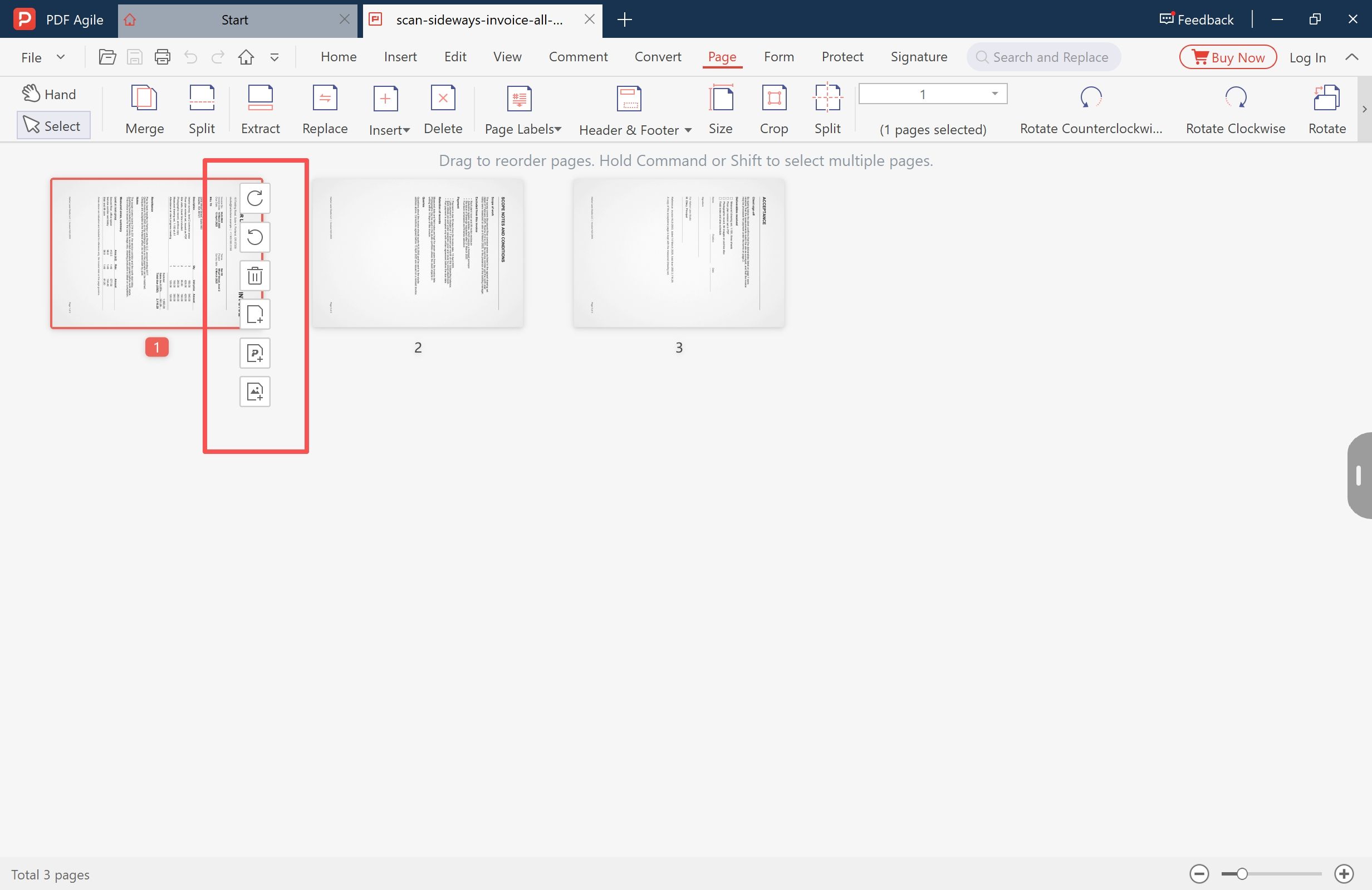
Click the thumbnail of the affected page. Shift-click selects a run of pages, which is how a batch that came back sideways gets fixed in one pass. Then use Rotate Clockwise or Rotate Counterclockwise in the ribbon, or the rotate icons on the toolbar beside the selected thumbnail; both do the same thing. Each click is one quarter turn and the preview updates at once, so overshooting costs one click the other way. If the quarter turns are all you need, the guide to rotating a PDF stops there.
Step 3: Confirm every page before starting recognition
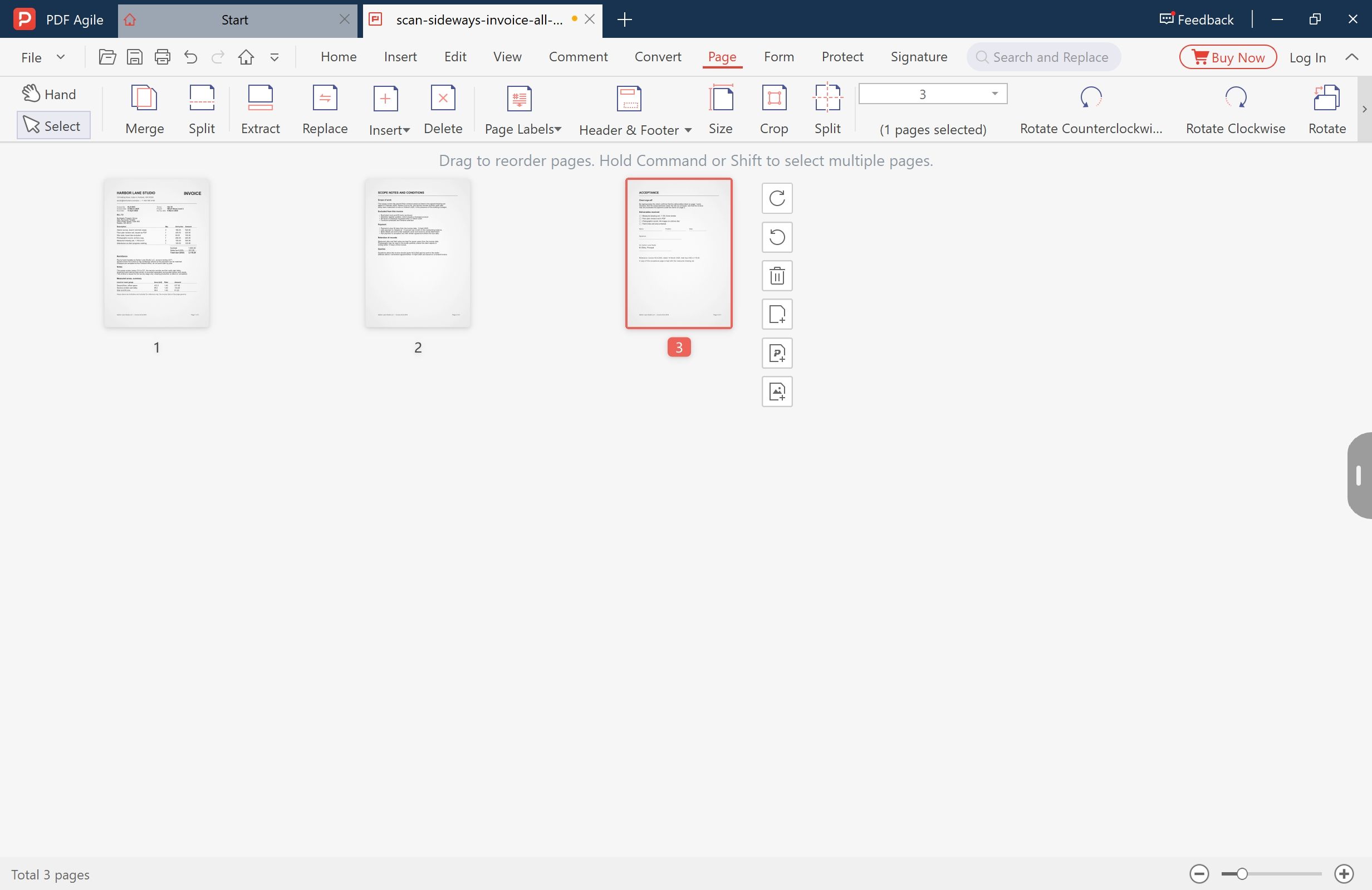
Go back to the thumbnail strip and read each page: text running left to right, headers at the top, footers at the bottom. A page turned the wrong way still fails recognition, so this check is what saves the OCR pass. In this file all three pages now sit upright.
Step 4: Save the rotation, then start recognition
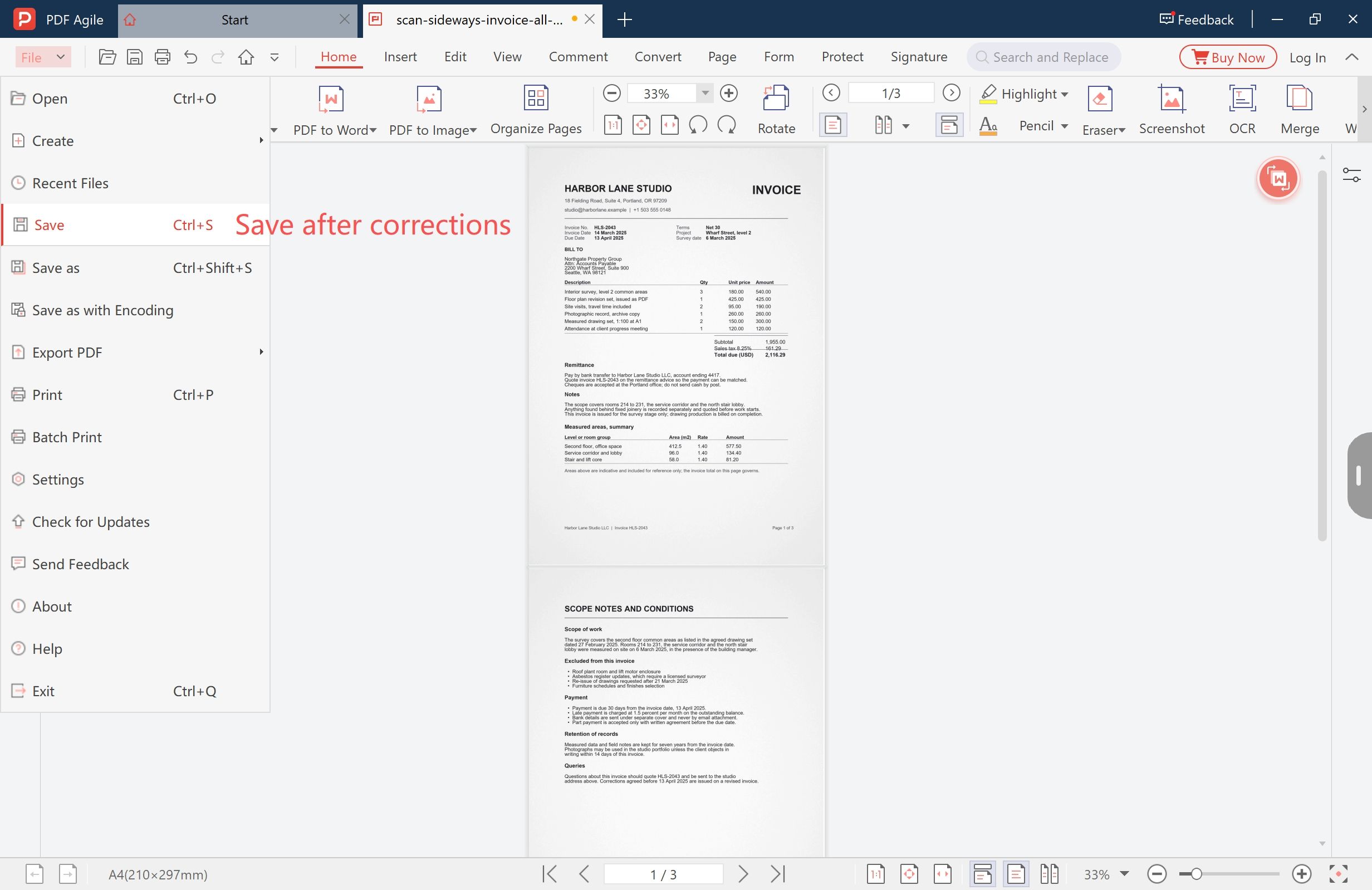
Rotation is a change to the file, not to your view. Use File and Save, or Control+S, before anything else. If you close the window without saving, the next program opens the page in its original direction and the quarter turns have to be done again. Only then run recognition, on the Home tab of the same window; the page list, the language menu and the TXT or DOCX export are covered in the offline OCR walkthrough.
When the Lines Themselves Are Tilted
Skew is repaired at capture, and the cheapest repair is usually a second scan.
- Paper still in hand. Lay the sheet flat against the scanner edge and scan it that way rather than through the document feeder, which pulls pages at an angle. If the scanner driver offers deskew or auto-straighten, switch it on.
- Scanned with a phone. Most scanning apps crop and square the page as part of capture, so the tilt is gone before the file exists.
- Only the PDF left. Straighten the orientation first, then pick between three imperfect options.
- Accept the tilt and proofread harder, comparing dates, totals and reference numbers against the page image.
- Rebuild the page: export it as an image, rotate it back by the measured angle in an image editor, and reassemble the PDF. A scan is already a photograph, so the cost is a second round of compression and a larger file, not lost text.
- Use recognition that estimates the baseline angle itself. Results vary page by page, so compare the output rather than trusting the setting.
A tilt you can only see at 200% usually survives recognition. A tilt you can see at fit-to-window, with columns running downhill, usually does not, and extra resolution will not rescue it.
What Recognition Needs Beyond Straight Pages
- Upright, and saved. Recognition reads the page as displayed, so the quarter turns have to be written to the file first.
- Resolution. 300 dpi is the figure OCR guidance generally assumes for body text; thinner scans lose strokes and punctuation.
- Contrast. Shadow along a spine, show-through from the reverse side, punch holes and staples all arrive as noise.
- Layout and language. Two-column pages and tables lose cell order, and a wrong language setting turns clean text into random letters.
The Two Steps, Wherever You Do Them
Both desktop routes need the same two moves: turn the page upright, then recognize the text. Only the controls differ.
In Acrobat, rotation is in Organize Pages and text recognition is in the Scan and OCR tool of the paid desktop app. In the app used for the screenshots, rotation is on the Page tab and recognition on the Home tab, in one window, with no upload step. Neither deskews: both turn pages in quarter turns and hand back the file you put in, only rotated.
If you need the rotation once and would rather not install anything, the browser rotate tool does the same quarter turns and offers Select All for a whole document. That route uploads the file, which is a poor trade for a signed lease and a fine one for a printed brochure.
This guide comes from the PDF Agile team, so weigh the comparison above with that in mind.
What Straightening Will Not Fix
- Handwriting and initials, which recognition guesses at.
- Two book pages on one page, which need splitting into single pages, not straightening.
- Curled pages, staples, folds and holes.
- A page photographed on a desk, which is perspective rather than rotation.
In those cases straightening first still helps, and it is still the cheapest step. It is just not the whole answer, and the other repairs a scan tends to need are set out in how to edit a PDF.
FAQ
Is deskewing the same as rotating a scan?
No. Rotation turns the whole page in quarter turns and repairs a sheet scanned sideways or upside-down. Deskewing corrects a small angle inside the page image, where the text lines slope against the page frame. One is a page setting; the other re-samples pixels.
Can I straighten a slightly tilted scan inside a PDF editor?
Not by degrees. PDF editors rotate in 90-degree steps, so a 3-degree tilt survives every click. Fix it at capture, rebuild the page as an image, or accept it and proofread the numbers.
Does rotating a page damage the scan?
Rotation changes the page's orientation rather than the image data, so a rotated scan does not look softer or larger afterwards.
Why does a page that looks fine return gibberish?
Four usual causes: the page is one quarter turn off, the scan is too low in resolution, the language is set wrong, or the layout is two columns. Check the orientation first, because it is the cheapest to fix and the most common.
Should I straighten before or after OCR?
Before. Recognition reads the page as displayed, so an upright page gives the engine rows of characters to follow. Rotating afterwards only changes how the text looks to you.
Bottom Line
Read the page before you repair it. If the text runs down the screen, the orientation is wrong and a quarter turn fixes it on every affected page. If the text lines themselves slope, the fault came from the scanner and has to be handled at capture or by rebuilding the page. Straighten before recognition, save the change to the file, and the OCR step starts from a page worth reading. More PDF how-to guides cover the steps on either side of this one.
Steps and interface match the Windows desktop build as of November 2026. Adobe and Acrobat are trademarks of Adobe Inc. Every scan is different; check the recognized text against the page image before relying on the numbers.