Altering a PDF means changing something already inside the file: a word, a page order, an image, a date, a form field. The file is a finished layout rather than a flowing document, so the change you want decides the method — and a few changes the file will not accept at all.
Here is how to tell the five kinds of alteration apart, and the shortest safe route for each.
The Five Kinds of Alteration
- Text — fixing a typo, a price, an address. Needs an editor that treats the text as text, not as pixels.
- Pages — deleting, rotating, reordering, splitting, merging. Page-level structure, never touching the words.
- Images and shapes — replacing a logo, adding a highlight, covering old content.
- Form fields — filling, changing, or clearing what someone typed, which is not the same as editing the page.
- Metadata and security — title, author, keywords, password, permissions.
Match the Change to the Tool
Using the wrong tool is what produces broken output.
- A page organiser handles pages only, without re-rendering text, so nothing shifts.
- An editor changes text, images, and annotations in place. Fastest for small fixes, but a long replacement sentence runs past the original block.
- A converter going out and back (PDF to Word, edit, back to PDF) is reliable when a paragraph has to be rewritten. It rebuilds the file, so check fonts, spacing, and page breaks afterwards.
- A form or protect tool is unavoidable for fields and passwords. Editing the page around a field does not change its value.
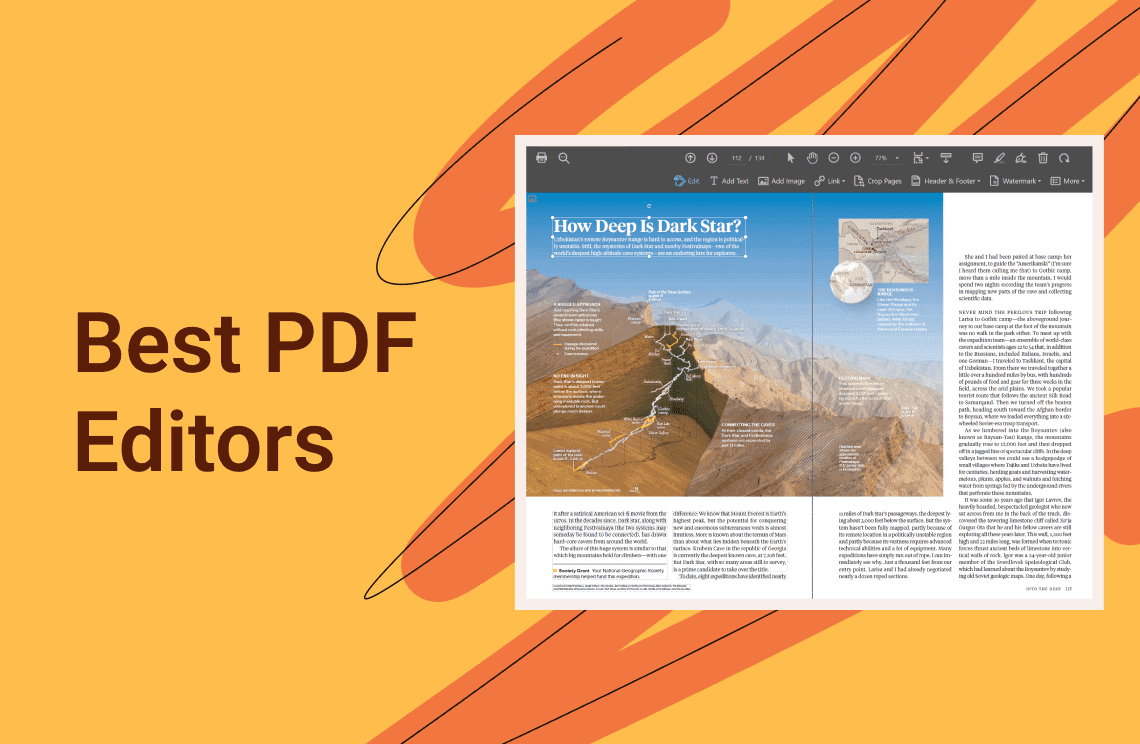
A desktop editor covers the first two and most of the last. PDF Agile, for example, keeps Edit, Insert, Comment, Page, Form, and Protect as separate tabs, so you pick the tool that matches the change instead of forcing one view to do everything.
How to Alter a PDF Without Breaking It
Step 1: Keep a Copy of the Original
Work on a duplicate until the altered version has been checked. Text you replace cannot be turned back into the exact original.
Step 2: Fix Pages Before Content
Reorder or delete pages first, so you are not correcting text on a page you are about to remove.
Step 3: Make One Kind of Change at a Time
Save between kinds of edit. When something looks wrong, you know which change caused it.
Step 4: Re-open the Saved File in Another Viewer
What one program renders correctly can collapse in another. Check the page count and the last page too, since reflow often pushes content onto an extra page or clips it off the bottom.
What Still Goes Wrong
Replacing text with a different length is the usual culprit. A PDF stores each line at a fixed position, so a longer sentence overlaps the next block or leaves a gap. Fonts that are not installed on your machine get substituted, which shifts spacing across the whole page.
Scanned pages are the other exception: they hold an image of text, not text itself, so nothing can be selected until OCR rebuilds a text layer.
If you need information genuinely gone rather than hidden, use a redaction tool that deletes the underlying characters. A black rectangle drawn over text leaves the words underneath, still selectable and still copyable.
When Altering Is the Wrong Move
A digitally signed PDF is built to resist alteration. Changing one character invalidates the signature and raises a warning for everyone who opens it, so add a comment or an annotation page instead.
For a contract whose details are wrong, rebuild the corrected version in your word processor and export it again — the text stays editable and the layout stays predictable. For a handout that only needs a page removed, a page organiser is enough and takes seconds.
FAQ About Altering PDF Files
Can I change text in a PDF the same way I edit a Word file?
Only within limits. You can retype a word or a short phrase, but there is no flowing paragraph to rewrap, so a long rewrite belongs in Word and back.
Does altering a PDF change the original file?
Not if you save as a new file. Keep the original, because the altered version cannot be reverted precisely once text has been replaced.
Why can't I select any text in my PDF?
The pages are probably scans. Run OCR first, and the words become editable.
Ready to alter your PDF? Download PDF Agile for Windows and change text, pages, images, or form fields in one desktop workspace.