Yes, you can combine several JPEGs into one PDF for free, and you do not have to upload the photos to do it. Add the images, put them in the order you want, decide whether each page copies the picture's own size or a standard paper size, then export one file.
The click sequence is not where people get stuck. What goes wrong is the result: pages in the order the camera numbered them, a landscape photo stranded on a portrait sheet, white bands down the side of every page, or a 40 MB file that will not pass an upload form. Those four problems, and what happens to your photos while the tool runs, are what this guide is about.
What You Actually Get When JPEGs Become One PDF
- One picture per page is a setting, not a rule. Most converters default to it, but print presets such as contact sheet put several photos on one sheet and give you a page of thumbnails instead of a document.
- The pictures stay pictures. Words inside a photographed receipt are pixels. They cannot be selected, searched, or read by a screen reader until you run OCR on the finished PDF.
- You get pages, not one long strip. Stacking every photo into a single tall image is a different job.
- File size adds up. The PDF stores the pixels of every image, so ten phone photos can become tens of megabytes.
Pick a Route by One Question: Do the Files Leave Your Device?
- Windows Print to PDF. Already installed, free, and nothing is uploaded. Layout control stops at paper size and margins, so odd-shaped pictures pick up margins.
- A desktop PDF editor. Accepts a batch of images, lets you arrange the list and choose a page size, and works on your own drive. It has to be installed first.
- A browser converter. Fastest and cross-platform, but the pictures go to a server, and free tiers usually cap file count or megabytes per session.
Route 1: Combine JPEGs with Windows Print to PDF
Windows 10 and 11 ship with a virtual printer called Microsoft Print to PDF. It is the shortest free route and nothing leaves the computer.
Step 1: Collect and Rename the JPEGs
Put the pictures in one folder and rename them so the order is obvious: 01-cover.jpg, 02-receipt.jpg, 03-page.jpg. Windows hands files to the print window in the order it read them, so the name is the only ordering signal you control.
Step 2: Right-Click the Selection and Choose Print
Select the JPEGs, right-click, and choose Print. Windows opens the Print Pictures window, built for photos rather than documents.
Step 3: Choose Microsoft Print to PDF and a Layout
Pick Microsoft Print to PDF in the printer list. Among the layout presets, Full page photo gives one picture per page, which is what combining into one PDF normally means.
Step 4: Print, Name the File, and Save
Click Print, name the PDF, choose a folder, and save. Open the result and check page 1 and the last page before you send it.
Two limits matter. The order follows how Explorer handed the files over, and the window sets paper size and margins rather than how a picture is fitted - so a panorama on Letter paper shows white bands.
Route 2: A Desktop Editor When Order and Page Size Matter
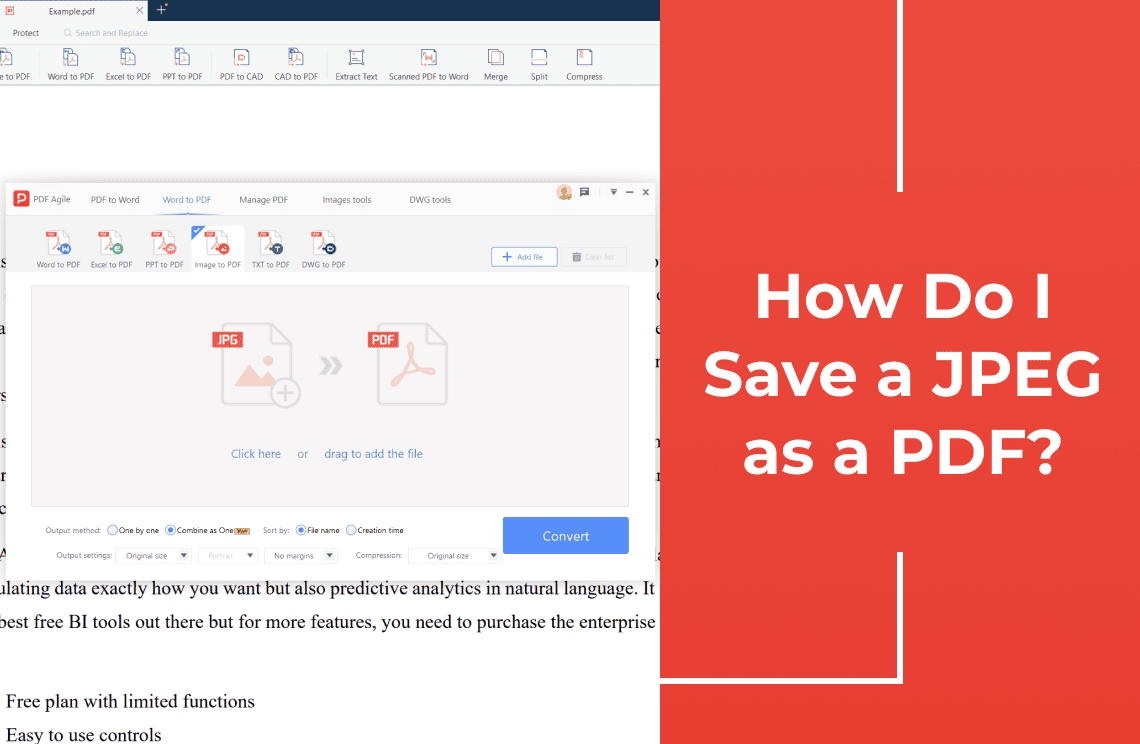
When the sequence has to be exact, or when thirty phone photos must become thirty pages of one size, a converter inside a desktop editor is faster than fighting the print dialog. PDF Agile for Windows pairs a JPG to PDF and IMG to PDF converter with its editor: add several images in one pass, arrange them in the list, choose the page size, and save a single PDF. Because it is installed software working on files on your own drive, the pictures are not sent to a server.
The list order is the page order, so the cover shot has to be at the top before the conversion, not after. Placing pictures onto pages that already contain text is a different job, covered in how to make a PDF with pictures.
Get the Page Order Right Before You Convert
- Rename before you start. Use two-digit prefixes so 10 does not sort ahead of 2.
- Do not trust camera names. IMG_2043 and IMG_1015 sort as text, not by capture time.
- Drag inside the tool if its list allows it. Whatever the list shows is what the PDF will contain.
- Check page 1 and the last page afterwards. Those two catch almost every ordering mistake.
For one picture rather than a batch, the shorter walkthrough is how to save a JPEG as a PDF.
Fit to Image, or A4 and Letter?
- Fit to image. Each page matches its own picture's size and orientation. Right for portfolios, design work, and photos read on screen; wrong for printing, because a file with fourteen page sizes photocopies badly.
- Fixed paper (A4 or Letter). One page size throughout. Right for receipts, contracts, invoices, and anything that will be printed, signed, or filed.
- Never stretch a picture to fill the page. Use a keep-proportion option, or crop it instead. Stretching is what makes faces and body text look wrong.
Keep the Pages Clear Without a Huge File
- Do not re-compress a JPEG that is already compressed. Every lossy pass softens edges, and small text suffers first.
- Judge by pixels, not megabytes. A 3000 px phone photo is more than a screen needs; about 1200 px across reads fine on screen and is too little for print.
- Do not upscale a small image to make the PDF look sharper. It only adds bytes.
- Zoom to 100% and read the smallest text on the worst page before you send anything.
What "Without Uploading" Actually Protects
An online merger has to receive the file to convert it. That is not automatically unsafe, but it is a different arrangement from a tool that runs locally.
- Local routes: the JPEGs and the finished PDF stay on the drive.
- Online routes: the file leaves your machine. Read the retention and deletion policy and note where the service stores data.
- Keep sensitive material local. IDs, signed contracts, medical letters, and payslips belong in a local tool.
- Deleting the PDF does not delete the sources. The original JPEGs stay where they were, and any copy a service made is governed by that service.
Check the File Before You Send It
- One picture per page, or the layout you wanted.
- Page order follows the story, not the camera's numbering.
- No blank or half-empty pages, and landscape photos are fully visible.
- Small text is legible at normal zoom.
- The file size fits the mailbox or upload form, and the originals are still on your drive.
FAQ
Can I combine multiple JPEGs into one PDF for free?
Yes. Windows Print to PDF and a free desktop converter both do it without payment, and a batch usually becomes one page per picture. Browser tools can too, within their caps.
Will each JPEG become its own page?
Usually, if you choose a one-image-per-page layout. Presets such as wallet size or contact sheet put several photos on one sheet, so check the layout first.
Can I combine JPG and PNG files in the same PDF?
In most tools, yes, mixed formats are accepted in the same batch. Do not change a file extension to force one in; convert it properly instead.
Can I combine JPEGs without uploading them?
Yes. The Windows print route and a desktop converter work on local files only, which makes them the safer choice for private photos and paperwork.
Should I choose A4, Letter, or fit to image?
Fixed paper when the PDF will be printed or filed; fit to image when the pictures stay at their own size and are only read on screen.
Can I search the text inside the combined PDF?
Not from the conversion. The words are part of the image, so you need OCR on the finished PDF, and the result still needs proofreading.
Combining JPEGs is easy; making the pages come out in the right order, at a size that prints properly, without sending private photos to a server, is the part worth the attention. If you want the batch handled in one pass with order and page size under your control, PDF Agile for Windows does the conversion on your own machine, so the photos never leave the drive.